Computer Workshops k
Packages Internet Basics Microsoft Office Social Networking Advanced Editing
Agenda Word Excel Powerpoint Access
 
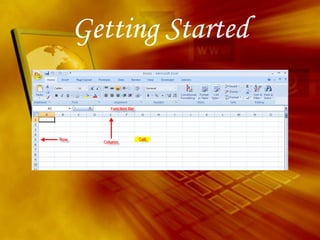
Getting Started
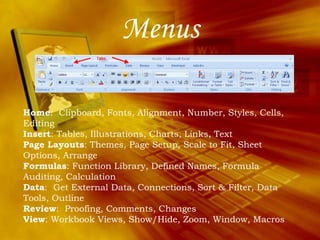
Menus Home :  Clipboard, Fonts, Alignment, Number, Styles, Cells, Editing Insert : Tables, Illustrations, Charts, Links, Text Page Layouts : Themes, Page Setup, Scale to Fit, Sheet Options, Arrange Formulas : Function Library, Defined Names, Formula Auditing, Calculation Data :  Get External Data, Connections, Sort & Filter, Data Tools, Outline Review :  Proofing, Comments, Changes View : Workbook Views, Show/Hide, Zoom, Window, Macros
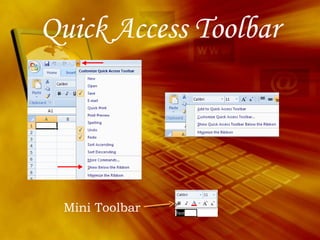
Quick Access Toolbar Mini Toolbar
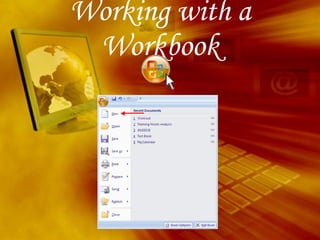
Working with a Workbook
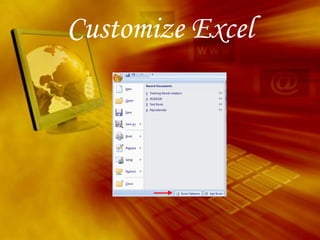
Customize Excel
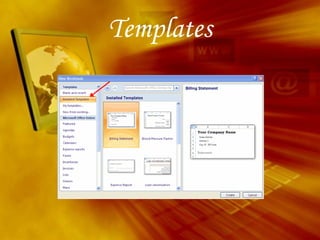
Templates
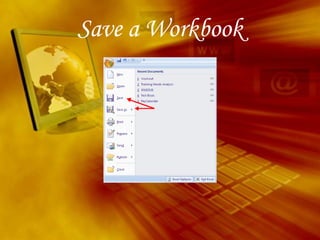
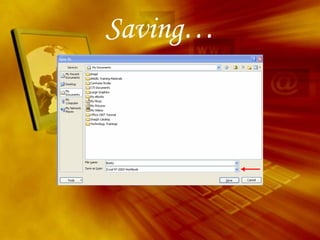
Save a Workbook
Saving…
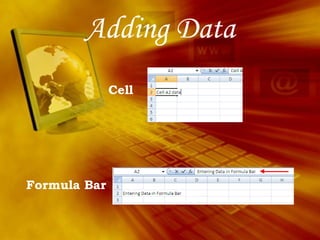
Adding Data Formula Bar Cell
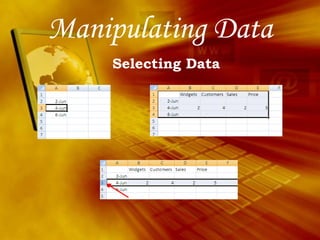
Manipulating Data Selecting Data
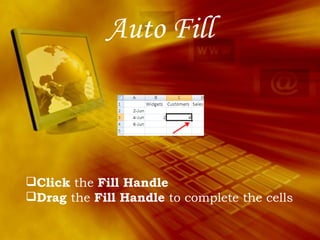
Auto Fill Click  the  Fill Handle   Drag  the  Fill Handle  to complete the cells
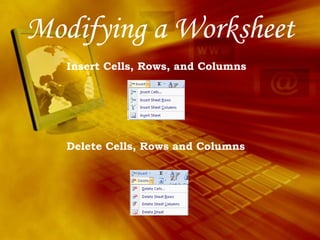
Modifying a Worksheet Insert Cells, Rows, and Columns Delete Cells, Rows and Columns
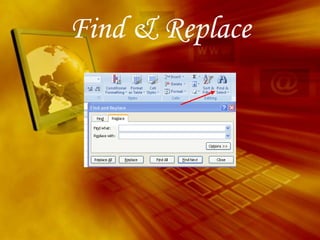
Find & Replace
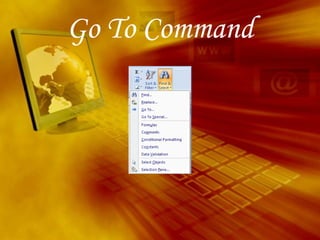
Go To Command
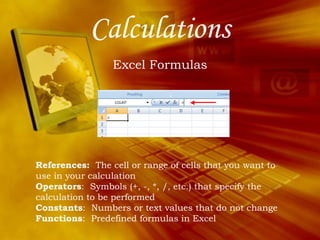
Calculations Excel Formulas References:   The cell or range of cells that you want to use in your calculation Operators :  Symbols (+, -, *, /, etc.) that specify the calculation to be performed Constants :  Numbers or text values that do not change Functions :  Predefined formulas in Excel
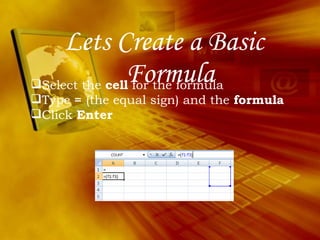
Lets Create a Basic Formula Select the  cell  for the formula Type  =  (the equal sign) and the  formula  Click  Enter
Calculate   with Functions A function is a built in formula in Excel.  A function has a name and arguments (the mathematical function) in parentheses. Sum:  Adds all cells in the argument Average:  Calculates the average of the cells in the argument Min:  Finds the minimum value  Max:  Finds the maximum value Count:  Finds the number of cells that contain a numerical value within a range of the argument
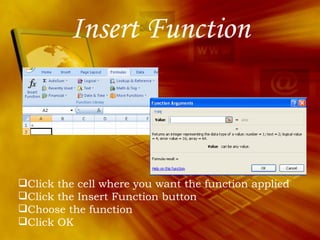
Insert Function Click the cell where you want the function applied Click the Insert Function button Choose the function Click OK
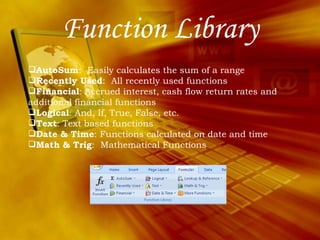
Function Library AutoSum :  Easily calculates the sum of a range Recently Used :  All recently used functions Financial : Accrued interest, cash flow return rates and additional financial functions Logical : And, If, True, False, etc. Text : Text based functions Date & Time : Functions calculated on date and time Math & Trig :  Mathematical Functions
Linking Worksheets "sheetname!celladdress" "=A1+Sheet2!A2"
Macros Recording a Macro Click the  View  tab on the Ribbon Click  Macros Click  Record Macro Enter a name (without spaces) Enter a  Shortcut Key Enter a  Description
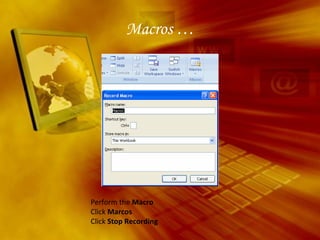
Macros … Perform the  Macro   Click  Marcos Click  Stop Recording
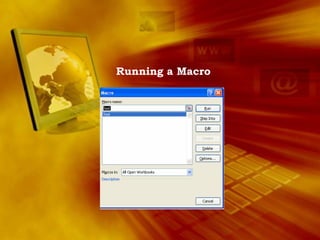
Running a Macro
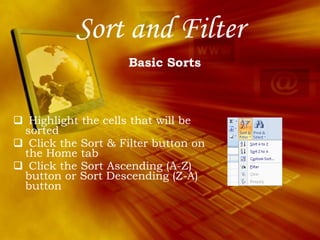
Sort and Filter Highlight the cells that will be sorted Click the Sort & Filter button on the Home tab Click the Sort Ascending (A-Z) button or Sort Descending (Z-A) button Basic Sorts
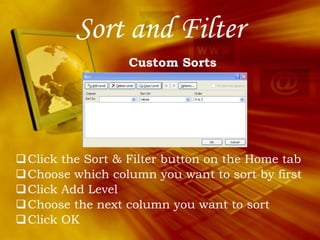
Sort and Filter Click the Sort & Filter button on the Home tab Choose which column you want to sort by first Click Add Level Choose the next column you want to sort Click OK Custom Sorts
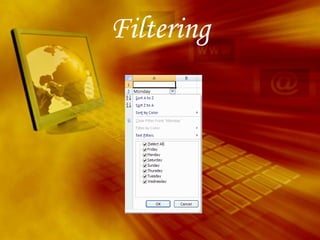
Filtering
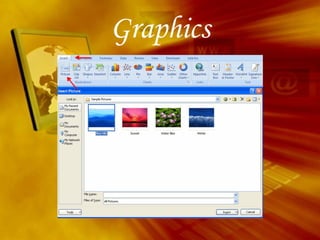
Graphics
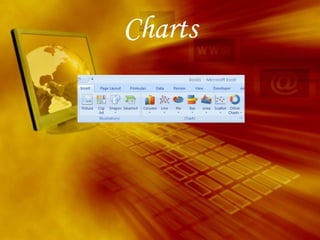
Charts
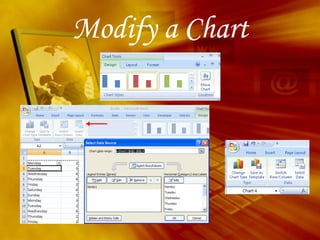
Modify a Chart
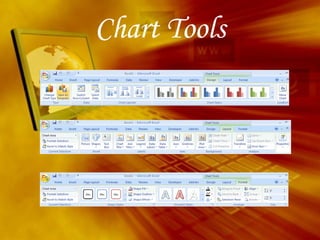
Chart Tools
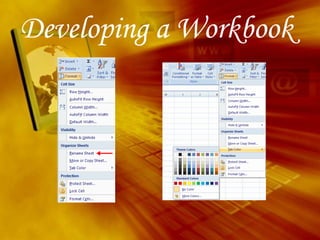
Developing a Workbook
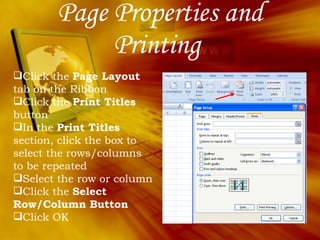
Page Properties and Printing  Click the  Page Layout  tab on the Ribbon Click the  Print Titles  button In the  Print Titles  section, click the box to select the rows/columns to be repeated Select the row or column Click the  Select Row/Column Button Click OK
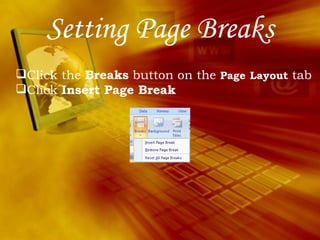
Setting Page Breaks Click the  Breaks  button on the  Page   Layout  tab Click  Insert Page Break
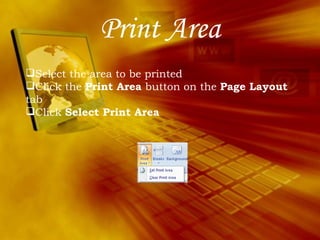
Print Area Select the area to be printed Click the  Print Area  button on the  Page Layout  tab Click  Select Print Area
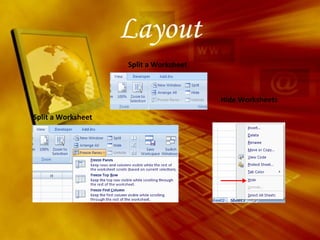
Layout Hide Worksheets Split a Worksheet Split a Worksheet
Project  Report Worksheet Discounts and Payroll Assignment
Prepared by Al Huda International Welfare Foundation www.alhudainstitute.ca www.farhathashmi.com www.alhudapk.com Sources Microsoft  Corporation Florida Gulf Coast University

Microsoft Office Excel

  • 1.
  • 2.
    Packages Internet BasicsMicrosoft Office Social Networking Advanced Editing
  • 3.
    Agenda Word ExcelPowerpoint Access
  • 4.
  • 5.
  • 6.
    Menus Home : Clipboard, Fonts, Alignment, Number, Styles, Cells, Editing Insert : Tables, Illustrations, Charts, Links, Text Page Layouts : Themes, Page Setup, Scale to Fit, Sheet Options, Arrange Formulas : Function Library, Defined Names, Formula Auditing, Calculation Data :  Get External Data, Connections, Sort & Filter, Data Tools, Outline Review :  Proofing, Comments, Changes View : Workbook Views, Show/Hide, Zoom, Window, Macros
  • 7.
  • 8.
  • 9.
  • 10.
  • 11.
  • 12.
  • 13.
  • 14.
  • 15.
    Auto Fill Click the Fill Handle Drag the Fill Handle to complete the cells
  • 16.
    Modifying a WorksheetInsert Cells, Rows, and Columns Delete Cells, Rows and Columns
  • 17.
  • 18.
  • 19.
    Calculations Excel FormulasReferences:   The cell or range of cells that you want to use in your calculation Operators :  Symbols (+, -, *, /, etc.) that specify the calculation to be performed Constants :  Numbers or text values that do not change Functions :  Predefined formulas in Excel
  • 20.
    Lets Create aBasic Formula Select the cell for the formula Type = (the equal sign) and the formula Click Enter
  • 21.
    Calculate with Functions A function is a built in formula in Excel.  A function has a name and arguments (the mathematical function) in parentheses. Sum:  Adds all cells in the argument Average:  Calculates the average of the cells in the argument Min:  Finds the minimum value Max:  Finds the maximum value Count:  Finds the number of cells that contain a numerical value within a range of the argument
  • 22.
    Insert Function Clickthe cell where you want the function applied Click the Insert Function button Choose the function Click OK
  • 23.
    Function Library AutoSum:  Easily calculates the sum of a range Recently Used :  All recently used functions Financial : Accrued interest, cash flow return rates and additional financial functions Logical : And, If, True, False, etc. Text : Text based functions Date & Time : Functions calculated on date and time Math & Trig :  Mathematical Functions
  • 24.
  • 25.
    Macros Recording aMacro Click the View tab on the Ribbon Click Macros Click Record Macro Enter a name (without spaces) Enter a Shortcut Key Enter a Description
  • 26.
    Macros … Performthe Macro Click Marcos Click Stop Recording
  • 27.
  • 28.
    Sort and FilterHighlight the cells that will be sorted Click the Sort & Filter button on the Home tab Click the Sort Ascending (A-Z) button or Sort Descending (Z-A) button Basic Sorts
  • 29.
    Sort and FilterClick the Sort & Filter button on the Home tab Choose which column you want to sort by first Click Add Level Choose the next column you want to sort Click OK Custom Sorts
  • 30.
  • 31.
  • 32.
  • 33.
  • 34.
  • 35.
  • 36.
    Page Properties andPrinting Click the Page Layout tab on the Ribbon Click the Print Titles button In the Print Titles section, click the box to select the rows/columns to be repeated Select the row or column Click the Select Row/Column Button Click OK
  • 37.
    Setting Page BreaksClick the Breaks button on the Page Layout tab Click Insert Page Break
  • 38.
    Print Area Selectthe area to be printed Click the Print Area button on the Page Layout tab Click Select Print Area
  • 39.
    Layout Hide WorksheetsSplit a Worksheet Split a Worksheet
  • 40.
    Project ReportWorksheet Discounts and Payroll Assignment
  • 41.
    Prepared by AlHuda International Welfare Foundation www.alhudainstitute.ca www.farhathashmi.com www.alhudapk.com Sources Microsoft Corporation Florida Gulf Coast University

Editor's Notes

  • #10 There are many ways to view a document in Word.  Print Layout :  This is a view of the document as it would appear when printed.  It includes all tables, text, graphics, and images. Full Screen Reading :  This is a full view length view of a document.  Good for viewing two pages at a time. Web Layout :  This is a view of the document as it would appear in a web browser. Outline :  This is an outline form of the document in the form of bullets. Draft :  This view does not display pictures or layouts, just text. To view a document in different forms, click the document views shortcuts at the bottom of the screen Click the View Tab on the Ribbon