Microsoft Excel An introduction to spreadsheets
Printing… File | Print : Entire workbook Current worksheet
The Basics A workbook consists of 16 spreadsheets. Each spreadsheet is partitioned into rows and columns. A cell is the intersection of a row and column. Rows are labeled 1, 2, …, 65536. Columns are labeled A, B, …, Z, AA, AB, …, AZ, BA, BB, … , IV.
Basics ... A cell is referenced by its column label followed by its row label. For example, B7 AK37 iv65536 ROW COLUMN
A cell can contain text Total Sales a number 234.6 a formula (must begin with an =) =B2-C7 a built-in function (must begin with an =) =SUM(K3..K9)
Changing the size of columns Move the mouse between the two columns that you want to alter.  The arrow will change to a plus sign, and then you can click on the line and change the width of the column.
Change the size of rows To change the size of the rows you do the same thing that you did to change the size of the columns. The only difference is you put the mouse between the two numbers instead of letters
Importing a Text File From the File menu, choose Open Enter the name of the text file Click OK Follow the steps displayed by the Text Import Wizard
Adding Style to a worksheet Select the desired range of cells you want Choose Format, then Style Open the Style Name drop-down list box Select the style you want Click OK
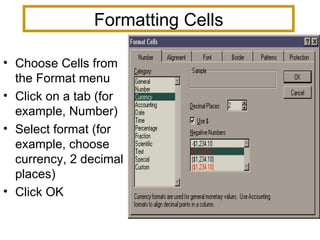
Formatting Cells Choose Cells from the Format menu Click on a tab (for example, Number) Select format (for example, choose currency, 2 decimal places) Click OK
Copying a Formula Move the mouse to the bottom-right corner of the cell to be copied. When the cursor changes shape to +, click and drag the mouse over the cells you are copying to. Release the mouse.
Using Autofill Quick way to copy cells and their formulas: - Click on a cell  - Point the mouse to the Fill handle   arrow becomes  +  -  Drag to range of cells then release
The autofill feature allows you to copy the first entry to the end of the column
Using Functions Click the  f x  button to start the function wizard. Locate the function to be entered into a cell.
Function ... Enter a cell reference for each argument of the function. A cell reference may be a range of cells or a single cell. Click Finish.
Charts To make a chart click on the chart wizard. Now decide what kind of chart you would like to use. Enter the formula =$E$2:$E$6 into the range box. Then enter the necessary information into step 2, and then press finish.
 
 
This is similar to what your chart should look like, depending on the type of chart you select.
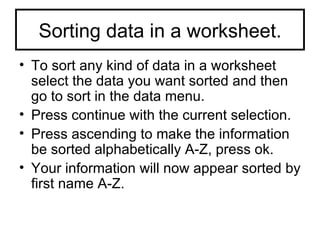
Sorting data in a worksheet. To sort any kind of data in a worksheet select the data you want sorted and then go to sort in the data menu. Press continue with the current selection. Press ascending to make the information be sorted alphabetically A-Z, press ok. Your information will now appear sorted by first name A-Z.
Template A template is a worksheet in which text and formulas have been entered but the data manipulated by the formulas have been left out. A template is created when it is used on a periodic basis, e.g., a quarterly report, a grade roster, … .
Example template Student names and grades are left out
Copying cells Cell   Formula Let the above notation represent that a  Formula  is stored in a  Cell . For example,  D2   B2 * C2  says that formula =B2*C2 is stored in cell D2. To compute the formula in  Cell destination   copied from  Cell source   use the notation below: Cell source   Formula source   c  |  |  r   Cell destination   Formula destination where c = change in column from source to destination and r = change in row from source to destination.
Relative Addressing Copy D2’s contents to cell D10 D2  B2 * C2   c=0  |  |  r=8   D10  ?  Do not change the column but advance the row by 8 implies  B10 * C10  is the formula stored in cell D10. Change all columns by c and change all rows by r
Saving and printing a worksheet. File |  Save or Save as   Entire workbook will be saved
Printing… File | Print : Entire workbook Current worksheet

Powerpoint school

  • 1.
    Microsoft Excel Anintroduction to spreadsheets
  • 2.
    Printing… File |Print : Entire workbook Current worksheet
  • 3.
    The Basics Aworkbook consists of 16 spreadsheets. Each spreadsheet is partitioned into rows and columns. A cell is the intersection of a row and column. Rows are labeled 1, 2, …, 65536. Columns are labeled A, B, …, Z, AA, AB, …, AZ, BA, BB, … , IV.
  • 4.
    Basics ... Acell is referenced by its column label followed by its row label. For example, B7 AK37 iv65536 ROW COLUMN
  • 5.
    A cell cancontain text Total Sales a number 234.6 a formula (must begin with an =) =B2-C7 a built-in function (must begin with an =) =SUM(K3..K9)
  • 6.
    A cell cancontain text Total Sales a number 234.6 a formula (must begin with an =) =B2-C7 a built-in function (must begin with an =) =SUM(K3..K9)
  • 7.
    Changing the sizeof columns Move the mouse between the two columns that you want to alter. The arrow will change to a plus sign, and then you can click on the line and change the width of the column.
  • 8.
    Change the sizeof rows To change the size of the rows you do the same thing that you did to change the size of the columns. The only difference is you put the mouse between the two numbers instead of letters
  • 9.
    Importing a TextFile From the File menu, choose Open Enter the name of the text file Click OK Follow the steps displayed by the Text Import Wizard
  • 10.
    Adding Style toa worksheet Select the desired range of cells you want Choose Format, then Style Open the Style Name drop-down list box Select the style you want Click OK
  • 11.
    Formatting Cells ChooseCells from the Format menu Click on a tab (for example, Number) Select format (for example, choose currency, 2 decimal places) Click OK
  • 12.
    Copying a FormulaMove the mouse to the bottom-right corner of the cell to be copied. When the cursor changes shape to +, click and drag the mouse over the cells you are copying to. Release the mouse.
  • 13.
    Using Autofill Quickway to copy cells and their formulas: - Click on a cell - Point the mouse to the Fill handle arrow becomes + - Drag to range of cells then release
  • 14.
    The autofill featureallows you to copy the first entry to the end of the column
  • 15.
    Using Functions Clickthe f x button to start the function wizard. Locate the function to be entered into a cell.
  • 16.
    Function ... Entera cell reference for each argument of the function. A cell reference may be a range of cells or a single cell. Click Finish.
  • 17.
    Charts To makea chart click on the chart wizard. Now decide what kind of chart you would like to use. Enter the formula =$E$2:$E$6 into the range box. Then enter the necessary information into step 2, and then press finish.
  • 18.
    Charts To makea chart click on the chart wizard. Now decide what kind of chart you would like to use. Enter the formula =$E$2:$E$6 into the range box. Then enter the necessary information into step 2, and then press finish.
  • 19.
  • 20.
  • 21.
    This is similarto what your chart should look like, depending on the type of chart you select.
  • 22.
    Sorting data ina worksheet. To sort any kind of data in a worksheet select the data you want sorted and then go to sort in the data menu. Press continue with the current selection. Press ascending to make the information be sorted alphabetically A-Z, press ok. Your information will now appear sorted by first name A-Z.
  • 23.
    Template A templateis a worksheet in which text and formulas have been entered but the data manipulated by the formulas have been left out. A template is created when it is used on a periodic basis, e.g., a quarterly report, a grade roster, … .
  • 24.
    Example template Studentnames and grades are left out
  • 25.
    Copying cells Cell Formula Let the above notation represent that a Formula is stored in a Cell . For example, D2 B2 * C2 says that formula =B2*C2 is stored in cell D2. To compute the formula in Cell destination copied from Cell source use the notation below: Cell source Formula source c | | r Cell destination Formula destination where c = change in column from source to destination and r = change in row from source to destination.
  • 26.
    Relative Addressing CopyD2’s contents to cell D10 D2 B2 * C2 c=0 | | r=8 D10 ? Do not change the column but advance the row by 8 implies B10 * C10 is the formula stored in cell D10. Change all columns by c and change all rows by r
  • 27.
    Saving and printinga worksheet. File | Save or Save as Entire workbook will be saved
  • 28.
    Printing… File |Print : Entire workbook Current worksheet