How to Manage Reservation
Method in Odoo 18
Inventory
Enterprise
Enterprise
Introduction
Reservation method is the process of reserving the components of the
items whenever a customer places the order. In Odoo, we can manage
the reservation process using three ways:
● At Confirmation
● Manual reservation
● Scheduled Date
‘At Confirmation’ means when a order is placed, the product will be
automatically reserved by assuming that we have sufficient items in
the stock.
Enterprise
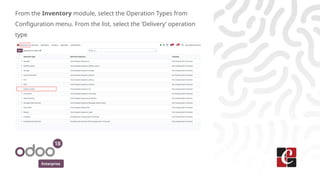
From the Inventory module, select the Operation Types from
Configuration menu. From the list, select the ‘Delivery’ operation
type
Enterprise
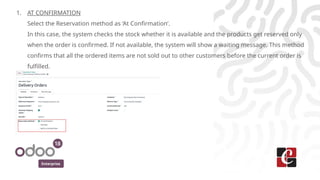
1. AT CONFIRMATION
Select the Reservation method as ‘At Confirmation’.
In this case, the system checks the stock whether it is available and the products get reserved only
when the order is confirmed. If not available, the system will show a waiting message. This method
confirms that all the ordered items are not sold out to other customers before the current order is
fulfilled.
Enterprise
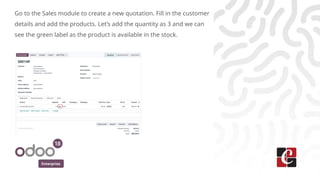
Go to the Sales module to create a new quotation. Fill in the customer
details and add the products. Let’s add the quantity as 3 and we can
see the green label as the product is available in the stock.
Enterprise
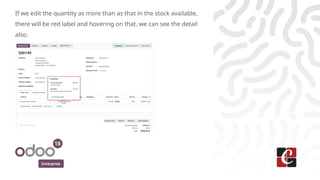
If we edit the quantity as more than as that in the stock available,
there will be red label and hovering on that, we can see the detail
also.
Enterprise
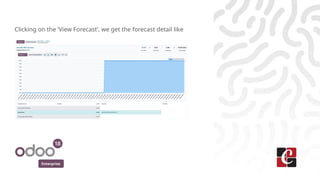
Clicking on the ‘View Forecast’, we get the forecast detail like
Enterprise
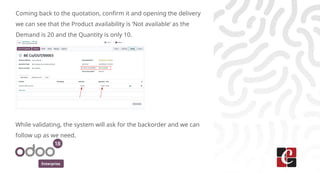
Coming back to the quotation, confirm it and opening the delivery
we can see that the Product availability is ‘Not available’ as the
Demand is 20 and the Quantity is only 10.
While validating, the system will ask for the backorder and we can
follow up as we need.
Enterprise
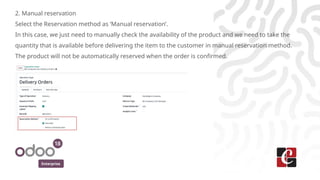
2. Manual reservation
Select the Reservation method as ‘Manual reservation’.
In this case, we just need to manually check the availability of the product and we need to take the
quantity that is available before delivering the item to the customer in manual reservation method.
The product will not be automatically reserved when the order is confirmed.
Enterprise
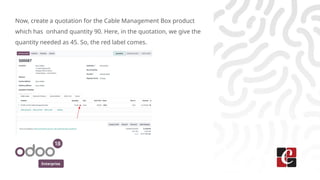
Now, create a quotation for the Cable Management Box product
which has onhand quantity 90. Here, in the quotation, we give the
quantity needed as 45. So, the red label comes.
Enterprise
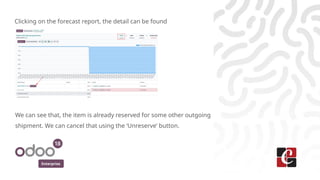
Clicking on the forecast report, the detail can be found
We can see that, the item is already reserved for some other outgoing
shipment. We can cancel that using the ‘Unreserve’ button.
Enterprise
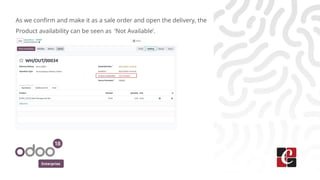
As we confirm and make it as a sale order and open the delivery, the
Product availability can be seen as ‘Not Available’.
Enterprise
In this case, no items are reserved. We can manually reserve the item
by editing the ‘Quantity’ in the product lines. Still it will be in the
‘Waiting’ state.
We can manually check the availability by clicking the ‘Check
Availability’ button and proceed to the validation with or without
backorder .
Enterprise
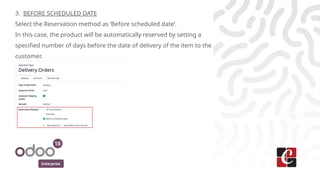
3. BEFORE SCHEDULED DATE
Select the Reservation method as ‘Before scheduled date’.
In this case, the product will be automatically reserved by setting a
specified number of days before the date of delivery of the item to the
customer.
Enterprise
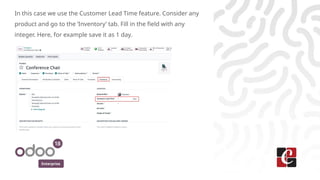
In this case we use the Customer Lead Time feature. Consider any
product and go to the ‘Inventory’ tab. Fill in the field with any
integer. Here, for example save it as 1 day.
Enterprise
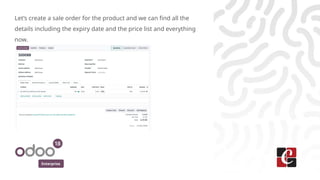
Let’s create a sale order for the product and we can find all the
details including the expiry date and the price list and everything
now.
Enterprise
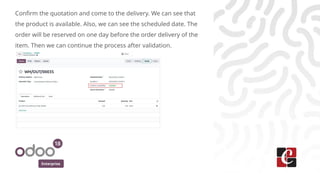
Confirm the quotation and come to the delivery. We can see that
the product is available. Also, we can see the scheduled date. The
order will be reserved on one day before the order delivery of the
item. Then we can continue the process after validation.
For More Info.
Check our company website for related blogs
and Odoo book.
Check our YouTube channel for
functional and technical videos in Odoo.
Enterprise
www.cybrosys.com

How to Manage Reservation Method in Odoo 18 Inventory

  • 1.
    How to ManageReservation Method in Odoo 18 Inventory Enterprise
  • 2.
    Enterprise Introduction Reservation method isthe process of reserving the components of the items whenever a customer places the order. In Odoo, we can manage the reservation process using three ways: ● At Confirmation ● Manual reservation ● Scheduled Date ‘At Confirmation’ means when a order is placed, the product will be automatically reserved by assuming that we have sufficient items in the stock.
  • 3.
    Enterprise From the Inventorymodule, select the Operation Types from Configuration menu. From the list, select the ‘Delivery’ operation type
  • 4.
    Enterprise 1. AT CONFIRMATION Selectthe Reservation method as ‘At Confirmation’. In this case, the system checks the stock whether it is available and the products get reserved only when the order is confirmed. If not available, the system will show a waiting message. This method confirms that all the ordered items are not sold out to other customers before the current order is fulfilled.
  • 5.
    Enterprise Go to theSales module to create a new quotation. Fill in the customer details and add the products. Let’s add the quantity as 3 and we can see the green label as the product is available in the stock.
  • 6.
    Enterprise If we editthe quantity as more than as that in the stock available, there will be red label and hovering on that, we can see the detail also.
  • 7.
    Enterprise Clicking on the‘View Forecast’, we get the forecast detail like
  • 8.
    Enterprise Coming back tothe quotation, confirm it and opening the delivery we can see that the Product availability is ‘Not available’ as the Demand is 20 and the Quantity is only 10. While validating, the system will ask for the backorder and we can follow up as we need.
  • 9.
    Enterprise 2. Manual reservation Selectthe Reservation method as ‘Manual reservation’. In this case, we just need to manually check the availability of the product and we need to take the quantity that is available before delivering the item to the customer in manual reservation method. The product will not be automatically reserved when the order is confirmed.
  • 10.
    Enterprise Now, create aquotation for the Cable Management Box product which has onhand quantity 90. Here, in the quotation, we give the quantity needed as 45. So, the red label comes.
  • 11.
    Enterprise Clicking on theforecast report, the detail can be found We can see that, the item is already reserved for some other outgoing shipment. We can cancel that using the ‘Unreserve’ button.
  • 12.
    Enterprise As we confirmand make it as a sale order and open the delivery, the Product availability can be seen as ‘Not Available’.
  • 13.
    Enterprise In this case,no items are reserved. We can manually reserve the item by editing the ‘Quantity’ in the product lines. Still it will be in the ‘Waiting’ state. We can manually check the availability by clicking the ‘Check Availability’ button and proceed to the validation with or without backorder .
  • 14.
    Enterprise 3. BEFORE SCHEDULEDDATE Select the Reservation method as ‘Before scheduled date’. In this case, the product will be automatically reserved by setting a specified number of days before the date of delivery of the item to the customer.
  • 15.
    Enterprise In this casewe use the Customer Lead Time feature. Consider any product and go to the ‘Inventory’ tab. Fill in the field with any integer. Here, for example save it as 1 day.
  • 16.
    Enterprise Let’s create asale order for the product and we can find all the details including the expiry date and the price list and everything now.
  • 17.
    Enterprise Confirm the quotationand come to the delivery. We can see that the product is available. Also, we can see the scheduled date. The order will be reserved on one day before the order delivery of the item. Then we can continue the process after validation.
  • 18.
    For More Info. Checkour company website for related blogs and Odoo book. Check our YouTube channel for functional and technical videos in Odoo. Enterprise www.cybrosys.com