By JasonEllis
1
Question Guide for DS 2810
Most things on excel and access on a mac are
usually found by hovering at the top of the window
Insert a function in cell B24 to calculate the total sales for Q1 in column B.
Total = Sum/Autosum
Insert a function in the cell H11 that looks up the sales rep region based on the table in cells E2:F6.
Looks Up = VLOOKUP
Enter a function in cell I11 to calculate the sales reps eligibility for bonus. If the reps total sales are
greater than or equal to the sales_goal then the function should return the
value Bonus, if not the function should return NA.
If = IF()
Greater than or equal to = >=
First return = True (Bonus)
Second return = False (NA)
Insert a function in cell B30 to calculate the total number of sales reps.
Total number of sales reps (people) = Count()
Insert a function in cell B3 to display the current date.
Current Date = Today()
● Display Current date and time
Date and time = Now()
In cell F6, enter a formula to calculate the Annual Property Tax based on the negotiated cost of the
house and the annual property tax rate. Use range names in the formula.
By JasonEllis
2
Negotiated Cost=(Cost=Range Name)
Annual Property tax Rate=(ProptaxRate= Range name)
Rate is a percentage so it will always be multiplied
Range names are already given to you so you do not have to name them yourself
Difference= Subtraction
Calculate the Monthly Property Tax= (PropTax/Months=Range Names)
Anything with a date is usually division unless the instructions say otherwise
Doinganythingwithchartsshouldincorporate the
1.Home Tab
2.Insert Tab
3.Chart Tools
● Design
● Layout
● Format
● AnythingPertainingtothe chart youhave to rightclickon the chart
● CategoryAxishasletters
● Value Axishasnumbers
● Legendhascolorful isbulletpointsandletters
How to putcategoriesinreverse order
● RightClickon the categoryaxis
o Clickformat axis
▪ Thenclickcategoriesinreverse order checkbox andthenclickclose
How to getto value unitsandchange the major and minorunits
● Rightclickon the value axis
o Clickformataxis(DisplayUnitsshouldbe there)
▪ Major,Minor,Max,andMinimumunitsshouldbe displayed
How to change the decimal place forthe value axis
Go to number
o Clickformataxis
o Go to number
▪ Change the categoryfrom customto number
By JasonEllis
3
● Change the decimal place
DisplayingCustomFooteronthe chartsheet
● Go to Page Layout Tab
o ClickPage setupbutton
▪ Thenclickheader/footer
● Thenclickcustom footer
How to AddSparklines
● Highlightrange of cellsfirst
o Go to inserttab
● Clicksparklines
o Andthenselectthe range that isgiveninthe instructions
▪ Sparkline (DesignTab) forthe highpointandmarker
coloring
How to remove thingsfromthe charton the category axisandvalue axis
● Go to The designonchart tools
o Clickselectdata
▪ Remove categorytotals
● Thenswitchrow andcolumndata
o Andthenremove weeklytotals
▪ Andthenswitchrow andcolumndata back
Ctrl + Clicking on something else = Control Select
Most things on excel on a mac are usually found by hovering at the top of the window
ChangingThe row andcolumn
● Clickswitchplotfor(MAC)
● ClickSwitchrowand columnfor(PC)
Chapter 4
● Type Total Original Value in cell G1. In cell G2, enter a structured formula: If Edition Size is greater
than 0, then multiply Edition Size by Issue Price; otherwise display an empty
cell using "". Format the range G2:G105 with Accounting Number Format with zero decimal places.
By JasonEllis
4
=IF(Edition Size > 0,Edition Size*Issue Price,””)
● Conditional formatting
o Manage Rules
▪ New Rules
● Then go to use a formula to determine which
cells to format
o Format first
▪ Enter the conditional statement
under the edit the rule description
line
● Then add the range cells after
pressing ok
Chapter 5
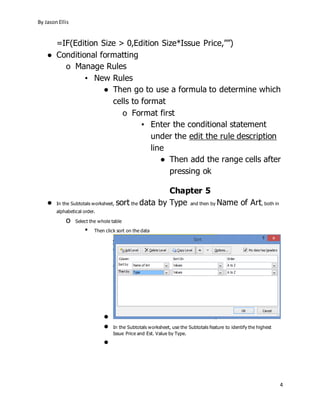
● In the Subtotals worksheet, sort the data by Type and then by Name of Art, both in
alphabetical order.
o Select the whole table
▪ Then click sort on the data
●
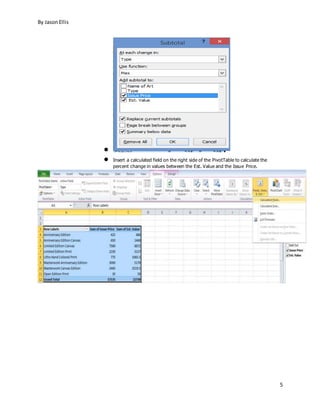
● In the Subtotals worksheet, use the Subtotals feature to identify the highest
Issue Price and Est. Value by Type.
●
By JasonEllis
5
●
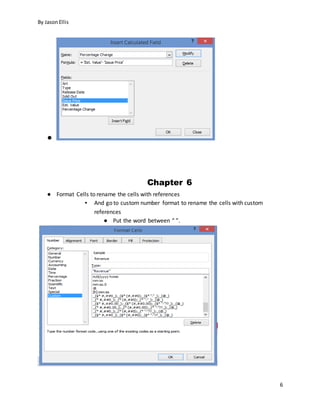
● Insert a calculated field on the right side of the PivotTable to calculate the
percent change in values between the Est. Value and the Issue Price.
By JasonEllis
6
●
Chapter 6
● Format Cells to rename the cells with references
▪ And go to custom number format to rename the cells with custom
references
● Put the word between “ ”.
By JasonEllis
7
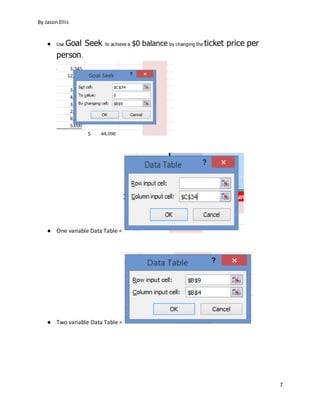
● Use Goal Seek to achieve a $0 balance by changing the ticket price per
person.
● One variable Data Table =
● Two variable Data Table =
By JasonEllis
8
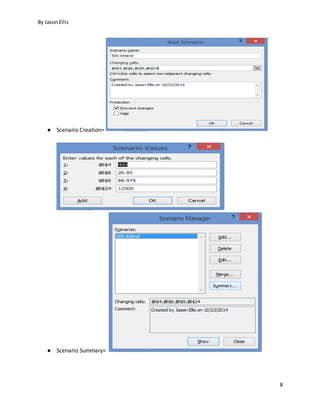
● Scenario Creation=
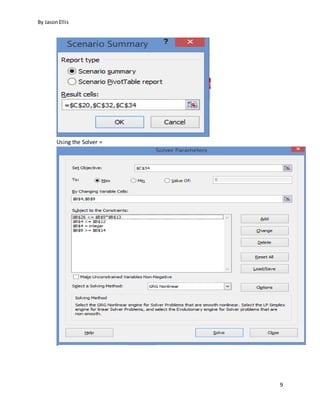
● Scenario Summary=
By JasonEllis
9
Using the Solver =
By JasonEllis
10
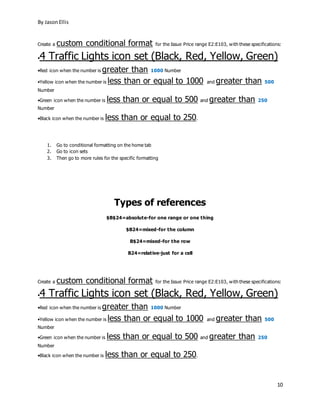
Create a custom conditional format for the Issue Price range E2:E103, with these specifications:
•4 Traffic Lights icon set (Black, Red, Yellow, Green)
•Red icon when the number is greater than 1000 Number
•Yellow icon when the number is less than or equal to 1000 and greater than 500
Number
•Green icon when the number is less than or equal to 500 and greater than 250
Number
•Black icon when the number is less than or equal to 250.
1. Go to conditional formatting on the home tab
2. Go to icon sets
3. Then go to more rules for the specific formatting
Types of references
$B$24=absolute-for one range or one thing
$B24=mixed-for the column
B$24=mixed-for the row
B24=relative-just for a cell
Create a custom conditional format for the Issue Price range E2:E103, with these specifications:
•4 Traffic Lights icon set (Black, Red, Yellow, Green)
•Red icon when the number is greater than 1000 Number
•Yellow icon when the number is less than or equal to 1000 and greater than 500
Number
•Green icon when the number is less than or equal to 500 and greater than 250
Number
•Black icon when the number is less than or equal to 250.
By JasonEllis
11
4. Go to conditional formatting on the home tab
5. Go to icon sets
6. Then go to more rules for the specific formatting
● home tab
o format drop down list
▪ Setting column width
page layout tab
➢ Setting the landscape
➢ Scale to fit
➢ Setting margins and Setting Orientation
➢ Print Gridlines and View Headings
Insert Tab
▪ Insert footer
x-axis horizontal axis.
y-axis vertical axis.
=CountA() – targets names. so use the range that has names.
PivotTable and PivotChart are on the insert tab the first to the left.
=SUM()-Adds up a total in a range of cells
Count is usually used with numbers and not letters
CountA is used with letters
=Min()-Minimum
=Max()-Maximum
=Average()-Adds up the total and divides it by how many it added up
=Median()-Takes the middle number out of the targeted range
Average,Count,Min,Max,and Sum are found in the autosum button on the
home and function tab
By JasonEllis
12
o Insert Tab
o The Insert function button
▪ Function Box-The function box is found when you click the insert
function button
Naming,Defining,Managing are found on the function tab
Excel
1. Home
o Clipboard
▪ Paste
▪ Cut
▪ Format Painter
▪ Copy
o Font
▪ Bold
▪ Underline
▪ Italic
▪ Border
▪ Font Coloring
▪ Fill Color
▪ Increase font size
▪ Decrease font size
▪ Change Font
▪ Change Font size manually
o Alignment
▪ Top Align
▪ Middle Align
▪ Bottom Align
▪ Align Text Left
By JasonEllis
13
▪ Align Text Middle
▪ Align Text Right
▪ Decrease Indent
▪ Increase Indent
▪ Orientation
▪ Merge & Center
▪ Wrap text
o Number
▪ Accounting number format
▪ Percent Style
▪ Comma Style
▪ Increase Decimal
▪ Decrease Decimal
o Styles
o Cells
▪ Insert
▪ Delete
▪ Format
o Editing
▪ Autosum
▪ Fill
▪ Clear
▪ Find & Select
▪ Sort & Filter
2. Insert
▪ Tables
▪ PivotTable & PivotChart
▪ Table
▪ Illustrations
▪ Picture
By JasonEllis
14
▪ Clip Art
▪ Smart Art
▪ Shapes
▪ Screenshot
▪ Charts
▪ Sparklines
▪ Filter
▪ Slicer
▪ Links
▪ Hyperlink
▪ Text
▪ Text Box
▪ Header & Footer
▪ WordArt
▪ Signature Line
▪ Insert Object
▪ Symbols
3. Page Layout
▪ Themes
o Theme Colors
o Theme Fonts
o Theme Effects
o Themes
▪ Page Setup
o Margins
o Size
o Orientation
o Print Area
o Background
o Print Titles
By JasonEllis
15
▪ Scale to fit
o Width
o Height
o Scale
▪ Sheet Options
▪ Arrange
4. Formulas
▪ Function Library
o Insert Function
o Autosum
o Recently Used
o Financial
o Logical
o Text
o Date & Time
o Lookup & Reference
o Math & Trig
o More Functions
▪ Defined Names
o Name Manager
o Define name
o Use in Formula
o Create from Selection
▪ Formula Auditing
▪ Calculation
5. Data
▪ External Data
▪ Connections
o Refresh All
o Connections
By JasonEllis
16
o Properties
o Edit Links
▪ Sort&Filter
o Sort
o Filter
o Clear
o Reapply
o Advanced
▪ Data Tools
o Text to columns
o Remove Duplicates
o Data Validation
o Consolidate
o What-If Analysis
▪ Outline
6. Review
▪ Proofing
o Spelling
o Research
o Thesaurus
▪ Language
o Translate
▪ Comments
o New Comment
o Delete Comment
o Next
o Previous
o Show/Hide comment
o Show All Comments
o Show ink
By JasonEllis
17
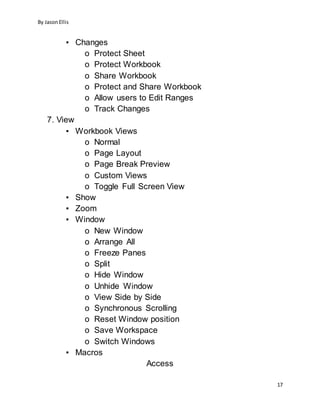
▪ Changes
o Protect Sheet
o Protect Workbook
o Share Workbook
o Protect and Share Workbook
o Allow users to Edit Ranges
o Track Changes
7. View
▪ Workbook Views
o Normal
o Page Layout
o Page Break Preview
o Custom Views
o Toggle Full Screen View
▪ Show
▪ Zoom
▪ Window
o New Window
o Arrange All
o Freeze Panes
o Split
o Hide Window
o Unhide Window
o View Side by Side
o Synchronous Scrolling
o Reset Window position
o Save Workspace
o Switch Windows
▪ Macros
Access
By JasonEllis
18
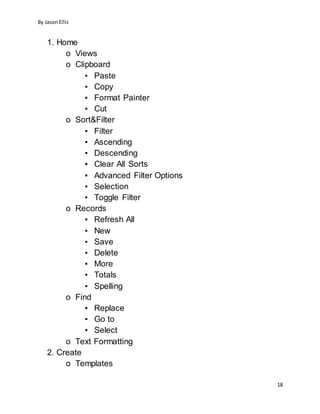
1. Home
o Views
o Clipboard
▪ Paste
▪ Copy
▪ Format Painter
▪ Cut
o Sort&Filter
▪ Filter
▪ Ascending
▪ Descending
▪ Clear All Sorts
▪ Advanced Filter Options
▪ Selection
▪ Toggle Filter
o Records
▪ Refresh All
▪ New
▪ Save
▪ Delete
▪ More
▪ Totals
▪ Spelling
o Find
▪ Replace
▪ Go to
▪ Select
o Text Formatting
2. Create
o Templates
By JasonEllis
19
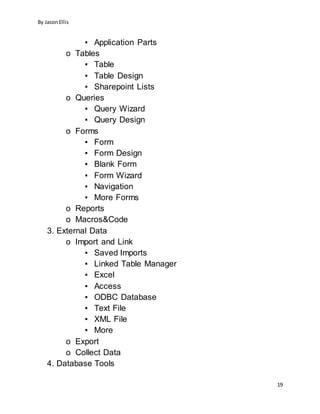
▪ Application Parts
o Tables
▪ Table
▪ Table Design
▪ Sharepoint Lists
o Queries
▪ Query Wizard
▪ Query Design
o Forms
▪ Form
▪ Form Design
▪ Blank Form
▪ Form Wizard
▪ Navigation
▪ More Forms
o Reports
o Macros&Code
3. External Data
o Import and Link
▪ Saved Imports
▪ Linked Table Manager
▪ Excel
▪ Access
▪ ODBC Database
▪ Text File
▪ XML File
▪ More
o Export
o Collect Data
4. Database Tools
By JasonEllis
20
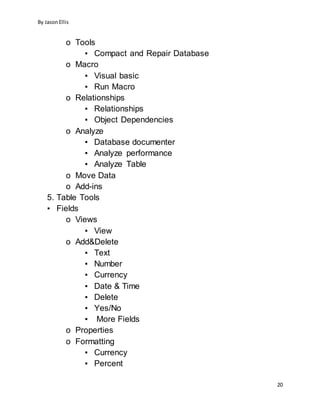
o Tools
▪ Compact and Repair Database
o Macro
▪ Visual basic
▪ Run Macro
o Relationships
▪ Relationships
▪ Object Dependencies
o Analyze
▪ Database documenter
▪ Analyze performance
▪ Analyze Table
o Move Data
o Add-ins
5. Table Tools
▪ Fields
o Views
▪ View
o Add&Delete
▪ Text
▪ Number
▪ Currency
▪ Date & Time
▪ Delete
▪ Yes/No
▪ More Fields
o Properties
o Formatting
▪ Currency
▪ Percent
By JasonEllis
21
▪ Comma
▪ Decrease decimal
▪ Increase decimal
o Field Validation
▪ Table
o Properties
▪ Table Properties
o Before Events
▪ Before Change
▪ Before Delete
o After Events
▪ After Insert
▪ After Update
▪ After Delete
o Named Macros
▪ Named Macro
o Relationships
▪ Relationships
▪ Object Depencies

QuestionGuideforDS-003.docx (2)

  • 1.
    By JasonEllis 1 Question Guidefor DS 2810 Most things on excel and access on a mac are usually found by hovering at the top of the window Insert a function in cell B24 to calculate the total sales for Q1 in column B. Total = Sum/Autosum Insert a function in the cell H11 that looks up the sales rep region based on the table in cells E2:F6. Looks Up = VLOOKUP Enter a function in cell I11 to calculate the sales reps eligibility for bonus. If the reps total sales are greater than or equal to the sales_goal then the function should return the value Bonus, if not the function should return NA. If = IF() Greater than or equal to = >= First return = True (Bonus) Second return = False (NA) Insert a function in cell B30 to calculate the total number of sales reps. Total number of sales reps (people) = Count() Insert a function in cell B3 to display the current date. Current Date = Today() ● Display Current date and time Date and time = Now() In cell F6, enter a formula to calculate the Annual Property Tax based on the negotiated cost of the house and the annual property tax rate. Use range names in the formula.
  • 2.
    By JasonEllis 2 Negotiated Cost=(Cost=RangeName) Annual Property tax Rate=(ProptaxRate= Range name) Rate is a percentage so it will always be multiplied Range names are already given to you so you do not have to name them yourself Difference= Subtraction Calculate the Monthly Property Tax= (PropTax/Months=Range Names) Anything with a date is usually division unless the instructions say otherwise Doinganythingwithchartsshouldincorporate the 1.Home Tab 2.Insert Tab 3.Chart Tools ● Design ● Layout ● Format ● AnythingPertainingtothe chart youhave to rightclickon the chart ● CategoryAxishasletters ● Value Axishasnumbers ● Legendhascolorful isbulletpointsandletters How to putcategoriesinreverse order ● RightClickon the categoryaxis o Clickformat axis ▪ Thenclickcategoriesinreverse order checkbox andthenclickclose How to getto value unitsandchange the major and minorunits ● Rightclickon the value axis o Clickformataxis(DisplayUnitsshouldbe there) ▪ Major,Minor,Max,andMinimumunitsshouldbe displayed How to change the decimal place forthe value axis Go to number o Clickformataxis o Go to number ▪ Change the categoryfrom customto number
  • 3.
    By JasonEllis 3 ● Changethe decimal place DisplayingCustomFooteronthe chartsheet ● Go to Page Layout Tab o ClickPage setupbutton ▪ Thenclickheader/footer ● Thenclickcustom footer How to AddSparklines ● Highlightrange of cellsfirst o Go to inserttab ● Clicksparklines o Andthenselectthe range that isgiveninthe instructions ▪ Sparkline (DesignTab) forthe highpointandmarker coloring How to remove thingsfromthe charton the category axisandvalue axis ● Go to The designonchart tools o Clickselectdata ▪ Remove categorytotals ● Thenswitchrow andcolumndata o Andthenremove weeklytotals ▪ Andthenswitchrow andcolumndata back Ctrl + Clicking on something else = Control Select Most things on excel on a mac are usually found by hovering at the top of the window ChangingThe row andcolumn ● Clickswitchplotfor(MAC) ● ClickSwitchrowand columnfor(PC) Chapter 4 ● Type Total Original Value in cell G1. In cell G2, enter a structured formula: If Edition Size is greater than 0, then multiply Edition Size by Issue Price; otherwise display an empty cell using "". Format the range G2:G105 with Accounting Number Format with zero decimal places.
  • 4.
    By JasonEllis 4 =IF(Edition Size> 0,Edition Size*Issue Price,””) ● Conditional formatting o Manage Rules ▪ New Rules ● Then go to use a formula to determine which cells to format o Format first ▪ Enter the conditional statement under the edit the rule description line ● Then add the range cells after pressing ok Chapter 5 ● In the Subtotals worksheet, sort the data by Type and then by Name of Art, both in alphabetical order. o Select the whole table ▪ Then click sort on the data ● ● In the Subtotals worksheet, use the Subtotals feature to identify the highest Issue Price and Est. Value by Type. ●
  • 5.
    By JasonEllis 5 ● ● Inserta calculated field on the right side of the PivotTable to calculate the percent change in values between the Est. Value and the Issue Price.
  • 6.
    By JasonEllis 6 ● Chapter 6 ●Format Cells to rename the cells with references ▪ And go to custom number format to rename the cells with custom references ● Put the word between “ ”.
  • 7.
    By JasonEllis 7 ● UseGoal Seek to achieve a $0 balance by changing the ticket price per person. ● One variable Data Table = ● Two variable Data Table =
  • 8.
    By JasonEllis 8 ● ScenarioCreation= ● Scenario Summary=
  • 9.
  • 10.
    By JasonEllis 10 Create acustom conditional format for the Issue Price range E2:E103, with these specifications: •4 Traffic Lights icon set (Black, Red, Yellow, Green) •Red icon when the number is greater than 1000 Number •Yellow icon when the number is less than or equal to 1000 and greater than 500 Number •Green icon when the number is less than or equal to 500 and greater than 250 Number •Black icon when the number is less than or equal to 250. 1. Go to conditional formatting on the home tab 2. Go to icon sets 3. Then go to more rules for the specific formatting Types of references $B$24=absolute-for one range or one thing $B24=mixed-for the column B$24=mixed-for the row B24=relative-just for a cell Create a custom conditional format for the Issue Price range E2:E103, with these specifications: •4 Traffic Lights icon set (Black, Red, Yellow, Green) •Red icon when the number is greater than 1000 Number •Yellow icon when the number is less than or equal to 1000 and greater than 500 Number •Green icon when the number is less than or equal to 500 and greater than 250 Number •Black icon when the number is less than or equal to 250.
  • 11.
    By JasonEllis 11 4. Goto conditional formatting on the home tab 5. Go to icon sets 6. Then go to more rules for the specific formatting ● home tab o format drop down list ▪ Setting column width page layout tab ➢ Setting the landscape ➢ Scale to fit ➢ Setting margins and Setting Orientation ➢ Print Gridlines and View Headings Insert Tab ▪ Insert footer x-axis horizontal axis. y-axis vertical axis. =CountA() – targets names. so use the range that has names. PivotTable and PivotChart are on the insert tab the first to the left. =SUM()-Adds up a total in a range of cells Count is usually used with numbers and not letters CountA is used with letters =Min()-Minimum =Max()-Maximum =Average()-Adds up the total and divides it by how many it added up =Median()-Takes the middle number out of the targeted range Average,Count,Min,Max,and Sum are found in the autosum button on the home and function tab
  • 12.
    By JasonEllis 12 o InsertTab o The Insert function button ▪ Function Box-The function box is found when you click the insert function button Naming,Defining,Managing are found on the function tab Excel 1. Home o Clipboard ▪ Paste ▪ Cut ▪ Format Painter ▪ Copy o Font ▪ Bold ▪ Underline ▪ Italic ▪ Border ▪ Font Coloring ▪ Fill Color ▪ Increase font size ▪ Decrease font size ▪ Change Font ▪ Change Font size manually o Alignment ▪ Top Align ▪ Middle Align ▪ Bottom Align ▪ Align Text Left
  • 13.
    By JasonEllis 13 ▪ AlignText Middle ▪ Align Text Right ▪ Decrease Indent ▪ Increase Indent ▪ Orientation ▪ Merge & Center ▪ Wrap text o Number ▪ Accounting number format ▪ Percent Style ▪ Comma Style ▪ Increase Decimal ▪ Decrease Decimal o Styles o Cells ▪ Insert ▪ Delete ▪ Format o Editing ▪ Autosum ▪ Fill ▪ Clear ▪ Find & Select ▪ Sort & Filter 2. Insert ▪ Tables ▪ PivotTable & PivotChart ▪ Table ▪ Illustrations ▪ Picture
  • 14.
    By JasonEllis 14 ▪ ClipArt ▪ Smart Art ▪ Shapes ▪ Screenshot ▪ Charts ▪ Sparklines ▪ Filter ▪ Slicer ▪ Links ▪ Hyperlink ▪ Text ▪ Text Box ▪ Header & Footer ▪ WordArt ▪ Signature Line ▪ Insert Object ▪ Symbols 3. Page Layout ▪ Themes o Theme Colors o Theme Fonts o Theme Effects o Themes ▪ Page Setup o Margins o Size o Orientation o Print Area o Background o Print Titles
  • 15.
    By JasonEllis 15 ▪ Scaleto fit o Width o Height o Scale ▪ Sheet Options ▪ Arrange 4. Formulas ▪ Function Library o Insert Function o Autosum o Recently Used o Financial o Logical o Text o Date & Time o Lookup & Reference o Math & Trig o More Functions ▪ Defined Names o Name Manager o Define name o Use in Formula o Create from Selection ▪ Formula Auditing ▪ Calculation 5. Data ▪ External Data ▪ Connections o Refresh All o Connections
  • 16.
    By JasonEllis 16 o Properties oEdit Links ▪ Sort&Filter o Sort o Filter o Clear o Reapply o Advanced ▪ Data Tools o Text to columns o Remove Duplicates o Data Validation o Consolidate o What-If Analysis ▪ Outline 6. Review ▪ Proofing o Spelling o Research o Thesaurus ▪ Language o Translate ▪ Comments o New Comment o Delete Comment o Next o Previous o Show/Hide comment o Show All Comments o Show ink
  • 17.
    By JasonEllis 17 ▪ Changes oProtect Sheet o Protect Workbook o Share Workbook o Protect and Share Workbook o Allow users to Edit Ranges o Track Changes 7. View ▪ Workbook Views o Normal o Page Layout o Page Break Preview o Custom Views o Toggle Full Screen View ▪ Show ▪ Zoom ▪ Window o New Window o Arrange All o Freeze Panes o Split o Hide Window o Unhide Window o View Side by Side o Synchronous Scrolling o Reset Window position o Save Workspace o Switch Windows ▪ Macros Access
  • 18.
    By JasonEllis 18 1. Home oViews o Clipboard ▪ Paste ▪ Copy ▪ Format Painter ▪ Cut o Sort&Filter ▪ Filter ▪ Ascending ▪ Descending ▪ Clear All Sorts ▪ Advanced Filter Options ▪ Selection ▪ Toggle Filter o Records ▪ Refresh All ▪ New ▪ Save ▪ Delete ▪ More ▪ Totals ▪ Spelling o Find ▪ Replace ▪ Go to ▪ Select o Text Formatting 2. Create o Templates
  • 19.
    By JasonEllis 19 ▪ ApplicationParts o Tables ▪ Table ▪ Table Design ▪ Sharepoint Lists o Queries ▪ Query Wizard ▪ Query Design o Forms ▪ Form ▪ Form Design ▪ Blank Form ▪ Form Wizard ▪ Navigation ▪ More Forms o Reports o Macros&Code 3. External Data o Import and Link ▪ Saved Imports ▪ Linked Table Manager ▪ Excel ▪ Access ▪ ODBC Database ▪ Text File ▪ XML File ▪ More o Export o Collect Data 4. Database Tools
  • 20.
    By JasonEllis 20 o Tools ▪Compact and Repair Database o Macro ▪ Visual basic ▪ Run Macro o Relationships ▪ Relationships ▪ Object Dependencies o Analyze ▪ Database documenter ▪ Analyze performance ▪ Analyze Table o Move Data o Add-ins 5. Table Tools ▪ Fields o Views ▪ View o Add&Delete ▪ Text ▪ Number ▪ Currency ▪ Date & Time ▪ Delete ▪ Yes/No ▪ More Fields o Properties o Formatting ▪ Currency ▪ Percent
  • 21.
    By JasonEllis 21 ▪ Comma ▪Decrease decimal ▪ Increase decimal o Field Validation ▪ Table o Properties ▪ Table Properties o Before Events ▪ Before Change ▪ Before Delete o After Events ▪ After Insert ▪ After Update ▪ After Delete o Named Macros ▪ Named Macro o Relationships ▪ Relationships ▪ Object Depencies