POWER POINT
PRESENTATION ON EXCEL
DONE BY: P S SINDHU
CLASS: X 'A'
ROLL NO.: 16
INTRODUCTION
What is excel?
 Software developed and manufactured by Microsoft Corporation that allows users to
organize, format, and calculate data with formulas using a spreadsheet system broken
up by rows and columns. Microsoft Excel usually comes bundled with Microsoft Office
and is compatible with other applications offered in the suite of products. The first
software program similar to Excel was released in 1982 and was called Multi plan.
 A workbook automatically shows in the workspace when you open Microsoft
Excel XP. Each workbook contains three worksheets. A worksheet is a grid of cells
consisting of 65,536 rows by 256 columns. Spreadsheet information—text, numbers,
or mathematical formulas—is entered into different cells.
 File extension: xlsx – Excel workbook
xlsm – Excel macro-enabled workbook.
EXCEL INTERFACE
ELEMENTS
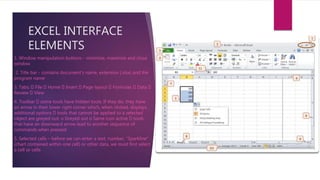
1. Window manipulation buttons - minimize, maximize and close
window
2. Title bar - contains document's name, extension (.xlsx) and the
program name
3. Tabs: File Home Insert Page layout Formulas Data
Review View
4. Toolbar some tools have hidden tools. If they do, they have
an arrow in their lower right corner which, when clicked, displays
additional options tools that cannot be applied to a selected
object are greyed out: o Greyed out o Same icon active tools
that have an downward arrow lead to another sequence of
commands when pressed
5. Selected cells – before we can enter a text, number, “Sparkline”
(chart contained within one cell) or other data, we must first select
a cell or cells
 6. Column titles (letters)
 7. Row titles (numbers)
 8. Sheets – can be renamed
 9. Scroll bars for horizontal and vertical navigation (sliders)
 10.Status bar - displays information about some special functions of Microsoft Excel
 11.Formula Bar – for cell contents including formulas or text
 Selecting cells - press the left mouse button on a cell in order to select it. Enter data – data can be added cells and existing content can
also be edited.
 Add content to cell – single-click with the left mouse button on a cell and enter any extra data.
 Change the existing content – single click on the selected cell and then click on the formula bar to make changes to the data.
Alternatively, press F2 after selecting the cell to move the cursor into the formula bar
 To select a range of cells:
 select the first cell in a range, press and hold the left mouse button, move the mouse to the last cell and release
the left button, or
 select the first cell in a range, press and hold the Shift key, select the last cell in the range and release the Shift
key
 Rename worksheet:
 while we are positioned in the worksheet, we want to rename: press the Format button on the Home ribbon,
choose the Rename Sheet option, enter a new name and press the Enter key, or press the right mouse button
on the tab of the worksheet and from the quick menu choose the Rename option.
 double click on the tab of the worksheet and type the new worksheet name.
 Copying and moving worksheets within or between spreadsheets (spreadsheets must be open): 1. press the right
mouse button on the worksheets sheet tab and choose the Move or Copy sheet option 2. within the dialog box
that appears, choose the workbook you want to move the sheet to, and the sheet before which it will be placed
 Open an existing file - to open several files at once, use the Ctrl key or the Shift key to select them Print:
 Printer – choose printer
 Copies – number of copies to be printed
 Range o Print active sheets Print entire workbook o Print selection
 Orientation o
 Portrait - vertical paper
 Landscape- horizontal paper
 Margins: - Normal - Narrow - Wide
 Scaling: o No scaling
 Fit sheet to one page
 Fit all columns to one page
 Fit all rows to one page
 Collated – will print the entire worksheet from start to finish, then will make copies according to the selected number of copies; Uncollated - will
print the first page according to the selected number of copies, then the second page, etc.
 Page setup o Page – on the drop-down menu, choose paper size o Margins –manually set the margins o Header / Footer – enter header / footer
information within the fields o Sheets – select a cell range that will automatically print and rows that will repeat on each page of the worksheet
 Share – there are new features that make it easy to share documents: Change
File Type – save the file in another file type - format
 Create PDF/XPS Document – save the file in a fixed format, cannot be easily
changed Options
 on the General tab, you can enter a username
 on the Save tab > there are fields to enter “AutoRecover file location” and
“Default file location”
• Font: (drop-down menu) Times New Roman, Verdana, Arial, Calibri etc.
• Font Size: (drop-down menu) Text formatting Bold - Ctrl + B Italic - Ctrl + I Underline - Ctrl + U keyboard
shortcuts
• Font Color - choose Font color (drop-down menu) Text alignment: - horizontal alignment: - top, middle or the
bottom of the cell - vertical alignment -Align Left, Center, Align Right, Justify Merge and center – tool to merge the
selected cell range and center the content Orientation – tool for setting the direction of the content in a cell Wrap
Text – wraps text within cells width in order to make it visible contain the text within the cell and ensure visibility
when next cell (horizontally) is not empty.
• Number Format – set the number format in which numbers will be displayed Increase / decrease number of
decimal places displayed Conditional Formatting – tool for automatically setting the format of a cell based on the
inputted conditions. The formatting and conditions can be customized.
• Insert – tool for inserting cells, columns, rows, worksheets
• Delete – tool for deleting cell content and/or cell formatting; deleting columns, rows, worksheets
• Format – tool for formatting selected cells, columns, rows, worksheets
FUNCTIONS.
 Enter function: 1. select a cell range
 2. enter a function via menu shown on the right Or:
 1. select the cell in which you want to enter function value
 2. enter the symbol „=“
 3. enter the function manually (e.g. „sum“), and the cell range to which the function will apply,
respecting syntax
 Most often used functions: =SUM(cell range) adding the numbers in selected cells
 =AVERAGE(cell range) finds the average value
 =MIN(cell range) finds the smallest value
 =MAX(cell range) finds the biggest value
 Deleting options: Clear All Clear Contents Clear Formats
Other options.
 Sort A to Z - sort data within a table from minimum to maximum value,
or
 Sort Z to A – sort data within a table from maximum to minimum values
 Find: enter a word or phrase and press the Find button
 Replace: - Find What – field to enter the word we are searching for;
 Replace With - field to enter the word that we want to use as a
replacement
 Format Painter - copy formatting from one part of the text to another
 Help in MS Excel, or F1 on the keyboard
SHAPES, PICTURES & OBJECTS.
 Shapes – after selecting a shape, we can insert it in the sheet using the drag-and-drop method, which
automatically defines its size and position.
 Arrange – sets elements in front of (option Bring forward) or behind (option Send to back) other elements. - opens
color palette - opens color palette and options for choosing type and thickness of lines - effects: 3D, shadow,
reflection, rotation etc.
 Pictures
 to select a picture: press the left mouse button on it, the picture will get squares on the border called control
points which allows the size of the image to be manipulated.
 set object size: manually: select an object, move some of the control points using the drag-and-drop method
 enter values: press the right mouse button on the object and choose the Format Picture option; on the Size tab,
enter values for height and width
 While the object is selected, we can open the Format tab, that contains some new formatting options -
Corrections - tool for contrast, brightness, sharpness correction - Color - change color of the images in order to
better match the rest of the content - Artistic effects - tools that can make an image appear as if it was a drawing
or painting
 Header and Footer - edit: press the left mouse button within the header or footer field, or: press the right mouse
button and from the quick menu, choose the Edit Text option - insert date and time - insert page number
 Insert symbol
 Chart Charts are graphical representaitons of table data in various forms, like column graph. Tabular data and
graph are connected - therefore changes in the table are reflected in the chart when we insert a chart, a table
for data entry opens in Microsoft Excel and we can enter data. Also, if we select a cell range filled with data, the
chart will be automatically filled with the selected data.
 to change chart size: select a chart and move (drag-and-drop) the control points to the desired direction
changes in the chart can be done via the Chart Tools toolbar, that appears when the chart is selected; via the quick
menu or by double-click with the left mouse button on the chart o Format Chart Area – effects like color fill, 3D,
rotation, shadow etc. are accessible o Change Chart Type – choose chart type
 move the chart: within the Chart Tools toolbar, select the Design and choose tool Move chart: > New sheet (and
there is a field to enter the worksheet's name), or > Object in > on the drop-down menu, choose the worksheet in
which you want to place the chart
PAGE LAYOUT
 The Page Layout settings change the look of the Excel file when it is printed.
 Margins: - Normal - Narrow - Wide
 Orientation: Portrait (vertical) and Landscape (horizontal) Scale: tool for fitting data for print to a
paper
 Breaks – it is recommended that user sets the breaks manually:
 Insert Page Break
 Remove Page Break Tools for organizing content: - Bring Forward - Send Backward
 Spelling - opens a dialog box with options: Ignore once, Ignore all, Change, Change all the word
that is not in the dictionary can be added: press the right mouse button over it and choose the
Add to dictionary option View tab Normal - for creating a worksheet
 Page Layout – for print preview of the data set for printing, header and footer
 Freeze and unfreeze rows and columns in order to always be visible. This is useful when
the data in the worksheet does not fit on the computer screen but the user needs to
see the row and column labels:
 freezing columns and rows: select a cell within the sheet and choose the Freeze
Panes button. Columns to the left and rows above will be “frozen” meaning that as the
user scrolls left and right in the worksheet, the frozen cells always remain visible.
 freezing top row: choose the Freeze Panes button and choose freeze top row
 freezing first column: choose the Freeze Panes button and choose freeze first column
FORMULAS
 Enter the formula:
1. select the cell where you want to enter a formula
2. enter the sign „=“
3. enter numeric values or cell addresses and arithmetic operator
4. press the Enter key to complete
 Basic arithmetic operators:
addition = A1 + A2
multiplication = A3 * C5
division = C5/C3
exponentiation = F15^ A2
 Microsoft Excel follows the mathematical order of calculation operations. Formula can be seen in the formula bar when the cell, that
contains it, is selected or if we position the cursor with a double click in the cell, that contains the formula (that way it will be visible in
the cell and edited too). The formula result will be displayed in the cell that contains the formula and where the cursor is not
positioned.
CELL REFERENCING.
 Relative cell referencing (e.g. C5)
when the formula is copied with AutoFill and it has relative cell references, cell
references are going to adapt, for example: If we use Auto fill to copy the following
formula: =C5+B5, it will change to: =C6+B6, =C7+B7 etc.
 Absolute cell referencing (e.g. $C$5)
If the cell is referenced absolutely in a formula, then applying the Auto fill tool will
result in: =$C$5+B5, =$C$5+B6, =$C$5+B7 etc. You can change the selected cell
reference from relative to absolute and vice versa by using the F4 key Logical function
if = logical function that compares cell values with some expression or value. We
define the appropriate action depending on the result
SYNTAX.
 Syntax:
 IF(logical _condition; value_if_true;value_if_false)
 logical function checks if the condition is met, and returns true or false
 logical operators:
greater than >
greater than or equal >=
less than <
less than or equal <=
equal =

Presentation

  • 1.
    POWER POINT PRESENTATION ONEXCEL DONE BY: P S SINDHU CLASS: X 'A' ROLL NO.: 16
  • 2.
    INTRODUCTION What is excel? Software developed and manufactured by Microsoft Corporation that allows users to organize, format, and calculate data with formulas using a spreadsheet system broken up by rows and columns. Microsoft Excel usually comes bundled with Microsoft Office and is compatible with other applications offered in the suite of products. The first software program similar to Excel was released in 1982 and was called Multi plan.  A workbook automatically shows in the workspace when you open Microsoft Excel XP. Each workbook contains three worksheets. A worksheet is a grid of cells consisting of 65,536 rows by 256 columns. Spreadsheet information—text, numbers, or mathematical formulas—is entered into different cells.  File extension: xlsx – Excel workbook xlsm – Excel macro-enabled workbook.
  • 3.
    EXCEL INTERFACE ELEMENTS 1. Windowmanipulation buttons - minimize, maximize and close window 2. Title bar - contains document's name, extension (.xlsx) and the program name 3. Tabs: File Home Insert Page layout Formulas Data Review View 4. Toolbar some tools have hidden tools. If they do, they have an arrow in their lower right corner which, when clicked, displays additional options tools that cannot be applied to a selected object are greyed out: o Greyed out o Same icon active tools that have an downward arrow lead to another sequence of commands when pressed 5. Selected cells – before we can enter a text, number, “Sparkline” (chart contained within one cell) or other data, we must first select a cell or cells
  • 4.
     6. Columntitles (letters)  7. Row titles (numbers)  8. Sheets – can be renamed  9. Scroll bars for horizontal and vertical navigation (sliders)  10.Status bar - displays information about some special functions of Microsoft Excel  11.Formula Bar – for cell contents including formulas or text  Selecting cells - press the left mouse button on a cell in order to select it. Enter data – data can be added cells and existing content can also be edited.  Add content to cell – single-click with the left mouse button on a cell and enter any extra data.  Change the existing content – single click on the selected cell and then click on the formula bar to make changes to the data. Alternatively, press F2 after selecting the cell to move the cursor into the formula bar
  • 5.
     To selecta range of cells:  select the first cell in a range, press and hold the left mouse button, move the mouse to the last cell and release the left button, or  select the first cell in a range, press and hold the Shift key, select the last cell in the range and release the Shift key  Rename worksheet:  while we are positioned in the worksheet, we want to rename: press the Format button on the Home ribbon, choose the Rename Sheet option, enter a new name and press the Enter key, or press the right mouse button on the tab of the worksheet and from the quick menu choose the Rename option.  double click on the tab of the worksheet and type the new worksheet name.  Copying and moving worksheets within or between spreadsheets (spreadsheets must be open): 1. press the right mouse button on the worksheets sheet tab and choose the Move or Copy sheet option 2. within the dialog box that appears, choose the workbook you want to move the sheet to, and the sheet before which it will be placed
  • 6.
     Open anexisting file - to open several files at once, use the Ctrl key or the Shift key to select them Print:  Printer – choose printer  Copies – number of copies to be printed  Range o Print active sheets Print entire workbook o Print selection  Orientation o  Portrait - vertical paper  Landscape- horizontal paper  Margins: - Normal - Narrow - Wide  Scaling: o No scaling  Fit sheet to one page  Fit all columns to one page  Fit all rows to one page  Collated – will print the entire worksheet from start to finish, then will make copies according to the selected number of copies; Uncollated - will print the first page according to the selected number of copies, then the second page, etc.  Page setup o Page – on the drop-down menu, choose paper size o Margins –manually set the margins o Header / Footer – enter header / footer information within the fields o Sheets – select a cell range that will automatically print and rows that will repeat on each page of the worksheet
  • 7.
     Share –there are new features that make it easy to share documents: Change File Type – save the file in another file type - format  Create PDF/XPS Document – save the file in a fixed format, cannot be easily changed Options  on the General tab, you can enter a username  on the Save tab > there are fields to enter “AutoRecover file location” and “Default file location”
  • 8.
    • Font: (drop-downmenu) Times New Roman, Verdana, Arial, Calibri etc. • Font Size: (drop-down menu) Text formatting Bold - Ctrl + B Italic - Ctrl + I Underline - Ctrl + U keyboard shortcuts • Font Color - choose Font color (drop-down menu) Text alignment: - horizontal alignment: - top, middle or the bottom of the cell - vertical alignment -Align Left, Center, Align Right, Justify Merge and center – tool to merge the selected cell range and center the content Orientation – tool for setting the direction of the content in a cell Wrap Text – wraps text within cells width in order to make it visible contain the text within the cell and ensure visibility when next cell (horizontally) is not empty. • Number Format – set the number format in which numbers will be displayed Increase / decrease number of decimal places displayed Conditional Formatting – tool for automatically setting the format of a cell based on the inputted conditions. The formatting and conditions can be customized. • Insert – tool for inserting cells, columns, rows, worksheets • Delete – tool for deleting cell content and/or cell formatting; deleting columns, rows, worksheets • Format – tool for formatting selected cells, columns, rows, worksheets
  • 9.
    FUNCTIONS.  Enter function:1. select a cell range  2. enter a function via menu shown on the right Or:  1. select the cell in which you want to enter function value  2. enter the symbol „=“  3. enter the function manually (e.g. „sum“), and the cell range to which the function will apply, respecting syntax  Most often used functions: =SUM(cell range) adding the numbers in selected cells  =AVERAGE(cell range) finds the average value  =MIN(cell range) finds the smallest value  =MAX(cell range) finds the biggest value  Deleting options: Clear All Clear Contents Clear Formats
  • 10.
    Other options.  SortA to Z - sort data within a table from minimum to maximum value, or  Sort Z to A – sort data within a table from maximum to minimum values  Find: enter a word or phrase and press the Find button  Replace: - Find What – field to enter the word we are searching for;  Replace With - field to enter the word that we want to use as a replacement  Format Painter - copy formatting from one part of the text to another  Help in MS Excel, or F1 on the keyboard
  • 11.
    SHAPES, PICTURES &OBJECTS.  Shapes – after selecting a shape, we can insert it in the sheet using the drag-and-drop method, which automatically defines its size and position.  Arrange – sets elements in front of (option Bring forward) or behind (option Send to back) other elements. - opens color palette - opens color palette and options for choosing type and thickness of lines - effects: 3D, shadow, reflection, rotation etc.  Pictures  to select a picture: press the left mouse button on it, the picture will get squares on the border called control points which allows the size of the image to be manipulated.  set object size: manually: select an object, move some of the control points using the drag-and-drop method  enter values: press the right mouse button on the object and choose the Format Picture option; on the Size tab, enter values for height and width  While the object is selected, we can open the Format tab, that contains some new formatting options - Corrections - tool for contrast, brightness, sharpness correction - Color - change color of the images in order to better match the rest of the content - Artistic effects - tools that can make an image appear as if it was a drawing or painting
  • 12.
     Header andFooter - edit: press the left mouse button within the header or footer field, or: press the right mouse button and from the quick menu, choose the Edit Text option - insert date and time - insert page number  Insert symbol  Chart Charts are graphical representaitons of table data in various forms, like column graph. Tabular data and graph are connected - therefore changes in the table are reflected in the chart when we insert a chart, a table for data entry opens in Microsoft Excel and we can enter data. Also, if we select a cell range filled with data, the chart will be automatically filled with the selected data.  to change chart size: select a chart and move (drag-and-drop) the control points to the desired direction changes in the chart can be done via the Chart Tools toolbar, that appears when the chart is selected; via the quick menu or by double-click with the left mouse button on the chart o Format Chart Area – effects like color fill, 3D, rotation, shadow etc. are accessible o Change Chart Type – choose chart type  move the chart: within the Chart Tools toolbar, select the Design and choose tool Move chart: > New sheet (and there is a field to enter the worksheet's name), or > Object in > on the drop-down menu, choose the worksheet in which you want to place the chart
  • 13.
    PAGE LAYOUT  ThePage Layout settings change the look of the Excel file when it is printed.  Margins: - Normal - Narrow - Wide  Orientation: Portrait (vertical) and Landscape (horizontal) Scale: tool for fitting data for print to a paper  Breaks – it is recommended that user sets the breaks manually:  Insert Page Break  Remove Page Break Tools for organizing content: - Bring Forward - Send Backward  Spelling - opens a dialog box with options: Ignore once, Ignore all, Change, Change all the word that is not in the dictionary can be added: press the right mouse button over it and choose the Add to dictionary option View tab Normal - for creating a worksheet  Page Layout – for print preview of the data set for printing, header and footer
  • 14.
     Freeze andunfreeze rows and columns in order to always be visible. This is useful when the data in the worksheet does not fit on the computer screen but the user needs to see the row and column labels:  freezing columns and rows: select a cell within the sheet and choose the Freeze Panes button. Columns to the left and rows above will be “frozen” meaning that as the user scrolls left and right in the worksheet, the frozen cells always remain visible.  freezing top row: choose the Freeze Panes button and choose freeze top row  freezing first column: choose the Freeze Panes button and choose freeze first column
  • 15.
    FORMULAS  Enter theformula: 1. select the cell where you want to enter a formula 2. enter the sign „=“ 3. enter numeric values or cell addresses and arithmetic operator 4. press the Enter key to complete  Basic arithmetic operators: addition = A1 + A2 multiplication = A3 * C5 division = C5/C3 exponentiation = F15^ A2  Microsoft Excel follows the mathematical order of calculation operations. Formula can be seen in the formula bar when the cell, that contains it, is selected or if we position the cursor with a double click in the cell, that contains the formula (that way it will be visible in the cell and edited too). The formula result will be displayed in the cell that contains the formula and where the cursor is not positioned.
  • 16.
    CELL REFERENCING.  Relativecell referencing (e.g. C5) when the formula is copied with AutoFill and it has relative cell references, cell references are going to adapt, for example: If we use Auto fill to copy the following formula: =C5+B5, it will change to: =C6+B6, =C7+B7 etc.  Absolute cell referencing (e.g. $C$5) If the cell is referenced absolutely in a formula, then applying the Auto fill tool will result in: =$C$5+B5, =$C$5+B6, =$C$5+B7 etc. You can change the selected cell reference from relative to absolute and vice versa by using the F4 key Logical function if = logical function that compares cell values with some expression or value. We define the appropriate action depending on the result
  • 17.
    SYNTAX.  Syntax:  IF(logical_condition; value_if_true;value_if_false)  logical function checks if the condition is met, and returns true or false  logical operators: greater than > greater than or equal >= less than < less than or equal <= equal =