Applying Fundamental Excel Skills and Tools in Problem SolvingChapter 1“When the only tool you own is a hammer, every problem begins to resemble a nail.”					- Abraham Maslow
Learning ObjectivesLevel 1Define common Excel error messagesCorrect basic formatting problems in a worksheetCorrect errors in simple formulasDetermine the order of precedence in formulasUnderstand precision versus display for cell values
Learning ObjectivesLevel 2Work with multiple worksheetsCalculate total, average, minimum, and maximum values with functionsUnderstand how functions work: syntax, arguments, and algorithmsUse the AutoSum feature to perform calculations quicklyCalculate the number of values using both COUNT and COUNTA
Learning ObjectivesLevel 3Organize a workbookUnderstand relative, absolute, and mixed cell referencingWrite formulas with different types of cell referencingCopy formulas with different types of cell referencingName a cell or cell range
Functions Covered in This ChapterAVERAGECOUNTCOUNTAMINMAXSUM
Chapter IntroductionFundamental skills and tools encountered when working with Excel to solve problems and support decision makingWriting formulas in cells to perform calculationsDesigning a workbook so that calculations can be automatically updated if input values are changedFormatting options that can be applied to cells and ranges of cellsRules that affect how information is displayed and calculations are performed in an Excel worksheet
Chapter Introduction (continued)Use of simple functions (i.e., shortcuts available for predefined tasks)Results of copying formulas with different kinds of cell references
Level 1 Objectives:Identifying and Correcting Common Errors in Formatting and FormulasDefine common Excel error messagesCorrect basic formatting problems in worksheetsCorrect errors in simple formulasDetermine the order of precedence in formulasUnderstand precision versus display for cell values
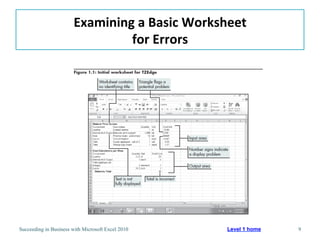
Examining a Basic Worksheetfor ErrorsFix obvious errorsUse Error Alert buttonExamine the formula
Insert better imageChapter 1Succeeding in Business with Microsoft Office Excel 2007: A Problem-Solving Approach 10Examining a Basic Worksheetfor Errors
Chapter 1Succeeding in Business with Microsoft Office Excel 2007: A Problem-Solving Approach 11Examining a Basic Worksheetfor ErrorsLevel 1 home
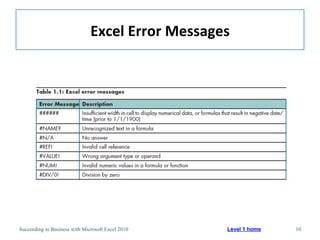
Excel Error Messages
Correcting Formatting ProblemsModifying Column Width and Row HeightChecking Error Messages (Error Alert button)Using Commas When Entering ValuesFormatting NumbersFormatting Dollar ValuesInserting and Aligning a TitleInserting Columns and RowsDocumenting a Worksheet= Best Practice
Modifying Column Width and Row Height
Checking Error Messages (Error Alert button)
Using Commas When Entering ValuesCommas in formulas can be problematic=SUM(2,235+B1) is interpreted as 2+235+B1Rule of thumb: Don’t use commas but rather use styling if you want to display your numbers with commas
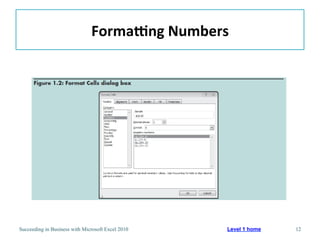
Formatting Numbers
In accounting, the preferred number format is to align values on the decimal point, in a column of dollars values, and to include a dollar sign only in the first entry in the column and for any grand totals. Repeated dollar sign can clutter the worksheet and are often unnecessary.Formatting Dollar Values
Inserting and Aligning a Title
Inserting Columns and Rows
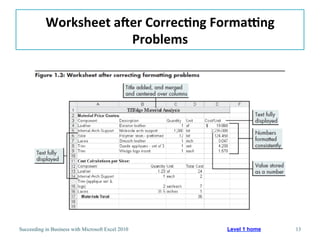
Worksheet after Correcting Formatting Problems
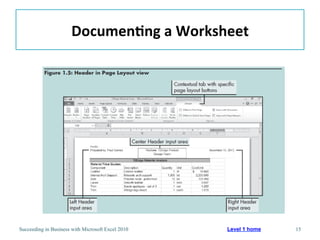
Documenting a WorksheetWhen working in teams, with several groups, or even with different companies, it is advisable to include a title on the worksheet, identify the creation date, worksheet author, and any specific information about the company, and/or project.
Creating a Customized Header
Correcting Errors in FormulasPrint the Worksheet in Two Different FormatsDefault format (displays values)Format that displays formulasCheck Simple Formulas for AccuracyUse Formulas and Cell References Instead of ValuesDetermine Order of PrecedencePrecision vs. DisplayWorking with Dates (read on your own)Check Accuracy in Formula Updates
Print the Worksheet in Two Different Formats
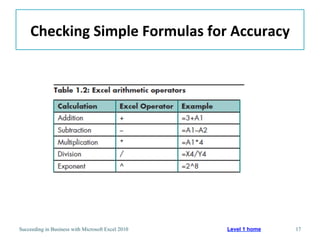
Checking Simple Formulas for Accuracy
Use Formulas and Cell References Instead of ValuesNotice cell D13 in the previous imageUsing cell references is preferable to directly inputting values into a formula. In this example, if the price of the leather changed or the quantity required to make a shoe increases, it would be easy to enter those changes. By using cell references in formulas the calculations will be automatically updated with any changes to that value.
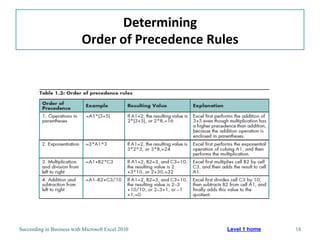
DeterminingOrder of Precedence Rules
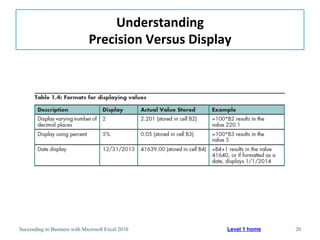
UnderstandingPrecision Versus DisplayExcel can display values in several different formats without changing the precise value stored in the program
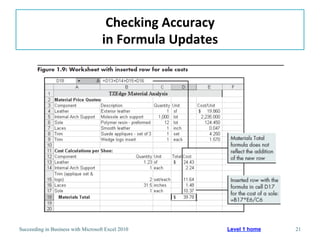
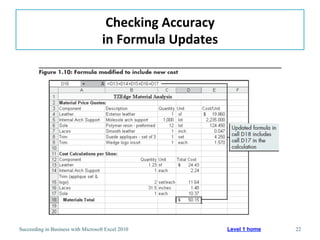
Checking Accuracyin Formula Updates
Level 1 SummaryLocating and correcting common errors in formatting or formulas to make the worksheet readable and functional
Level 2 Objectives:Calculating and Comparing Data Using Simple FunctionsWorking with Multiple WorksheetsCalculating Totals Using the SUM FunctionUnderstand how functions work: syntax, arguments, and algorithmsCalculating Quickly with AutoSumCalculating Average, Minimum, and Maximum ValuesInserting Rows and the Impact on Formulas (read on your own)Calculate the Number of Values Using the COUNT and COUNTA Functions
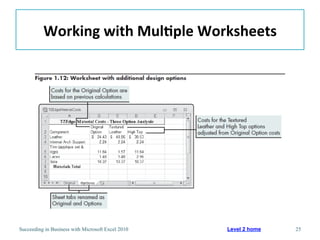
Working with Multiple Worksheets
FunctionsFunctions are predefined formula that performs calculationsStructureFunction name and open parenthesis mark ‘(‘Arguments (list of inputs in a specific order, separated by commas)Closing parenthesis mark ‘)’Has its own syntax (specifies function name and order of arguments)Behaves according to its algorithm (rules programmed into the function)
Calculating Totals Usingthe SUM FunctionSUM functionAdds a list of values and/or cell ranges
Calculating Quickly with AutoSumExcel has an AutoSum feature for quick calculation
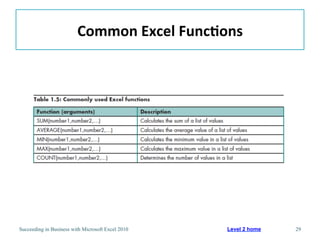
Common Excel Functions
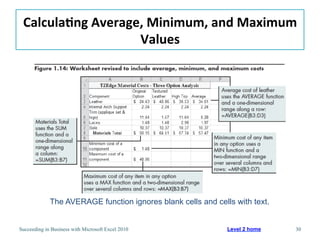
Calculating Average, Minimum, and Maximum ValuesThe AVERAGE function ignores blank cells and cells with text.
Calculating Average, Minimum, and Maximum Values
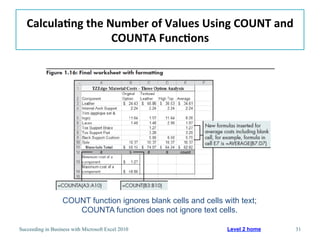
Calculating the Number of Values Using COUNT and COUNTA FunctionsCOUNT function ignores blank cells and cells with text;COUNTA function does not ignore text cells.
Level 2 SummarySimple functions (SUM, AVERAGE, MIN, MAX, COUNT, COUNTA) and how to use them in formulasSyntax of functions and their underlying algorithmsAutoSum tool
Level 3 Objectives:Analyzing Cell References When Writing and Copying FormulasCreating a Budget WorkbookOrganizing the WorkbookUnderstanding Relative Cell ReferencingUnderstanding Absolute and Mixed Cell ReferencingName a Cell or Cell RangeWrite Formulas with Different Types of Cell ReferencingCompleting the Budget Wordbook
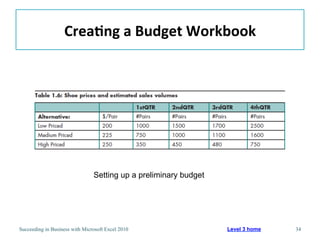
Creating a Budget WorkbookSetting up a preliminary budget

Chapter.01

  • 1.
    Applying Fundamental ExcelSkills and Tools in Problem SolvingChapter 1“When the only tool you own is a hammer, every problem begins to resemble a nail.” - Abraham Maslow
  • 2.
    Learning ObjectivesLevel 1Definecommon Excel error messagesCorrect basic formatting problems in a worksheetCorrect errors in simple formulasDetermine the order of precedence in formulasUnderstand precision versus display for cell values
  • 3.
    Learning ObjectivesLevel 2Workwith multiple worksheetsCalculate total, average, minimum, and maximum values with functionsUnderstand how functions work: syntax, arguments, and algorithmsUse the AutoSum feature to perform calculations quicklyCalculate the number of values using both COUNT and COUNTA
  • 4.
    Learning ObjectivesLevel 3Organizea workbookUnderstand relative, absolute, and mixed cell referencingWrite formulas with different types of cell referencingCopy formulas with different types of cell referencingName a cell or cell range
  • 5.
    Functions Covered inThis ChapterAVERAGECOUNTCOUNTAMINMAXSUM
  • 6.
    Chapter IntroductionFundamental skillsand tools encountered when working with Excel to solve problems and support decision makingWriting formulas in cells to perform calculationsDesigning a workbook so that calculations can be automatically updated if input values are changedFormatting options that can be applied to cells and ranges of cellsRules that affect how information is displayed and calculations are performed in an Excel worksheet
  • 7.
    Chapter Introduction (continued)Useof simple functions (i.e., shortcuts available for predefined tasks)Results of copying formulas with different kinds of cell references
  • 8.
    Level 1 Objectives:Identifyingand Correcting Common Errors in Formatting and FormulasDefine common Excel error messagesCorrect basic formatting problems in worksheetsCorrect errors in simple formulasDetermine the order of precedence in formulasUnderstand precision versus display for cell values
  • 9.
    Examining a BasicWorksheetfor ErrorsFix obvious errorsUse Error Alert buttonExamine the formula
  • 10.
    Insert better imageChapter1Succeeding in Business with Microsoft Office Excel 2007: A Problem-Solving Approach 10Examining a Basic Worksheetfor Errors
  • 11.
    Chapter 1Succeeding inBusiness with Microsoft Office Excel 2007: A Problem-Solving Approach 11Examining a Basic Worksheetfor ErrorsLevel 1 home
  • 12.
  • 13.
    Correcting Formatting ProblemsModifyingColumn Width and Row HeightChecking Error Messages (Error Alert button)Using Commas When Entering ValuesFormatting NumbersFormatting Dollar ValuesInserting and Aligning a TitleInserting Columns and RowsDocumenting a Worksheet= Best Practice
  • 14.
  • 15.
    Checking Error Messages(Error Alert button)
  • 16.
    Using Commas WhenEntering ValuesCommas in formulas can be problematic=SUM(2,235+B1) is interpreted as 2+235+B1Rule of thumb: Don’t use commas but rather use styling if you want to display your numbers with commas
  • 17.
  • 18.
    In accounting, thepreferred number format is to align values on the decimal point, in a column of dollars values, and to include a dollar sign only in the first entry in the column and for any grand totals. Repeated dollar sign can clutter the worksheet and are often unnecessary.Formatting Dollar Values
  • 19.
  • 20.
  • 21.
    Worksheet after CorrectingFormatting Problems
  • 22.
    Documenting a WorksheetWhenworking in teams, with several groups, or even with different companies, it is advisable to include a title on the worksheet, identify the creation date, worksheet author, and any specific information about the company, and/or project.
  • 23.
  • 24.
    Correcting Errors inFormulasPrint the Worksheet in Two Different FormatsDefault format (displays values)Format that displays formulasCheck Simple Formulas for AccuracyUse Formulas and Cell References Instead of ValuesDetermine Order of PrecedencePrecision vs. DisplayWorking with Dates (read on your own)Check Accuracy in Formula Updates
  • 25.
    Print the Worksheetin Two Different Formats
  • 26.
  • 27.
    Use Formulas andCell References Instead of ValuesNotice cell D13 in the previous imageUsing cell references is preferable to directly inputting values into a formula. In this example, if the price of the leather changed or the quantity required to make a shoe increases, it would be easy to enter those changes. By using cell references in formulas the calculations will be automatically updated with any changes to that value.
  • 28.
  • 29.
    UnderstandingPrecision Versus DisplayExcelcan display values in several different formats without changing the precise value stored in the program
  • 30.
  • 31.
  • 32.
    Level 1 SummaryLocatingand correcting common errors in formatting or formulas to make the worksheet readable and functional
  • 33.
    Level 2 Objectives:Calculatingand Comparing Data Using Simple FunctionsWorking with Multiple WorksheetsCalculating Totals Using the SUM FunctionUnderstand how functions work: syntax, arguments, and algorithmsCalculating Quickly with AutoSumCalculating Average, Minimum, and Maximum ValuesInserting Rows and the Impact on Formulas (read on your own)Calculate the Number of Values Using the COUNT and COUNTA Functions
  • 34.
  • 35.
    FunctionsFunctions are predefinedformula that performs calculationsStructureFunction name and open parenthesis mark ‘(‘Arguments (list of inputs in a specific order, separated by commas)Closing parenthesis mark ‘)’Has its own syntax (specifies function name and order of arguments)Behaves according to its algorithm (rules programmed into the function)
  • 36.
    Calculating Totals UsingtheSUM FunctionSUM functionAdds a list of values and/or cell ranges
  • 37.
    Calculating Quickly withAutoSumExcel has an AutoSum feature for quick calculation
  • 38.
  • 39.
    Calculating Average, Minimum,and Maximum ValuesThe AVERAGE function ignores blank cells and cells with text.
  • 40.
  • 41.
    Calculating the Numberof Values Using COUNT and COUNTA FunctionsCOUNT function ignores blank cells and cells with text;COUNTA function does not ignore text cells.
  • 42.
    Level 2 SummarySimplefunctions (SUM, AVERAGE, MIN, MAX, COUNT, COUNTA) and how to use them in formulasSyntax of functions and their underlying algorithmsAutoSum tool
  • 43.
    Level 3 Objectives:AnalyzingCell References When Writing and Copying FormulasCreating a Budget WorkbookOrganizing the WorkbookUnderstanding Relative Cell ReferencingUnderstanding Absolute and Mixed Cell ReferencingName a Cell or Cell RangeWrite Formulas with Different Types of Cell ReferencingCompleting the Budget Wordbook
  • 44.
    Creating a BudgetWorkbookSetting up a preliminary budget

Editor's Notes

  • #12 Introduce the terms numeric values, text labels, and calculated values.Discuss obvious problems found in the worksheet (see Figure 1.1).
  • #14 Instruct the class on how to modify column width and row height.Discuss how you would correct the error flagged in cell E4.
  • #18 Use Figure 1.2 to illustrate the steps involved in formatting numbers.Introduce the concept of formatting input values.Students should understand the term Accounting Number Format.
  • #22 Introduce the concept of inserting and aligning titles.Figure 1.3 shows the worksheet with the formatting problems corrected.
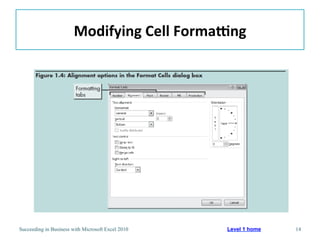
  • #23 Use Figure 1.4 to illustrate how to modify cell formatting.
  • #24 Illustrate the steps involved in inserting a new column.Use Figure 1.5 to illustrate how to include page numbering or dates in worksheets.
  • #25 Define the term formula.Use Figure 1.6 to illustrate the difference between the default format and the format that displays formulas instead of values.Demonstrate the steps involved in displaying formulas in a worksheet.Instruct students to check their formulas for accuracy.
  • #26 Define the term formula.Use Figure 1.6 to illustrate the difference between the default format and the format that displays formulas instead of values.Demonstrate the steps involved in displaying formulas in a worksheet.Instruct students to check their formulas for accuracy.
  • #27 Use Table 1.2 to discuss arithmetic operators.
  • #28 Discuss the use of formulas and cell references instead of values.
  • #29 Discuss the use of formulas and cell references instead of values.Use Table 1.3 to aid in your discussion of order of precedence rules.
  • #30 Use Figure 1.7 to show the revised worksheet, after correcting problems with the formulas in cells D14 and D15.Figure 1.8 provides an example of a worksheet with values displaying five decimal places.Use Table 1.4 to discuss the different formats in which values can be displayed.
  • #31 Use Figures 1.9 and 1.10 to aid in your discussion about checking the accuracy of formula updates.
  • #35 Use Figure 1.12 to introduce the class to the new worksheet.Demonstrate the steps involved in renaming and adding color to a worksheet tab.
  • #36 Introduce the terms functions, SUM, arguments, syntax, algorithm, and cell range.
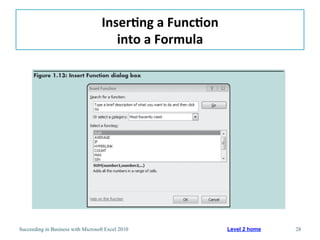
  • #37 Use Figure 1.13 to illustrate the steps involved in inserting a function into a formula.
  • #38 Introduce the class to Excel’s AutoSum feature.
  • #39 Table 1.5 shows the Excel functions that are similar to the SUM function.
  • #42 Use Figure 1.16 to illustrate the final worksheet, with formatting.
  • #45 Use Table 1.6 to discuss the estimated sales volume for each of the following price alternatives: low priced, medium priced, and high priced.
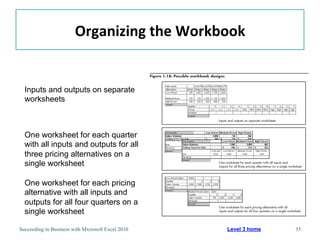
  • #46 Use Figure 1.18 to illustrate and compare different ways of organizing the budget workbook. TO create the worksheets for the four quarters and the summary, Paul could select all five worksheets simultaneously by clicking the first tab and then holding down the Shift key and clicking the Summary worksheet tab. Everything he enter would be entered on all five worksheets at the same time.
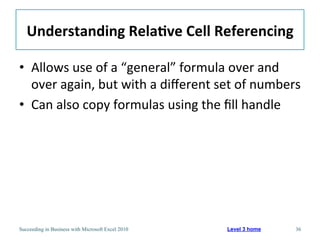
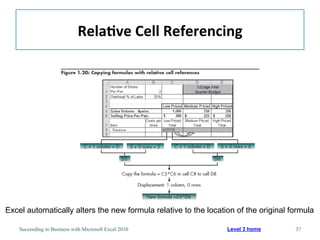
  • #47 Introduce the class to the concept of relative cell referencing (see Figure 1.20).Discuss what is likely to occur if you copy formulas from one worksheet to another.Note that formulas can be copied in opposite directions, back up columns, and farther to the left on rows.
  • #48 Discuss the steps involved in copying formulas with the fill handle.
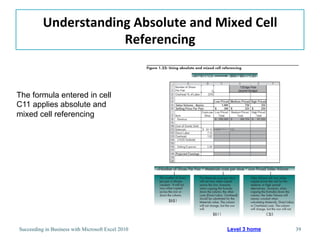
  • #49 Introduce the terms absolute cell referencing and mixed reference (see Figure 1.22).
  • #50 Discuss the steps involved in changing a cell reference to an absolute or mixed cell reference.
  • #52 Students should understand the process involved in naming a cell or cell range.Students should understand how to write a formula to subtotal Cost of Goods Sold.Discuss the steps involved in copying formulas into noncontiguous cells.
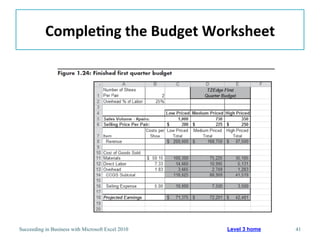
  • #53 Figure 1.24 shows the completed first quarter budget.
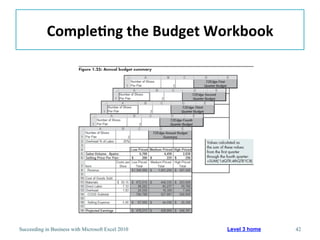
  • #54 Discuss the steps involved in copying a worksheet.Figure 1.25 shows the final summary sheet.