MS Excel 2013
PRESENTED BY: ROBBIA GULNAR
Presenter Note:
Presenter Notes:
 The Word Basics presentation is a preformatted
solution designed to help familiarize you with
the word processing application’s basic
functions.
What is Excel ?
 Excel 2013 is a spreadsheet program that allows you to
store, organize, and analyze information.
 It features calculation, graphing tools, pivot tables,
and a macro programming language called Visual
Basic for Applications.
The Excel Cell
▶ Every worksheet is made up of thousands of rectangles, which are called cells.
▶ A cell is the intersection of a row and a column.
▶ Columns are identified by letters (A, B, C), while rows are identified by numbers (1, 2, 3).
▶ Each cell has its own name—or cell address—based on its column and row.
Cell Content
▶ Cell can contain different types of content, including text, formatting,
formulas and functions.
▶Text: Cells can contain text, such as letters,
numbers, and dates.
▶Formatting: Formatting attributes can change
the way letters, numbers, and dates are
displayed.
▶Formulas and Functions: Cells can contain
formulas and functions that calculate cell values.
Worksheet Views
▶ Excel 2013 has a variety of viewing options.
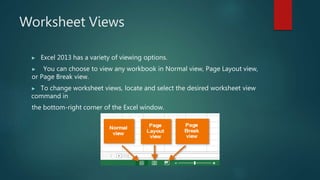
▶ You can choose to view any workbook in Normal view, Page Layout view,
or Page Break view.
▶ To change worksheet views, locate and select the desired worksheet view
command in
the bottom-right corner of the Excel window.
Formatting Text and Numbers in Cells
▶ Example: Change the number format for cells to modify the way dates are
displayed.
Simple Formulas
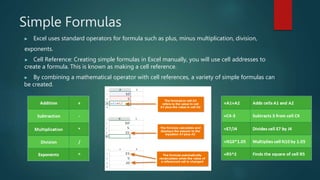
▶ Excel uses standard operators for formula such as plus, minus multiplication, division,
exponents.
▶ Cell Reference: Creating simple formulas in Excel manually, you will use cell addresses to
create a formula. This is known as making a cell reference.
▶ By combining a mathematical operator with cell references, a variety of simple formulas can
be created.
Complex Formula
 A complex formula has more than one mathematical operator.
 When performing mathematical operations in Excel, keep in mind that the standard
order of operations applies.
Standard order of operations:
▶ Parenthesis.
▶ Exponents.
▶ Multiplication.
▶ Division.
▶ Addition.
▶ Subtraction
Insert Function Tool
▶ Insert function tool is used to ensure a formula is entered with the correct syntax.
▶ you can select the function that most matches your needs. When the function is
highlighted, a
description is shown underneath the function list.
▶ Select the cell that will contain the function.
▶ Click the Formulas tab on the Ribbon, then select the Insert Function command.
▶ The Insert Function dialog box will appear, type a few keywords, then click GO.
▶ Review the results to find the desired function, then click OK.
▶ The Function Arguments dialog box will appear, select the field, then enter the desired cell.
▶ Click OK, the function will be calculated, and the result will appear in the cell.
Creating Formulas
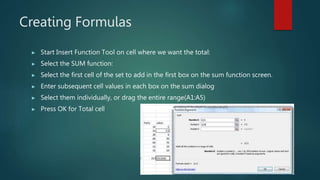
▶ Start Insert Function Tool on cell where we want the total:
▶ Select the SUM function:
▶ Select the first cell of the set to add in the first box on the sum function screen.
▶ Enter subsequent cell values in each box on the sum dialog
▶ Select them individually, or drag the entire range(A1:A5)
▶ Press OK for Total cell
Relative and Absolute Cell References
▶ There are two types of cell references: Relative and Absolute.
▶ Relative references: change when a formula is copied to another cell.
▶ Example: Copy the formula =A1+B1 from row 1 to row 2, the formula will become
=A2+B2
▶ Absolute References: Absolute references do not change when copied or filled.
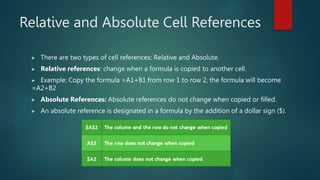
▶ An absolute reference is designated in a formula by the addition of a dollar sign ($).
Track Changes
 In Track Changes feature, every cell you edit will be highlighted with a unique
border and indicator.
 To turn on Track Changes:
 From the Review tab, click the Track Changes command, then select Highlight
Changes from the drop-down menu.
 The dialog box will appear, click OK to save your workbook.
 Track Changes will be turned on. A triangle and border color will appear in any
cell you edit.
Comments
 Sometimes you may want to add a comment to provide feedback instead of
editing the contents of a cell.
 To add a comment:
 Select the cell where you want the comment to appear
 From the Review tab, click the New Comment command.
 A comment box will appear. Type your comment, then click anywhere outside the
box to close the comment.
 The comment will be added to the cell.
Macro
What is Macro?
 A macro is an action or a set of actions that you can run
as many times as you want. If you have tasks in
Microsoft Excel that you do repeatedly, you can record
a macro to automate those tasks. When you create a
macro, you are recording your mouse clicks and
keystrokes. After you create a macro, you can edit it to
make minor changes to the way it works.
Macro Continued
▶ Before recording the Macro make sure Developer tab is visible on ribbon.
▶ By default, the Developer tab is not visible, so do the following:
 Click the File tab, click Options and then click the Customize Ribbon category.
 Under Customize the Ribbon, in the Main Tabs list, click Developer, and
then click OK.
 The developer tab will be visible.
Macro (Continued)
▶ Record Macro:
 In the developer tab click Record Micro.
 Enter the Macro name in Macro name box, shortcut key in shortcut key box and
description in description box, click OK to start recording.
 Perform the actions you want to automate, such as filling the data.
 When you are done, on developer tab click on Stop Recording.
Sorting
▶You can quickly reorganize a worksheet by sorting your data.
▶Types of Sorting:
 Sort Sheet: Organizes all of the data in your worksheet by one
column.
 Sort Range: sorts the data in a range of cells, which can be helpful
when working with a sheet that contains several tables.
Sorting
▶ To sort a Sheet
 Select a cell in the column you want to sort by.
 Select the Data tab on the Ribbon, then click the Ascending
command or the Descending command.
 The worksheet will be sorted by the selected column.
▶ To sort a Range:
 Select the cell range you want to sort.
 Select the Data tab on the Ribbon, then click the Sort command.
 The Sort dialog box will appear. Choose the column you want to sort by.
 Decide the sorting order and then click OK.
 The cell range will be sorted by the selected column.
Filtering Data
▶ Filters can be used to narrow down the data in your worksheet.
 In order for filtering to work correctly, your worksheet should
include a header row.
▶ A drop-down arrow will appear in each header cell, then click to the
drop down arrow for the selected column.
▶ The filter menu will appear.
▶ Check the boxes next to the data you want to filter, uncheck all the
other box and then click OK.
▶ The data will be filtered.
Thank you

MS Excel 2013.pptx

  • 1.
    MS Excel 2013 PRESENTEDBY: ROBBIA GULNAR
  • 2.
    Presenter Note: Presenter Notes: The Word Basics presentation is a preformatted solution designed to help familiarize you with the word processing application’s basic functions.
  • 3.
    What is Excel?  Excel 2013 is a spreadsheet program that allows you to store, organize, and analyze information.  It features calculation, graphing tools, pivot tables, and a macro programming language called Visual Basic for Applications.
  • 4.
    The Excel Cell ▶Every worksheet is made up of thousands of rectangles, which are called cells. ▶ A cell is the intersection of a row and a column. ▶ Columns are identified by letters (A, B, C), while rows are identified by numbers (1, 2, 3). ▶ Each cell has its own name—or cell address—based on its column and row.
  • 5.
    Cell Content ▶ Cellcan contain different types of content, including text, formatting, formulas and functions. ▶Text: Cells can contain text, such as letters, numbers, and dates. ▶Formatting: Formatting attributes can change the way letters, numbers, and dates are displayed. ▶Formulas and Functions: Cells can contain formulas and functions that calculate cell values.
  • 6.
    Worksheet Views ▶ Excel2013 has a variety of viewing options. ▶ You can choose to view any workbook in Normal view, Page Layout view, or Page Break view. ▶ To change worksheet views, locate and select the desired worksheet view command in the bottom-right corner of the Excel window.
  • 7.
    Formatting Text andNumbers in Cells ▶ Example: Change the number format for cells to modify the way dates are displayed.
  • 8.
    Simple Formulas ▶ Exceluses standard operators for formula such as plus, minus multiplication, division, exponents. ▶ Cell Reference: Creating simple formulas in Excel manually, you will use cell addresses to create a formula. This is known as making a cell reference. ▶ By combining a mathematical operator with cell references, a variety of simple formulas can be created.
  • 9.
    Complex Formula  Acomplex formula has more than one mathematical operator.  When performing mathematical operations in Excel, keep in mind that the standard order of operations applies. Standard order of operations: ▶ Parenthesis. ▶ Exponents. ▶ Multiplication. ▶ Division. ▶ Addition. ▶ Subtraction
  • 10.
    Insert Function Tool ▶Insert function tool is used to ensure a formula is entered with the correct syntax. ▶ you can select the function that most matches your needs. When the function is highlighted, a description is shown underneath the function list. ▶ Select the cell that will contain the function. ▶ Click the Formulas tab on the Ribbon, then select the Insert Function command. ▶ The Insert Function dialog box will appear, type a few keywords, then click GO. ▶ Review the results to find the desired function, then click OK. ▶ The Function Arguments dialog box will appear, select the field, then enter the desired cell. ▶ Click OK, the function will be calculated, and the result will appear in the cell.
  • 11.
    Creating Formulas ▶ StartInsert Function Tool on cell where we want the total: ▶ Select the SUM function: ▶ Select the first cell of the set to add in the first box on the sum function screen. ▶ Enter subsequent cell values in each box on the sum dialog ▶ Select them individually, or drag the entire range(A1:A5) ▶ Press OK for Total cell
  • 12.
    Relative and AbsoluteCell References ▶ There are two types of cell references: Relative and Absolute. ▶ Relative references: change when a formula is copied to another cell. ▶ Example: Copy the formula =A1+B1 from row 1 to row 2, the formula will become =A2+B2 ▶ Absolute References: Absolute references do not change when copied or filled. ▶ An absolute reference is designated in a formula by the addition of a dollar sign ($).
  • 13.
    Track Changes  InTrack Changes feature, every cell you edit will be highlighted with a unique border and indicator.  To turn on Track Changes:  From the Review tab, click the Track Changes command, then select Highlight Changes from the drop-down menu.  The dialog box will appear, click OK to save your workbook.  Track Changes will be turned on. A triangle and border color will appear in any cell you edit.
  • 14.
    Comments  Sometimes youmay want to add a comment to provide feedback instead of editing the contents of a cell.  To add a comment:  Select the cell where you want the comment to appear  From the Review tab, click the New Comment command.  A comment box will appear. Type your comment, then click anywhere outside the box to close the comment.  The comment will be added to the cell.
  • 15.
    Macro What is Macro? A macro is an action or a set of actions that you can run as many times as you want. If you have tasks in Microsoft Excel that you do repeatedly, you can record a macro to automate those tasks. When you create a macro, you are recording your mouse clicks and keystrokes. After you create a macro, you can edit it to make minor changes to the way it works.
  • 16.
    Macro Continued ▶ Beforerecording the Macro make sure Developer tab is visible on ribbon. ▶ By default, the Developer tab is not visible, so do the following:  Click the File tab, click Options and then click the Customize Ribbon category.  Under Customize the Ribbon, in the Main Tabs list, click Developer, and then click OK.  The developer tab will be visible.
  • 17.
    Macro (Continued) ▶ RecordMacro:  In the developer tab click Record Micro.  Enter the Macro name in Macro name box, shortcut key in shortcut key box and description in description box, click OK to start recording.  Perform the actions you want to automate, such as filling the data.  When you are done, on developer tab click on Stop Recording.
  • 18.
    Sorting ▶You can quicklyreorganize a worksheet by sorting your data. ▶Types of Sorting:  Sort Sheet: Organizes all of the data in your worksheet by one column.  Sort Range: sorts the data in a range of cells, which can be helpful when working with a sheet that contains several tables.
  • 19.
    Sorting ▶ To sorta Sheet  Select a cell in the column you want to sort by.  Select the Data tab on the Ribbon, then click the Ascending command or the Descending command.  The worksheet will be sorted by the selected column. ▶ To sort a Range:  Select the cell range you want to sort.  Select the Data tab on the Ribbon, then click the Sort command.  The Sort dialog box will appear. Choose the column you want to sort by.  Decide the sorting order and then click OK.  The cell range will be sorted by the selected column.
  • 20.
    Filtering Data ▶ Filterscan be used to narrow down the data in your worksheet.  In order for filtering to work correctly, your worksheet should include a header row. ▶ A drop-down arrow will appear in each header cell, then click to the drop down arrow for the selected column. ▶ The filter menu will appear. ▶ Check the boxes next to the data you want to filter, uncheck all the other box and then click OK. ▶ The data will be filtered.
  • 21.