Asst. Lec.
Zahraa Najim Abdullah
July 2021
Asst. Lec.
Huda Ragheb Kadhim
Lecture one
MS-EXCEL
MICROSOFT
EXCEL OVERVIEW
Microsoft Excel (full name Microsoft Office Excel) is
a spreadsheet application written and distributed by
Microsoft for Microsoft Windows and Mac OS X. It
features calculation, graphing tools, pivot tables and
a macro programming language called VBA (Visual
Basic for Applications).
Default Name of MS- EXCEL Workbook: BOOK1
Extension of MS-EXCEL: .xls
It is a table format which uses rows & columns to
make any report & table. It is consists of workbook.
MS-EXCEL Overview
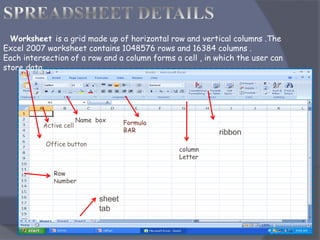
Worksheet is a grid made up of horizontal row and vertical columns .The
Excel 2007 worksheet contains 1048576 rows and 16384 columns .
Each intersection of a row and a column forms a cell , in which the user can
store data .
Active cell
Office button
Formula
BAR
column
Letter
Row
Number
Name box
sheet
tab
ribbon
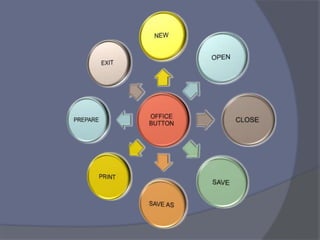
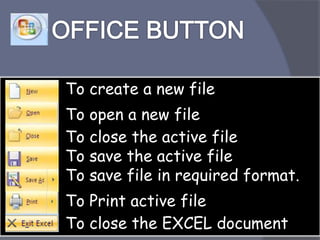
To create a new file
To open a new file
To close the active file
To save the active file
To save file in required format.
To Print active file
To close the EXCEL document.
ENTERING DATA
 Cell and Range References :- A reference identifies a cell or a
range of cells on a worksheet and tells Microsoft Excel where to looks for
the values or data the user wants to use in a formula . The user can also
refer to cells on other sheets in the same workbook , and to other
workbooks. References to cells in other workbooks are called links .
 Relative cell References :- This is the most widely used type of
cell references in formulas . Relative cell references are basic cell
references that adjust and change when copied or when using Autofill.
Absolute cell References :- When a formula or function is copied
or moved to another location , any cell references in the formula or
function get adjusted as well . However there are some situations where
a cell reference inside a formula must ALWAYS refer to the same cell.
FORMATING
ADJUSTING
WORKSHEET
LAYOUT AND
DATA
PRINTING
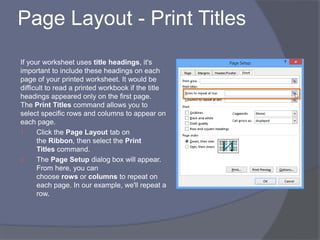
Page Layout - Print Titles
If your worksheet uses title headings, it's
important to include these headings on each
page of your printed worksheet. It would be
difficult to read a printed workbook if the title
headings appeared only on the first page.
The Print Titles command allows you to
select specific rows and columns to appear on
each page.
1. Click the Page Layout tab on
the Ribbon, then select the Print
Titles command.
2. The Page Setup dialog box will appear.
From here, you can
choose rows or columns to repeat on
each page. In our example, we'll repeat a
row.
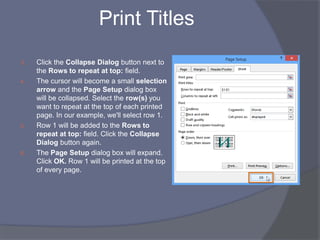
Print Titles
3. Click the Collapse Dialog button next to
the Rows to repeat at top: field.
4. The cursor will become a small selection
arrow and the Page Setup dialog box
will be collapsed. Select the row(s) you
want to repeat at the top of each printed
page. In our example, we'll select row 1.
5. Row 1 will be added to the Rows to
repeat at top: field. Click the Collapse
Dialog button again.
6. The Page Setup dialog box will expand.
Click OK. Row 1 will be printed at the top
of every page.
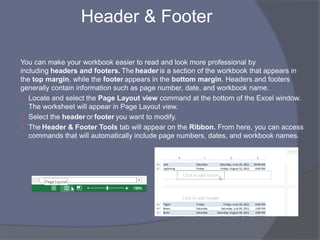
Header & Footer
You can make your workbook easier to read and look more professional by
including headers and footers. The header is a section of the workbook that appears in
the top margin, while the footer appears in the bottom margin. Headers and footers
generally contain information such as page number, date, and workbook name.
1. Locate and select the Page Layout view command at the bottom of the Excel window.
The worksheet will appear in Page Layout view.
2. Select the header or footer you want to modify.
3. The Header & Footer Tools tab will appear on the Ribbon. From here, you can access
commands that will automatically include page numbers, dates, and workbook names.
ADJUSTING
WORKSHEET
VIEWS
Freeze Panes
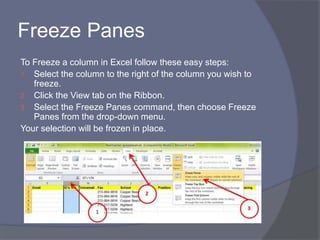
To Freeze a column in Excel follow these easy steps:
1. Select the column to the right of the column you wish to
freeze.
2. Click the View tab on the Ribbon.
3. Select the Freeze Panes command, then choose Freeze
Panes from the drop-down menu.
Your selection will be frozen in place.
Freeze Panes
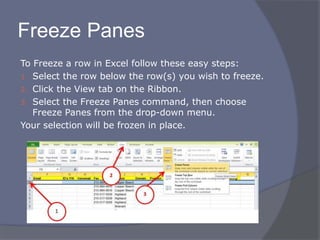
To Freeze a row in Excel follow these easy steps:
1. Select the row below the row(s) you wish to freeze.
2. Click the View tab on the Ribbon.
3. Select the Freeze Panes command, then choose
Freeze Panes from the drop-down menu.
Your selection will be frozen in place.
MULTIPLE
WORKSHEETS
AND WORKBOOKS
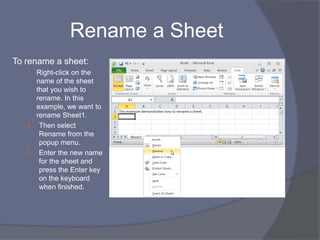
Rename a Sheet
To rename a sheet:
1. Right-click on the
name of the sheet
that you wish to
rename. In this
example, we want to
rename Sheet1.
2. Then select
Rename from the
popup menu.
3. Enter the new name
for the sheet and
press the Enter key
on the keyboard
when finished.
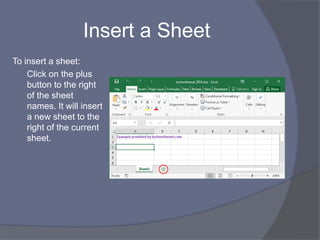
Insert a Sheet
To insert a sheet:
Click on the plus
button to the right
of the sheet
names. It will insert
a new sheet to the
right of the current
sheet.
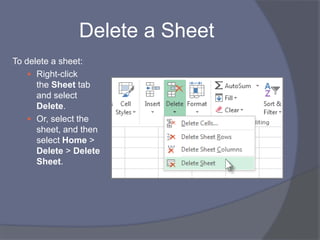
Delete a Sheet
To delete a sheet:
 Right-click
the Sheet tab
and select
Delete.
 Or, select the
sheet, and then
select Home >
Delete > Delete
Sheet.
Group Worksheets
You can quickly perform tasks on multiple worksheets at the same
time by grouping worksheets together. If you group a set of
worksheets, any changes you make on one worksheet are made
in all the other worksheets in the group in the exact same
location on the worksheets. If you want to create, for example,
standard tables or calculations on a large number of worksheets,
grouping can save you a lot of time. This works best if the
worksheets already have identical data structures.
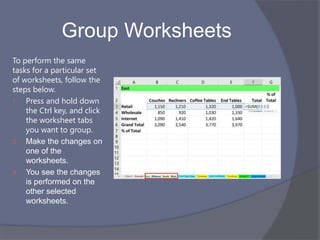
Group Worksheets
To perform the same
tasks for a particular set
of worksheets, follow the
steps below.
1. Press and hold down
the Ctrl key, and click
the worksheet tabs
you want to group.
2. Make the changes on
one of the
worksheets.
3. You see the changes
is performed on the
other selected
worksheets.
DATA
MANAGEMENT
FEATURES
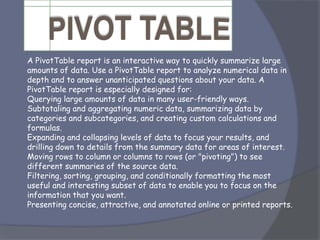
A PivotTable report is an interactive way to quickly summarize large
amounts of data. Use a PivotTable report to analyze numerical data in
depth and to answer unanticipated questions about your data. A
PivotTable report is especially designed for:
Querying large amounts of data in many user-friendly ways.
Subtotaling and aggregating numeric data, summarizing data by
categories and subcategories, and creating custom calculations and
formulas.
Expanding and collapsing levels of data to focus your results, and
drilling down to details from the summary data for areas of interest.
Moving rows to column or columns to rows (or "pivoting") to see
different summaries of the source data.
Filtering, sorting, grouping, and conditionally formatting the most
useful and interesting subset of data to enable you to focus on the
information that you want.
Presenting concise, attractive, and annotated online or printed reports.
FORMULAS AND
FUNCTIONS
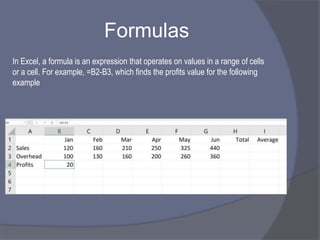
Formulas
In Excel, a formula is an expression that operates on values in a range of cells
or a cell. For example, =B2-B3, which finds the profits value for the following
example
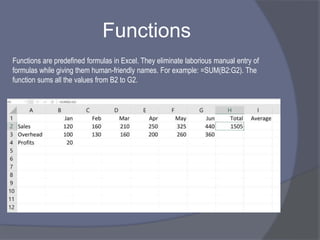
Functions
Functions are predefined formulas in Excel. They eliminate laborious manual entry of
formulas while giving them human-friendly names. For example: =SUM(B2:G2). The
function sums all the values from B2 to G2.
Lecture Two
MS-EXCEL
IF AND
RELATED
FUNCTIONS
Formula:-
=if(logical_text,value_if_true,value_if_false
).
• It is used to get a result in a cell according
to the given condition.
Formula:-
=sum(value1,value2,………….).
• It is used to make the sum or additions of
the numbers of any two or more cells.
S
M
Lookup and reference
functions
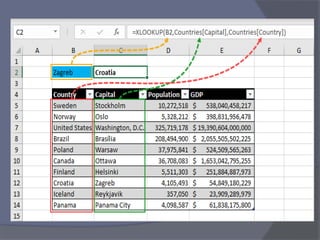
Formula:-
=vlookup(lookup_value,table_array,col_
index_num…..).
• it is used to make a link between two
different sheets or two different
workbook.
Statistical functions
Formula:-
=count(value1,value2,…………).
• It is used to count the cells out of the cells in
which a number is written.
Formula:-
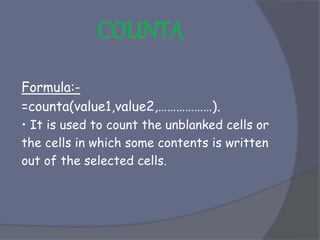
=counta(value1,value2,………………).
• It is used to count the unblanked cells or
the cells in which some contents is written
out of the selected cells.
Formula:-
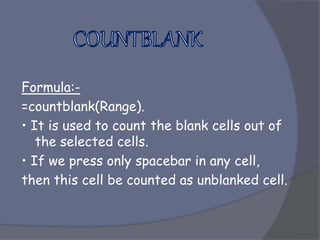
=countblank(Range).
• It is used to count the blank cells out of
the selected cells.
• If we press only spacebar in any cell,
then this cell be counted as unblanked cell.
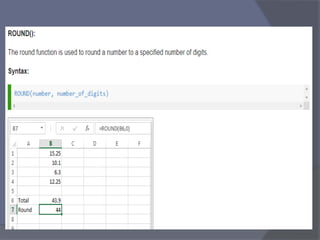
Math functions
Lecture Three
MS-EXCEL
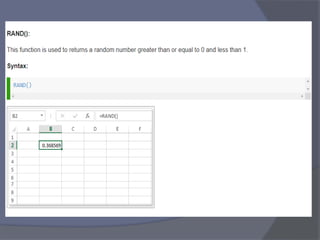
Power functions
Formula:-
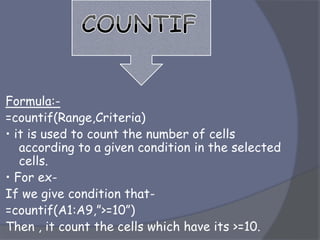
=countif(Range,Criteria)
• it is used to count the number of cells
according to a given condition in the selected
cells.
• For ex-
If we give condition that-
=countif(A1:A9,”>=10”)
Then , it count the cells which have its >=10.
Formula:-
=sumif(Range,Criteria,sum_range)
• It is used to make the sum of numbers
according to the given condition.
Date and time functions
Formula:-
=today()
• It is used to write the current date in
any cell.
Formula:-
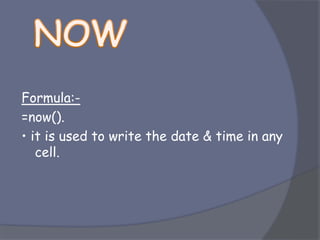
=now().
• it is used to write the date & time in any
cell.
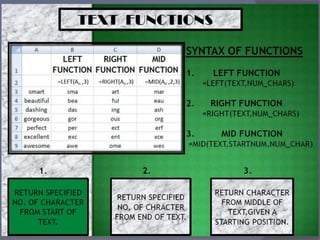
Text functions
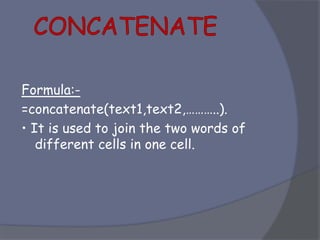
Formula:-
=concatenate(text1,text2,………..).
• It is used to join the two words of
different cells in one cell.
Charts
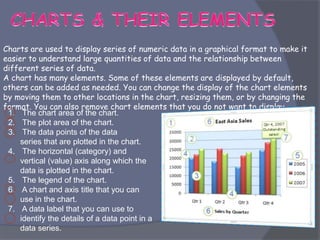
Charts are used to display series of numeric data in a graphical format to make it
easier to understand large quantities of data and the relationship between
different series of data.
A chart has many elements. Some of these elements are displayed by default,
others can be added as needed. You can change the display of the chart elements
by moving them to other locations in the chart, resizing them, or by changing the
format. You can also remove chart elements that you do not want to display.
1. The chart area of the chart.
2. The plot area of the chart.
3. The data points of the data
series that are plotted in the chart.
4. The horizontal (category) and
vertical (value) axis along which the
data is plotted in the chart.
5. The legend of the chart.
6. A chart and axis title that you can
use in the chart.
7. A data label that you can use to
identify the details of a data point in a
data series.
It is used to give a condition on any one or
more cells & then input a message & if that
condition is wrong then make alert by a
comment.
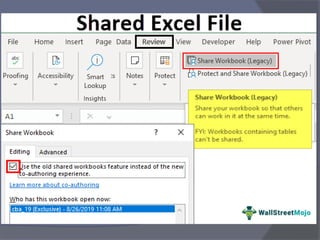
Sharing workbooks
Microsoft Excel Training

Microsoft Excel Training

  • 1.
    Asst. Lec. Zahraa NajimAbdullah July 2021 Asst. Lec. Huda Ragheb Kadhim
  • 2.
  • 3.
  • 4.
    Microsoft Excel (fullname Microsoft Office Excel) is a spreadsheet application written and distributed by Microsoft for Microsoft Windows and Mac OS X. It features calculation, graphing tools, pivot tables and a macro programming language called VBA (Visual Basic for Applications). Default Name of MS- EXCEL Workbook: BOOK1 Extension of MS-EXCEL: .xls It is a table format which uses rows & columns to make any report & table. It is consists of workbook. MS-EXCEL Overview
  • 6.
    Worksheet is agrid made up of horizontal row and vertical columns .The Excel 2007 worksheet contains 1048576 rows and 16384 columns . Each intersection of a row and a column forms a cell , in which the user can store data . Active cell Office button Formula BAR column Letter Row Number Name box sheet tab ribbon
  • 8.
    To create anew file To open a new file To close the active file To save the active file To save file in required format. To Print active file To close the EXCEL document.
  • 9.
  • 10.
     Cell andRange References :- A reference identifies a cell or a range of cells on a worksheet and tells Microsoft Excel where to looks for the values or data the user wants to use in a formula . The user can also refer to cells on other sheets in the same workbook , and to other workbooks. References to cells in other workbooks are called links .  Relative cell References :- This is the most widely used type of cell references in formulas . Relative cell references are basic cell references that adjust and change when copied or when using Autofill. Absolute cell References :- When a formula or function is copied or moved to another location , any cell references in the formula or function get adjusted as well . However there are some situations where a cell reference inside a formula must ALWAYS refer to the same cell.
  • 15.
  • 20.
  • 22.
  • 23.
    Page Layout -Print Titles If your worksheet uses title headings, it's important to include these headings on each page of your printed worksheet. It would be difficult to read a printed workbook if the title headings appeared only on the first page. The Print Titles command allows you to select specific rows and columns to appear on each page. 1. Click the Page Layout tab on the Ribbon, then select the Print Titles command. 2. The Page Setup dialog box will appear. From here, you can choose rows or columns to repeat on each page. In our example, we'll repeat a row.
  • 24.
    Print Titles 3. Clickthe Collapse Dialog button next to the Rows to repeat at top: field. 4. The cursor will become a small selection arrow and the Page Setup dialog box will be collapsed. Select the row(s) you want to repeat at the top of each printed page. In our example, we'll select row 1. 5. Row 1 will be added to the Rows to repeat at top: field. Click the Collapse Dialog button again. 6. The Page Setup dialog box will expand. Click OK. Row 1 will be printed at the top of every page.
  • 25.
    Header & Footer Youcan make your workbook easier to read and look more professional by including headers and footers. The header is a section of the workbook that appears in the top margin, while the footer appears in the bottom margin. Headers and footers generally contain information such as page number, date, and workbook name. 1. Locate and select the Page Layout view command at the bottom of the Excel window. The worksheet will appear in Page Layout view. 2. Select the header or footer you want to modify. 3. The Header & Footer Tools tab will appear on the Ribbon. From here, you can access commands that will automatically include page numbers, dates, and workbook names.
  • 26.

  • 27.
    Freeze Panes To Freezea column in Excel follow these easy steps: 1. Select the column to the right of the column you wish to freeze. 2. Click the View tab on the Ribbon. 3. Select the Freeze Panes command, then choose Freeze Panes from the drop-down menu. Your selection will be frozen in place.
  • 28.
    Freeze Panes To Freezea row in Excel follow these easy steps: 1. Select the row below the row(s) you wish to freeze. 2. Click the View tab on the Ribbon. 3. Select the Freeze Panes command, then choose Freeze Panes from the drop-down menu. Your selection will be frozen in place.
  • 29.
  • 30.
    Rename a Sheet Torename a sheet: 1. Right-click on the name of the sheet that you wish to rename. In this example, we want to rename Sheet1. 2. Then select Rename from the popup menu. 3. Enter the new name for the sheet and press the Enter key on the keyboard when finished.
  • 31.
    Insert a Sheet Toinsert a sheet: Click on the plus button to the right of the sheet names. It will insert a new sheet to the right of the current sheet.
  • 32.
    Delete a Sheet Todelete a sheet:  Right-click the Sheet tab and select Delete.  Or, select the sheet, and then select Home > Delete > Delete Sheet.
  • 33.
    Group Worksheets You canquickly perform tasks on multiple worksheets at the same time by grouping worksheets together. If you group a set of worksheets, any changes you make on one worksheet are made in all the other worksheets in the group in the exact same location on the worksheets. If you want to create, for example, standard tables or calculations on a large number of worksheets, grouping can save you a lot of time. This works best if the worksheets already have identical data structures.
  • 34.
    Group Worksheets To performthe same tasks for a particular set of worksheets, follow the steps below. 1. Press and hold down the Ctrl key, and click the worksheet tabs you want to group. 2. Make the changes on one of the worksheets. 3. You see the changes is performed on the other selected worksheets.
  • 35.
  • 37.
    A PivotTable reportis an interactive way to quickly summarize large amounts of data. Use a PivotTable report to analyze numerical data in depth and to answer unanticipated questions about your data. A PivotTable report is especially designed for: Querying large amounts of data in many user-friendly ways. Subtotaling and aggregating numeric data, summarizing data by categories and subcategories, and creating custom calculations and formulas. Expanding and collapsing levels of data to focus your results, and drilling down to details from the summary data for areas of interest. Moving rows to column or columns to rows (or "pivoting") to see different summaries of the source data. Filtering, sorting, grouping, and conditionally formatting the most useful and interesting subset of data to enable you to focus on the information that you want. Presenting concise, attractive, and annotated online or printed reports.
  • 38.
  • 39.
    Formulas In Excel, aformula is an expression that operates on values in a range of cells or a cell. For example, =B2-B3, which finds the profits value for the following example
  • 40.
    Functions Functions are predefinedformulas in Excel. They eliminate laborious manual entry of formulas while giving them human-friendly names. For example: =SUM(B2:G2). The function sums all the values from B2 to G2.
  • 41.
  • 43.
  • 44.
    Formula:- =if(logical_text,value_if_true,value_if_false ). • It isused to get a result in a cell according to the given condition.
  • 45.
    Formula:- =sum(value1,value2,………….). • It isused to make the sum or additions of the numbers of any two or more cells. S M
  • 47.
  • 48.
    Formula:- =vlookup(lookup_value,table_array,col_ index_num…..). • it isused to make a link between two different sheets or two different workbook.
  • 50.
  • 51.
    Formula:- =count(value1,value2,…………). • It isused to count the cells out of the cells in which a number is written.
  • 52.
    Formula:- =counta(value1,value2,………………). • It isused to count the unblanked cells or the cells in which some contents is written out of the selected cells.
  • 53.
    Formula:- =countblank(Range). • It isused to count the blank cells out of the selected cells. • If we press only spacebar in any cell, then this cell be counted as unblanked cell.
  • 54.
  • 60.
  • 61.
  • 62.
    Formula:- =countif(Range,Criteria) • it isused to count the number of cells according to a given condition in the selected cells. • For ex- If we give condition that- =countif(A1:A9,”>=10”) Then , it count the cells which have its >=10.
  • 63.
    Formula:- =sumif(Range,Criteria,sum_range) • It isused to make the sum of numbers according to the given condition.
  • 64.
    Date and timefunctions
  • 65.
    Formula:- =today() • It isused to write the current date in any cell.
  • 66.
    Formula:- =now(). • it isused to write the date & time in any cell.
  • 68.
  • 69.
    Formula:- =concatenate(text1,text2,………..). • It isused to join the two words of different cells in one cell.
  • 72.
  • 73.
    Charts are usedto display series of numeric data in a graphical format to make it easier to understand large quantities of data and the relationship between different series of data. A chart has many elements. Some of these elements are displayed by default, others can be added as needed. You can change the display of the chart elements by moving them to other locations in the chart, resizing them, or by changing the format. You can also remove chart elements that you do not want to display. 1. The chart area of the chart. 2. The plot area of the chart. 3. The data points of the data series that are plotted in the chart. 4. The horizontal (category) and vertical (value) axis along which the data is plotted in the chart. 5. The legend of the chart. 6. A chart and axis title that you can use in the chart. 7. A data label that you can use to identify the details of a data point in a data series.
  • 74.
    It is usedto give a condition on any one or more cells & then input a message & if that condition is wrong then make alert by a comment.
  • 76.