NETWORK ADMINISTRATION LINUX PREVIEW
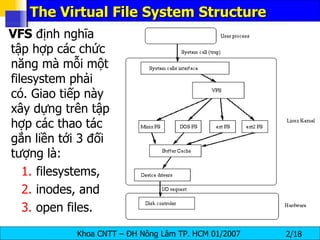
The Virtual File System Structure VFS  định nghĩa tập hợp các chức năng mà mỗi một filesystem phải có. Giao tiếp này xây dựng trên tập hợp các thao tác gắn liền tới 3 đối tượng là: filesystems,  inodes, and  open files.
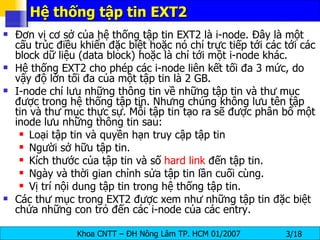
Hệ thống tập tin EXT2 Đơn vị cơ sở của hệ thống tập tin EXT2 là i-node. Đây là một cấu trúc điều khiển đặc biệt hoặc nó chỉ trực tiếp tới các tới các block dữ liệu (data block) hoặc là chỉ tới một i-node khác.  Hệ thống EXT2 cho phép các i-node liên kết tối đa 3 mức, do vậy độ lớn tối đa của một tập tin là 2 GB.  I-node chỉ lưu những thông tin về những tập tin và thư mục được trong hệ thống tập tin. Nhưng chúng không lưu tên tập tin và thư mục thực sự. Mỗi tập tin tạo ra sẽ được phân bổ một inode lưu những thông tin sau: Loại tập tin và quyền hạn truy cập tập tin Người sở hữu tập tin. Kích thước của tập tin và số  hard link  đến tập tin. Ngày và thời gian chỉnh sửa tập tin lần cuối cùng. Vị trí nội dung tập tin trong hệ thống tập tin. Các thư mục trong EXT2 được xem như những tập tin đặc biệt chứa những con trỏ đến các i-node của các entry.
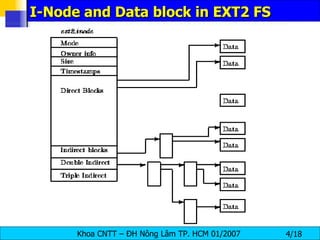
I-Node and Data block in EXT2 FS
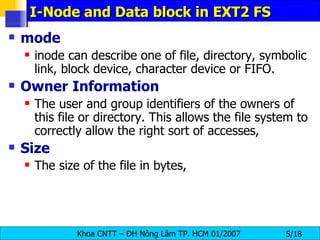
I-Node and Data block in EXT2 FS mode   inode can describe one of file, directory, symbolic link, block device, character device or FIFO.  Owner   Information   The user and group identifiers of the owners of this file or directory. This allows the file system to correctly allow the right sort of accesses,  Size   The size of the file in bytes,
I-Node and Data block in EXT2 FS Timestamps   The time that the inode was created and the last time that it was modified   Datablocks   Pointers to the blocks that contain the data that this inode is describing.  The first twelve are pointers to the physical blocks containing the data described by this inode and   the last three pointers contain more and more levels of indirection .
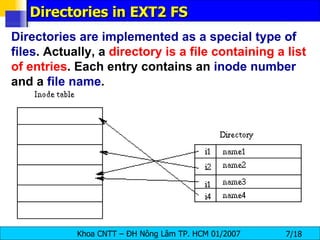
Directories in EXT2 FS Directories are implemented as a special type of files . Actually, a  directory is a file containing a list of entries . Each entry contains an  inode number  and a  file name .
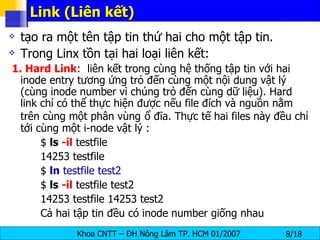
Link (Liên kết)  tạo ra một tên tập tin thứ hai cho một tập tin. Trong Linx tồn tại hai loại liên kết: 1. Hard Link :  liên kết trong cùng hệ thống tập tin với hai inode entry tương ứng trỏ đến cùng một nội dung vật lý (cùng inode number vì chúng trỏ đến cùng dữ liệu). Hard link chỉ có thể thực hiện được nếu file đích và nguồn nằm trên cùng một phân vùng   ổ đĩa. Thực tế hai files này đều chỉ tới cùng một i-node vật lý : $  ls  -il  testfile 14253 testfile $  ln  testfile test2 $  ls  -il  testfile test2 14253 testfile 14253 test2 Cả hai tập tin đều có inode number giống nhau
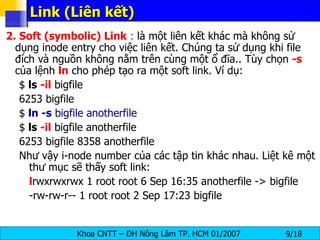
Link (Liên kết)  2. Soft (symbolic) Link  :  là một liên kết khác mà không sử dụng inode entry cho việc liên kết. Chúng ta sử dụng khi file đích và nguồn không nằm trên cùng một ổ đĩa.. Tùy chọn  -s  của lệnh  ln  cho phép tạo ra một soft link. Ví dụ: $  ls  -il  bigfile 6253 bigfile $  ln -s  bigfile anotherfile $  ls  -il  bigfile anotherfile 6253 bigfile 8358 anotherfile Như vậy i-node number của các tập tin khác nhau. Liệt kê một thư mục sẽ thấy soft link: l rwxrwxrwx 1 root root 6 Sep 16:35 anotherfile -> bigfile -rw-rw-r-- 1 root root 2 Sep 17:23 bigfile
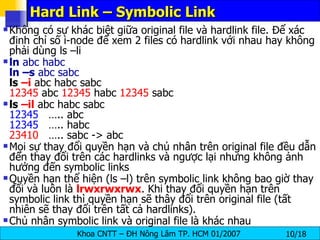
Hard Link – Symbolic Link Không có sự khác biệt giữa original file và hardlink file. Để xác định chỉ số i-node để xem 2 files có hardlink với nhau hay không phải dùng ls –li ln  abc habc ln –s  abc sabc ls  –i  abc habc sabc 12345  abc  12345  habc  12345  sabc ls  –il  abc habc sabc 12345   ….. abc 12345   ….. habc 23410   ….. sabc -> abc Mọi sự thay đổi quyền hạn và chủ nhân trên original file đều dẫn đến thay đổi trên các hardlinks và ngược lại nhưng không ảnh hưởng đến symbolic links  Quyền hạn thể hiện (ls –l) trên symbolic link không bao giờ thay đổi và luôn là  lrwxrwxrwx . Khi thay đổi quyền hạn trên symbolic link thì quyền hạn sẽ thây đổi trên original file (tất nhiên sẽ thay đổi trên tất cả hardlinks). Chủ nhân symbolic link và original file là khác nhau
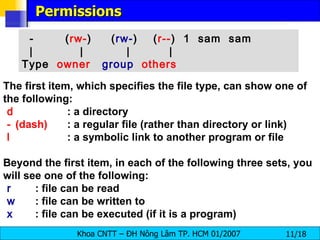
Permissions The first item, which specifies the file type, can show one of the following:  d   : a directory  -  (dash)   : a regular file (rather than directory or link)  l   : a symbolic link to another program or file Beyond the first item, in each of the following three sets, you will see one of the following:  r   : file can be read  w   : file can be written to  x   : file can be executed (if it is a program)   -  ( rw- )  ( rw- )  ( r-- )  1  sam  sam  |  |  |  | Type  owner   group   others
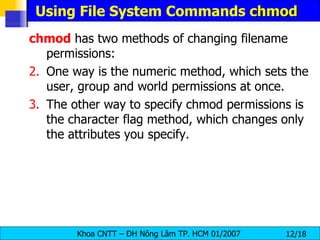
Using File System Commands  chmod chmod  has two methods of changing filename permissions:  One way is the numeric method, which sets the user, group and world permissions at once. The other way to specify chmod permissions is the character flag method, which changes only the attributes you specify.
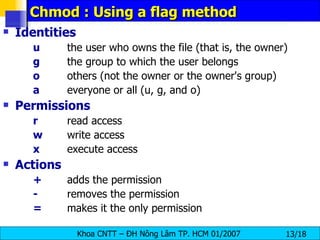
Chmod : Using a flag method Identities u   the user who owns the file (that is, the owner)  g   the group to which the user belongs  o   others (not the owner or the owner's group)  a   everyone or all (u, g, and o)  Permissions r   read access  w   write access  x   execute access  Actions +   adds the permission  -   removes the permission  =   makes it the only permission
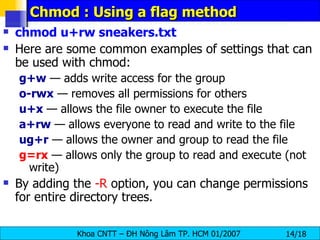
Chmod : Using a flag method chmod u+rw sneakers.txt   Here are some common examples of settings that can be used with chmod:  g+w  — adds write access for the group  o-rwx  — removes all permissions for others  u+x  — allows the file owner to execute the file  a+rw  — allows everyone to read and write to the file  ug+r   — allows the owner and group to read the file  g=rx  — allows only the group to read and execute (not write)  By adding the  -R  option, you can change permissions for entire directory trees.
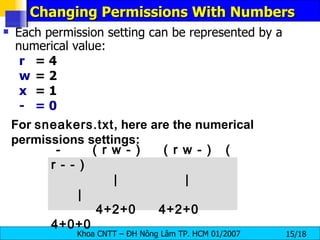
Changing Permissions With Numbers Each permission setting can be represented by a numerical value:  r   = 4  w   = 2  x   = 1  -   = 0  For  sneakers.txt , here are the numerical permissions settings:   -  ( r w - )  ( r w - )  ( r - - )  |  |  |    4+2+0  4+2+0  4+0+0
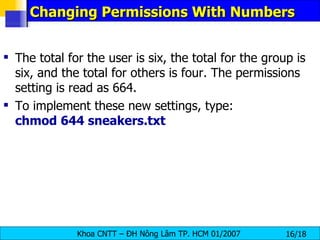
Changing Permissions With Numbers The total for the user is six, the total for the group is six, and the total for others is four. The permissions setting is read as 664.  To implement these new settings, type:  chmod 644 sneakers.txt
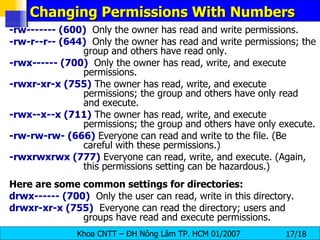
Changing Permissions With Numbers -rw------- (600)   Only the owner has read and write permissions.  -rw-r--r-- (644)   Only the owner has read and write permissions; the group and others have read only.  -rwx------ (700)   Only the owner has read, write, and execute permissions.  -rwxr-xr-x (755)  The owner has read, write, and execute permissions; the group and others have only read and execute.  -rwx--x--x (711)  The owner has read, write, and execute permissions; the group and others have only execute.  - rw-rw-rw- (666)  Everyone can read and write to the file. (Be careful with these permissions.)  -rwxrwxrwx (777)  Everyone can read, write, and execute. (Again, this permissions setting can be hazardous.)  Here are some common settings for directories:   drwx------ (700)   Only the user can read, write in this directory.  drwxr-xr-x (755)   Everyone can read the directory; users and groups have read and execute permissions.
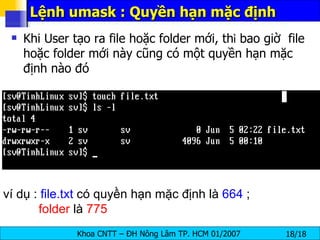
Khi User tạo ra file hoặc folder mới, th ì  bao giờ  file hoặc folder mới này cũng có một quyền hạn mặc định nào đó Lệnh umask : Quyền hạn mặc định ví dụ :  file.txt  có quyền hạn mặc định là  664  ;    folder  là  775
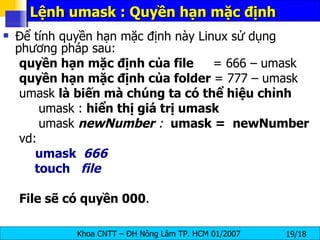
Lệnh umask : Quyền hạn mặc định Để tính quyền hạn mặc định này Linux sử dụng phương pháp sau: quyền hạn mặc định của file   = 666 – umask quyền hạn mặc định của folder  = 777 – umask umask  là biến mà chúng ta có thể hiệu chỉnh umask :  hiển thị giá trị umask umask  newNumber  :  umask =  newNumber vd:  umask  666 touch  file File sẽ có quyền 000 .
Sticky bit Khi  UserA  có quyền  Write  đối với một  folder  thì  UserA  đó có thể  xóa   bất   kỳ   một   file  hoặc  subfolder  nào  ngay   cả   khi   UserA  kh ô ng  phải  l à   chủ   nhân   và   cũng   không   có   quyền   hạn   gì  đối với file và subfolder nói trên.  Để xem thuộc tính của folder  hãy dùng  ls  -ld Ví dụ.  /tmp/  có thuộc tính  dwrxwrxwrx
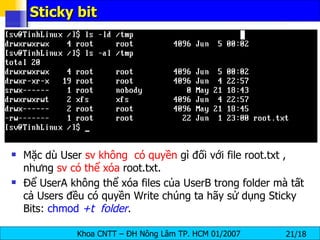
Sticky bit Mặc dù User  sv   không  có quyền  gì đối với file root.txt , nhưng  sv có thể xóa  root.txt. Để UserA không thể xóa files của UserB trong folder mà tất cả Users đều có quyền Write chúng ta hãy sử dụng Sticky Bits:  chmod  +t   folder .
The Root Directory the following directories, or symbolic links to directories, are required in / : /bin   Essential command binaries  /boot  Static files of the boot loader  /dev   Device files  /etc   Host-specific system configuration  /lib Essential shared libraries and kernel  modules  /mnt  Mount point for mounting a filesystem  temporarily  /sbin  Essential system binaries  /tmp   Temporary files  /usr   Secondary hierarchy  /var   Variable data
Running Programs at Boot Time The  /etc/rc.d/rc.local  script is executed by the init command at boot time or when changing runlevels. Adding commands to this script is an easy way to perform necessary tasks like starting special services or initialize devices without writing complex initialization scripts in the /etc/rc.d/init.d/ directory and creating symbolic links.  The  /etc/rc.serial  script is used if serial ports must be setup at boot time. This script runs setserial commands to configure the system's serial ports.
Users and Groups Control of  users  and  groups  is a core element of Red Hat Linux system administration.  Users   can be either people, meaning accounts tied to physical users, or accounts which exist for specific applications to use.  Groups  are logical expressions of organization, tying users together for a common purpose. Users within the same group can read, write, or execute files owned by the group.  Each user and group have a unique numerical identification number  called a  userid  ( UID ) and a  groupid  ( GID ) respectively.  A good system administrator must first understand what user accounts and groups are and how they work.
User and Group Management Tools The following command line tools can also be used to manage users and groups:   useradd ,  usermod , and  userdel  — Industry-standard methods of adding, deleting and modifying user accounts.  groupadd ,  groupmod , and  groupdel  — Industry-standard methods of adding, deleting, and modifying user groups.  gpasswd   — Industry-standard method of administering the  /etc/group  file.
/etc/group
Adding a User To add a user to the system: Issue the useradd command to create a locked user account: useradd   [ options ]   < username > Unlock the account by issuing the passwd command to assign a password and set password aging guidelines: passwd   < username >
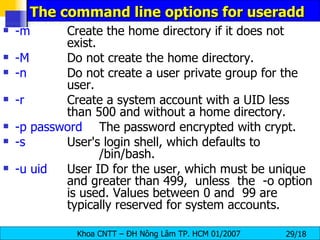
The command line options for useradd  -c   comment Comment for the user -d   home-dir Home directory to be used instead of  default /home/ username -e   date Date for the account to be disabled in  the format YYYY-MM-DD -f   days Number of days after the password  expires until the account is disabled. (If 0 is  specified, the account is disabled immediately  after the password expires. If -1 is specified, the  account will not be disabled after the password  expires.) -g   group-name Group name or group number for the  user's default group (The group must exist prior  to being specified here.)
The command line options for useradd  -m Create the home directory if it does not  exist. -M Do not create the home directory. -n Do not create a user private group for the  user. -r Create a system account with a UID less  than 500 and without a home directory. -p password The password encrypted with crypt. -s User's login shell, which defaults to  /bin/bash. -u uid User ID for the user, which must be unique  and greater than 499,  unless  the  -o option  is used. Values between 0 and  99 are  typically reserved for system accounts.
Delete a user account - userdel userdel   [-r ]  user_name The  userdel  command  modifies  the system account files, deleting all  entries that refer to login.  The named user must exist.  The  options  which apply to the userdel command are: -r   Files  in  the  user’s home directory will be    removed along with  the home directory itself  and  the  user’s  mail  spool.  Files located  in  other file systems will have to be searched for  and deleted manually.
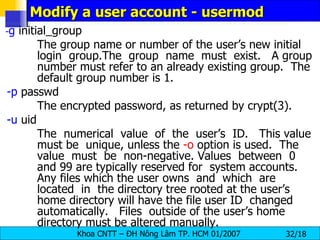
Modify a user account - usermod usermod  [ option ]  user_name -c  comment The  new value of the user’s password file comment field.  It is normally modified using the chfn(1) utility. -d  home_dir The user’s new login directory.  If the -m option is  given  the contents  of the current home directory will be moved to the new  home directory, which is created if it does not already exist. -e  expire_date The date on which the user account will be disabled.  The  date is specified in the format YYYY-MM-DD.
Modify a user account - usermod - g  initial_group The group name or number of the user’s new initial login  group.The  group  name  must  exist.  A group number must refer to an already existing group.  The default group number is 1. -p  passwd The encrypted password, as returned by crypt(3). -u  uid  The  numerical  value  of  the  user’s  ID.  This value must be  unique, unless the  -o  option is used.  The value  must  be  non-negative. Values  between  0 and 99 are typically reserved for  system accounts.  Any files which the user owns  and  which  are  located  in  the directory tree rooted at the user’s home directory will have the file user ID  changed  automatically.  Files  outside of the user’s home directory must be altered manually.
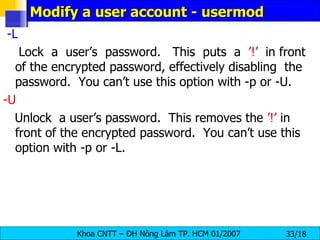
Modify a user account - usermod -L   Lock  a  user’s  password.  This  puts  a  ’!’   in front of the encrypted password, effectively disabling  the  password.  You can’t use this option with -p or -U. -U   Unlock  a user’s password.  This removes the  ’!’  in front of the encrypted password.  You can’t use this option with -p or -L.
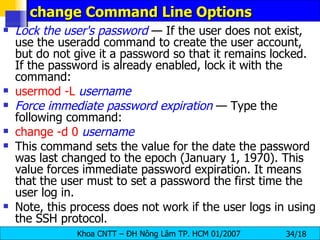
change Command Line Options  Lock the user's password  — If the user does not exist, use the useradd command to create the user account, but do not give it a password so that it remains locked. If the password is already enabled, lock it with the command:  usermod   -L   username Force immediate password expiration  — Type the following command: change   -d 0   username This command sets the value for the date the password was last changed to the epoch (January 1, 1970). This value forces immediate password expiration. It means that the user must to set a password the first time the user log in. Note, this process does not work if the user logs in using the SSH protocol.
Adding a Group groupadd [ options ]  < group-nam e>   -g   gid   Group ID for the group, which must    be unique and greater than 499,    unless  the  -o option is used. -r   Create a system group with a GID less    than 500. -f   Exit with an error if the group already    exists. If -g and -f are specified, but the    group already exists, the -g option is    ignored.
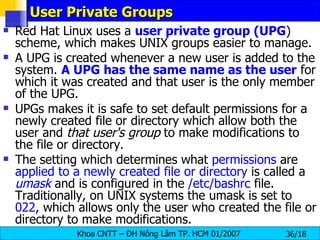
User Private Groups Red Hat Linux uses a  user private group (UPG ) scheme, which makes UNIX groups easier to manage.  A UPG is created whenever a new user is added to the system.  A UPG has the same name as the user  for which it was created and that user is the only member of the UPG.  UPGs makes it is safe to set default permissions for a newly created file or directory which allow both the user and  that user's group  to make modifications to the file or directory.  The setting which determines what  permissions  are  applied to a newly created file or directory  is called a  umask  and is configured in the  /etc/bashrc  file. Traditionally, on UNIX systems the umask is set to  022 , which allows only the user who created the file or directory to make modifications.
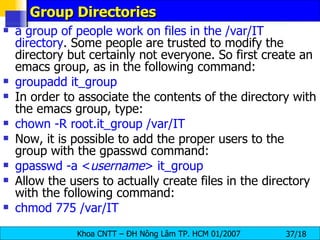
Group Directories a group of people work on files in the /var/IT directory . Some people are trusted to modify the directory but certainly not everyone. So first create an emacs group, as in the following command:  groupadd it_group In order to associate the contents of the directory with the emacs group, type:  chown -R root.it_group /var/IT   Now, it is possible to add the proper users to the group with the gpasswd command:  gpasswd -a < username > it_group Allow the users to actually create files in the directory with the following command:  chmod 775 /var/IT
/etc/passwd The  /etc/passwd  file is world-readable and contains a list of users, each on a separate line. On each line is a colon delimited list containing the following information: Username  — The name the user types when logging into the system. Password  — Contains the encrypted password (or an x if shadow passwords are being used — more on this later). User ID (UID)  — The numerical equivalent of the username which is referenced by the system and applications when determining access privileges. Group ID (GID)  — The numerical equivalent of the primary group name which is referenced by the system and applications when determining access privileges.
/etc/passwd Home directory  — The absolute path to the user's home directory, such as /home/juan/. Shell  — The program automatically launched whenever a user logs in. This is usually a command interpreter (often called a  shell ). Under Red Hat Linux, the default value is /bin/bash. If this field is left blank, /bin/sh is used. If it is set to a non-existent file, then the user will be unable to log into the system. Here is an example of a /etc/passwd entry: root:x:0:0:root:/root:/bin/bash This line shows that the  root  user has a  shadow password , as well as a  UID  and  GID of 0 . The root user has  /root/ as a home directory , and uses  /bin/bash for a shell .
/etc/shadow Because the / etc/passwd  file must be world-readable (the main reason being that this file is used to perform the translation from  UID  to username), there is a risk involved in storing everyone's password in / etc/passwd .  Therefore, the  / etc/shadow  file is readable only by the root user and contains password  (and optional password aging information) for each user. As in the / etc/passwd  file, each user's information is on a separate line. Each of these lines is a colon delimited list including the following information: Username  — The name the user types when logging into the system. This allows the login application to retrieve the user's password (and related information).
/etc/shadow Encrypted password  — The 13 to 24 character password. The password is encrypted using either the crypt(3) library function or the md5 hash algorithm. In this field, values other than a validly-formatted encrypted or hashed password are used to control user logins and to show the password status. For example, if the value is  !  or  * ,  the account is locked  and the user is not allowed to log in. If the value is  !!  a password has never been set before (and the user, not having set a password, will not be able to log in). Date password last changed  — The number of days since January 1, 1970 (also called the  epoch ) that the password was last changed. This information is used in conjunction with the password aging fields that follow. Number of days before password can be changed  — The minimum number of days that must pass before the password can be changed.
Linux Networking
Determining Your IP Address  You can  determine the IP  address of this device with the &quot; ifconfig &quot; command. [root@bigboy tmp]#  ifconfig    eth0  Link encap:Ethernet  HWaddr 00:A0:CC:60:B7:G4 inet addr: 192.168.100.5   Bcast: 192.168.100.255   Mask: 255.255.255.0 UP BROADCAST RUNNING MULTICAST  MTU:1500  Metric:1 RX packets:161930 errors:1 dropped:0 overruns:0 frame:0 TX packets:244570 errors:0 dropped:0 overruns:0 carrier:0 collisions:475 txqueuelen:100 RX bytes:55075551 (52.5 Mb)  TX bytes:178108895 (169.8 Mb) Interrupt:10 Base address:0x9000
Changing Your IP Address If you wanted, you could  give  this  eth0 interface an IP address  using the  ifconfig  command. [root@bigboy tmp]#  ifconfig eth0 10.0.0.1 netmask  255.255.255.0 up  The &quot; up &quot; at the end of the command  activates the interface .  To make this permanent each time you boot up  you'll have to  add this command in your /etc/rc.d/rc.local  file. Linux also makes life a little easier with interface configuration files located in the  /etc/sysconfig/network-scripts  directory.  Interface eth0  has a file called  ifcfg-eth0 ,  eth1  uses  ifcfg-eth1  ... etc. You can place your IP address information in these files which are then  used to auto-configure your NICs when Linux boots .
Interface Configuration Files  Interface configuration files control the software interfaces for individual network devices. As the  system boots ,  it uses these files to determine what interfaces to bring up and how to configure them .  These files are  usually named  ifcfg- <name> ,  where  < name >  refers to the  name of the device  that the configuration file controls.  One of the most common interface files is ifcfg-eth0 , which  controls  the  first Ethernet  network interface card  or  NIC  in the system. In a  system with multiple NICs , there are multiple  ifcfg-eth <X>  files (where  < X>  is a unique number corresponding to a specific interface ). Because each device has its own configuration file, an administrator can control how each interface functions individually.
Example configuration file Below is a sample  ifcfg-eth0  file for a system using a  fixed IP address :  DEVICE= eth0   BOOTPROTO= none   ONBOOT= yes  NETWORK= 10.0.1.0  NETMASK= 255.255.255.0   IPADDR= 10.0.1.27   USERCTL= no For example, the  ifcfg-eth0  file for an interface  using DHCP  looks quite a bit different, because IP information is provided by the DHCP server:  DEVICE= eth0   BOOTPROTO= dhcp   ONBOOT= yes
the configurable parameters in an Ethernet interface configuration file   BOOTPROTO = <protocol> , where  <protocol>  is one of the following:  none  — No boot-time protocol should be used.  bootp  — The BOOTP protocol should be used.  dhcp  — The DHCP protocol should be used.  BROADCAST = <address> , where  <address>  is the broadcast address. This directive is deprecated.  DEVICE = <name> , where  <name>  is the name of the physical device (except for dynamically-allocated PPP devices where it is the  logical name ).  DNS {1,2} = <address> , where  <address>  is a name server address to be placed in /etc/resolv.conf if the PEERDNS directive is set to yes.
the configurable parameters in an Ethernet interface configuration file IPADDR = <address> , where  <address>  is the IP address. NETMASK = <mask> , where  <mask>  is the netmask value. NETWORK = <address> , where  <address>  is the network address. This directive is deprecated.  ONBOOT = <answer> , where  <answer>  is one of the following:  yes  — This device should be activated at boot-time.  no  — This device should not be activated at boot-time.  USERCT L= <answer> , where  <answer>  is one of the following:  yes  — Non-root users are allowed to control this device.  no  — Non-root users are not allowed to control this device.
Interface Control Scripts  The interface control scripts activate and deactivated system interfaces . There are two primary interface control scripts,  /sbin/ifdown and /sbin/ifup , that call on control scripts located in the  /etc/sysconfig/network-scripts/  directory.  The  ifdown  and  ifup  interface scripts  are symbolic links to   scripts in the /sbin/ directory . When either of these scripts are called, they require the value of the interface to be specified, such as:  [root@bigboy network-scripts]#  ifup eth0   Determining IP information for eth0... done.  The easiest way to manipulate all network scripts simultaneously is to use the /sbin/service command on the network service (/etc/rc.d/init.d/network), as illustrated the following command:  #  /etc/rc.d/init.d/network   < action >  <action>  can be either  start, stop, restart , or  status .
How To Change Your Default Gateway  This can be done with a simple command. This example uses the standard ethernet interface eth0. [root@bigboy tmp]#  route add default gw 192.168.1.1 eth0 In this case, make sure that the  router / firewall  with IP address  192.168.1.1  is  connected to the same network as interface eth0 ! Once done, you'll need to update your  /etc/sysconfig/network  file to reflect the change. This file is used to  configure your default gateway each time Linux boots . NETWORKING= yes HOSTNAME=bigboy GATEWAY= 192.168.1.1 Some people don't bother with this step and just place the &quot; route add &quot; command in the file  /etc/rc.d/rc.local
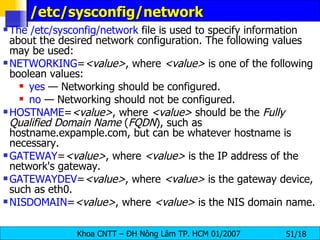
/etc/sysconfig/network  The /etc/sysconfig/network  file is used to specify information about the desired network configuration. The following values may be used:  NETWORKING = <value> , where  <value>  is one of the following boolean values:  yes  — Networking should be configured.  no  — Networking should not be configured.  HOSTNAME = <value> , where  <value>  should be the  Fully Qualified Domain Name  ( FQDN ), such as hostname.expample.com, but can be whatever hostname is necessary.  GATEWAY = <value> , where  <value>  is the IP address of the network's gateway.  GATEWAYDEV = <value> , where  <value>  is the gateway device, such as eth0.  NISDOMAIN = <value> , where  <value>  is the NIS domain name.
To Change The Duplex Setting Of Your NIC A Ethernet NICs built into motherboards ( onboard NICs ) frequently  don't negotiate port speed and duplex correctly . You can manage the duplex and speed settings of your NIC with the mii-tool command . It is best to use this command with compatible hardware. In the example below, we can see the output of the command verbose &quot;-v&quot; mode. In this case, negotiation was OK, with the NIC selecting 100Mbps, full duplex mode (FD). [root@bigboy tmp]#  mii-tool  –v eth1: negotiated 100baseTx-FD, link ok   product info: vendor 00:10:18, model 33 rev 2   basic mode:   autonegotiation enabled   basic status: autonegotiation complete, link ok   capabilities: 100baseTx-FD 100baseTx-HD 10baseT-FD 10baseT-HD   advertising:  100baseTx-FD 100baseTx-HD 10baseT-FD 10baseT-HD   link partner: 100baseTx-FD 100baseTx-HD 10baseT-FD 10baseT-HD  flow-control
To Change The Duplex Setting Of Your NIC You can  set your NIC to force  itself to a particular  speed and duplex by using the &quot;-F&quot; switch  with any of the following options:  100baseTx-FD ,  100baseTx-HD, 10baseT-FD, or 10baseT-HD .  Remember that you could lose all network connectivity to your server if you force your NIC to a particular speed/duplex that doesn't match that of your switch!!! . [root@bigboy tmp]#  mii-tool  -F  100baseTx-FD eth0 I have seen where NICs appear to work with  failed negotiation , but this is usually accompanied by many &quot; collision &quot; type errors being seen on the NIC when using the ifconfig -a command and only marginal performance. The causes for this could include an  incompatible NIC ,  incorrect settings on your switch port or a bad cable .
Configuring Your /etc/hosts File The /etc/hosts file  is just a  list of IP addresses and their corresponding server names .  Your server will typically check this file before referencing DNS , if the name is found with a corresponding IP address then DNS won't be queried at all.  192.168.1.101  smallfry In the example above server &quot;smallfry&quot; has an IP address of 192.168.1.101. You can access 192.168.1.101 using the &quot;ping&quot;, &quot;telnet&quot; or any other network aware program by referring to it as &quot;smallfry&quot; Here is an example using the &quot;ping&quot; to see if &quot;smallfry&quot; is alive and well on the network. [root@bigboy tmp]# ping  smallfry PING zero ( 192.168.1.101 ) 56(84) bytes of data. 64 bytes from smallfry (192.168.1.101): icmp_seq=0 ttl=64 time=0.197 ms 64 bytes from smallfry (192.168.1.101): icmp_seq=1 ttl=64 time=0.047 ms
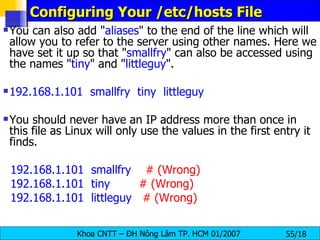
Configuring Your /etc/hosts File You can also add &quot; aliases &quot; to the end of the line which will allow you to refer to the server using other names. Here we have set it up so that &quot; smallfry &quot; can also be accessed using the names &quot; tiny &quot; and &quot; littleguy &quot;. 192.168.1.101  smallfry  tiny  littleguy   You should never have an IP address more than once in this file as Linux will only use the values in the first entry it finds.   192.168.1.101  smallfry      # (Wrong) 192.168.1.101  tiny          # (Wrong) 192.168.1.101  littleguy     # (Wrong)
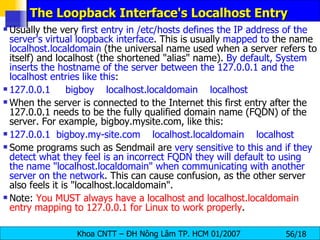
The Loopback Interface's Localhost Entry Usually the very  first entry in /etc/hosts defines the IP address of the server's virtual loopback interface . This is usually  mapped to  the name  localhost.localdomain  (the universal name used when a server refers to itself) and localhost (the shortened &quot;alias&quot; name).  By default, System inserts the hostname of the server between the 127.0.0.1 and the localhost entries like this : 127.0.0.1     bigboy    localhost.localdomain    localhost When the server is connected to the Internet this first entry after the 127.0.0.1 needs to be the fully qualified domain name (FQDN) of the server. For example, bigboy.mysite.com, like this:  127.0.0.1  bigboy.my-site.com    localhost.localdomain    localhost Some programs such as Sendmail are  very sensitive to this and if they detect what they feel is an incorrect FQDN they will default to using the name &quot;localhost.localdomain&quot; when communicating with another server on the network . This can cause confusion, as the other server also feels it is &quot;localhost.localdomain&quot;. Note:  You MUST always have a localhost and localhost.localdomain entry mapping to 127.0.0.1 for Linux to work properly .
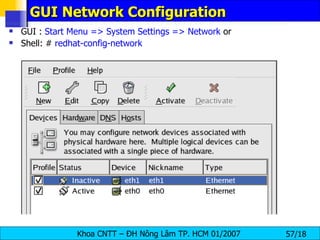
GUI Network Configuration GUI :  Start Menu => System Settings => Network  or  Shell: #  redhat-config-network
Overview  To configure a network connection with the Network Administration Tool, perform the following steps:  Add the physical hardware device to the hardware list. Add a network device associated with the physical hardware device. Configure the hostname and DNS settings. Configure any hosts that cannot be looked up through DNS .
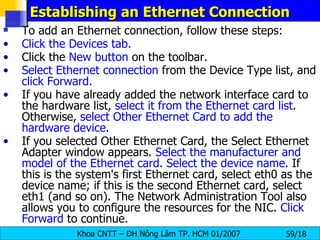
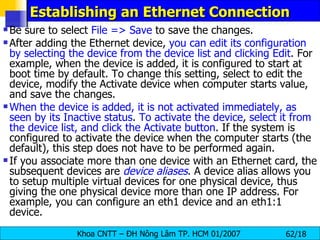
Establishing an Ethernet Connection  To add an Ethernet connection, follow these steps:  Click the Devices tab. Click the  New button  on the toolbar. Select Ethernet connection  from the Device Type list, and  click   Forward. If you have already added the network interface card to the hardware list,  select it from the Ethernet card list . Otherwise,  select Other Ethernet Card to add the hardware device . If you selected Other Ethernet Card, the Select Ethernet Adapter window appears.  Select the manufacturer and model of the Ethernet card .  Select the device name . If this is the system's first Ethernet card, select eth0 as the device name; if this is the second Ethernet card, select eth1 (and so on). The Network Administration Tool also allows you to configure the resources for the NIC.  Click Forward  to continue.
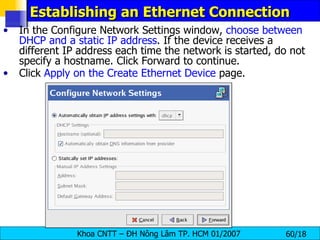
Establishing an Ethernet Connection In the Configure Network Settings window,  choose between DHCP and a static IP address . If the device receives a different IP address each time the network is started, do not specify a hostname. Click Forward to continue.  Click  Apply on the Create Ethernet Device  page.
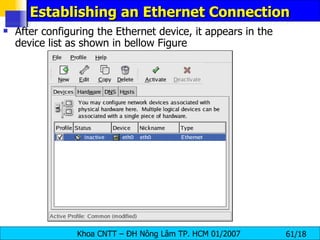
Establishing an Ethernet Connection After configuring the Ethernet device, it appears in the device list as shown in bellow Figure
Establishing an Ethernet Connection Be sure to select  File => Save  to save the changes.  After adding the Ethernet device,  you can edit its configuration by selecting the device from the device list and clicking Edit . For example, when the device is added, it is configured to start at boot time by default. To change this setting, select to edit the device, modify the Activate device when computer starts value, and save the changes.  When the device is added, it is not activated immediately, as seen by its Inactive status .  To activate the device ,  select it from the device list, and click the Activate button . If the system is configured to activate the device when the computer starts (the default), this step does not have to be performed again.  If you associate more than one device with an Ethernet card, the subsequent devices are  device aliases . A device alias allows you to setup multiple virtual devices for one physical device, thus giving the one physical device more than one IP address. For example, you can configure an eth1 device and an eth1:1 device.
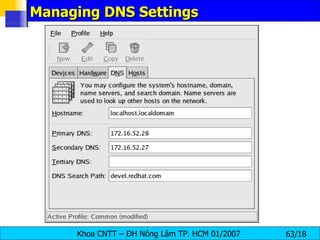
Managing DNS Settings
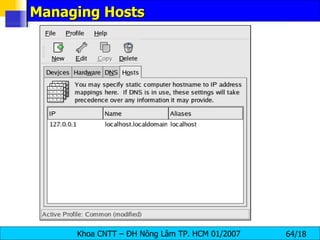
Managing Hosts
Managing Hosts To add an entry to the /etc/hosts file, go to the Hosts tab, click the New button  on the toolbar, provide the requested information, and  click OK . Select  File => Save  or press [Ctrl]-[S]  to save the changes to the /etc/hosts file . The network or network services do not need to be restarted since the current version of the file is referred to each time an address is resolved.  To change lookup order, edit the /etc/host.conf file . The line order hosts, bind specifies that the /etc/hosts takes precedence over the name servers. Changing the line to order bind, hosts configures the system to resolve hostnames and IP addresses using the name servers first. If the IP address cannot be resolved through the name servers, the system then looks for the IP address in the /etc/hosts file.
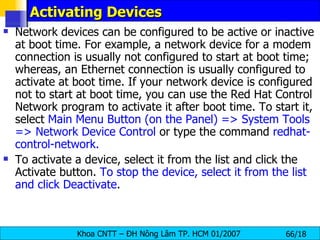
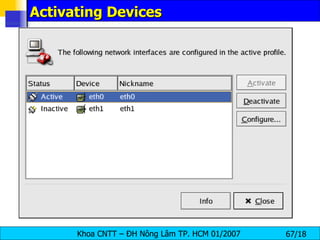
Activating Devices  Network devices can be configured to be active or inactive at boot time. For example, a network device for a modem connection is usually not configured to start at boot time; whereas, an Ethernet connection is usually configured to activate at boot time. If your network device is configured not to start at boot time, you can use the Red Hat Control Network program to activate it after boot time. To start it, select  Main Menu Button (on the Panel) => System Tools => Network Device Control  or type the command  redhat-control-network.   To activate a device, select it from the list and click the Activate button.  To stop the device, select it from the list and click Deactivate .
Activating Devices
Device Aliases  Device aliases  are virtual devices associated with the same   physical hardware , but they can be activated at the same time to have different IP addresses. They are commonly represented as the device name followed by a colon and a number (for example, eth0:1).  After configuring the Ethernet device, such as eth0, to use a static IP address  ( DHCP does not work with aliases ), go to the  Devices tab and click New. Select the Ethernet card to configure with an alias, set the static IP address for the alias, and click Apply to create it. Since a device already exists for the Ethernet card, the one just created is the alias such as eth0:1.   To modify the settings for the device alias such as whether to  activate it at boot time and the alias number, select it from the list and click the Edit button .  Select the alias and click the Activate button to activate the alias . If you have configured multiple profiles, select which profiles in which to include it.
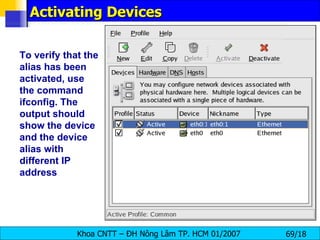
Activating Devices To verify that the alias has been activated, use the command ifconfig. The output should show the device and the device alias with different IP address

Lession1 Linux Preview

  • 1.
  • 2.
    The Virtual FileSystem Structure VFS định nghĩa tập hợp các chức năng mà mỗi một filesystem phải có. Giao tiếp này xây dựng trên tập hợp các thao tác gắn liền tới 3 đối tượng là: filesystems, inodes, and open files.
  • 3.
    Hệ thống tậptin EXT2 Đơn vị cơ sở của hệ thống tập tin EXT2 là i-node. Đây là một cấu trúc điều khiển đặc biệt hoặc nó chỉ trực tiếp tới các tới các block dữ liệu (data block) hoặc là chỉ tới một i-node khác. Hệ thống EXT2 cho phép các i-node liên kết tối đa 3 mức, do vậy độ lớn tối đa của một tập tin là 2 GB. I-node chỉ lưu những thông tin về những tập tin và thư mục được trong hệ thống tập tin. Nhưng chúng không lưu tên tập tin và thư mục thực sự. Mỗi tập tin tạo ra sẽ được phân bổ một inode lưu những thông tin sau: Loại tập tin và quyền hạn truy cập tập tin Người sở hữu tập tin. Kích thước của tập tin và số hard link đến tập tin. Ngày và thời gian chỉnh sửa tập tin lần cuối cùng. Vị trí nội dung tập tin trong hệ thống tập tin. Các thư mục trong EXT2 được xem như những tập tin đặc biệt chứa những con trỏ đến các i-node của các entry.
  • 4.
    I-Node and Datablock in EXT2 FS
  • 5.
    I-Node and Datablock in EXT2 FS mode inode can describe one of file, directory, symbolic link, block device, character device or FIFO. Owner Information The user and group identifiers of the owners of this file or directory. This allows the file system to correctly allow the right sort of accesses, Size The size of the file in bytes,
  • 6.
    I-Node and Datablock in EXT2 FS Timestamps The time that the inode was created and the last time that it was modified Datablocks Pointers to the blocks that contain the data that this inode is describing. The first twelve are pointers to the physical blocks containing the data described by this inode and the last three pointers contain more and more levels of indirection .
  • 7.
    Directories in EXT2FS Directories are implemented as a special type of files . Actually, a directory is a file containing a list of entries . Each entry contains an inode number and a file name .
  • 8.
    Link (Liên kết) tạo ra một tên tập tin thứ hai cho một tập tin. Trong Linx tồn tại hai loại liên kết: 1. Hard Link : liên kết trong cùng hệ thống tập tin với hai inode entry tương ứng trỏ đến cùng một nội dung vật lý (cùng inode number vì chúng trỏ đến cùng dữ liệu). Hard link chỉ có thể thực hiện được nếu file đích và nguồn nằm trên cùng một phân vùng ổ đĩa. Thực tế hai files này đều chỉ tới cùng một i-node vật lý : $ ls -il testfile 14253 testfile $ ln testfile test2 $ ls -il testfile test2 14253 testfile 14253 test2 Cả hai tập tin đều có inode number giống nhau
  • 9.
    Link (Liên kết) 2. Soft (symbolic) Link : là một liên kết khác mà không sử dụng inode entry cho việc liên kết. Chúng ta sử dụng khi file đích và nguồn không nằm trên cùng một ổ đĩa.. Tùy chọn -s của lệnh ln cho phép tạo ra một soft link. Ví dụ: $ ls -il bigfile 6253 bigfile $ ln -s bigfile anotherfile $ ls -il bigfile anotherfile 6253 bigfile 8358 anotherfile Như vậy i-node number của các tập tin khác nhau. Liệt kê một thư mục sẽ thấy soft link: l rwxrwxrwx 1 root root 6 Sep 16:35 anotherfile -> bigfile -rw-rw-r-- 1 root root 2 Sep 17:23 bigfile
  • 10.
    Hard Link –Symbolic Link Không có sự khác biệt giữa original file và hardlink file. Để xác định chỉ số i-node để xem 2 files có hardlink với nhau hay không phải dùng ls –li ln abc habc ln –s abc sabc ls –i abc habc sabc 12345 abc 12345 habc 12345 sabc ls –il abc habc sabc 12345 ….. abc 12345 ….. habc 23410 ….. sabc -> abc Mọi sự thay đổi quyền hạn và chủ nhân trên original file đều dẫn đến thay đổi trên các hardlinks và ngược lại nhưng không ảnh hưởng đến symbolic links Quyền hạn thể hiện (ls –l) trên symbolic link không bao giờ thay đổi và luôn là lrwxrwxrwx . Khi thay đổi quyền hạn trên symbolic link thì quyền hạn sẽ thây đổi trên original file (tất nhiên sẽ thay đổi trên tất cả hardlinks). Chủ nhân symbolic link và original file là khác nhau
  • 11.
    Permissions The firstitem, which specifies the file type, can show one of the following: d : a directory - (dash) : a regular file (rather than directory or link) l : a symbolic link to another program or file Beyond the first item, in each of the following three sets, you will see one of the following: r : file can be read w : file can be written to x : file can be executed (if it is a program) - ( rw- ) ( rw- ) ( r-- ) 1 sam sam | | | | Type owner group others
  • 12.
    Using File SystemCommands chmod chmod has two methods of changing filename permissions: One way is the numeric method, which sets the user, group and world permissions at once. The other way to specify chmod permissions is the character flag method, which changes only the attributes you specify.
  • 13.
    Chmod : Usinga flag method Identities u the user who owns the file (that is, the owner) g the group to which the user belongs o others (not the owner or the owner's group) a everyone or all (u, g, and o) Permissions r read access w write access x execute access Actions + adds the permission - removes the permission = makes it the only permission
  • 14.
    Chmod : Usinga flag method chmod u+rw sneakers.txt Here are some common examples of settings that can be used with chmod: g+w — adds write access for the group o-rwx — removes all permissions for others u+x — allows the file owner to execute the file a+rw — allows everyone to read and write to the file ug+r — allows the owner and group to read the file g=rx — allows only the group to read and execute (not write) By adding the -R option, you can change permissions for entire directory trees.
  • 15.
    Changing Permissions WithNumbers Each permission setting can be represented by a numerical value: r = 4 w = 2 x = 1 - = 0 For sneakers.txt , here are the numerical permissions settings: - ( r w - ) ( r w - ) ( r - - ) | | | 4+2+0 4+2+0 4+0+0
  • 16.
    Changing Permissions WithNumbers The total for the user is six, the total for the group is six, and the total for others is four. The permissions setting is read as 664. To implement these new settings, type: chmod 644 sneakers.txt
  • 17.
    Changing Permissions WithNumbers -rw------- (600) Only the owner has read and write permissions. -rw-r--r-- (644) Only the owner has read and write permissions; the group and others have read only. -rwx------ (700) Only the owner has read, write, and execute permissions. -rwxr-xr-x (755) The owner has read, write, and execute permissions; the group and others have only read and execute. -rwx--x--x (711) The owner has read, write, and execute permissions; the group and others have only execute. - rw-rw-rw- (666) Everyone can read and write to the file. (Be careful with these permissions.) -rwxrwxrwx (777) Everyone can read, write, and execute. (Again, this permissions setting can be hazardous.) Here are some common settings for directories: drwx------ (700) Only the user can read, write in this directory. drwxr-xr-x (755) Everyone can read the directory; users and groups have read and execute permissions.
  • 18.
    Khi User tạora file hoặc folder mới, th ì bao giờ file hoặc folder mới này cũng có một quyền hạn mặc định nào đó Lệnh umask : Quyền hạn mặc định ví dụ : file.txt có quyền hạn mặc định là 664 ; folder là 775
  • 19.
    Lệnh umask :Quyền hạn mặc định Để tính quyền hạn mặc định này Linux sử dụng phương pháp sau: quyền hạn mặc định của file = 666 – umask quyền hạn mặc định của folder = 777 – umask umask là biến mà chúng ta có thể hiệu chỉnh umask : hiển thị giá trị umask umask newNumber : umask = newNumber vd: umask 666 touch file File sẽ có quyền 000 .
  • 20.
    Sticky bit Khi UserA có quyền Write đối với một folder thì UserA đó có thể xóa bất kỳ một file hoặc subfolder nào ngay cả khi UserA kh ô ng phải l à chủ nhân và cũng không có quyền hạn gì đối với file và subfolder nói trên. Để xem thuộc tính của folder hãy dùng ls -ld Ví dụ. /tmp/ có thuộc tính dwrxwrxwrx
  • 21.
    Sticky bit Mặcdù User sv không có quyền gì đối với file root.txt , nhưng sv có thể xóa root.txt. Để UserA không thể xóa files của UserB trong folder mà tất cả Users đều có quyền Write chúng ta hãy sử dụng Sticky Bits: chmod +t folder .
  • 22.
    The Root Directorythe following directories, or symbolic links to directories, are required in / : /bin Essential command binaries /boot Static files of the boot loader /dev Device files /etc Host-specific system configuration /lib Essential shared libraries and kernel modules /mnt Mount point for mounting a filesystem temporarily /sbin Essential system binaries /tmp Temporary files /usr Secondary hierarchy /var Variable data
  • 23.
    Running Programs atBoot Time The /etc/rc.d/rc.local script is executed by the init command at boot time or when changing runlevels. Adding commands to this script is an easy way to perform necessary tasks like starting special services or initialize devices without writing complex initialization scripts in the /etc/rc.d/init.d/ directory and creating symbolic links. The /etc/rc.serial script is used if serial ports must be setup at boot time. This script runs setserial commands to configure the system's serial ports.
  • 24.
    Users and GroupsControl of users and groups is a core element of Red Hat Linux system administration. Users can be either people, meaning accounts tied to physical users, or accounts which exist for specific applications to use. Groups are logical expressions of organization, tying users together for a common purpose. Users within the same group can read, write, or execute files owned by the group. Each user and group have a unique numerical identification number called a userid ( UID ) and a groupid ( GID ) respectively. A good system administrator must first understand what user accounts and groups are and how they work.
  • 25.
    User and GroupManagement Tools The following command line tools can also be used to manage users and groups: useradd , usermod , and userdel — Industry-standard methods of adding, deleting and modifying user accounts. groupadd , groupmod , and groupdel — Industry-standard methods of adding, deleting, and modifying user groups. gpasswd — Industry-standard method of administering the /etc/group file.
  • 26.
  • 27.
    Adding a UserTo add a user to the system: Issue the useradd command to create a locked user account: useradd [ options ] < username > Unlock the account by issuing the passwd command to assign a password and set password aging guidelines: passwd < username >
  • 28.
    The command lineoptions for useradd -c comment Comment for the user -d home-dir Home directory to be used instead of default /home/ username -e date Date for the account to be disabled in the format YYYY-MM-DD -f days Number of days after the password expires until the account is disabled. (If 0 is specified, the account is disabled immediately after the password expires. If -1 is specified, the account will not be disabled after the password expires.) -g group-name Group name or group number for the user's default group (The group must exist prior to being specified here.)
  • 29.
    The command lineoptions for useradd -m Create the home directory if it does not exist. -M Do not create the home directory. -n Do not create a user private group for the user. -r Create a system account with a UID less than 500 and without a home directory. -p password The password encrypted with crypt. -s User's login shell, which defaults to /bin/bash. -u uid User ID for the user, which must be unique and greater than 499, unless the -o option is used. Values between 0 and 99 are typically reserved for system accounts.
  • 30.
    Delete a useraccount - userdel userdel [-r ] user_name The userdel command modifies the system account files, deleting all entries that refer to login. The named user must exist. The options which apply to the userdel command are: -r Files in the user’s home directory will be removed along with the home directory itself and the user’s mail spool. Files located in other file systems will have to be searched for and deleted manually.
  • 31.
    Modify a useraccount - usermod usermod [ option ] user_name -c comment The new value of the user’s password file comment field. It is normally modified using the chfn(1) utility. -d home_dir The user’s new login directory. If the -m option is given the contents of the current home directory will be moved to the new home directory, which is created if it does not already exist. -e expire_date The date on which the user account will be disabled. The date is specified in the format YYYY-MM-DD.
  • 32.
    Modify a useraccount - usermod - g initial_group The group name or number of the user’s new initial login group.The group name must exist. A group number must refer to an already existing group. The default group number is 1. -p passwd The encrypted password, as returned by crypt(3). -u uid The numerical value of the user’s ID. This value must be unique, unless the -o option is used. The value must be non-negative. Values between 0 and 99 are typically reserved for system accounts. Any files which the user owns and which are located in the directory tree rooted at the user’s home directory will have the file user ID changed automatically. Files outside of the user’s home directory must be altered manually.
  • 33.
    Modify a useraccount - usermod -L Lock a user’s password. This puts a ’!’ in front of the encrypted password, effectively disabling the password. You can’t use this option with -p or -U. -U Unlock a user’s password. This removes the ’!’ in front of the encrypted password. You can’t use this option with -p or -L.
  • 34.
    change Command LineOptions Lock the user's password — If the user does not exist, use the useradd command to create the user account, but do not give it a password so that it remains locked. If the password is already enabled, lock it with the command: usermod -L username Force immediate password expiration — Type the following command: change -d 0 username This command sets the value for the date the password was last changed to the epoch (January 1, 1970). This value forces immediate password expiration. It means that the user must to set a password the first time the user log in. Note, this process does not work if the user logs in using the SSH protocol.
  • 35.
    Adding a Groupgroupadd [ options ] < group-nam e> -g gid Group ID for the group, which must be unique and greater than 499, unless the -o option is used. -r Create a system group with a GID less than 500. -f Exit with an error if the group already exists. If -g and -f are specified, but the group already exists, the -g option is ignored.
  • 36.
    User Private GroupsRed Hat Linux uses a user private group (UPG ) scheme, which makes UNIX groups easier to manage. A UPG is created whenever a new user is added to the system. A UPG has the same name as the user for which it was created and that user is the only member of the UPG. UPGs makes it is safe to set default permissions for a newly created file or directory which allow both the user and that user's group to make modifications to the file or directory. The setting which determines what permissions are applied to a newly created file or directory is called a umask and is configured in the /etc/bashrc file. Traditionally, on UNIX systems the umask is set to 022 , which allows only the user who created the file or directory to make modifications.
  • 37.
    Group Directories agroup of people work on files in the /var/IT directory . Some people are trusted to modify the directory but certainly not everyone. So first create an emacs group, as in the following command: groupadd it_group In order to associate the contents of the directory with the emacs group, type: chown -R root.it_group /var/IT Now, it is possible to add the proper users to the group with the gpasswd command: gpasswd -a < username > it_group Allow the users to actually create files in the directory with the following command: chmod 775 /var/IT
  • 38.
    /etc/passwd The /etc/passwd file is world-readable and contains a list of users, each on a separate line. On each line is a colon delimited list containing the following information: Username — The name the user types when logging into the system. Password — Contains the encrypted password (or an x if shadow passwords are being used — more on this later). User ID (UID) — The numerical equivalent of the username which is referenced by the system and applications when determining access privileges. Group ID (GID) — The numerical equivalent of the primary group name which is referenced by the system and applications when determining access privileges.
  • 39.
    /etc/passwd Home directory — The absolute path to the user's home directory, such as /home/juan/. Shell — The program automatically launched whenever a user logs in. This is usually a command interpreter (often called a shell ). Under Red Hat Linux, the default value is /bin/bash. If this field is left blank, /bin/sh is used. If it is set to a non-existent file, then the user will be unable to log into the system. Here is an example of a /etc/passwd entry: root:x:0:0:root:/root:/bin/bash This line shows that the root user has a shadow password , as well as a UID and GID of 0 . The root user has /root/ as a home directory , and uses /bin/bash for a shell .
  • 40.
    /etc/shadow Because the/ etc/passwd file must be world-readable (the main reason being that this file is used to perform the translation from UID to username), there is a risk involved in storing everyone's password in / etc/passwd . Therefore, the / etc/shadow file is readable only by the root user and contains password (and optional password aging information) for each user. As in the / etc/passwd file, each user's information is on a separate line. Each of these lines is a colon delimited list including the following information: Username — The name the user types when logging into the system. This allows the login application to retrieve the user's password (and related information).
  • 41.
    /etc/shadow Encrypted password — The 13 to 24 character password. The password is encrypted using either the crypt(3) library function or the md5 hash algorithm. In this field, values other than a validly-formatted encrypted or hashed password are used to control user logins and to show the password status. For example, if the value is ! or * , the account is locked and the user is not allowed to log in. If the value is !! a password has never been set before (and the user, not having set a password, will not be able to log in). Date password last changed — The number of days since January 1, 1970 (also called the epoch ) that the password was last changed. This information is used in conjunction with the password aging fields that follow. Number of days before password can be changed — The minimum number of days that must pass before the password can be changed.
  • 42.
  • 43.
    Determining Your IPAddress You can determine the IP address of this device with the &quot; ifconfig &quot; command. [root@bigboy tmp]# ifconfig   eth0 Link encap:Ethernet HWaddr 00:A0:CC:60:B7:G4 inet addr: 192.168.100.5 Bcast: 192.168.100.255 Mask: 255.255.255.0 UP BROADCAST RUNNING MULTICAST MTU:1500 Metric:1 RX packets:161930 errors:1 dropped:0 overruns:0 frame:0 TX packets:244570 errors:0 dropped:0 overruns:0 carrier:0 collisions:475 txqueuelen:100 RX bytes:55075551 (52.5 Mb) TX bytes:178108895 (169.8 Mb) Interrupt:10 Base address:0x9000
  • 44.
    Changing Your IPAddress If you wanted, you could give this eth0 interface an IP address using the ifconfig command. [root@bigboy tmp]# ifconfig eth0 10.0.0.1 netmask 255.255.255.0 up  The &quot; up &quot; at the end of the command activates the interface . To make this permanent each time you boot up you'll have to add this command in your /etc/rc.d/rc.local file. Linux also makes life a little easier with interface configuration files located in the /etc/sysconfig/network-scripts directory. Interface eth0 has a file called ifcfg-eth0 , eth1 uses ifcfg-eth1 ... etc. You can place your IP address information in these files which are then used to auto-configure your NICs when Linux boots .
  • 45.
    Interface Configuration Files Interface configuration files control the software interfaces for individual network devices. As the system boots , it uses these files to determine what interfaces to bring up and how to configure them . These files are usually named ifcfg- <name> , where < name > refers to the name of the device that the configuration file controls. One of the most common interface files is ifcfg-eth0 , which controls the first Ethernet network interface card or NIC in the system. In a system with multiple NICs , there are multiple ifcfg-eth <X> files (where < X> is a unique number corresponding to a specific interface ). Because each device has its own configuration file, an administrator can control how each interface functions individually.
  • 46.
    Example configuration fileBelow is a sample ifcfg-eth0 file for a system using a fixed IP address : DEVICE= eth0 BOOTPROTO= none ONBOOT= yes NETWORK= 10.0.1.0 NETMASK= 255.255.255.0 IPADDR= 10.0.1.27 USERCTL= no For example, the ifcfg-eth0 file for an interface using DHCP looks quite a bit different, because IP information is provided by the DHCP server: DEVICE= eth0 BOOTPROTO= dhcp ONBOOT= yes
  • 47.
    the configurable parametersin an Ethernet interface configuration file BOOTPROTO = <protocol> , where <protocol> is one of the following: none — No boot-time protocol should be used. bootp — The BOOTP protocol should be used. dhcp — The DHCP protocol should be used. BROADCAST = <address> , where <address> is the broadcast address. This directive is deprecated. DEVICE = <name> , where <name> is the name of the physical device (except for dynamically-allocated PPP devices where it is the logical name ). DNS {1,2} = <address> , where <address> is a name server address to be placed in /etc/resolv.conf if the PEERDNS directive is set to yes.
  • 48.
    the configurable parametersin an Ethernet interface configuration file IPADDR = <address> , where <address> is the IP address. NETMASK = <mask> , where <mask> is the netmask value. NETWORK = <address> , where <address> is the network address. This directive is deprecated. ONBOOT = <answer> , where <answer> is one of the following: yes — This device should be activated at boot-time. no — This device should not be activated at boot-time. USERCT L= <answer> , where <answer> is one of the following: yes — Non-root users are allowed to control this device. no — Non-root users are not allowed to control this device.
  • 49.
    Interface Control Scripts The interface control scripts activate and deactivated system interfaces . There are two primary interface control scripts, /sbin/ifdown and /sbin/ifup , that call on control scripts located in the /etc/sysconfig/network-scripts/ directory. The ifdown and ifup interface scripts are symbolic links to scripts in the /sbin/ directory . When either of these scripts are called, they require the value of the interface to be specified, such as: [root@bigboy network-scripts]# ifup eth0 Determining IP information for eth0... done. The easiest way to manipulate all network scripts simultaneously is to use the /sbin/service command on the network service (/etc/rc.d/init.d/network), as illustrated the following command: # /etc/rc.d/init.d/network < action > <action> can be either start, stop, restart , or status .
  • 50.
    How To ChangeYour Default Gateway This can be done with a simple command. This example uses the standard ethernet interface eth0. [root@bigboy tmp]#  route add default gw 192.168.1.1 eth0 In this case, make sure that the router / firewall with IP address 192.168.1.1 is connected to the same network as interface eth0 ! Once done, you'll need to update your /etc/sysconfig/network file to reflect the change. This file is used to configure your default gateway each time Linux boots . NETWORKING= yes HOSTNAME=bigboy GATEWAY= 192.168.1.1 Some people don't bother with this step and just place the &quot; route add &quot; command in the file /etc/rc.d/rc.local
  • 51.
    /etc/sysconfig/network The/etc/sysconfig/network file is used to specify information about the desired network configuration. The following values may be used: NETWORKING = <value> , where <value> is one of the following boolean values: yes — Networking should be configured. no — Networking should not be configured. HOSTNAME = <value> , where <value> should be the Fully Qualified Domain Name ( FQDN ), such as hostname.expample.com, but can be whatever hostname is necessary. GATEWAY = <value> , where <value> is the IP address of the network's gateway. GATEWAYDEV = <value> , where <value> is the gateway device, such as eth0. NISDOMAIN = <value> , where <value> is the NIS domain name.
  • 52.
    To Change TheDuplex Setting Of Your NIC A Ethernet NICs built into motherboards ( onboard NICs ) frequently don't negotiate port speed and duplex correctly . You can manage the duplex and speed settings of your NIC with the mii-tool command . It is best to use this command with compatible hardware. In the example below, we can see the output of the command verbose &quot;-v&quot; mode. In this case, negotiation was OK, with the NIC selecting 100Mbps, full duplex mode (FD). [root@bigboy tmp]# mii-tool –v eth1: negotiated 100baseTx-FD, link ok product info: vendor 00:10:18, model 33 rev 2 basic mode:   autonegotiation enabled basic status: autonegotiation complete, link ok capabilities: 100baseTx-FD 100baseTx-HD 10baseT-FD 10baseT-HD advertising:  100baseTx-FD 100baseTx-HD 10baseT-FD 10baseT-HD link partner: 100baseTx-FD 100baseTx-HD 10baseT-FD 10baseT-HD flow-control
  • 53.
    To Change TheDuplex Setting Of Your NIC You can set your NIC to force itself to a particular speed and duplex by using the &quot;-F&quot; switch with any of the following options: 100baseTx-FD , 100baseTx-HD, 10baseT-FD, or 10baseT-HD . Remember that you could lose all network connectivity to your server if you force your NIC to a particular speed/duplex that doesn't match that of your switch!!! . [root@bigboy tmp]# mii-tool -F 100baseTx-FD eth0 I have seen where NICs appear to work with failed negotiation , but this is usually accompanied by many &quot; collision &quot; type errors being seen on the NIC when using the ifconfig -a command and only marginal performance. The causes for this could include an incompatible NIC , incorrect settings on your switch port or a bad cable .
  • 54.
    Configuring Your /etc/hostsFile The /etc/hosts file is just a list of IP addresses and their corresponding server names . Your server will typically check this file before referencing DNS , if the name is found with a corresponding IP address then DNS won't be queried at all. 192.168.1.101  smallfry In the example above server &quot;smallfry&quot; has an IP address of 192.168.1.101. You can access 192.168.1.101 using the &quot;ping&quot;, &quot;telnet&quot; or any other network aware program by referring to it as &quot;smallfry&quot; Here is an example using the &quot;ping&quot; to see if &quot;smallfry&quot; is alive and well on the network. [root@bigboy tmp]# ping smallfry PING zero ( 192.168.1.101 ) 56(84) bytes of data. 64 bytes from smallfry (192.168.1.101): icmp_seq=0 ttl=64 time=0.197 ms 64 bytes from smallfry (192.168.1.101): icmp_seq=1 ttl=64 time=0.047 ms
  • 55.
    Configuring Your /etc/hostsFile You can also add &quot; aliases &quot; to the end of the line which will allow you to refer to the server using other names. Here we have set it up so that &quot; smallfry &quot; can also be accessed using the names &quot; tiny &quot; and &quot; littleguy &quot;. 192.168.1.101  smallfry  tiny  littleguy   You should never have an IP address more than once in this file as Linux will only use the values in the first entry it finds.   192.168.1.101  smallfry      # (Wrong) 192.168.1.101  tiny          # (Wrong) 192.168.1.101  littleguy     # (Wrong)
  • 56.
    The Loopback Interface'sLocalhost Entry Usually the very first entry in /etc/hosts defines the IP address of the server's virtual loopback interface . This is usually mapped to the name localhost.localdomain (the universal name used when a server refers to itself) and localhost (the shortened &quot;alias&quot; name). By default, System inserts the hostname of the server between the 127.0.0.1 and the localhost entries like this : 127.0.0.1     bigboy    localhost.localdomain    localhost When the server is connected to the Internet this first entry after the 127.0.0.1 needs to be the fully qualified domain name (FQDN) of the server. For example, bigboy.mysite.com, like this:  127.0.0.1  bigboy.my-site.com    localhost.localdomain    localhost Some programs such as Sendmail are very sensitive to this and if they detect what they feel is an incorrect FQDN they will default to using the name &quot;localhost.localdomain&quot; when communicating with another server on the network . This can cause confusion, as the other server also feels it is &quot;localhost.localdomain&quot;. Note: You MUST always have a localhost and localhost.localdomain entry mapping to 127.0.0.1 for Linux to work properly .
  • 57.
    GUI Network ConfigurationGUI : Start Menu => System Settings => Network or Shell: # redhat-config-network
  • 58.
    Overview Toconfigure a network connection with the Network Administration Tool, perform the following steps: Add the physical hardware device to the hardware list. Add a network device associated with the physical hardware device. Configure the hostname and DNS settings. Configure any hosts that cannot be looked up through DNS .
  • 59.
    Establishing an EthernetConnection To add an Ethernet connection, follow these steps: Click the Devices tab. Click the New button on the toolbar. Select Ethernet connection from the Device Type list, and click Forward. If you have already added the network interface card to the hardware list, select it from the Ethernet card list . Otherwise, select Other Ethernet Card to add the hardware device . If you selected Other Ethernet Card, the Select Ethernet Adapter window appears. Select the manufacturer and model of the Ethernet card . Select the device name . If this is the system's first Ethernet card, select eth0 as the device name; if this is the second Ethernet card, select eth1 (and so on). The Network Administration Tool also allows you to configure the resources for the NIC. Click Forward to continue.
  • 60.
    Establishing an EthernetConnection In the Configure Network Settings window, choose between DHCP and a static IP address . If the device receives a different IP address each time the network is started, do not specify a hostname. Click Forward to continue. Click Apply on the Create Ethernet Device page.
  • 61.
    Establishing an EthernetConnection After configuring the Ethernet device, it appears in the device list as shown in bellow Figure
  • 62.
    Establishing an EthernetConnection Be sure to select File => Save to save the changes. After adding the Ethernet device, you can edit its configuration by selecting the device from the device list and clicking Edit . For example, when the device is added, it is configured to start at boot time by default. To change this setting, select to edit the device, modify the Activate device when computer starts value, and save the changes. When the device is added, it is not activated immediately, as seen by its Inactive status . To activate the device , select it from the device list, and click the Activate button . If the system is configured to activate the device when the computer starts (the default), this step does not have to be performed again. If you associate more than one device with an Ethernet card, the subsequent devices are device aliases . A device alias allows you to setup multiple virtual devices for one physical device, thus giving the one physical device more than one IP address. For example, you can configure an eth1 device and an eth1:1 device.
  • 63.
  • 64.
  • 65.
    Managing Hosts Toadd an entry to the /etc/hosts file, go to the Hosts tab, click the New button on the toolbar, provide the requested information, and click OK . Select File => Save or press [Ctrl]-[S] to save the changes to the /etc/hosts file . The network or network services do not need to be restarted since the current version of the file is referred to each time an address is resolved. To change lookup order, edit the /etc/host.conf file . The line order hosts, bind specifies that the /etc/hosts takes precedence over the name servers. Changing the line to order bind, hosts configures the system to resolve hostnames and IP addresses using the name servers first. If the IP address cannot be resolved through the name servers, the system then looks for the IP address in the /etc/hosts file.
  • 66.
    Activating Devices Network devices can be configured to be active or inactive at boot time. For example, a network device for a modem connection is usually not configured to start at boot time; whereas, an Ethernet connection is usually configured to activate at boot time. If your network device is configured not to start at boot time, you can use the Red Hat Control Network program to activate it after boot time. To start it, select Main Menu Button (on the Panel) => System Tools => Network Device Control or type the command redhat-control-network. To activate a device, select it from the list and click the Activate button. To stop the device, select it from the list and click Deactivate .
  • 67.
  • 68.
    Device Aliases Device aliases are virtual devices associated with the same physical hardware , but they can be activated at the same time to have different IP addresses. They are commonly represented as the device name followed by a colon and a number (for example, eth0:1). After configuring the Ethernet device, such as eth0, to use a static IP address ( DHCP does not work with aliases ), go to the Devices tab and click New. Select the Ethernet card to configure with an alias, set the static IP address for the alias, and click Apply to create it. Since a device already exists for the Ethernet card, the one just created is the alias such as eth0:1. To modify the settings for the device alias such as whether to activate it at boot time and the alias number, select it from the list and click the Edit button . Select the alias and click the Activate button to activate the alias . If you have configured multiple profiles, select which profiles in which to include it.
  • 69.
    Activating Devices Toverify that the alias has been activated, use the command ifconfig. The output should show the device and the device alias with different IP address