https://github.com/syaifulahdan/os­practice|Operating System Practice |1 to 45 
OPERATING SYSTEMS PRACTICE
File Operations and Directory Structure
Practice : 3

File Operation on Linux Operating System

Directory Structure on Linux Operating System
https://github.com/syaifulahdan/os­practice|
https://github.com/syaifulahdan/os­practice|Operating System Practice |2 to 45 
A. Objectives
1.Understand file organization and directory on Linux operating
system
2.Creating and manipulating the directory
3.Understand the concept of links and symbolic links
https://github.com/syaifulahdan/os­practice|Operating System Practice |3 to 45 
B. Basic Theory
https://github.com/syaifulahdan/os­practice|Operating System Practice |4 to 45 
1. File Organization

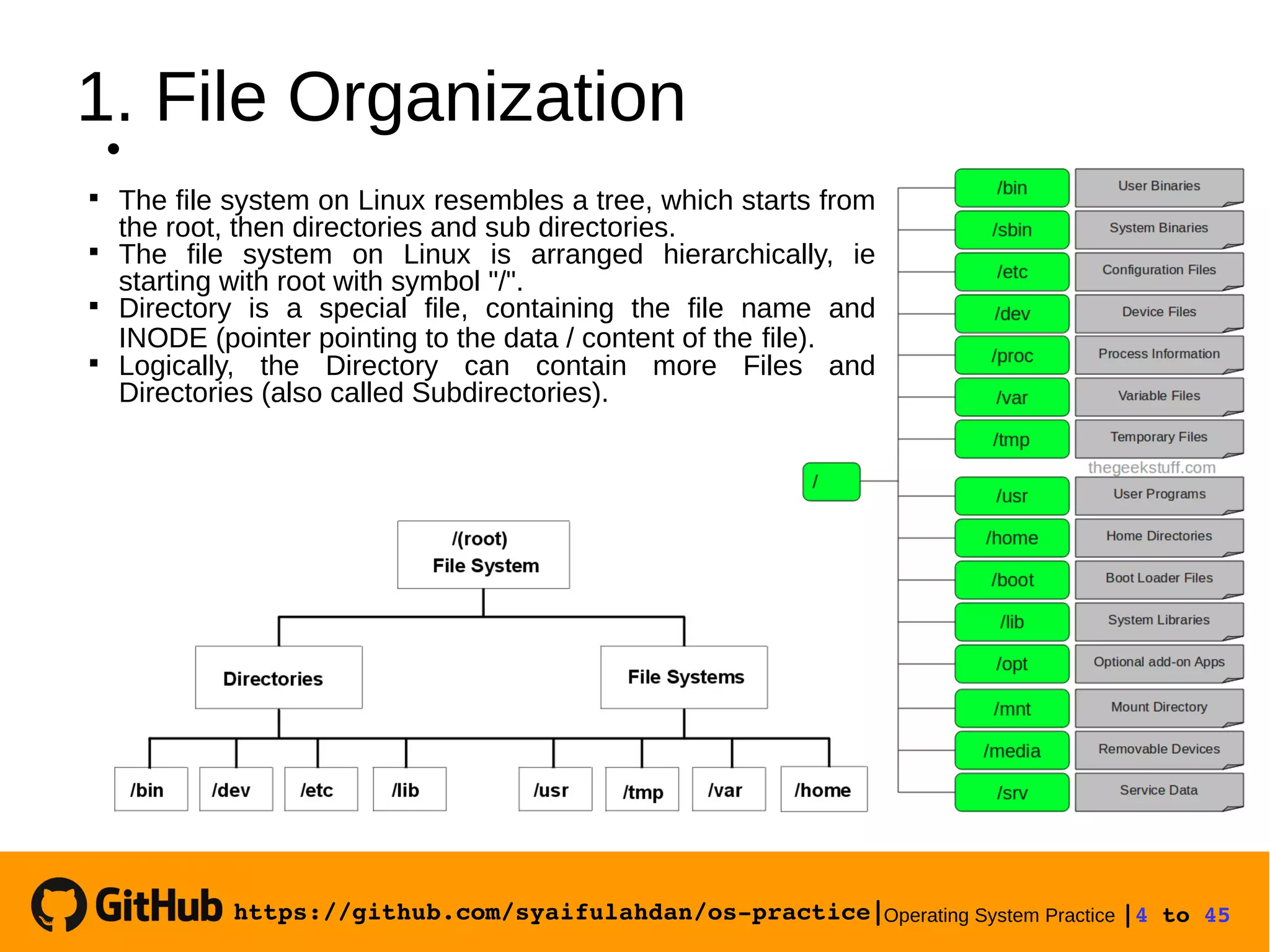
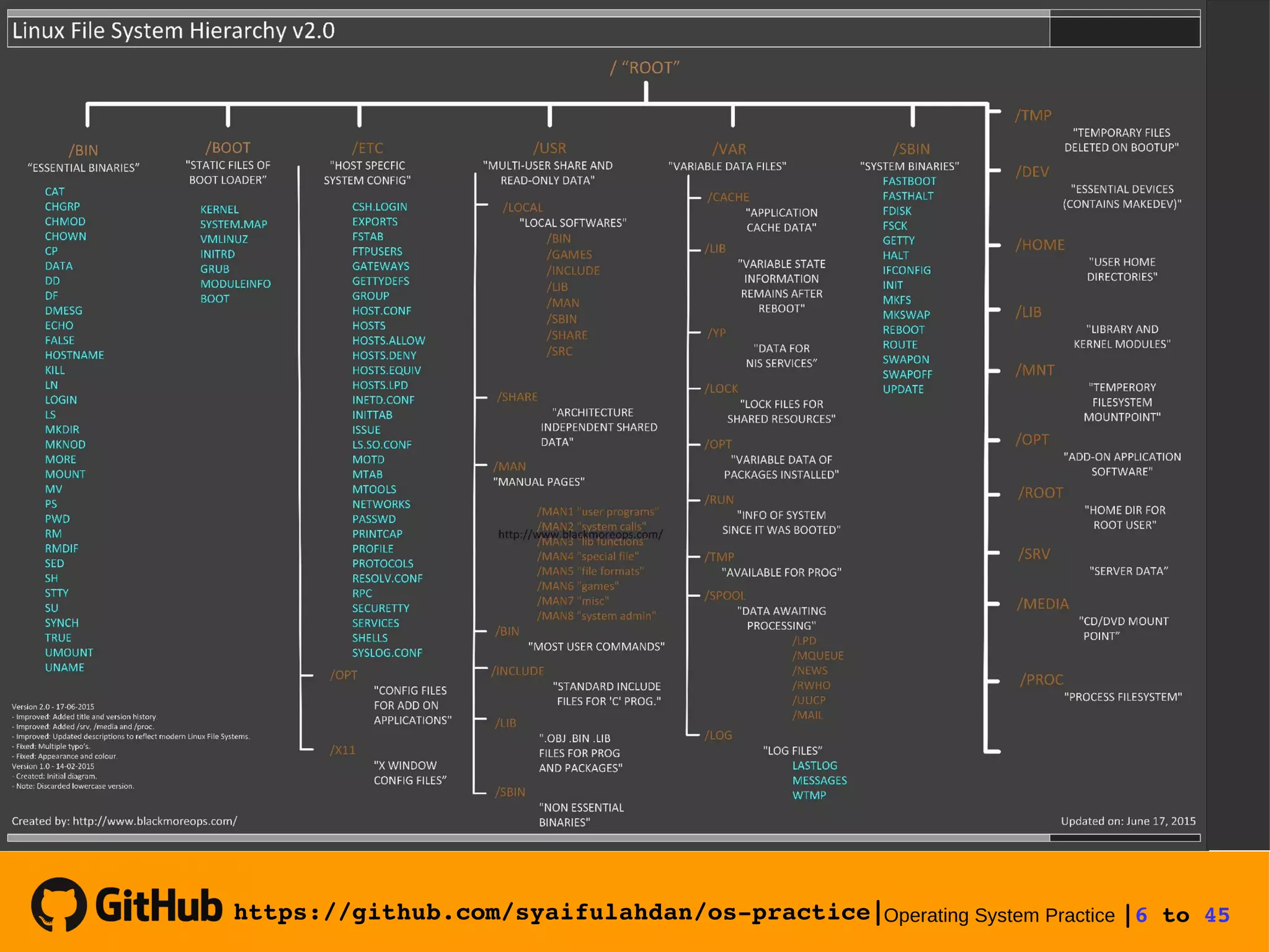
The file system on Linux resembles a tree, which starts from
the root, then directories and sub directories.

The file system on Linux is arranged hierarchically, ie
starting with root with symbol "/".

Directory is a special file, containing the file name and
INODE (pointer pointing to the data / content of the file).

Logically, the Directory can contain more Files and
Directories (also called Subdirectories).
https://github.com/syaifulahdan/os­practice|Operating System Practice |5 to 45 
https://github.com/syaifulahdan/os­practice|Operating System Practice |6 to 45 
https://github.com/syaifulahdan/os­practice|Operating System Practice |7 to 45 
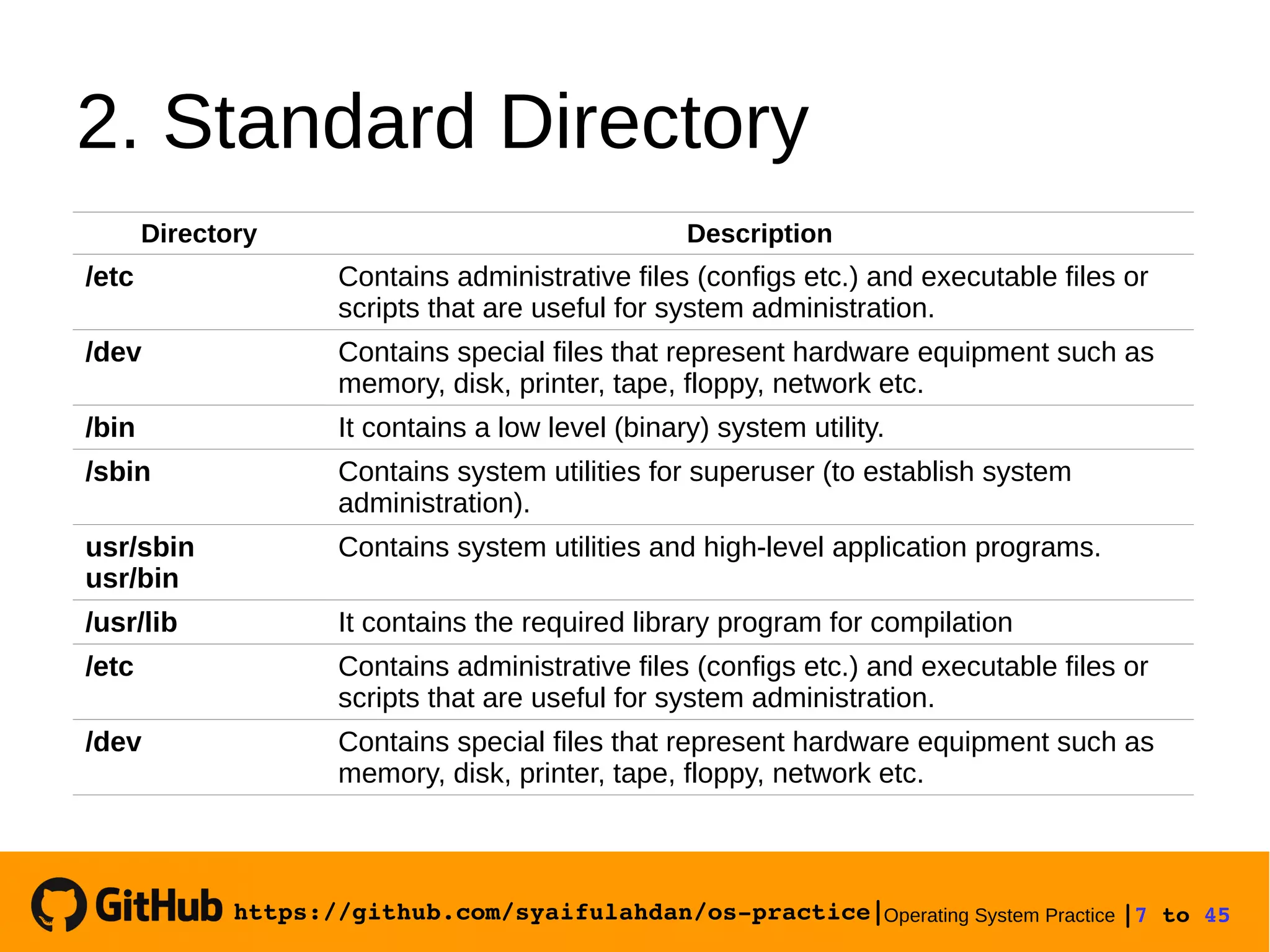
2. Standard Directory
Directory Description
/etc Contains administrative files (configs etc.) and executable files or
scripts that are useful for system administration.
/dev Contains special files that represent hardware equipment such as
memory, disk, printer, tape, floppy, network etc.
/bin It contains a low level (binary) system utility.
/sbin Contains system utilities for superuser (to establish system
administration).
usr/sbin
usr/bin
Contains system utilities and high-level application programs.
/usr/lib It contains the required library program for compilation
/etc Contains administrative files (configs etc.) and executable files or
scripts that are useful for system administration.
/dev Contains special files that represent hardware equipment such as
memory, disk, printer, tape, floppy, network etc.
https://github.com/syaifulahdan/os­practice|Operating System Practice |8 to 45 
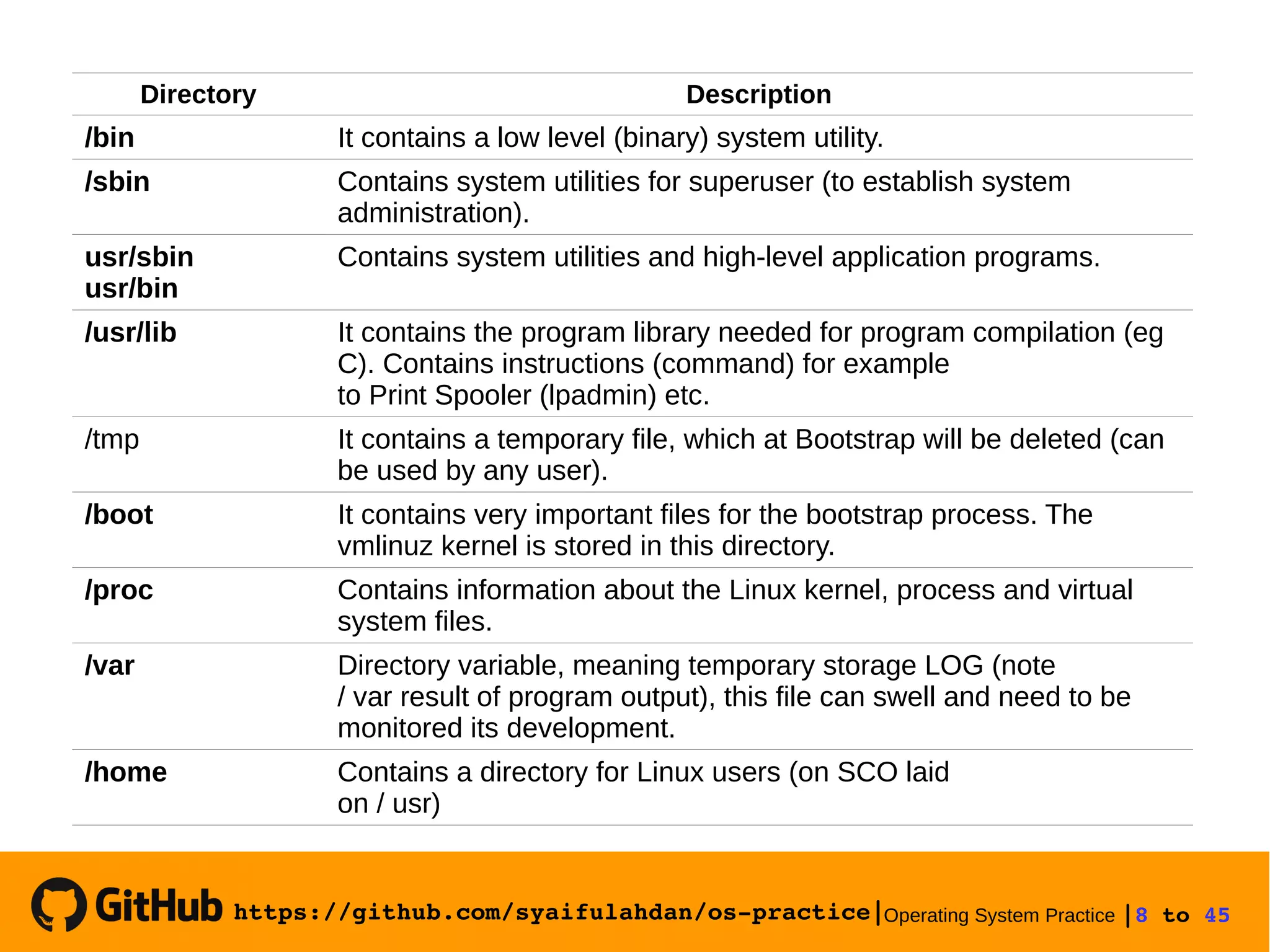
Directory Description
/bin It contains a low level (binary) system utility.
/sbin Contains system utilities for superuser (to establish system
administration).
usr/sbin
usr/bin
Contains system utilities and high-level application programs.
/usr/lib It contains the program library needed for program compilation (eg
C). Contains instructions (command) for example
to Print Spooler (lpadmin) etc.
/tmp It contains a temporary file, which at Bootstrap will be deleted (can
be used by any user).
/boot It contains very important files for the bootstrap process. The
vmlinuz kernel is stored in this directory.
/proc Contains information about the Linux kernel, process and virtual
system files.
/var Directory variable, meaning temporary storage LOG (note
/ var result of program output), this file can swell and need to be
monitored its development.
/home Contains a directory for Linux users (on SCO laid
on / usr)
https://github.com/syaifulahdan/os­practice|Operating System Practice |9 to 45 
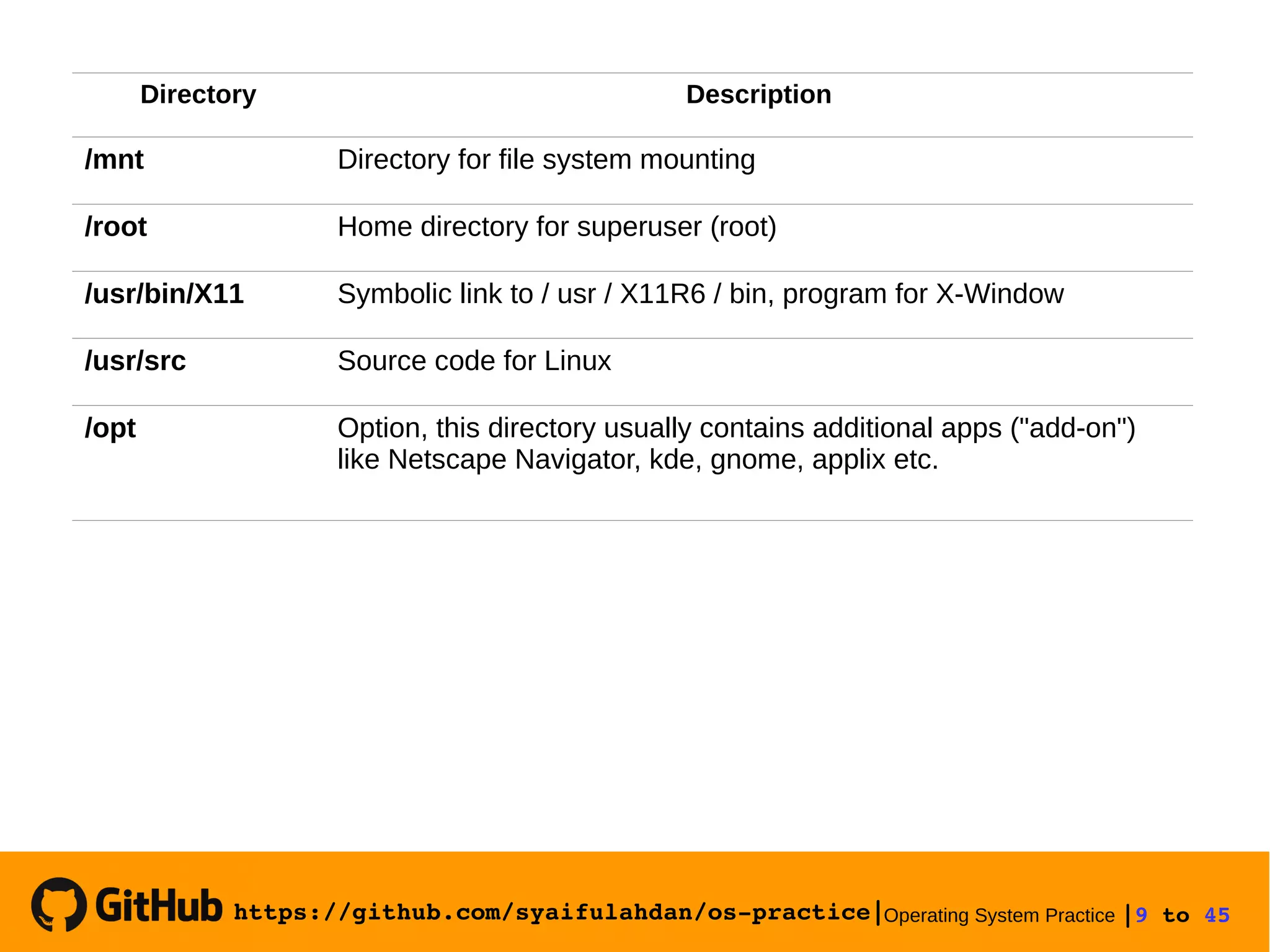
Directory Description
/mnt Directory for file system mounting
/root Home directory for superuser (root)
/usr/bin/X11 Symbolic link to / usr / X11R6 / bin, program for X-Window
/usr/src Source code for Linux
/opt Option, this directory usually contains additional apps ("add-on")
like Netscape Navigator, kde, gnome, applix etc.
https://github.com/syaifulahdan/os­practice|Operating System Practice |10 to 45 

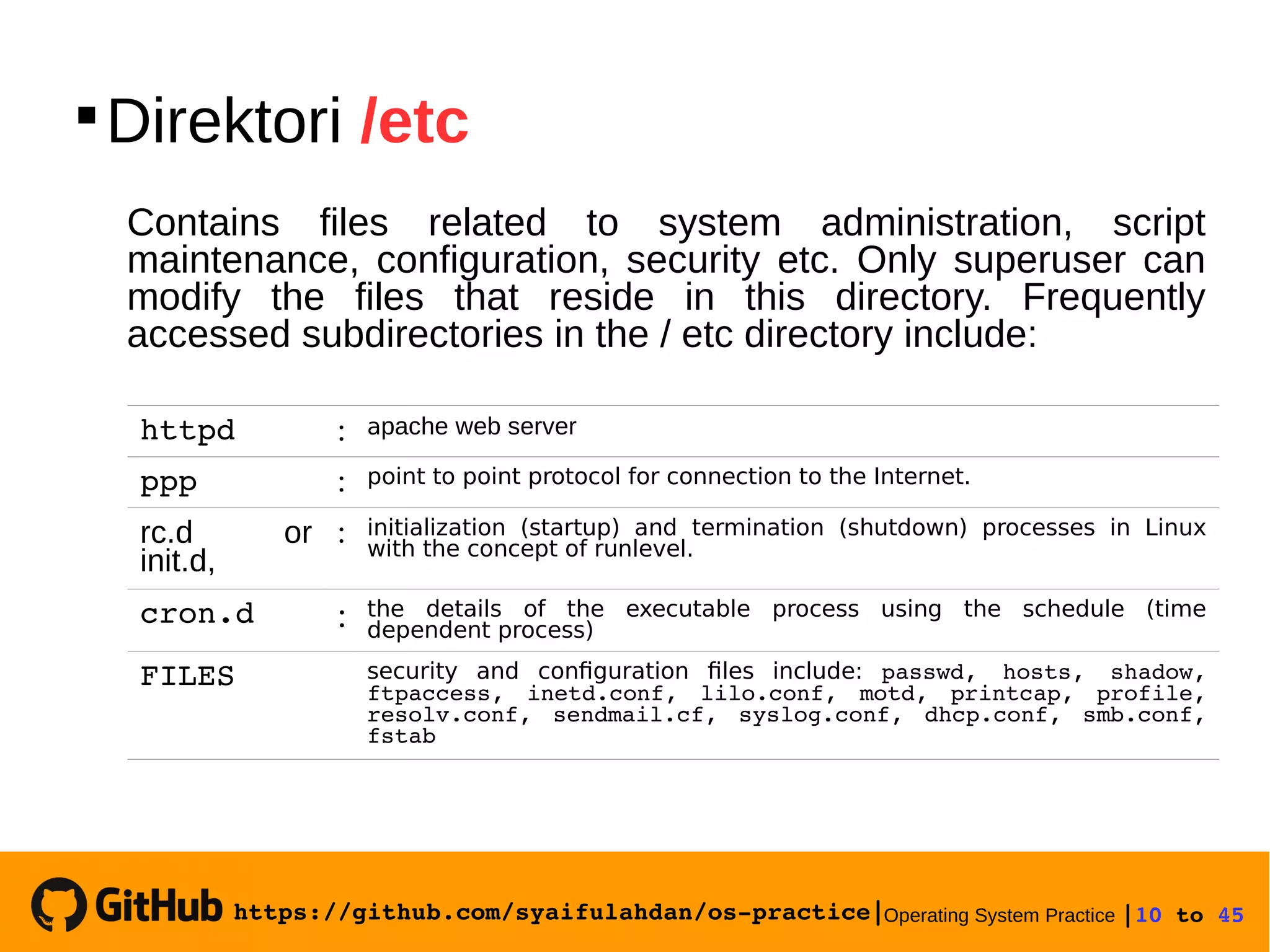
Direktori /etc
Contains files related to system administration, script
maintenance, configuration, security etc. Only superuser can
modify the files that reside in this directory. Frequently
accessed subdirectories in the / etc directory include:
httpd : apache web server
ppp : point to point protocol for connection to the Internet.
rc.d or
init.d,
: initialization (startup) and termination (shutdown) processes in Linux
with the concept of runlevel.
cron.d : the details of the executable process using the schedule (time
dependent process)
FILES security and configuration files include: passwd,  hosts,  shadow, 
ftpaccess,  inetd.conf,  lilo.conf,  motd,  printcap,  profile, 
resolv.conf,  sendmail.cf,  syslog.conf,  dhcp.conf,  smb.conf, 
fstab
https://github.com/syaifulahdan/os­practice|Operating System Practice |11 to 45 

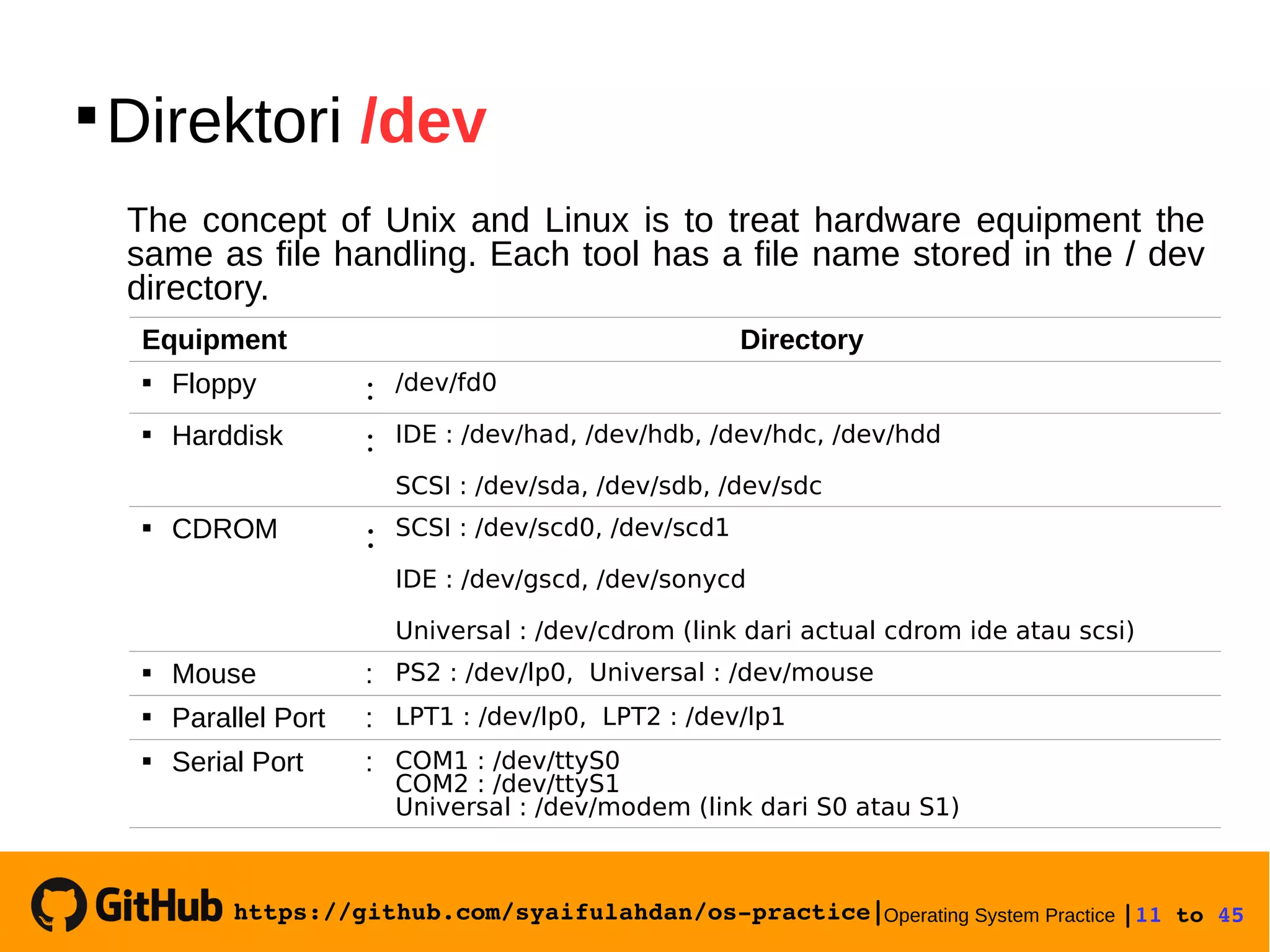
Direktori /dev
The concept of Unix and Linux is to treat hardware equipment the
same as file handling. Each tool has a file name stored in the / dev
directory.
Equipment Directory
 Floppy : /dev/fd0
 Harddisk : IDE : /dev/had, /dev/hdb, /dev/hdc, /dev/hdd
SCSI : /dev/sda, /dev/sdb, /dev/sdc
 CDROM : SCSI : /dev/scd0, /dev/scd1
IDE : /dev/gscd, /dev/sonycd
Universal : /dev/cdrom (link dari actual cdrom ide atau scsi)
 Mouse : PS2 : /dev/lp0, Universal : /dev/mouse
 Parallel Port : LPT1 : /dev/lp0, LPT2 : /dev/lp1
 Serial Port : COM1 : /dev/ttyS0
COM2 : /dev/ttyS1
Universal : /dev/modem (link dari S0 atau S1)
https://github.com/syaifulahdan/os­practice|Operating System Practice |12 to 45 
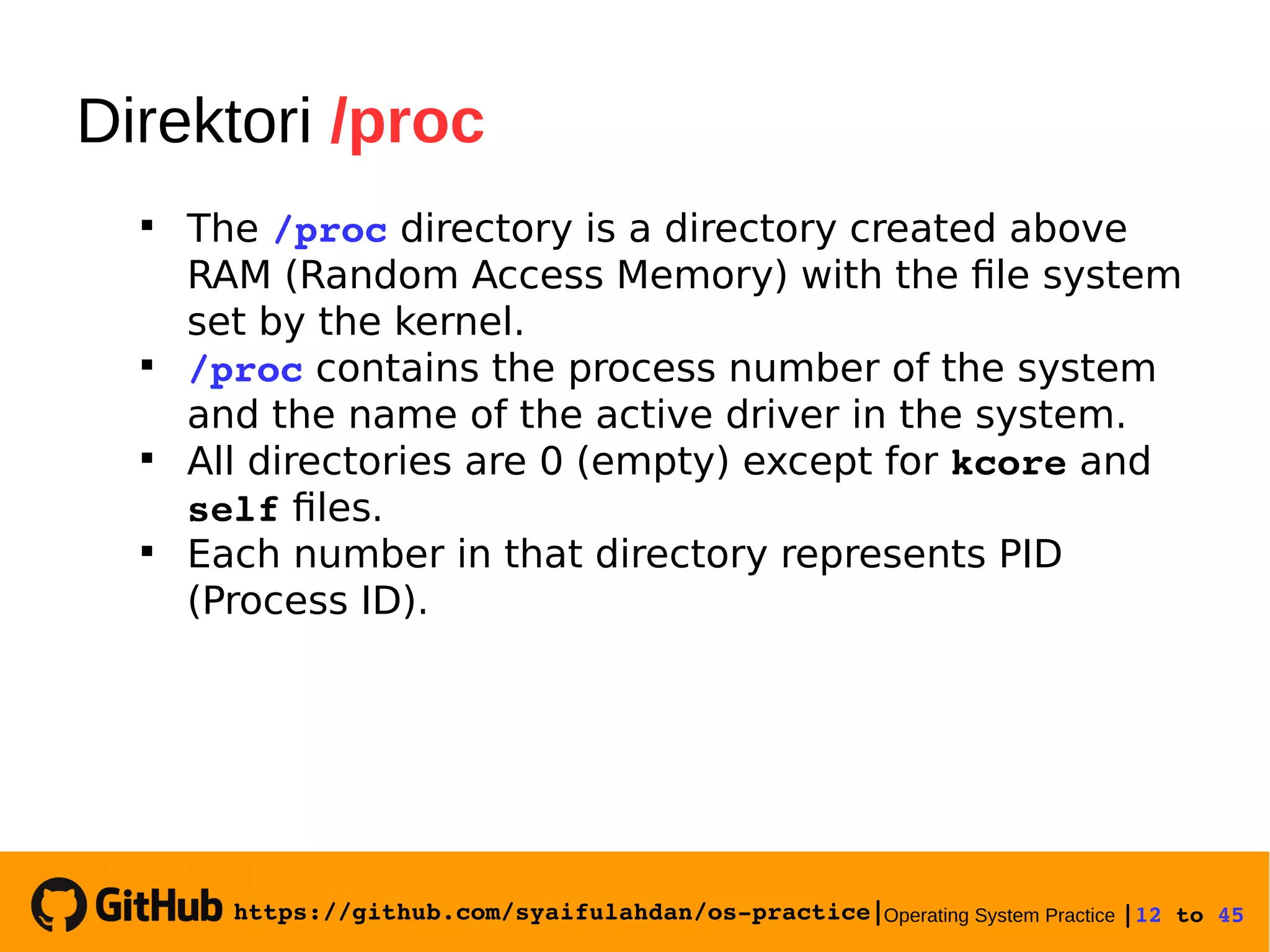
Direktori /proc

The /proc directory is a directory created above
RAM (Random Access Memory) with the file system
set by the kernel.

/proc contains the process number of the system
and the name of the active driver in the system.

All directories are 0 (empty) except for kcore and
self files.

Each number in that directory represents PID
(Process ID).
https://github.com/syaifulahdan/os­practice|Operating System Practice |13 to 45 
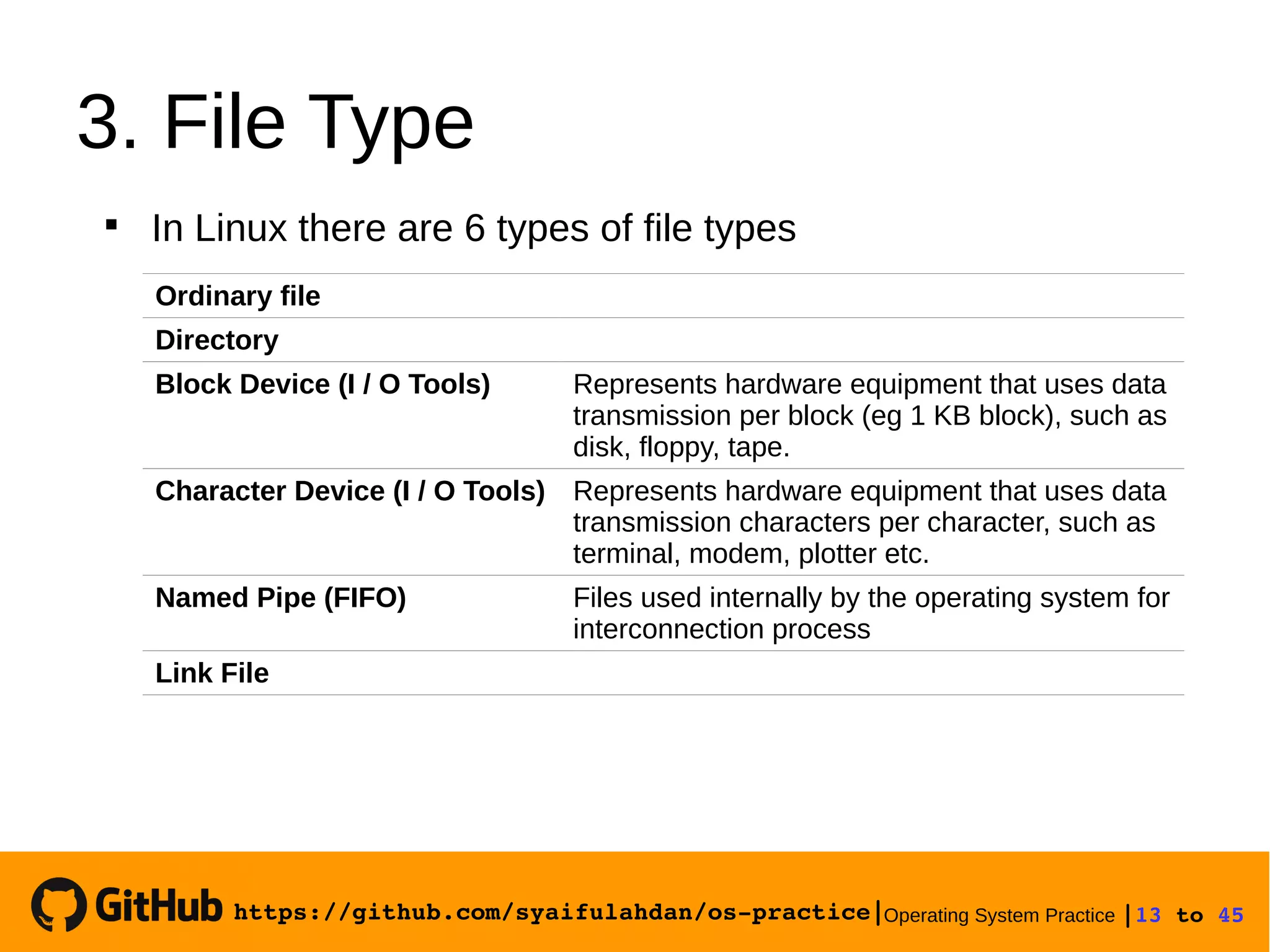
3. File Type
Ordinary file
Directory
Block Device (I / O Tools) Represents hardware equipment that uses data
transmission per block (eg 1 KB block), such as
disk, floppy, tape.
Character Device (I / O Tools) Represents hardware equipment that uses data
transmission characters per character, such as
terminal, modem, plotter etc.
Named Pipe (FIFO) Files used internally by the operating system for
interconnection process
Link File

In Linux there are 6 types of file types
https://github.com/syaifulahdan/os­practice|Operating System Practice |14 to 45 
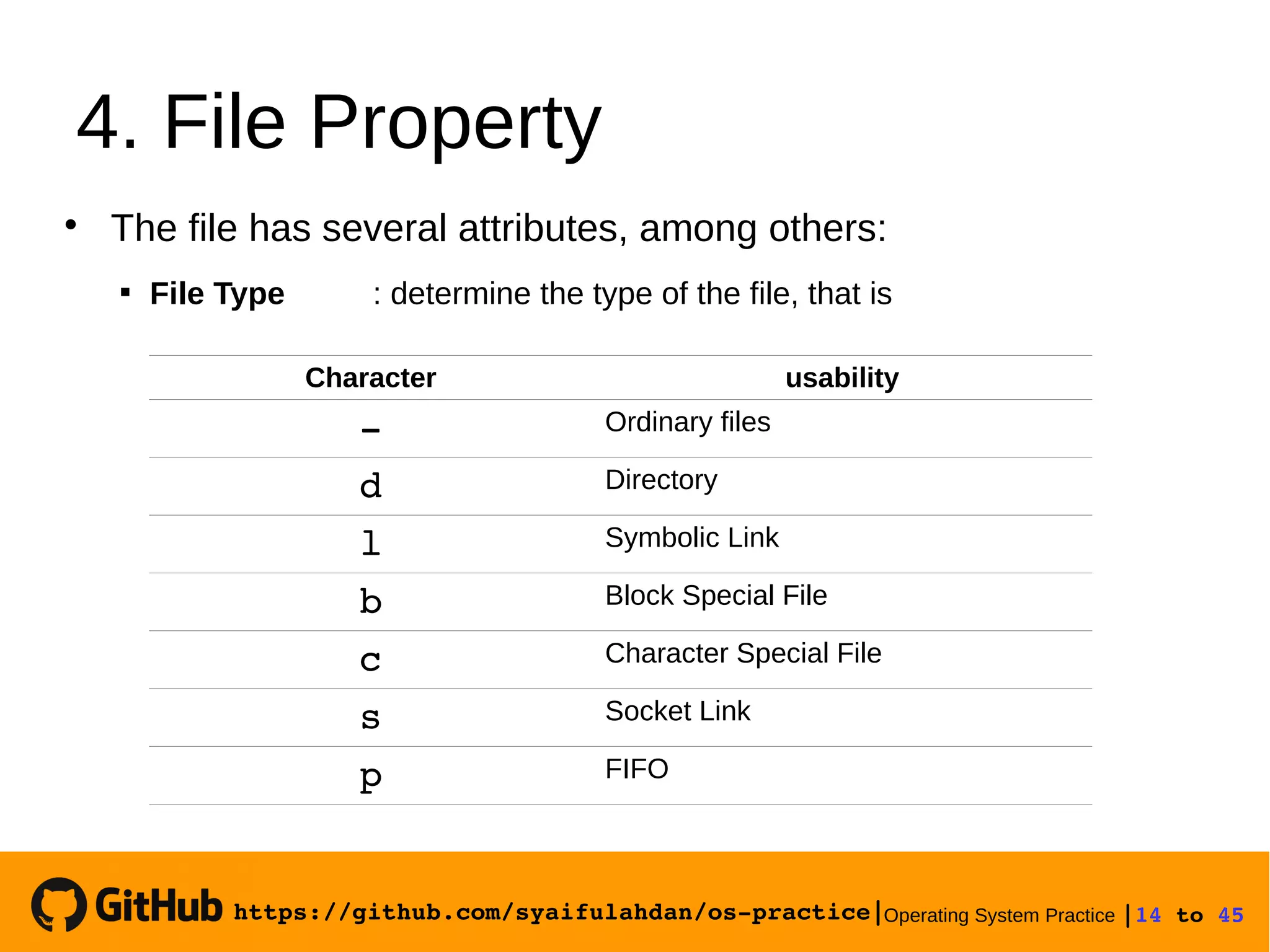
4. File Property
Character usability
­ Ordinary files
d Directory
l Symbolic Link
b Block Special File
c Character Special File
s Socket Link
p FIFO
 File Type : determine the type of the file, that is

The file has several attributes, among others:
https://github.com/syaifulahdan/os­practice|Operating System Practice |15 to 45 
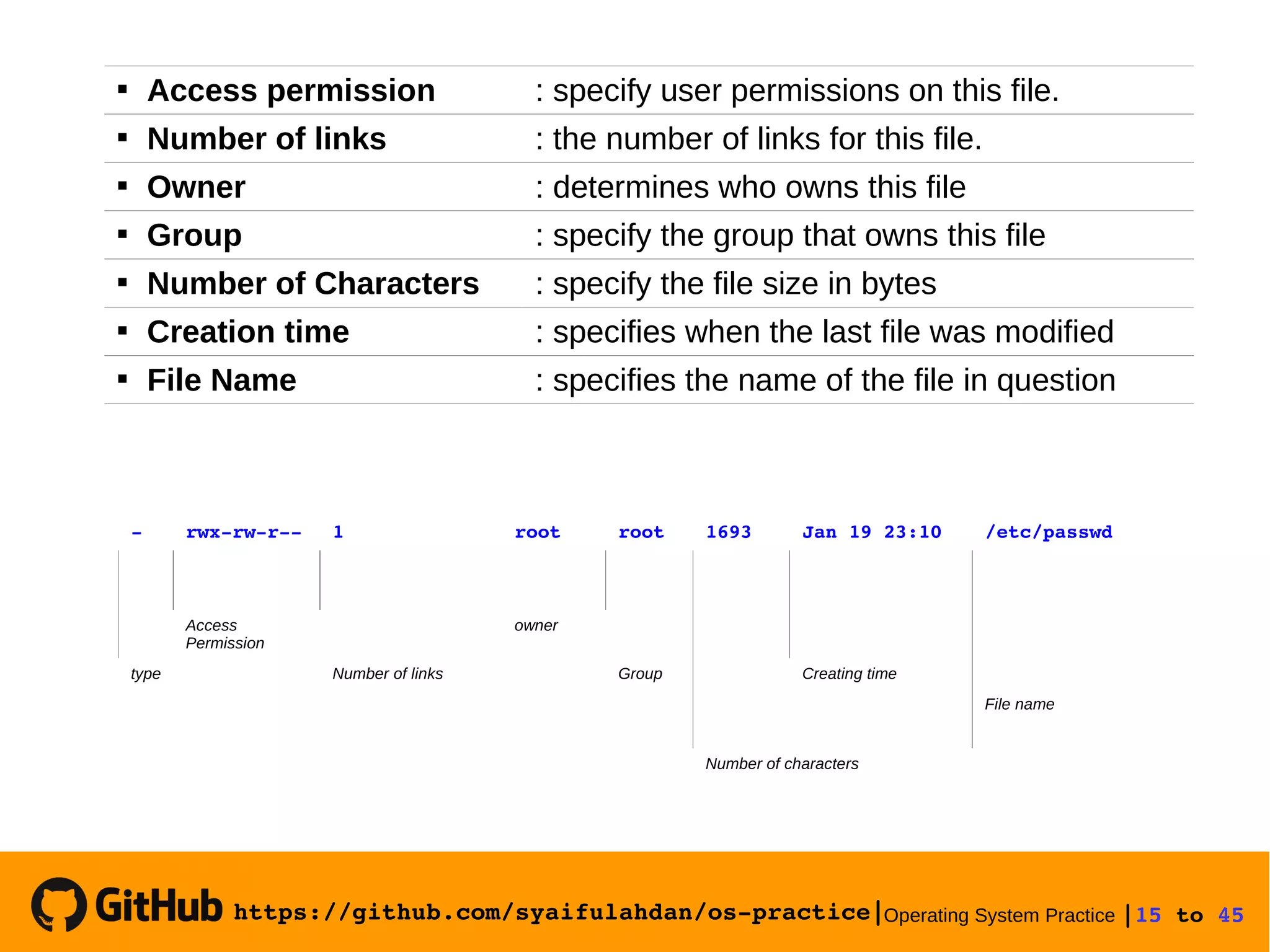
 Access permission : specify user permissions on this file.
 Number of links : the number of links for this file.
 Owner : determines who owns this file
 Group : specify the group that owns this file
 Number of Characters : specify the file size in bytes
 Creation time : specifies when the last file was modified
 File Name : specifies the name of the file in question
­ rwx­rw­r­­ 1 root root 1693 Jan 19 23:10 /etc/passwd
Access
Permission
owner
type Number of links Group Creating time
File name
Number of characters
https://github.com/syaifulahdan/os­practice|Operating System Practice |16 to 45 
5. File Name
& [ {
; ] }
| ( ^
? ) #
` $ 
” < /
“ >

Maximum file name consists of 255 alphanumeric
characters and some special characters ie underscores,
point, commas and others except spaces and characters
https://github.com/syaifulahdan/os­practice|Operating System Practice |17 to 45 

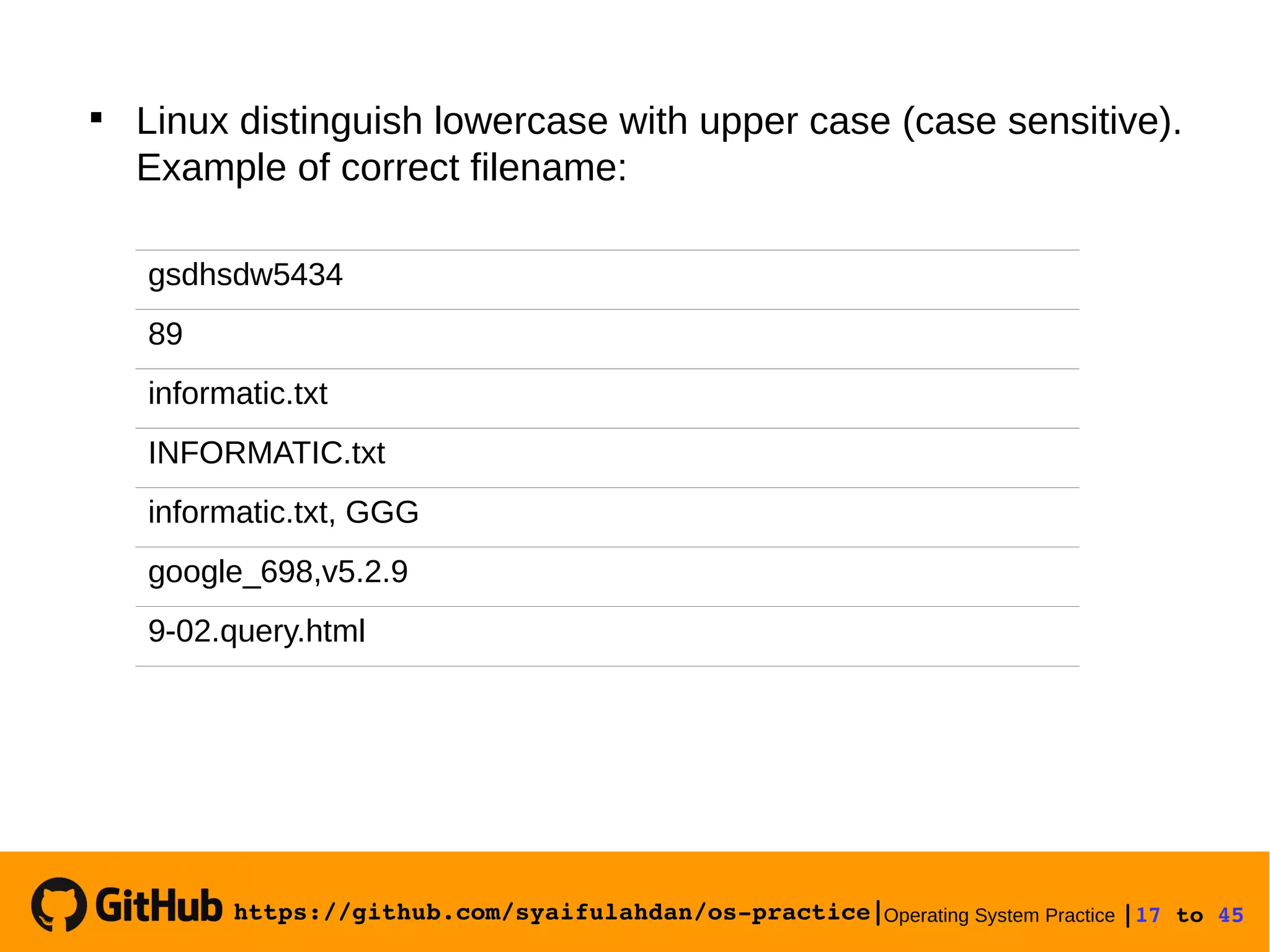
Linux distinguish lowercase with upper case (case sensitive).
Example of correct filename:
gsdhsdw5434
89
informatic.txt
INFORMATIC.txt
informatic.txt, GGG
google_698,v5.2.9
9-02.query.html
https://github.com/syaifulahdan/os­practice|Operating System Practice |18 to 45 
6. Symbolic Link
ln [originalfile] [duplicatefile]

Link is a technique to provide more than one filename with
the same data. When the original file is deleted, the new
data is also deleted. Format of Link:
"duplicatefile" is called a hard link where both files will
appear identical (link count = 2) When "originalfile" or
"duplicatefile" is changed the change will occur on another
file.
https://github.com/syaifulahdan/os­practice|Operating System Practice |19 to 45 
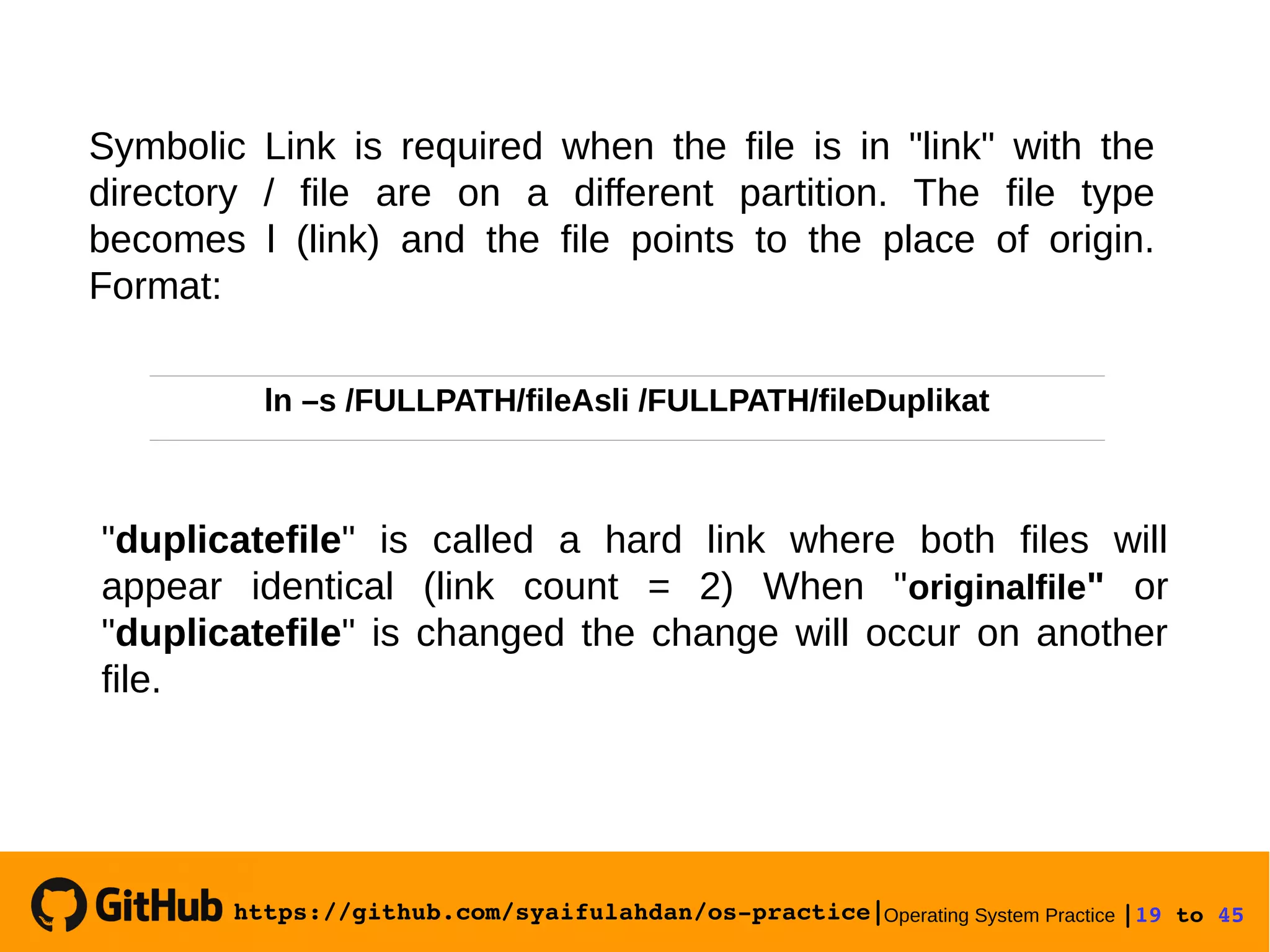
Symbolic Link is required when the file is in "link" with the
directory / file are on a different partition. The file type
becomes l (link) and the file points to the place of origin.
Format:
"duplicatefile" is called a hard link where both files will
appear identical (link count = 2) When "originalfile" or
"duplicatefile" is changed the change will occur on another
file.
ln –s /FULLPATH/fileAsli /FULLPATH/fileDuplikat
https://github.com/syaifulahdan/os­practice|Operating System Practice |20 to 45 
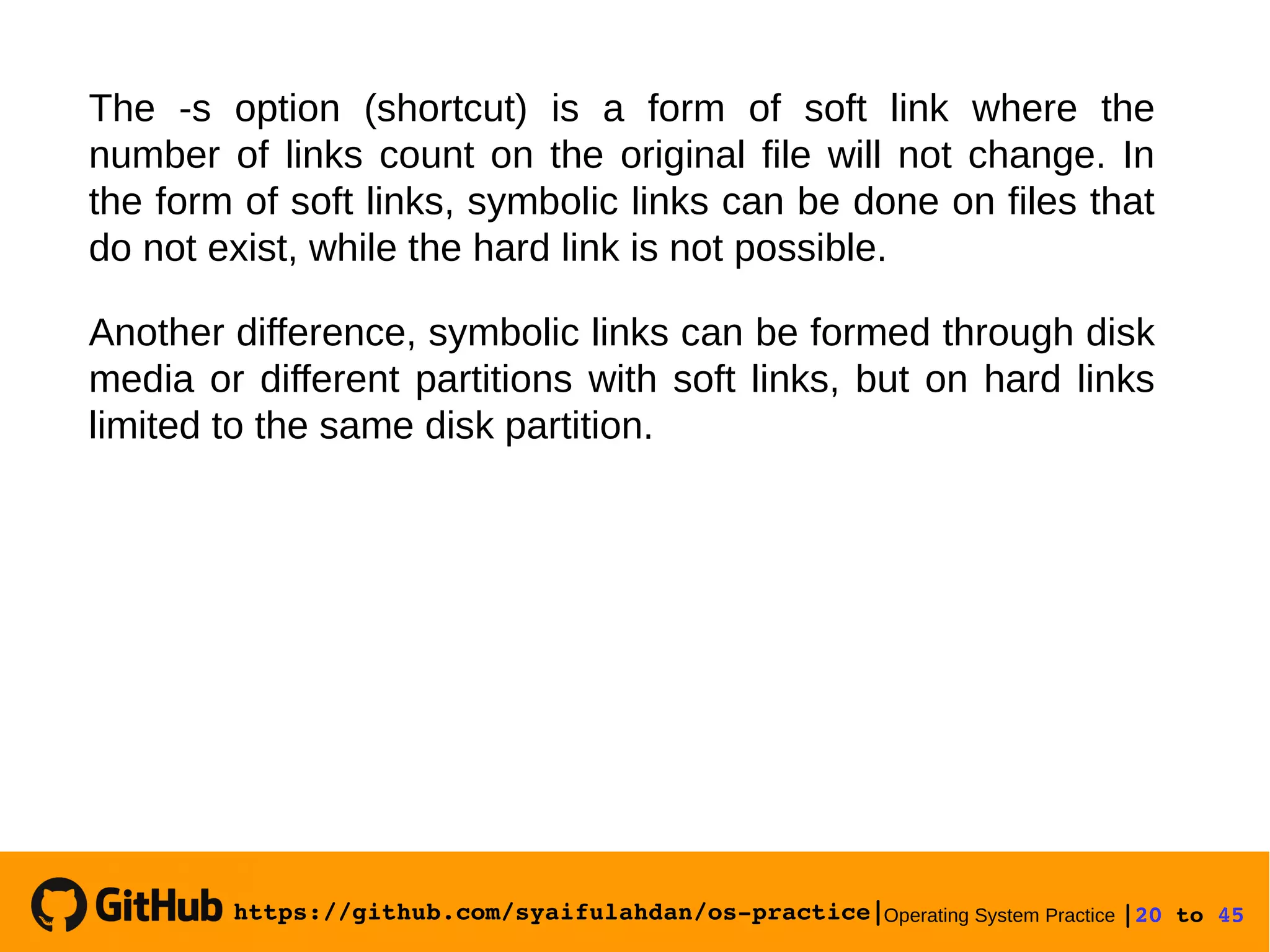
The -s option (shortcut) is a form of soft link where the
number of links count on the original file will not change. In
the form of soft links, symbolic links can be done on files that
do not exist, while the hard link is not possible.
Another difference, symbolic links can be formed through disk
media or different partitions with soft links, but on hard links
limited to the same disk partition.
https://github.com/syaifulahdan/os­practice|Operating System Practice |21 to 45 
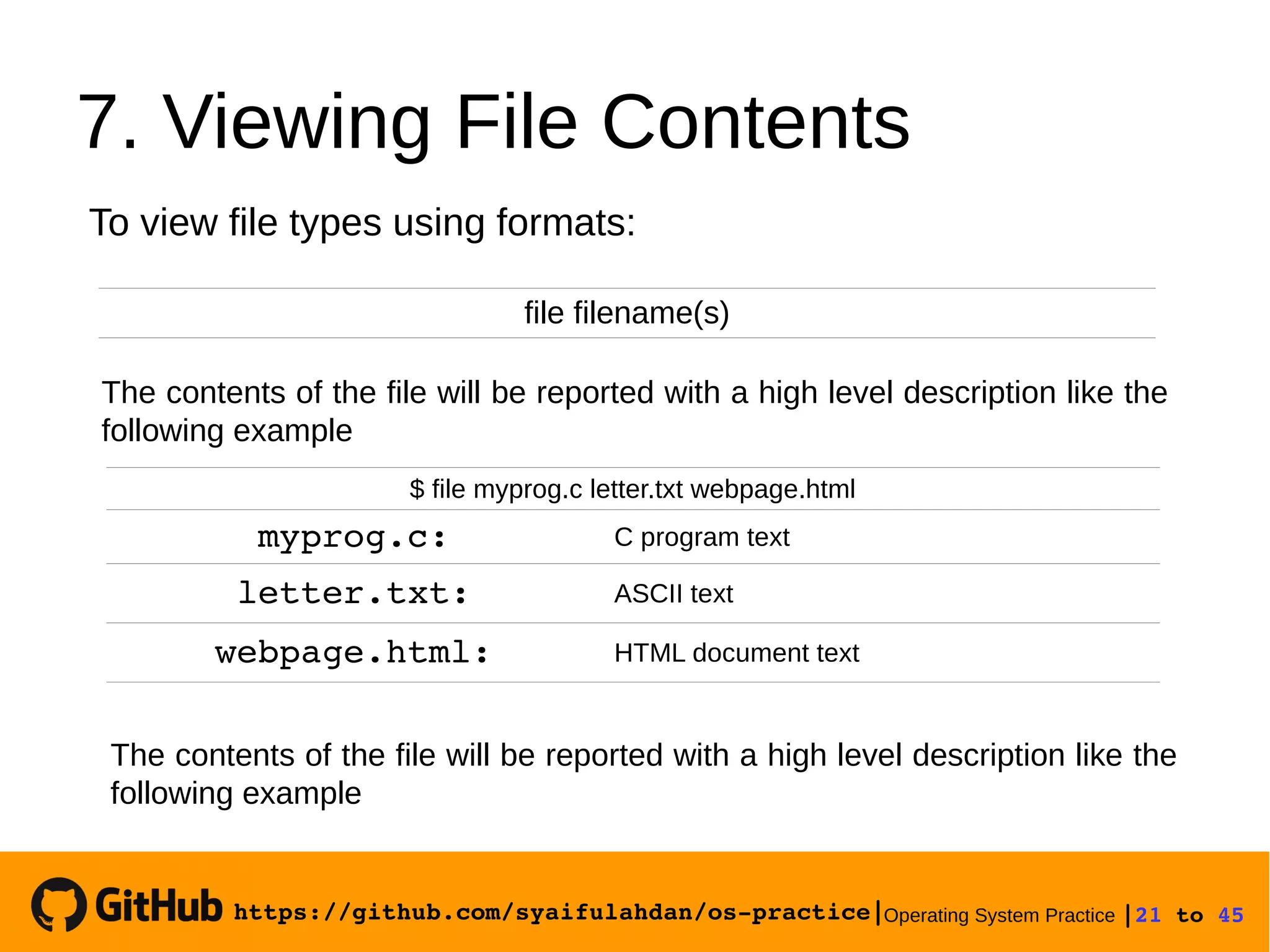
7. Viewing File Contents
file filename(s)
To view file types using formats:
The contents of the file will be reported with a high level description like the
following example
$ file myprog.c letter.txt webpage.html
myprog.c: C program text
letter.txt: ASCII text
webpage.html: HTML document text
The contents of the file will be reported with a high level description like the
following example
https://github.com/syaifulahdan/os­practice|Operating System Practice |22 to 45 
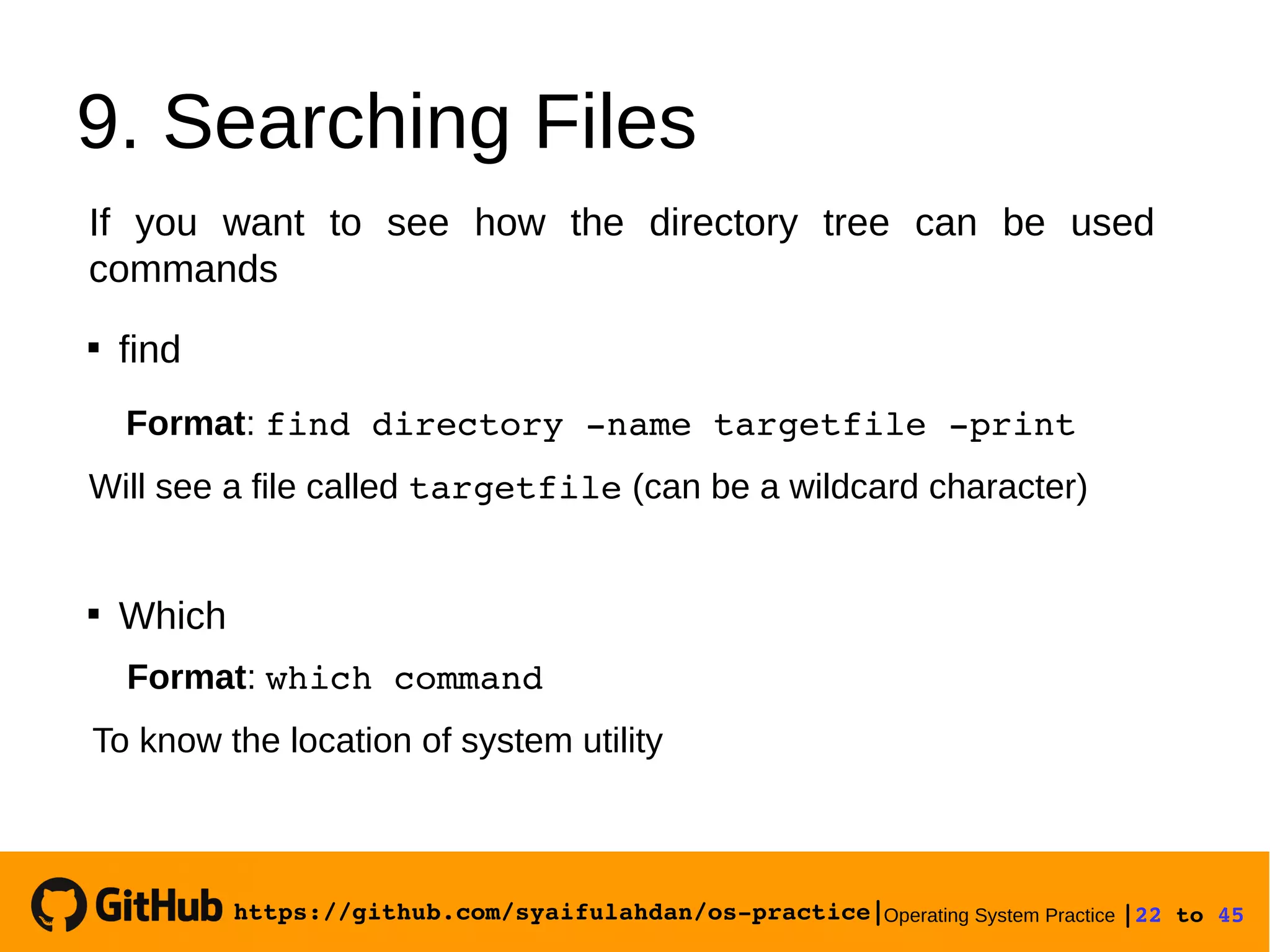
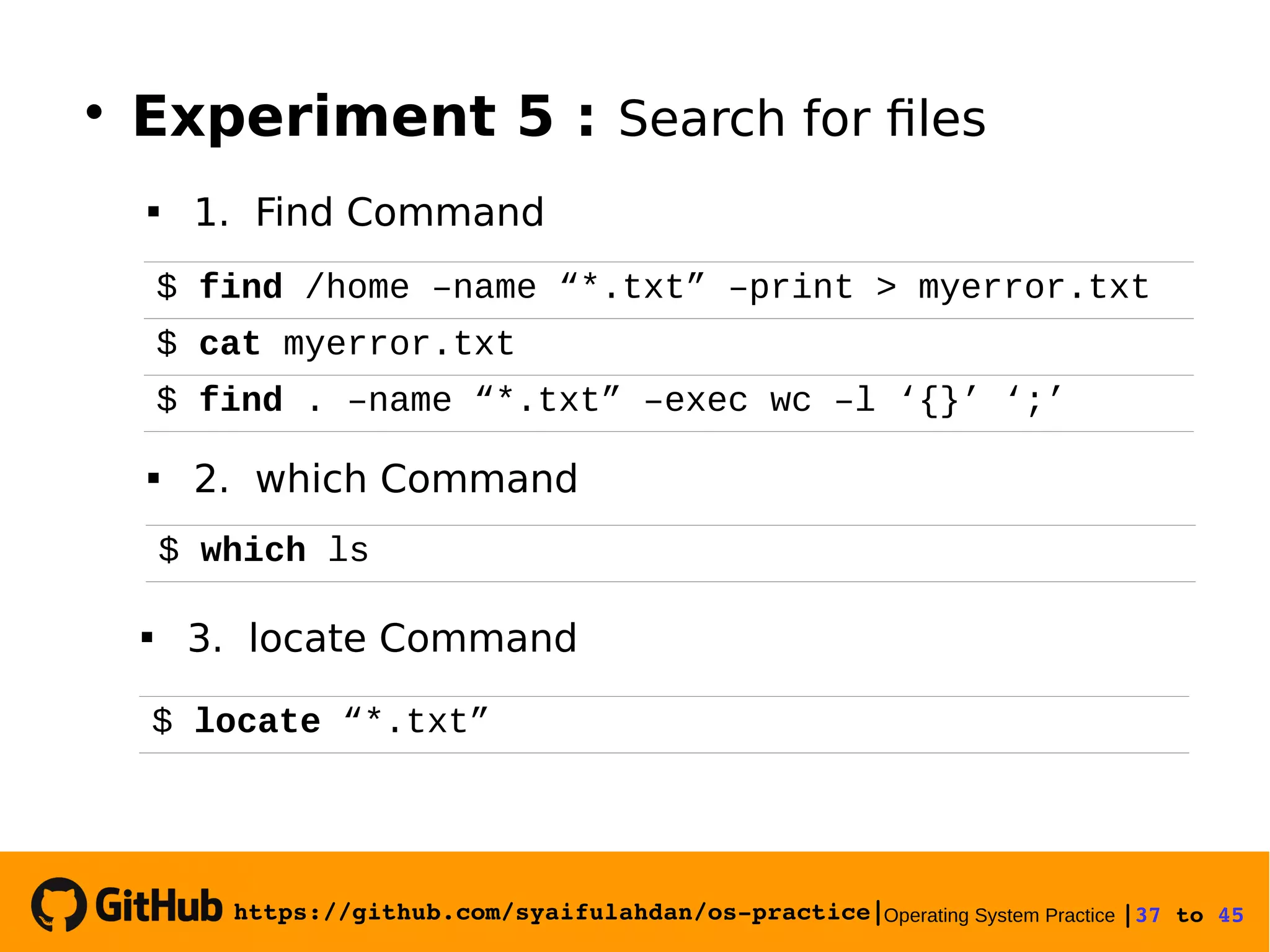
9. Searching Files
If you want to see how the directory tree can be used
commands

find
Format: find directory ­name targetfile ­print
Will see a file called targetfile (can be a wildcard character)

Which
Format: which command
To know the location of system utility
https://github.com/syaifulahdan/os­practice|Operating System Practice |23 to 45 

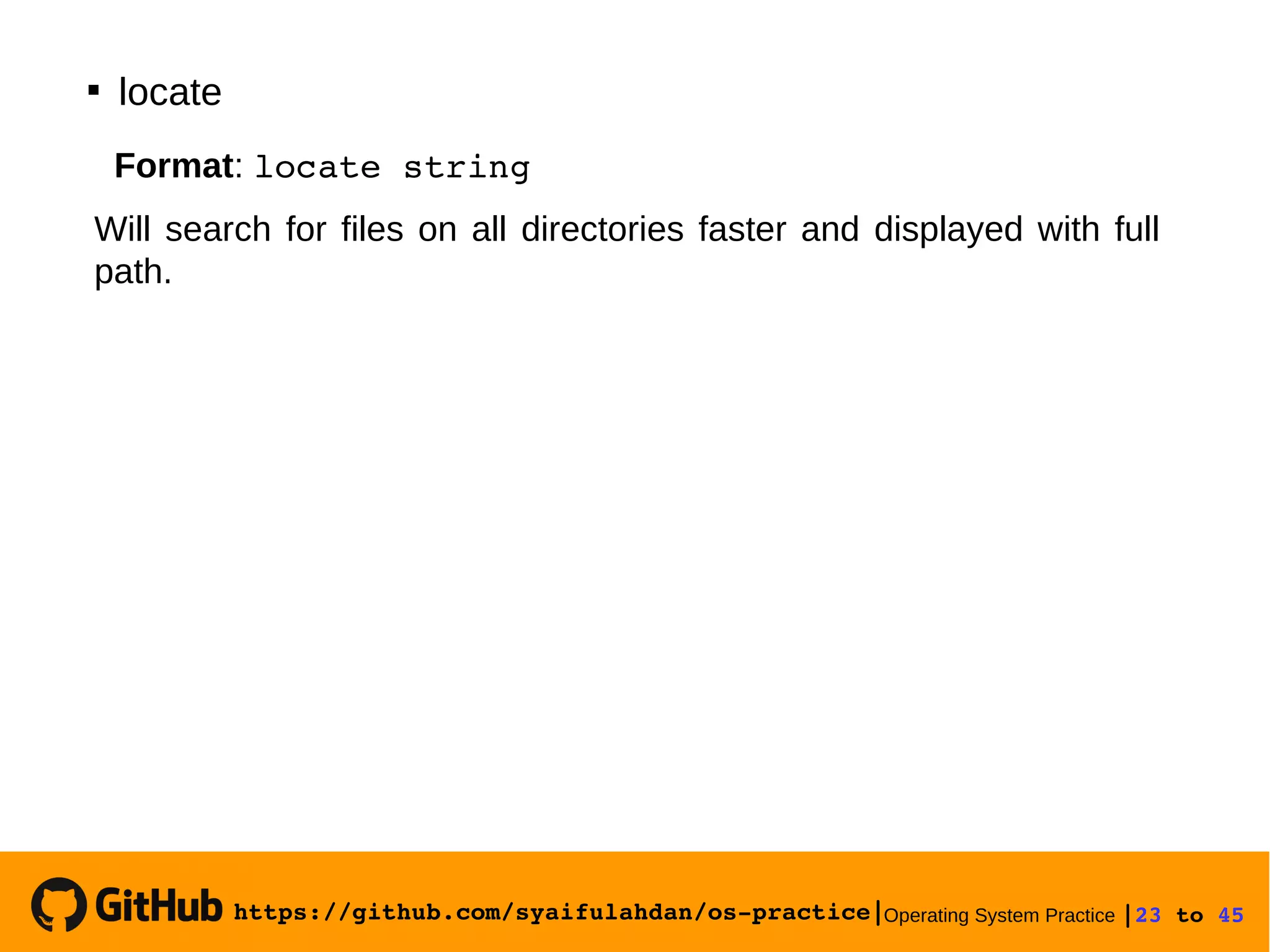
locate
Format: locate string
Will search for files on all directories faster and displayed with full
path.
https://github.com/syaifulahdan/os­practice|Operating System Practice |24 to 45 
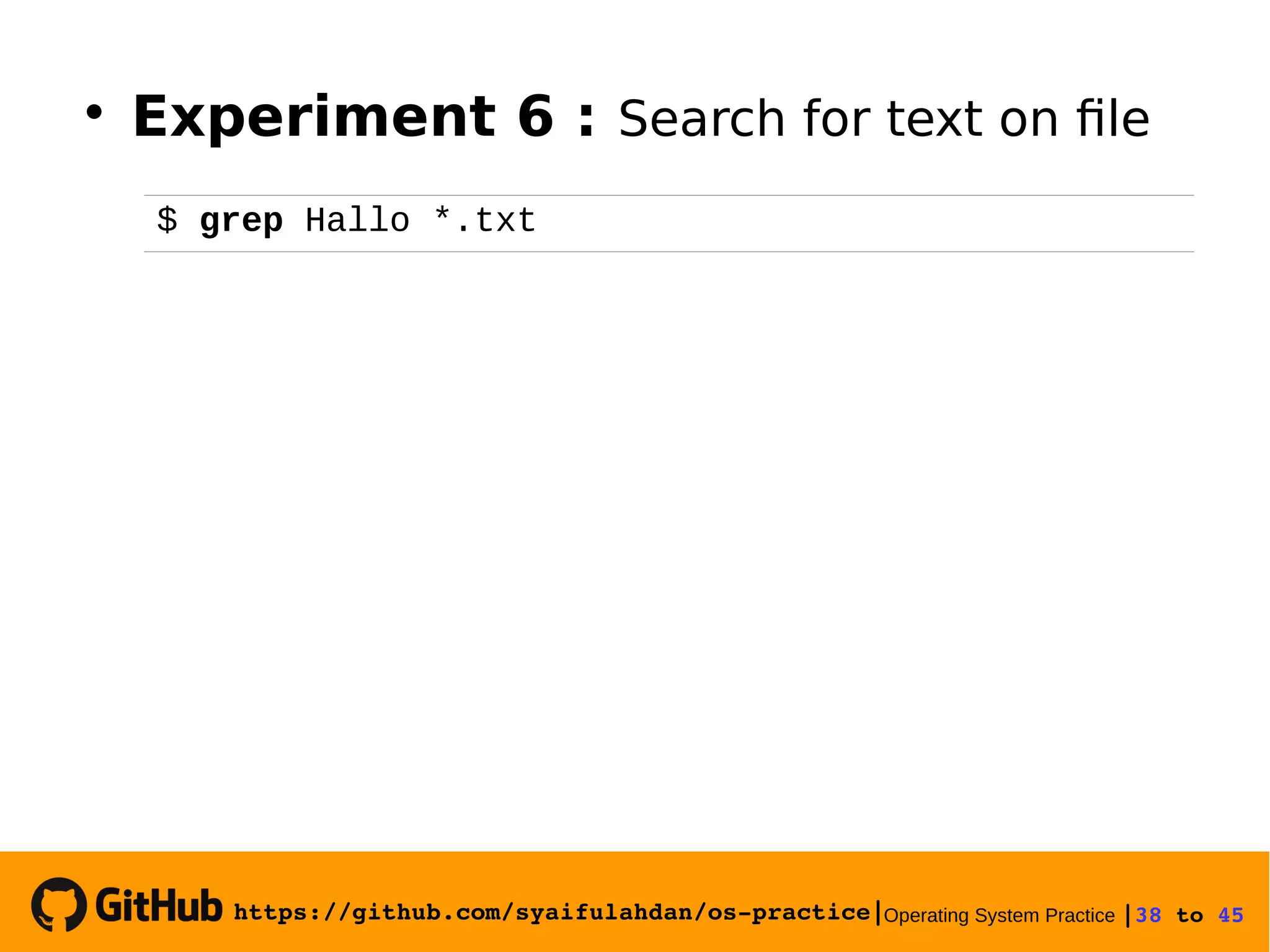
9. Searching Text on FIle
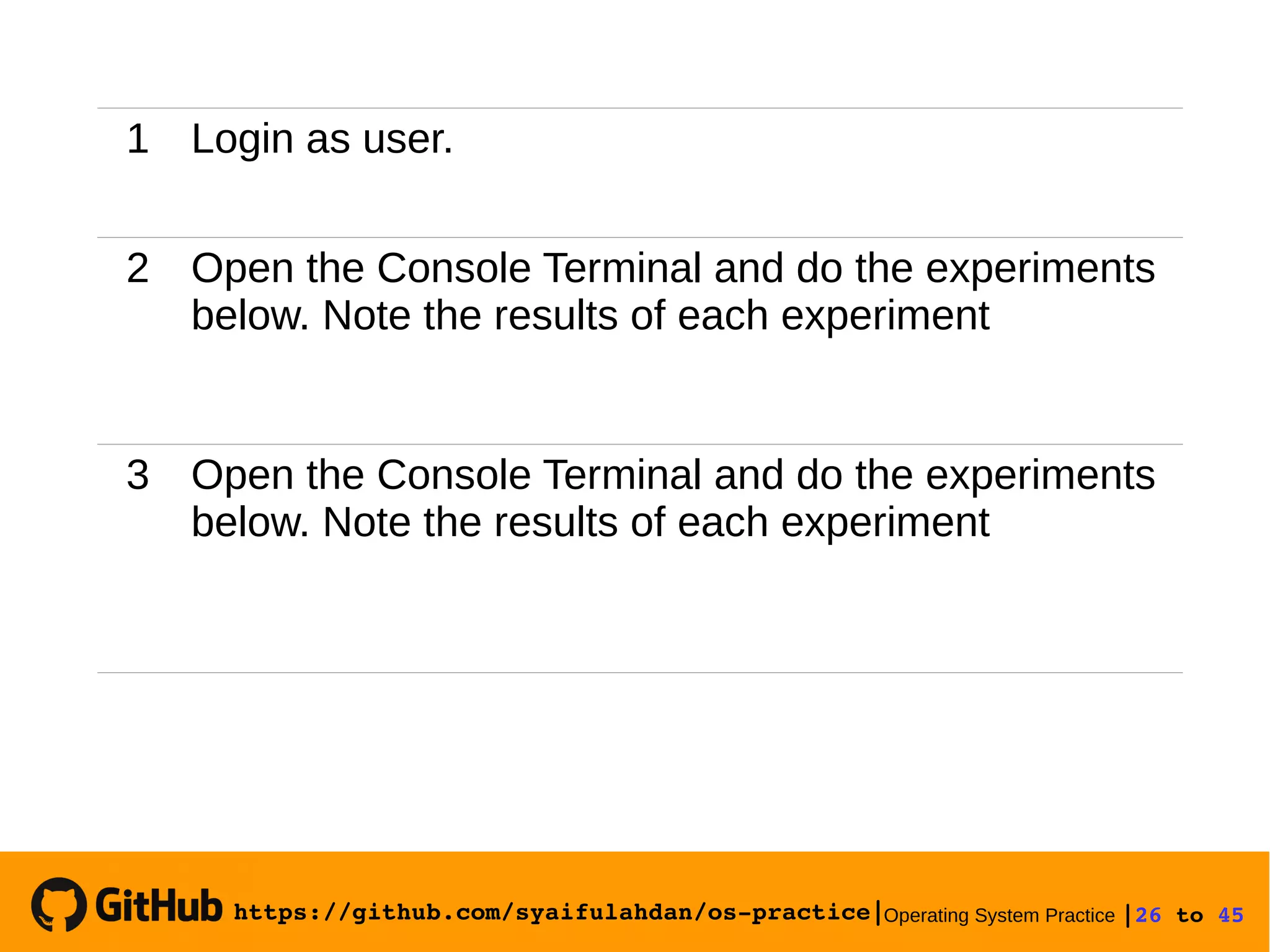
To search for text in file use grep command (General Regular
Expression Print) with command format
grep option pattern files
Grep will search for a file named according to the given
pattern and will display the corresponding row.
https://github.com/syaifulahdan/os­practice|Operating System Practice |25 to 45 
C. Step by Step
https://github.com/syaifulahdan/os­practice|Operating System Practice |26 to 45 
1 Login as user.
2 Open the Console Terminal and do the experiments
below. Note the results of each experiment
3 Open the Console Terminal and do the experiments
below. Note the results of each experiment
https://github.com/syaifulahdan/os­practice|Operating System Practice |27 to 45 
D. Experiment
https://github.com/syaifulahdan/os­practice|Operating System Practice |28 to 45 
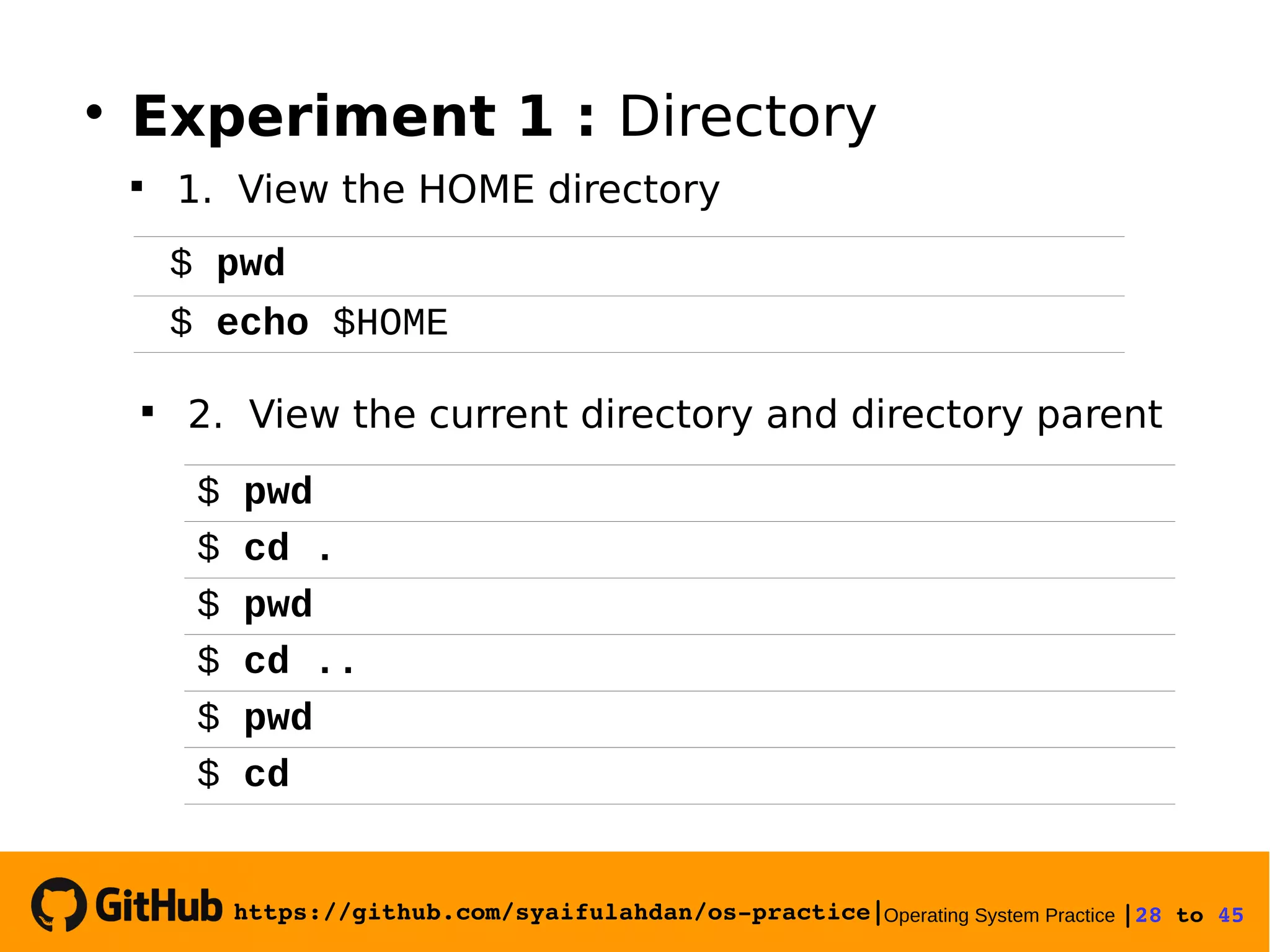
$ pwd
$ echo $HOME
$ pwd
$ cd .
$ pwd
$ cd ..
$ pwd
$ cd

2. View the current directory and directory parent

Experiment 1 : Directory

1. View the HOME directory
https://github.com/syaifulahdan/os­practice|Operating System Practice |29 to 45 
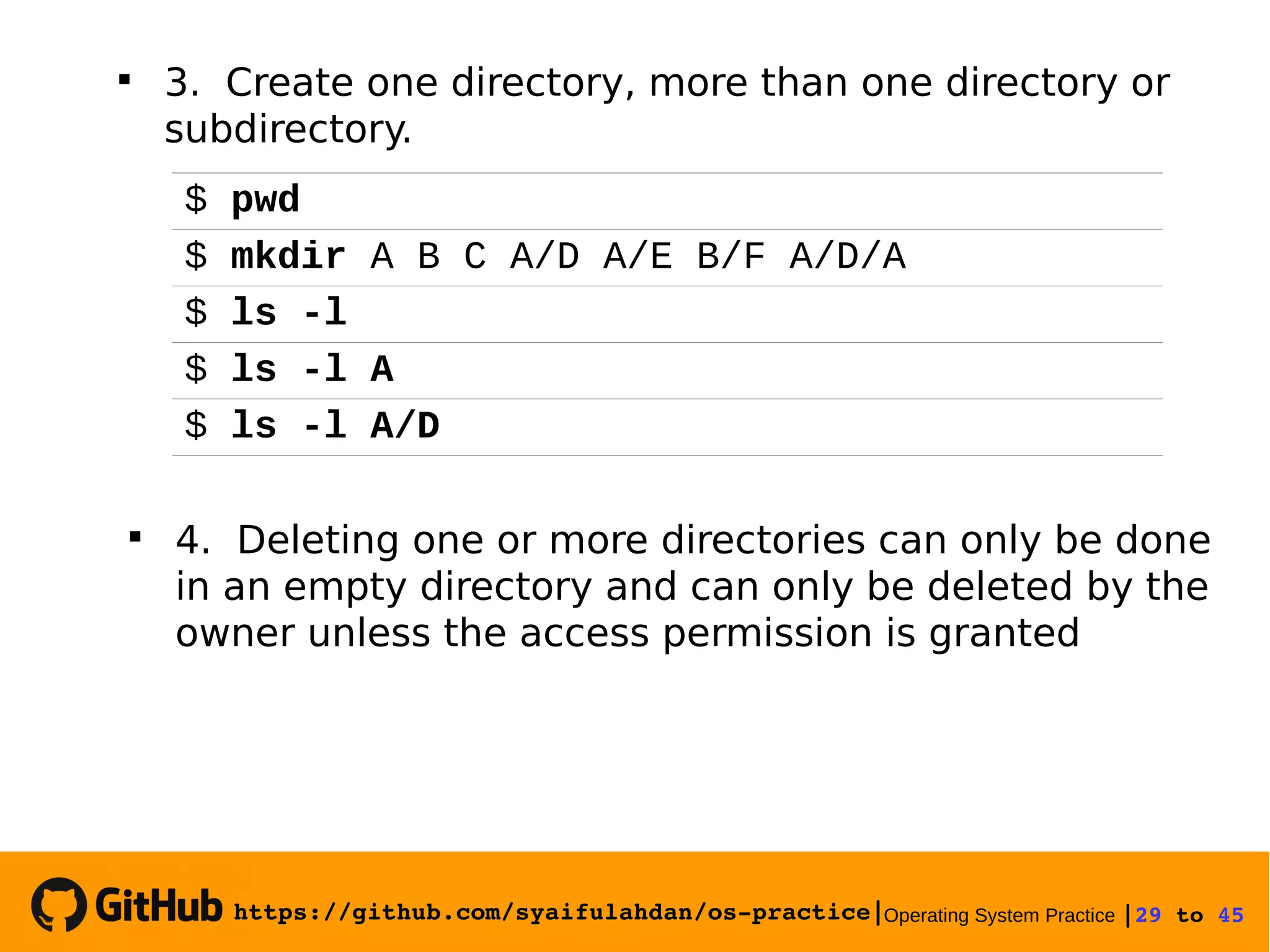
$ pwd
$ mkdir A B C A/D A/E B/F A/D/A
$ ls -l
$ ls -l A
$ ls -l A/D

4. Deleting one or more directories can only be done
in an empty directory and can only be deleted by the
owner unless the access permission is granted

3. Create one directory, more than one directory or
subdirectory.
https://github.com/syaifulahdan/os­practice|Operating System Practice |30 to 45 
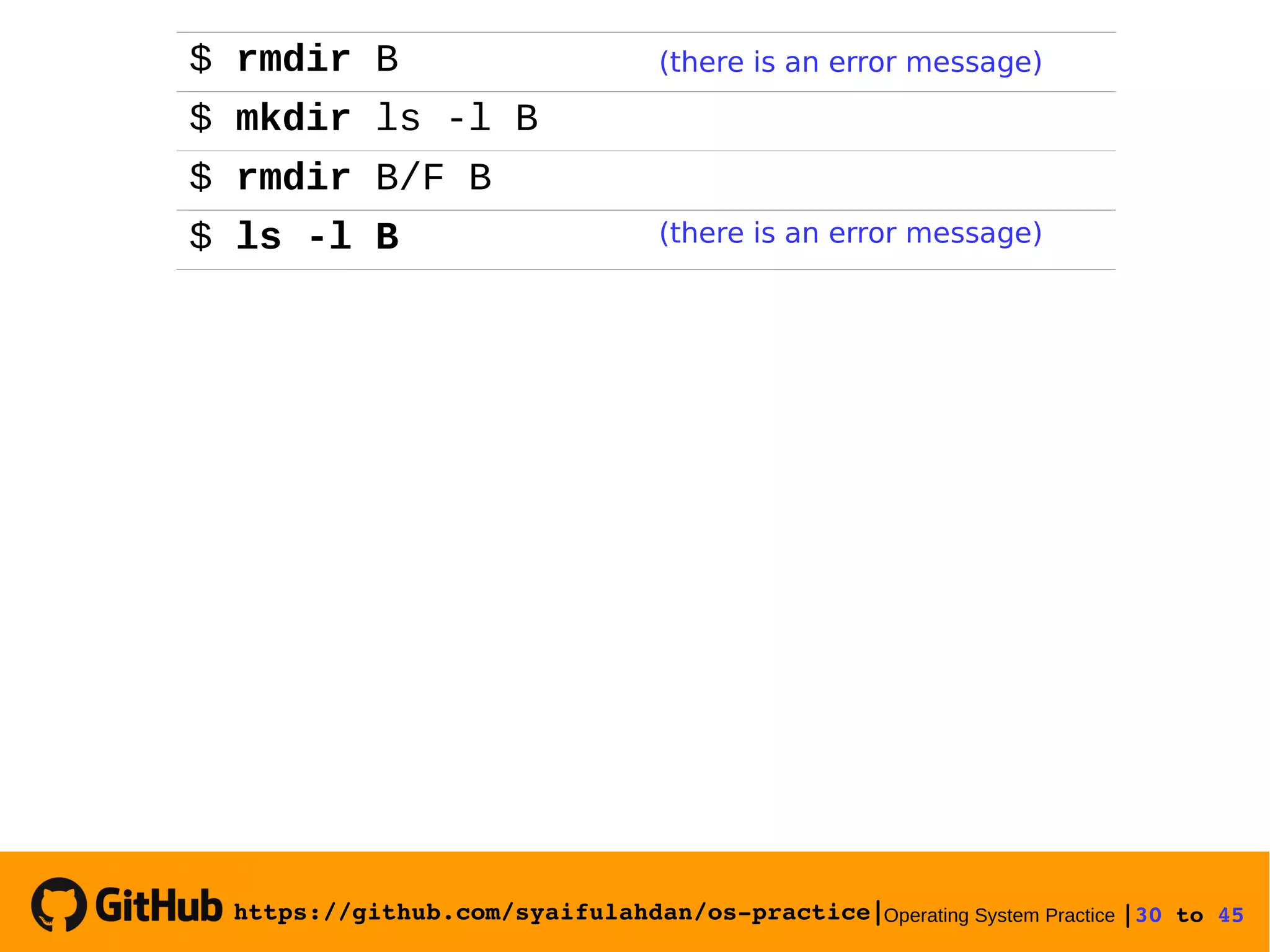
$ rmdir B (there is an error message)
$ mkdir ls -l B
$ rmdir B/F B
$ ls -l B (there is an error message)
https://github.com/syaifulahdan/os­practice|Operating System Practice |31 to 45 

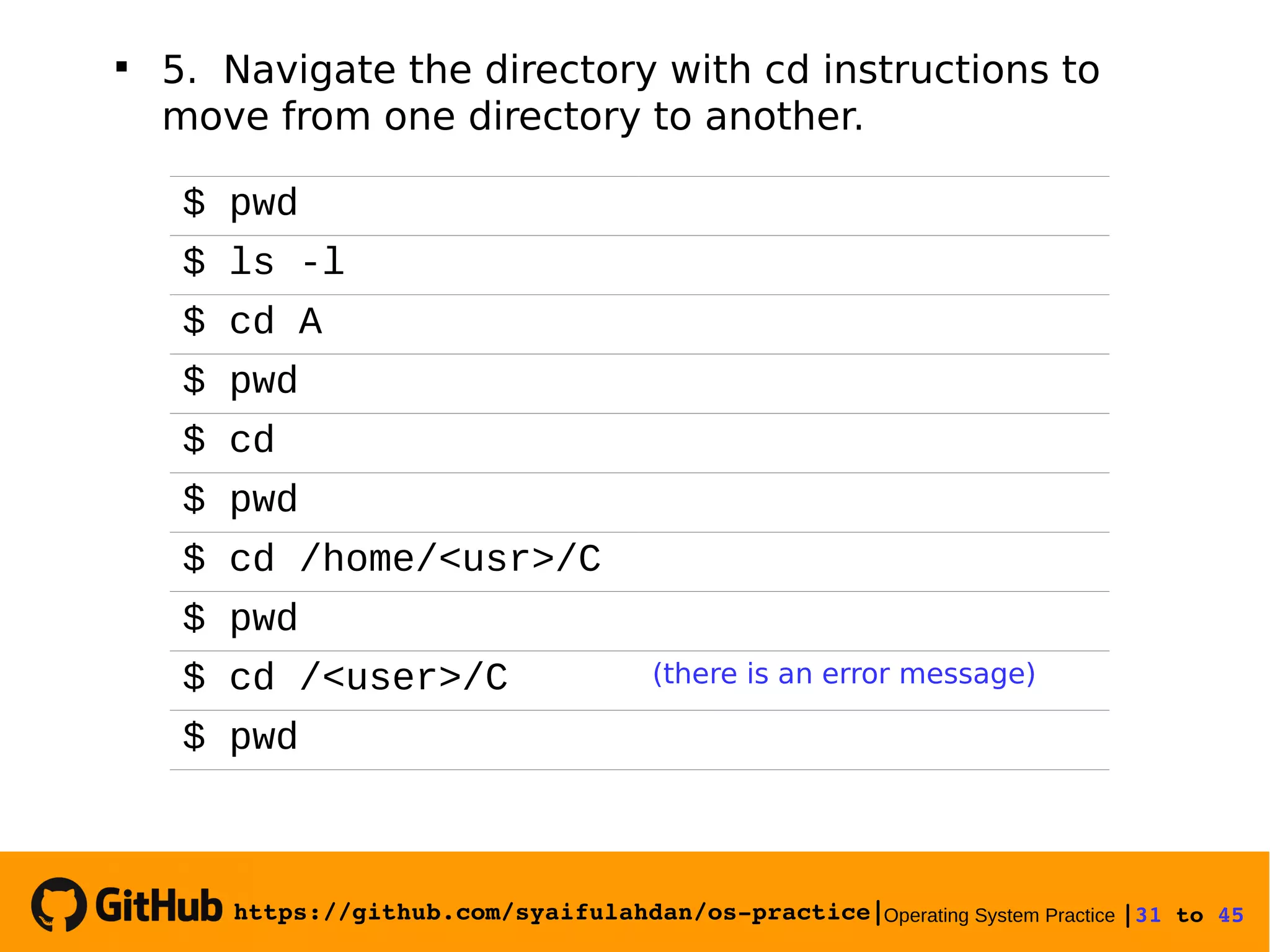
5. Navigate the directory with cd instructions to
move from one directory to another.
$ pwd
$ ls -l
$ cd A
$ pwd
$ cd
$ pwd
$ cd /home/<usr>/C
$ pwd
$ cd /<user>/C (there is an error message)
$ pwd
https://github.com/syaifulahdan/os­practice|Operating System Practice |32 to 45 
$ cat > contoh
Creating a file
[Ctrl-d]
$ cp contoh contoh1
$ ls -l
$ cp contoh A
$ ls –l A
$ cp contoh contoh1 A/D
$ ls –l A/D

Experiment 2 : File manipulation

1. cp command to copy files or entire directory
https://github.com/syaifulahdan/os­practice|Operating System Practice |33 to 45 
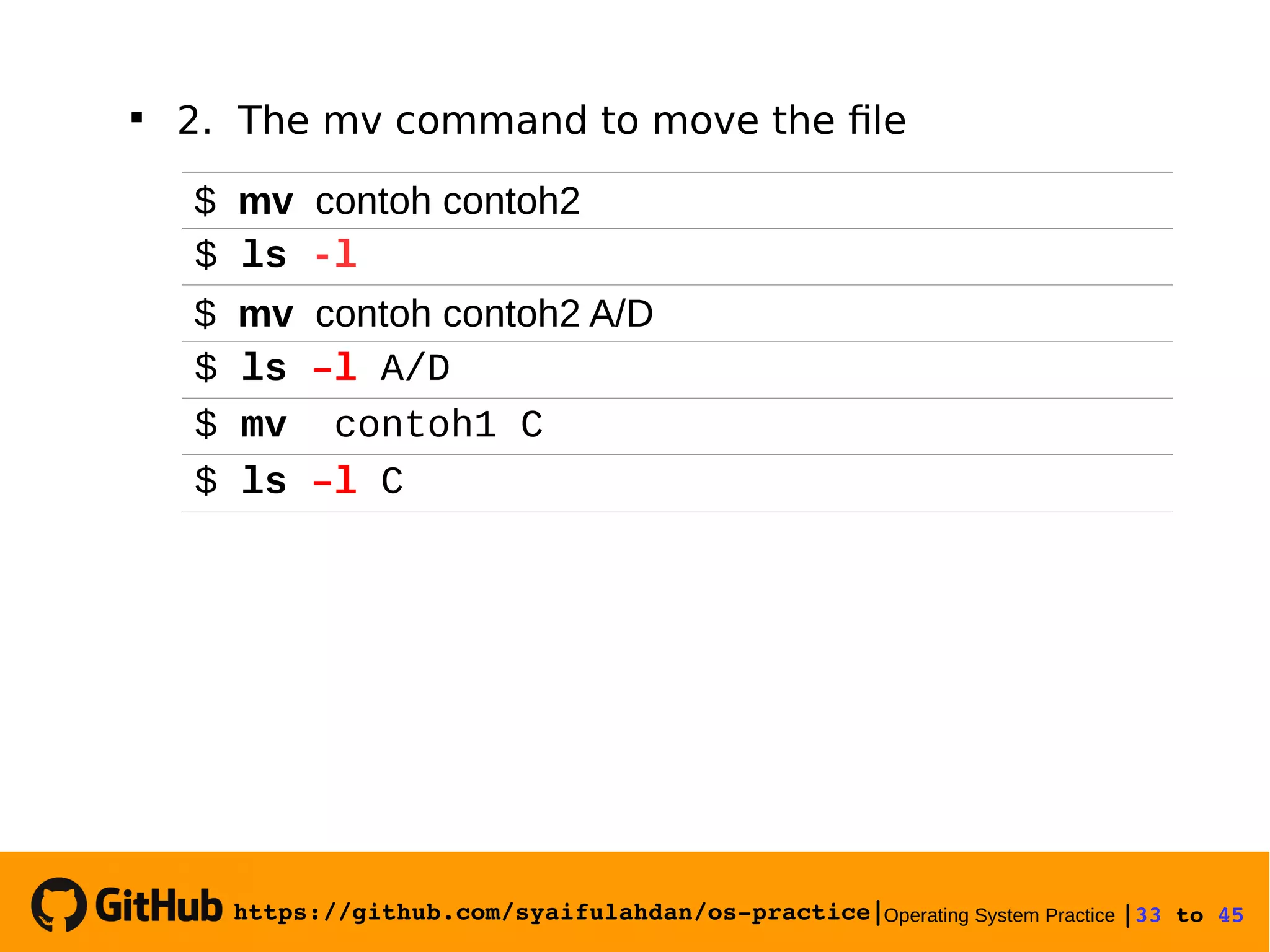
$ mv contoh contoh2
$ ls -l
$ mv contoh contoh2 A/D
$ ls –l A/D
$ mv contoh1 C
$ ls –l C

2. The mv command to move the file
https://github.com/syaifulahdan/os­practice|Operating System Practice |34 to 45 
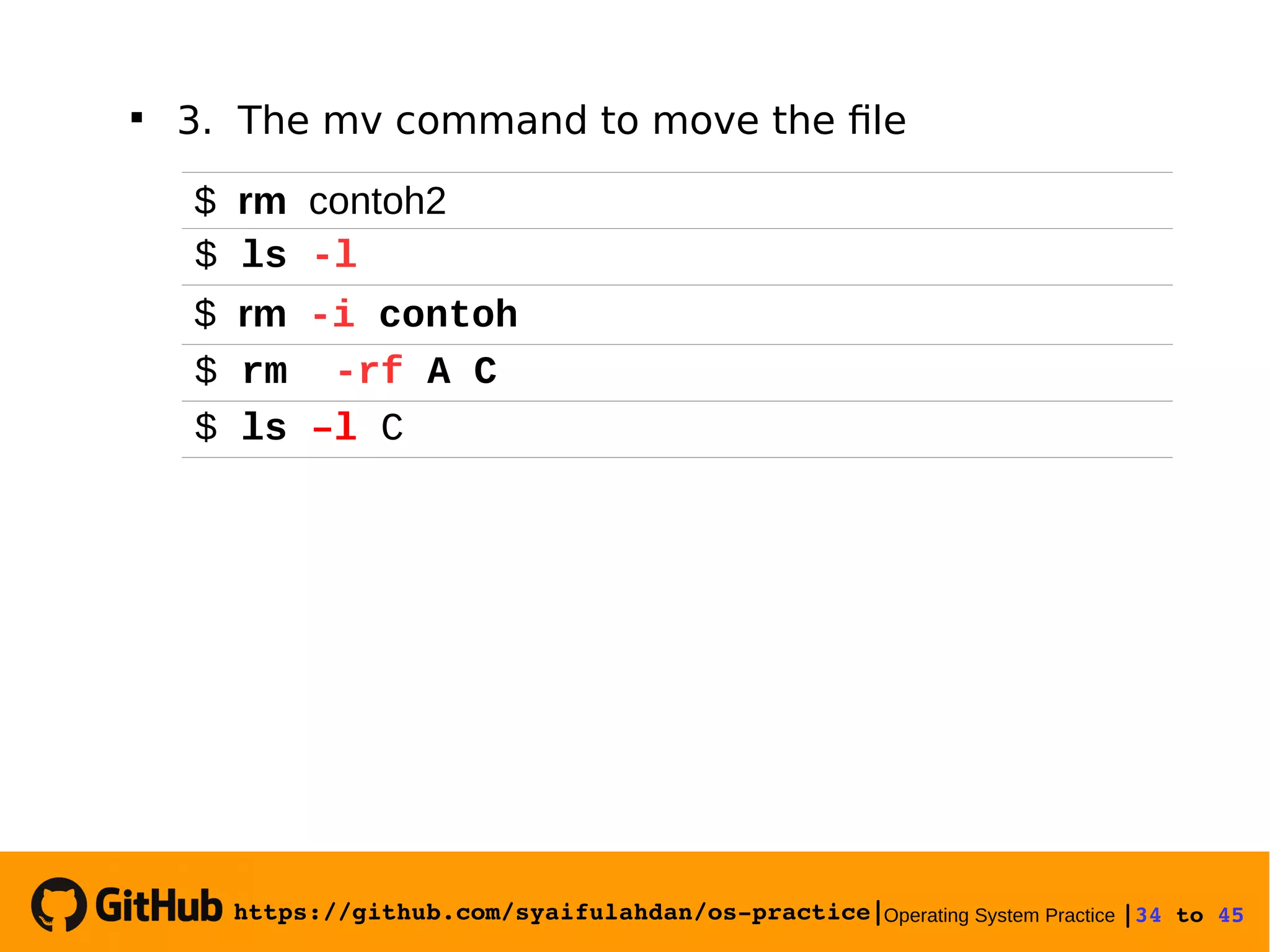
$ rm contoh2
$ ls -l
$ rm -i contoh
$ rm -rf A C
$ ls –l C

3. The mv command to move the file
https://github.com/syaifulahdan/os­practice|Operating System Practice |35 to 45 
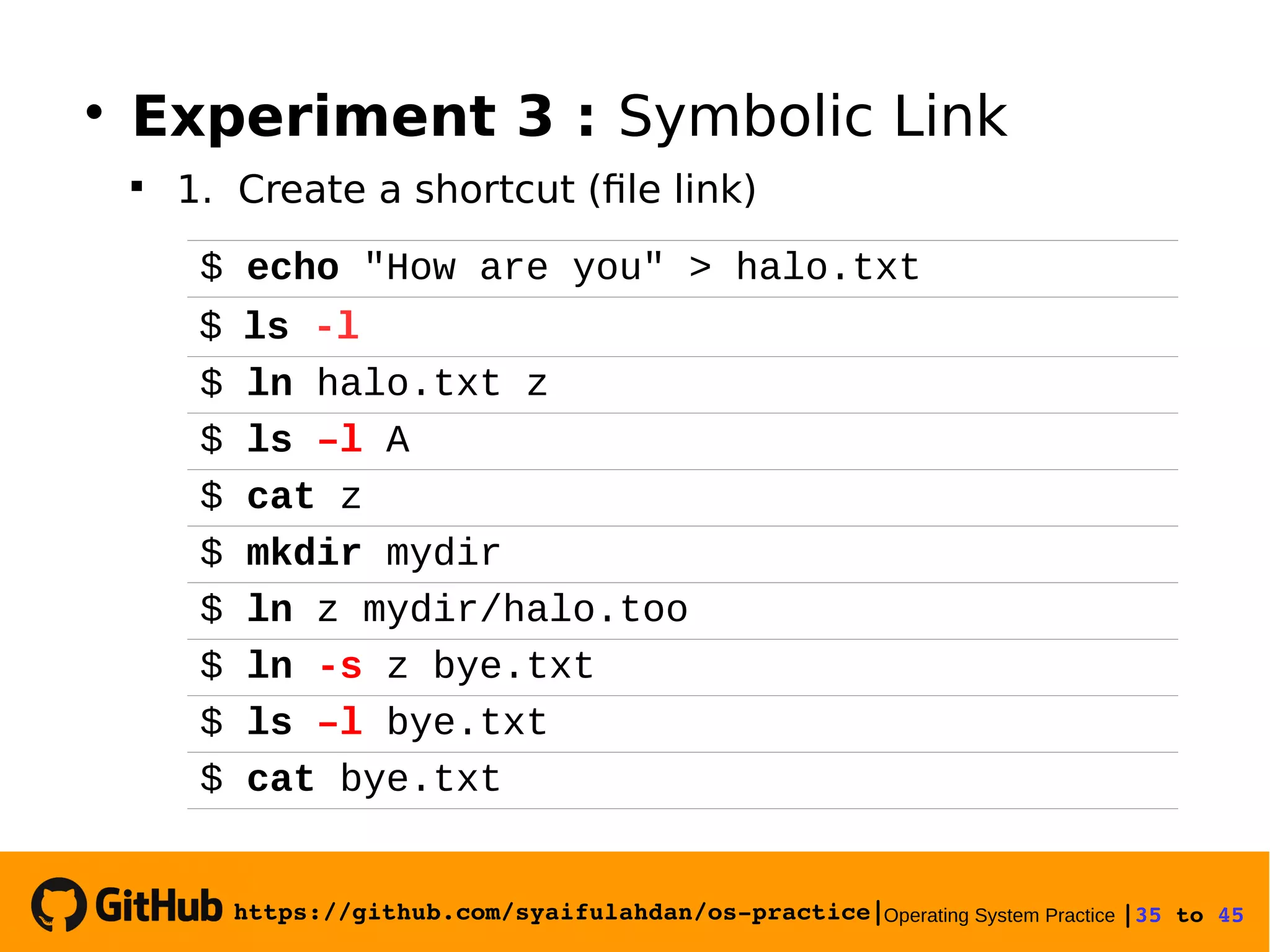
$ echo "How are you" > halo.txt
$ ls -l
$ ln halo.txt z
$ ls –l A
$ cat z
$ mkdir mydir
$ ln z mydir/halo.too
$ ln -s z bye.txt
$ ls –l bye.txt
$ cat bye.txt

Experiment 3 : Symbolic Link

1. Create a shortcut (file link)
https://github.com/syaifulahdan/os­practice|Operating System Practice |36 to 45 
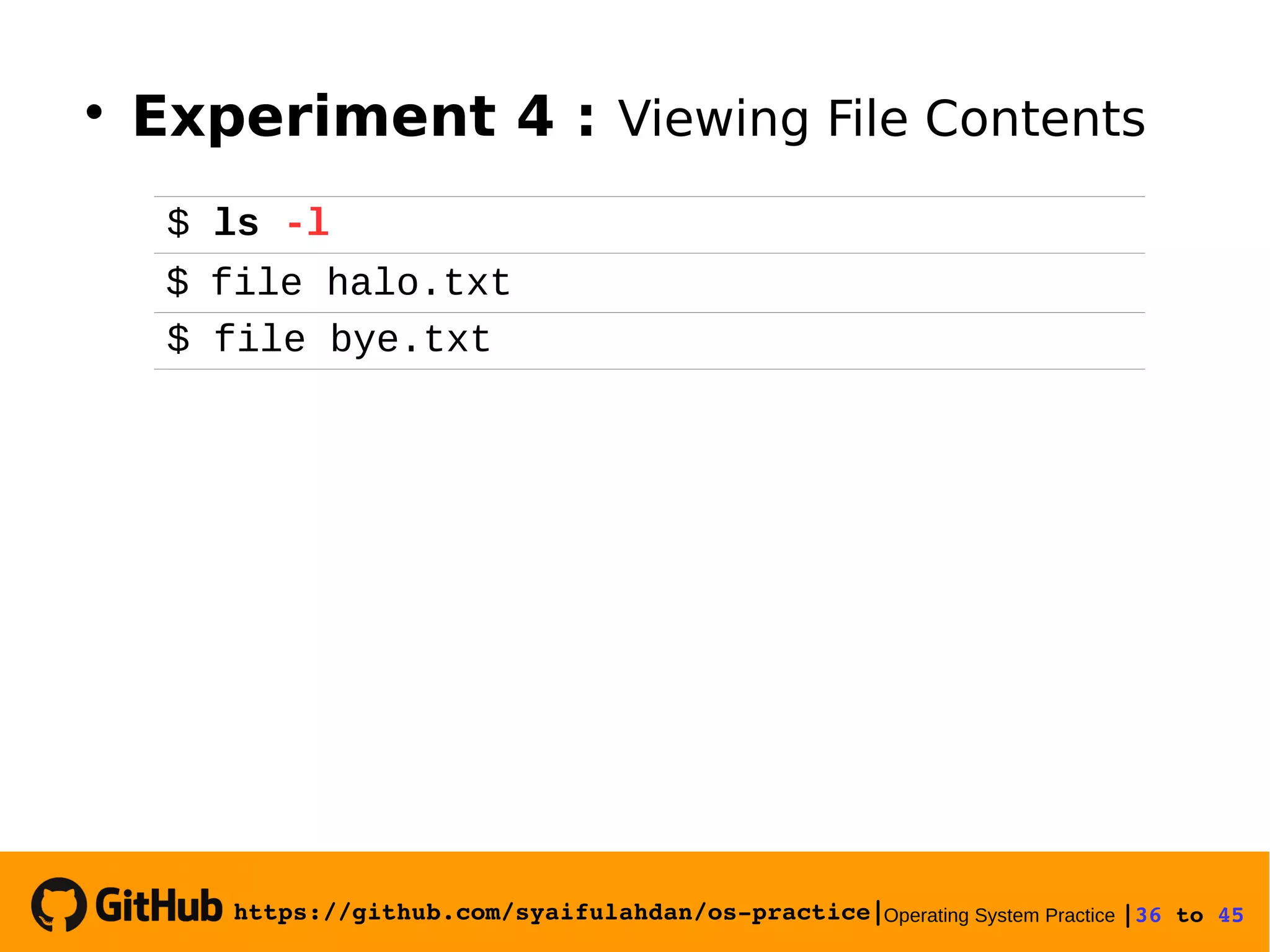
$ ls -l
$ file halo.txt
$ file bye.txt

Experiment 4 : Viewing File Contents
https://github.com/syaifulahdan/os­practice|Operating System Practice |37 to 45 
$ find /home –name “*.txt” –print > myerror.txt
$ cat myerror.txt
$ find . –name “*.txt” –exec wc –l ‘{}’ ‘;’

Experiment 5 : Search for files
 1. Find Command
 2. which Command
$ which ls
 3. locate Command
$ locate “*.txt”
https://github.com/syaifulahdan/os­practice|Operating System Practice |38 to 45 
$ grep Hallo *.txt

Experiment 6 : Search for text on file
https://github.com/syaifulahdan/os­practice|Operating System Practice |39 to 45 
E. Exercise
https://github.com/syaifulahdan/os­practice|Operating System Practice |40 to 45 
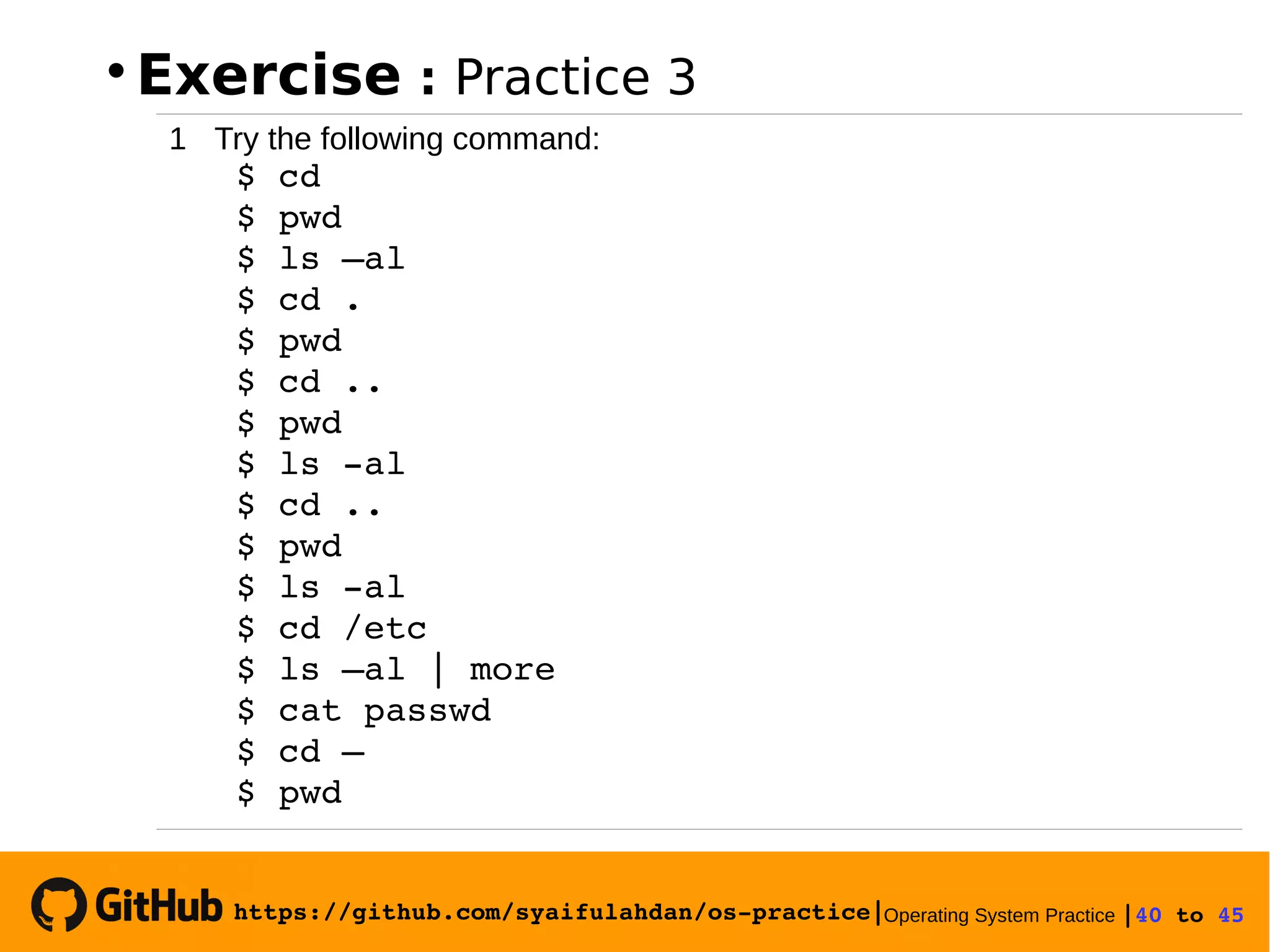

Exercise : Practice 3
1 Try the following command:
 $ cd
 $ pwd
 $ ls –al
 $ cd .
 $ pwd
 $ cd ..
 $ pwd
 $ ls ­al
 $ cd ..
 $ pwd
 $ ls ­al
 $ cd /etc
 $ ls –al | more
 $ cat passwd
 $ cd –
 $ pwd
https://github.com/syaifulahdan/os­practice|Operating System Practice |41 to 45 
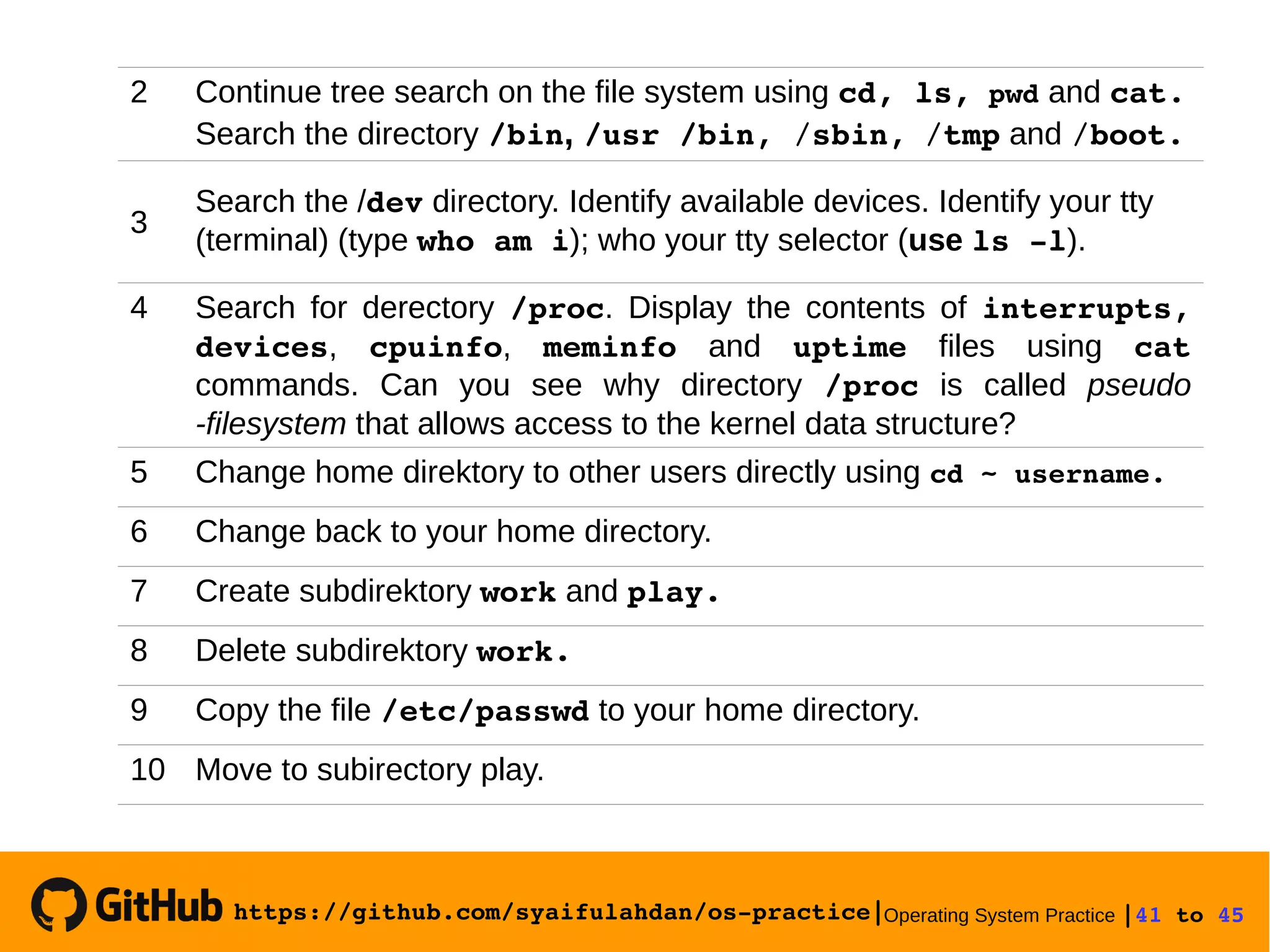
2 Continue tree search on the file system using cd, ls, pwd and cat.
Search the directory /bin, /usr /bin, /sbin, /tmp and /boot.
3
Search the /dev directory. Identify available devices. Identify your tty
(terminal) (type who am i); who your tty selector (use ls ­l).
4 Search for derectory /proc. Display the contents of interrupts,
devices, cpuinfo, meminfo and uptime files using cat
commands. Can you see why directory /proc is called pseudo
-filesystem that allows access to the kernel data structure?
5 Change home direktory to other users directly using cd ~ username.
6 Change back to your home directory.
7 Create subdirektory work and play.
8 Delete subdirektory work.
9 Copy the file /etc/passwd to your home directory.
10 Move to subirectory play.
https://github.com/syaifulahdan/os­practice|Operating System Practice |42 to 45 
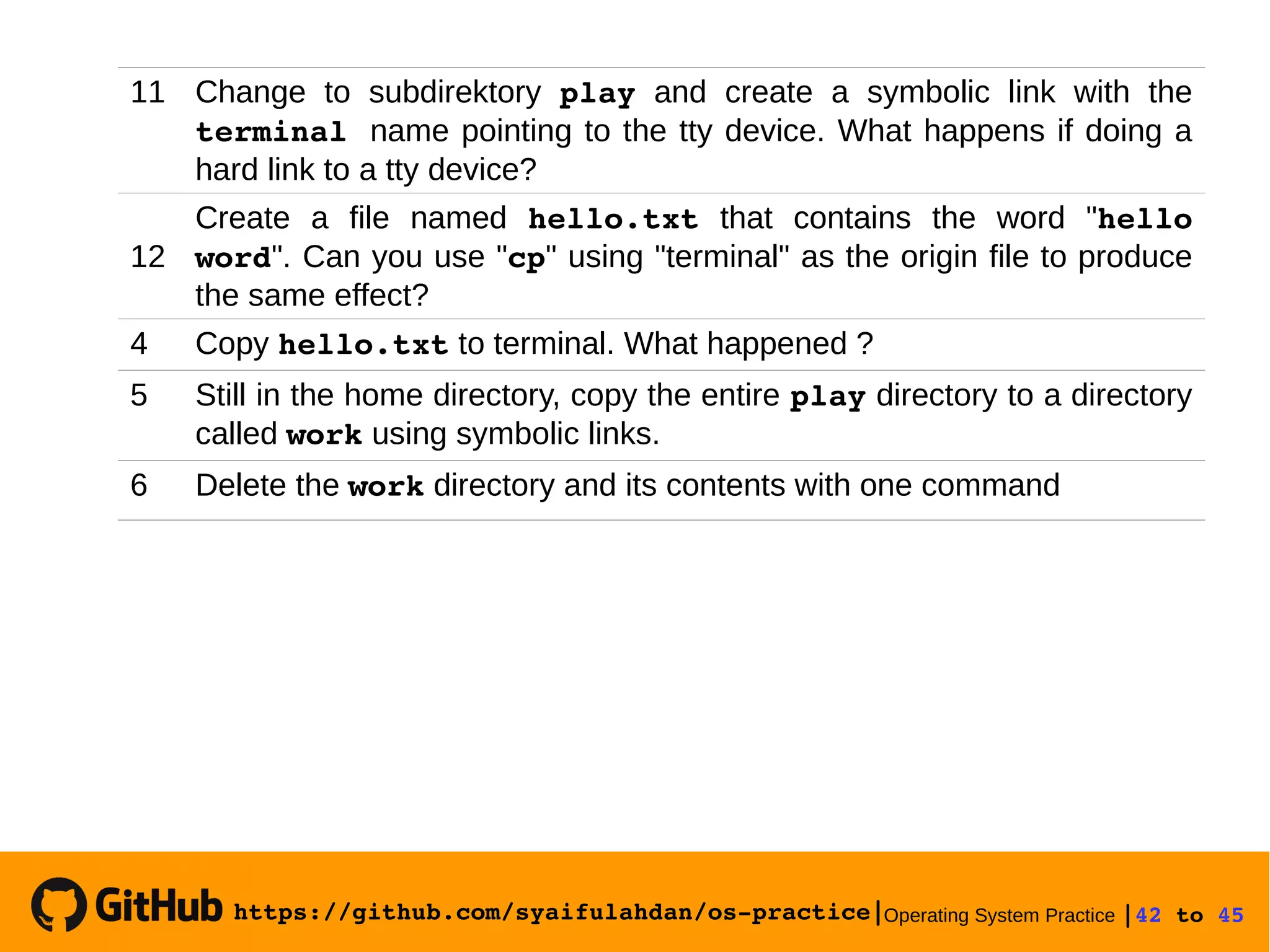
11 Change to subdirektory play and create a symbolic link with the
terminal name pointing to the tty device. What happens if doing a
hard link to a tty device?
12
Create a file named hello.txt that contains the word "hello 
word". Can you use "cp" using "terminal" as the origin file to produce
the same effect?
4 Copy hello.txt to terminal. What happened ?
5 Still in the home directory, copy the entire play directory to a directory
called work using symbolic links.
6 Delete the work directory and its contents with one command
https://github.com/syaifulahdan/os­practice|Operating System Practice |43 to 45 

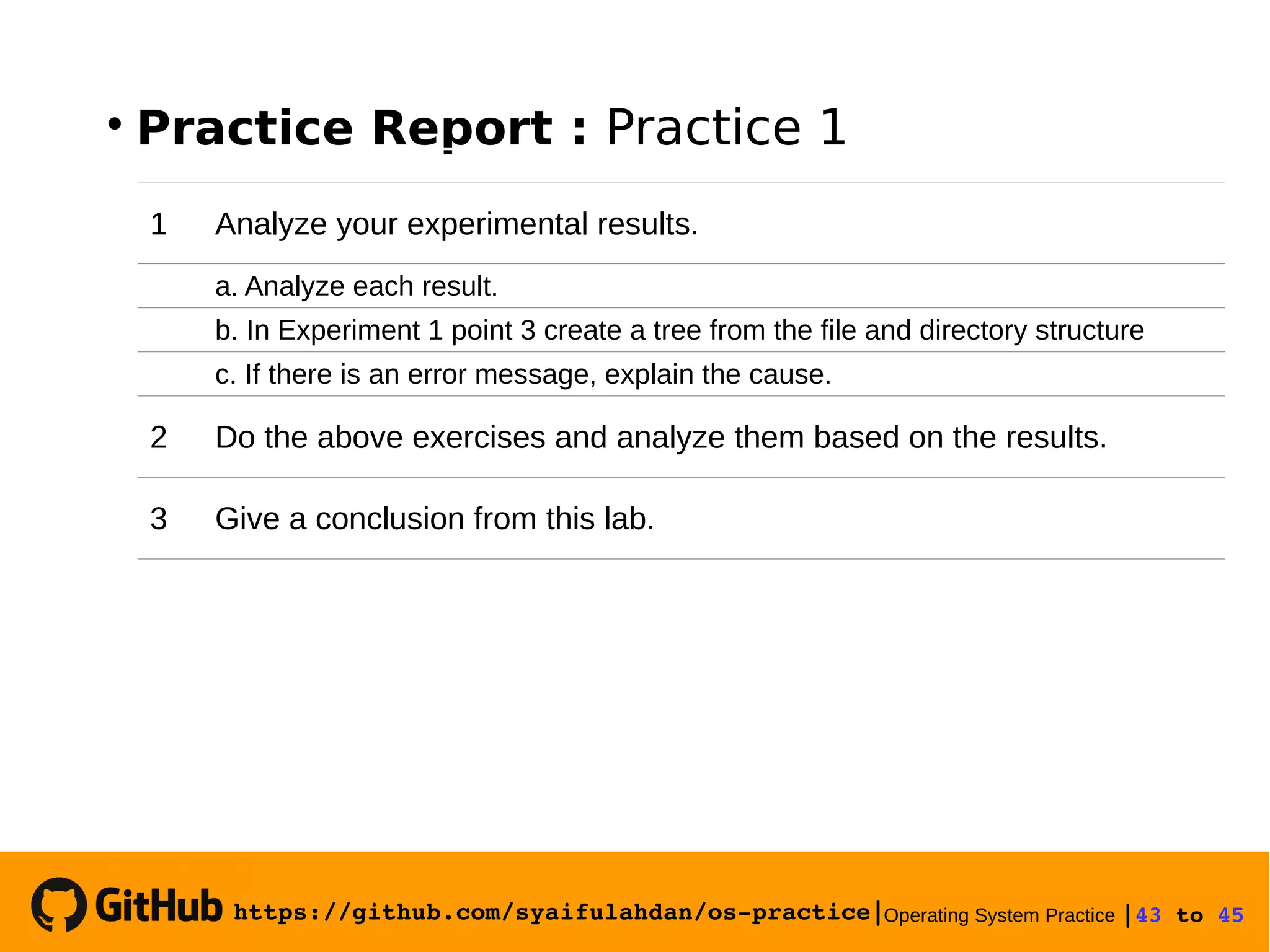
Practice Report : Practice 1
1 Analyze your experimental results.
a. Analyze each result.
b. In Experiment 1 point 3 create a tree from the file and directory structure
c. If there is an error message, explain the cause.
2 Do the above exercises and analyze them based on the results.
3 Give a conclusion from this lab.
https://github.com/syaifulahdan/os­practice|Operating System Practice |44 to 45 

“Pleasure in a job makes perfection on the results 
achieved”. Aristoteles

“Believe you can. You're halfway”. Theodore Roosevelt

“You might be able to delay, but time will not wait”. 
Benjamin Franklin 

“The effort will work if someone does not give up”. 
Napoleon Hill

“Opportunity to find a better strength in us arises 
when life seems to be very challenging”. Joseph 
Campbell

Operating System Practice : Meeting 4 - operasi file dan struktur direktori-slide

  • 1.
    https://github.com/syaifulahdan/os­practice|Operating System Practice|1 to 45  OPERATING SYSTEMS PRACTICE File Operations and Directory Structure Practice : 3  File Operation on Linux Operating System  Directory Structure on Linux Operating System https://github.com/syaifulahdan/os­practice|
  • 2.
    https://github.com/syaifulahdan/os­practice|Operating System Practice|2 to 45  A. Objectives 1.Understand file organization and directory on Linux operating system 2.Creating and manipulating the directory 3.Understand the concept of links and symbolic links
  • 3.
  • 4.
    https://github.com/syaifulahdan/os­practice|Operating System Practice|4 to 45  1. File Organization  The file system on Linux resembles a tree, which starts from the root, then directories and sub directories.  The file system on Linux is arranged hierarchically, ie starting with root with symbol "/".  Directory is a special file, containing the file name and INODE (pointer pointing to the data / content of the file).  Logically, the Directory can contain more Files and Directories (also called Subdirectories).
  • 5.
  • 6.
  • 7.
    https://github.com/syaifulahdan/os­practice|Operating System Practice|7 to 45  2. Standard Directory Directory Description /etc Contains administrative files (configs etc.) and executable files or scripts that are useful for system administration. /dev Contains special files that represent hardware equipment such as memory, disk, printer, tape, floppy, network etc. /bin It contains a low level (binary) system utility. /sbin Contains system utilities for superuser (to establish system administration). usr/sbin usr/bin Contains system utilities and high-level application programs. /usr/lib It contains the required library program for compilation /etc Contains administrative files (configs etc.) and executable files or scripts that are useful for system administration. /dev Contains special files that represent hardware equipment such as memory, disk, printer, tape, floppy, network etc.
  • 8.
    https://github.com/syaifulahdan/os­practice|Operating System Practice|8 to 45  Directory Description /bin It contains a low level (binary) system utility. /sbin Contains system utilities for superuser (to establish system administration). usr/sbin usr/bin Contains system utilities and high-level application programs. /usr/lib It contains the program library needed for program compilation (eg C). Contains instructions (command) for example to Print Spooler (lpadmin) etc. /tmp It contains a temporary file, which at Bootstrap will be deleted (can be used by any user). /boot It contains very important files for the bootstrap process. The vmlinuz kernel is stored in this directory. /proc Contains information about the Linux kernel, process and virtual system files. /var Directory variable, meaning temporary storage LOG (note / var result of program output), this file can swell and need to be monitored its development. /home Contains a directory for Linux users (on SCO laid on / usr)
  • 9.
    https://github.com/syaifulahdan/os­practice|Operating System Practice|9 to 45  Directory Description /mnt Directory for file system mounting /root Home directory for superuser (root) /usr/bin/X11 Symbolic link to / usr / X11R6 / bin, program for X-Window /usr/src Source code for Linux /opt Option, this directory usually contains additional apps ("add-on") like Netscape Navigator, kde, gnome, applix etc.
  • 10.
    https://github.com/syaifulahdan/os­practice|Operating System Practice|10 to 45   Direktori /etc Contains files related to system administration, script maintenance, configuration, security etc. Only superuser can modify the files that reside in this directory. Frequently accessed subdirectories in the / etc directory include: httpd : apache web server ppp : point to point protocol for connection to the Internet. rc.d or init.d, : initialization (startup) and termination (shutdown) processes in Linux with the concept of runlevel. cron.d : the details of the executable process using the schedule (time dependent process) FILES security and configuration files include: passwd,  hosts,  shadow,  ftpaccess,  inetd.conf,  lilo.conf,  motd,  printcap,  profile,  resolv.conf,  sendmail.cf,  syslog.conf,  dhcp.conf,  smb.conf,  fstab
  • 11.
    https://github.com/syaifulahdan/os­practice|Operating System Practice|11 to 45   Direktori /dev The concept of Unix and Linux is to treat hardware equipment the same as file handling. Each tool has a file name stored in the / dev directory. Equipment Directory  Floppy : /dev/fd0  Harddisk : IDE : /dev/had, /dev/hdb, /dev/hdc, /dev/hdd SCSI : /dev/sda, /dev/sdb, /dev/sdc  CDROM : SCSI : /dev/scd0, /dev/scd1 IDE : /dev/gscd, /dev/sonycd Universal : /dev/cdrom (link dari actual cdrom ide atau scsi)  Mouse : PS2 : /dev/lp0, Universal : /dev/mouse  Parallel Port : LPT1 : /dev/lp0, LPT2 : /dev/lp1  Serial Port : COM1 : /dev/ttyS0 COM2 : /dev/ttyS1 Universal : /dev/modem (link dari S0 atau S1)
  • 12.
    https://github.com/syaifulahdan/os­practice|Operating System Practice|12 to 45  Direktori /proc  The /proc directory is a directory created above RAM (Random Access Memory) with the file system set by the kernel.  /proc contains the process number of the system and the name of the active driver in the system.  All directories are 0 (empty) except for kcore and self files.  Each number in that directory represents PID (Process ID).
  • 13.
    https://github.com/syaifulahdan/os­practice|Operating System Practice|13 to 45  3. File Type Ordinary file Directory Block Device (I / O Tools) Represents hardware equipment that uses data transmission per block (eg 1 KB block), such as disk, floppy, tape. Character Device (I / O Tools) Represents hardware equipment that uses data transmission characters per character, such as terminal, modem, plotter etc. Named Pipe (FIFO) Files used internally by the operating system for interconnection process Link File  In Linux there are 6 types of file types
  • 14.
    https://github.com/syaifulahdan/os­practice|Operating System Practice|14 to 45  4. File Property Character usability ­ Ordinary files d Directory l Symbolic Link b Block Special File c Character Special File s Socket Link p FIFO  File Type : determine the type of the file, that is  The file has several attributes, among others:
  • 15.
    https://github.com/syaifulahdan/os­practice|Operating System Practice|15 to 45   Access permission : specify user permissions on this file.  Number of links : the number of links for this file.  Owner : determines who owns this file  Group : specify the group that owns this file  Number of Characters : specify the file size in bytes  Creation time : specifies when the last file was modified  File Name : specifies the name of the file in question ­ rwx­rw­r­­ 1 root root 1693 Jan 19 23:10 /etc/passwd Access Permission owner type Number of links Group Creating time File name Number of characters
  • 16.
    https://github.com/syaifulahdan/os­practice|Operating System Practice|16 to 45  5. File Name & [ { ; ] } | ( ^ ? ) # ` $ ” < / “ >  Maximum file name consists of 255 alphanumeric characters and some special characters ie underscores, point, commas and others except spaces and characters
  • 17.
    https://github.com/syaifulahdan/os­practice|Operating System Practice|17 to 45   Linux distinguish lowercase with upper case (case sensitive). Example of correct filename: gsdhsdw5434 89 informatic.txt INFORMATIC.txt informatic.txt, GGG google_698,v5.2.9 9-02.query.html
  • 18.
    https://github.com/syaifulahdan/os­practice|Operating System Practice|18 to 45  6. Symbolic Link ln [originalfile] [duplicatefile]  Link is a technique to provide more than one filename with the same data. When the original file is deleted, the new data is also deleted. Format of Link: "duplicatefile" is called a hard link where both files will appear identical (link count = 2) When "originalfile" or "duplicatefile" is changed the change will occur on another file.
  • 19.
    https://github.com/syaifulahdan/os­practice|Operating System Practice|19 to 45  Symbolic Link is required when the file is in "link" with the directory / file are on a different partition. The file type becomes l (link) and the file points to the place of origin. Format: "duplicatefile" is called a hard link where both files will appear identical (link count = 2) When "originalfile" or "duplicatefile" is changed the change will occur on another file. ln –s /FULLPATH/fileAsli /FULLPATH/fileDuplikat
  • 20.
    https://github.com/syaifulahdan/os­practice|Operating System Practice|20 to 45  The -s option (shortcut) is a form of soft link where the number of links count on the original file will not change. In the form of soft links, symbolic links can be done on files that do not exist, while the hard link is not possible. Another difference, symbolic links can be formed through disk media or different partitions with soft links, but on hard links limited to the same disk partition.
  • 21.
    https://github.com/syaifulahdan/os­practice|Operating System Practice|21 to 45  7. Viewing File Contents file filename(s) To view file types using formats: The contents of the file will be reported with a high level description like the following example $ file myprog.c letter.txt webpage.html myprog.c: C program text letter.txt: ASCII text webpage.html: HTML document text The contents of the file will be reported with a high level description like the following example
  • 22.
    https://github.com/syaifulahdan/os­practice|Operating System Practice|22 to 45  9. Searching Files If you want to see how the directory tree can be used commands  find Format: find directory ­name targetfile ­print Will see a file called targetfile (can be a wildcard character)  Which Format: which command To know the location of system utility
  • 23.
    https://github.com/syaifulahdan/os­practice|Operating System Practice|23 to 45   locate Format: locate string Will search for files on all directories faster and displayed with full path.
  • 24.
    https://github.com/syaifulahdan/os­practice|Operating System Practice|24 to 45  9. Searching Text on FIle To search for text in file use grep command (General Regular Expression Print) with command format grep option pattern files Grep will search for a file named according to the given pattern and will display the corresponding row.
  • 25.
  • 26.
    https://github.com/syaifulahdan/os­practice|Operating System Practice|26 to 45  1 Login as user. 2 Open the Console Terminal and do the experiments below. Note the results of each experiment 3 Open the Console Terminal and do the experiments below. Note the results of each experiment
  • 27.
  • 28.
    https://github.com/syaifulahdan/os­practice|Operating System Practice|28 to 45  $ pwd $ echo $HOME $ pwd $ cd . $ pwd $ cd .. $ pwd $ cd  2. View the current directory and directory parent  Experiment 1 : Directory  1. View the HOME directory
  • 29.
    https://github.com/syaifulahdan/os­practice|Operating System Practice|29 to 45  $ pwd $ mkdir A B C A/D A/E B/F A/D/A $ ls -l $ ls -l A $ ls -l A/D  4. Deleting one or more directories can only be done in an empty directory and can only be deleted by the owner unless the access permission is granted  3. Create one directory, more than one directory or subdirectory.
  • 30.
    https://github.com/syaifulahdan/os­practice|Operating System Practice|30 to 45  $ rmdir B (there is an error message) $ mkdir ls -l B $ rmdir B/F B $ ls -l B (there is an error message)
  • 31.
    https://github.com/syaifulahdan/os­practice|Operating System Practice|31 to 45   5. Navigate the directory with cd instructions to move from one directory to another. $ pwd $ ls -l $ cd A $ pwd $ cd $ pwd $ cd /home/<usr>/C $ pwd $ cd /<user>/C (there is an error message) $ pwd
  • 32.
    https://github.com/syaifulahdan/os­practice|Operating System Practice|32 to 45  $ cat > contoh Creating a file [Ctrl-d] $ cp contoh contoh1 $ ls -l $ cp contoh A $ ls –l A $ cp contoh contoh1 A/D $ ls –l A/D  Experiment 2 : File manipulation  1. cp command to copy files or entire directory
  • 33.
    https://github.com/syaifulahdan/os­practice|Operating System Practice|33 to 45  $ mv contoh contoh2 $ ls -l $ mv contoh contoh2 A/D $ ls –l A/D $ mv contoh1 C $ ls –l C  2. The mv command to move the file
  • 34.
    https://github.com/syaifulahdan/os­practice|Operating System Practice|34 to 45  $ rm contoh2 $ ls -l $ rm -i contoh $ rm -rf A C $ ls –l C  3. The mv command to move the file
  • 35.
    https://github.com/syaifulahdan/os­practice|Operating System Practice|35 to 45  $ echo "How are you" > halo.txt $ ls -l $ ln halo.txt z $ ls –l A $ cat z $ mkdir mydir $ ln z mydir/halo.too $ ln -s z bye.txt $ ls –l bye.txt $ cat bye.txt  Experiment 3 : Symbolic Link  1. Create a shortcut (file link)
  • 36.
    https://github.com/syaifulahdan/os­practice|Operating System Practice|36 to 45  $ ls -l $ file halo.txt $ file bye.txt  Experiment 4 : Viewing File Contents
  • 37.
    https://github.com/syaifulahdan/os­practice|Operating System Practice|37 to 45  $ find /home –name “*.txt” –print > myerror.txt $ cat myerror.txt $ find . –name “*.txt” –exec wc –l ‘{}’ ‘;’  Experiment 5 : Search for files  1. Find Command  2. which Command $ which ls  3. locate Command $ locate “*.txt”
  • 38.
    https://github.com/syaifulahdan/os­practice|Operating System Practice|38 to 45  $ grep Hallo *.txt  Experiment 6 : Search for text on file
  • 39.
  • 40.
    https://github.com/syaifulahdan/os­practice|Operating System Practice|40 to 45   Exercise : Practice 3 1 Try the following command:  $ cd  $ pwd  $ ls –al  $ cd .  $ pwd  $ cd ..  $ pwd  $ ls ­al  $ cd ..  $ pwd  $ ls ­al  $ cd /etc  $ ls –al | more  $ cat passwd  $ cd –  $ pwd
  • 41.
    https://github.com/syaifulahdan/os­practice|Operating System Practice|41 to 45  2 Continue tree search on the file system using cd, ls, pwd and cat. Search the directory /bin, /usr /bin, /sbin, /tmp and /boot. 3 Search the /dev directory. Identify available devices. Identify your tty (terminal) (type who am i); who your tty selector (use ls ­l). 4 Search for derectory /proc. Display the contents of interrupts, devices, cpuinfo, meminfo and uptime files using cat commands. Can you see why directory /proc is called pseudo -filesystem that allows access to the kernel data structure? 5 Change home direktory to other users directly using cd ~ username. 6 Change back to your home directory. 7 Create subdirektory work and play. 8 Delete subdirektory work. 9 Copy the file /etc/passwd to your home directory. 10 Move to subirectory play.
  • 42.
    https://github.com/syaifulahdan/os­practice|Operating System Practice|42 to 45  11 Change to subdirektory play and create a symbolic link with the terminal name pointing to the tty device. What happens if doing a hard link to a tty device? 12 Create a file named hello.txt that contains the word "hello  word". Can you use "cp" using "terminal" as the origin file to produce the same effect? 4 Copy hello.txt to terminal. What happened ? 5 Still in the home directory, copy the entire play directory to a directory called work using symbolic links. 6 Delete the work directory and its contents with one command
  • 43.
    https://github.com/syaifulahdan/os­practice|Operating System Practice|43 to 45   Practice Report : Practice 1 1 Analyze your experimental results. a. Analyze each result. b. In Experiment 1 point 3 create a tree from the file and directory structure c. If there is an error message, explain the cause. 2 Do the above exercises and analyze them based on the results. 3 Give a conclusion from this lab.
  • 44.
    https://github.com/syaifulahdan/os­practice|Operating System Practice|44 to 45   “Pleasure in a job makes perfection on the results  achieved”. Aristoteles  “Believe you can. You're halfway”. Theodore Roosevelt  “You might be able to delay, but time will not wait”.  Benjamin Franklin   “The effort will work if someone does not give up”.  Napoleon Hill  “Opportunity to find a better strength in us arises  when life seems to be very challenging”. Joseph  Campbell