Introduction to Linux
DevOps Essentials
2020
@2020 copyright KalKey training
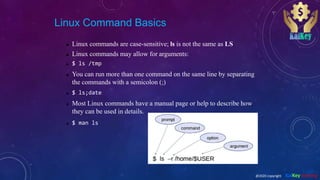
Linux Command Basics
 Linux commands are case-sensitive; ls is not the same as LS
 Linux commands may allow for arguments:
 $ ls /tmp
 You can run more than one command on the same line by separating
the commands with a semicolon (;)
 $ ls;date
 Most Linux commands have a manual page or help to describe how
they can be used in details.
 $ man ls
@2020 copyright KalKey training
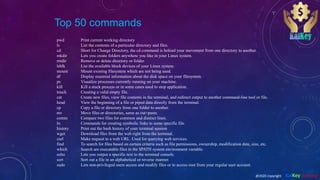
Top 50 commands
pwd Print current working directory
ls List the contents of a particular directory and files.
cd Short for Change Directory, the cd command is behind your movement from one directory to another.
mkdir Lets you create folders anywhere you like in your Linux system.
rmdir Remove or delete directory or folder.
lsblk List the available block devices of your Linux system.
mount Mount existing filesystem which are not being used.
df Display essential information about the disk space on your filesystem.
ps Visualize processes currently running on your machine.
kill Kill a stuck process or in some cases used to stop application.
touch Creating a valid empty file.
cat Create new files, view file contents in the terminal, and redirect output to another command-line tool or file.
head View the beginning of a file or piped data directly from the terminal.
cp Copy a file or directory from one folder to another.
mv Move files or directories, same as cut+paste.
comm Compare two files for common and distinct lines.
ln Commands for creating symbolic links to some specific file.
history Print out the bash history of your terminal session
wget Download files from the web right from the terminal.
curl Make request to a web URL. Used for querying web services.
find To search for files based on certain criteria such as file permissions, ownership, modification date, size, etc.
which Search are executable files in the $PATH system environment variable.
echo Lets you output a specific text to the terminal console.
sort Sort out a file in an alphabetical or reverse manner.
sudo Lets non-privileged users access and modify files or to access root from your regular user account.
@2020 copyright KalKey training
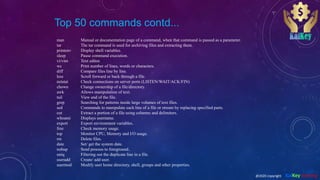
Top 50 commands contd...
man Manual or documentation page of a command, when that command is passed as a parameter.
tar The tar command is used for archiving files and extracting them.
printenv Display shell variables.
sleep Pause command execution.
vi/vim Text editor.
wc Print number of lines, words or characters.
diff Compare files line by line.
less Scroll forward or back through a file.
netstat Check connections on server ports (LISTEN/WAIT/ACK/FIN)
chown Change ownership of a file/directory.
awk Allows manipulation of text.
tail View end of the file.
grep Searching for patterns inside large volumes of text files.
sed Commands to manipulate each line of a file or stream by replacing specified parts.
cut Extract a portion of a file using columns and delimiters.
whoami Displays username.
export Export environment variables.
free Check memory usage.
top Monitor CPU, Memory and I/O usage.
rm Delete files.
date Set/ get the system date.
nohup Send process to foreground..
uniq Filtering out the duplicate line in a file.
useradd Create/ add user.
usermod Modify user home directory, shell, groups and other properties.
@2020 copyright KalKey training
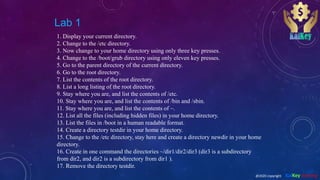
Lab 1
1. Display your current directory.
2. Change to the /etc directory.
3. Now change to your home directory using only three key presses.
4. Change to the /boot/grub directory using only eleven key presses.
5. Go to the parent directory of the current directory.
6. Go to the root directory.
7. List the contents of the root directory.
8. List a long listing of the root directory.
9. Stay where you are, and list the contents of /etc.
10. Stay where you are, and list the contents of /bin and /sbin.
11. Stay where you are, and list the contents of ~.
12. List all the files (including hidden files) in your home directory.
13. List the files in /boot in a human readable format.
14. Create a directory testdir in your home directory.
15. Change to the /etc directory, stay here and create a directory newdir in your home
directory.
16. Create in one command the directories ~/dir1/dir2/dir3 (dir3 is a subdirectory
from dir2, and dir2 is a subdirectory from dir1 ).
17. Remove the directory testdir.
@2020 copyright KalKey training
Users and Groups
 Users are associated with a unique user identification (UID) number
that the system uses internally.
 Users can be real people.
 Users can be system entities.
 Users can be herded via groups.
 Groups also are associated with a unique group identification (GID)
number by the system.
 Groups allow multiple users to access/share the same files.
@2020 copyright KalKey training
Ownership & Permissions
 Linux systems are multi user environments that allow users to create
files, run programs and share data.
 Files and directories have two types of ownership the user and group.
A Linux group consists of one or more users.
 Files and directories have three types of access permissions:
a)read permission (r)
b)write permission (w)
c)execute permission (x)
 Every file and directory has permissions for three levels or entities of
permissions:
a)user or owner (denoted by u)
b)group (one or more users denoted by g)
c)others or world (denoted by o)
@2020 copyright KalKey training
Permissions triplets
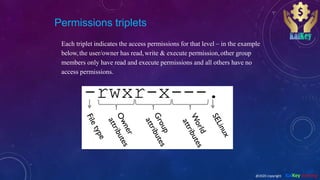
Each triplet indicates the access permissions for that level – in the example
below,the user/owner has read,write & execute permission,other group
members only have read and execute permissions and all others have no
access permissions.
@2020 copyright KalKey training
Changing Permissions and Ownership
 Use ‘ chmod ’ to change the file:
 chmod [ ugoa ][+/-][ rwx ] filename
 where u=user, g=group, o=others or world and a=all three
 For example, to provide group read access to a file:
 $ chmod g+r myfile
 Or to remove file access to another than the owner or group members
(in other words, others):
 $ chmod o-rwx myfile
 The ‘ chown ’ command is used to change file ownership and the
chgrp ’ command can change group ownership of a file. As a regular
user, you can not change the ownership of a file, but you can change
the group ownership if you are a member of the group to which you
are changing the group ownership.
 You can use the R argument on any of the above to recursively make
changes on a directory of files.
@2020 copyright KalKey training
Lab 2
1)First go to your home directory.
2)Make a ‘LinuxClass’ directory using the mkdir command & go into
that directory.
3)Create 5 empty files in LinuxClass directory.
4)Show permission of newly created files.
5)Add execute permission for group on 2 of the files and make other 3
world readable.
6)Now, remove the execute permission of LinuxClass for all.
7)Change directory to your home directory, then try to see all files under
LinuxClass and then finally go into that directory.
8)Explain what happened and why?
@2020 copyright KalKey training
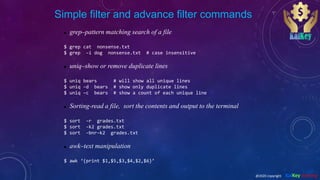
Simple filter and advance filter commands
 grep–pattern matching search of a file
$ grep cat nonsense.txt
$ grep –i dog nonsense.txt # case insensitive
 uniq–show or remove duplicate lines
$ uniq bears # will show all unique lines
$ uniq –d bears # show only duplicate lines
$ uniq –c bears # show a count of each unique line
 Sorting-read a file, sort the contents and output to the terminal
$ sort –r grades.txt
$ sort -k2 grades.txt
$ sort –bnr–k2 grades.txt
 awk–text manipulation
$ awk ‘{print $1,$5,$3,$4,$2,$6}’
@2020 copyright KalKey training

Linux day 2.ppt

  • 1.
    Introduction to Linux DevOpsEssentials 2020 @2020 copyright KalKey training
  • 2.
    Linux Command Basics Linux commands are case-sensitive; ls is not the same as LS  Linux commands may allow for arguments:  $ ls /tmp  You can run more than one command on the same line by separating the commands with a semicolon (;)  $ ls;date  Most Linux commands have a manual page or help to describe how they can be used in details.  $ man ls @2020 copyright KalKey training
  • 3.
    Top 50 commands pwdPrint current working directory ls List the contents of a particular directory and files. cd Short for Change Directory, the cd command is behind your movement from one directory to another. mkdir Lets you create folders anywhere you like in your Linux system. rmdir Remove or delete directory or folder. lsblk List the available block devices of your Linux system. mount Mount existing filesystem which are not being used. df Display essential information about the disk space on your filesystem. ps Visualize processes currently running on your machine. kill Kill a stuck process or in some cases used to stop application. touch Creating a valid empty file. cat Create new files, view file contents in the terminal, and redirect output to another command-line tool or file. head View the beginning of a file or piped data directly from the terminal. cp Copy a file or directory from one folder to another. mv Move files or directories, same as cut+paste. comm Compare two files for common and distinct lines. ln Commands for creating symbolic links to some specific file. history Print out the bash history of your terminal session wget Download files from the web right from the terminal. curl Make request to a web URL. Used for querying web services. find To search for files based on certain criteria such as file permissions, ownership, modification date, size, etc. which Search are executable files in the $PATH system environment variable. echo Lets you output a specific text to the terminal console. sort Sort out a file in an alphabetical or reverse manner. sudo Lets non-privileged users access and modify files or to access root from your regular user account. @2020 copyright KalKey training
  • 4.
    Top 50 commandscontd... man Manual or documentation page of a command, when that command is passed as a parameter. tar The tar command is used for archiving files and extracting them. printenv Display shell variables. sleep Pause command execution. vi/vim Text editor. wc Print number of lines, words or characters. diff Compare files line by line. less Scroll forward or back through a file. netstat Check connections on server ports (LISTEN/WAIT/ACK/FIN) chown Change ownership of a file/directory. awk Allows manipulation of text. tail View end of the file. grep Searching for patterns inside large volumes of text files. sed Commands to manipulate each line of a file or stream by replacing specified parts. cut Extract a portion of a file using columns and delimiters. whoami Displays username. export Export environment variables. free Check memory usage. top Monitor CPU, Memory and I/O usage. rm Delete files. date Set/ get the system date. nohup Send process to foreground.. uniq Filtering out the duplicate line in a file. useradd Create/ add user. usermod Modify user home directory, shell, groups and other properties. @2020 copyright KalKey training
  • 5.
    Lab 1 1. Displayyour current directory. 2. Change to the /etc directory. 3. Now change to your home directory using only three key presses. 4. Change to the /boot/grub directory using only eleven key presses. 5. Go to the parent directory of the current directory. 6. Go to the root directory. 7. List the contents of the root directory. 8. List a long listing of the root directory. 9. Stay where you are, and list the contents of /etc. 10. Stay where you are, and list the contents of /bin and /sbin. 11. Stay where you are, and list the contents of ~. 12. List all the files (including hidden files) in your home directory. 13. List the files in /boot in a human readable format. 14. Create a directory testdir in your home directory. 15. Change to the /etc directory, stay here and create a directory newdir in your home directory. 16. Create in one command the directories ~/dir1/dir2/dir3 (dir3 is a subdirectory from dir2, and dir2 is a subdirectory from dir1 ). 17. Remove the directory testdir. @2020 copyright KalKey training
  • 6.
    Users and Groups Users are associated with a unique user identification (UID) number that the system uses internally.  Users can be real people.  Users can be system entities.  Users can be herded via groups.  Groups also are associated with a unique group identification (GID) number by the system.  Groups allow multiple users to access/share the same files. @2020 copyright KalKey training
  • 7.
    Ownership & Permissions Linux systems are multi user environments that allow users to create files, run programs and share data.  Files and directories have two types of ownership the user and group. A Linux group consists of one or more users.  Files and directories have three types of access permissions: a)read permission (r) b)write permission (w) c)execute permission (x)  Every file and directory has permissions for three levels or entities of permissions: a)user or owner (denoted by u) b)group (one or more users denoted by g) c)others or world (denoted by o) @2020 copyright KalKey training
  • 8.
    Permissions triplets Each tripletindicates the access permissions for that level – in the example below,the user/owner has read,write & execute permission,other group members only have read and execute permissions and all others have no access permissions. @2020 copyright KalKey training
  • 9.
    Changing Permissions andOwnership  Use ‘ chmod ’ to change the file:  chmod [ ugoa ][+/-][ rwx ] filename  where u=user, g=group, o=others or world and a=all three  For example, to provide group read access to a file:  $ chmod g+r myfile  Or to remove file access to another than the owner or group members (in other words, others):  $ chmod o-rwx myfile  The ‘ chown ’ command is used to change file ownership and the chgrp ’ command can change group ownership of a file. As a regular user, you can not change the ownership of a file, but you can change the group ownership if you are a member of the group to which you are changing the group ownership.  You can use the R argument on any of the above to recursively make changes on a directory of files. @2020 copyright KalKey training
  • 10.
    Lab 2 1)First goto your home directory. 2)Make a ‘LinuxClass’ directory using the mkdir command & go into that directory. 3)Create 5 empty files in LinuxClass directory. 4)Show permission of newly created files. 5)Add execute permission for group on 2 of the files and make other 3 world readable. 6)Now, remove the execute permission of LinuxClass for all. 7)Change directory to your home directory, then try to see all files under LinuxClass and then finally go into that directory. 8)Explain what happened and why? @2020 copyright KalKey training
  • 11.
    Simple filter andadvance filter commands  grep–pattern matching search of a file $ grep cat nonsense.txt $ grep –i dog nonsense.txt # case insensitive  uniq–show or remove duplicate lines $ uniq bears # will show all unique lines $ uniq –d bears # show only duplicate lines $ uniq –c bears # show a count of each unique line  Sorting-read a file, sort the contents and output to the terminal $ sort –r grades.txt $ sort -k2 grades.txt $ sort –bnr–k2 grades.txt  awk–text manipulation $ awk ‘{print $1,$5,$3,$4,$2,$6}’ @2020 copyright KalKey training