MS Access 2010
Interface
MS Access 2010 contains ribbon, tabs,
commands which are organized into
groups, status bar, views, navigation
pane & quick access toolbar. The
ribbon and quick access toolbar can be
customized to suit your need.
Objectives
• Explore the MS Access Interface and screen
elements.
• Identify the ribbon, file menu, the different tabs
and commands.
• Use the navigation pane.
• Know how to view, open and close an object.
Make the switch to Access 2010
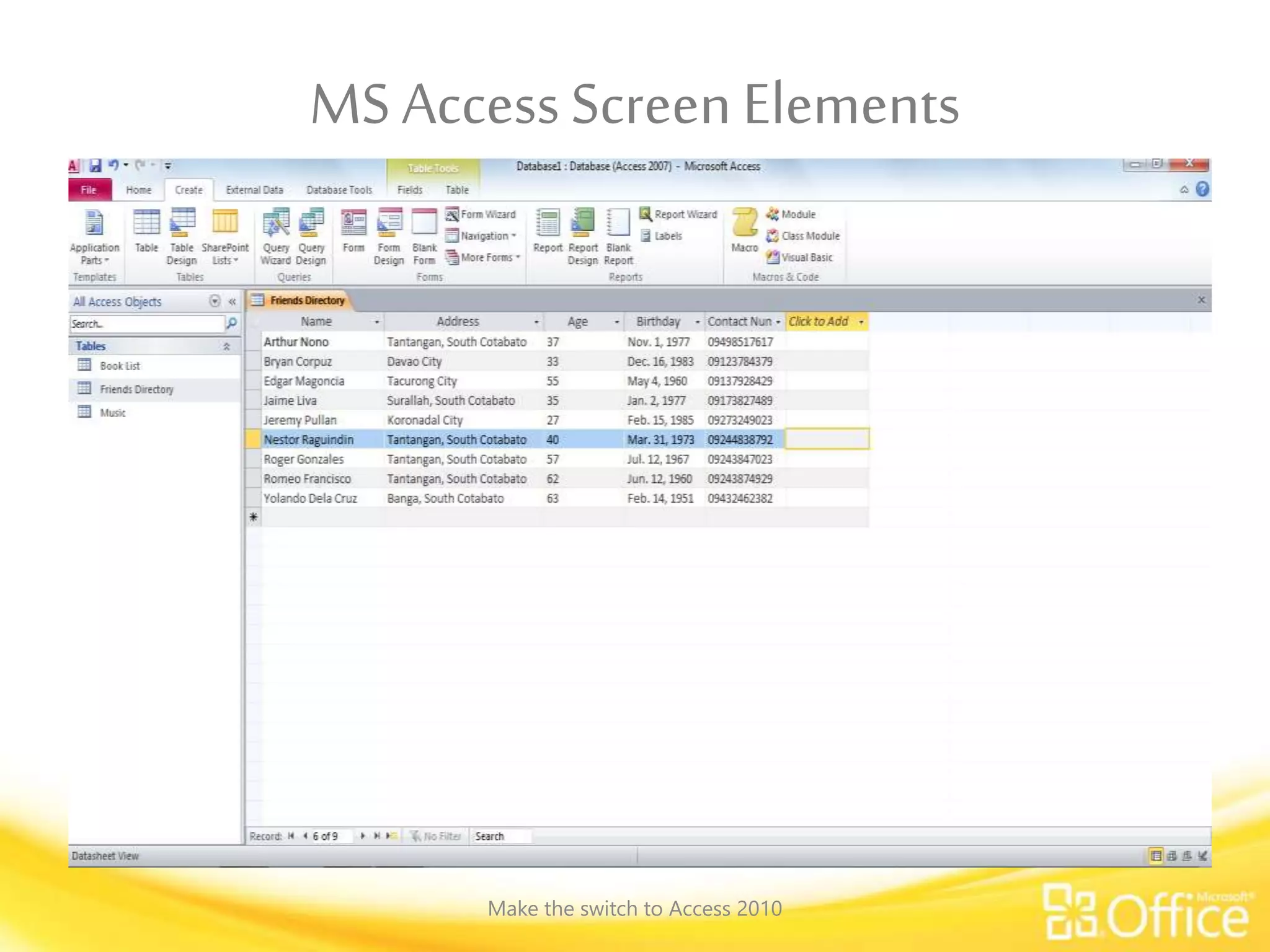
MSAccessScreenElements
Make the switch to Access 2010
The Ribbon
The Ribbon is the panel at the top portion of the document . It has six tab:
Home, Create, External Data, Database Tools, Fields and Table.
These tabs contain commands and tools which are grouped according to their function.
When launch MMS Access 2010, the Ribbon is displayed. You can hide or display the
Ribbon by clicking Minimize the Ribbon or Expand the Ribbon. To display the full
ribbon, click the tab or press Ctrl + F1. You can also minimize the displayed ribbon by
double clicking the tab.
The appearance of the commands on the Ribbon may change depending on its width. A
command may appear as a large or a small button.
Moving the mouse pointer over each command or tool will display the name and function
of the command or tool. Make the switch to Access 2010
File Menu
Make the switch to Access 2010
Home Tab
Make the switch to Access 2010
Home Tab
Make the switch to Access 2010
Home Tab
Make the switch to Access 2010
Create Tab
Make the switch to Access 2010
Create Tab
Make the switch to Access 2010
Create Tab
Make the switch to Access 2010
External Data Tab
Make the switch to Access 2010
External Data Tab
Make the switch to Access 2010
Database Tools Tab
Make the switch to Access 2010
Database Tools Tab
Make the switch to Access 2010
Table Tools Fields Tab
Make the switch to Access 2010
Table Tools Fields Tab
Make the switch to Access 2010

L3 ms access 2010 interface

  • 1.
    MS Access 2010 Interface MSAccess 2010 contains ribbon, tabs, commands which are organized into groups, status bar, views, navigation pane & quick access toolbar. The ribbon and quick access toolbar can be customized to suit your need.
  • 2.
    Objectives • Explore theMS Access Interface and screen elements. • Identify the ribbon, file menu, the different tabs and commands. • Use the navigation pane. • Know how to view, open and close an object. Make the switch to Access 2010
  • 3.
  • 4.
    The Ribbon The Ribbonis the panel at the top portion of the document . It has six tab: Home, Create, External Data, Database Tools, Fields and Table. These tabs contain commands and tools which are grouped according to their function. When launch MMS Access 2010, the Ribbon is displayed. You can hide or display the Ribbon by clicking Minimize the Ribbon or Expand the Ribbon. To display the full ribbon, click the tab or press Ctrl + F1. You can also minimize the displayed ribbon by double clicking the tab. The appearance of the commands on the Ribbon may change depending on its width. A command may appear as a large or a small button. Moving the mouse pointer over each command or tool will display the name and function of the command or tool. Make the switch to Access 2010
  • 5.
    File Menu Make theswitch to Access 2010
  • 6.
    Home Tab Make theswitch to Access 2010
  • 7.
    Home Tab Make theswitch to Access 2010
  • 8.
    Home Tab Make theswitch to Access 2010
  • 9.
    Create Tab Make theswitch to Access 2010
  • 10.
    Create Tab Make theswitch to Access 2010
  • 11.
    Create Tab Make theswitch to Access 2010
  • 12.
    External Data Tab Makethe switch to Access 2010
  • 13.
    External Data Tab Makethe switch to Access 2010
  • 14.
    Database Tools Tab Makethe switch to Access 2010
  • 15.
    Database Tools Tab Makethe switch to Access 2010
  • 16.
    Table Tools FieldsTab Make the switch to Access 2010
  • 17.
    Table Tools FieldsTab Make the switch to Access 2010
  • 18.
    Make the switchto Access 2010
  • 19.
    Make the switchto Access 2010

Editor's Notes

  • #6 This file menu contains the follwing commands: Save Save Object as Save Database as Open Close Database Info Recent New Print Save & Publish Help Option and Exit
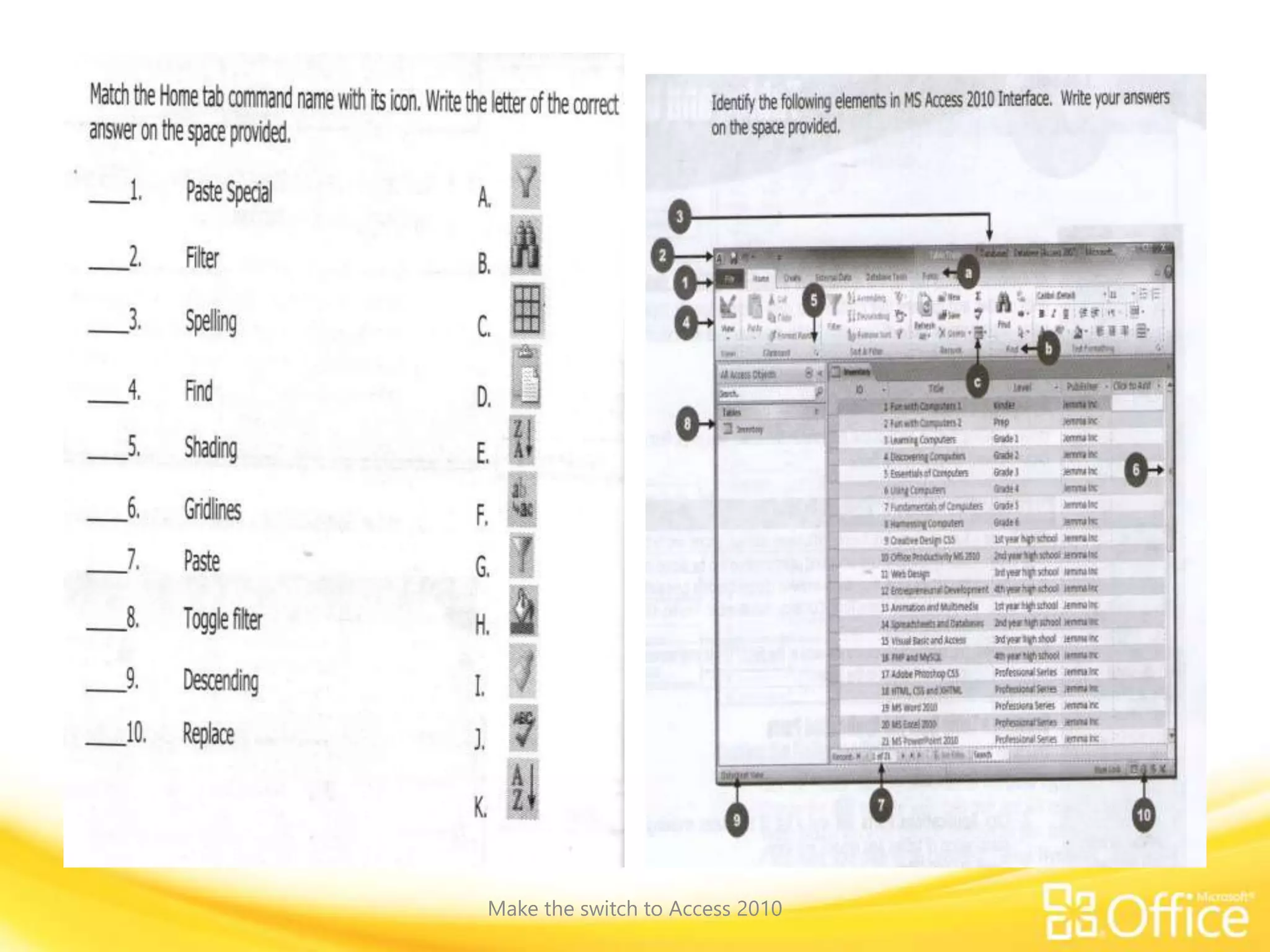
  • #7 The home tab contains tools grouped as Views, Clipboard, Sort & Filter, Records, Find and Text Formatting.
  • #10 The Create Tab contains tools grouped as Templates, Tables, Queries, Forms, Reports and Macros & Code.
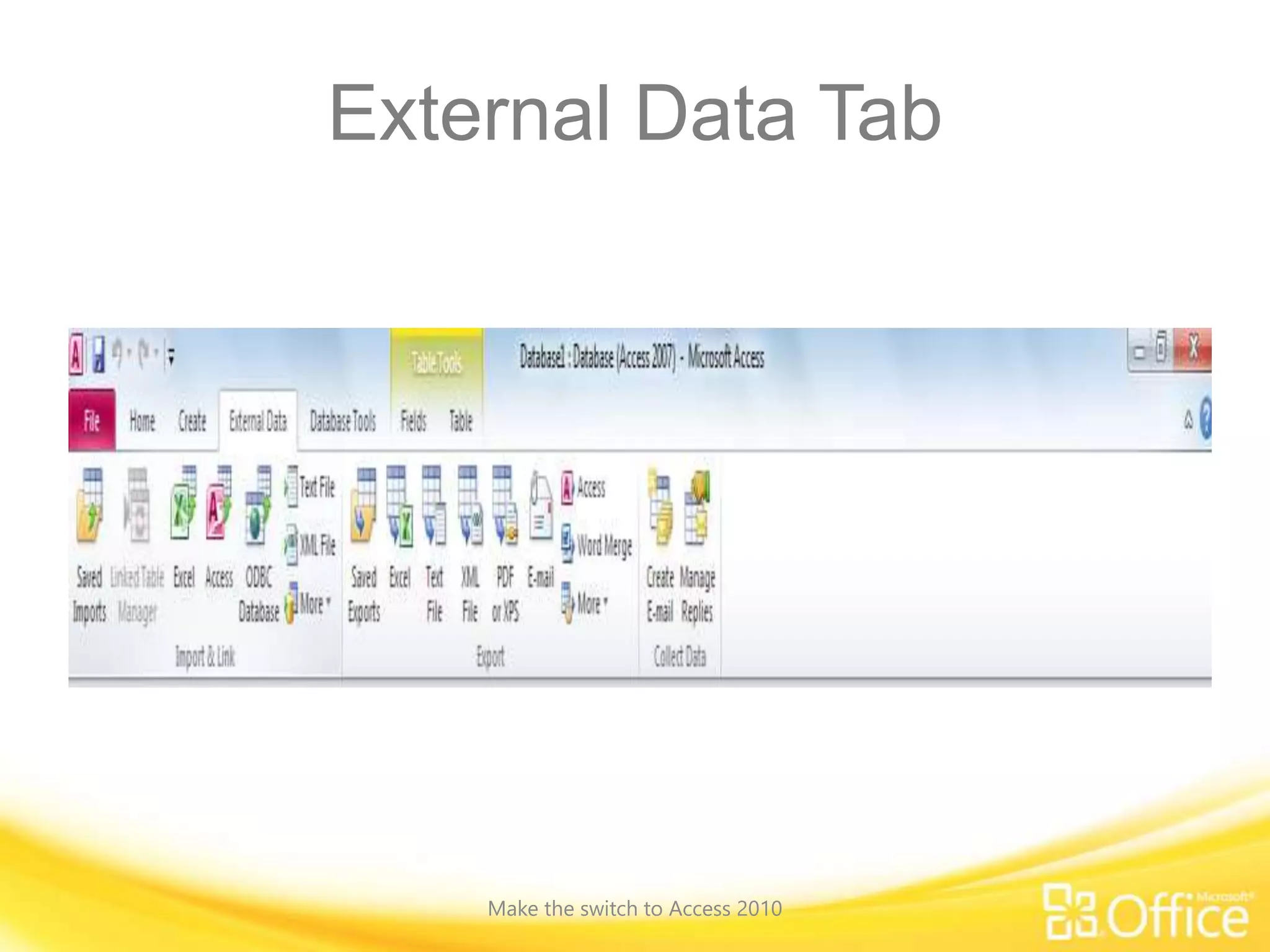
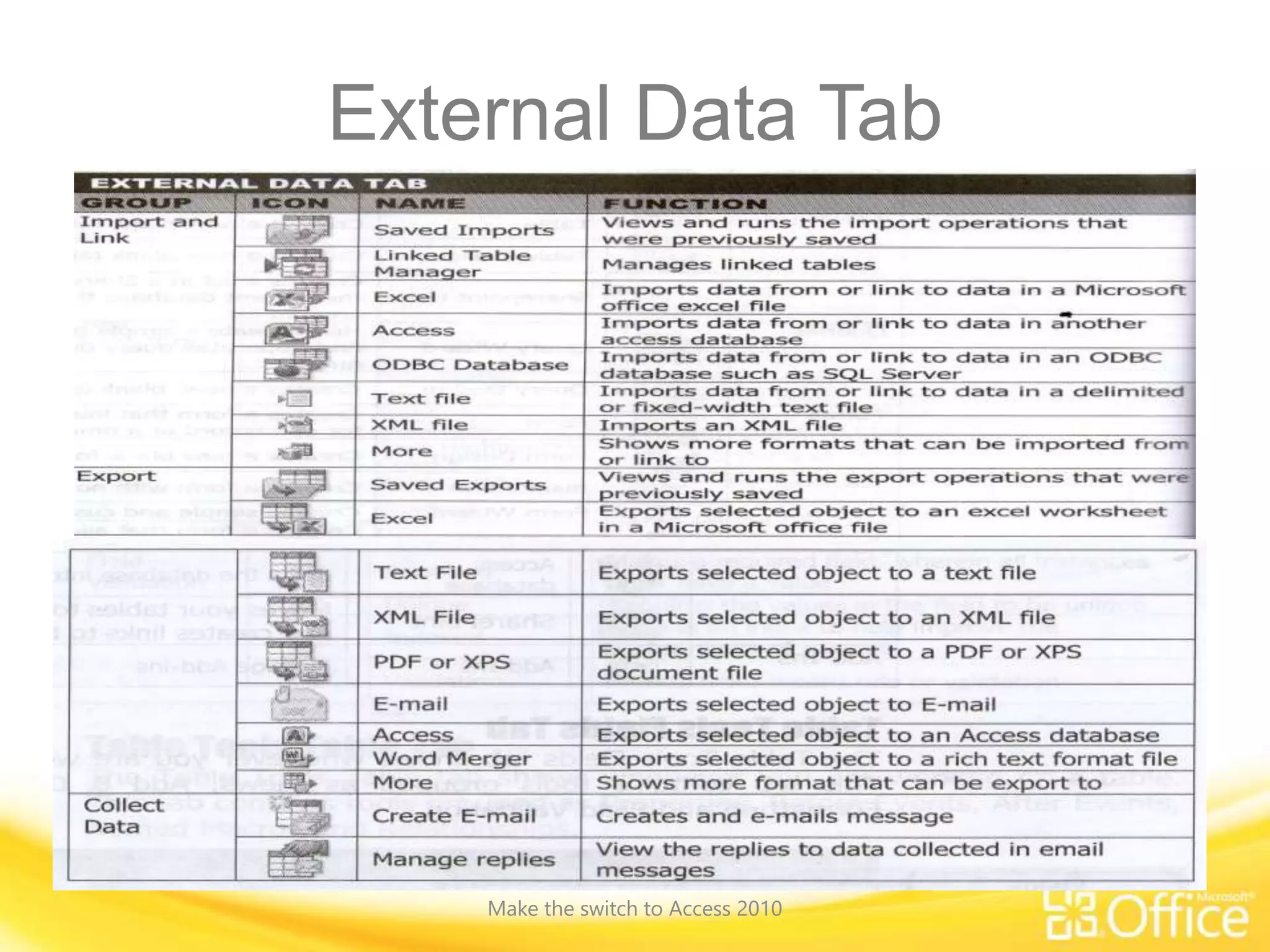
  • #13 The External Data Tab contains tools grouped as Import & Link, Export and collect Data.
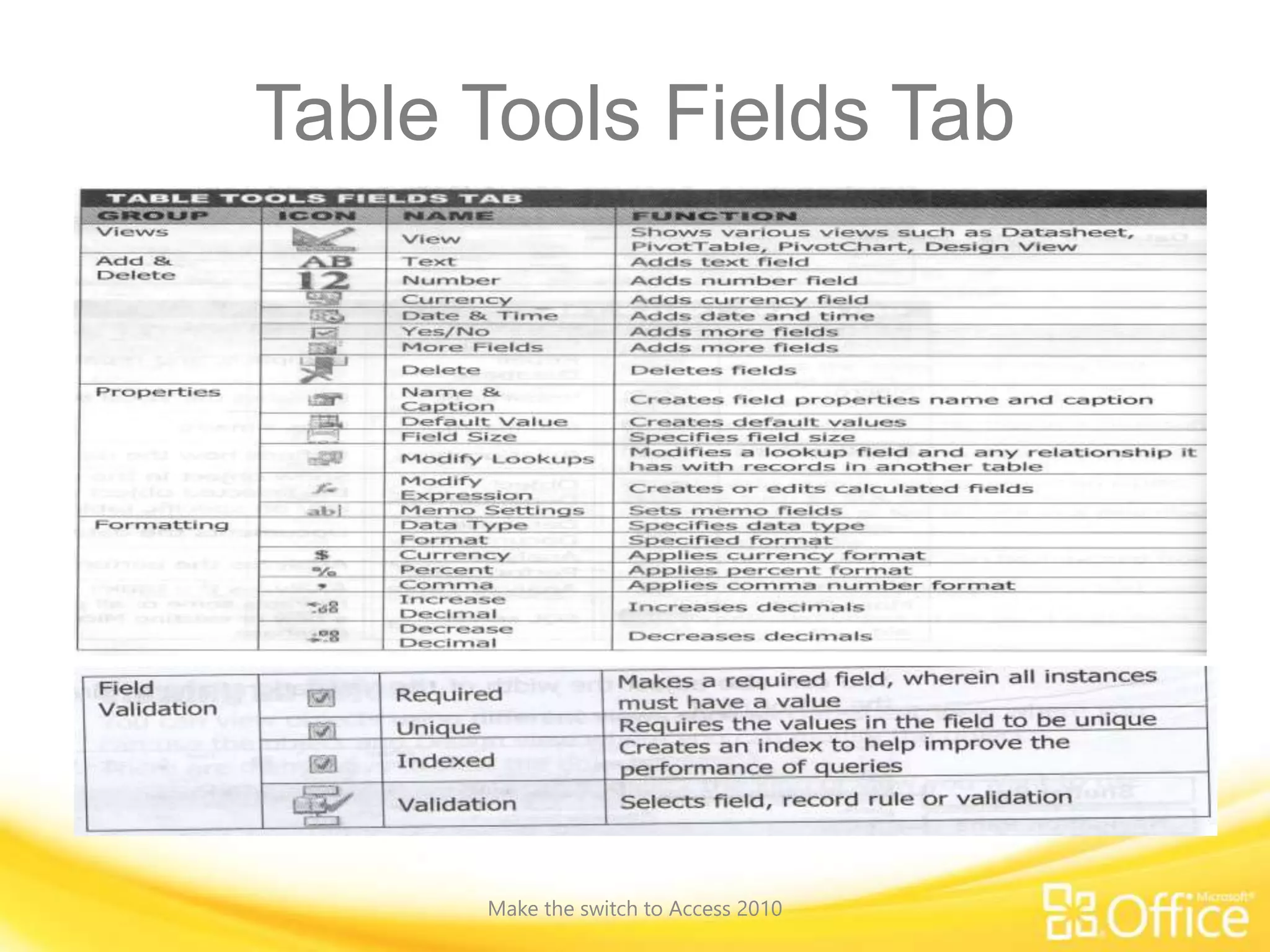
  • #17 The Table Tools Fields tab shows whenever you are working on a table. This tab contains tools grouped as Views, Add & Delete, Properties, Formatting and Field Validation.