Learning Computer Basics
  in a Step by Step practices
          Presentation By:

      Vijay Kumar Ratre
             Mumbai-49
  Contact: vijayratre@outlook.com
PART 2: Objectives


After this lesson you will be familiar with:
 A. The Desktop and Icons
 B. The Start Menu
 C. Opening and Closing Programs


                                               vijayratre@outlook.com
PART 2: The Desktop
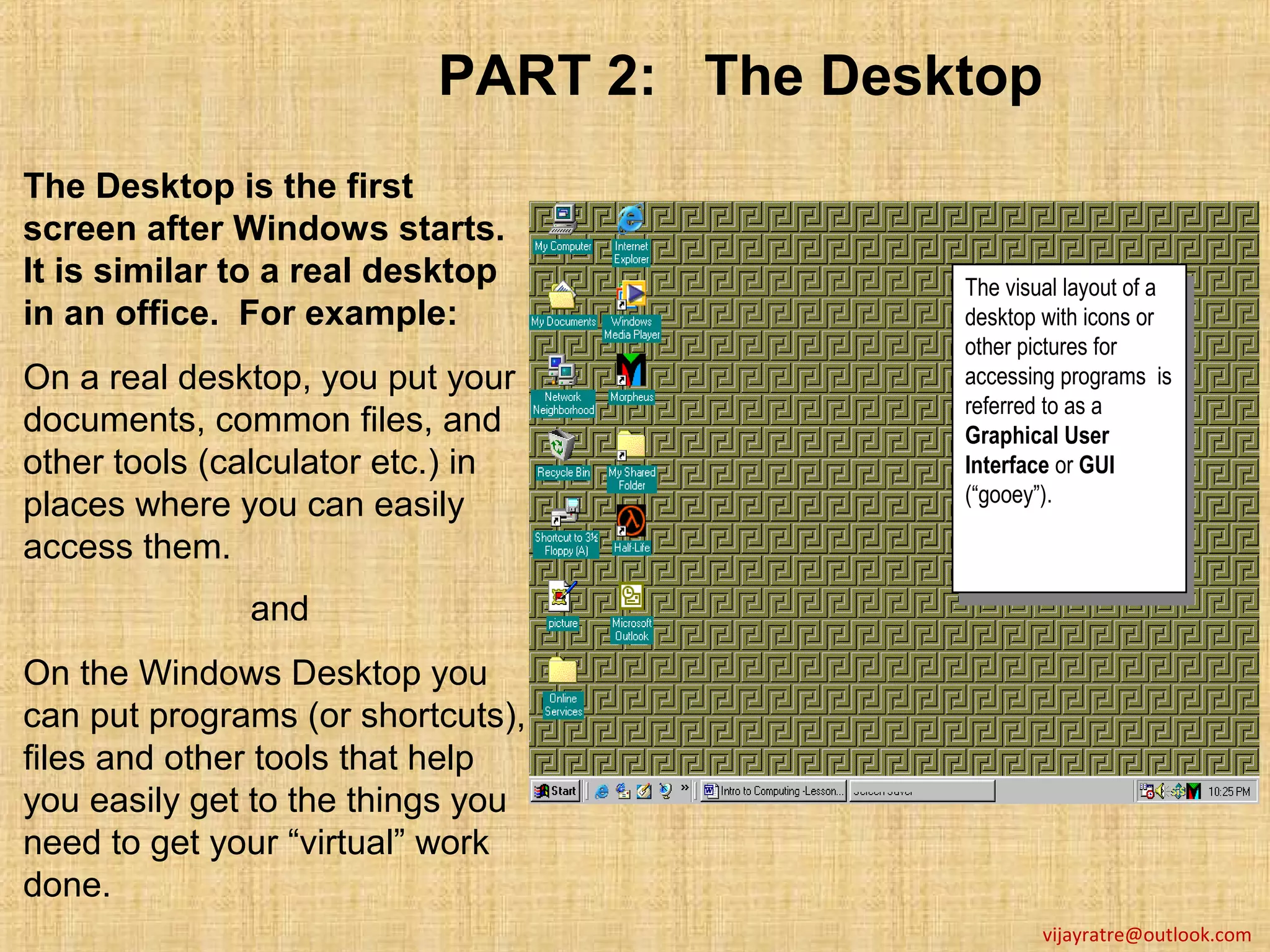
The Desktop is the first
screen after Windows starts.
It is similar to a real desktop           The visual layout of aa
                                           The visual layout of
in an office. For example:                desktop with icons or
                                           desktop with icons or
                                          other pictures for
                                           other pictures for
On a real desktop, you put your           accessing programs is
                                           accessing programs is
                                          referred to as aa
documents, common files, and               referred to as
                                          Graphical User
                                           Graphical User
other tools (calculator etc.) in          Interface or GUI
                                           Interface or GUI
                                          (“gooey”).
places where you can easily                (“gooey”).
access them.
              and
On the Windows Desktop you
can put programs (or shortcuts),
files and other tools that help
you easily get to the things you
need to get your “virtual” work
done.
                                                  vijayratre@outlook.com
PART 2: Exploring the Desktop


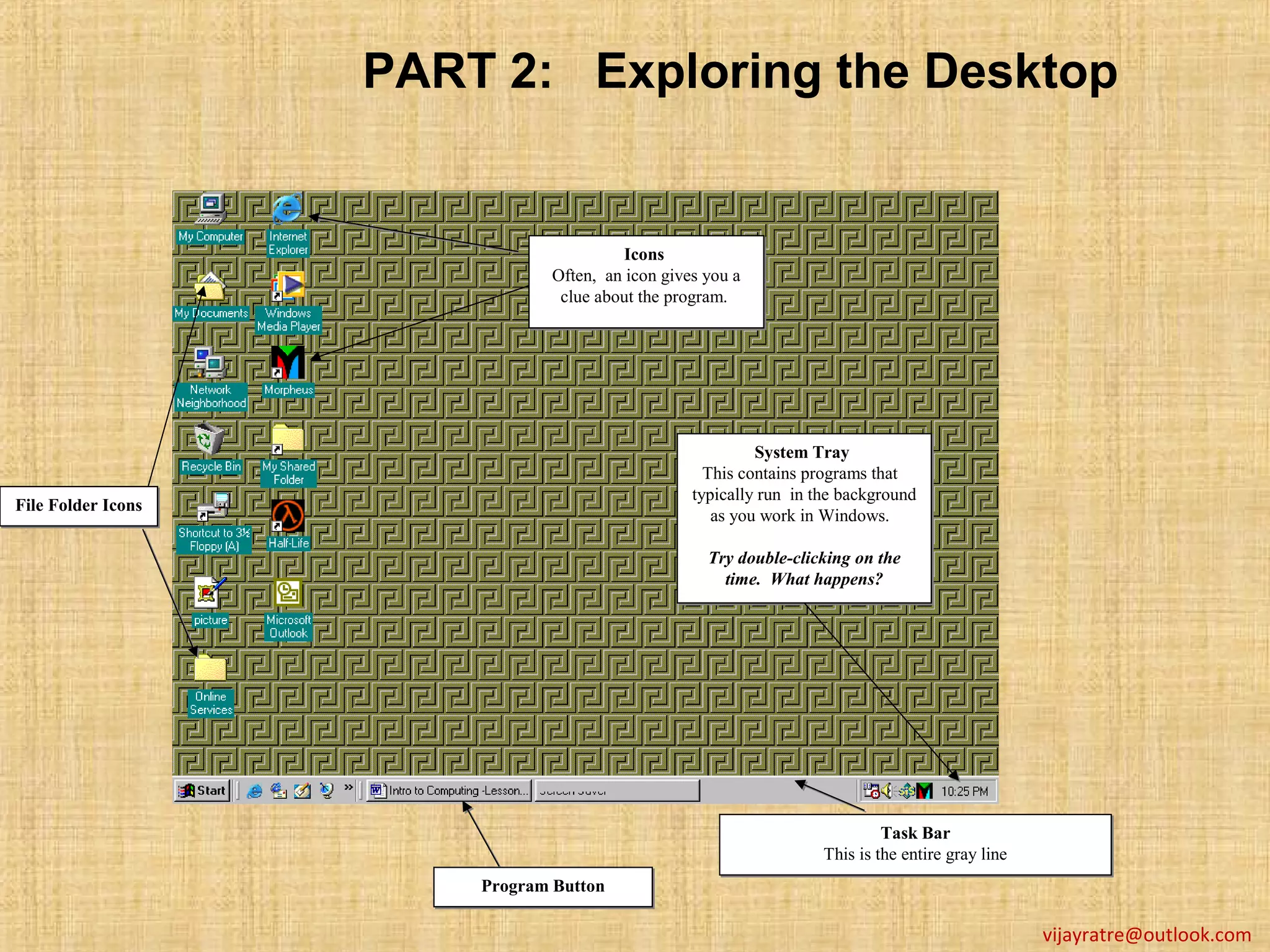
                                         Icons
                                         Icons
                               Often, an icon gives you a
                               Often, an icon gives you a
                                clue about the program.
                                clue about the program.


                                                           System Tray
                                                            System
                                                    This contains programs that
                                                    This contains programs that
                                                  typically run in the background
                                                  typically run in the background
File Folder Icons
File        Icons                                    as you work in Windows.
                                                     as you work in

                                                    Try double-clicking on the
                                                    Try double-clicking on the
                                                      time. What happens?
                                                      time. What happens?


                                                                             Task Bar
                                                                             Task Bar
                                                                    This is the entire gray line
                                                                    This is the entire gray line
                        Program Button
                        Program Button

                                                                                                   vijayratre@outlook.com
PART 2: Desktop Definitions

             The little pictures that you see are called icons. Each represents a
   Icons     function, program or document on your computer. Double-click to
             open an icon.
             The long gray strip at the bottom of the screen. It allows you to quickly
 Task Bar    switch between any programs that you have running. The Taskbar has
             three sections: Start button, Quick Launch Bar and System Tray.

             This provides a quick way to start programs you use frequently. By
  Quick      default it includes icons for your Web browser, e-mail program and MS
Launch Bar   Office applications etc. The Bar also contains a special Show Desktop
             icon. Clicking on this icon quickly hides all open windows so you see
             a clear view of your Desktop.

             This contains icons for handy little programs which run while your
  System
             computer is on. On the far right it displays the time. It may contain
   Tray      anti-virus software, media player etc. You can discover an icon’s
             purpose by holding the mouse pointer on top of it; after a few seconds,
             a tooltip will pop up.

                                                                        vijayratre@outlook.com
PART 2: More about the Desktop


My Computer Icon
My Computer Icon


My Documents Icon
My Documents


    Recycle Bin Icon
    Recycle Bin Icon


                       Start Button
                       Start Button   Computer C.O.R.E Introduction to
                                               Windows 98
                                                                         vijayratre@outlook.com
PART 2: More Desktop Definitions

             The wastepaper bin of the computer where you can dump unwanted
 Recycle     documents and programs by dragging and dropping them with the
  Bin        mouse or by selecting them and then pressing the Delete key. If you
             accidentally delete a file from the hard drive, you can ‘undelete’ it.

   My        My Computer stores information about the computer system. It
             contains icons which give you access to disk drives and to the Control
 Computer
             Panel, where you can adjust system settings.
             The icon that looks like a folder bulging with documents provides
   My        central storage for all the documents you create or store on your
Documents    computer. Think of it as a huge filing cabinet, which you can fill with
             documents neatly sorted into their own folders for easy retrieval.

             This provides access to all programs and Windows settings. It includes
Start Menu   a Help guide, a Find (search) facility for locating documents and other
             items on your computer or on the Internet, and several other options.
             Some start menu items have a small black arrow to the right of their
             name. Selecting these will display a sub-menu. Selecting any item
             without an arrow beside it will activate that item.
                                                                        vijayratre@outlook.com
PART 2: The Start Menu

                                           Sub Menus
                                           Sub Menus
                                     The little arrow on a
                                     The little arrow on a    Most programs can be
                                                               Most programs can be
                                     menu indicates a ‘sub-
                                     menu indicates a ‘sub-   accessed from the Start
                                     menu’.
                                     menu’.                    accessed from the Start
                                                              Menu.
                                                               Menu.
                                                              The Start Menu pops up
                                                              The Start Menu pops up
                                                              when you click on the Start
                                                              when you click on the Start
                                                              Button.
                                                              Button.
                                                              When software is installed
                                                               When software is installed
                                                              on your computer it
                                                               on your computer it
                                                              automatically forms a link in
                                                               automatically forms a link in
                                                              the Start Menu. You can
                                                               the Start Menu. You can
                                                              access software programs
                                                               access software programs
                                                              from the Programs sub-
                                 What does this tell you?
                                 What does this tell you?      from the Programs sub-
                                                              menu in the Start Menu.
                                 Click on it and see what
                                                               menu in the Start Menu.
                                 Click on it and see what
                                 happens.
                                 happens.


Start Button
Start Button   Start Menu
               Start Menu


                                                                          vijayratre@outlook.com
PART 2: Sub-Menus
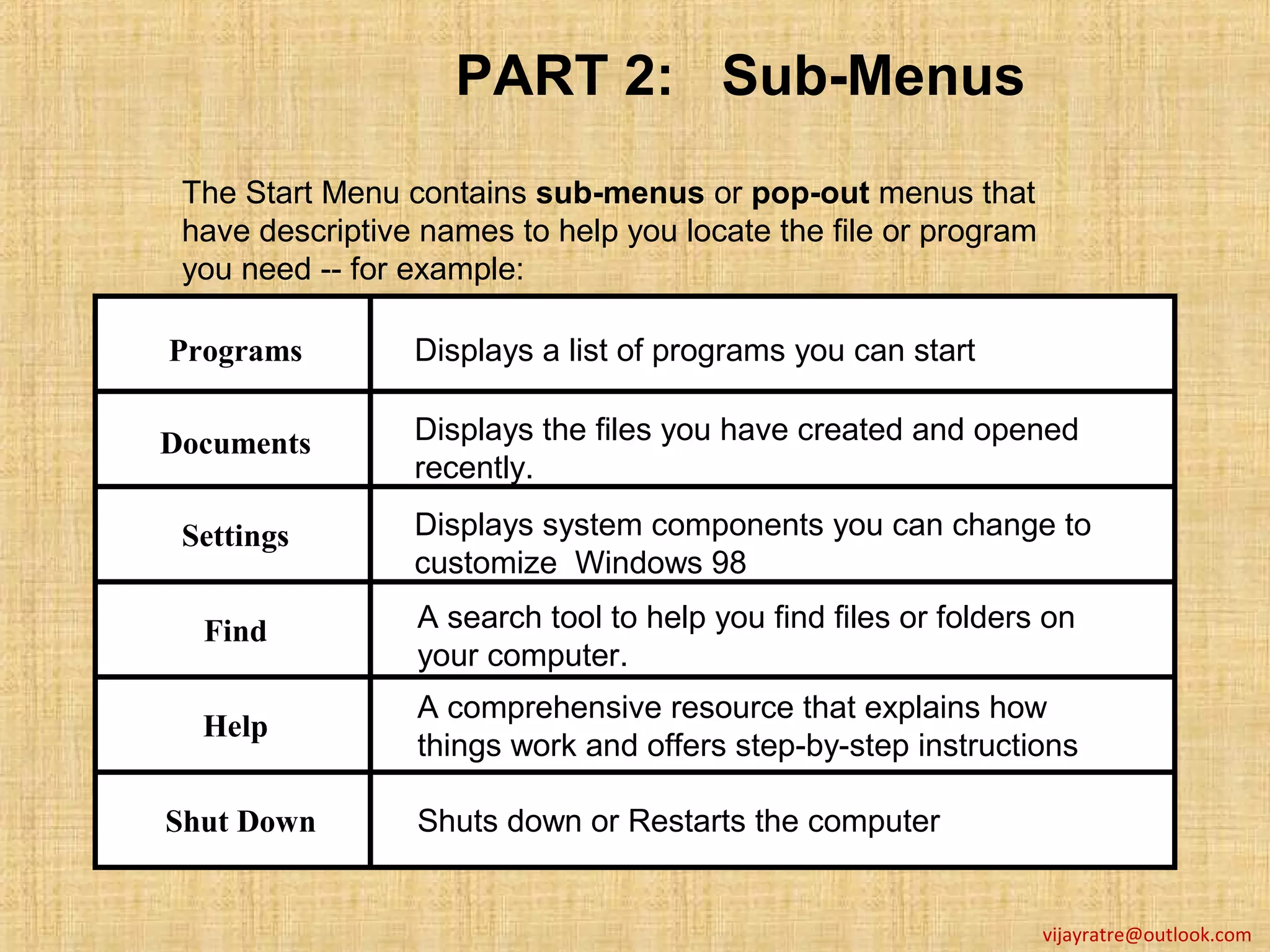
 The Start Menu contains sub-menus or pop-out menus that
 have descriptive names to help you locate the file or program
 you need -- for example:

Programs         Displays a list of programs you can start

Documents        Displays the files you have created and opened
                 recently.

 Settings        Displays system components you can change to
                 customize Windows 98

  Find           A search tool to help you find files or folders on
                 your computer.
                 A comprehensive resource that explains how
  Help
                 things work and offers step-by-step instructions

Shut Down        Shuts down or Restarts the computer


                                                                 vijayratre@outlook.com
PART 2: Opening Files

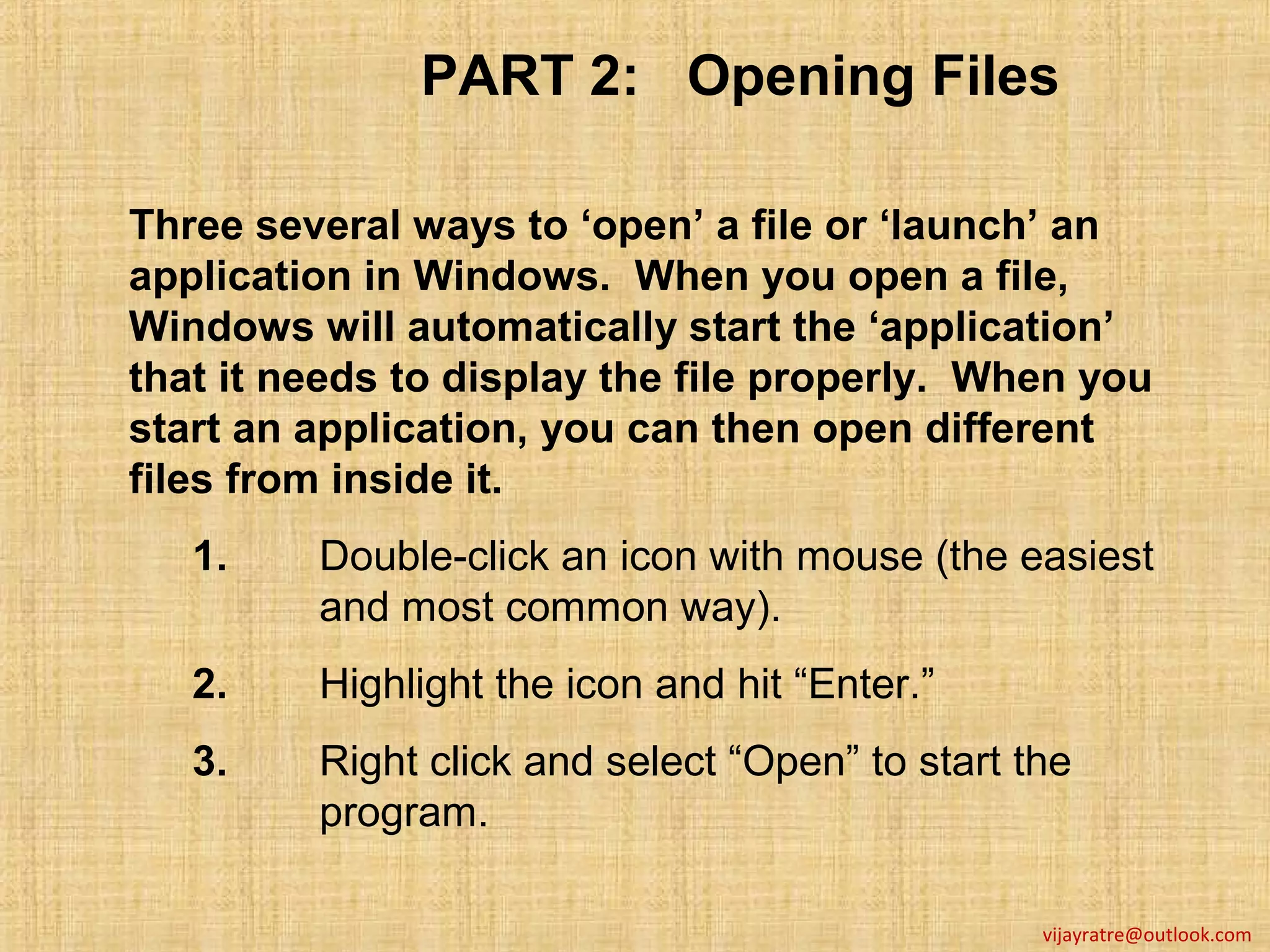
Three several ways to ‘open’ a file or ‘launch’ an
application in Windows. When you open a file,
Windows will automatically start the ‘application’
that it needs to display the file properly. When you
start an application, you can then open different
files from inside it.
   1.    Double-click an icon with mouse (the easiest
         and most common way).
   2.    Highlight the icon and hit “Enter.”
   3.    Right click and select “Open” to start the
         program.

                                                 vijayratre@outlook.com

Part 2 desktop and start menu

  • 1.
    Learning Computer Basics in a Step by Step practices Presentation By: Vijay Kumar Ratre Mumbai-49 Contact: vijayratre@outlook.com
  • 2.
    PART 2: Objectives Afterthis lesson you will be familiar with: A. The Desktop and Icons B. The Start Menu C. Opening and Closing Programs vijayratre@outlook.com
  • 3.
    PART 2: TheDesktop The Desktop is the first screen after Windows starts. It is similar to a real desktop The visual layout of aa The visual layout of in an office. For example: desktop with icons or desktop with icons or other pictures for other pictures for On a real desktop, you put your accessing programs is accessing programs is referred to as aa documents, common files, and referred to as Graphical User Graphical User other tools (calculator etc.) in Interface or GUI Interface or GUI (“gooey”). places where you can easily (“gooey”). access them. and On the Windows Desktop you can put programs (or shortcuts), files and other tools that help you easily get to the things you need to get your “virtual” work done. vijayratre@outlook.com
  • 4.
    PART 2: Exploringthe Desktop Icons Icons Often, an icon gives you a Often, an icon gives you a clue about the program. clue about the program. System Tray System This contains programs that This contains programs that typically run in the background typically run in the background File Folder Icons File Icons as you work in Windows. as you work in Try double-clicking on the Try double-clicking on the time. What happens? time. What happens? Task Bar Task Bar This is the entire gray line This is the entire gray line Program Button Program Button vijayratre@outlook.com
  • 5.
    PART 2: DesktopDefinitions The little pictures that you see are called icons. Each represents a Icons function, program or document on your computer. Double-click to open an icon. The long gray strip at the bottom of the screen. It allows you to quickly Task Bar switch between any programs that you have running. The Taskbar has three sections: Start button, Quick Launch Bar and System Tray. This provides a quick way to start programs you use frequently. By Quick default it includes icons for your Web browser, e-mail program and MS Launch Bar Office applications etc. The Bar also contains a special Show Desktop icon. Clicking on this icon quickly hides all open windows so you see a clear view of your Desktop. This contains icons for handy little programs which run while your System computer is on. On the far right it displays the time. It may contain Tray anti-virus software, media player etc. You can discover an icon’s purpose by holding the mouse pointer on top of it; after a few seconds, a tooltip will pop up. vijayratre@outlook.com
  • 6.
    PART 2: Moreabout the Desktop My Computer Icon My Computer Icon My Documents Icon My Documents Recycle Bin Icon Recycle Bin Icon Start Button Start Button Computer C.O.R.E Introduction to Windows 98 vijayratre@outlook.com
  • 7.
    PART 2: MoreDesktop Definitions The wastepaper bin of the computer where you can dump unwanted Recycle documents and programs by dragging and dropping them with the Bin mouse or by selecting them and then pressing the Delete key. If you accidentally delete a file from the hard drive, you can ‘undelete’ it. My My Computer stores information about the computer system. It contains icons which give you access to disk drives and to the Control Computer Panel, where you can adjust system settings. The icon that looks like a folder bulging with documents provides My central storage for all the documents you create or store on your Documents computer. Think of it as a huge filing cabinet, which you can fill with documents neatly sorted into their own folders for easy retrieval. This provides access to all programs and Windows settings. It includes Start Menu a Help guide, a Find (search) facility for locating documents and other items on your computer or on the Internet, and several other options. Some start menu items have a small black arrow to the right of their name. Selecting these will display a sub-menu. Selecting any item without an arrow beside it will activate that item. vijayratre@outlook.com
  • 8.
    PART 2: TheStart Menu Sub Menus Sub Menus The little arrow on a The little arrow on a Most programs can be Most programs can be menu indicates a ‘sub- menu indicates a ‘sub- accessed from the Start menu’. menu’. accessed from the Start Menu. Menu. The Start Menu pops up The Start Menu pops up when you click on the Start when you click on the Start Button. Button. When software is installed When software is installed on your computer it on your computer it automatically forms a link in automatically forms a link in the Start Menu. You can the Start Menu. You can access software programs access software programs from the Programs sub- What does this tell you? What does this tell you? from the Programs sub- menu in the Start Menu. Click on it and see what menu in the Start Menu. Click on it and see what happens. happens. Start Button Start Button Start Menu Start Menu vijayratre@outlook.com
  • 9.
    PART 2: Sub-Menus The Start Menu contains sub-menus or pop-out menus that have descriptive names to help you locate the file or program you need -- for example: Programs Displays a list of programs you can start Documents Displays the files you have created and opened recently. Settings Displays system components you can change to customize Windows 98 Find A search tool to help you find files or folders on your computer. A comprehensive resource that explains how Help things work and offers step-by-step instructions Shut Down Shuts down or Restarts the computer vijayratre@outlook.com
  • 10.
    PART 2: OpeningFiles Three several ways to ‘open’ a file or ‘launch’ an application in Windows. When you open a file, Windows will automatically start the ‘application’ that it needs to display the file properly. When you start an application, you can then open different files from inside it. 1. Double-click an icon with mouse (the easiest and most common way). 2. Highlight the icon and hit “Enter.” 3. Right click and select “Open” to start the program. vijayratre@outlook.com

Editor's Notes

  • #5 FOLDER: A named storage area in which documents, program files, and other files are stored on your computer disks. Folders can help you organize your documents by grouping them into categories. 1. My Computer shows your computer's contents and manages your files. 2. Recycle Bin temporary storage for your deleted files. Gives opportunity to change your mind. 3. Wallpaper changes the appearance of your desktop 4. Icons visual depiction of programs or applications that can be directly opened from the desktop. 5. Start Button gives you access to all of your computer programs. 6. Program button shows a minimized program that is currently running and can be restored to a full window by clicking on it. 7. Task Bar keeps track of all open programs or folders and allows for placing Icons or shortcuts on it. 8. System Tray holds icons of programs available for quick start as well at the date and time. Resting your cursor on the time for a few seconds will display the date.