Lesson
3
Ms Access 2010 contains
ribbon, tabs, command which are
organized into groups, status bars,
views, navigation pane and quick
access toolbar. The ribbon and
quick access toolbar can be
customized to suit your need.
1
2 3
4
5
6
7
8
a
c
b
9 10
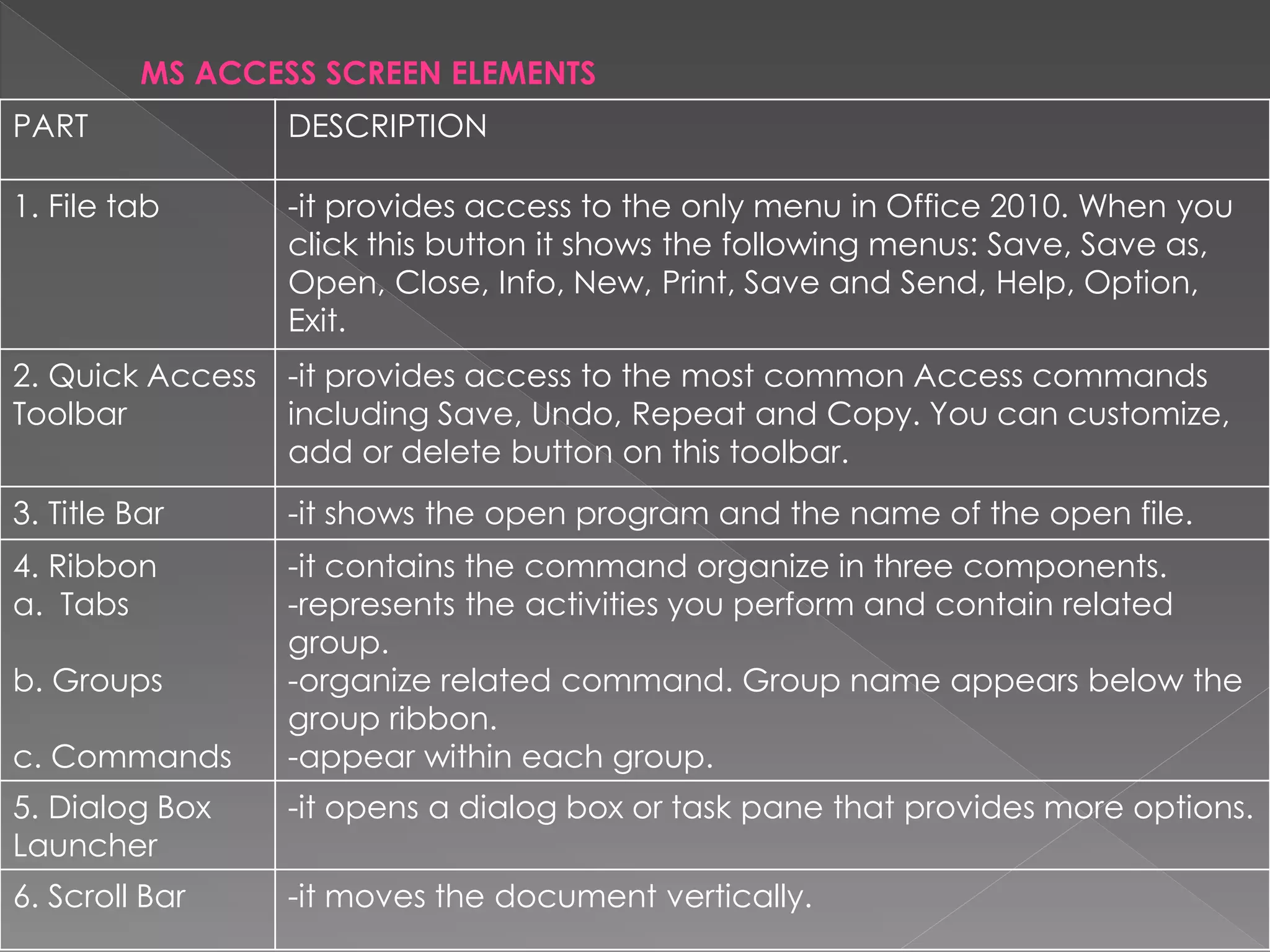
PART DESCRIPTION
1. File tab -it provides access to the only menu in Office 2010. When you
click this button it shows the following menus: Save, Save as,
Open, Close, Info, New, Print, Save and Send, Help, Option,
Exit.
2. Quick Access
Toolbar
-it provides access to the most common Access commands
including Save, Undo, Repeat and Copy. You can customize,
add or delete button on this toolbar.
3. Title Bar -it shows the open program and the name of the open file.
4. Ribbon
a. Tabs
b. Groups
c. Commands
-it contains the command organize in three components.
-represents the activities you perform and contain related
group.
-organize related command. Group name appears below the
group ribbon.
-appear within each group.
5. Dialog Box
Launcher
-it opens a dialog box or task pane that provides more options.
6. Scroll Bar -it moves the document vertically.
MS ACCESS SCREEN ELEMENTS
PART DESCRIPTION
7. Record
Selector
-it displays the current record number and
allows you to navigate to other to records.
8.
Navigation
Pane
-it shows al list of all available database
objects.
9. Status
bar
-it displays the information about the current
object or view.
10. View
Buttons
-they allow you to switch between buttons
such as Datasheet View, PivotTable View, Pivot
Chart View and Design View.
The Ribbon is the panel at the top portion of the
document. It has six tabs which are Home, Create, External
Data, Database Tools, Fields and Table. These tabs contain
commands and tools which are grouped according to their
function.
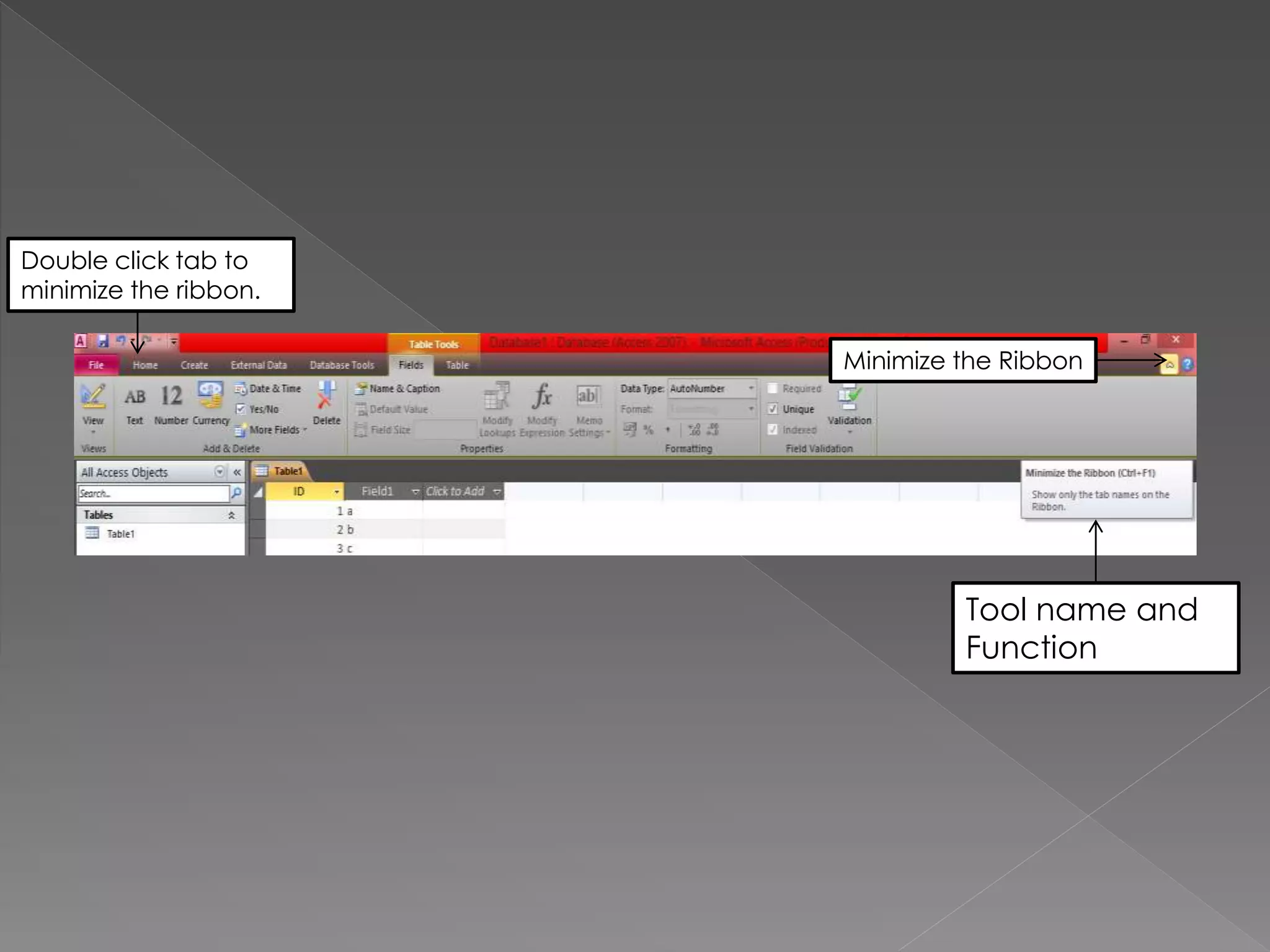
When you launch Ms Access 2010, the ribbon is displayed.
You can hide or display the ribbon by clicking Minimize the
Ribbon or Expanding the Ribbon . To display the full ribbon,
click the tap or press Ctrl+F1. You can also minimize the
displayed ribbon by double clicking the tab. The appearance
of the commands on the Ribbon may change depending on its
width. A command may appear as a large or a small button.
When you moved the mouse pointer over each
command or tool, it will display the name and function of the
command.
Double click tab to
minimize the ribbon.
Minimize the Ribbon
Tool name and
Function
The File menu contains commands
such as save, Save Object As, Save
Database As, Open, Close Database, Info,
Recent, New, Print, Save & Publish, Help,
Option and Exit.
File Menu
Command
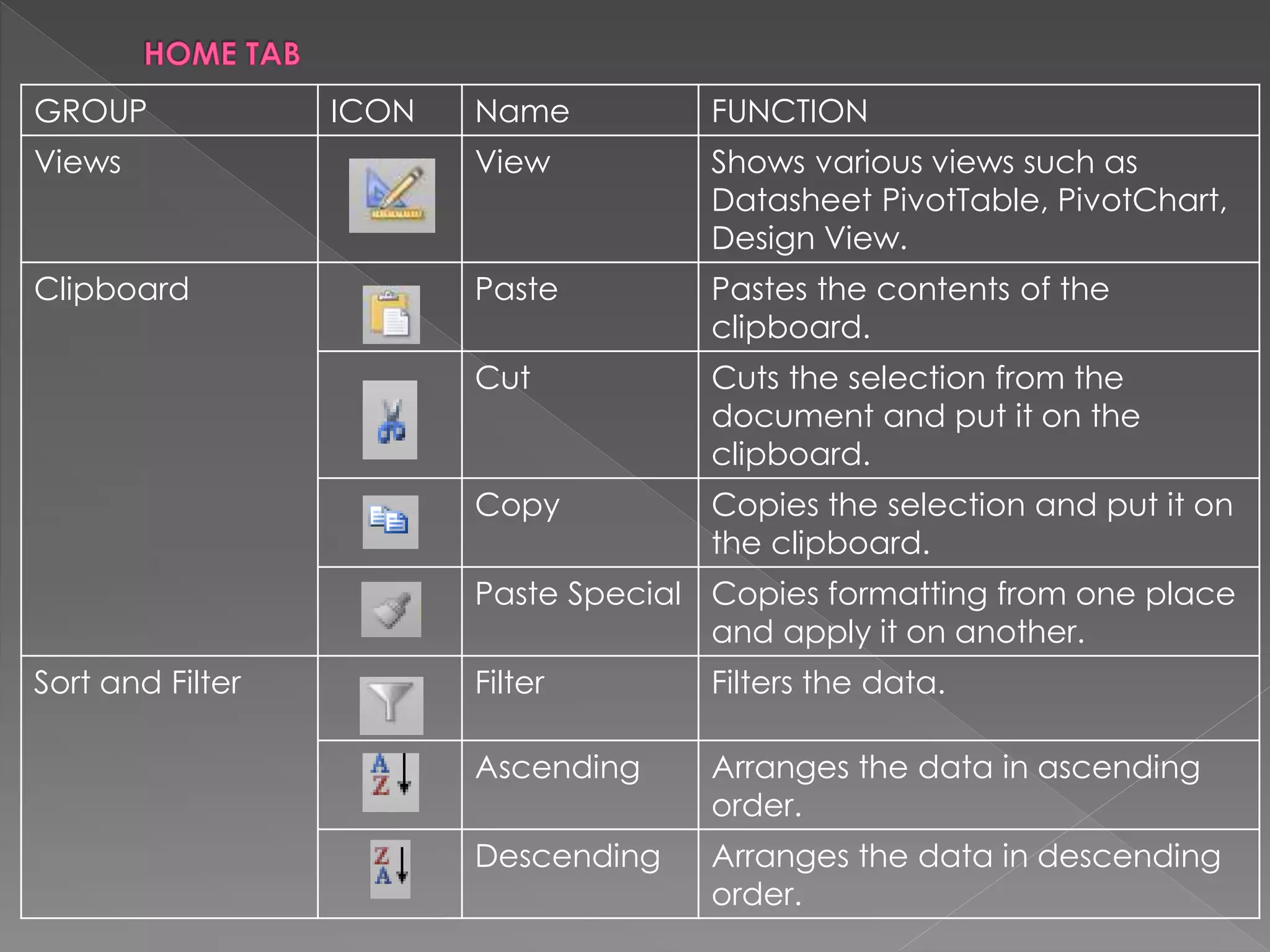
The Home tab contains grouped as
Views, Clipboard, Sort & Filter, Records,
Find and Text Formatting.
Home Tab
GROUP ICON Name FUNCTION
Views View Shows various views such as
Datasheet PivotTable, PivotChart,
Design View.
Clipboard Paste Pastes the contents of the
clipboard.
Cut Cuts the selection from the
document and put it on the
clipboard.
Copy Copies the selection and put it on
the clipboard.
Paste Special Copies formatting from one place
and apply it on another.
Sort and Filter Filter Filters the data.
Ascending Arranges the data in ascending
order.
Descending Arranges the data in descending
order.
Ms access 2010 lesson 3 (Interface)

Ms access 2010 lesson 3 (Interface)

  • 1.
  • 2.
    Ms Access 2010contains ribbon, tabs, command which are organized into groups, status bars, views, navigation pane and quick access toolbar. The ribbon and quick access toolbar can be customized to suit your need.
  • 3.
  • 4.
    PART DESCRIPTION 1. Filetab -it provides access to the only menu in Office 2010. When you click this button it shows the following menus: Save, Save as, Open, Close, Info, New, Print, Save and Send, Help, Option, Exit. 2. Quick Access Toolbar -it provides access to the most common Access commands including Save, Undo, Repeat and Copy. You can customize, add or delete button on this toolbar. 3. Title Bar -it shows the open program and the name of the open file. 4. Ribbon a. Tabs b. Groups c. Commands -it contains the command organize in three components. -represents the activities you perform and contain related group. -organize related command. Group name appears below the group ribbon. -appear within each group. 5. Dialog Box Launcher -it opens a dialog box or task pane that provides more options. 6. Scroll Bar -it moves the document vertically. MS ACCESS SCREEN ELEMENTS
  • 5.
    PART DESCRIPTION 7. Record Selector -itdisplays the current record number and allows you to navigate to other to records. 8. Navigation Pane -it shows al list of all available database objects. 9. Status bar -it displays the information about the current object or view. 10. View Buttons -they allow you to switch between buttons such as Datasheet View, PivotTable View, Pivot Chart View and Design View.
  • 6.
    The Ribbon isthe panel at the top portion of the document. It has six tabs which are Home, Create, External Data, Database Tools, Fields and Table. These tabs contain commands and tools which are grouped according to their function. When you launch Ms Access 2010, the ribbon is displayed. You can hide or display the ribbon by clicking Minimize the Ribbon or Expanding the Ribbon . To display the full ribbon, click the tap or press Ctrl+F1. You can also minimize the displayed ribbon by double clicking the tab. The appearance of the commands on the Ribbon may change depending on its width. A command may appear as a large or a small button. When you moved the mouse pointer over each command or tool, it will display the name and function of the command.
  • 7.
    Double click tabto minimize the ribbon. Minimize the Ribbon Tool name and Function
  • 8.
    The File menucontains commands such as save, Save Object As, Save Database As, Open, Close Database, Info, Recent, New, Print, Save & Publish, Help, Option and Exit.
  • 9.
  • 10.
    The Home tabcontains grouped as Views, Clipboard, Sort & Filter, Records, Find and Text Formatting. Home Tab
  • 11.
    GROUP ICON NameFUNCTION Views View Shows various views such as Datasheet PivotTable, PivotChart, Design View. Clipboard Paste Pastes the contents of the clipboard. Cut Cuts the selection from the document and put it on the clipboard. Copy Copies the selection and put it on the clipboard. Paste Special Copies formatting from one place and apply it on another. Sort and Filter Filter Filters the data. Ascending Arranges the data in ascending order. Descending Arranges the data in descending order.