
Microsoft ®  Office  Access ™   2007 Training Get to know Access Jim Taliaferro Community Mental Health Center
Course contents Overview: Make your data work for you Lesson 1: Access does data Lesson 2: How does Access 2007 work? Lesson 3: Looking good with forms and reports Get to know Access 2007 Each lesson includes a list of suggested tasks and a set of test questions.
Overview: Make your data work for you Get to know Access 2007 Databases may have once been hard to understand, but not anymore.  Access 2007 makes it easy to manage data by giving you a set of ready-made database templates. All you have to do is download and start. This course explains the advantages of Access compared to other ways of working with data. It shows you how to find and use the new database templates, and it takes you on a quick tour of a database.
Course goals Learn the benefits of Access 2007 compared to workbooks or lists.  Find and download an Access 2007 database template.  Learn to identify the main parts of a database. Get to know Access 2007
Lesson 1 Access does data
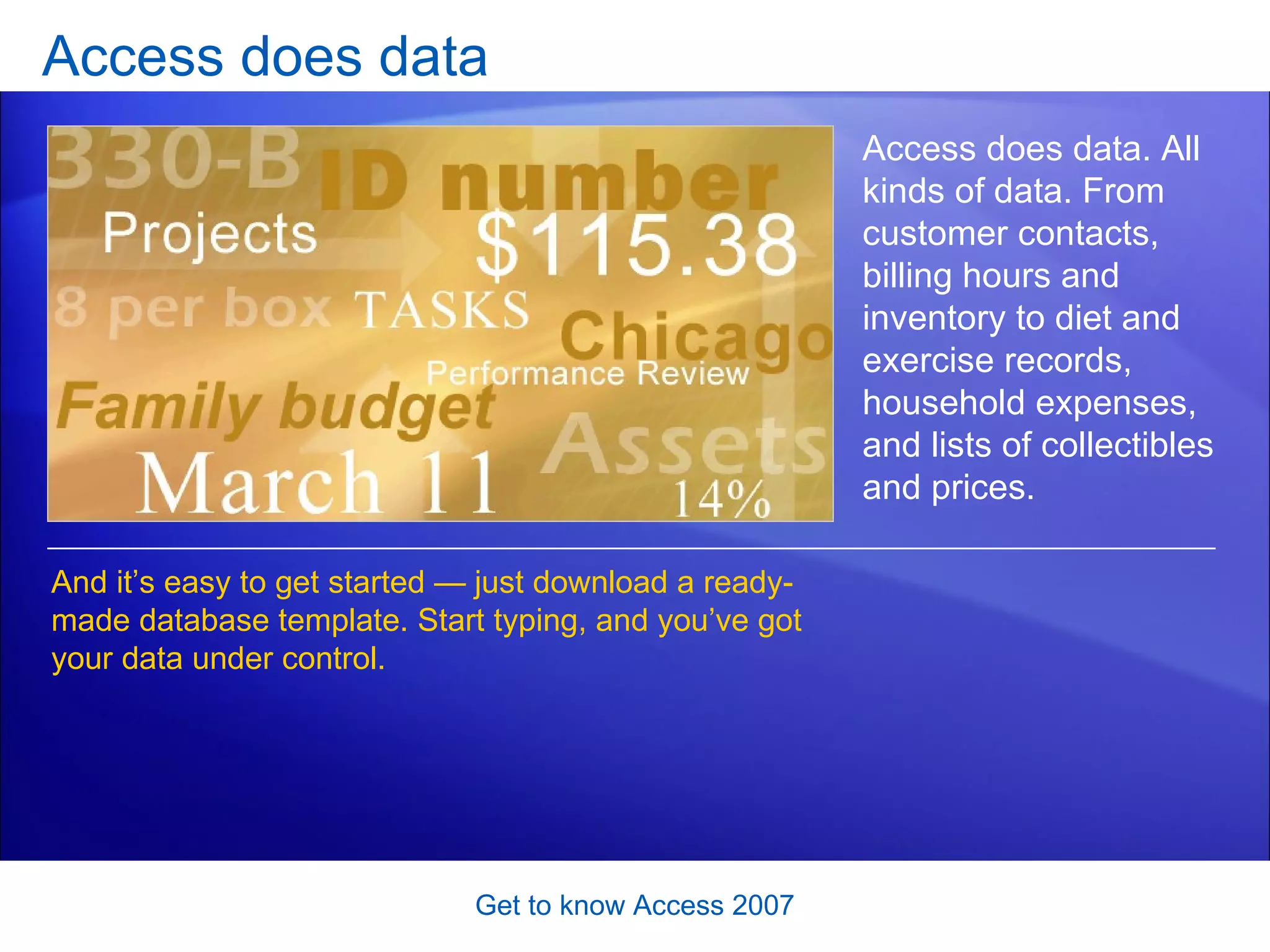
Access does data Get to know Access 2007 Access does data. All kinds of data. From customer contacts, billing hours and inventory to diet and exercise records, household expenses, and lists of collectibles and prices.  And it’s easy to get started — just download a ready-made database template. Start typing, and you’ve got your data under control.
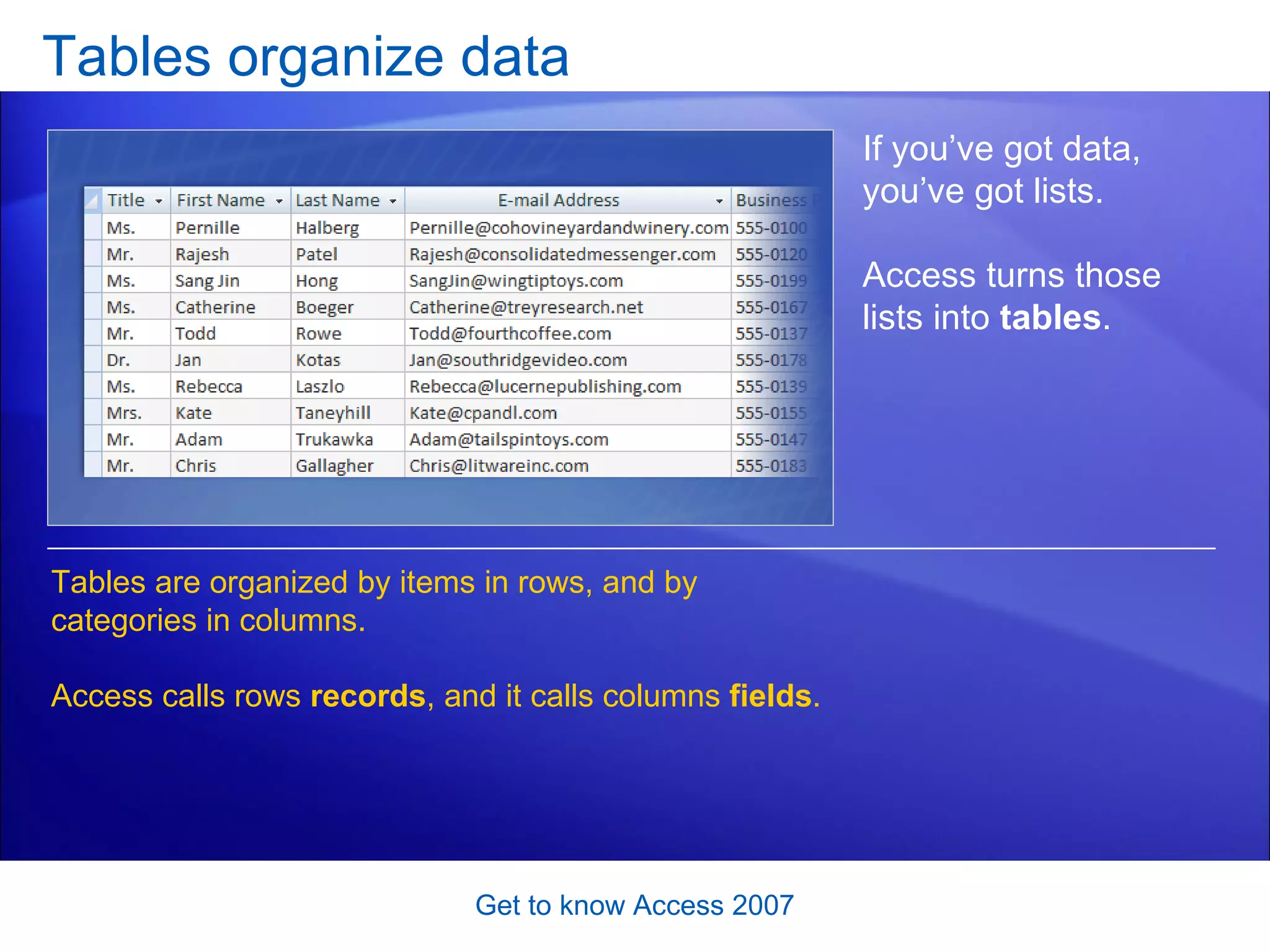
Tables organize data Get to know Access 2007 If you’ve got data, you’ve got lists.  Access turns those lists into  tables .  Tables are organized by items in rows, and by categories in columns.  Access calls rows  records , and it calls columns  fields .
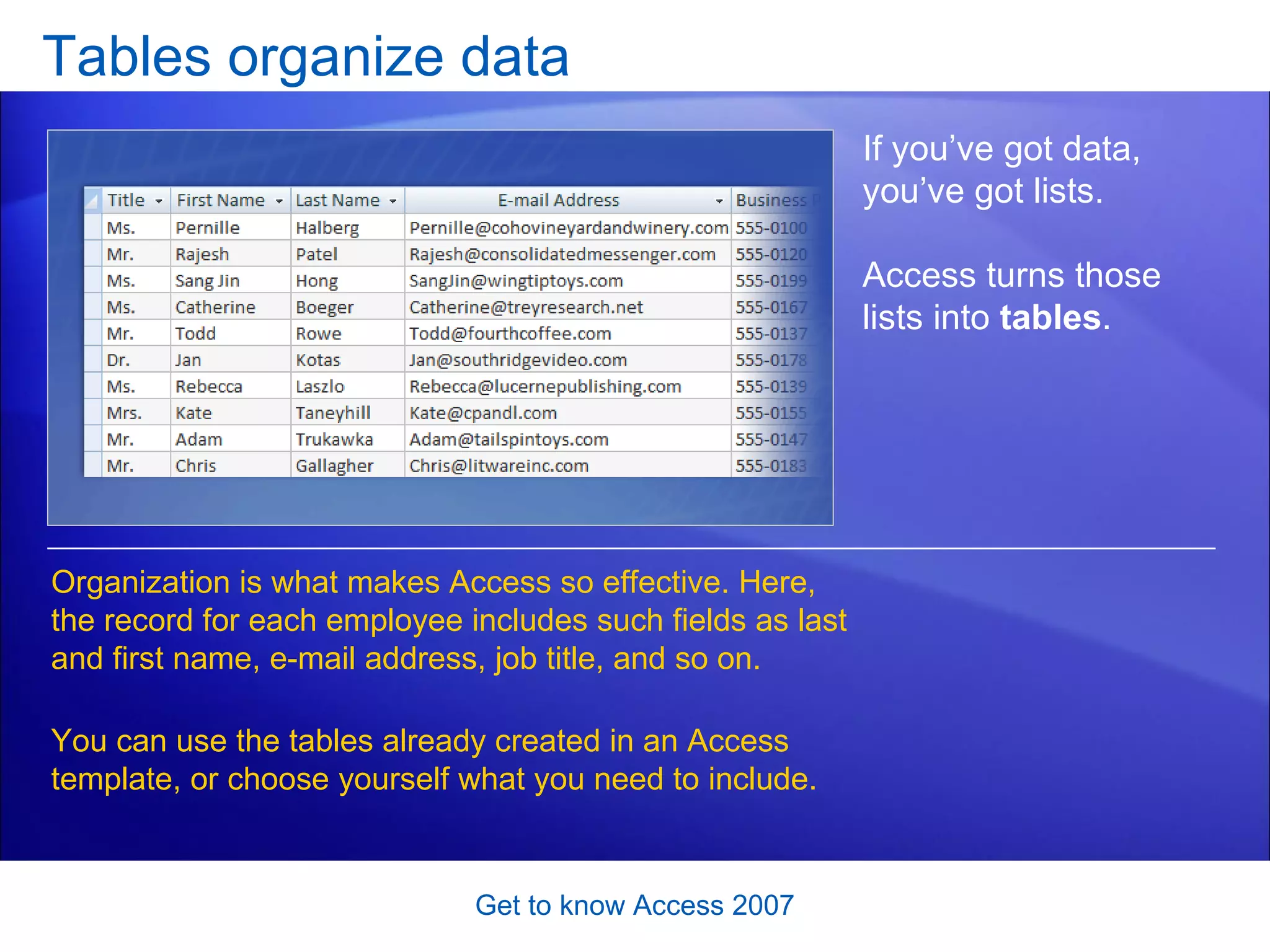
Tables organize data Get to know Access 2007 If you’ve got data, you’ve got lists.  Access turns those lists into  tables .  Organization is what makes Access so effective. Here, the record for each employee includes such fields as last and first name, e-mail address, job title, and so on.  You can use the tables already created in an Access template, or choose yourself what you need to include.
Tables have relationships Get to know Access 2007 Access is different because it uses related tables.  It’s designed so that one table can find and use data in another table.  That way, when you keep track of work items, for example, there’s no need to type employee names or project names that you’ve already stored.
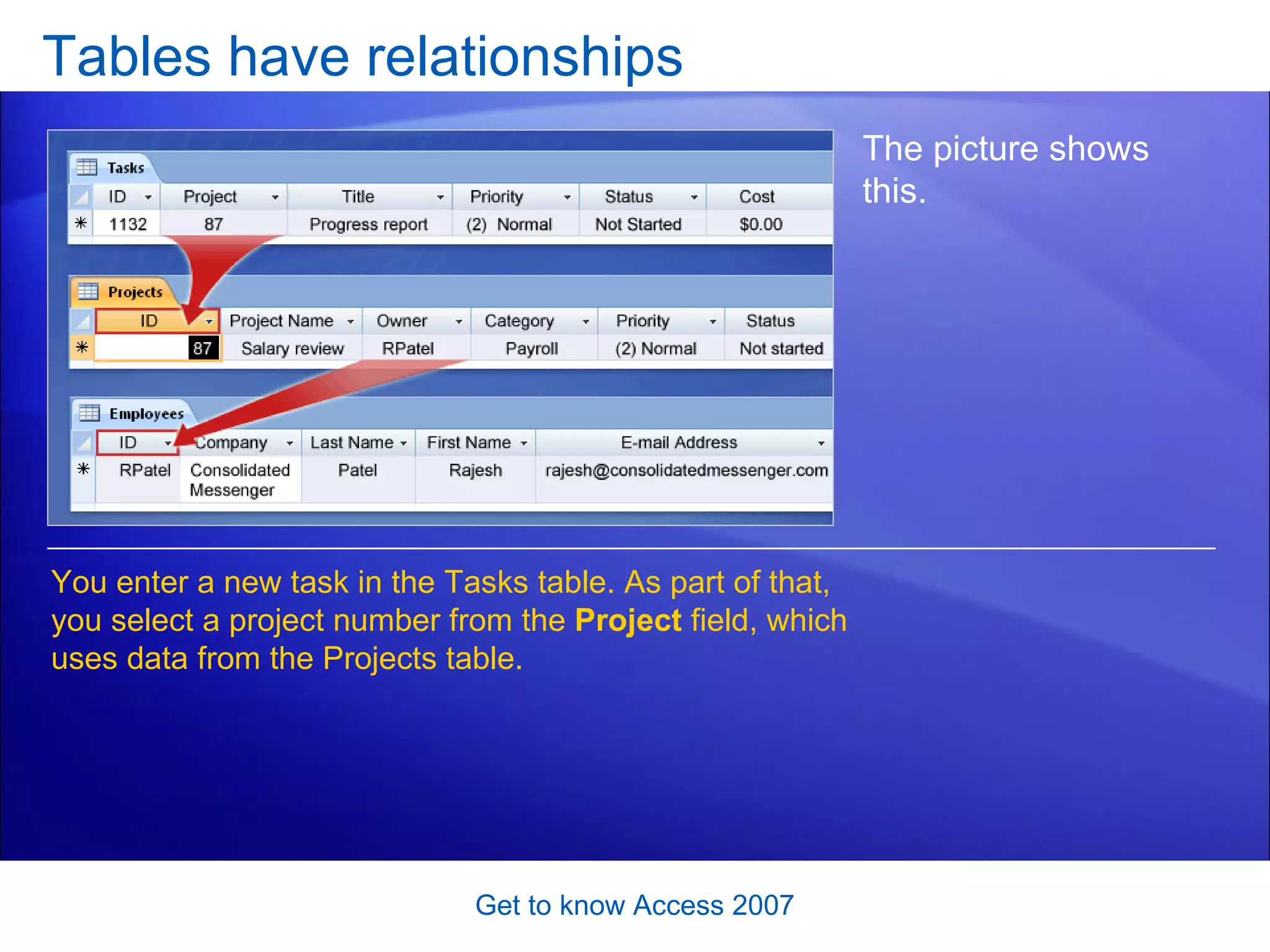
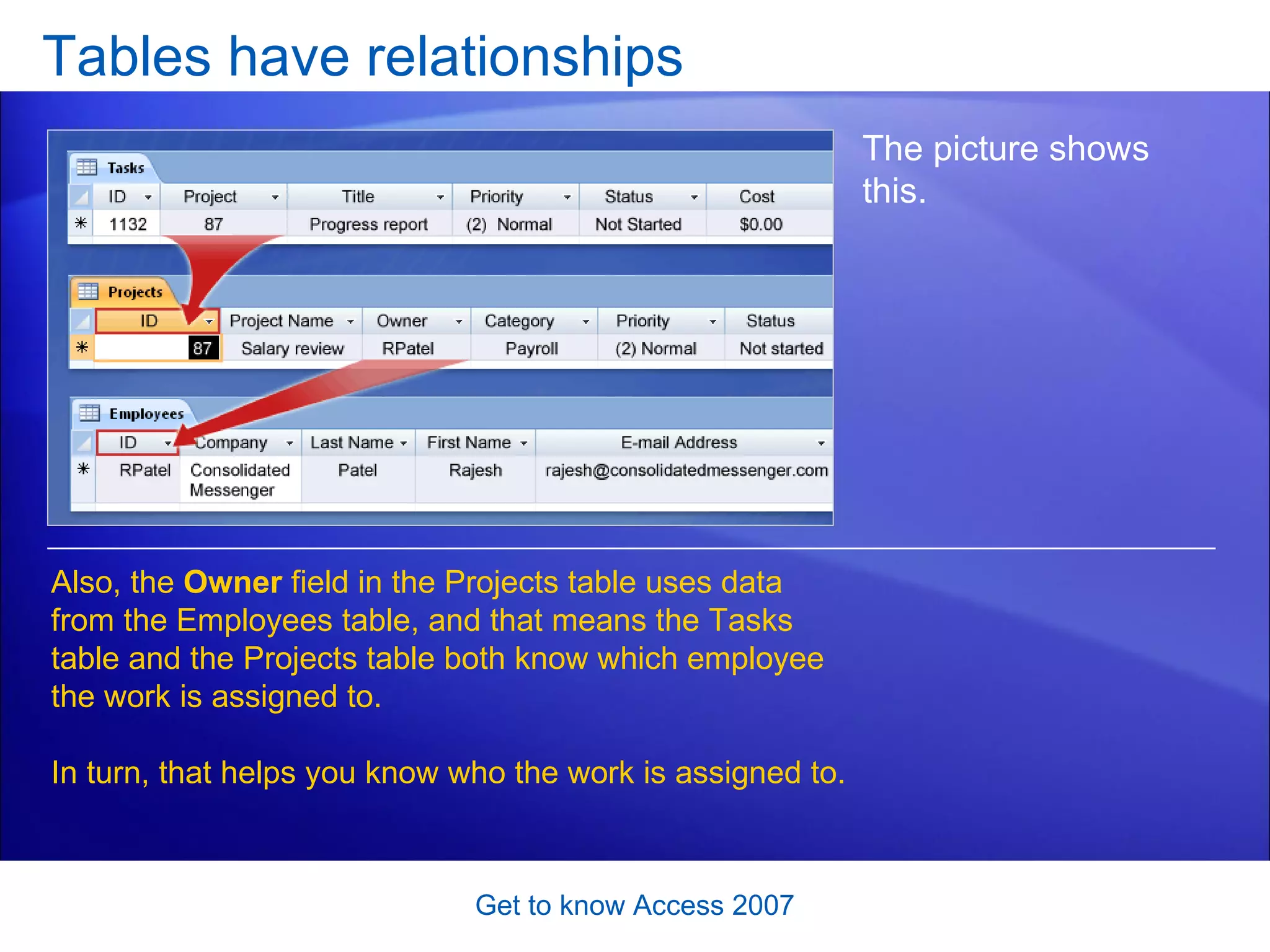
Tables have relationships Get to know Access 2007 The picture shows this.  You enter a new task in the Tasks table. As part of that, you select a project number from the  Project  field, which uses data from the Projects table.
Tables have relationships Get to know Access 2007 The picture shows this.  Also, the  Owner  field in the Projects table uses data from the Employees table, and that means the Tasks table and the Projects table both know which employee the work is assigned to.  In turn, that helps you know who the work is assigned to.
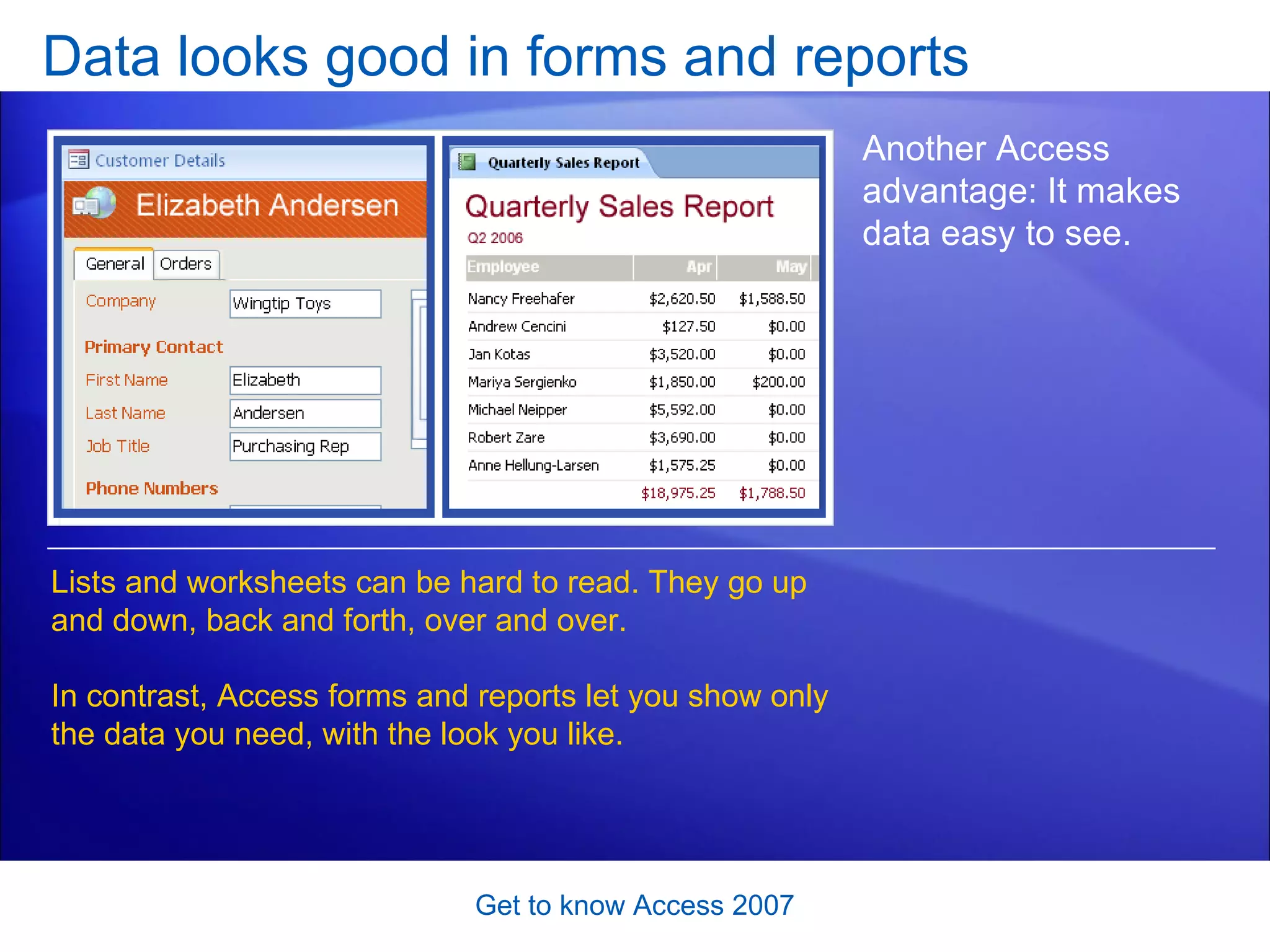
Data looks good in forms and reports Get to know Access 2007 Another Access advantage: It makes data easy to see.  Lists and worksheets can be hard to read. They go up and down, back and forth, over and over.  In contrast, Access forms and reports let you show only the data you need, with the look you like.
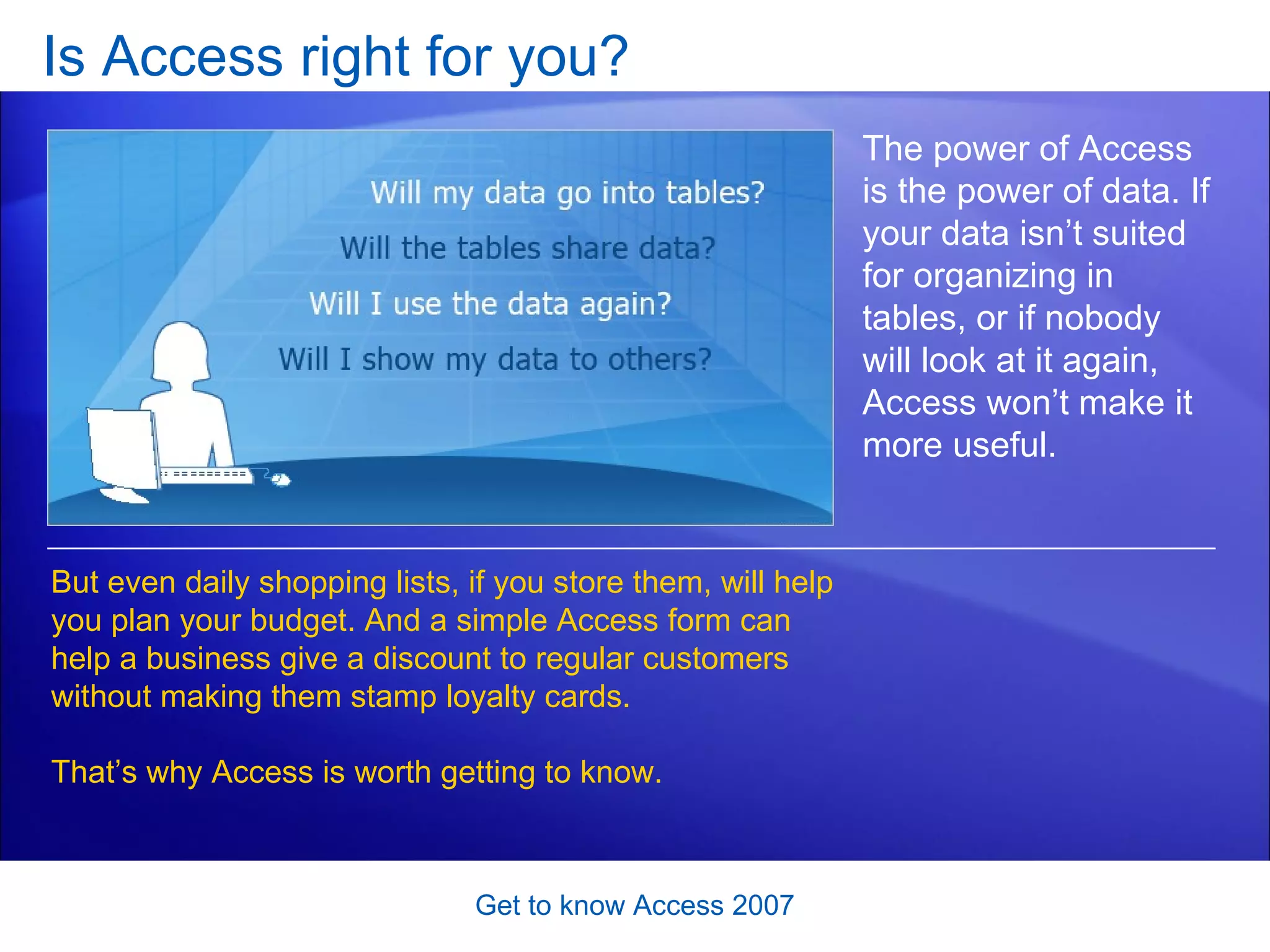
Is Access right for you?  Get to know Access 2007 The power of Access is the power of data. If your data isn’t suited for organizing in tables, or if nobody will look at it again, Access won’t make it more useful.  But even daily shopping lists, if you store them, will help you plan your budget. And a simple Access form can help a business give a discount to regular customers without making them stamp loyalty cards.  That’s why Access is worth getting to know.
Suggestions for practice Look at a database table. Look at a database form. Look at table relationships.  Get to know Access 2007 Online practice  (requires Access 2007)
Test 1, question 1 Tables are better than lists. (Pick one answer.) Get to know Access 2007 True. False. It depends.
Test 1, question 1: Answer It depends.  Get to know Access 2007 Your own data, and how you use it, determines whether a table or list is best.
Test 1, question 2 Access works best when all your data is in every table. (Pick one answer.) Get to know Access 2007 True. False.
Test 1, question 2: Answer False.  Get to know Access 2007 Avoiding  duplicated data is what makes Access efficient.
Test 1, question 3 What’s in an Access database? (Pick one answer.) Get to know Access 2007 Tables and nothing but tables.  Tables, forms, and reports.  One really big table.
Test 1, question 3: Answer Tables, forms, and reports.  Get to know Access 2007 Databases contain tables, forms, reports, and other objects.
Lesson 2 How does Access 2007 work?
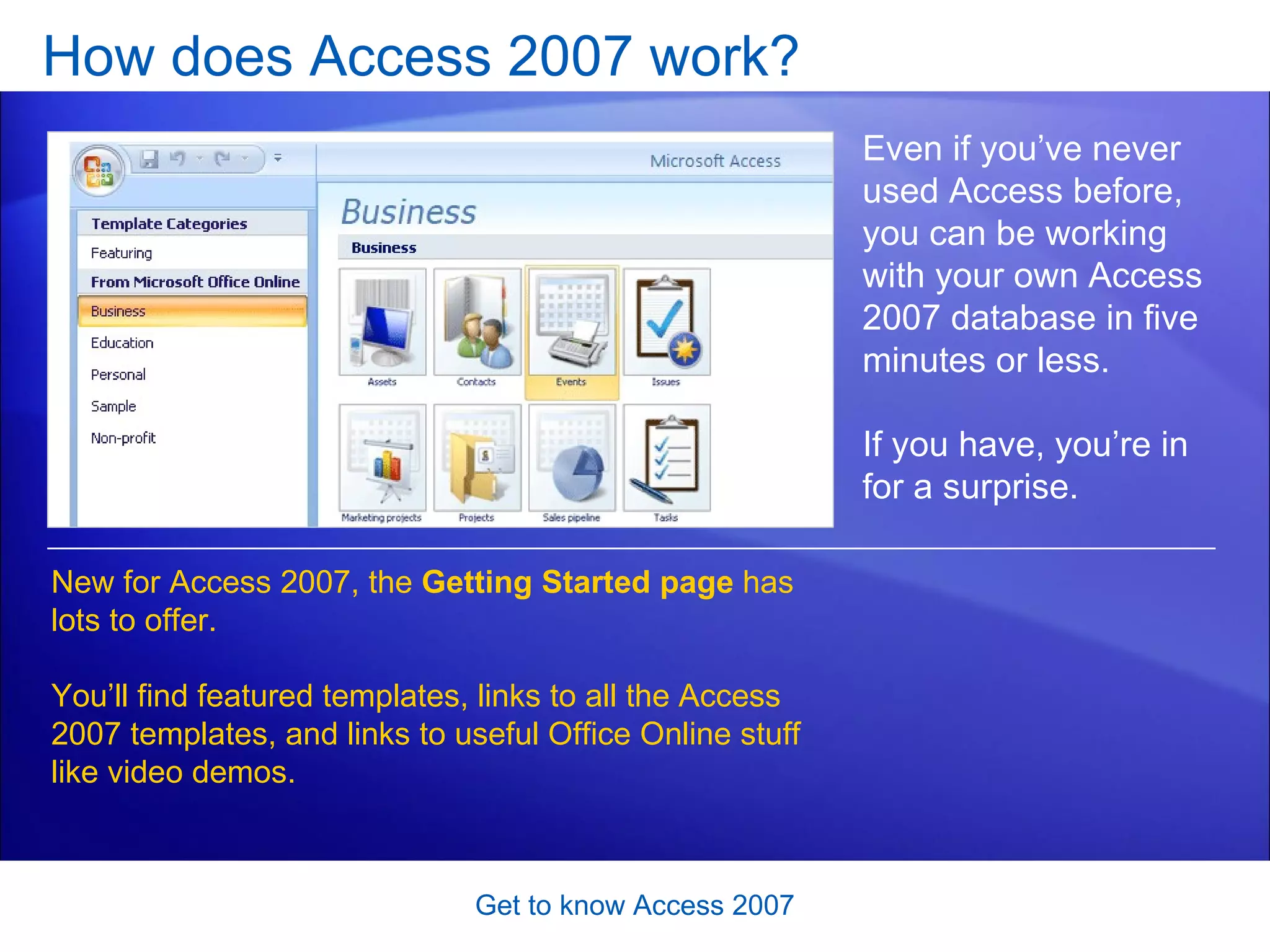
How does Access 2007 work?  Get to know Access 2007 Even if you’ve never used Access before, you can be working with your own Access 2007 database in five minutes or less.  If you have, you’re in for a surprise. New for Access 2007, the  Getting Started page  has lots to offer. You’ll find featured templates, links to all the Access 2007 templates, and links to useful Office Online stuff like video demos.
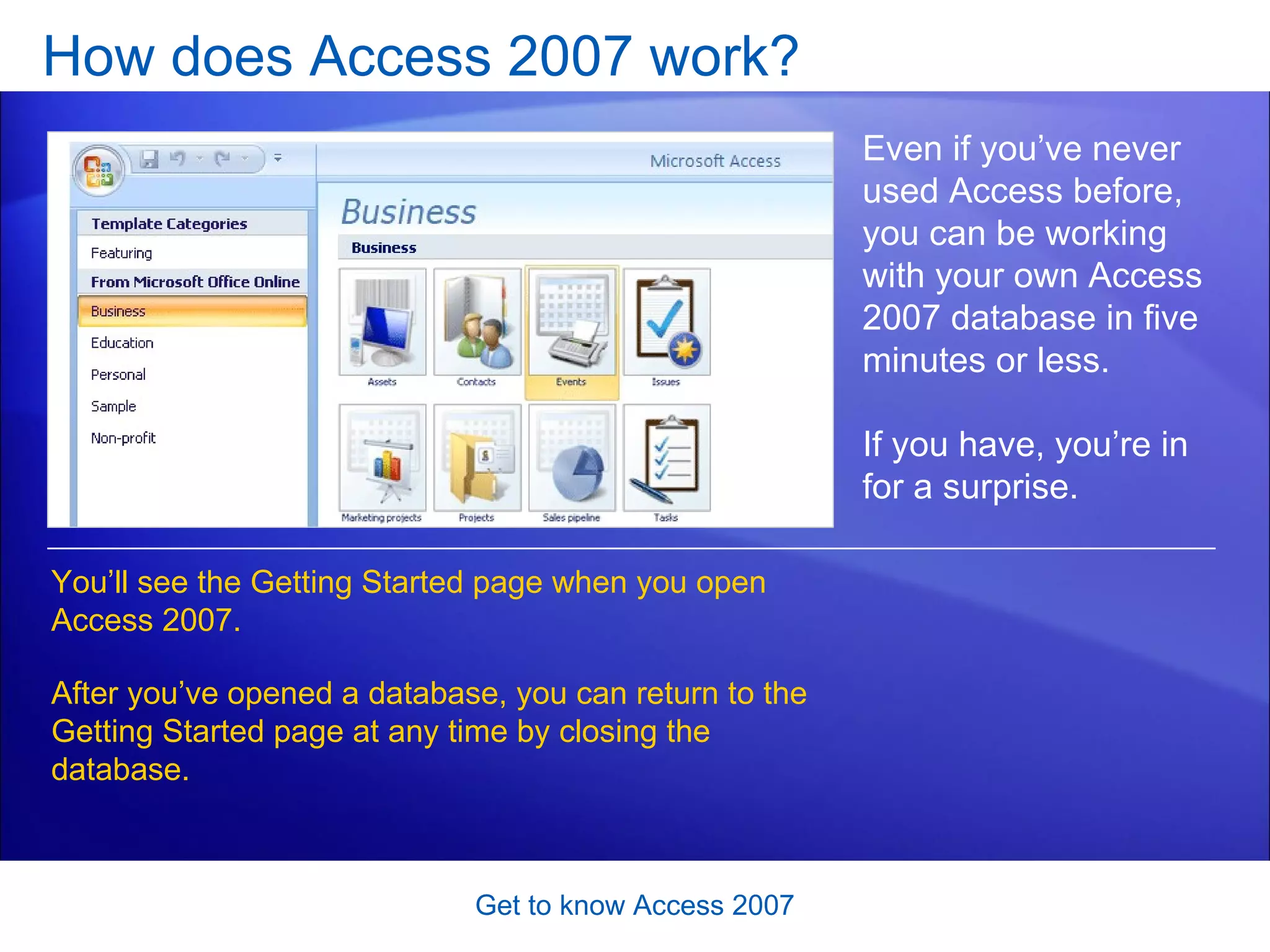
How does Access 2007 work?  Get to know Access 2007 Even if you’ve never used Access before, you can be working with your own Access 2007 database in five minutes or less.  If you have, you’re in for a surprise. You’ll see the Getting Started page when you open Access 2007.  After you’ve opened a database, you can return to the Getting Started page at any time by closing the database.
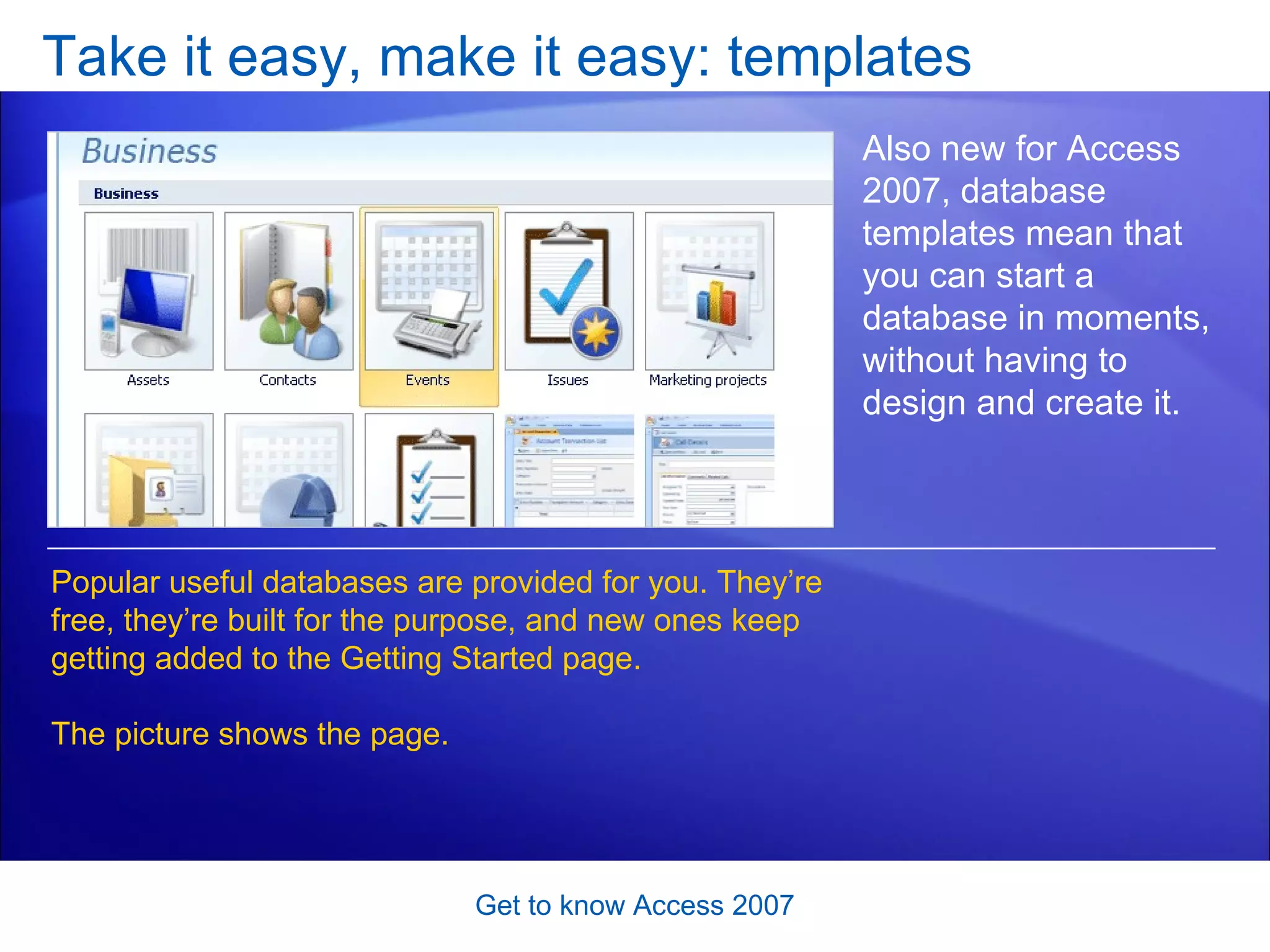
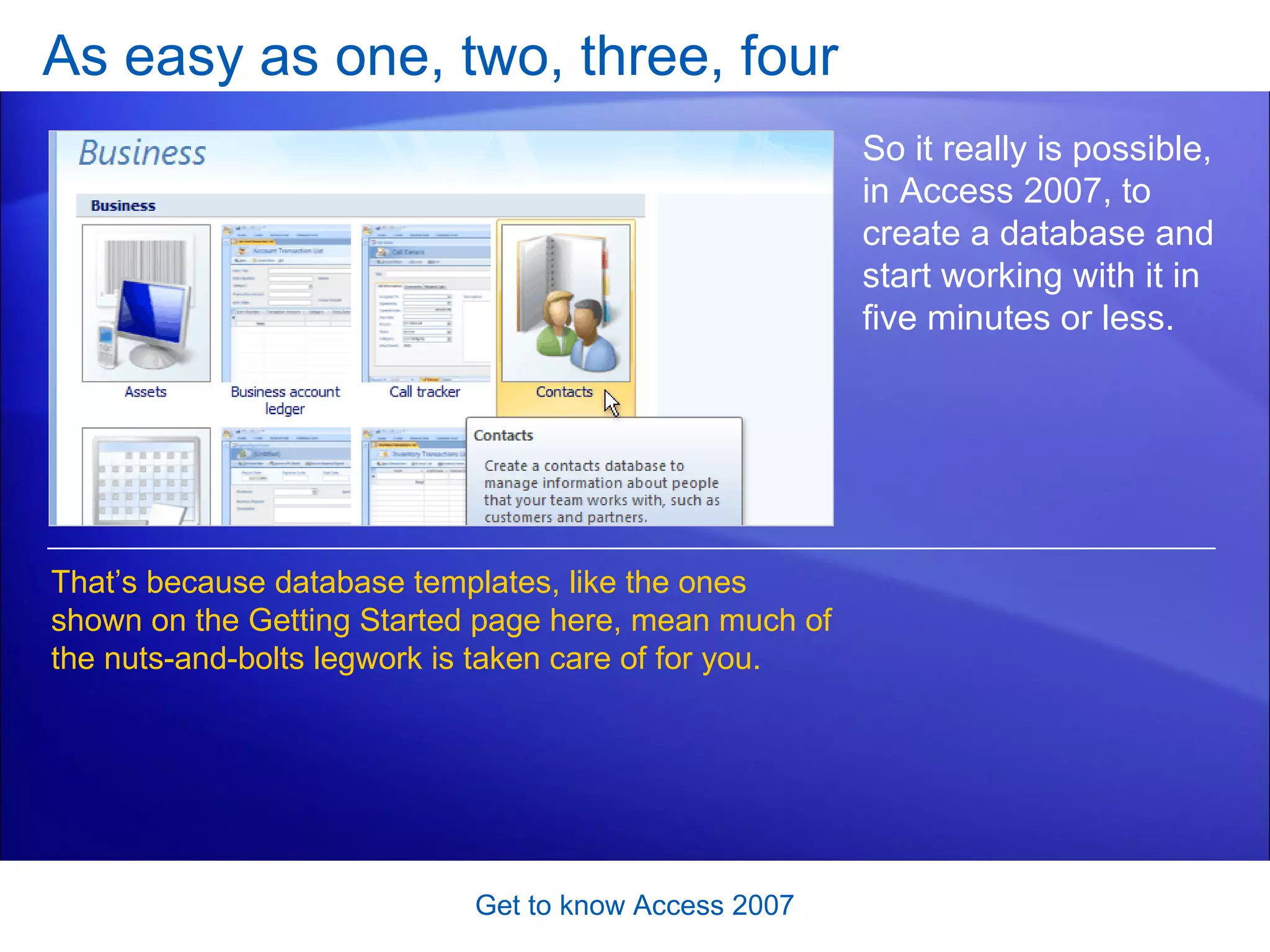
Take it easy, make it easy: templates Get to know Access 2007 Also new for Access 2007, database templates mean that you can start a database in moments, without having to design and create it.  Popular useful databases are provided for you. They’re free, they’re built for the purpose, and new ones keep getting added to the Getting Started page.  The picture shows the page.
Take it easy, make it easy: templates Get to know Access 2007 Also new for Access 2007, database templates mean that you can start a database in moments, without having to design and create it.  After you open a database template, you can easily start entering data.  You can also adapt it to suit yourself, or expand its capabilities by adding a new table or another form.
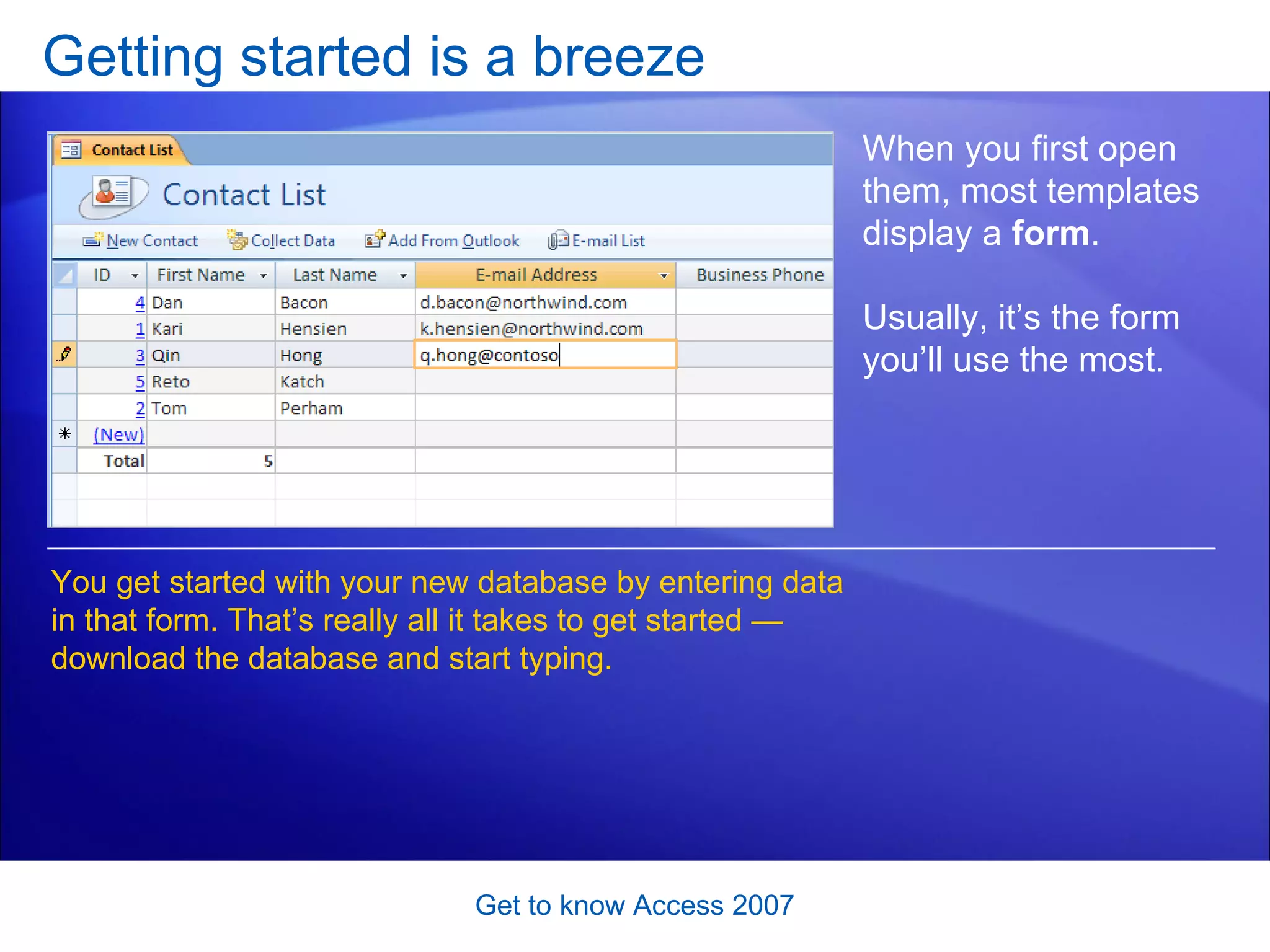
Getting started is a breeze Get to know Access 2007 When you first open them, most templates display a  form .  Usually, it’s the form you’ll use the most. You get started with your new database by entering data in that form. That’s really all it takes to get started — download the database and start typing.
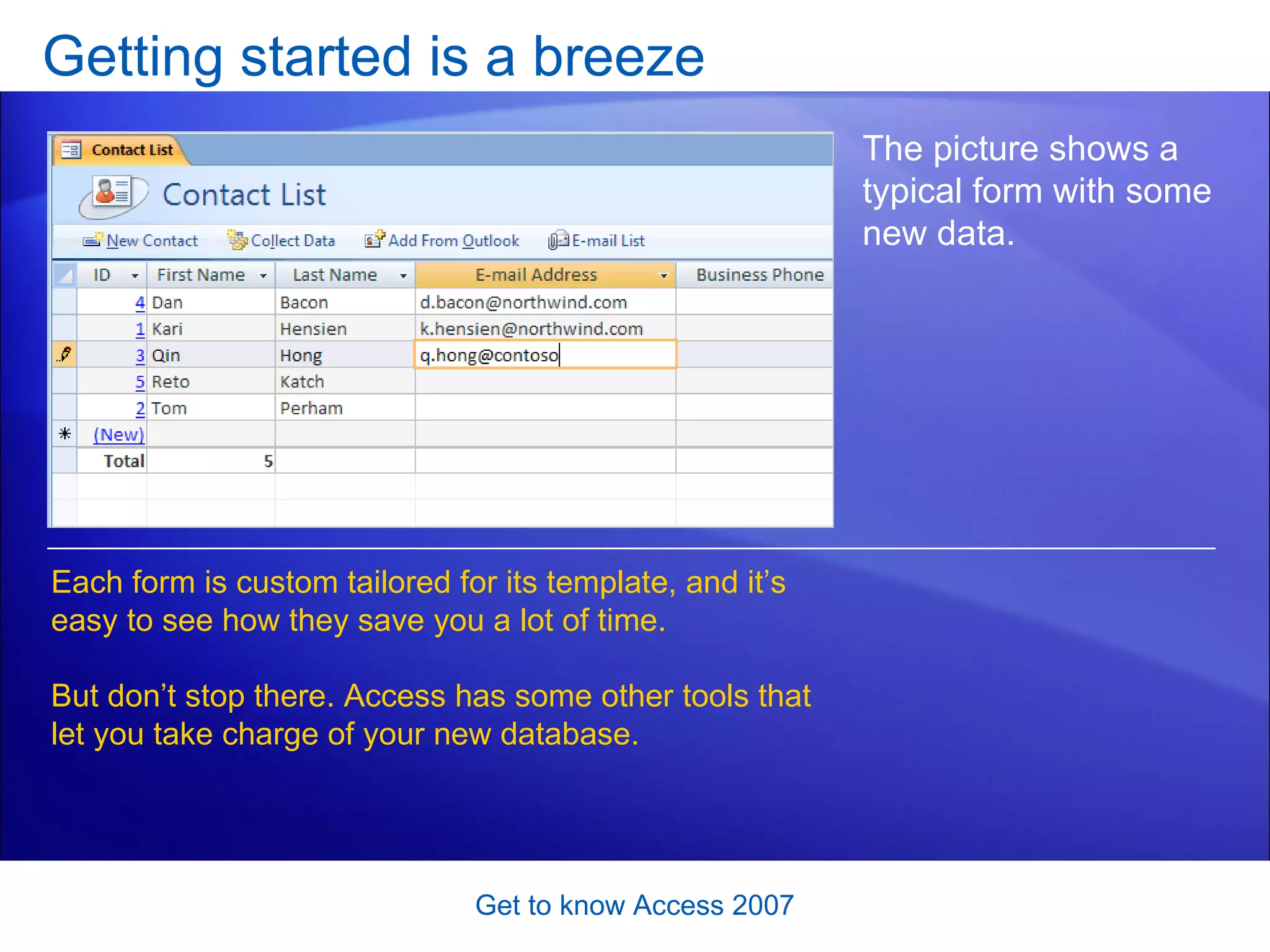
Getting started is a breeze Get to know Access 2007 The picture shows a typical form with some new data.  Each form is custom tailored for its template, and it’s easy to see how they save you a lot of time.  But don’t stop there. Access has some other tools that let you take charge of your new database.
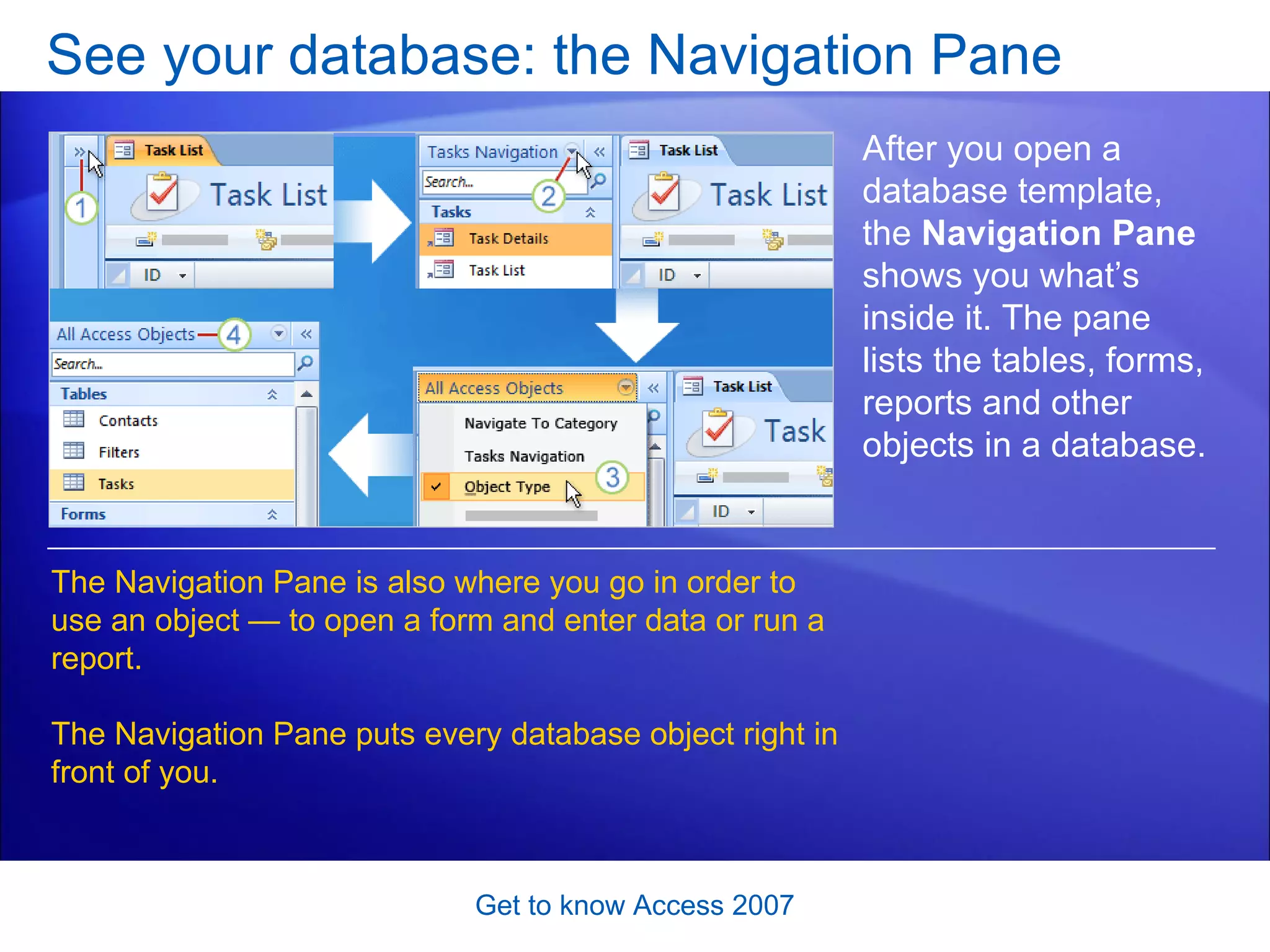
See your database: the Navigation Pane Get to know Access 2007 After you open a database template, the  Navigation Pane  shows you what’s inside it. The pane lists the tables, forms, reports and other objects in a database. The Navigation Pane is also where you go in order to use an object — to open a form and enter data or run a report.  The Navigation Pane puts every database object right in front of you.
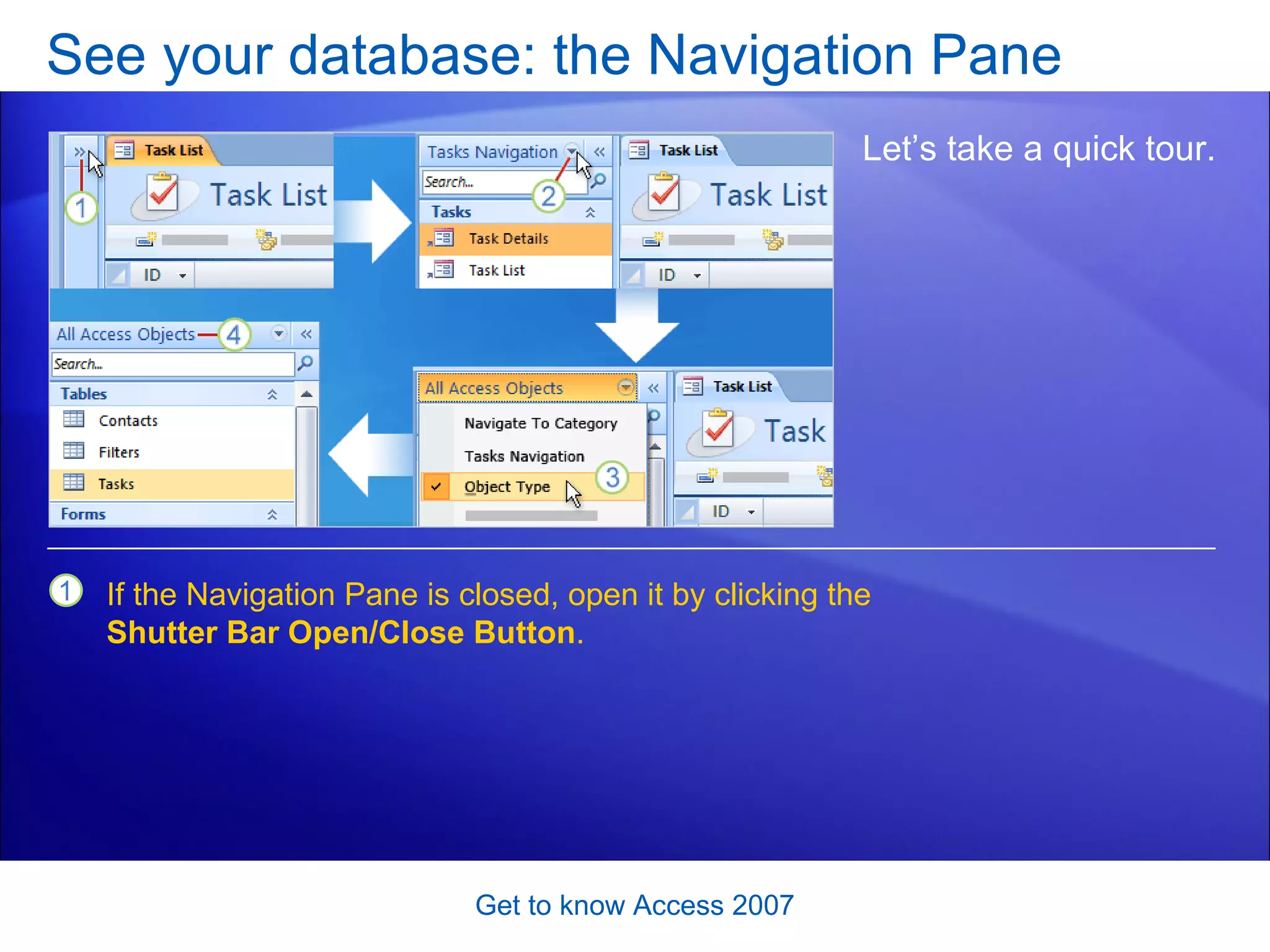
See your database: the Navigation Pane Get to know Access 2007 Let’s take a quick tour.  If the Navigation Pane is closed, open it by clicking the  Shutter Bar Open/Close Button .
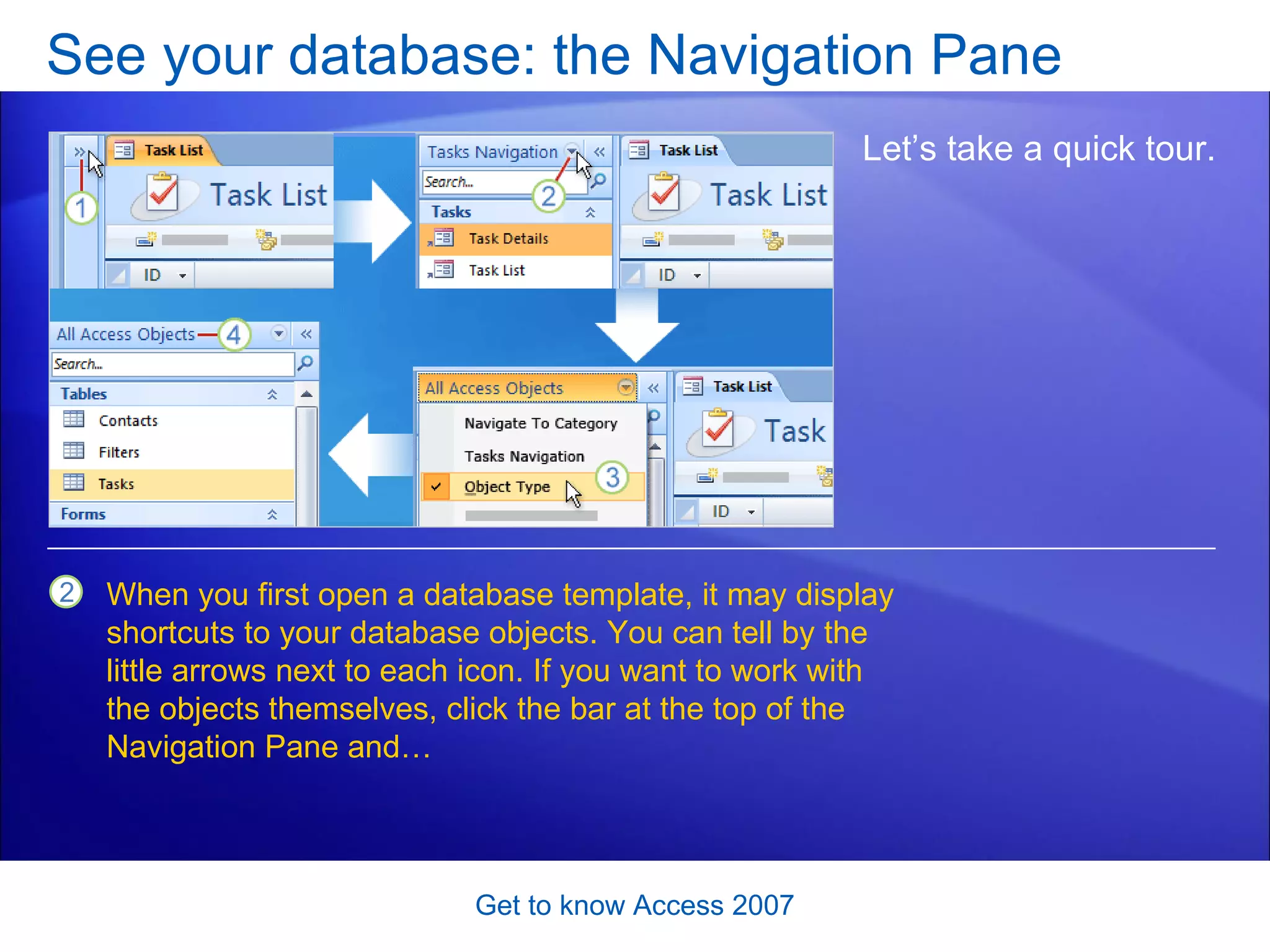
See your database: the Navigation Pane Get to know Access 2007 Let’s take a quick tour.  When you first open a database template, it may display shortcuts to your database objects. You can tell by the little arrows next to each icon. If you want to work with the objects themselves, click the bar at the top of the Navigation Pane and…
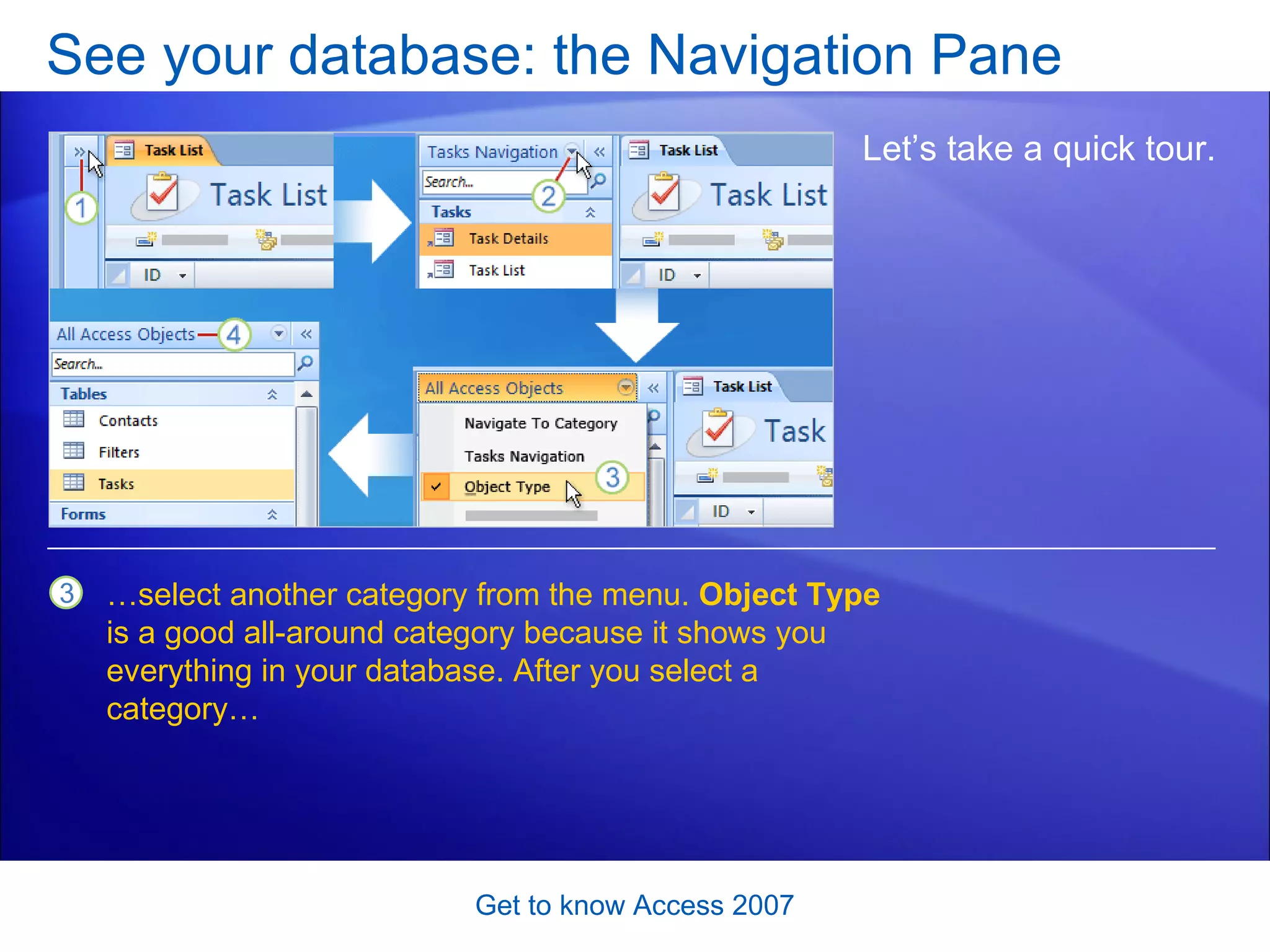
See your database: the Navigation Pane Get to know Access 2007 Let’s take a quick tour.  … select another category from the menu.  Object Type  is a good all-around category because it shows you everything in your database. After you select a category…
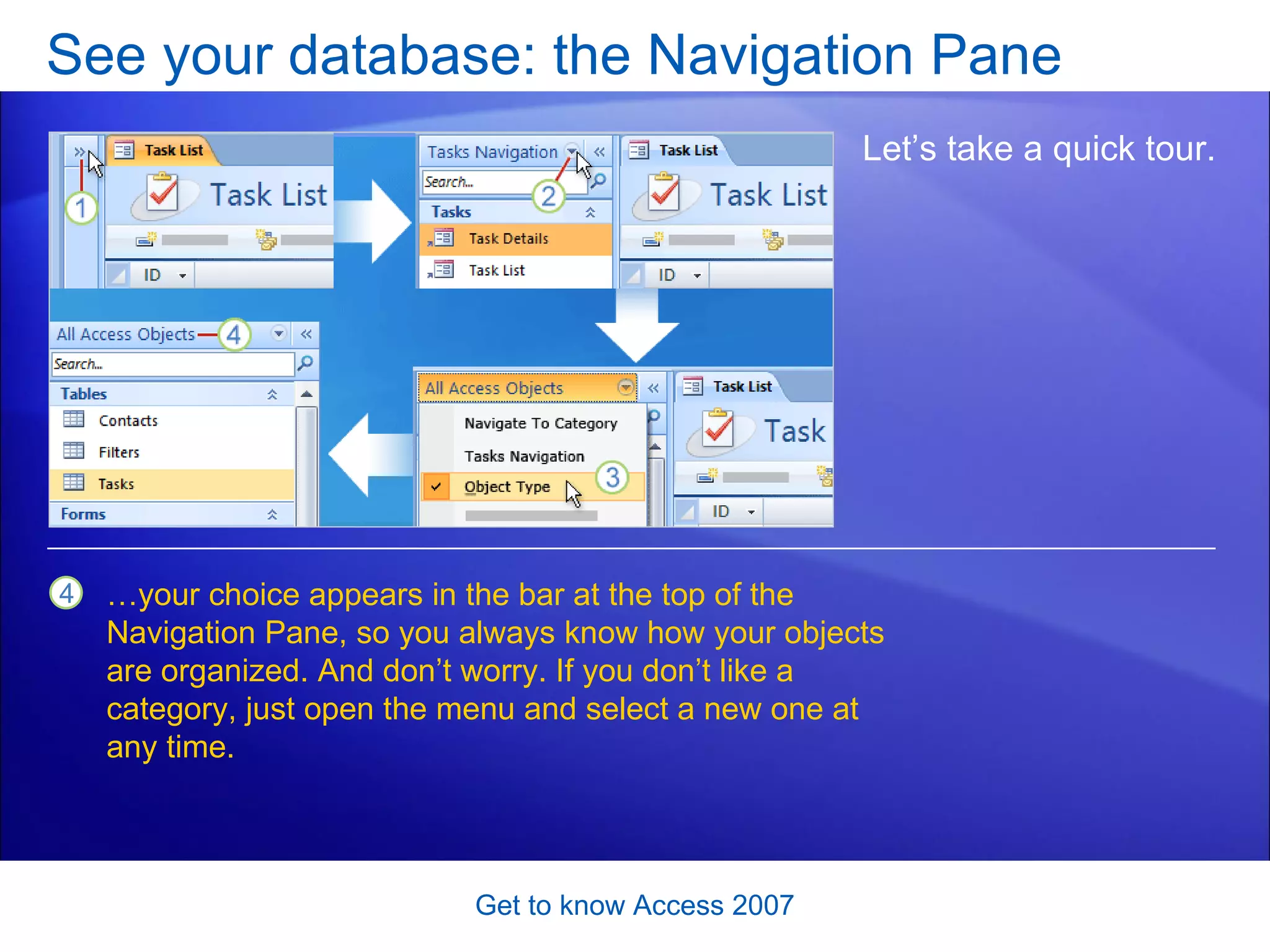
See your database: the Navigation Pane Get to know Access 2007 Let’s take a quick tour.  … your choice appears in the bar at the top of the Navigation Pane, so you always know how your objects are organized. And don’t worry. If you don’t like a category, just open the menu and select a new one at any time.
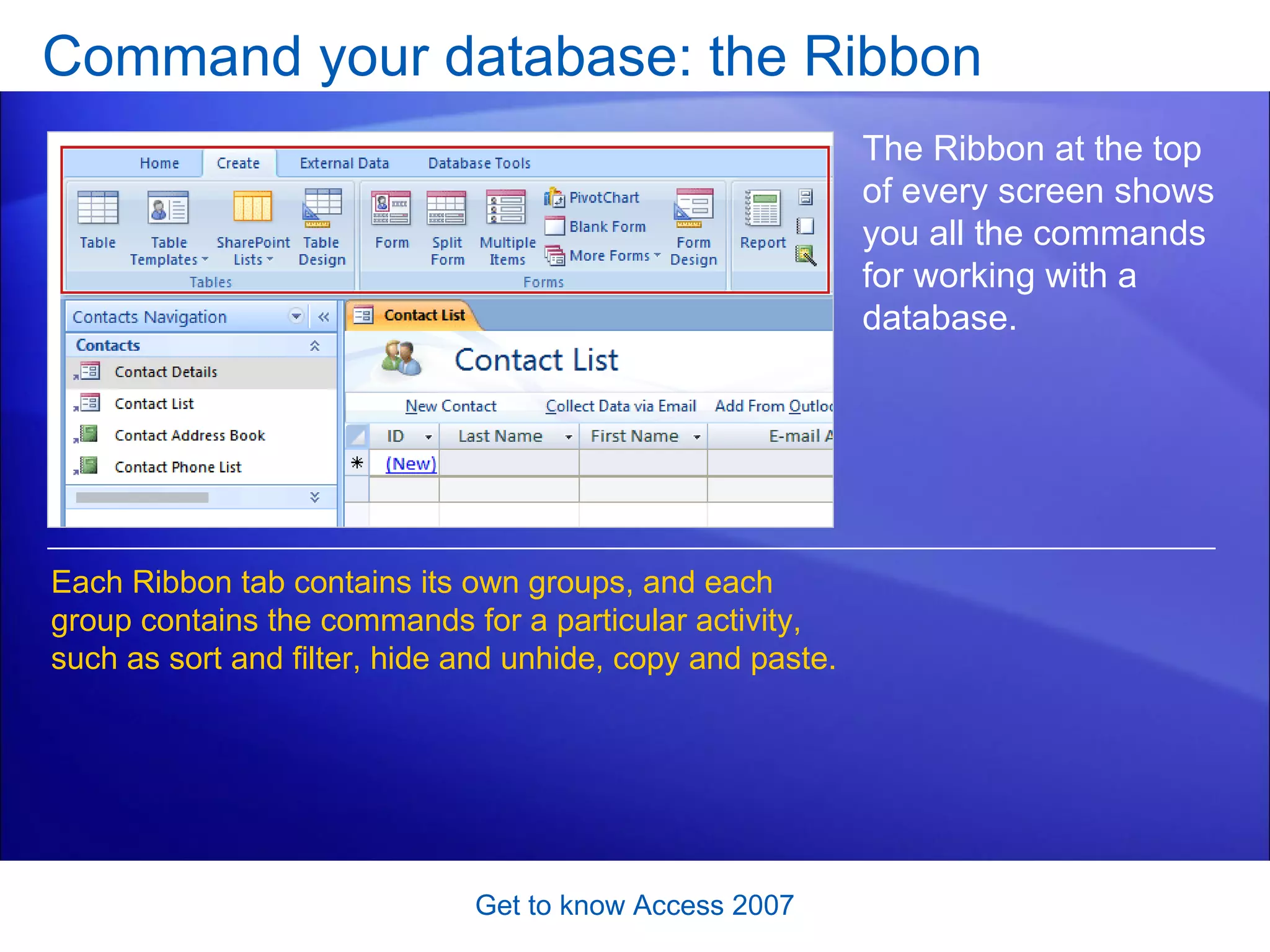
Command your database: the Ribbon Get to know Access 2007 The Ribbon at the top of every screen shows you all the commands for working with a database.  On the  Create  tab, for example, you’ll find the commands to create new tables and other database objects. You’ll use the  External Data  tab when you want to import or export data.
Command your database: the Ribbon Get to know Access 2007 The Ribbon at the top of every screen shows you all the commands for working with a database.  Each Ribbon tab contains its own groups, and each group contains the commands for a particular activity, such as sort and filter, hide and unhide, copy and paste.
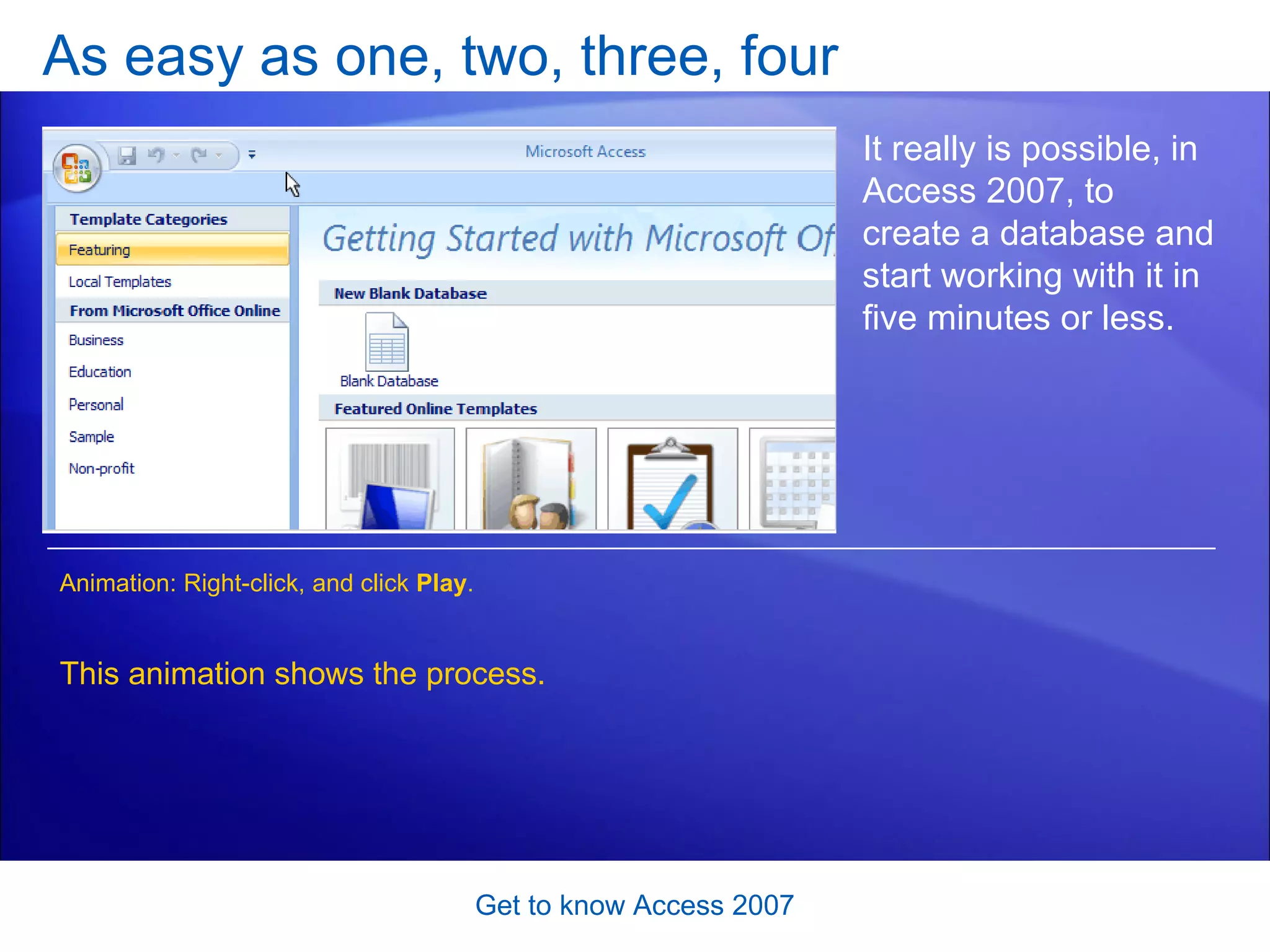
As easy as one, two, three, four Get to know Access 2007 It really is possible, in Access 2007, to create a database and start working with it in five minutes or less.  This animation shows the process. Animation: Right-click, and click  Play .
As easy as one, two, three, four Get to know Access 2007 So it really is possible, in Access 2007, to create a database and start working with it in five minutes or less.  That’s because database templates, like the ones shown on the Getting Started page here, mean much of the nuts-and-bolts legwork is taken care of for you.
Suggestions for practice Download a template. Enter data. Use the Navigation Pane.  Get to know Access 2007 Online practice  (requires Access 2007)
Test 2, question 1 Where are the templates? (Pick one answer.) Get to know Access 2007 In the Navigation Pane.  On the Getting Started page.  Office Online.
Test 2, question 1: Answer On the Getting Started page.  Get to know Access 2007 You can view the Getting Started page at any time, just by closing your database.
Test 2, question 2 Where can you see database objects? (Pick one answer.) Get to know Access 2007 On the Ribbon. On the Getting Started Page. In the Navigation Pane.
Test 2, question 2: Answer In the Navigation Pane.  Get to know Access 2007 The Quick Reference Card that’s linked to at the end of this course points to a video demo about the Navigation Pane.
Test 2, question 3 Where are the commands for working with data? (Pick one answer.) Get to know Access 2007 On the Ribbon. In the Navigation Pane. On the Getting Started page.
Test 2, question 3: Answer On the Ribbon. Get to know Access 2007 Each tab on the Ribbon contains a group of related commands.
Lesson 3 Looking good with forms and reports
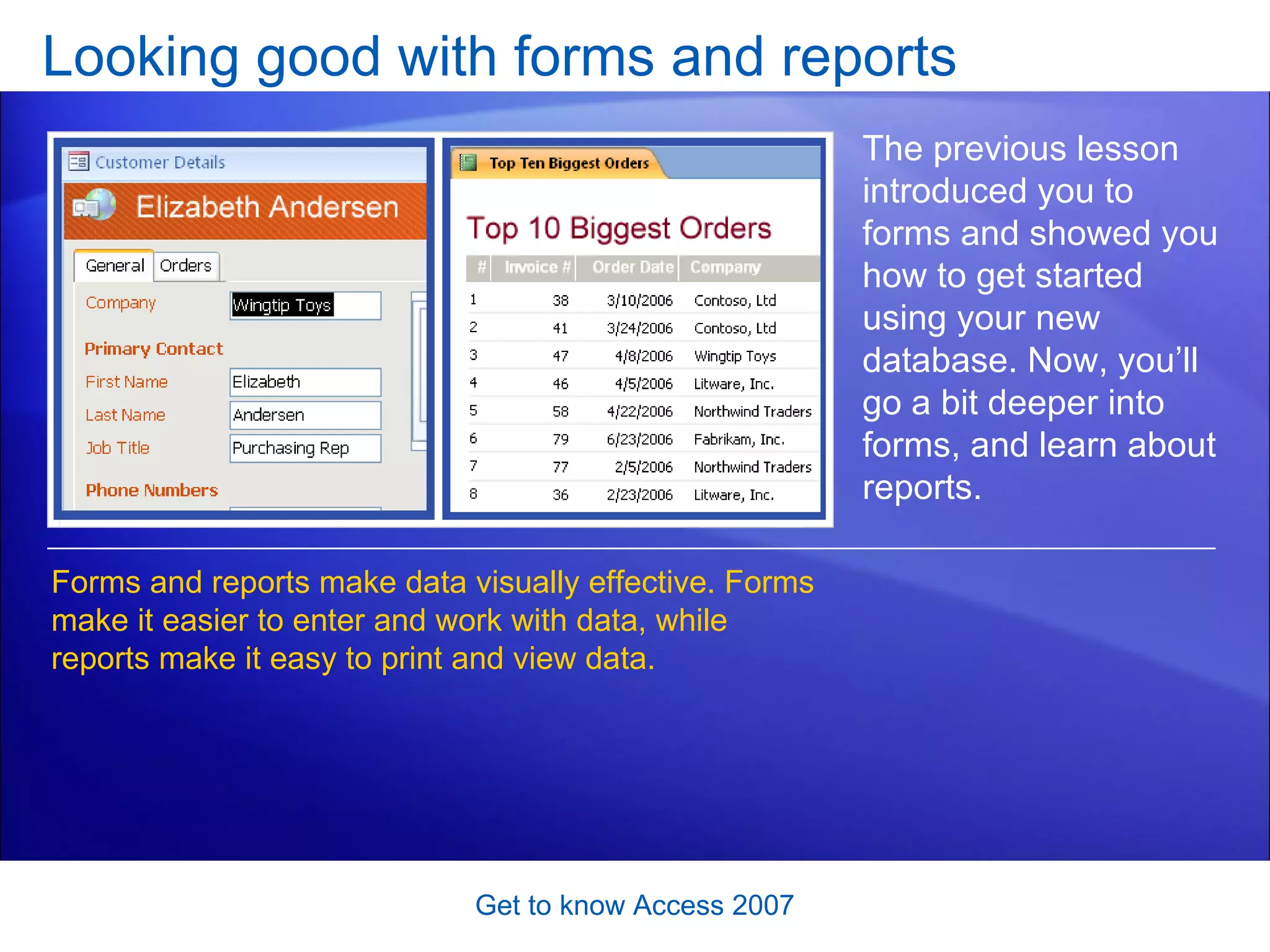
Looking good with forms and reports Get to know Access 2007 The previous lesson introduced you to forms and showed you how to get started using your new database. Now, you’ll go a bit deeper into forms, and learn about reports.  Forms and reports make data visually effective. Forms make it easier to enter and work with data, while reports make it easy to print and view data.
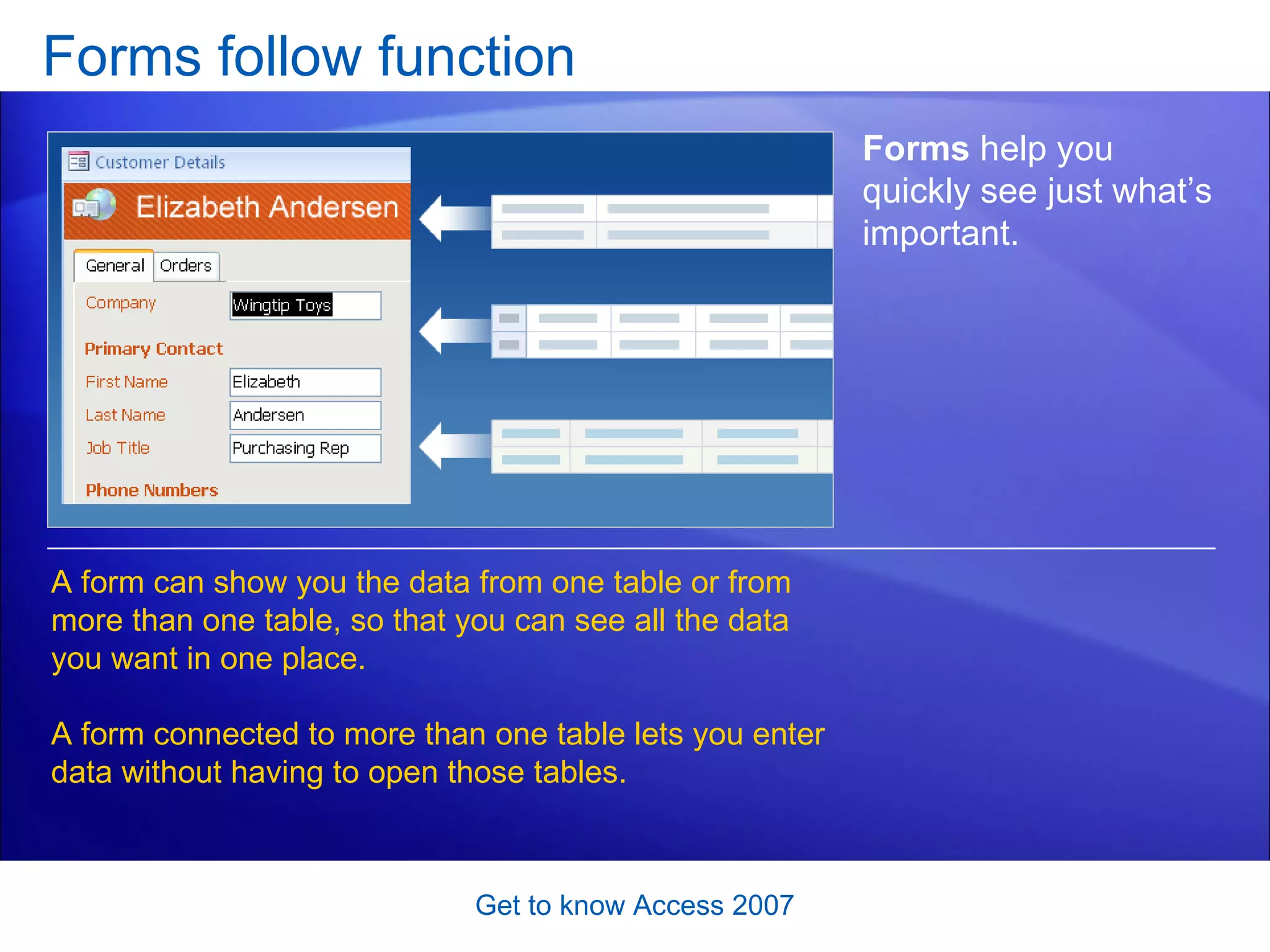
Forms follow function Get to know Access 2007 Forms  help you quickly see just what’s important.  A form can show you the data from one table or from more than one table, so that you can see all the data you want in one place.  A form connected to more than one table lets you enter data without having to open those tables.
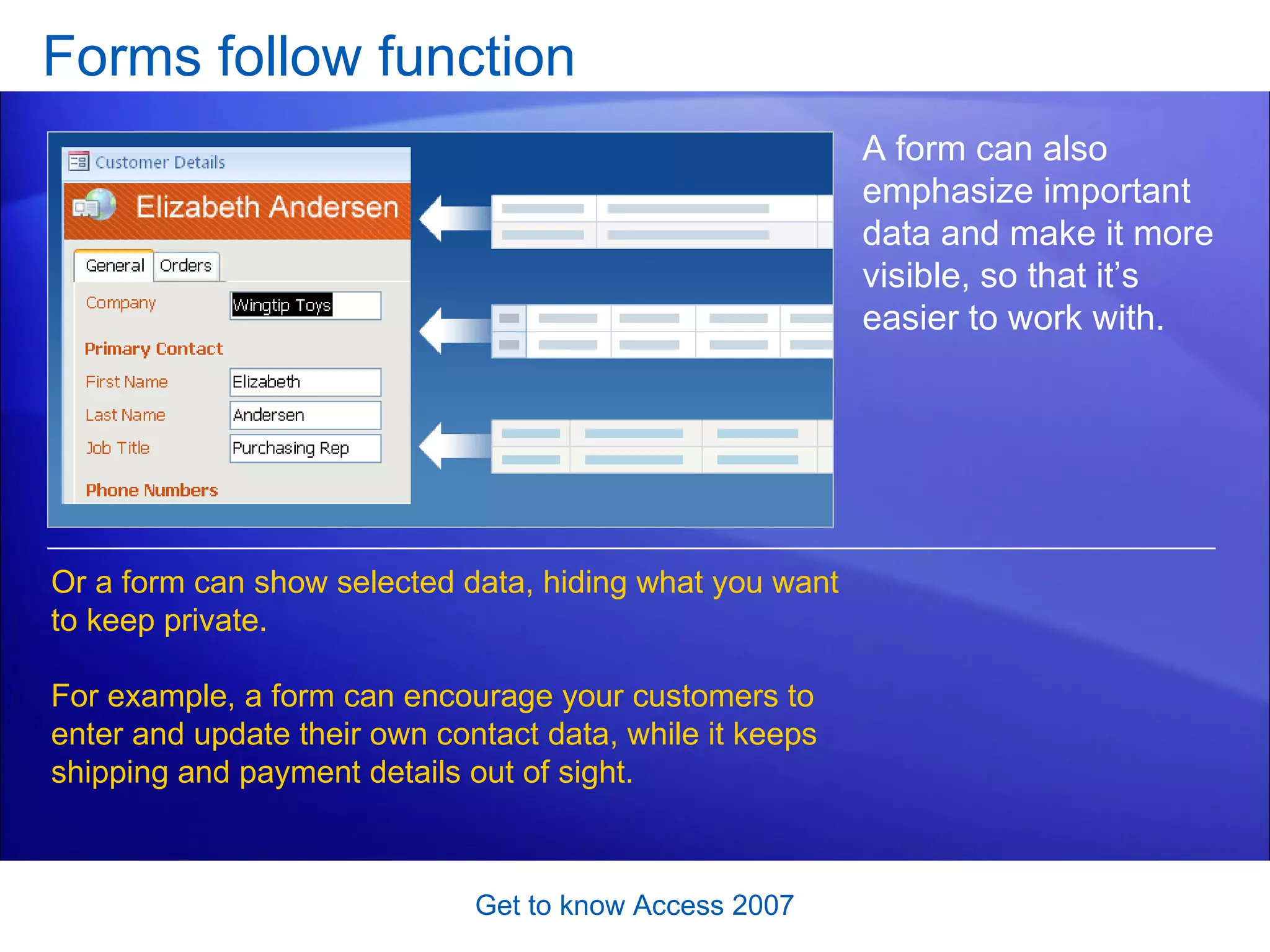
Forms follow function Get to know Access 2007 A form can also emphasize important data and make it more visible, so that it’s easier to work with.  Or a form can show selected data, hiding what you want to keep private.  For example, a form can encourage your customers to enter and update their own contact data, while it keeps shipping and payment details out of sight.
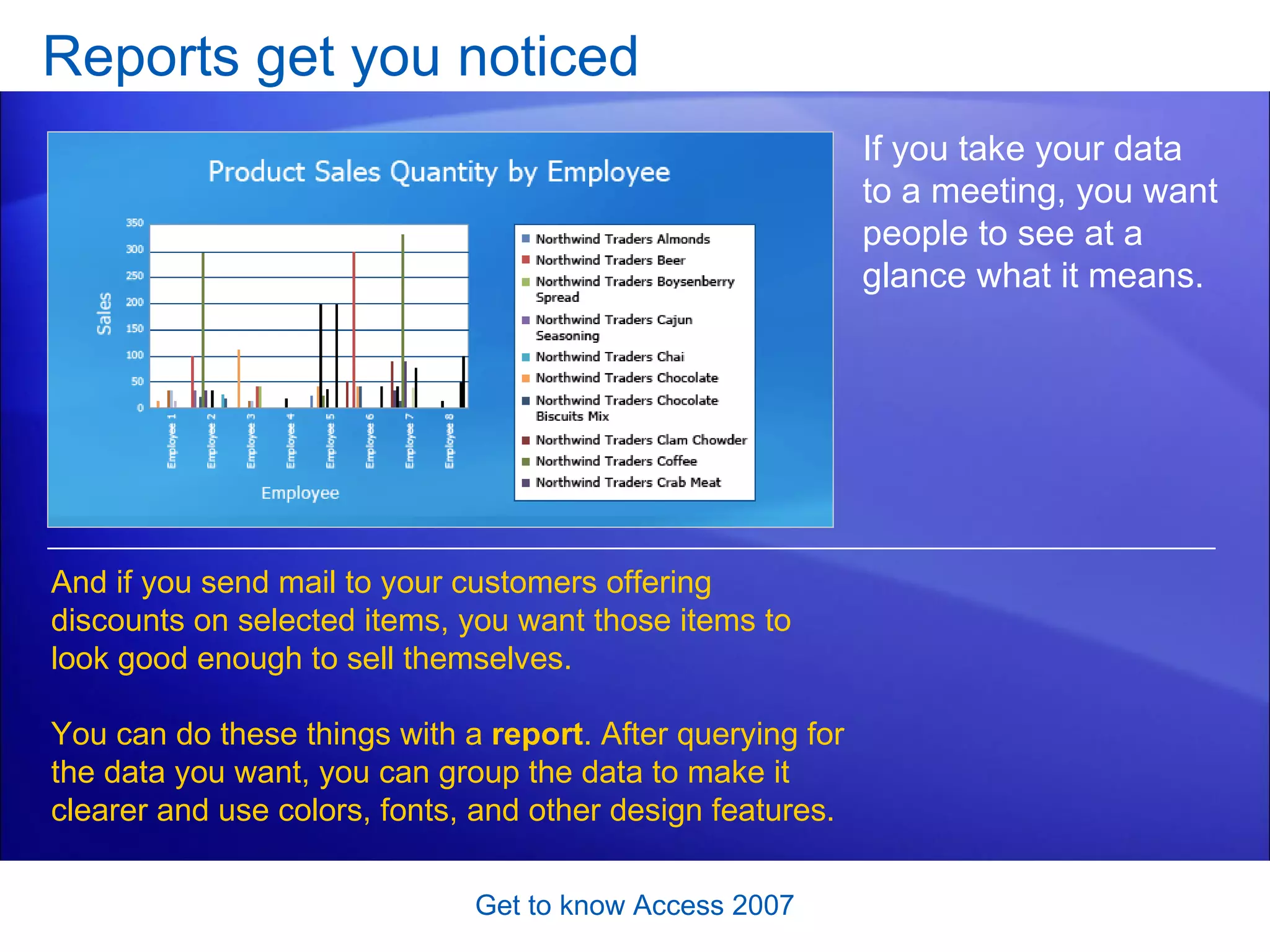
Reports get you noticed Get to know Access 2007 If you take your data to a meeting, you want people to see at a glance what it means.  And if you send mail to your customers offering discounts on selected items, you want those items to look good enough to sell themselves. You can do these things with a  report . After querying for the data you want, you can group the data to make it clearer and use colors, fonts, and other design features.
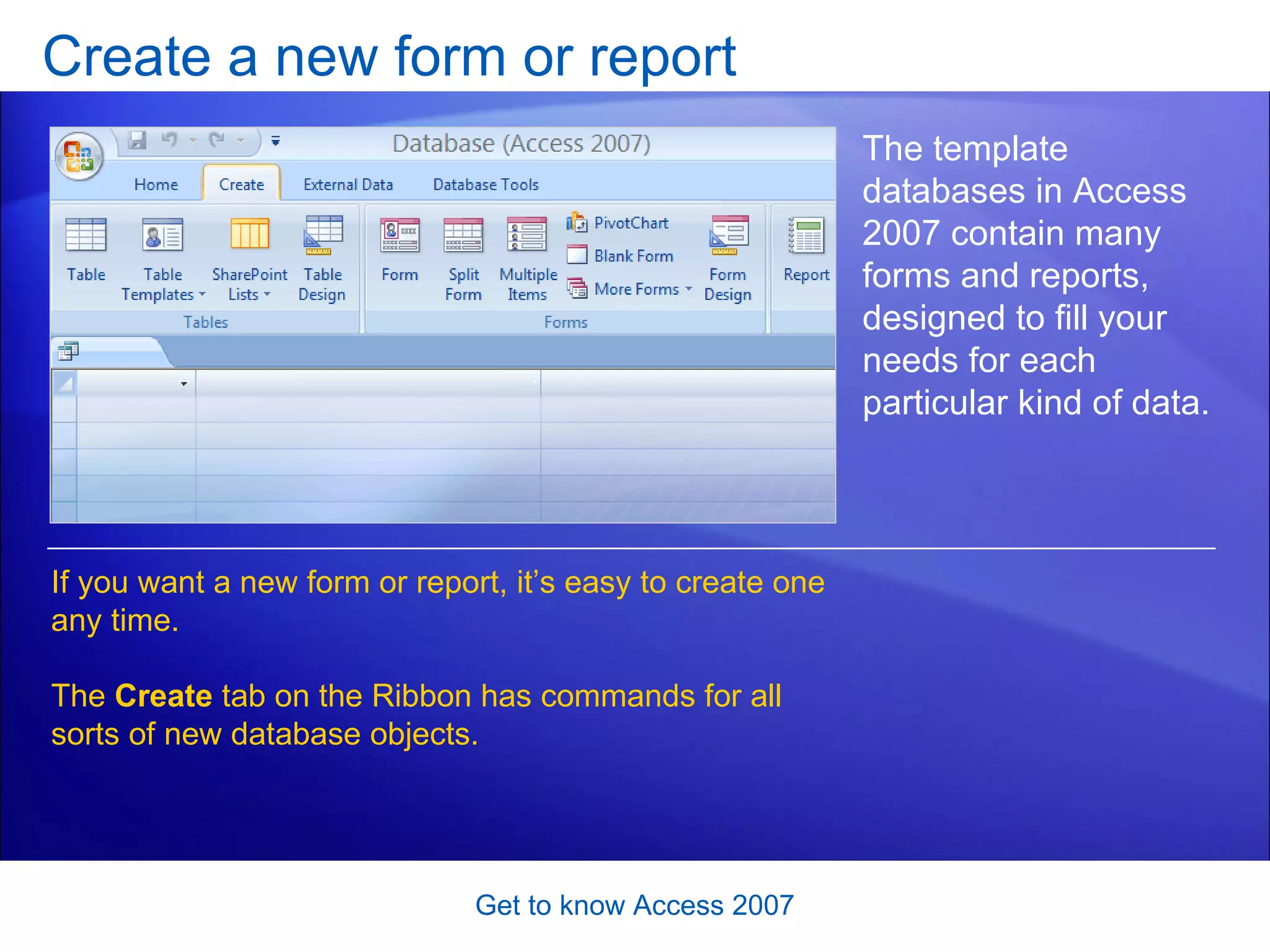
Create a new form or report Get to know Access 2007 The template databases in Access 2007 contain many forms and reports, designed to fill your needs for each particular kind of data.  If you want a new form or report, it’s easy to create one any time.  The  Create  tab on the Ribbon has commands for all sorts of new database objects.
Suggestions for practice Look at some forms and reports.  Create a simple form. Create a simple report.  Get to know Access 2007 Online practice  (requires Access 2007)
Test 3, question 1 Which of the following would you use to print your data? (Pick one answer.) Get to know Access 2007 A form. A report. Either one.
Test 3, question 1: Answer A report. Get to know Access 2007 A report can provide attractive, readable printouts.
Test 3, question 2 A form always shows everything that a table shows. (Pick one answer.) Get to know Access 2007 True. False.
Test 3, question 2: Answer False.  Get to know Access 2007 In fact, one big advantage of using forms is they can show part of the data from a table, and combine data from more than one table. That way, you get just what you need.
Test 3, question 3 Which of the following can provide data for a report? (Pick one answer.) Get to know Access 2007 A form. Another report. A query.
Test 3, question 3: Answer A query.  Get to know Access 2007 A query selects data from a table or tables, and a report can be based on that data in the query.

Access 2007-Get to know Access

  • 1.
    Microsoft ® Office Access ™ 2007 Training Get to know Access Jim Taliaferro Community Mental Health Center
  • 2.
    Course contents Overview:Make your data work for you Lesson 1: Access does data Lesson 2: How does Access 2007 work? Lesson 3: Looking good with forms and reports Get to know Access 2007 Each lesson includes a list of suggested tasks and a set of test questions.
  • 3.
    Overview: Make yourdata work for you Get to know Access 2007 Databases may have once been hard to understand, but not anymore. Access 2007 makes it easy to manage data by giving you a set of ready-made database templates. All you have to do is download and start. This course explains the advantages of Access compared to other ways of working with data. It shows you how to find and use the new database templates, and it takes you on a quick tour of a database.
  • 4.
    Course goals Learnthe benefits of Access 2007 compared to workbooks or lists. Find and download an Access 2007 database template. Learn to identify the main parts of a database. Get to know Access 2007
  • 5.
    Lesson 1 Accessdoes data
  • 6.
    Access does dataGet to know Access 2007 Access does data. All kinds of data. From customer contacts, billing hours and inventory to diet and exercise records, household expenses, and lists of collectibles and prices. And it’s easy to get started — just download a ready-made database template. Start typing, and you’ve got your data under control.
  • 7.
    Tables organize dataGet to know Access 2007 If you’ve got data, you’ve got lists. Access turns those lists into tables . Tables are organized by items in rows, and by categories in columns. Access calls rows records , and it calls columns fields .
  • 8.
    Tables organize dataGet to know Access 2007 If you’ve got data, you’ve got lists. Access turns those lists into tables . Organization is what makes Access so effective. Here, the record for each employee includes such fields as last and first name, e-mail address, job title, and so on. You can use the tables already created in an Access template, or choose yourself what you need to include.
  • 9.
    Tables have relationshipsGet to know Access 2007 Access is different because it uses related tables. It’s designed so that one table can find and use data in another table. That way, when you keep track of work items, for example, there’s no need to type employee names or project names that you’ve already stored.
  • 10.
    Tables have relationshipsGet to know Access 2007 The picture shows this. You enter a new task in the Tasks table. As part of that, you select a project number from the Project field, which uses data from the Projects table.
  • 11.
    Tables have relationshipsGet to know Access 2007 The picture shows this. Also, the Owner field in the Projects table uses data from the Employees table, and that means the Tasks table and the Projects table both know which employee the work is assigned to. In turn, that helps you know who the work is assigned to.
  • 12.
    Data looks goodin forms and reports Get to know Access 2007 Another Access advantage: It makes data easy to see. Lists and worksheets can be hard to read. They go up and down, back and forth, over and over. In contrast, Access forms and reports let you show only the data you need, with the look you like.
  • 13.
    Is Access rightfor you? Get to know Access 2007 The power of Access is the power of data. If your data isn’t suited for organizing in tables, or if nobody will look at it again, Access won’t make it more useful. But even daily shopping lists, if you store them, will help you plan your budget. And a simple Access form can help a business give a discount to regular customers without making them stamp loyalty cards. That’s why Access is worth getting to know.
  • 14.
    Suggestions for practiceLook at a database table. Look at a database form. Look at table relationships. Get to know Access 2007 Online practice (requires Access 2007)
  • 15.
    Test 1, question1 Tables are better than lists. (Pick one answer.) Get to know Access 2007 True. False. It depends.
  • 16.
    Test 1, question1: Answer It depends. Get to know Access 2007 Your own data, and how you use it, determines whether a table or list is best.
  • 17.
    Test 1, question2 Access works best when all your data is in every table. (Pick one answer.) Get to know Access 2007 True. False.
  • 18.
    Test 1, question2: Answer False. Get to know Access 2007 Avoiding duplicated data is what makes Access efficient.
  • 19.
    Test 1, question3 What’s in an Access database? (Pick one answer.) Get to know Access 2007 Tables and nothing but tables. Tables, forms, and reports. One really big table.
  • 20.
    Test 1, question3: Answer Tables, forms, and reports. Get to know Access 2007 Databases contain tables, forms, reports, and other objects.
  • 21.
    Lesson 2 Howdoes Access 2007 work?
  • 22.
    How does Access2007 work? Get to know Access 2007 Even if you’ve never used Access before, you can be working with your own Access 2007 database in five minutes or less. If you have, you’re in for a surprise. New for Access 2007, the Getting Started page has lots to offer. You’ll find featured templates, links to all the Access 2007 templates, and links to useful Office Online stuff like video demos.
  • 23.
    How does Access2007 work? Get to know Access 2007 Even if you’ve never used Access before, you can be working with your own Access 2007 database in five minutes or less. If you have, you’re in for a surprise. You’ll see the Getting Started page when you open Access 2007. After you’ve opened a database, you can return to the Getting Started page at any time by closing the database.
  • 24.
    Take it easy,make it easy: templates Get to know Access 2007 Also new for Access 2007, database templates mean that you can start a database in moments, without having to design and create it. Popular useful databases are provided for you. They’re free, they’re built for the purpose, and new ones keep getting added to the Getting Started page. The picture shows the page.
  • 25.
    Take it easy,make it easy: templates Get to know Access 2007 Also new for Access 2007, database templates mean that you can start a database in moments, without having to design and create it. After you open a database template, you can easily start entering data. You can also adapt it to suit yourself, or expand its capabilities by adding a new table or another form.
  • 26.
    Getting started isa breeze Get to know Access 2007 When you first open them, most templates display a form . Usually, it’s the form you’ll use the most. You get started with your new database by entering data in that form. That’s really all it takes to get started — download the database and start typing.
  • 27.
    Getting started isa breeze Get to know Access 2007 The picture shows a typical form with some new data. Each form is custom tailored for its template, and it’s easy to see how they save you a lot of time. But don’t stop there. Access has some other tools that let you take charge of your new database.
  • 28.
    See your database:the Navigation Pane Get to know Access 2007 After you open a database template, the Navigation Pane shows you what’s inside it. The pane lists the tables, forms, reports and other objects in a database. The Navigation Pane is also where you go in order to use an object — to open a form and enter data or run a report. The Navigation Pane puts every database object right in front of you.
  • 29.
    See your database:the Navigation Pane Get to know Access 2007 Let’s take a quick tour. If the Navigation Pane is closed, open it by clicking the Shutter Bar Open/Close Button .
  • 30.
    See your database:the Navigation Pane Get to know Access 2007 Let’s take a quick tour. When you first open a database template, it may display shortcuts to your database objects. You can tell by the little arrows next to each icon. If you want to work with the objects themselves, click the bar at the top of the Navigation Pane and…
  • 31.
    See your database:the Navigation Pane Get to know Access 2007 Let’s take a quick tour. … select another category from the menu. Object Type is a good all-around category because it shows you everything in your database. After you select a category…
  • 32.
    See your database:the Navigation Pane Get to know Access 2007 Let’s take a quick tour. … your choice appears in the bar at the top of the Navigation Pane, so you always know how your objects are organized. And don’t worry. If you don’t like a category, just open the menu and select a new one at any time.
  • 33.
    Command your database:the Ribbon Get to know Access 2007 The Ribbon at the top of every screen shows you all the commands for working with a database. On the Create tab, for example, you’ll find the commands to create new tables and other database objects. You’ll use the External Data tab when you want to import or export data.
  • 34.
    Command your database:the Ribbon Get to know Access 2007 The Ribbon at the top of every screen shows you all the commands for working with a database. Each Ribbon tab contains its own groups, and each group contains the commands for a particular activity, such as sort and filter, hide and unhide, copy and paste.
  • 35.
    As easy asone, two, three, four Get to know Access 2007 It really is possible, in Access 2007, to create a database and start working with it in five minutes or less. This animation shows the process. Animation: Right-click, and click Play .
  • 36.
    As easy asone, two, three, four Get to know Access 2007 So it really is possible, in Access 2007, to create a database and start working with it in five minutes or less. That’s because database templates, like the ones shown on the Getting Started page here, mean much of the nuts-and-bolts legwork is taken care of for you.
  • 37.
    Suggestions for practiceDownload a template. Enter data. Use the Navigation Pane. Get to know Access 2007 Online practice (requires Access 2007)
  • 38.
    Test 2, question1 Where are the templates? (Pick one answer.) Get to know Access 2007 In the Navigation Pane. On the Getting Started page. Office Online.
  • 39.
    Test 2, question1: Answer On the Getting Started page. Get to know Access 2007 You can view the Getting Started page at any time, just by closing your database.
  • 40.
    Test 2, question2 Where can you see database objects? (Pick one answer.) Get to know Access 2007 On the Ribbon. On the Getting Started Page. In the Navigation Pane.
  • 41.
    Test 2, question2: Answer In the Navigation Pane. Get to know Access 2007 The Quick Reference Card that’s linked to at the end of this course points to a video demo about the Navigation Pane.
  • 42.
    Test 2, question3 Where are the commands for working with data? (Pick one answer.) Get to know Access 2007 On the Ribbon. In the Navigation Pane. On the Getting Started page.
  • 43.
    Test 2, question3: Answer On the Ribbon. Get to know Access 2007 Each tab on the Ribbon contains a group of related commands.
  • 44.
    Lesson 3 Lookinggood with forms and reports
  • 45.
    Looking good withforms and reports Get to know Access 2007 The previous lesson introduced you to forms and showed you how to get started using your new database. Now, you’ll go a bit deeper into forms, and learn about reports. Forms and reports make data visually effective. Forms make it easier to enter and work with data, while reports make it easy to print and view data.
  • 46.
    Forms follow functionGet to know Access 2007 Forms help you quickly see just what’s important. A form can show you the data from one table or from more than one table, so that you can see all the data you want in one place. A form connected to more than one table lets you enter data without having to open those tables.
  • 47.
    Forms follow functionGet to know Access 2007 A form can also emphasize important data and make it more visible, so that it’s easier to work with. Or a form can show selected data, hiding what you want to keep private. For example, a form can encourage your customers to enter and update their own contact data, while it keeps shipping and payment details out of sight.
  • 48.
    Reports get younoticed Get to know Access 2007 If you take your data to a meeting, you want people to see at a glance what it means. And if you send mail to your customers offering discounts on selected items, you want those items to look good enough to sell themselves. You can do these things with a report . After querying for the data you want, you can group the data to make it clearer and use colors, fonts, and other design features.
  • 49.
    Create a newform or report Get to know Access 2007 The template databases in Access 2007 contain many forms and reports, designed to fill your needs for each particular kind of data. If you want a new form or report, it’s easy to create one any time. The Create tab on the Ribbon has commands for all sorts of new database objects.
  • 50.
    Suggestions for practiceLook at some forms and reports. Create a simple form. Create a simple report. Get to know Access 2007 Online practice (requires Access 2007)
  • 51.
    Test 3, question1 Which of the following would you use to print your data? (Pick one answer.) Get to know Access 2007 A form. A report. Either one.
  • 52.
    Test 3, question1: Answer A report. Get to know Access 2007 A report can provide attractive, readable printouts.
  • 53.
    Test 3, question2 A form always shows everything that a table shows. (Pick one answer.) Get to know Access 2007 True. False.
  • 54.
    Test 3, question2: Answer False. Get to know Access 2007 In fact, one big advantage of using forms is they can show part of the data from a table, and combine data from more than one table. That way, you get just what you need.
  • 55.
    Test 3, question3 Which of the following can provide data for a report? (Pick one answer.) Get to know Access 2007 A form. Another report. A query.
  • 56.
    Test 3, question3: Answer A query. Get to know Access 2007 A query selects data from a table or tables, and a report can be based on that data in the query.

Editor's Notes

  • #2 [ Notes to trainer : For detailed help in customizing this template, see the very last slide. Also, look for additional lesson text in the notes pane of some slides. Adobe Flash animations : This template contains Flash animations. These will play in PowerPoint 2000 and later. However: If you want to save this template in PowerPoint 2007, save it in the earlier PowerPoint file format: PowerPoint 97-2003 Presentation (*.ppt) or PowerPoint 97-2003 Template (*.pot) . (You’ll see the file types in the Save As dialog box, next to Save as type. ) Warning: If you save it in a PowerPoint 2007 file format, such as PowerPoint Presentation (*.pptx) or PowerPoint Template (*.potx) , the animations won’t be retained in the saved file. Also : Because this presentation contains Flash animations, saving the template may cause a warning message to appear regarding personal information. Unless you add information to the properties of the Flash file itself, this warning does not apply to this presentation. Click OK on the message.]