Statistics for Managers
Using Microsoft® Excel
4th Edition
Chapter 2
Presenting Data in Tables and Charts

Statistics for Managers Using Microsoft Excel, 4e © 2004 Prentice-Hall, Inc.

Chap 2-1
Chapter Goals
After completing this chapter, you should be able to:


Create an ordered array and a stem-and-leaf display



Construct and interpret a frequency distribution, polygon,
and ogive



Construct a histogram



Create and interpret bar charts, pie charts, and scatter
diagrams



Present and interpret category data in bar charts and pie
charts



Describe appropriate and inappropriate ways to display
data graphically

Statistics for Managers Using Microsoft Excel, 4e © 2004 Prentice-Hall, Inc.

Chap 2-2
Organizing and Presenting
Data Graphically


Data in raw form are usually not easy to use
for decision making


Some type of organization is needed





Table
Graph

Techniques reviewed here:






Ordered Array
Stem-and-Leaf Display
Frequency Distributions and Histograms
Bar charts and pie charts
Contingency tables

Statistics for Managers Using Microsoft Excel, 4e © 2004 Prentice-Hall, Inc.

Chap 2-3
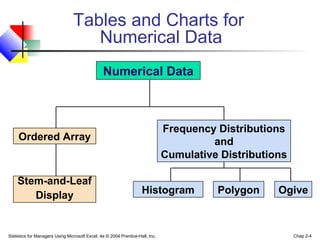
Tables and Charts for
Numerical Data
Numerical Data

Frequency Distributions
and
Cumulative Distributions

Ordered Array

Stem-and-Leaf
Display

Histogram

Statistics for Managers Using Microsoft Excel, 4e © 2004 Prentice-Hall, Inc.

Polygon

Ogive

Chap 2-4
The Ordered Array
A sorted list of data:
 Shows range (min to max)
 Provides some signals about variability
within the range
 May help identify outliers (unusual observations)
 If the data set is large, the ordered array is
less useful

Statistics for Managers Using Microsoft Excel, 4e © 2004 Prentice-Hall, Inc.

Chap 2-5
The Ordered Array
(continued)


Data in raw form (as collected):
24, 26, 24, 21, 27, 27, 30, 41, 32, 38



Data in ordered array from smallest to largest:
21, 24, 24, 26, 27, 27, 30, 32, 38, 41

Statistics for Managers Using Microsoft Excel, 4e © 2004 Prentice-Hall, Inc.

Chap 2-6
Stem-and-Leaf Diagram


A simple way to see distribution details in a
data set
METHOD: Separate the sorted data series
into leading digits (the stem) and
the trailing digits (the leaves)

Statistics for Managers Using Microsoft Excel, 4e © 2004 Prentice-Hall, Inc.

Chap 2-7
Example
Data in ordered array:
21, 24, 24, 26, 27, 27, 30, 32, 38, 41


Here, use the 10’s digit for the stem unit:
Stem Leaf


21 is shown as

2

1



38 is shown as

3

8

Statistics for Managers Using Microsoft Excel, 4e © 2004 Prentice-Hall, Inc.

Chap 2-8
Example
(continued)

Data in ordered array:
21, 24, 24, 26, 27, 27, 30, 32, 38, 41


Completed stem-and-leaf diagram:
Stem

Leaves

2

1 4 4 6 7 7

3

0 2 8

4

1

Statistics for Managers Using Microsoft Excel, 4e © 2004 Prentice-Hall, Inc.

Chap 2-9
Using other stem units


Using the 100’s digit as the stem:


Round off the 10’s digit to form the leaves
Stem

Leaf



613 would become

6

1



776 would become

7

8

12

2




...
1224 becomes

Statistics for Managers Using Microsoft Excel, 4e © 2004 Prentice-Hall, Inc.

Chap 2-10
Using other stem units
(continued)


Using the 100’s digit as the stem:


The completed stem-and-leaf display:
Data:

Statistics for Managers Using Microsoft Excel, 4e © 2004 Prentice-Hall, Inc.

Leaves
136

7

2258

8

346699

9

13368

10

356

11

47

12

613, 632, 658, 717,
722, 750, 776, 827,
841, 859, 863, 891,
894, 906, 928, 933,
955, 982, 1034,
1047,1056, 1140,
1169, 1224

Stem
6

2
Chap 2-11
Tabulating Numerical Data:
Frequency Distributions
What is a Frequency Distribution?


A frequency distribution is a list or a table …



containing class groupings (categories or
ranges within which the data falls) ...



and the corresponding frequencies with which
data falls within each grouping or category

Statistics for Managers Using Microsoft Excel, 4e © 2004 Prentice-Hall, Inc.

Chap 2-12
Why Use Frequency Distributions?



A frequency distribution is a way to
summarize data



The distribution condenses the raw data
into a more useful form...



and allows for a quick visual interpretation
of the data

Statistics for Managers Using Microsoft Excel, 4e © 2004 Prentice-Hall, Inc.

Chap 2-13
Class Intervals
and Class Boundaries



Each class grouping has the same width
Determine the width of each interval by
range
Width of int erval ≅
number of desired class groupings





Use at least 5 but no more than 15 groupings
Class boundaries never overlap
Round up the interval width to get desirable
endpoints

Statistics for Managers Using Microsoft Excel, 4e © 2004 Prentice-Hall, Inc.

Chap 2-14
Frequency Distribution Example
Example: A manufacturer of insulation randomly
selects 20 winter days and records the daily
high temperature
24, 35, 17, 21, 24, 37, 26, 46, 58, 30,
32, 13, 12, 38, 41, 43, 44, 27, 53, 27

Statistics for Managers Using Microsoft Excel, 4e © 2004 Prentice-Hall, Inc.

Chap 2-15
Frequency Distribution Example
(continued)


Sort raw data in ascending order:
12, 13, 17, 21, 24, 24, 26, 27, 27, 30, 32, 35, 37, 38, 41, 43, 44, 46, 53, 58



Find range: 58 - 12 = 46



Select number of classes: 5 (usually between 5 and 15)
Compute class interval (width): 10 (46/5 then round up)
Determine class boundaries (limits): 10, 20, 30, 40, 50, 60
Compute class midpoints: 15, 25, 35, 45, 55






Count observations & assign to classes

Statistics for Managers Using Microsoft Excel, 4e © 2004 Prentice-Hall, Inc.

Chap 2-16
Frequency Distribution Example
(continued)

Data in ordered array:
12, 13, 17, 21, 24, 24, 26, 27, 27, 30, 32, 35, 37, 38, 41, 43, 44, 46, 53, 58

Frequency

Relative
Frequency

Percentage

10 but less than 20
20 but less than 30
30 but less than 40

3
6
5

.15
.30
.25

15
30
25

40 but less than 50
50 but less than 60

4
2

.20
.10

20
10

Class

Statistics for Managers Using Microsoft Excel, 4e © 2004 Prentice-Hall, Inc.

Chap 2-17
Graphing Numerical Data:
The Histogram


A graph of the data in a frequency distribution
is called a histogram



The class boundaries (or class midpoints)
are shown on the horizontal axis



the vertical axis is either frequency, relative
frequency, or percentage



Bars of the appropriate heights are used to
represent the number of observations within
each class

Statistics for Managers Using Microsoft Excel, 4e © 2004 Prentice-Hall, Inc.

Chap 2-18
Histogram Example
Class
Midpoint Frequency

10 but less than 20
20 but less than 30
30 but less than 40
40 but less than 50
50 but less than 60

(No gaps
between
bars)

15
25
35
45
55

3
6
5
4
2

Histogram : Daily High Tem perature
7

6

6
Frequency

Class

5

5

4

4
3

3
2

2
1

0

0

0

Statistics for Managers Using Microsoft Excel, 4e © 2004 Prentice-Hall, Inc.

5

15

25

35

45

Class Midpoints

55

More
Chap 2-19
Histograms in Excel

1
Select
Tools/Data Analysis

Statistics for Managers Using Microsoft Excel, 4e © 2004 Prentice-Hall, Inc.

Chap 2-20
Histograms in Excel
(continued)

2
Choose Histogram

(
3

Input data range and bin
range (bin range is a cell
range containing the upper class
boundaries for each class
grouping)

Select Chart Output
and click “OK”
Statistics for Managers Using Microsoft Excel, 4e © 2004 Prentice-Hall, Inc.

Chap 2-21
Questions for Grouping Data
into Classes


1. How wide should each interval be?
(How many classes should be used?)



2. How should the endpoints of the
intervals be determined?






Often answered by trial and error, subject to
user judgment
The goal is to create a distribution that is
neither too "jagged" nor too "blocky”
Goal is to appropriately show the pattern of
variation in the data

Statistics for Managers Using Microsoft Excel, 4e © 2004 Prentice-Hall, Inc.

Chap 2-22
How Many Class Intervals?
Many (Narrow class intervals)

3
2.5
2
1.5
1
0.5
More

60

56

52

48

44

40

36

32

28

24

20

16

8

0
4



may yield a very jagged distribution
with gaps from empty classes
Can give a poor indication of how
frequency varies across classes

12



3.5

Frequency



Temperature

Few (Wide class intervals)




may compress variation too much and
yield a blocky distribution
can obscure important patterns of
variation.

12
10
Frequency



8
6
4
2
0
0

30

60

More

Temperature

(X axis labels are upper class endpoints)

Statistics for Managers Using Microsoft Excel, 4e © 2004 Prentice-Hall, Inc.

Chap 2-23
Graphing Numerical Data:
The Frequency Polygon
Class
Midpoint Frequency

Class
10 but less than 20
20 but less than 30
30 but less than 40
40 but less than 50
50 but less than 60

15
25
35
45
55

3
6
5
4
2

Frequency Polygon: Daily High Temperature
7
6

(In a percentage
polygon the vertical axis
would be defined to
show the percentage of
observations per class)

Frequency

5
4
3
2
1
0

Statistics for Managers Using Microsoft Excel, 4e © 2004 Prentice-Hall, Inc.

5

15

25

35

Class Midpoints

45

55

More
Chap 2-24
Tabulating Numerical Data:
Cumulative Frequency
Data in ordered array:
12, 13, 17, 21, 24, 24, 26, 27, 27, 30, 32, 35, 37, 38, 41, 43, 44, 46, 53, 58

Class

Frequency Percentage

Cumulative Cumulative
Frequency Percentage

10 but less than 20

3

15

3

15

20 but less than 30

6

30

9

45

30 but less than 40

5

25

14

70

40 but less than 50

4

20

18

90

50 but less than 60

2

10

20

100

20

100

Total

Statistics for Managers Using Microsoft Excel, 4e © 2004 Prentice-Hall, Inc.

Chap 2-25
Graphing Cumulative Frequencies:
The Ogive (Cumulative % Polygon)

Less than 10
10 but less than 20
20 but less than 30
30 but less than 40
40 but less than 50
50 but less than 60

10
20
30
40
50
60

0
15
45
70
90
100

Ogive: Daily High Temperature
Cumulative Percentage

Class

Lower
Cumulative
class
boundary Percentage

100
80
60
40
20
0
10

20

30

40

50

60

Class Boundaries (Not Midpoints)
Statistics for Managers Using Microsoft Excel, 4e © 2004 Prentice-Hall, Inc.

Chap 2-26
Scatter Diagrams


Scatter Diagrams are used for
bivariate numerical data




Bivariate data consists of paired
observations taken from two numerical
variables

The Scatter Diagram:
 one variable is measured on the vertical
axis and the other variable is measured
on the horizontal axis

Statistics for Managers Using Microsoft Excel, 4e © 2004 Prentice-Hall, Inc.

Chap 2-27
Scatter Diagram Example
Cost per Day vs. Production Volume

Cost per
day

23

125

250

26

140

200

29

146

33

160

38

167

42

170

50

188

55

195

60

200

Cost per Day

Volume
per day

150
100
50
0
0

10

Statistics for Managers Using Microsoft Excel, 4e © 2004 Prentice-Hall, Inc.

20

30

40

50

60

70

Volume per Day

Chap 2-28
Scatter Diagrams in Excel
1
Select the chart wizard

2
Select XY(Scatter) option,
then click “Next”

3
When prompted, enter the
data range, desired
legend, and desired
destination to complete
the scatter diagram
Statistics for Managers Using Microsoft Excel, 4e © 2004 Prentice-Hall, Inc.

Chap 2-29
Tables and Charts for
Categorical Data
Categorical
Data

Graphing Data

Tabulating Data
Summary
Table

Bar
Charts

Statistics for Managers Using Microsoft Excel, 4e © 2004 Prentice-Hall, Inc.

Pie
Charts

Pareto
Diagram

Chap 2-30
The Summary Table
Summarize data by category
Example: Current Investment Portfolio
Investment
Amount
Percentage
Type
(in thousands $)
(%)

(Variables are
Categorical)

Stocks
Bonds
CD
Savings

46.5
32.0
15.5
16.0

42.27
29.09
14.09
14.55

Total

110.0

100.0

Statistics for Managers Using Microsoft Excel, 4e © 2004 Prentice-Hall, Inc.

Chap 2-31
Bar and Pie Charts


Bar charts and Pie charts are often used
for qualitative (category) data



Height of bar or size of pie slice shows
the frequency or percentage for each
category

Statistics for Managers Using Microsoft Excel, 4e © 2004 Prentice-Hall, Inc.

Chap 2-32
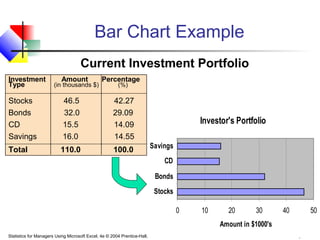
Bar Chart Example
Current Investment Portfolio
Investment
Type

Amount

(in thousands $)

Percentage
(%)

Stocks
Bonds
CD
Savings

46.5
32.0
15.5
16.0

42.27
29.09
14.09
14.55

Total

110.0

100.0

Investor's Portfolio
Savings
CD
Bonds
Stocks
0

10

20

30

40

50

Amount in $1000's
Statistics for Managers Using Microsoft Excel, 4e © 2004 Prentice-Hall, Inc.

Chap 2-33
Pie Chart Example
Current Investment Portfolio
Investment
Type

Amount

(in thousands $)

Percentage
(%)

Stocks
Bonds
CD
Savings

46.5
32.0
15.5
16.0

42.27
29.09
14.09
14.55

Total

110.0

100.0

Savings
15%
CD
14%

Bonds
29%
Statistics for Managers Using Microsoft Excel, 4e © 2004 Prentice-Hall, Inc.

Stocks
42%

Percentages
are rounded to
the nearest
percent
Chap 2-34
Pareto Diagram


Used to portray categorical data



A bar chart, where categories are shown in
descending order of frequency



A cumulative polygon is often shown in the
same graph



Used to separate the “vital few” from the “trivial
many”

Statistics for Managers Using Microsoft Excel, 4e © 2004 Prentice-Hall, Inc.

Chap 2-35
Pareto Diagram Example
Current Investment Portfolio
100%

40%

90%

80%

35%

70%
30%
60%
25%
50%
20%
40%
15%
30%
10%

20%

5%

10%

0%

cumulative % invested
(line graph)

% invested in each category (bar
graph)

45%

0%
Stocks

Bonds

Statistics for Managers Using Microsoft Excel, 4e © 2004 Prentice-Hall, Inc.

Savings

CD

Chap 2-36
Tabulating and Graphing
Multivariate Categorical Data


Contingency Table for Investment Choices ($1000’s)

Investment
Category

Investor A

Investor B

Investor C

Total

Stocks

46.5

55

27.5

129

Bonds
CD
Savings

32.0
15.5
16.0

44
20
28

19.0
13.5
7.0

95
49
51

Total

110.0

147

67.0

324

(Individual values could also be expressed as percentages of the overall total,
percentages of the row totals, or percentages of the column totals)
Statistics for Managers Using Microsoft Excel, 4e © 2004 Prentice-Hall, Inc.

Chap 2-37
Tabulating and Graphing
Multivariate Categorical Data
(continued)


Side by side bar charts
Comparing Investors
S avings
CD
B onds
S toc k s
0

10

20

Inves tor A
Statistics for Managers Using Microsoft Excel, 4e © 2004 Prentice-Hall, Inc.

30
Inves tor B

40

50

60

Inves tor C
Chap 2-38
Side-by-Side Chart Example


Sales by quarter for three sales territories:
East
West
North

1st Qtr
2nd Qtr
3rd Qtr
4th Qtr
20.4
27.4
59
20.4
30.6
38.6
34.6
31.6
45.9
46.9
45
43.9

60
50
40

East
West
Nor t h

30
20
10
0

1st Qt r

2nd Qt r

Statistics for Managers Using Microsoft Excel, 4e © 2004 Prentice-Hall, Inc.

3rd Qt r

4t h Qt r
Chap 2-39
Principles of Graphical Excellence










Present data in a way that provides substance,
statistics and design
Communicate complex ideas with clarity,
precision and efficiency
Give the largest number of ideas in the most
efficient manner
Excellence almost always involves several
dimensions
Tell the truth about the data

Statistics for Managers Using Microsoft Excel, 4e © 2004 Prentice-Hall, Inc.

Chap 2-40
Errors in Presenting Data


Using “chart junk”



Failing to provide a relative
basis in comparing data
between groups



Compressing or distorting the vertical axis



Providing no zero point on the vertical axis

Statistics for Managers Using Microsoft Excel, 4e © 2004 Prentice-Hall, Inc.

Chap 2-41
Chart Junk
Bad Presentation

Good Presentation


Minimum Wage
1960: $1.00
1970: $1.60
1980: $3.10

$

Minimum Wage

4
2
0
1960

1970

1980

1990

1990: $3.80
Statistics for Managers Using Microsoft Excel, 4e © 2004 Prentice-Hall, Inc.

Chap 2-42
No Relative Basis

listen

Bad Presentation
Freq.
300
200
100
0

A’s received by
students.

 Good Presentation
%
30%

A’s received by
students.

20%
10%
FR SO

JR SR

0%

FR SO JR SR

FR = Freshmen, SO = Sophomore, JR = Junior, SR = Senior
Statistics for Managers Using Microsoft Excel, 4e © 2004 Prentice-Hall, Inc.

Chap 2-43
Compressing Vertical Axis
Bad Presentation
200

$

Good Presentation

Quarterly Sales
50

100

25

0

$

Quarterly Sales

0
Q1 Q2

Q3 Q4

Statistics for Managers Using Microsoft Excel, 4e © 2004 Prentice-Hall, Inc.

Q1

Q2

Q3 Q4

Chap 2-44
No Zero Point On Vertical Axis
Bad Presentation

$Good Presentations
Monthly Sales

45

45

$

Monthly Sales

39
36

42

0

39
36

42

J

or

J F M A M J

F

J

F

M

A

M

J

$

60
40

Graphing the first six months of sales

20
0

Statistics for Managers Using Microsoft Excel, 4e © 2004 Prentice-Hall, Inc.

M

A

M

J

Chap 2-45
Chapter Summary


Data in raw form are usually not easy to use for
decision making -- Some type of organization is
needed:
♦ Table
♦ Graph



Techniques reviewed in this chapter:







Ordered array and stem-and-leaf display
Frequency distributions and histograms
Percentage polygons and ogives
Scatter diagrams for bivariate data
Bar charts, pie charts, and Pareto diagrams
Contingency tables and side-by-side bar charts

Statistics for Managers Using Microsoft Excel, 4e © 2004 Prentice-Hall, Inc.

Chap 2-46

Chap02 presenting data in chart & tables

  • 1.
    Statistics for Managers UsingMicrosoft® Excel 4th Edition Chapter 2 Presenting Data in Tables and Charts Statistics for Managers Using Microsoft Excel, 4e © 2004 Prentice-Hall, Inc. Chap 2-1
  • 2.
    Chapter Goals After completingthis chapter, you should be able to:  Create an ordered array and a stem-and-leaf display  Construct and interpret a frequency distribution, polygon, and ogive  Construct a histogram  Create and interpret bar charts, pie charts, and scatter diagrams  Present and interpret category data in bar charts and pie charts  Describe appropriate and inappropriate ways to display data graphically Statistics for Managers Using Microsoft Excel, 4e © 2004 Prentice-Hall, Inc. Chap 2-2
  • 3.
    Organizing and Presenting DataGraphically  Data in raw form are usually not easy to use for decision making  Some type of organization is needed    Table Graph Techniques reviewed here:      Ordered Array Stem-and-Leaf Display Frequency Distributions and Histograms Bar charts and pie charts Contingency tables Statistics for Managers Using Microsoft Excel, 4e © 2004 Prentice-Hall, Inc. Chap 2-3
  • 4.
    Tables and Chartsfor Numerical Data Numerical Data Frequency Distributions and Cumulative Distributions Ordered Array Stem-and-Leaf Display Histogram Statistics for Managers Using Microsoft Excel, 4e © 2004 Prentice-Hall, Inc. Polygon Ogive Chap 2-4
  • 5.
    The Ordered Array Asorted list of data:  Shows range (min to max)  Provides some signals about variability within the range  May help identify outliers (unusual observations)  If the data set is large, the ordered array is less useful Statistics for Managers Using Microsoft Excel, 4e © 2004 Prentice-Hall, Inc. Chap 2-5
  • 6.
    The Ordered Array (continued)  Datain raw form (as collected): 24, 26, 24, 21, 27, 27, 30, 41, 32, 38  Data in ordered array from smallest to largest: 21, 24, 24, 26, 27, 27, 30, 32, 38, 41 Statistics for Managers Using Microsoft Excel, 4e © 2004 Prentice-Hall, Inc. Chap 2-6
  • 7.
    Stem-and-Leaf Diagram  A simpleway to see distribution details in a data set METHOD: Separate the sorted data series into leading digits (the stem) and the trailing digits (the leaves) Statistics for Managers Using Microsoft Excel, 4e © 2004 Prentice-Hall, Inc. Chap 2-7
  • 8.
    Example Data in orderedarray: 21, 24, 24, 26, 27, 27, 30, 32, 38, 41  Here, use the 10’s digit for the stem unit: Stem Leaf  21 is shown as 2 1  38 is shown as 3 8 Statistics for Managers Using Microsoft Excel, 4e © 2004 Prentice-Hall, Inc. Chap 2-8
  • 9.
    Example (continued) Data in orderedarray: 21, 24, 24, 26, 27, 27, 30, 32, 38, 41  Completed stem-and-leaf diagram: Stem Leaves 2 1 4 4 6 7 7 3 0 2 8 4 1 Statistics for Managers Using Microsoft Excel, 4e © 2004 Prentice-Hall, Inc. Chap 2-9
  • 10.
    Using other stemunits  Using the 100’s digit as the stem:  Round off the 10’s digit to form the leaves Stem Leaf  613 would become 6 1  776 would become 7 8 12 2   ... 1224 becomes Statistics for Managers Using Microsoft Excel, 4e © 2004 Prentice-Hall, Inc. Chap 2-10
  • 11.
    Using other stemunits (continued)  Using the 100’s digit as the stem:  The completed stem-and-leaf display: Data: Statistics for Managers Using Microsoft Excel, 4e © 2004 Prentice-Hall, Inc. Leaves 136 7 2258 8 346699 9 13368 10 356 11 47 12 613, 632, 658, 717, 722, 750, 776, 827, 841, 859, 863, 891, 894, 906, 928, 933, 955, 982, 1034, 1047,1056, 1140, 1169, 1224 Stem 6 2 Chap 2-11
  • 12.
    Tabulating Numerical Data: FrequencyDistributions What is a Frequency Distribution?  A frequency distribution is a list or a table …  containing class groupings (categories or ranges within which the data falls) ...  and the corresponding frequencies with which data falls within each grouping or category Statistics for Managers Using Microsoft Excel, 4e © 2004 Prentice-Hall, Inc. Chap 2-12
  • 13.
    Why Use FrequencyDistributions?  A frequency distribution is a way to summarize data  The distribution condenses the raw data into a more useful form...  and allows for a quick visual interpretation of the data Statistics for Managers Using Microsoft Excel, 4e © 2004 Prentice-Hall, Inc. Chap 2-13
  • 14.
    Class Intervals and ClassBoundaries   Each class grouping has the same width Determine the width of each interval by range Width of int erval ≅ number of desired class groupings    Use at least 5 but no more than 15 groupings Class boundaries never overlap Round up the interval width to get desirable endpoints Statistics for Managers Using Microsoft Excel, 4e © 2004 Prentice-Hall, Inc. Chap 2-14
  • 15.
    Frequency Distribution Example Example:A manufacturer of insulation randomly selects 20 winter days and records the daily high temperature 24, 35, 17, 21, 24, 37, 26, 46, 58, 30, 32, 13, 12, 38, 41, 43, 44, 27, 53, 27 Statistics for Managers Using Microsoft Excel, 4e © 2004 Prentice-Hall, Inc. Chap 2-15
  • 16.
    Frequency Distribution Example (continued)  Sortraw data in ascending order: 12, 13, 17, 21, 24, 24, 26, 27, 27, 30, 32, 35, 37, 38, 41, 43, 44, 46, 53, 58  Find range: 58 - 12 = 46  Select number of classes: 5 (usually between 5 and 15) Compute class interval (width): 10 (46/5 then round up) Determine class boundaries (limits): 10, 20, 30, 40, 50, 60 Compute class midpoints: 15, 25, 35, 45, 55     Count observations & assign to classes Statistics for Managers Using Microsoft Excel, 4e © 2004 Prentice-Hall, Inc. Chap 2-16
  • 17.
    Frequency Distribution Example (continued) Datain ordered array: 12, 13, 17, 21, 24, 24, 26, 27, 27, 30, 32, 35, 37, 38, 41, 43, 44, 46, 53, 58 Frequency Relative Frequency Percentage 10 but less than 20 20 but less than 30 30 but less than 40 3 6 5 .15 .30 .25 15 30 25 40 but less than 50 50 but less than 60 4 2 .20 .10 20 10 Class Statistics for Managers Using Microsoft Excel, 4e © 2004 Prentice-Hall, Inc. Chap 2-17
  • 18.
    Graphing Numerical Data: TheHistogram  A graph of the data in a frequency distribution is called a histogram  The class boundaries (or class midpoints) are shown on the horizontal axis  the vertical axis is either frequency, relative frequency, or percentage  Bars of the appropriate heights are used to represent the number of observations within each class Statistics for Managers Using Microsoft Excel, 4e © 2004 Prentice-Hall, Inc. Chap 2-18
  • 19.
    Histogram Example Class Midpoint Frequency 10but less than 20 20 but less than 30 30 but less than 40 40 but less than 50 50 but less than 60 (No gaps between bars) 15 25 35 45 55 3 6 5 4 2 Histogram : Daily High Tem perature 7 6 6 Frequency Class 5 5 4 4 3 3 2 2 1 0 0 0 Statistics for Managers Using Microsoft Excel, 4e © 2004 Prentice-Hall, Inc. 5 15 25 35 45 Class Midpoints 55 More Chap 2-19
  • 20.
    Histograms in Excel 1 Select Tools/DataAnalysis Statistics for Managers Using Microsoft Excel, 4e © 2004 Prentice-Hall, Inc. Chap 2-20
  • 21.
    Histograms in Excel (continued) 2 ChooseHistogram ( 3 Input data range and bin range (bin range is a cell range containing the upper class boundaries for each class grouping) Select Chart Output and click “OK” Statistics for Managers Using Microsoft Excel, 4e © 2004 Prentice-Hall, Inc. Chap 2-21
  • 22.
    Questions for GroupingData into Classes  1. How wide should each interval be? (How many classes should be used?)  2. How should the endpoints of the intervals be determined?    Often answered by trial and error, subject to user judgment The goal is to create a distribution that is neither too "jagged" nor too "blocky” Goal is to appropriately show the pattern of variation in the data Statistics for Managers Using Microsoft Excel, 4e © 2004 Prentice-Hall, Inc. Chap 2-22
  • 23.
    How Many ClassIntervals? Many (Narrow class intervals) 3 2.5 2 1.5 1 0.5 More 60 56 52 48 44 40 36 32 28 24 20 16 8 0 4  may yield a very jagged distribution with gaps from empty classes Can give a poor indication of how frequency varies across classes 12  3.5 Frequency  Temperature Few (Wide class intervals)   may compress variation too much and yield a blocky distribution can obscure important patterns of variation. 12 10 Frequency  8 6 4 2 0 0 30 60 More Temperature (X axis labels are upper class endpoints) Statistics for Managers Using Microsoft Excel, 4e © 2004 Prentice-Hall, Inc. Chap 2-23
  • 24.
    Graphing Numerical Data: TheFrequency Polygon Class Midpoint Frequency Class 10 but less than 20 20 but less than 30 30 but less than 40 40 but less than 50 50 but less than 60 15 25 35 45 55 3 6 5 4 2 Frequency Polygon: Daily High Temperature 7 6 (In a percentage polygon the vertical axis would be defined to show the percentage of observations per class) Frequency 5 4 3 2 1 0 Statistics for Managers Using Microsoft Excel, 4e © 2004 Prentice-Hall, Inc. 5 15 25 35 Class Midpoints 45 55 More Chap 2-24
  • 25.
    Tabulating Numerical Data: CumulativeFrequency Data in ordered array: 12, 13, 17, 21, 24, 24, 26, 27, 27, 30, 32, 35, 37, 38, 41, 43, 44, 46, 53, 58 Class Frequency Percentage Cumulative Cumulative Frequency Percentage 10 but less than 20 3 15 3 15 20 but less than 30 6 30 9 45 30 but less than 40 5 25 14 70 40 but less than 50 4 20 18 90 50 but less than 60 2 10 20 100 20 100 Total Statistics for Managers Using Microsoft Excel, 4e © 2004 Prentice-Hall, Inc. Chap 2-25
  • 26.
    Graphing Cumulative Frequencies: TheOgive (Cumulative % Polygon) Less than 10 10 but less than 20 20 but less than 30 30 but less than 40 40 but less than 50 50 but less than 60 10 20 30 40 50 60 0 15 45 70 90 100 Ogive: Daily High Temperature Cumulative Percentage Class Lower Cumulative class boundary Percentage 100 80 60 40 20 0 10 20 30 40 50 60 Class Boundaries (Not Midpoints) Statistics for Managers Using Microsoft Excel, 4e © 2004 Prentice-Hall, Inc. Chap 2-26
  • 27.
    Scatter Diagrams  Scatter Diagramsare used for bivariate numerical data   Bivariate data consists of paired observations taken from two numerical variables The Scatter Diagram:  one variable is measured on the vertical axis and the other variable is measured on the horizontal axis Statistics for Managers Using Microsoft Excel, 4e © 2004 Prentice-Hall, Inc. Chap 2-27
  • 28.
    Scatter Diagram Example Costper Day vs. Production Volume Cost per day 23 125 250 26 140 200 29 146 33 160 38 167 42 170 50 188 55 195 60 200 Cost per Day Volume per day 150 100 50 0 0 10 Statistics for Managers Using Microsoft Excel, 4e © 2004 Prentice-Hall, Inc. 20 30 40 50 60 70 Volume per Day Chap 2-28
  • 29.
    Scatter Diagrams inExcel 1 Select the chart wizard 2 Select XY(Scatter) option, then click “Next” 3 When prompted, enter the data range, desired legend, and desired destination to complete the scatter diagram Statistics for Managers Using Microsoft Excel, 4e © 2004 Prentice-Hall, Inc. Chap 2-29
  • 30.
    Tables and Chartsfor Categorical Data Categorical Data Graphing Data Tabulating Data Summary Table Bar Charts Statistics for Managers Using Microsoft Excel, 4e © 2004 Prentice-Hall, Inc. Pie Charts Pareto Diagram Chap 2-30
  • 31.
    The Summary Table Summarizedata by category Example: Current Investment Portfolio Investment Amount Percentage Type (in thousands $) (%) (Variables are Categorical) Stocks Bonds CD Savings 46.5 32.0 15.5 16.0 42.27 29.09 14.09 14.55 Total 110.0 100.0 Statistics for Managers Using Microsoft Excel, 4e © 2004 Prentice-Hall, Inc. Chap 2-31
  • 32.
    Bar and PieCharts  Bar charts and Pie charts are often used for qualitative (category) data  Height of bar or size of pie slice shows the frequency or percentage for each category Statistics for Managers Using Microsoft Excel, 4e © 2004 Prentice-Hall, Inc. Chap 2-32
  • 33.
    Bar Chart Example CurrentInvestment Portfolio Investment Type Amount (in thousands $) Percentage (%) Stocks Bonds CD Savings 46.5 32.0 15.5 16.0 42.27 29.09 14.09 14.55 Total 110.0 100.0 Investor's Portfolio Savings CD Bonds Stocks 0 10 20 30 40 50 Amount in $1000's Statistics for Managers Using Microsoft Excel, 4e © 2004 Prentice-Hall, Inc. Chap 2-33
  • 34.
    Pie Chart Example CurrentInvestment Portfolio Investment Type Amount (in thousands $) Percentage (%) Stocks Bonds CD Savings 46.5 32.0 15.5 16.0 42.27 29.09 14.09 14.55 Total 110.0 100.0 Savings 15% CD 14% Bonds 29% Statistics for Managers Using Microsoft Excel, 4e © 2004 Prentice-Hall, Inc. Stocks 42% Percentages are rounded to the nearest percent Chap 2-34
  • 35.
    Pareto Diagram  Used toportray categorical data  A bar chart, where categories are shown in descending order of frequency  A cumulative polygon is often shown in the same graph  Used to separate the “vital few” from the “trivial many” Statistics for Managers Using Microsoft Excel, 4e © 2004 Prentice-Hall, Inc. Chap 2-35
  • 36.
    Pareto Diagram Example CurrentInvestment Portfolio 100% 40% 90% 80% 35% 70% 30% 60% 25% 50% 20% 40% 15% 30% 10% 20% 5% 10% 0% cumulative % invested (line graph) % invested in each category (bar graph) 45% 0% Stocks Bonds Statistics for Managers Using Microsoft Excel, 4e © 2004 Prentice-Hall, Inc. Savings CD Chap 2-36
  • 37.
    Tabulating and Graphing MultivariateCategorical Data  Contingency Table for Investment Choices ($1000’s) Investment Category Investor A Investor B Investor C Total Stocks 46.5 55 27.5 129 Bonds CD Savings 32.0 15.5 16.0 44 20 28 19.0 13.5 7.0 95 49 51 Total 110.0 147 67.0 324 (Individual values could also be expressed as percentages of the overall total, percentages of the row totals, or percentages of the column totals) Statistics for Managers Using Microsoft Excel, 4e © 2004 Prentice-Hall, Inc. Chap 2-37
  • 38.
    Tabulating and Graphing MultivariateCategorical Data (continued)  Side by side bar charts Comparing Investors S avings CD B onds S toc k s 0 10 20 Inves tor A Statistics for Managers Using Microsoft Excel, 4e © 2004 Prentice-Hall, Inc. 30 Inves tor B 40 50 60 Inves tor C Chap 2-38
  • 39.
    Side-by-Side Chart Example  Salesby quarter for three sales territories: East West North 1st Qtr 2nd Qtr 3rd Qtr 4th Qtr 20.4 27.4 59 20.4 30.6 38.6 34.6 31.6 45.9 46.9 45 43.9 60 50 40 East West Nor t h 30 20 10 0 1st Qt r 2nd Qt r Statistics for Managers Using Microsoft Excel, 4e © 2004 Prentice-Hall, Inc. 3rd Qt r 4t h Qt r Chap 2-39
  • 40.
    Principles of GraphicalExcellence      Present data in a way that provides substance, statistics and design Communicate complex ideas with clarity, precision and efficiency Give the largest number of ideas in the most efficient manner Excellence almost always involves several dimensions Tell the truth about the data Statistics for Managers Using Microsoft Excel, 4e © 2004 Prentice-Hall, Inc. Chap 2-40
  • 41.
    Errors in PresentingData  Using “chart junk”  Failing to provide a relative basis in comparing data between groups  Compressing or distorting the vertical axis  Providing no zero point on the vertical axis Statistics for Managers Using Microsoft Excel, 4e © 2004 Prentice-Hall, Inc. Chap 2-41
  • 42.
    Chart Junk Bad Presentation GoodPresentation  Minimum Wage 1960: $1.00 1970: $1.60 1980: $3.10 $ Minimum Wage 4 2 0 1960 1970 1980 1990 1990: $3.80 Statistics for Managers Using Microsoft Excel, 4e © 2004 Prentice-Hall, Inc. Chap 2-42
  • 43.
    No Relative Basis listen BadPresentation Freq. 300 200 100 0 A’s received by students.  Good Presentation % 30% A’s received by students. 20% 10% FR SO JR SR 0% FR SO JR SR FR = Freshmen, SO = Sophomore, JR = Junior, SR = Senior Statistics for Managers Using Microsoft Excel, 4e © 2004 Prentice-Hall, Inc. Chap 2-43
  • 44.
    Compressing Vertical Axis BadPresentation 200 $ Good Presentation Quarterly Sales 50 100 25 0 $ Quarterly Sales 0 Q1 Q2 Q3 Q4 Statistics for Managers Using Microsoft Excel, 4e © 2004 Prentice-Hall, Inc. Q1 Q2 Q3 Q4 Chap 2-44
  • 45.
    No Zero PointOn Vertical Axis Bad Presentation $Good Presentations Monthly Sales 45 45 $ Monthly Sales 39 36 42 0 39 36 42 J or J F M A M J F J F M A M J $ 60 40 Graphing the first six months of sales 20 0 Statistics for Managers Using Microsoft Excel, 4e © 2004 Prentice-Hall, Inc. M A M J Chap 2-45
  • 46.
    Chapter Summary  Data inraw form are usually not easy to use for decision making -- Some type of organization is needed: ♦ Table ♦ Graph  Techniques reviewed in this chapter:       Ordered array and stem-and-leaf display Frequency distributions and histograms Percentage polygons and ogives Scatter diagrams for bivariate data Bar charts, pie charts, and Pareto diagrams Contingency tables and side-by-side bar charts Statistics for Managers Using Microsoft Excel, 4e © 2004 Prentice-Hall, Inc. Chap 2-46

Editor's Notes