Introduction to Arc Catalog

  1.1   Introduction to Arc Catalog     2


  1.2   Starting ArcCatalog             2


  1.3   Why use ArcCatalog?             5


  1.4   Basic functions of ArcCatalog   10


                                         1
1.1       Introduction to ArcCatalog

       Topics:
       What do we use ArcCatalog for and getting familiar with the
       ArcCatalog interface and with its main functions, like map and
       (meta)data browsing and data exploration.


       Introduction


       In this exercise you will explore ArcCatalog and learn how it is
       used within
       the wider ArcGIS environment. You will practice the most
       important functions only. If necessary, additional functions will
       be introduced later in the course. First, you will familiarize with
       the interface, then with specific functions such     as browsing
       and exploring data, creating metadata, etc. Finally you will
       learn that ArcCatalog can be used as a gateway to ArcMap.


       Data necessary to complete this exercise can be found in this
       year’s Blackboard course Principles of Geographic Information
       Systems, under Assignments. Copy the entire folder “Exercise”
       to your personal directory


1.2     Starting ArcCatalog:
       the user interface
       Before you start working with the data, first have a look at the
       interface. We assume that this is the first time that you use the
       software. We will therefore briefly show the components of
       ArcCatalog’s desktop.


       Start ArcCatalog


                                                                           2
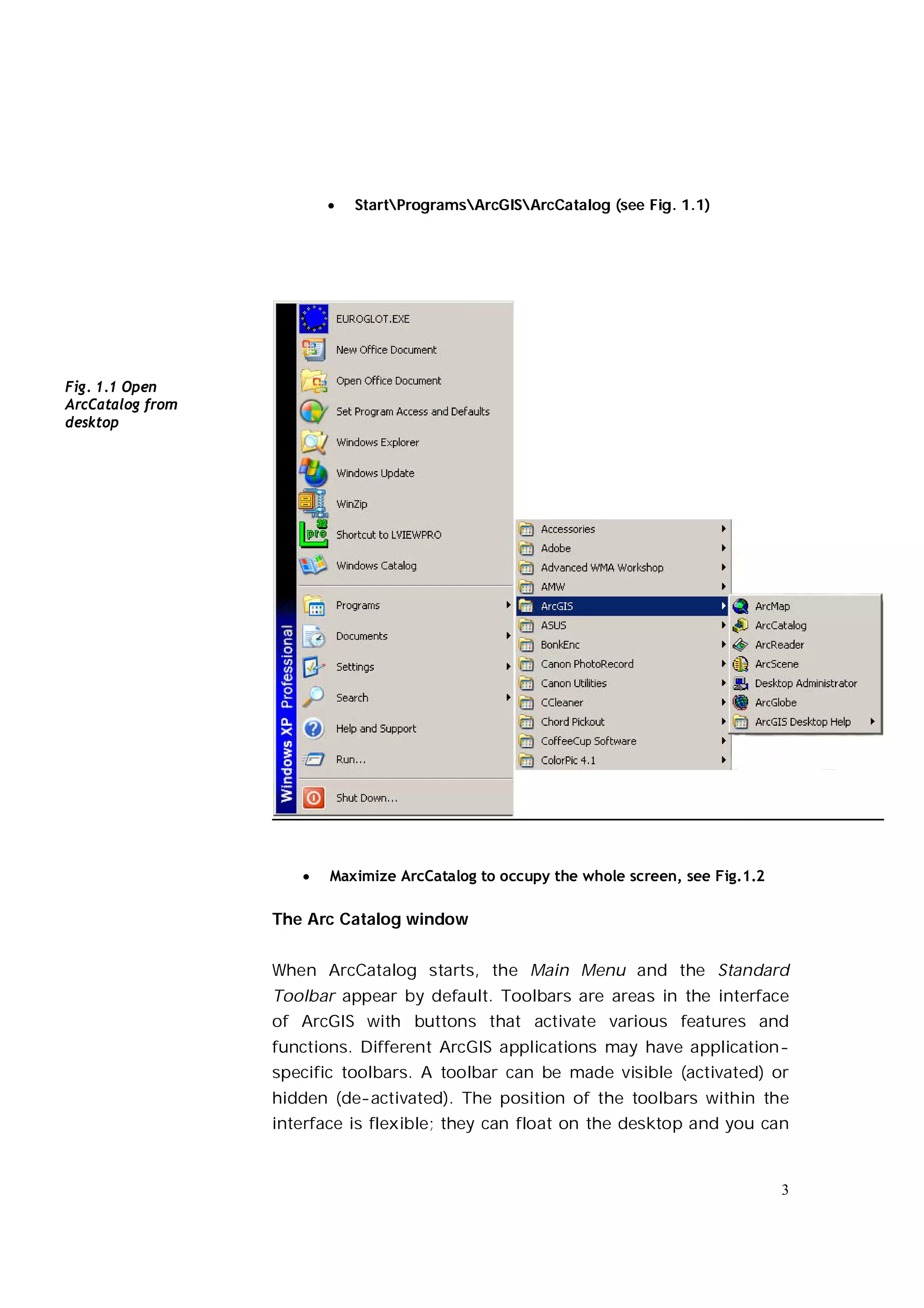
   StartProgramsArcGISArcCatalog (see Fig. 1.1)


Fig. 1.1 Open
ArcCatalog from
desktop


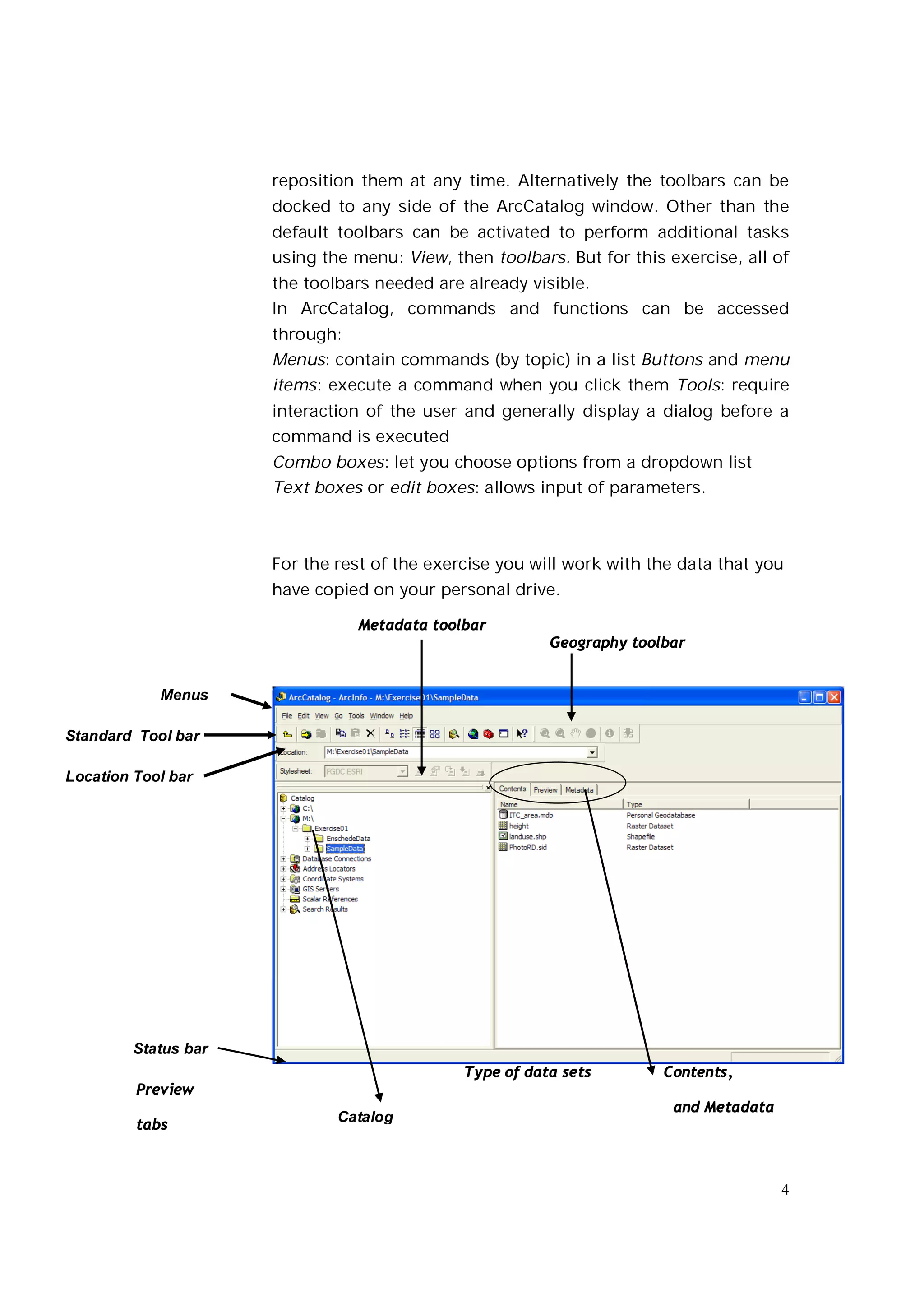
                        Maximize ArcCatalog to occupy the whole screen, see Fig.1.2

                  The Arc Catalog window


                  When ArcCatalog starts, the Main Menu and the Standard
                  Toolbar appear by default. Toolbars are areas in the interface
                  of ArcGIS with buttons that activate various features and
                  functions. Different ArcGIS applications may have application-
                  specific toolbars. A toolbar can be made visible (activated) or
                  hidden (de-activated). The position of the toolbars within the
                  interface is flexible; they can float on the desktop and you can


                                                                                       3
reposition them at any time. Alternatively the toolbars can be
                      docked to any side of the ArcCatalog window. Other than the
                      default toolbars can be activated to perform additional tasks
                      using the menu: View, then toolbars. But for this exercise, all of
                      the toolbars needed are already visible.
                      In ArcCatalog, commands and functions can be accessed
                      through:
                      Menus: contain commands (by topic) in a list Buttons and menu
                      items: execute a command when you click them Tools: require
                      interaction of the user and generally display a dialog before a
                      command is executed
                      Combo boxes: let you choose options from a dropdown list
                      Text boxes or edit boxes: allows input of parameters.


                      For the rest of the exercise you will work with the data that you
                      have copied on your personal drive.

                                 Metadata toolbar
                                                         Geography toolbar


            Menus

Standard Tool bar

Location Tool bar


         Status bar
                                              Type of data sets        Contents,
         Preview
                                                                         and Metadata
                              Catalog
         tabs


                                                                                        4
1.3       Why use ArcCatalog?


      ArcCatalog is a software designed for two main purposes:
      �    It allows you to manage, access, and explore existing
      geographic data irrespective of the format in which the data is
      stored or its location (on a local disc or on the network). You can
      best compare this with Windows Explorer, but specifically tailored
      to Geo-spatial data.
      � You can also change the structure of the data. For instance, you
      can create a new geodatabase, load existing data into your
      geodatabase and delete or add fields in attribute tables. This
      exercise mainly focuses on the exploratory part of ArcCatalog.


      Browse for maps and data


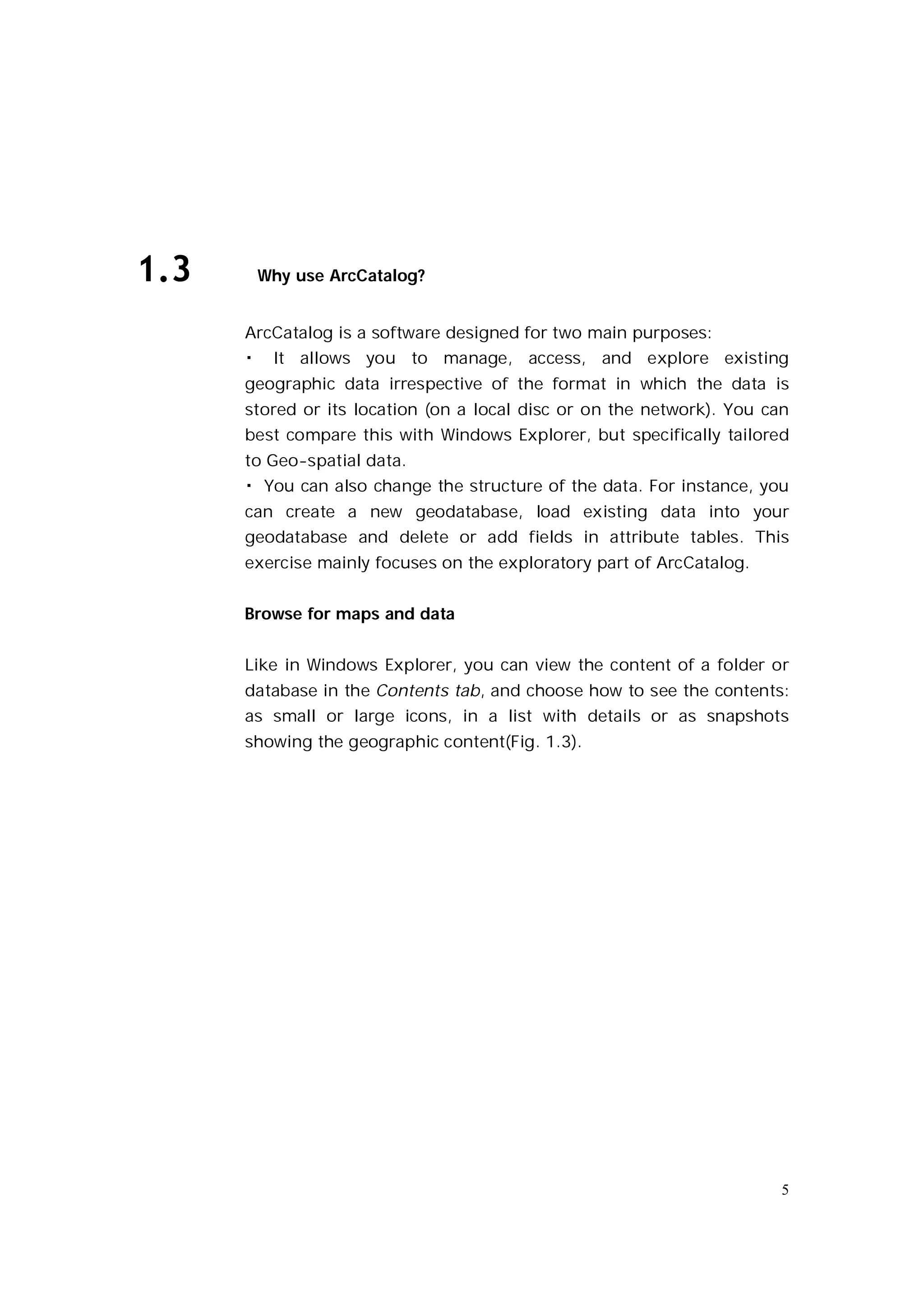
      Like in Windows Explorer, you can view the content of a folder or
      database in the Contents tab, and choose how to see the contents:
      as small or large icons, in a list with details or as snapshots
      showing the geographic content(Fig. 1.3).


                                                                        5
Fig. 1.3 ‘Snapshot’ Preview of
various types of geographic
data which can be managed
with ArcCatalog


                                 Explore the data


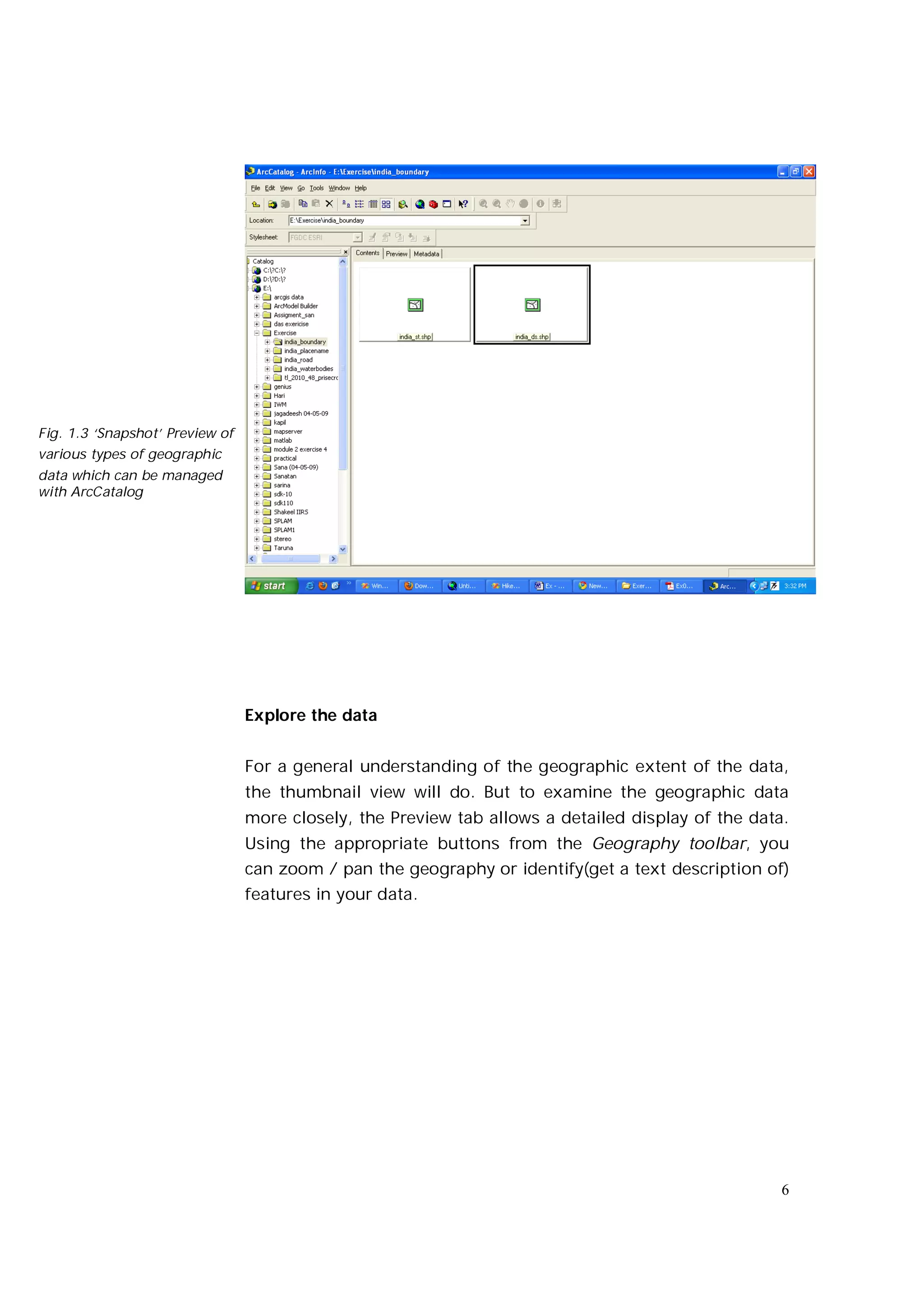
                                 For a general understanding of the geographic extent of the data,
                                 the thumbnail view will do. But to examine the geographic data
                                 more closely, the Preview tab allows a detailed display of the data.
                                 Using the appropriate buttons from the Geography toolbar, you
                                 can zoom / pan the geography or identify(get a text description of)
                                 features in your data.


                                                                                                    6
Fig.1.4 Detailed Preview
of the geographic data


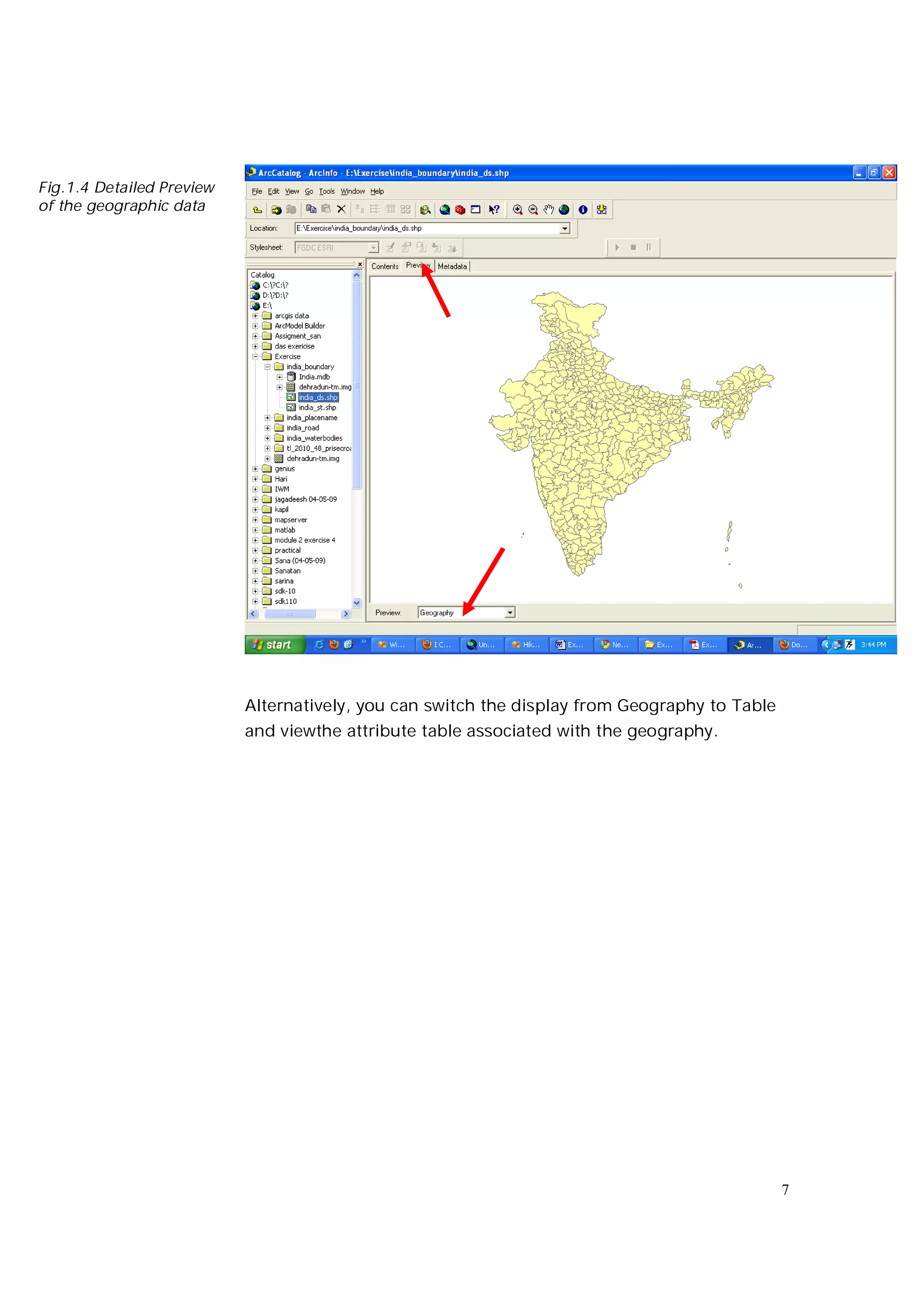
                           Alternatively, you can switch the display from Geography to Table
                           and viewthe attribute table associated with the geography.


                                                                                               7
Fig. 1.5 Preview of the
attributes associated
with the geographic


                          View and create metadata


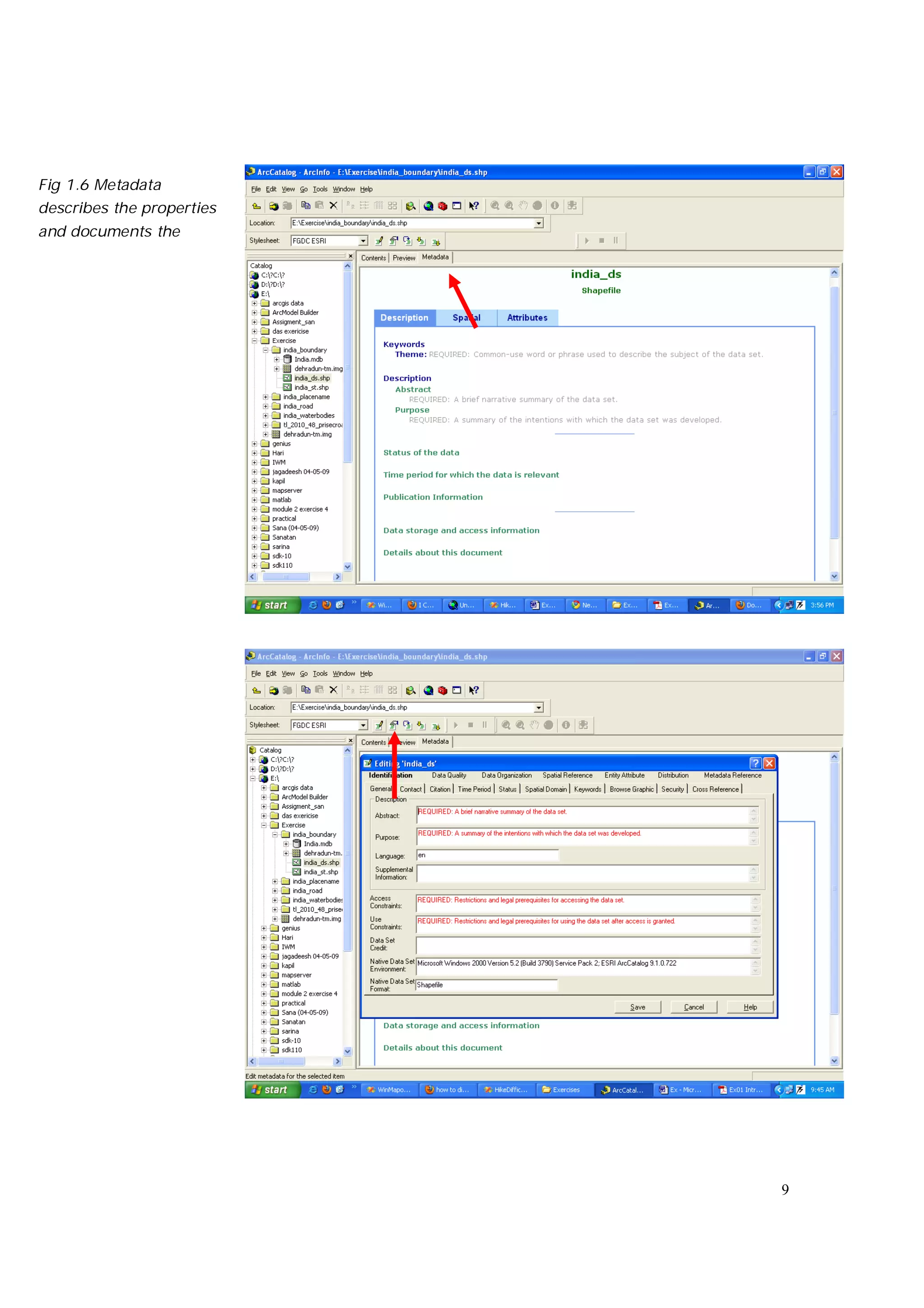
                          Metadata contains properties and documentation describing the
                          data. Properties are derived from the data source, like data type
                          (e.g. shapefile) and geometry type (e.g. polygon). Documentation
                          is additional information that helps to understand origin and
                          content: e.g. title, summary description, ownership ,publication
                          date, language of the dataset; date of metadata creation. A
                          popular definition of metadata is ‘data about data’.


                                                                                          8
Fig 1.6 Metadata
describes the properties
and documents the


                           9
ArcCatalog has a built-in metadata editor. The metadata editor can
      be used to store additional information or to create new metadata
      when no metadata exist.


      ArcCatalog as a gateway to ArcMap


      Once you have examined the data using ArcCatalog, you may want
      to do some analyses, or create a map using ArcMap. You can open
      ArcMap by:
      � double-clicking on an ArcMap document. ArcMap documents
      can be recognized by the following icon and the extension .mxd.
      � pressing the ArcMap button on the Standard toolbar.


      Manage data sources


      Arc Catalog contains functionalities to manage and organize your
      data. Management functions include deleting, copying or renaming
      data sets. To organize a well-ordered library of spatial data (either
      on your local hard drive or in the network environment) ArcCatalog
      includes functions such as creating new folders and new geo-
      databases.


1.4   Basic functions of ArcCatalog
       You will now use some basic functions to illustrate some of the
       functionalitiesmentioned in the previous section.

      Browse for maps and data


      To browse data, you first have to establish a connection to the location
      where the data is stored. This location can be a local disk (C: or D: rive)
      some network drive. You were asked to copy the data from Blackboard to
      your personal directory - on x: - so you have to establish a connection
      to your   M: drive:


                                                                                 10
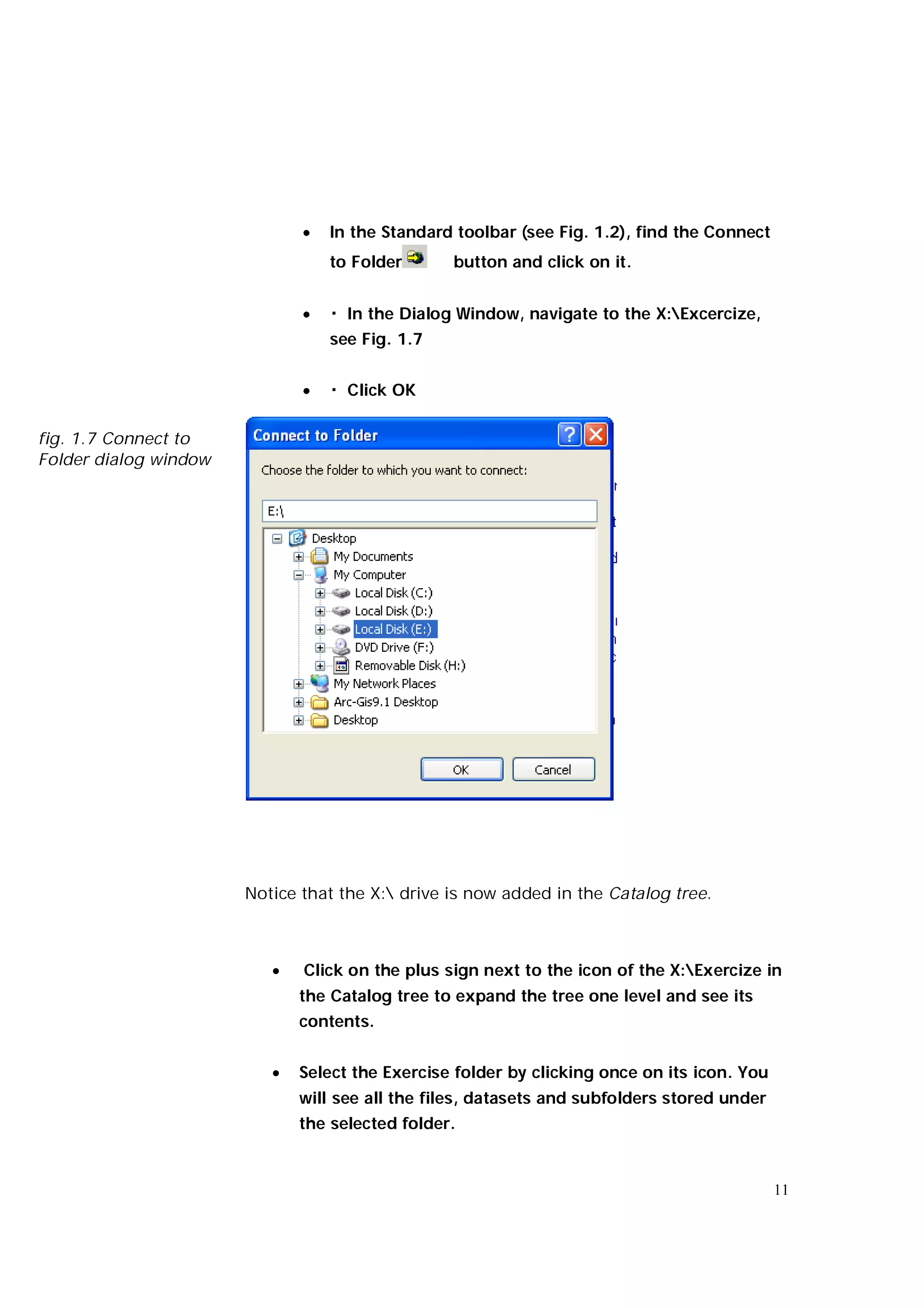
   In the Standard toolbar (see Fig. 1.2), find the Connect
                                  to Folder      button and click on it.


                                 � In the Dialog Window, navigate to the X:Excercize,
                                  see Fig. 1.7


                                 � Click OK

fig. 1.7 Connect to
Folder dialog window


                       Notice that the X: drive is now added in the Catalog tree.


                             Click on the plus sign next to the icon of the X:Exercize in
                              the Catalog tree to expand the tree one level and see its
                              contents.


                             Select the Exercise folder by clicking once on its icon. You
                              will see all the files, datasets and subfolders stored under
                              the selected folder.


                                                                                             11
Let’s have a closer look at the content of the subfolders of the
Exercise.


 Browse for data.

         Continue to expand the tree: double-click on the icons o f
         Exercise>India_ds


! Notice that the content in the folder India is displayed with a
different icon in the Contents tab. This is because ‘India.mdb’ is a
Personal Geodatabase.

Explore the contents of the Personal Geodatabase


Double click on the icon of the ‘India.mdb’ Personal Geodatabase.


The layers in the Personal Geodatabase are now displayed. Layers
within a
Personal Geodatabase are called Feature Classes.
Explore the buttons from the Standard toolbar. Which button
allows you to find out the type of these data?


Answer:................................................................................
! Notice that if you leave the mouse cursor on a button for a few
seconds, a tool tip with the name of the button will appear.
Encircle the data type of each of the following feature classes.


Hint: analyse the feature class properties.

Buildings: Points - Lines – Polygons


India_ds: Points – Lines - Polygons


india_placename: Points


                                                                                          12
india_st: Points - Lines – Polygons


railways: Points - Lines – Polygons


india_roads: Points - Lines – Polygons


waterways: Points - Lines – Polygons


To learn more about the data types, refer to the Help menu ‘ArcGIS
Desktop
Help’ on the Contents tab: Data management with ArcCatalog /
Getting started with ArcCatalog / What’s in the Catalog.


In the Standard toolbar, one of the view options is Thumbnails. A
thumbnail is a snapshot of the geography of a file.


      Change the view to Thumbnails. Locate the appropriate
       button by moving the mouse over each button of the
       Standard toolbar.


      Wait for the tool tip that shows


      Make sure that you have the Contents tab selected (see Fig.
       1.3).


Although the view is set to thumbnails, you see that only some
feature classes are displayed as thumbnails, while the others are
simply displayed as large icons. This is because thumbnails are not
created automatically, but you need to specifically create them.


Create Thumbnail


      In the Contents tab select a Feature Class without
       thumbnail.


                                                                    13
   Select the Preview tab.


                        ArcCatalog displays a preview of the geography of the selected
                        Feature Class. This preview can now be used to create a snapshot
                        (Thumbnail).


                               From the Geography toolbar select Create Thumbnail and
                                click once.


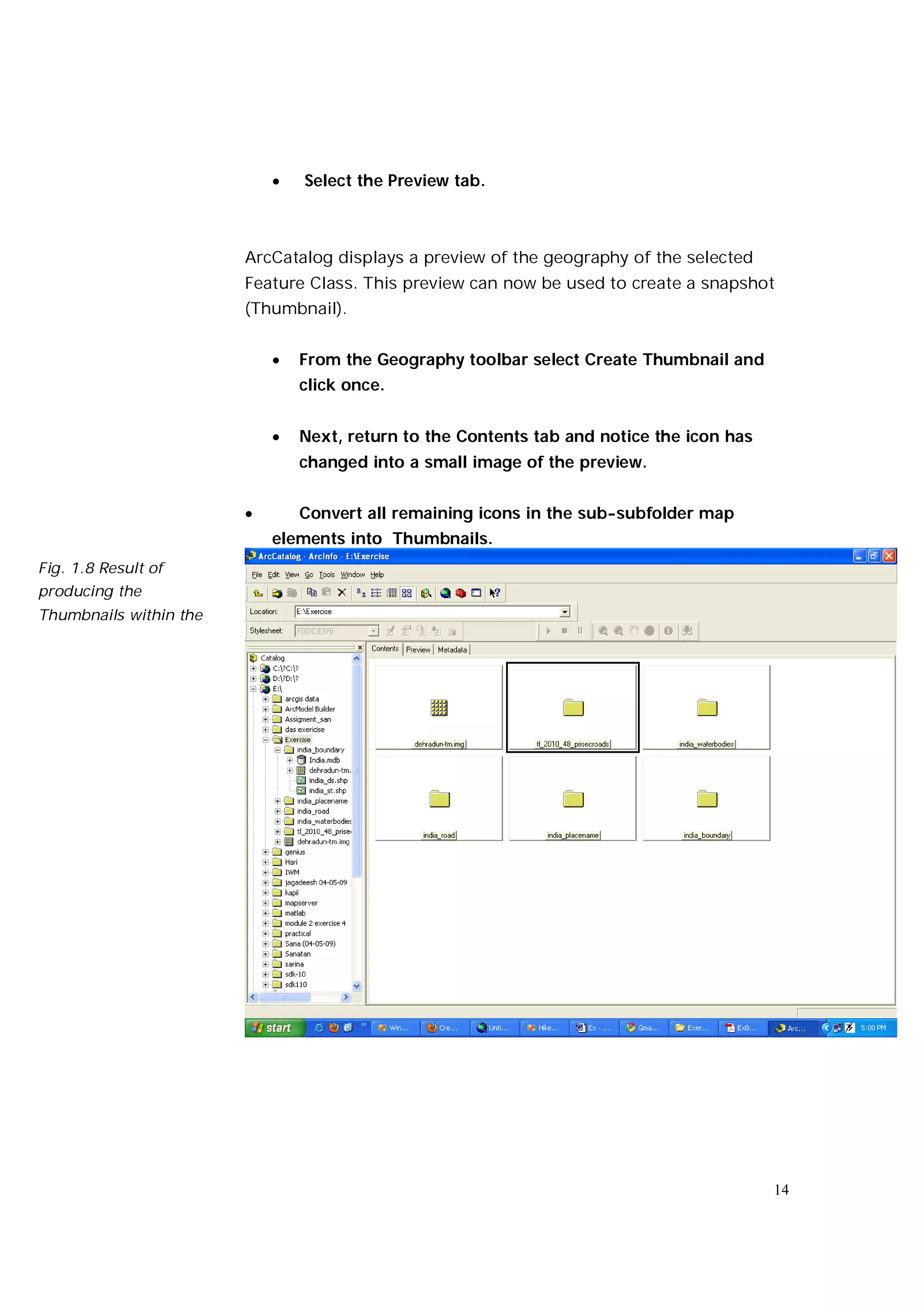
                               Next, return to the Contents tab and notice the icon has
                                changed into a small image of the preview.


                               Convert all remaining icons in the sub-subfolder map
                            elements into Thumbnails.
Fig. 1.8 Result of
producing the
Thumbnails within the


                                                                                           14
   Explore the data


                            You have learnt to browse data from different sources. In the next
                            section you will explore the data by displaying both its geography
                            and its attributes.


                                  Exploring Geographic data


                            Most GIS data sets have a geographic and a tabular component.
                            ArcCatalog allows you to preview either of them; you can toggle
                            between them using the dropdown list at the bottom of the
                            Preview window:
Fig. 1.9 Toggle the
contents of the Preview
window


                            Use the Preview tab
                                  Select the file: India_ boundary Feature Class from the Catalog
                                    tree


                                  Select the Preview tab


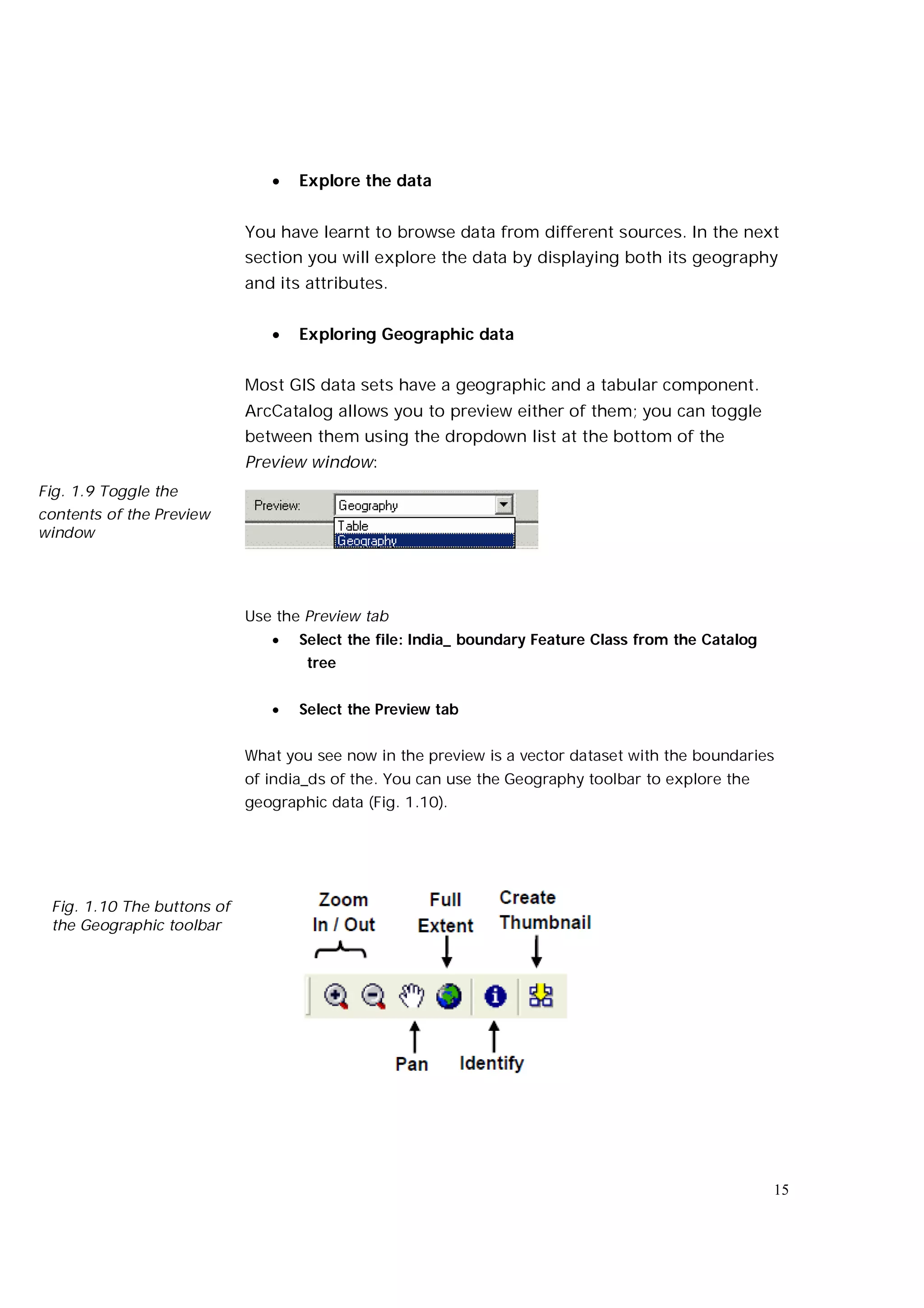
                            What you see now in the preview is a vector dataset with the boundaries
                            of india_ds of the. You can use the Geography toolbar to explore the
                            geographic data (Fig. 1.10).


 Fig. 1.10 The buttons of
 the Geographic toolbar


                                                                                                     15
The Zoom In / Out buttons allow you to control the level of detail
                         or the extent of the area that is displayed in the preview window.
                         Select an area of interest


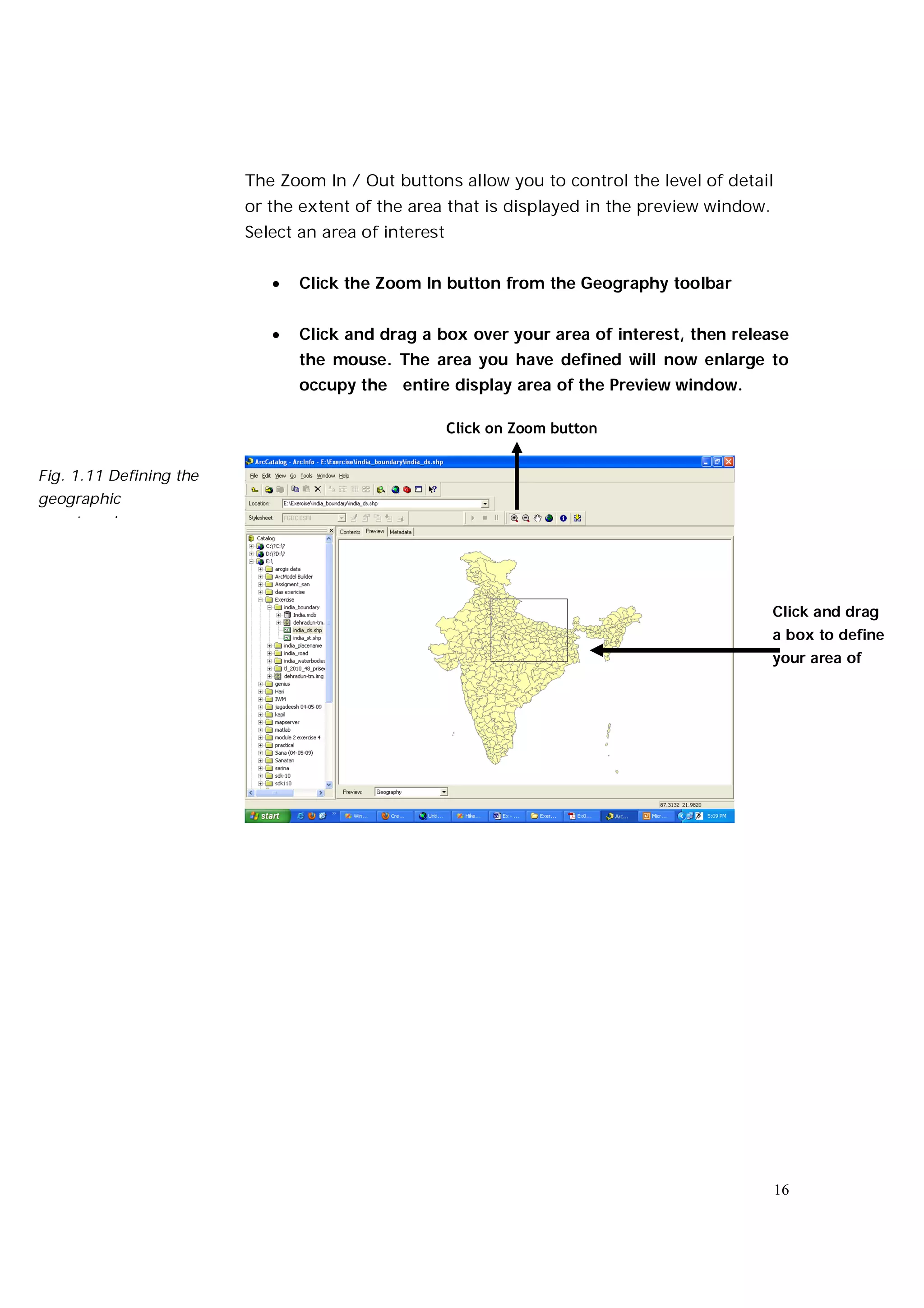
                               Click the Zoom In button from the Geography toolbar


                               Click and drag a box over your area of interest, then release
                                the mouse. The area you have defined will now enlarge to
                                occupy the entire display area of the Preview window.

                                                      Click on Zoom button


Fig. 1.11 Defining the
geographic
area to enlarge


                                                                                              Click and drag
                                                                                              a box to define
                                                                                              your area of


                                                                                              16
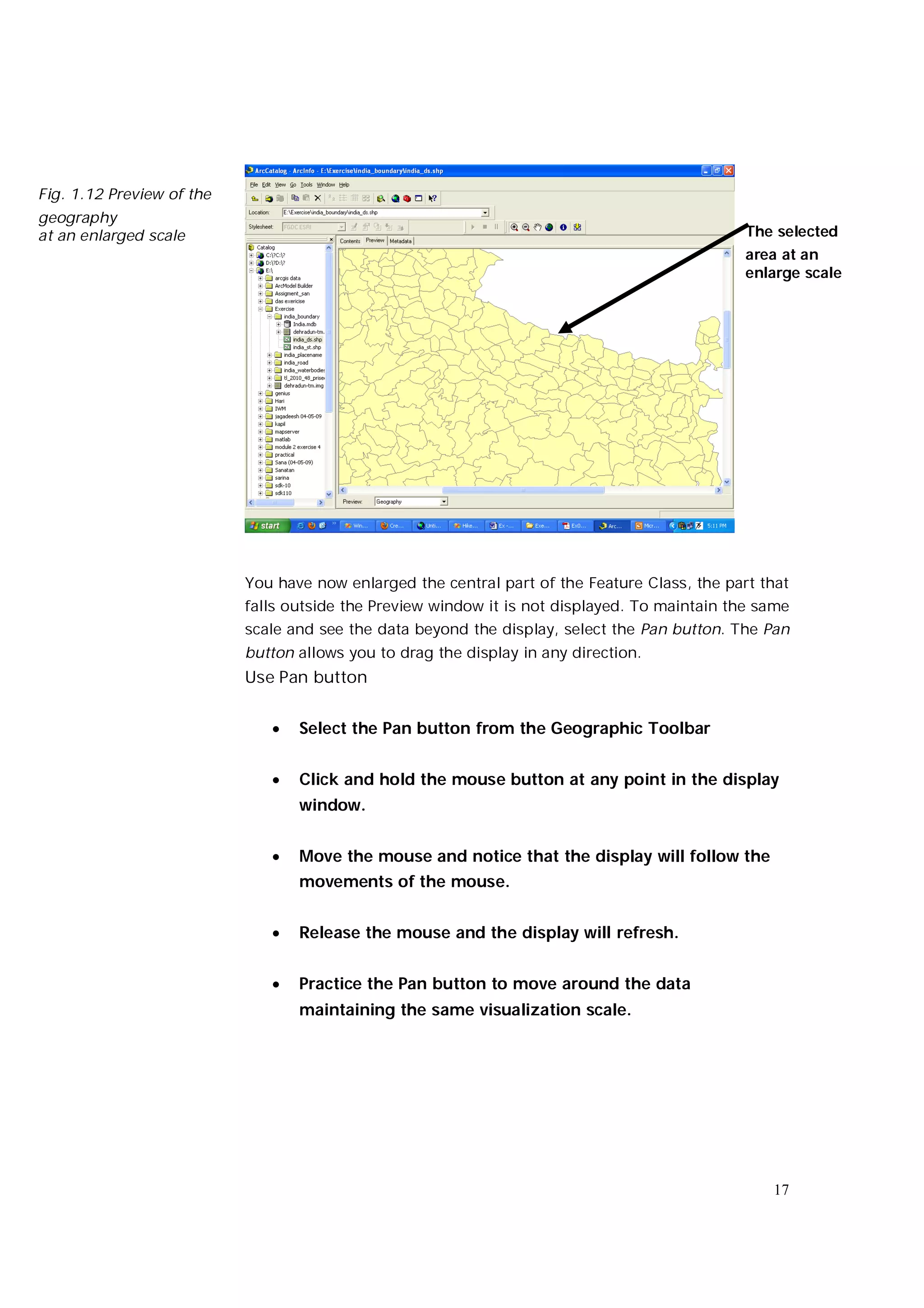
Fig. 1.12 Preview of the
geography
at an enlarged scale                                                                           The selected
                                                                                               area at an
                                                                                               enlarge scale


                           You have now enlarged the central part of the Feature Class, the part that
                           falls outside the Preview window it is not displayed. To maintain the same
                           scale and see the data beyond the display, select the Pan button. The Pan
                           button allows you to drag the display in any direction.
                           Use Pan button


                                 Select the Pan button from the Geographic Toolbar


                                 Click and hold the mouse button at any point in the display
                                  window.


                                 Move the mouse and notice that the display will follow the
                                  movements of the mouse.


                                 Release the mouse and the display will refresh.


                                 Practice the Pan button to move around the data
                                  maintaining the same visualization scale.


                                                                                                  17
When you are finish exploring the data at a selected zoom level,
                    the Full Extent button allows you to return to the full extent of the
                    feature class.


                    Use Full extent button


                              Click the Full Extent button and notice that the whole
                                area is now displayed

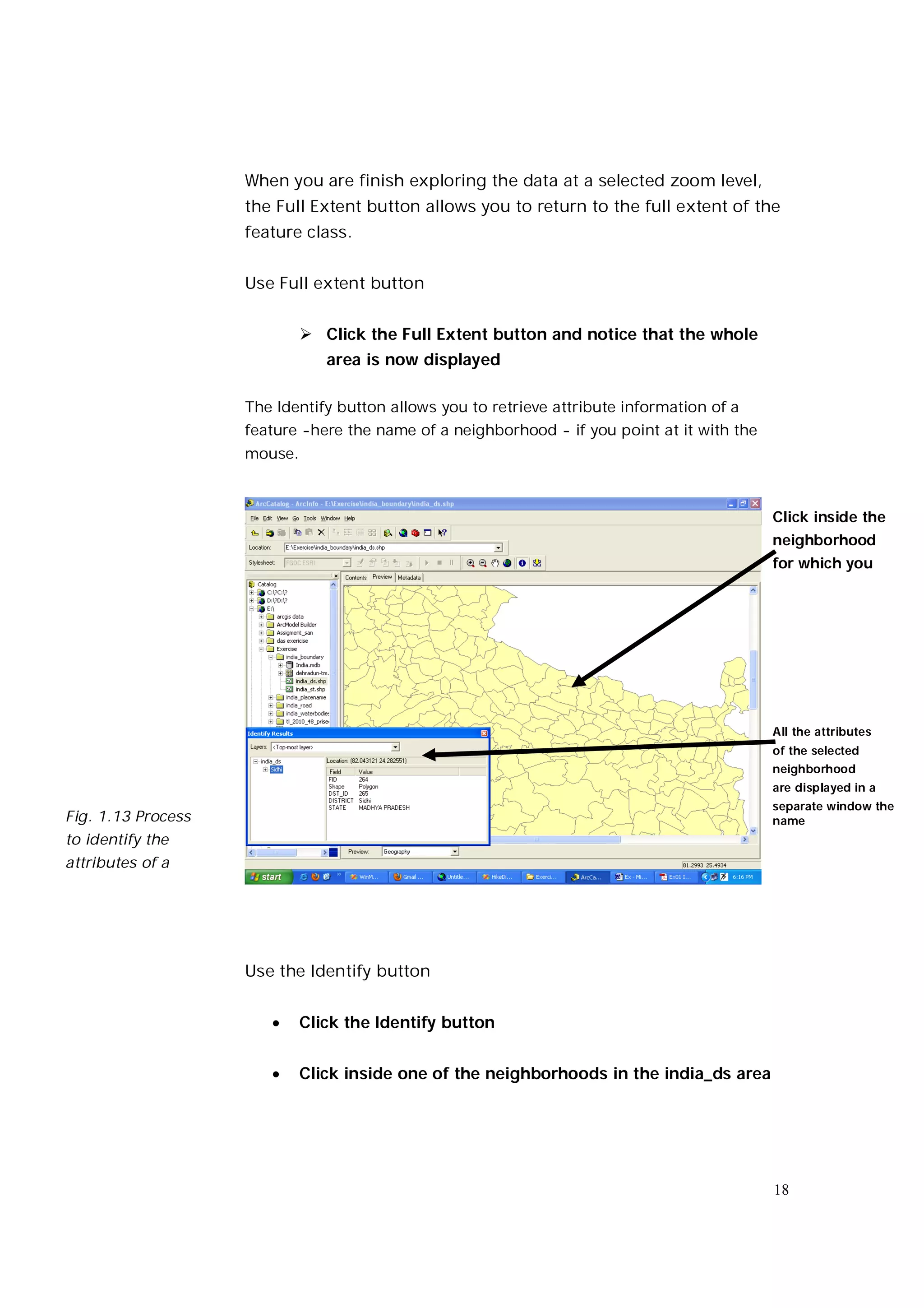
                    The Identify button allows you to retrieve attribute information of a
                    feature -here the name of a neighborhood - if you point at it with the
                    mouse.


                                                                                             Click inside the
                                                                                             neighborhood
                                                                                             for which you


                                                                                             All the attributes
                                                                                             of the selected
                                                                                             neighborhood
                                                                                             are displayed in a
                                                                                             separate window the
Fig. 1.13 Process                                                                            name
to identify the
attributes of a


                    Use the Identify button


                            Click the Identify button


                            Click inside one of the neighborhoods in the india_ds area


                                                                                             18
   Study the Identify Results window. You’ll notice that one of
       the attributes displayed is the name of the india_ds.


You can click inside other neighborhoods to view their attributes


      If you are finished viewing the attributes in this way, close
       the
      Identify results window (click on the little cross in the top
       right corner
      Exploring Tabular data


Now look at the attribute table of the india_ds Feature Class.
Preview tables


      Change the dropdown list in the Preview to Table (Fig. 1.5;
       1.9)


There are several options that allow you to personalize the display
of the table in the preview.


Change how tables look


If you want to change the appearance of the table (e.g. to improve
the readability of the text) you can change the default settings.
E.g.: you may highlight a selection in ‘dark green’ in stead of the
default ‘pale blue’, and you may set the font size to 10pt.


Change default settings


      Click on the heading of one of the columns. Notice that the
       whole column turns from white to pale blue


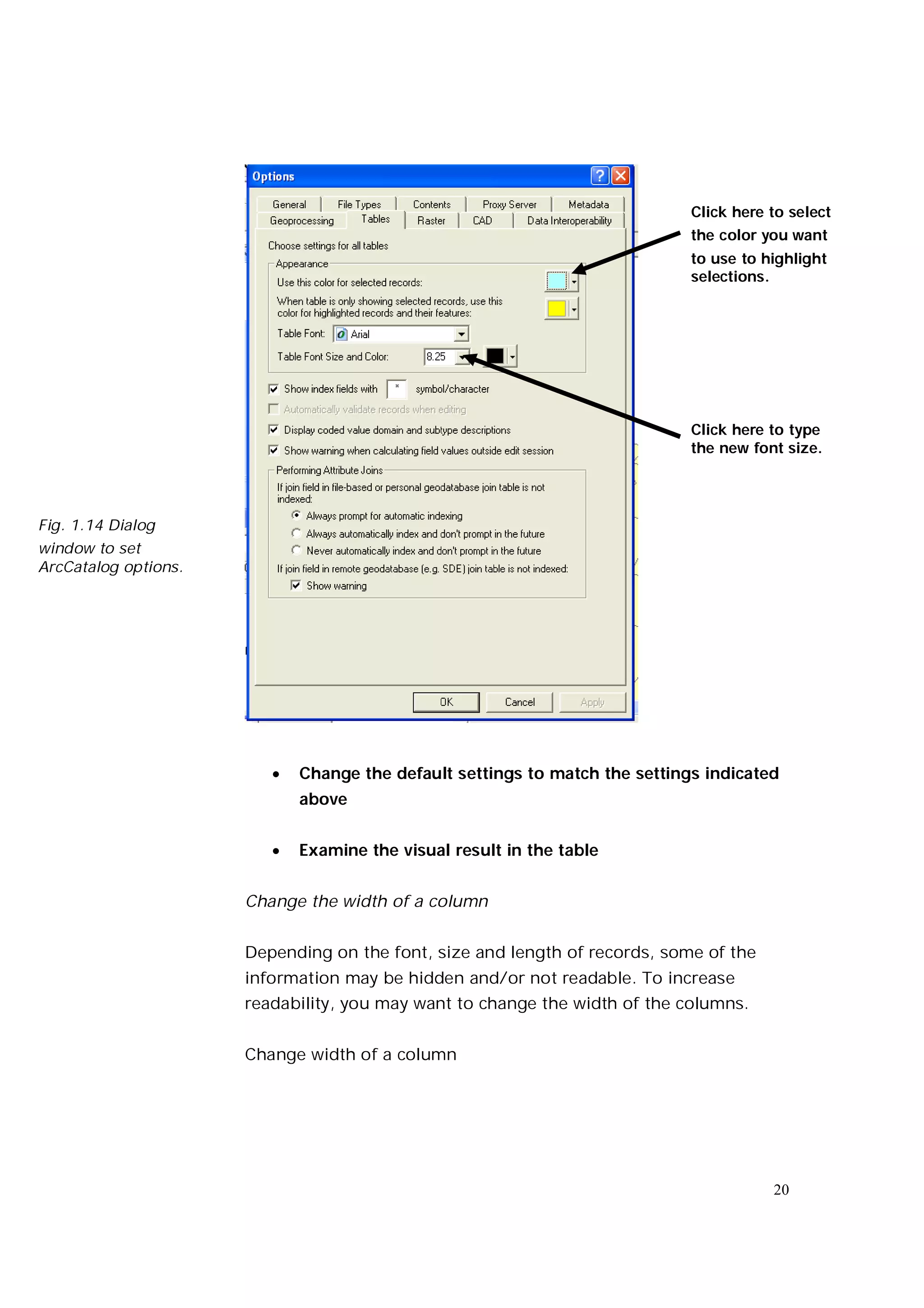
      From the menu: Tools, select Options


      A tabbed dialog window appears. Select the tab: Tables


                                                                       19
Click here to select
                                                                             the color you want
                                                                             to use to highlight
                                                                             selections.


                                                                             Click here to type
                                                                             the new font size.


Fig. 1.14 Dialog
window to set
ArcCatalog options.


                            Change the default settings to match the settings indicated
                             above


                            Examine the visual result in the table


                      Change the width of a column


                      Depending on the font, size and length of records, some of the
                      information may be hidden and/or not readable. To increase
                      readability, you may want to change the width of the columns.


                      Change width of a column


                                                                                        20
 Position the mouse over the extreme right edge of the
       column heading: DST_ID (notice the pointer of the cursor
       changes to )


    Double-click with the left mouse button. The column width
       will now be adjusted to the width of the longest entry in
       that column.


    Alternatively, click and drag the column’s edge to an
   acceptable width Release the mouse

! This change is temporary. If you select a different data set or
close the
ArcCatalog session, the default column width will be restored.


Change the position of a column


Sometimes tables contain many columns. In order to work efficient
you may want to rearrange the columns and to position the ones
you need next to each other.


Reposition a column


    Click the column heading: DST_ID (notice that the whole
       column changes to the default color you have just selected)


    Click the column again and hold down the mouse button


    Drag the column heading to the location between the
       columns        SHAPE* and OBJECTID (notice a red line
       indicates the new location of the column ID_)


    Release the mouse button


! This change is temporary. If you select a different data set or
close the


                                                                    21
ArcCatalog session, the columns will resume their default
positions.


Freeze a column


Sometimes you may want to compare the values in one column
with the values in other columns. This can be facilitated by
‘freezing’ them.


Freeze/Unfreeze Columns


     Right-click on the column heading: DISTRICT


     Click Freeze/Unfreeze Column


     Scroll horizontally by moving the horizontal slider to the
        right. Notice that the column NAME1_ remains visible.

! This change is temporary. If you select a different data set or close the
ArcCatalog session, all columns will be automatically unfrozen.


Sorting columns


If you need to rearrange the records in a column in alphabetical or
numerical order, proceed as follows:
If you need to rearrange the records in a column in alphabetical or
numerical order, proceed as follows:

Sort Records


     Right-click the column DISTRICT


     In the drop-down list, click Sort Ascending


     Scroll down the list and notice that the numbers increase


!   This change is temporary. If you select a different data set or close the
ArcCatalog session, records will resume their default order.


                                                                              22
Calculate statistics


You can display the basic statistics of numeric fields in an attribute table.


Calculate statistics


    Right-click the heading: AREA_


    In the drop-down list, select the option Statistics


    The Statistics dialog box pops up and displays all information
       about the values in the column AREA_


Adding a column


It is possible to add a column in the attribute table of a geodata
layer, and to define its properties. Notice, however, that
ArcCatalog will not allow you to enter and/or modify the data in
the records. You will see the editing process later, in exercise 2,
when dealing with ArcMap functions


Add a field to a table


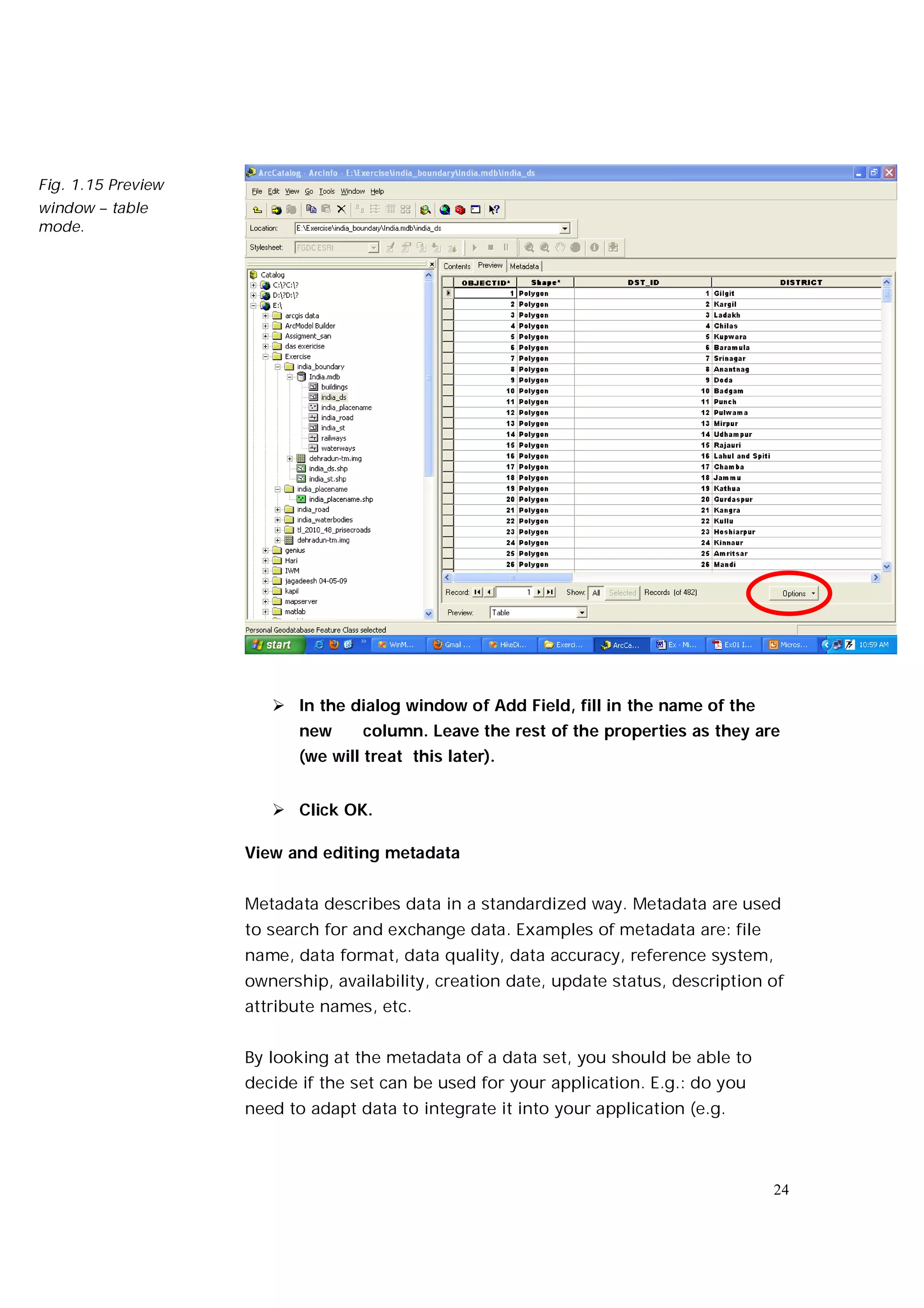
      Click the button Options at the bottom of the Preview
       window, and click Add Field. See Fig. 1.15.


                                                                           23
Fig. 1.15 Preview
window – table
mode.


                        In the dialog window of Add Field, fill in the name of the
                           new     column. Leave the rest of the properties as they are
                           (we will treat this later).


                        Click OK.

                    View and editing metadata


                    Metadata describes data in a standardized way. Metadata are used
                    to search for and exchange data. Examples of metadata are: file
                    name, data format, data quality, data accuracy, reference system,
                    ownership, availability, creation date, update status, description of
                    attribute names, etc.


                    By looking at the metadata of a data set, you should be able to
                    decide if the set can be used for your application. E.g.: do you
                    need to adapt data to integrate it into your application (e.g.


                                                                                       24
change its projection), can you access the data, who to contact to
get it, are there cost involved, etc.


There are a several standards for metadata. Standards provide
common terminology and definitions for the documentation of
digital data. For geospatial data, the two main standards are
defined by:


    the International Organization for Standardization's (ISO)
       with the document
    19115 “Geographic Information – Metadata” the Federal
       Geographic Data Committee's (FGDC) of the United States.!
       It is very important:
     to study the metadata before you use geospatial data
   obtained from       somebody else, and
    to accurately describe the metadata for the geospatial data
       that you produce!

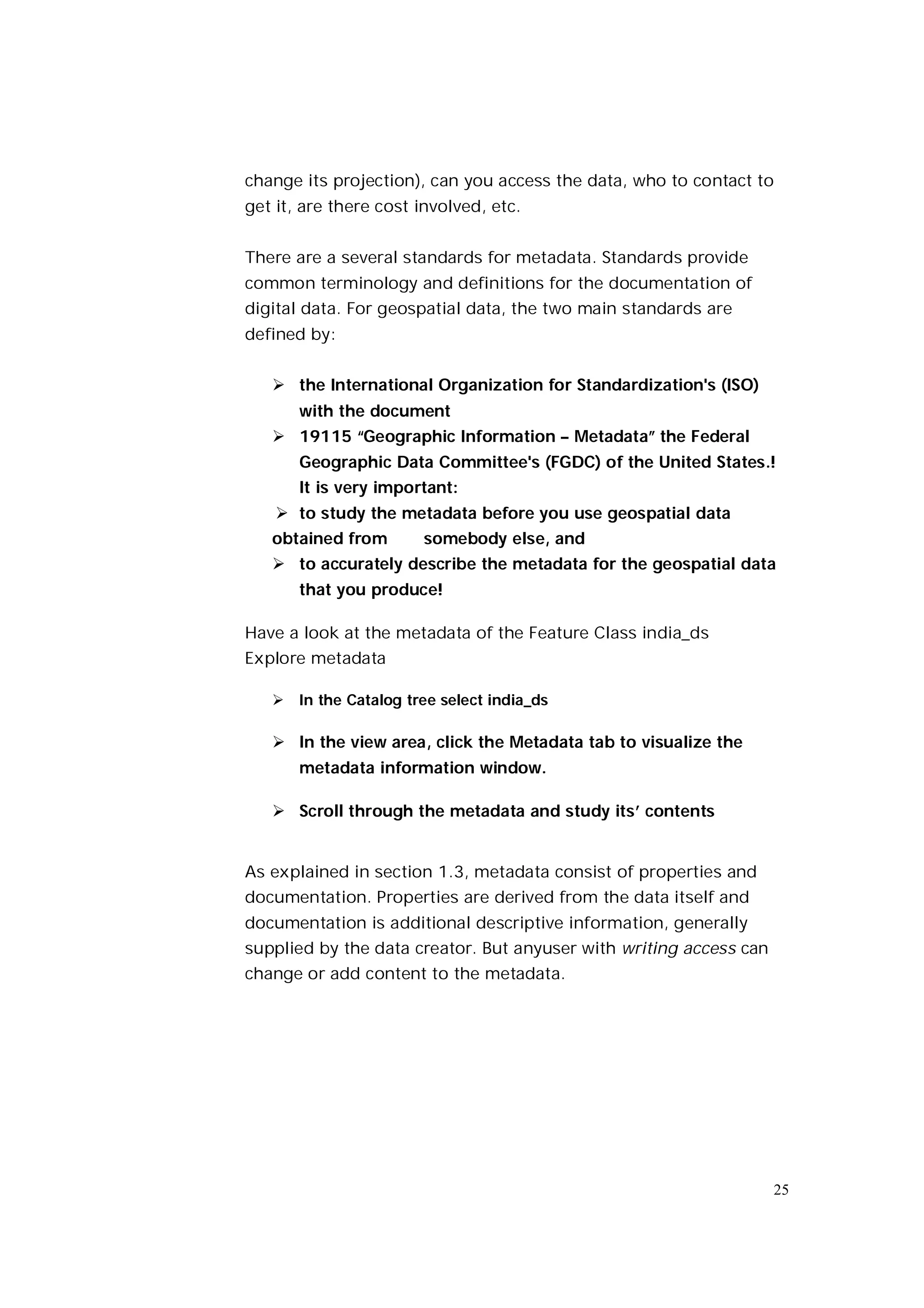
Have a look at the metadata of the Feature Class india_ds
Explore metadata

    In the Catalog tree select india_ds

    In the view area, click the Metadata tab to visualize the
       metadata information window.

    Scroll through the metadata and study its’ contents


As explained in section 1.3, metadata consist of properties and
documentation. Properties are derived from the data itself and
documentation is additional descriptive information, generally
supplied by the data creator. But anyuser with writing access can
change or add content to the metadata.


                                                                    25
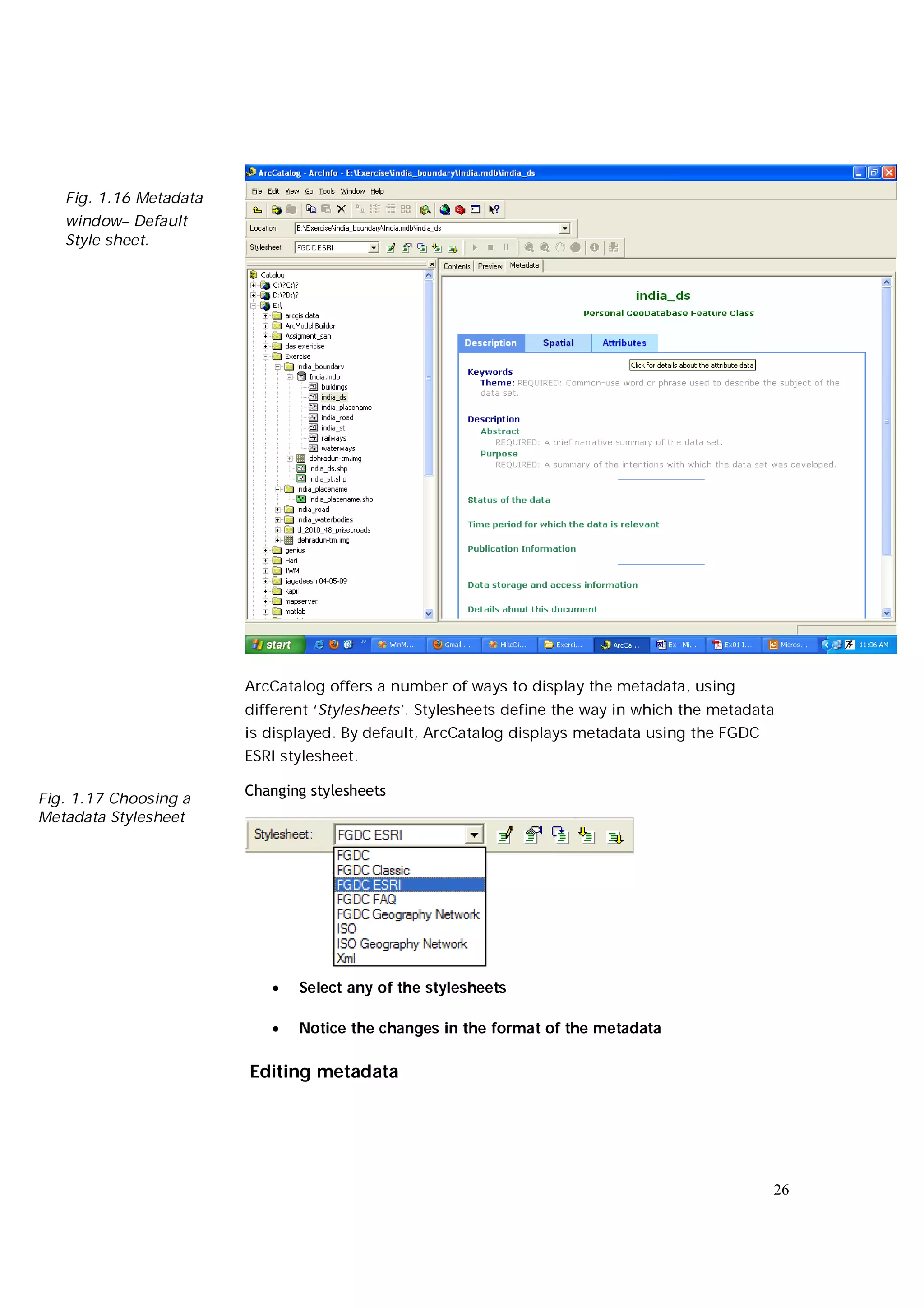
Fig. 1.16 Metadata
   window– Default
   Style sheet.


                        ArcCatalog offers a number of ways to display the metadata, using
                        different ‘Stylesheets’. Stylesheets define the way in which the metadata
                        is displayed. By default, ArcCatalog displays metadata using the FGDC
                        ESRI stylesheet.

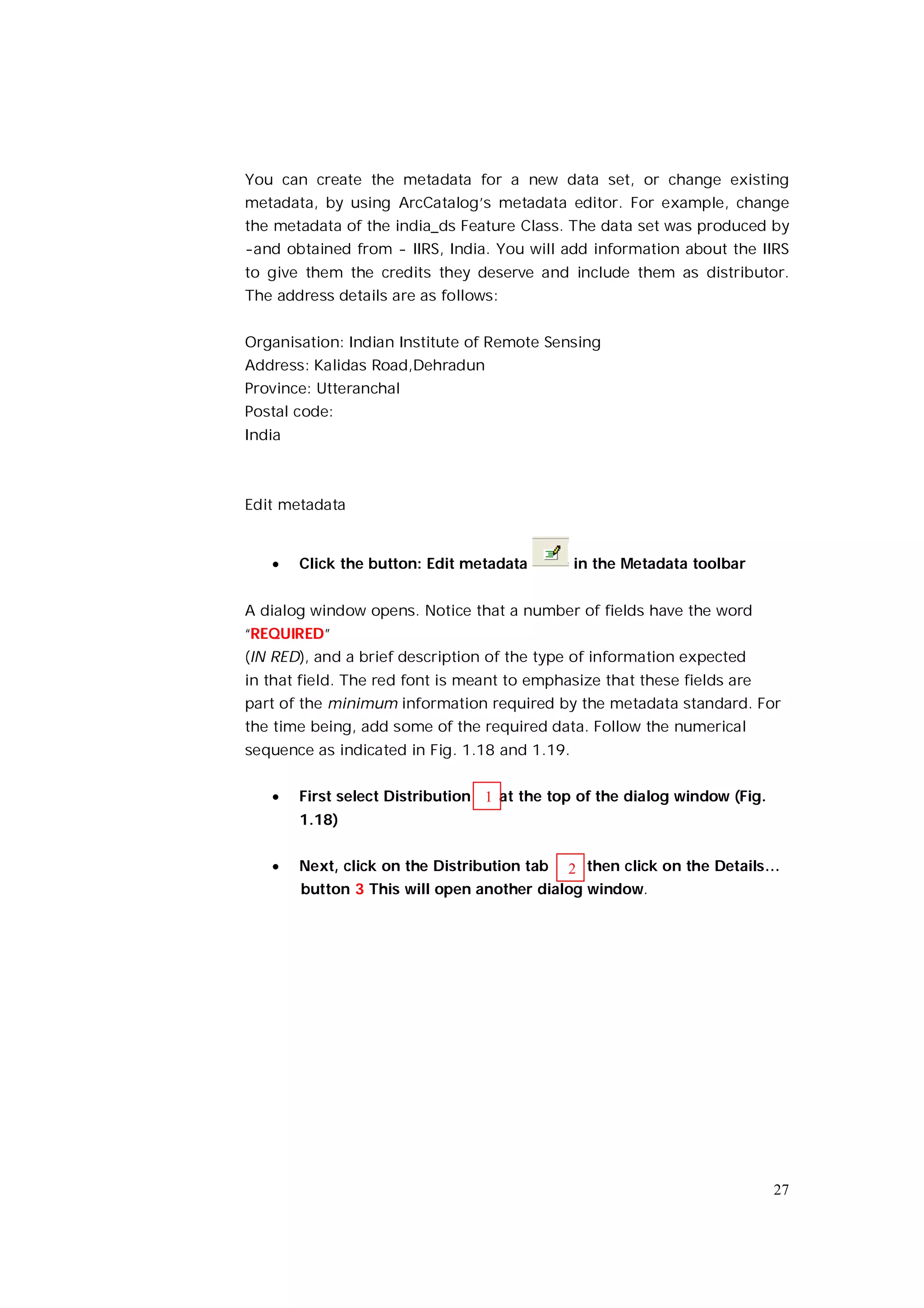
                        Changing stylesheets
Fig. 1.17 Choosing a
Metadata Stylesheet


                              Select any of the stylesheets

                              Notice the changes in the format of the metadata

                        Editing metadata


                                                                                                26
You can create the metadata for a new data set, or change existing
metadata, by using ArcCatalog’s metadata editor. For example, change
the metadata of the india_ds Feature Class. The data set was produced by
-and obtained from - IIRS, India. You will add information about the IIRS
to give them the credits they deserve and include them as distributor.
The address details are as follows:


Organisation: Indian Institute of Remote Sensing
Address: Kalidas Road,Dehradun
Province: Utteranchal
Postal code:
India


Edit metadata


       Click the button: Edit metadata        in the Metadata toolbar


A dialog window opens. Notice that a number of fields have the word
“REQUIRED”
(IN RED), and a brief description of the type of information expected
in that field. The red font is meant to emphasize that these fields are
part of the minimum information required by the metadata standard. For
the time being, add some of the required data. Follow the numerical
sequence as indicated in Fig. 1.18 and 1.19.


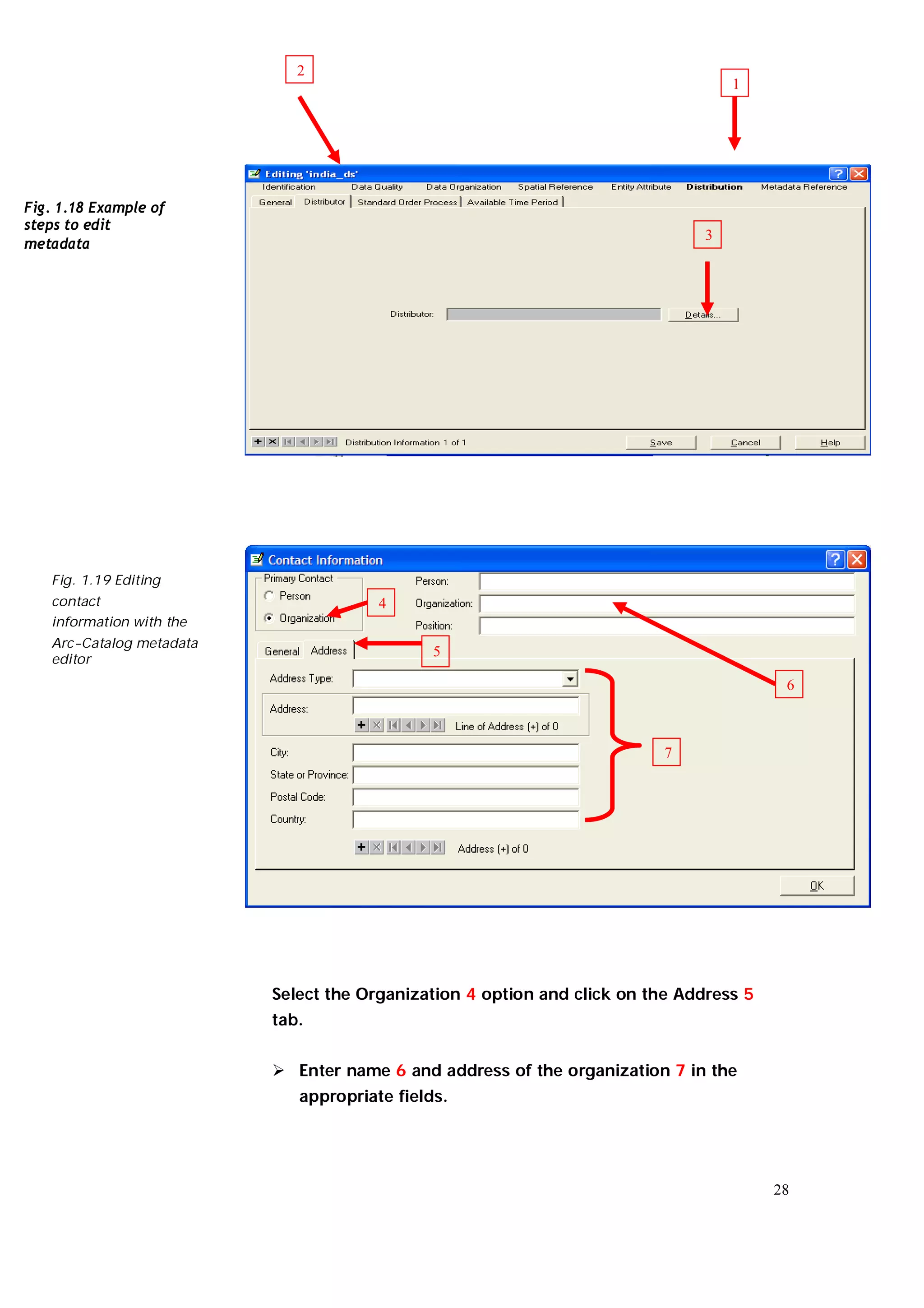
       First select Distribution 1 at the top of the dialog window (Fig.
        1.18)


       Next, click on the Distribution tab 2 then click on the Details…
        button 3 This will open another dialog window.


                                                                            27
2
                                                                                   1


Fig. 1.18 Example of
steps to edit
                                                                               3
metadata


   Fig. 1.19 Editing
   contact                             4
   information with the
   Arc-Catalog metadata
   editor
                                              5

                                                                                         6


                                                                          7


                          Select the Organization 4 option and click on the Address 5
                          tab.


                           Enter name 6 and address of the organization 7 in the
                             appropriate fields.


                                                                                        28
 Click OK and Save


                                View the updated information in the metadata window. Note that
                                 some part of the stylesheet will not include all the metadata. To
                                 check the updated information, select the FGDC stylesheet and
                                 click   on the Distribution Information link.


                       Manage data sources


                       In ArcCatalog you can manage your data in a similar way as in
                       Windows Explorer.You can copy, move, delete and rename any
                       item that appears in the Catalog tree or in the Contents window.
                       As example, create a new folder and copy some existing data into
                       it.
                       Create a new folder


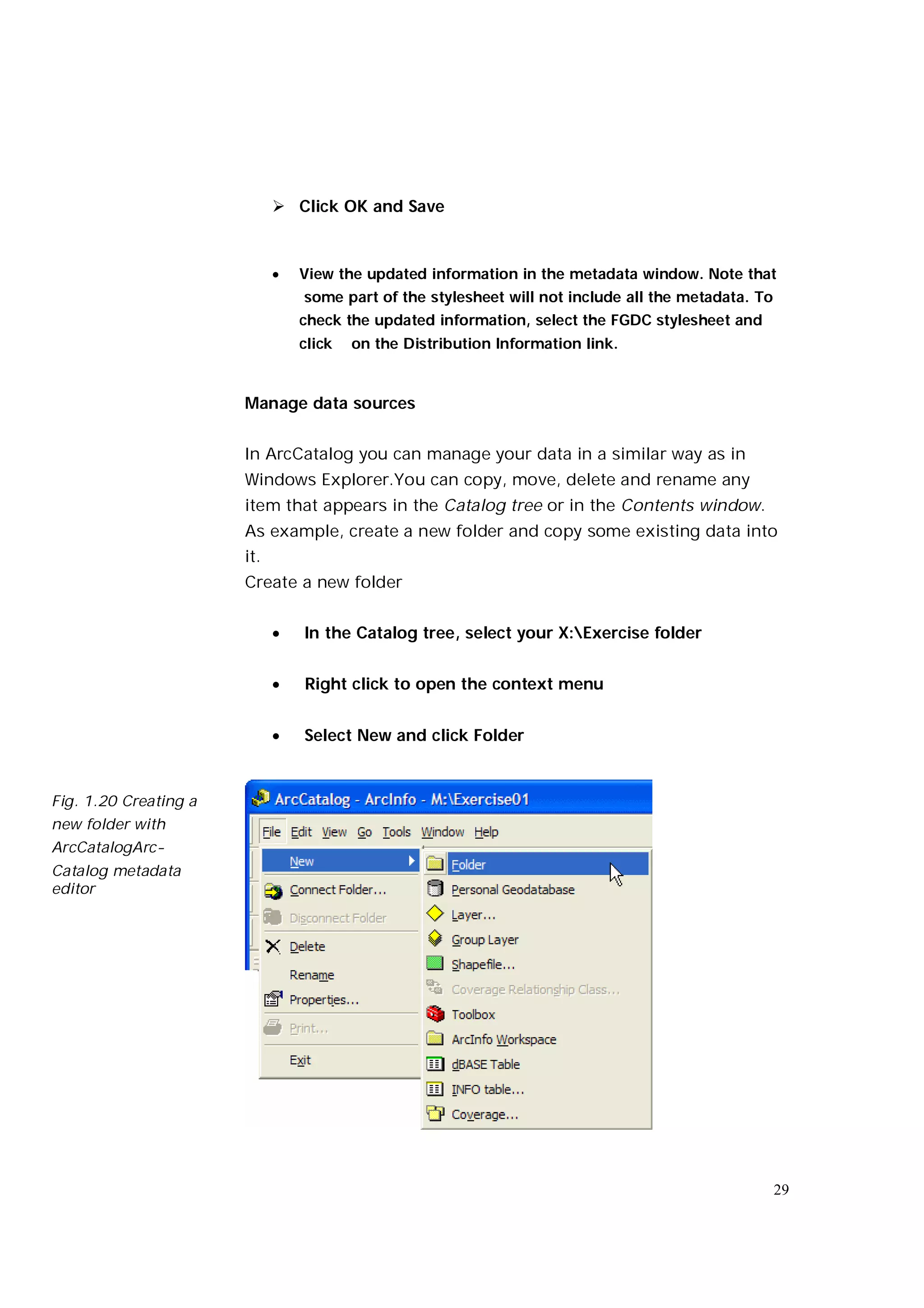
                                In the Catalog tree, select your X:Exercise folder


                                Right click to open the context menu


                                Select New and click Folder


Fig. 1.20 Creating a
new folder with
ArcCatalogArc-
Catalog metadata
editor


                                                                                                     29
       Type a new name for the folder you have just created, e.g.
         ‘My_folder’


        Copy the Personal Geodatabase “Large_enschede.mdb” to the
         new folder.


! Make sure that none of the Feature Classes is active. You should see
nothing displayed in the Contents, the Preview and the Metadata
windows. If any of the Feature Classes is active, ArcCatalog locks the
Personal Geodatabase and returns an error when you try to copy it. It is
easy to manage files and folders in ArcCatalog. You can also create
(empty) geo-spatial data sets. You will learn this later in the course,
together with filling these data sets with new data through ArcMap.


ArcCatalog as a gateway to ArcMap

You have now explored some functions of ArcCatalog, and seen that its
main purpose is data browsing and basic data management. If you want
to editgeo-spatial data, analyse it or create maps, you need another
application of the ArcGIS suite: ArcMap. Most of the exercises that follow
will be about the basics of geoinformation processing with ArcMap.


Access ArcMap:


        From the Standard toolbar select the ArcMap Icon:


When ArcMap opens, you will be prompted to select one of the following:
an empty map, a new template or an existing map.You will do this in the
next exercise. So can stop here and exit ArcMap.


        In the ArcMap dialog window ignore the different options and
         click OK
        From the File menu, select Exit


                                                                         30

Arc catalog introduction

  • 1.
    Introduction to ArcCatalog 1.1 Introduction to Arc Catalog 2 1.2 Starting ArcCatalog 2 1.3 Why use ArcCatalog? 5 1.4 Basic functions of ArcCatalog 10 1
  • 2.
    1.1 Introduction to ArcCatalog Topics: What do we use ArcCatalog for and getting familiar with the ArcCatalog interface and with its main functions, like map and (meta)data browsing and data exploration. Introduction In this exercise you will explore ArcCatalog and learn how it is used within the wider ArcGIS environment. You will practice the most important functions only. If necessary, additional functions will be introduced later in the course. First, you will familiarize with the interface, then with specific functions such as browsing and exploring data, creating metadata, etc. Finally you will learn that ArcCatalog can be used as a gateway to ArcMap. Data necessary to complete this exercise can be found in this year’s Blackboard course Principles of Geographic Information Systems, under Assignments. Copy the entire folder “Exercise” to your personal directory 1.2 Starting ArcCatalog: the user interface Before you start working with the data, first have a look at the interface. We assume that this is the first time that you use the software. We will therefore briefly show the components of ArcCatalog’s desktop. Start ArcCatalog 2
  • 3.
    StartProgramsArcGISArcCatalog (see Fig. 1.1) Fig. 1.1 Open ArcCatalog from desktop  Maximize ArcCatalog to occupy the whole screen, see Fig.1.2 The Arc Catalog window When ArcCatalog starts, the Main Menu and the Standard Toolbar appear by default. Toolbars are areas in the interface of ArcGIS with buttons that activate various features and functions. Different ArcGIS applications may have application- specific toolbars. A toolbar can be made visible (activated) or hidden (de-activated). The position of the toolbars within the interface is flexible; they can float on the desktop and you can 3
  • 4.
    reposition them atany time. Alternatively the toolbars can be docked to any side of the ArcCatalog window. Other than the default toolbars can be activated to perform additional tasks using the menu: View, then toolbars. But for this exercise, all of the toolbars needed are already visible. In ArcCatalog, commands and functions can be accessed through: Menus: contain commands (by topic) in a list Buttons and menu items: execute a command when you click them Tools: require interaction of the user and generally display a dialog before a command is executed Combo boxes: let you choose options from a dropdown list Text boxes or edit boxes: allows input of parameters. For the rest of the exercise you will work with the data that you have copied on your personal drive. Metadata toolbar Geography toolbar Menus Standard Tool bar Location Tool bar Status bar Type of data sets Contents, Preview and Metadata Catalog tabs 4
  • 5.
    1.3 Why use ArcCatalog? ArcCatalog is a software designed for two main purposes: � It allows you to manage, access, and explore existing geographic data irrespective of the format in which the data is stored or its location (on a local disc or on the network). You can best compare this with Windows Explorer, but specifically tailored to Geo-spatial data. � You can also change the structure of the data. For instance, you can create a new geodatabase, load existing data into your geodatabase and delete or add fields in attribute tables. This exercise mainly focuses on the exploratory part of ArcCatalog. Browse for maps and data Like in Windows Explorer, you can view the content of a folder or database in the Contents tab, and choose how to see the contents: as small or large icons, in a list with details or as snapshots showing the geographic content(Fig. 1.3). 5
  • 6.
    Fig. 1.3 ‘Snapshot’Preview of various types of geographic data which can be managed with ArcCatalog Explore the data For a general understanding of the geographic extent of the data, the thumbnail view will do. But to examine the geographic data more closely, the Preview tab allows a detailed display of the data. Using the appropriate buttons from the Geography toolbar, you can zoom / pan the geography or identify(get a text description of) features in your data. 6
  • 7.
    Fig.1.4 Detailed Preview ofthe geographic data Alternatively, you can switch the display from Geography to Table and viewthe attribute table associated with the geography. 7
  • 8.
    Fig. 1.5 Previewof the attributes associated with the geographic View and create metadata Metadata contains properties and documentation describing the data. Properties are derived from the data source, like data type (e.g. shapefile) and geometry type (e.g. polygon). Documentation is additional information that helps to understand origin and content: e.g. title, summary description, ownership ,publication date, language of the dataset; date of metadata creation. A popular definition of metadata is ‘data about data’. 8
  • 9.
    Fig 1.6 Metadata describesthe properties and documents the 9
  • 10.
    ArcCatalog has abuilt-in metadata editor. The metadata editor can be used to store additional information or to create new metadata when no metadata exist. ArcCatalog as a gateway to ArcMap Once you have examined the data using ArcCatalog, you may want to do some analyses, or create a map using ArcMap. You can open ArcMap by: � double-clicking on an ArcMap document. ArcMap documents can be recognized by the following icon and the extension .mxd. � pressing the ArcMap button on the Standard toolbar. Manage data sources Arc Catalog contains functionalities to manage and organize your data. Management functions include deleting, copying or renaming data sets. To organize a well-ordered library of spatial data (either on your local hard drive or in the network environment) ArcCatalog includes functions such as creating new folders and new geo- databases. 1.4 Basic functions of ArcCatalog You will now use some basic functions to illustrate some of the functionalitiesmentioned in the previous section. Browse for maps and data To browse data, you first have to establish a connection to the location where the data is stored. This location can be a local disk (C: or D: rive) some network drive. You were asked to copy the data from Blackboard to your personal directory - on x: - so you have to establish a connection to your M: drive: 10
  • 11.
    In the Standard toolbar (see Fig. 1.2), find the Connect to Folder button and click on it.  � In the Dialog Window, navigate to the X:Excercize, see Fig. 1.7  � Click OK fig. 1.7 Connect to Folder dialog window Notice that the X: drive is now added in the Catalog tree.  Click on the plus sign next to the icon of the X:Exercize in the Catalog tree to expand the tree one level and see its contents.  Select the Exercise folder by clicking once on its icon. You will see all the files, datasets and subfolders stored under the selected folder. 11
  • 12.
    Let’s have acloser look at the content of the subfolders of the Exercise. Browse for data.  Continue to expand the tree: double-click on the icons o f Exercise>India_ds ! Notice that the content in the folder India is displayed with a different icon in the Contents tab. This is because ‘India.mdb’ is a Personal Geodatabase. Explore the contents of the Personal Geodatabase Double click on the icon of the ‘India.mdb’ Personal Geodatabase. The layers in the Personal Geodatabase are now displayed. Layers within a Personal Geodatabase are called Feature Classes. Explore the buttons from the Standard toolbar. Which button allows you to find out the type of these data? Answer:................................................................................ ! Notice that if you leave the mouse cursor on a button for a few seconds, a tool tip with the name of the button will appear. Encircle the data type of each of the following feature classes. Hint: analyse the feature class properties. Buildings: Points - Lines – Polygons India_ds: Points – Lines - Polygons india_placename: Points 12
  • 13.
    india_st: Points -Lines – Polygons railways: Points - Lines – Polygons india_roads: Points - Lines – Polygons waterways: Points - Lines – Polygons To learn more about the data types, refer to the Help menu ‘ArcGIS Desktop Help’ on the Contents tab: Data management with ArcCatalog / Getting started with ArcCatalog / What’s in the Catalog. In the Standard toolbar, one of the view options is Thumbnails. A thumbnail is a snapshot of the geography of a file.  Change the view to Thumbnails. Locate the appropriate button by moving the mouse over each button of the Standard toolbar.  Wait for the tool tip that shows  Make sure that you have the Contents tab selected (see Fig. 1.3). Although the view is set to thumbnails, you see that only some feature classes are displayed as thumbnails, while the others are simply displayed as large icons. This is because thumbnails are not created automatically, but you need to specifically create them. Create Thumbnail  In the Contents tab select a Feature Class without thumbnail. 13
  • 14.
    Select the Preview tab. ArcCatalog displays a preview of the geography of the selected Feature Class. This preview can now be used to create a snapshot (Thumbnail).  From the Geography toolbar select Create Thumbnail and click once.  Next, return to the Contents tab and notice the icon has changed into a small image of the preview.  Convert all remaining icons in the sub-subfolder map elements into Thumbnails. Fig. 1.8 Result of producing the Thumbnails within the 14
  • 15.
    Explore the data You have learnt to browse data from different sources. In the next section you will explore the data by displaying both its geography and its attributes.  Exploring Geographic data Most GIS data sets have a geographic and a tabular component. ArcCatalog allows you to preview either of them; you can toggle between them using the dropdown list at the bottom of the Preview window: Fig. 1.9 Toggle the contents of the Preview window Use the Preview tab  Select the file: India_ boundary Feature Class from the Catalog tree  Select the Preview tab What you see now in the preview is a vector dataset with the boundaries of india_ds of the. You can use the Geography toolbar to explore the geographic data (Fig. 1.10). Fig. 1.10 The buttons of the Geographic toolbar 15
  • 16.
    The Zoom In/ Out buttons allow you to control the level of detail or the extent of the area that is displayed in the preview window. Select an area of interest  Click the Zoom In button from the Geography toolbar  Click and drag a box over your area of interest, then release the mouse. The area you have defined will now enlarge to occupy the entire display area of the Preview window. Click on Zoom button Fig. 1.11 Defining the geographic area to enlarge Click and drag a box to define your area of 16
  • 17.
    Fig. 1.12 Previewof the geography at an enlarged scale The selected area at an enlarge scale You have now enlarged the central part of the Feature Class, the part that falls outside the Preview window it is not displayed. To maintain the same scale and see the data beyond the display, select the Pan button. The Pan button allows you to drag the display in any direction. Use Pan button  Select the Pan button from the Geographic Toolbar  Click and hold the mouse button at any point in the display window.  Move the mouse and notice that the display will follow the movements of the mouse.  Release the mouse and the display will refresh.  Practice the Pan button to move around the data maintaining the same visualization scale. 17
  • 18.
    When you arefinish exploring the data at a selected zoom level, the Full Extent button allows you to return to the full extent of the feature class. Use Full extent button  Click the Full Extent button and notice that the whole area is now displayed The Identify button allows you to retrieve attribute information of a feature -here the name of a neighborhood - if you point at it with the mouse. Click inside the neighborhood for which you All the attributes of the selected neighborhood are displayed in a separate window the Fig. 1.13 Process name to identify the attributes of a Use the Identify button  Click the Identify button  Click inside one of the neighborhoods in the india_ds area 18
  • 19.
    Study the Identify Results window. You’ll notice that one of the attributes displayed is the name of the india_ds. You can click inside other neighborhoods to view their attributes  If you are finished viewing the attributes in this way, close the  Identify results window (click on the little cross in the top right corner  Exploring Tabular data Now look at the attribute table of the india_ds Feature Class. Preview tables  Change the dropdown list in the Preview to Table (Fig. 1.5; 1.9) There are several options that allow you to personalize the display of the table in the preview. Change how tables look If you want to change the appearance of the table (e.g. to improve the readability of the text) you can change the default settings. E.g.: you may highlight a selection in ‘dark green’ in stead of the default ‘pale blue’, and you may set the font size to 10pt. Change default settings  Click on the heading of one of the columns. Notice that the whole column turns from white to pale blue  From the menu: Tools, select Options  A tabbed dialog window appears. Select the tab: Tables 19
  • 20.
    Click here toselect the color you want to use to highlight selections. Click here to type the new font size. Fig. 1.14 Dialog window to set ArcCatalog options.  Change the default settings to match the settings indicated above  Examine the visual result in the table Change the width of a column Depending on the font, size and length of records, some of the information may be hidden and/or not readable. To increase readability, you may want to change the width of the columns. Change width of a column 20
  • 21.
     Position themouse over the extreme right edge of the column heading: DST_ID (notice the pointer of the cursor changes to )  Double-click with the left mouse button. The column width will now be adjusted to the width of the longest entry in that column.  Alternatively, click and drag the column’s edge to an acceptable width Release the mouse ! This change is temporary. If you select a different data set or close the ArcCatalog session, the default column width will be restored. Change the position of a column Sometimes tables contain many columns. In order to work efficient you may want to rearrange the columns and to position the ones you need next to each other. Reposition a column  Click the column heading: DST_ID (notice that the whole column changes to the default color you have just selected)  Click the column again and hold down the mouse button  Drag the column heading to the location between the columns SHAPE* and OBJECTID (notice a red line indicates the new location of the column ID_)  Release the mouse button ! This change is temporary. If you select a different data set or close the 21
  • 22.
    ArcCatalog session, thecolumns will resume their default positions. Freeze a column Sometimes you may want to compare the values in one column with the values in other columns. This can be facilitated by ‘freezing’ them. Freeze/Unfreeze Columns  Right-click on the column heading: DISTRICT  Click Freeze/Unfreeze Column  Scroll horizontally by moving the horizontal slider to the right. Notice that the column NAME1_ remains visible. ! This change is temporary. If you select a different data set or close the ArcCatalog session, all columns will be automatically unfrozen. Sorting columns If you need to rearrange the records in a column in alphabetical or numerical order, proceed as follows: If you need to rearrange the records in a column in alphabetical or numerical order, proceed as follows: Sort Records  Right-click the column DISTRICT  In the drop-down list, click Sort Ascending  Scroll down the list and notice that the numbers increase ! This change is temporary. If you select a different data set or close the ArcCatalog session, records will resume their default order. 22
  • 23.
    Calculate statistics You candisplay the basic statistics of numeric fields in an attribute table. Calculate statistics  Right-click the heading: AREA_  In the drop-down list, select the option Statistics  The Statistics dialog box pops up and displays all information about the values in the column AREA_ Adding a column It is possible to add a column in the attribute table of a geodata layer, and to define its properties. Notice, however, that ArcCatalog will not allow you to enter and/or modify the data in the records. You will see the editing process later, in exercise 2, when dealing with ArcMap functions Add a field to a table  Click the button Options at the bottom of the Preview window, and click Add Field. See Fig. 1.15. 23
  • 24.
    Fig. 1.15 Preview window– table mode.  In the dialog window of Add Field, fill in the name of the new column. Leave the rest of the properties as they are (we will treat this later).  Click OK. View and editing metadata Metadata describes data in a standardized way. Metadata are used to search for and exchange data. Examples of metadata are: file name, data format, data quality, data accuracy, reference system, ownership, availability, creation date, update status, description of attribute names, etc. By looking at the metadata of a data set, you should be able to decide if the set can be used for your application. E.g.: do you need to adapt data to integrate it into your application (e.g. 24
  • 25.
    change its projection),can you access the data, who to contact to get it, are there cost involved, etc. There are a several standards for metadata. Standards provide common terminology and definitions for the documentation of digital data. For geospatial data, the two main standards are defined by:  the International Organization for Standardization's (ISO) with the document  19115 “Geographic Information – Metadata” the Federal Geographic Data Committee's (FGDC) of the United States.! It is very important:  to study the metadata before you use geospatial data obtained from somebody else, and  to accurately describe the metadata for the geospatial data that you produce! Have a look at the metadata of the Feature Class india_ds Explore metadata  In the Catalog tree select india_ds  In the view area, click the Metadata tab to visualize the metadata information window.  Scroll through the metadata and study its’ contents As explained in section 1.3, metadata consist of properties and documentation. Properties are derived from the data itself and documentation is additional descriptive information, generally supplied by the data creator. But anyuser with writing access can change or add content to the metadata. 25
  • 26.
    Fig. 1.16 Metadata window– Default Style sheet. ArcCatalog offers a number of ways to display the metadata, using different ‘Stylesheets’. Stylesheets define the way in which the metadata is displayed. By default, ArcCatalog displays metadata using the FGDC ESRI stylesheet. Changing stylesheets Fig. 1.17 Choosing a Metadata Stylesheet  Select any of the stylesheets  Notice the changes in the format of the metadata Editing metadata 26
  • 27.
    You can createthe metadata for a new data set, or change existing metadata, by using ArcCatalog’s metadata editor. For example, change the metadata of the india_ds Feature Class. The data set was produced by -and obtained from - IIRS, India. You will add information about the IIRS to give them the credits they deserve and include them as distributor. The address details are as follows: Organisation: Indian Institute of Remote Sensing Address: Kalidas Road,Dehradun Province: Utteranchal Postal code: India Edit metadata  Click the button: Edit metadata in the Metadata toolbar A dialog window opens. Notice that a number of fields have the word “REQUIRED” (IN RED), and a brief description of the type of information expected in that field. The red font is meant to emphasize that these fields are part of the minimum information required by the metadata standard. For the time being, add some of the required data. Follow the numerical sequence as indicated in Fig. 1.18 and 1.19.  First select Distribution 1 at the top of the dialog window (Fig. 1.18)  Next, click on the Distribution tab 2 then click on the Details… button 3 This will open another dialog window. 27
  • 28.
    2 1 Fig. 1.18 Example of steps to edit 3 metadata Fig. 1.19 Editing contact 4 information with the Arc-Catalog metadata editor 5 6 7 Select the Organization 4 option and click on the Address 5 tab.  Enter name 6 and address of the organization 7 in the appropriate fields. 28
  • 29.
     Click OKand Save  View the updated information in the metadata window. Note that some part of the stylesheet will not include all the metadata. To check the updated information, select the FGDC stylesheet and click on the Distribution Information link. Manage data sources In ArcCatalog you can manage your data in a similar way as in Windows Explorer.You can copy, move, delete and rename any item that appears in the Catalog tree or in the Contents window. As example, create a new folder and copy some existing data into it. Create a new folder  In the Catalog tree, select your X:Exercise folder  Right click to open the context menu  Select New and click Folder Fig. 1.20 Creating a new folder with ArcCatalogArc- Catalog metadata editor 29
  • 30.
    Type a new name for the folder you have just created, e.g. ‘My_folder’  Copy the Personal Geodatabase “Large_enschede.mdb” to the new folder. ! Make sure that none of the Feature Classes is active. You should see nothing displayed in the Contents, the Preview and the Metadata windows. If any of the Feature Classes is active, ArcCatalog locks the Personal Geodatabase and returns an error when you try to copy it. It is easy to manage files and folders in ArcCatalog. You can also create (empty) geo-spatial data sets. You will learn this later in the course, together with filling these data sets with new data through ArcMap. ArcCatalog as a gateway to ArcMap You have now explored some functions of ArcCatalog, and seen that its main purpose is data browsing and basic data management. If you want to editgeo-spatial data, analyse it or create maps, you need another application of the ArcGIS suite: ArcMap. Most of the exercises that follow will be about the basics of geoinformation processing with ArcMap. Access ArcMap:  From the Standard toolbar select the ArcMap Icon: When ArcMap opens, you will be prompted to select one of the following: an empty map, a new template or an existing map.You will do this in the next exercise. So can stop here and exit ArcMap.  In the ArcMap dialog window ignore the different options and click OK  From the File menu, select Exit 30