The DUSP GIS Environment
Setting up your Computer to work with ArcGIS
Working on the computers in the CRON labs and around campus is different than working on your own
personal machine. All of the MIT-owned (lab) computers are networked, and each of you has an account
on the network. This network is named the Athena network. When you join the MIT community, you are
given an Athena account that lets you access on-campus computers, authenticates campus wide licenses
and applications, and provides you with a small amount of network space called a ‘locker’ in which you
can store documents and files.
The benefits of the Athena network are many. For starters, you can create a profile that will configure
your computer in a consistent manner no matter what computer you sign on to, and you can save
documents to the network that you can then open on any computer. There are limitations to the Athena
network, however. Regular communication with documents and files that are on the network can slow
down data intensive software, such as GIS and statistical programs. You also have very limited space in
your ‘locker’ on the network and it will fill up fast.
From a practical standpoint, what does this mean for me and using GIS? Due to the fact that ArcGIS is a
space and memory consuming program, the more it uses files and data on the network the slower it will
run. The solution to this is to make sure the datasets you are using are not stored on the network, but
instead on a local drive or a thumb/external hard drive. The following will detail how to set up your
computer to read locally stored data, and where to optimally store your files and data.
1. Set your Home Folder to C:temp
Your home folder is the location where your Map Document will be stored and is used by default to save
results, store new datasets, and access information. Make sure this is not on the network, and set it to
your local drive.
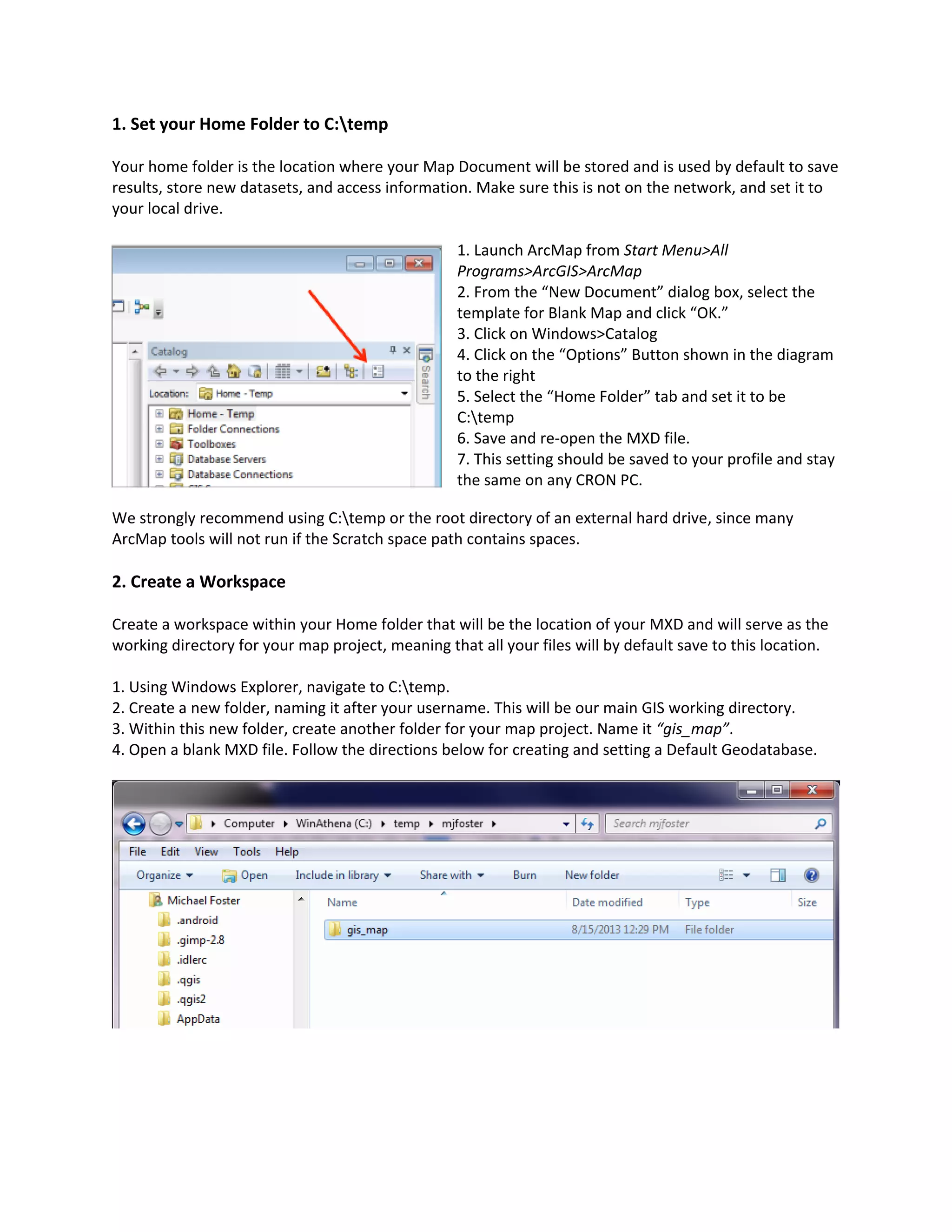
1. Launch ArcMap from Start Menu>All
Programs>ArcGIS>ArcMap
2. From the “New Document” dialog box, select the
template for Blank Map and click “OK.”
3. Click on Windows>Catalog
4. Click on the “Options” Button shown in the diagram
to the right
5. Select the “Home Folder” tab and set it to be
C:temp
6. Save and re-open the MXD file.
7. This setting should be saved to your profile and stay
the same on any CRON PC.
We strongly recommend using C:temp or the root directory of an external hard drive, since many
ArcMap tools will not run if the Scratch space path contains spaces.
2. Create a Workspace
Create a workspace within your Home folder that will be the location of your MXD and will serve as the
working directory for your map project, meaning that all your files will by default save to this location.
1. Using Windows Explorer, navigate to C:temp.
2. Create a new folder, naming it after your username. This will be our main GIS working directory.
3. Within this new folder, create another folder for your map project. Name it “gis_map”.
4. Open a blank MXD file. Follow the directions below for creating and setting a Default Geodatabase.
3. Create and Set a Default Geodatabase
Next, we need to create a geodatabase that will
serve as the default scratch space for temporary
files and processing. ArcGIS will create this
automatically, but if it does not exist in the folder
we want, we can create it manually and tell ArcGIS
where to look for it. We are going to place the
default geodatabase in the “gis_map” location we
created in the last step.
1. From the “Catalog” window in an open map file,
navigate to the location of your project files
(c:temp<username>gis_map).
2. Right click on the project folder, and select New>File Geodatabase. Name it “default.gdb”.
3. If you have already created a map document for this project (mxd), in ArcMap, change the Default
Geodatabase to this file using File>Map Document Properties. If you have not yet created an MXD,
select this geodatabase from the “New Document” menu shown below when creating the project MXD.
4. If you have been working on a file using a Default Geodatabase that is stored elsewhere, you can copy
and paste data into your new Default Geodatabase using ArcCatalog. When completed with your work
or you need to move to a different computer, copy and paste this Default Geodatabase scratch space on
your external hard drive or thumbdrive.
4. Set Relative Pathnames
A ‘file path’ is the route you take in Windows Explorer to get to the location in which your map
document and data files are stored. It is good practice to save all of your files in the same root directory,
putting data in a ‘data’ folder and your MXD either on the root or in a ‘projects’ folder. When you move
between computers, each computer has different drives and settings, so this path will change. Often,
this will ‘break’ the link between the map document and your data files, and your data will not show up
within your MXD. ArcGIS allows us to store relative path names, and when stored, it will attempt to fix
these broken links. If we set ArcMap to store relative path names, it will store pathnames based on your
root directory, and modify them for you if you are working from an external drive and move from one
computer to another.
1. After starting a new MDX go to File>Map Document Properties
2. Check the box that says “Store relative filenames to data sources”
3. Click OK and save your file.
5. Clean up Folder Connections
ArcGIS is unique that in order to add data to a map document, or see and modify folders in Catalog, you
must ‘Connect’ your map document to the directory in which your data is stored. Unlike other
programs, you cannot just use Windows Explorer to locate and find files. Instructions to connect to a
folder are as follows:
a. Connect to a Folder
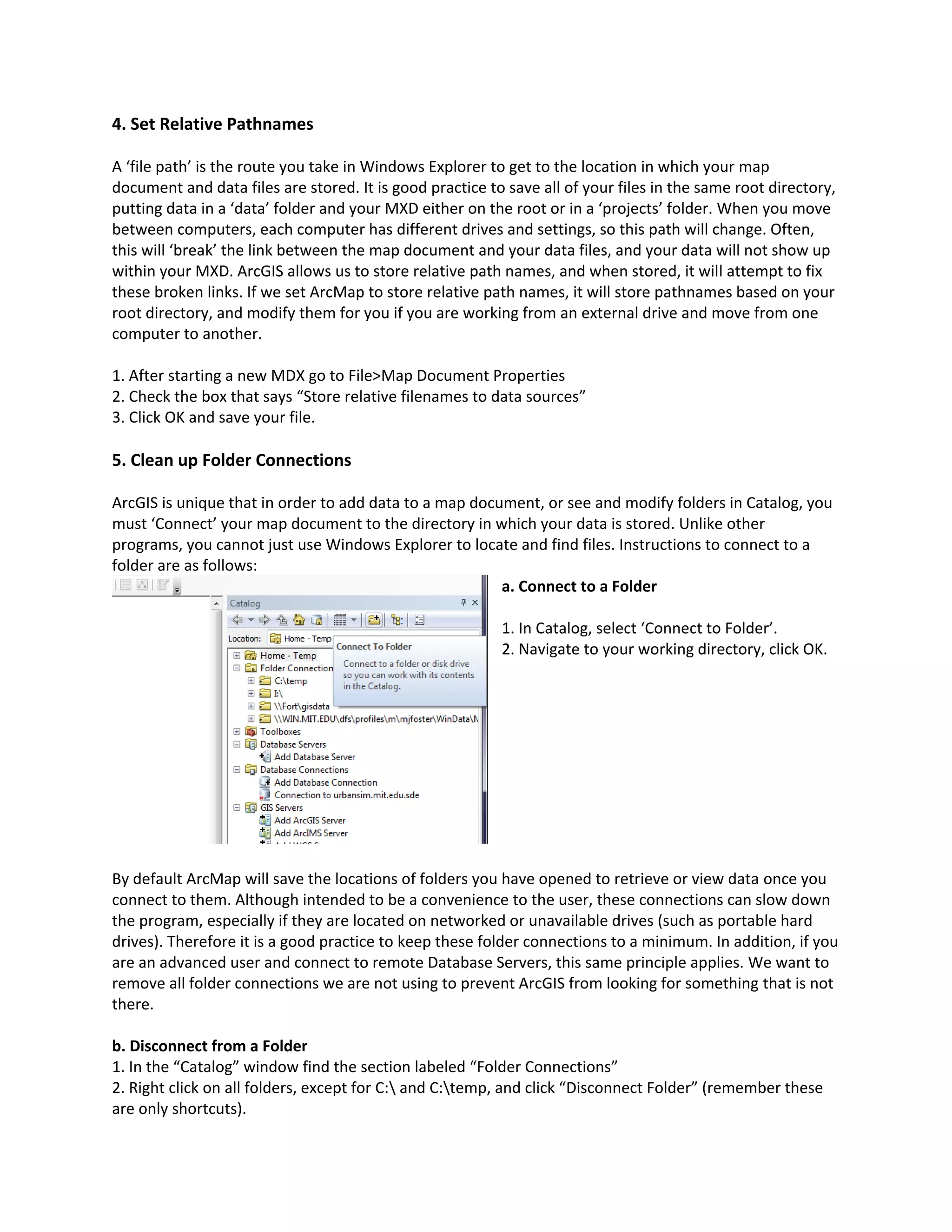
1. In Catalog, select ‘Connect to Folder’.
2. Navigate to your working directory, click OK.
By default ArcMap will save the locations of folders you have opened to retrieve or view data once you
connect to them. Although intended to be a convenience to the user, these connections can slow down
the program, especially if they are located on networked or unavailable drives (such as portable hard
drives). Therefore it is a good practice to keep these folder connections to a minimum. In addition, if you
are an advanced user and connect to remote Database Servers, this same principle applies. We want to
remove all folder connections we are not using to prevent ArcGIS from looking for something that is not
there.
b. Disconnect from a Folder
1. In the “Catalog” window find the section labeled “Folder Connections”
2. Right click on all folders, except for C: and C:temp, and click “Disconnect Folder” (remember these
are only shortcuts).

Setting up your DUSP ArcGIS Environment

  • 1.
    The DUSP GISEnvironment Setting up your Computer to work with ArcGIS Working on the computers in the CRON labs and around campus is different than working on your own personal machine. All of the MIT-owned (lab) computers are networked, and each of you has an account on the network. This network is named the Athena network. When you join the MIT community, you are given an Athena account that lets you access on-campus computers, authenticates campus wide licenses and applications, and provides you with a small amount of network space called a ‘locker’ in which you can store documents and files. The benefits of the Athena network are many. For starters, you can create a profile that will configure your computer in a consistent manner no matter what computer you sign on to, and you can save documents to the network that you can then open on any computer. There are limitations to the Athena network, however. Regular communication with documents and files that are on the network can slow down data intensive software, such as GIS and statistical programs. You also have very limited space in your ‘locker’ on the network and it will fill up fast. From a practical standpoint, what does this mean for me and using GIS? Due to the fact that ArcGIS is a space and memory consuming program, the more it uses files and data on the network the slower it will run. The solution to this is to make sure the datasets you are using are not stored on the network, but instead on a local drive or a thumb/external hard drive. The following will detail how to set up your computer to read locally stored data, and where to optimally store your files and data.
  • 2.
    1. Set yourHome Folder to C:temp Your home folder is the location where your Map Document will be stored and is used by default to save results, store new datasets, and access information. Make sure this is not on the network, and set it to your local drive. 1. Launch ArcMap from Start Menu>All Programs>ArcGIS>ArcMap 2. From the “New Document” dialog box, select the template for Blank Map and click “OK.” 3. Click on Windows>Catalog 4. Click on the “Options” Button shown in the diagram to the right 5. Select the “Home Folder” tab and set it to be C:temp 6. Save and re-open the MXD file. 7. This setting should be saved to your profile and stay the same on any CRON PC. We strongly recommend using C:temp or the root directory of an external hard drive, since many ArcMap tools will not run if the Scratch space path contains spaces. 2. Create a Workspace Create a workspace within your Home folder that will be the location of your MXD and will serve as the working directory for your map project, meaning that all your files will by default save to this location. 1. Using Windows Explorer, navigate to C:temp. 2. Create a new folder, naming it after your username. This will be our main GIS working directory. 3. Within this new folder, create another folder for your map project. Name it “gis_map”. 4. Open a blank MXD file. Follow the directions below for creating and setting a Default Geodatabase.
  • 3.
    3. Create andSet a Default Geodatabase Next, we need to create a geodatabase that will serve as the default scratch space for temporary files and processing. ArcGIS will create this automatically, but if it does not exist in the folder we want, we can create it manually and tell ArcGIS where to look for it. We are going to place the default geodatabase in the “gis_map” location we created in the last step. 1. From the “Catalog” window in an open map file, navigate to the location of your project files (c:temp<username>gis_map). 2. Right click on the project folder, and select New>File Geodatabase. Name it “default.gdb”. 3. If you have already created a map document for this project (mxd), in ArcMap, change the Default Geodatabase to this file using File>Map Document Properties. If you have not yet created an MXD, select this geodatabase from the “New Document” menu shown below when creating the project MXD. 4. If you have been working on a file using a Default Geodatabase that is stored elsewhere, you can copy and paste data into your new Default Geodatabase using ArcCatalog. When completed with your work or you need to move to a different computer, copy and paste this Default Geodatabase scratch space on your external hard drive or thumbdrive.
  • 4.
    4. Set RelativePathnames A ‘file path’ is the route you take in Windows Explorer to get to the location in which your map document and data files are stored. It is good practice to save all of your files in the same root directory, putting data in a ‘data’ folder and your MXD either on the root or in a ‘projects’ folder. When you move between computers, each computer has different drives and settings, so this path will change. Often, this will ‘break’ the link between the map document and your data files, and your data will not show up within your MXD. ArcGIS allows us to store relative path names, and when stored, it will attempt to fix these broken links. If we set ArcMap to store relative path names, it will store pathnames based on your root directory, and modify them for you if you are working from an external drive and move from one computer to another. 1. After starting a new MDX go to File>Map Document Properties 2. Check the box that says “Store relative filenames to data sources” 3. Click OK and save your file. 5. Clean up Folder Connections ArcGIS is unique that in order to add data to a map document, or see and modify folders in Catalog, you must ‘Connect’ your map document to the directory in which your data is stored. Unlike other programs, you cannot just use Windows Explorer to locate and find files. Instructions to connect to a folder are as follows: a. Connect to a Folder 1. In Catalog, select ‘Connect to Folder’. 2. Navigate to your working directory, click OK. By default ArcMap will save the locations of folders you have opened to retrieve or view data once you connect to them. Although intended to be a convenience to the user, these connections can slow down the program, especially if they are located on networked or unavailable drives (such as portable hard drives). Therefore it is a good practice to keep these folder connections to a minimum. In addition, if you are an advanced user and connect to remote Database Servers, this same principle applies. We want to remove all folder connections we are not using to prevent ArcGIS from looking for something that is not there. b. Disconnect from a Folder 1. In the “Catalog” window find the section labeled “Folder Connections” 2. Right click on all folders, except for C: and C:temp, and click “Disconnect Folder” (remember these are only shortcuts).