





Introduction toTools in
ArcGIS
Daniele Baker, SWQM Central Office
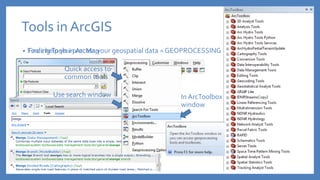
Use search window
Tools in ArcGIS
• Tools help you process your geospatial data = GEOPROCESSING
Quick access to
common tools
In ArcToolbox
window
• FindingTools in ArcMap
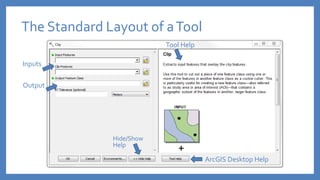
The Standard Layout of aTool
Inputs
Output
Hide/Show
Help
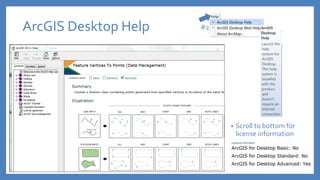
ArcGIS Desktop Help
Tool Help
ArcGIS Desktop Help
• Scroll to bottom for
license information
#2
ArcGIS License Levels
• ArcGIS is available in 3 license levels
• Share same core applications
• Vary in functionality
• Effects which tools are available
Rebranded inV. 10.1Original Levels
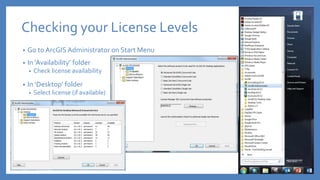
Checking your License Levels
• Go to ArcGIS Administrator on Start Menu
• In ‘Availability’ folder
• Check license availability
• In ‘Desktop’ folder
• Select license (if available)
ArcGIS Desktop Extensions
• If License for Extensions are available…
• Select extensions from customize menu at top of ArcMap
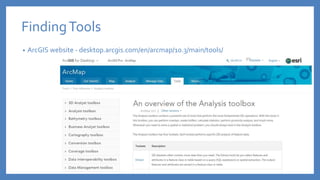
FindingTools
• ArcGIS website - desktop.arcgis.com/en/arcmap/10.3/main/tools/
FindingTools
• My favorite way to find tools
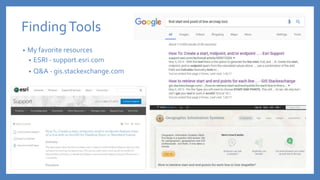
FindingTools
• My favorite resources
• ESRI - support.esri.com
• Q&A - gis.stackexchange.com
• Tools available from Geoprocessing drop-down menu
CommonsTool Available at all Licenses Level
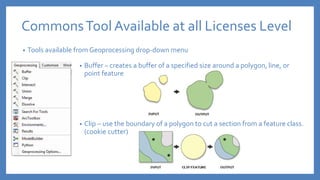
• Buffer – creates a buffer of a specified size around a polygon, line, or
point feature
• Clip – use the boundary of a polygon to cut a section from a feature class.
(cookie cutter)
• Tools available from Geoprocessing drop-down menu
CommonsTool Available at all Licenses Level
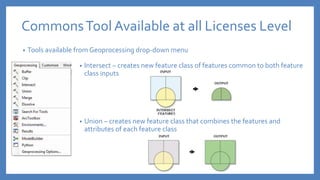
• Intersect – creates new feature class of features common to both feature
class inputs
• Union – creates new feature class that combines the features and
attributes of each feature class
• Tools available from Geoprocessing drop-down menu
CommonsTool Available at all Licenses Level
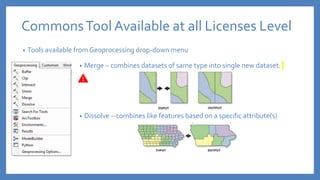
• Merge – combines datasets of same type into single new dataset.
• Dissolve – combines like features based on a specific attribute(s)
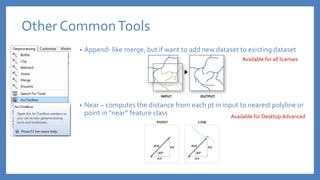
Other CommonTools
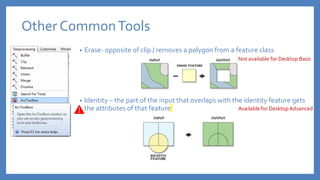
• Erase- opposite of clip / removes a polygon from a feature class
• Identity – the part of the input that overlaps with the identity feature gets
the attributes of that feature
Not available for Desktop Basic
Available for Desktop Advanced
• Append- like merge, but if want to add new dataset to existing dataset
• Near – computes the distance from each pt in input to nearest polyline or
point in “near” feature class
Other CommonTools
Available for all licenses
Available for Desktop Advanced
EXAMPLES
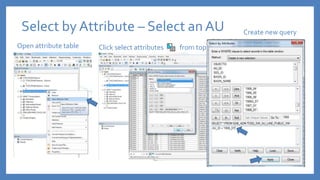
Select by Attribute – Select an AU
Open attribute table Click select attributes from top of attribute table
Create new query
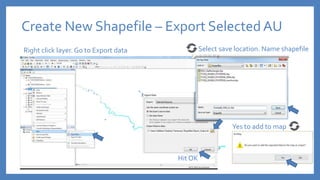
Create New Shapefile – Export SelectedAU
Right click layer. Go to Export data Select save location. Name shapefile
Yes to add to map
Hit OK
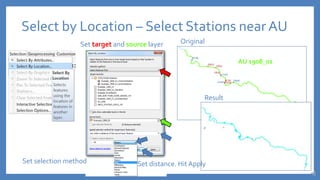
Select by Location – Select Stations near AU
Set target and source layer Original
Result
AU 1908_01
Set selection method Set distance. Hit Apply
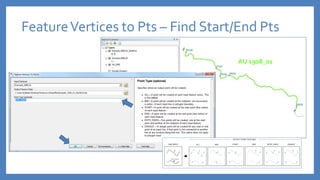
FeatureVertices to Pts – Find Start/End Pts
AU 1908_01
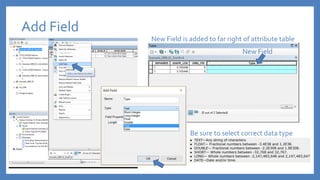
Add Field
Be sure to select correct data type
New Field
New Field is added to far right of attribute table
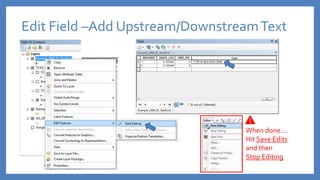
When done….
Hit Save Edits
and then
Stop Editing
Edit Field –Add Upstream/DownstreamText
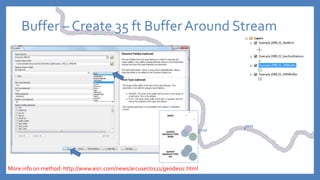
Buffer – Create 35 ft Buffer Around Stream
More info on method: http://www.esri.com/news/arcuser/0111/geodesic.html
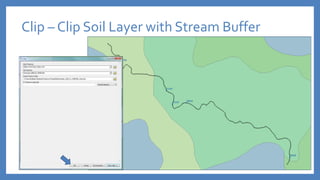
Clip – Clip Soil Layer with Stream Buffer
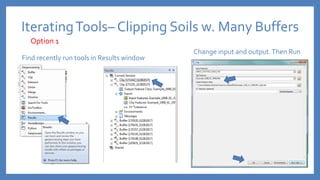
IteratingTools– Clipping Soils w. Many Buffers
Find recently run tools in Results window
Change input and output.Then Run
Option 1
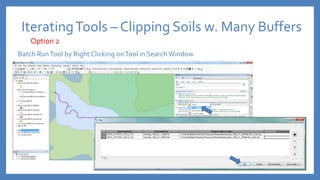
IteratingTools – Clipping Soils w. Many Buffers
Batch RunTool by Right Clicking onTool in SearchWindow
Option 2
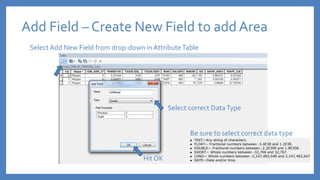
Add Field – Create New Field to add Area
Select Add New Field from drop-down in AttributeTable
Hit OK
Select correct DataType
Be sure to select correct data type
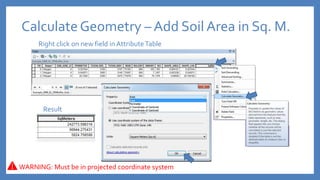
CalculateGeometry – Add Soil Area in Sq. M.
Right click on new field in AttributeTable
Result
WARNING: Must be in projected coordinate system
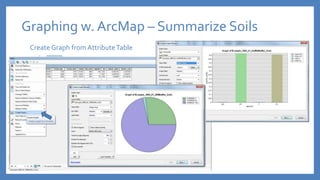
Graphing w. ArcMap – Summarize Soils
Create Graph from AttributeTable
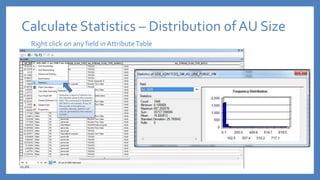
Calculate Statistics – Distribution of AU Size
Right click on any field in AttributeTable
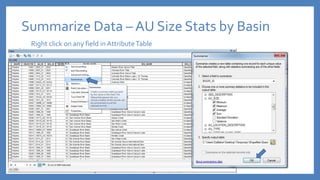
Summarize Data – AU Size Stats by Basin
Right click on any field in AttributeTable
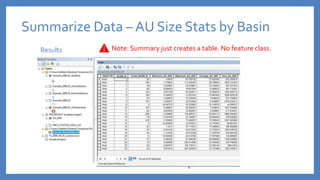
Summarize Data – AU Size Stats by Basin
Results Note: Summary just creates a table. No feature class.
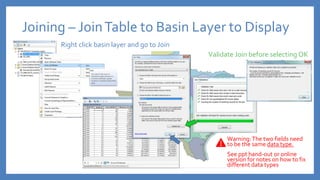
Joining – JoinTable to Basin Layer to Display
Right click basin layer and go to Join
Warning:The two fields need
to be the same data type.
See ppt hand-out or online
version for notes on how to fix
different data types
Validate Join before selecting OK
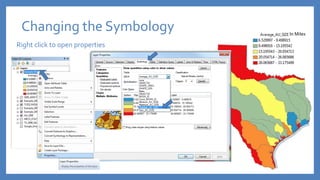
Changing the Symbology
Right click to open properties
In Miles
Learning More
Learning More: ESRI E-Learning
Learning More: ESRI Publishing
www.esripress.esri.com/bookResources/
Learning More:TNRIS Courses www.tnris.org/training
Questions?
Daniele Baker, SWQM Central Office
daniele.baker@tceq.texas.gov
512-239-1740

Introduction to Tools in ArcGIS

  • 1.
    Introduction toTools in ArcGIS DanieleBaker, SWQM Central Office
  • 2.
    Use search window Toolsin ArcGIS • Tools help you process your geospatial data = GEOPROCESSING Quick access to common tools In ArcToolbox window • FindingTools in ArcMap
  • 3.
    The Standard Layoutof aTool Inputs Output Hide/Show Help ArcGIS Desktop Help Tool Help
  • 4.
    ArcGIS Desktop Help •Scroll to bottom for license information #2
  • 5.
    ArcGIS License Levels •ArcGIS is available in 3 license levels • Share same core applications • Vary in functionality • Effects which tools are available Rebranded inV. 10.1Original Levels
  • 6.
    Checking your LicenseLevels • Go to ArcGIS Administrator on Start Menu • In ‘Availability’ folder • Check license availability • In ‘Desktop’ folder • Select license (if available)
  • 7.
    ArcGIS Desktop Extensions •If License for Extensions are available… • Select extensions from customize menu at top of ArcMap
  • 8.
    FindingTools • ArcGIS website- desktop.arcgis.com/en/arcmap/10.3/main/tools/
  • 9.
  • 10.
    FindingTools • My favoriteresources • ESRI - support.esri.com • Q&A - gis.stackexchange.com
  • 11.
    • Tools availablefrom Geoprocessing drop-down menu CommonsTool Available at all Licenses Level • Buffer – creates a buffer of a specified size around a polygon, line, or point feature • Clip – use the boundary of a polygon to cut a section from a feature class. (cookie cutter)
  • 12.
    • Tools availablefrom Geoprocessing drop-down menu CommonsTool Available at all Licenses Level • Intersect – creates new feature class of features common to both feature class inputs • Union – creates new feature class that combines the features and attributes of each feature class
  • 13.
    • Tools availablefrom Geoprocessing drop-down menu CommonsTool Available at all Licenses Level • Merge – combines datasets of same type into single new dataset. • Dissolve – combines like features based on a specific attribute(s)
  • 14.
    Other CommonTools • Erase-opposite of clip / removes a polygon from a feature class • Identity – the part of the input that overlaps with the identity feature gets the attributes of that feature Not available for Desktop Basic Available for Desktop Advanced
  • 15.
    • Append- likemerge, but if want to add new dataset to existing dataset • Near – computes the distance from each pt in input to nearest polyline or point in “near” feature class Other CommonTools Available for all licenses Available for Desktop Advanced
  • 16.
  • 17.
    Select by Attribute– Select an AU Open attribute table Click select attributes from top of attribute table Create new query
  • 18.
    Create New Shapefile– Export SelectedAU Right click layer. Go to Export data Select save location. Name shapefile Yes to add to map Hit OK
  • 19.
    Select by Location– Select Stations near AU Set target and source layer Original Result AU 1908_01 Set selection method Set distance. Hit Apply
  • 20.
    FeatureVertices to Pts– Find Start/End Pts AU 1908_01
  • 21.
    Add Field Be sureto select correct data type New Field New Field is added to far right of attribute table
  • 22.
    When done…. Hit SaveEdits and then Stop Editing Edit Field –Add Upstream/DownstreamText
  • 23.
    Buffer – Create35 ft Buffer Around Stream More info on method: http://www.esri.com/news/arcuser/0111/geodesic.html
  • 24.
    Clip – ClipSoil Layer with Stream Buffer
  • 25.
    IteratingTools– Clipping Soilsw. Many Buffers Find recently run tools in Results window Change input and output.Then Run Option 1
  • 26.
    IteratingTools – ClippingSoils w. Many Buffers Batch RunTool by Right Clicking onTool in SearchWindow Option 2
  • 27.
    Add Field –Create New Field to add Area Select Add New Field from drop-down in AttributeTable Hit OK Select correct DataType Be sure to select correct data type
  • 28.
    CalculateGeometry – AddSoil Area in Sq. M. Right click on new field in AttributeTable Result WARNING: Must be in projected coordinate system
  • 29.
    Graphing w. ArcMap– Summarize Soils Create Graph from AttributeTable
  • 30.
    Calculate Statistics –Distribution of AU Size Right click on any field in AttributeTable
  • 31.
    Summarize Data –AU Size Stats by Basin Right click on any field in AttributeTable
  • 32.
    Summarize Data –AU Size Stats by Basin Results Note: Summary just creates a table. No feature class.
  • 33.
    Joining – JoinTableto Basin Layer to Display Right click basin layer and go to Join Warning:The two fields need to be the same data type. See ppt hand-out or online version for notes on how to fix different data types Validate Join before selecting OK
  • 34.
    Changing the Symbology Rightclick to open properties In Miles
  • 35.
  • 36.
  • 37.
    Learning More: ESRIPublishing www.esripress.esri.com/bookResources/
  • 38.
    Learning More:TNRIS Courseswww.tnris.org/training
  • 39.
    Questions? Daniele Baker, SWQMCentral Office daniele.baker@tceq.texas.gov 512-239-1740

Editor's Notes

  • #2 I’ve provide additional slides in the handout and on our training website, that I won’t have time to cover today.
  • #15 *UPDATE YOUR HANDOUT!
  • #18 Using the expressions.
  • #19 Every single tool will have the same “save location” pop-up and after it runs the ‘add to map’ pop-up, so I won’t repeat them
  • #20 Selection method – Save as on Select by Attribute
  • #24 Geodesic accts for shape of the earth. If select Planar and using a projected coordinate system and select Planar method will still use Geodesic.. If using geographic coordinate system will use a 2-d Euclidean buffer. If you wanted to create buffers around all AUs, then could dissolve the buffers together by basins