Microsoft Excel 2007 – Level 2 ADVANCED FORMATTING TECHNIQUES Chapter 1
Performance Objectives Apply conditional formatting by entering parameters for a rule Apply conditional formatting using a predefined rule Create and apply a new rule for conditional formatting Edit and delete a conditional formatting rule Apply conditional formatting using an icon set, data bars, and color scale Apply fraction and scientific formatting Apply a special format for a number Create a custom number format Apply wrap text and shrink to fit text control options Filter a worksheet using a custom Auto Filter Filter and sort a worksheet using conditional formatting Filter and sort a worksheet using cell attributes
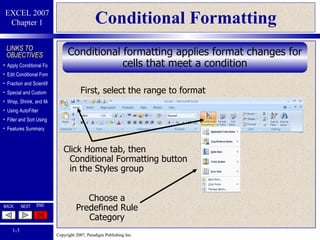
Conditional Formatting Conditional formatting applies format changes for cells that meet a condition Click Home tab, then Conditional Formatting button in the Styles group Choose a Predefined Rule Category First, select the range to format
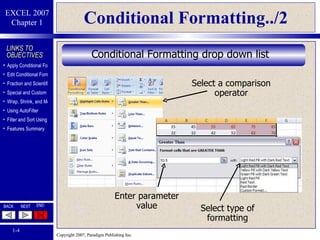
Conditional Formatting../2 Conditional Formatting drop down list  Select a comparison operator Enter parameter value Select type of formatting
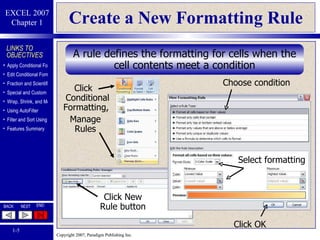
Create a New Formatting Rule A rule defines the formatting for cells when the cell contents meet a condition Click   Conditional Formatting, Manage Rules Click New Rule button Choose condition Select formatting Click OK
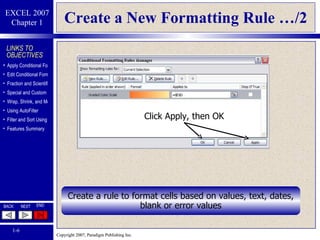
Create a New Formatting Rule …/2 Click Apply, then OK Create a rule to format cells based on values, text, dates, blank or error values
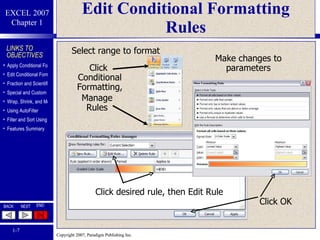
Edit Conditional Formatting Rules Select range to format Click  Conditional Formatting, Manage Rules Click desired rule, then Edit Rule Make changes to parameters Click OK
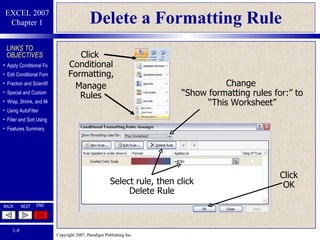
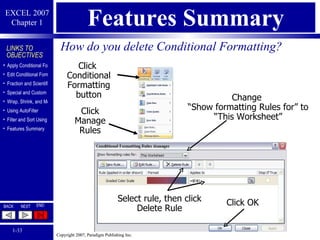
Delete a Formatting Rule Click  Conditional Formatting, Manage Rules Change  “Show formatting rules for:” to “This Worksheet” Select rule, then click Delete Rule Click  OK
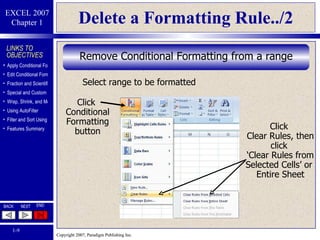
Delete a Formatting Rule../2 Remove Conditional Formatting from a range Select range to be formatted Click  Conditional Formatting button Click  Clear Rules, then click  ‘Clear Rules from Selected Cells’ or  Entire Sheet
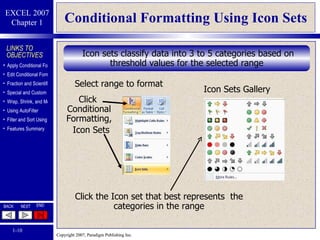
Conditional Formatting Using Icon Sets Icon sets classify data into 3 to 5 categories based on threshold values for the selected range Select range to format Click  Conditional Formatting, Icon Sets Click the Icon set that best represents  the categories in the range Icon Sets Gallery
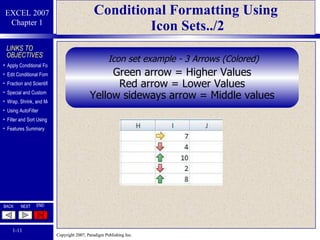
Conditional Formatting Using  Icon Sets../2 Icon set example - 3 Arrows (Colored) Green arrow = Higher Values Red arrow = Lower Values Yellow sideways arrow = Middle values
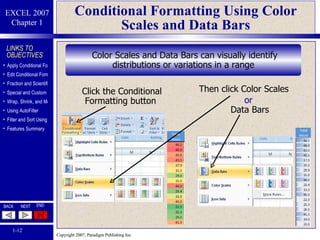
Conditional Formatting Using Color Scales and Data Bars Color Scales and Data Bars can visually identify distributions or variations in a range Click the Conditional Formatting button  Then click Color Scales or Data Bars
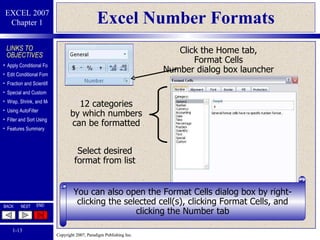
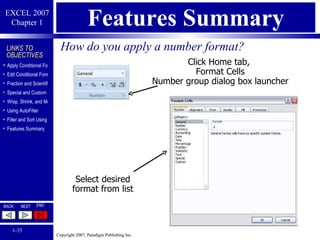
Excel Number Formats 12 categories by which numbers can be formatted Click the Home tab,  Format Cells  Number dialog box launcher You can also open the Format Cells dialog box by right-clicking the selected cell(s), clicking Format Cells, and clicking the Number tab Select desired format from list
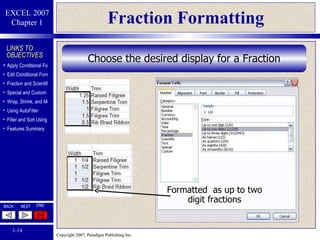
Fraction Formatting Choose the desired display for a Fraction Formatted  as up to two digit fractions
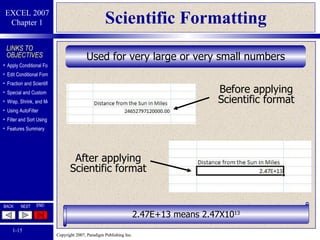
Scientific Formatting Used for very large or very small numbers Before applying Scientific format After applying Scientific format 2.47E+13 means 2.47X10 13
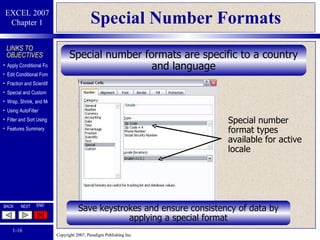
Special Number Formats Special number formats are specific to a country and language Special number format types available for active locale Save keystrokes and ensure consistency of data   by applying a special format
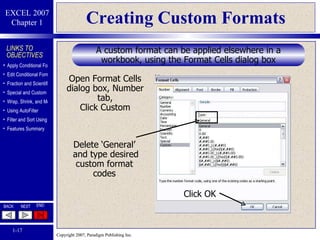
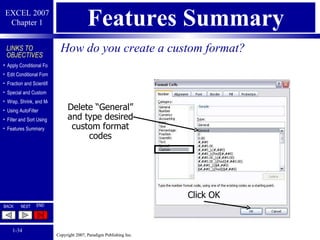
Creating Custom Formats Delete ‘General’  and type desired custom format codes Click OK A custom format can be applied elsewhere in a workbook, using the Format Cells dialog box Open Format Cells dialog box, Number tab, Click Custom
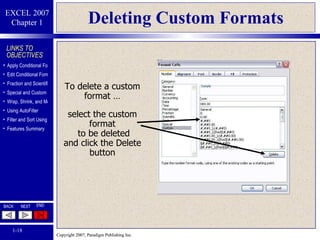
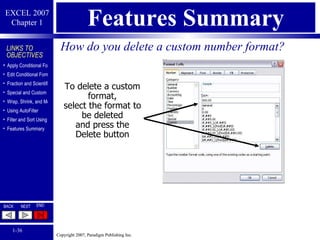
Deleting Custom Formats To delete a custom format … select the custom format  to be deleted and click the Delete button
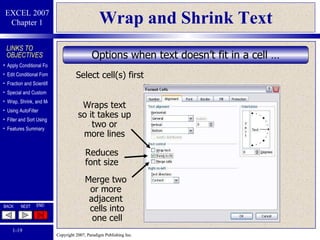
Wrap and Shrink Text Options when text doesn’t fit in a cell … Wraps text so it takes up two or more lines Reduces font size Merge two  or more  adjacent  cells into one cell Select cell(s) first
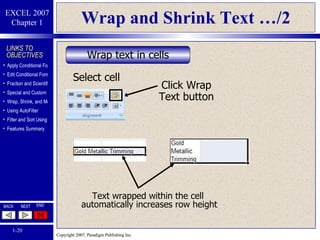
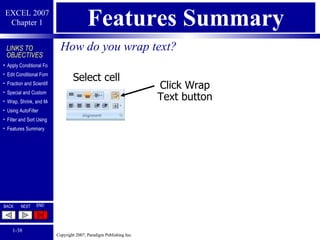
Wrap and Shrink Text …/2 Wrap text in cells Text wrapped within the cell  automatically increases row height Click Wrap Text button Select cell
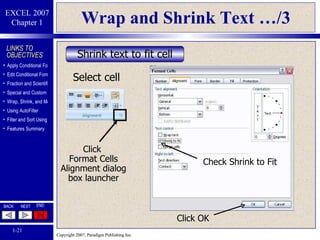
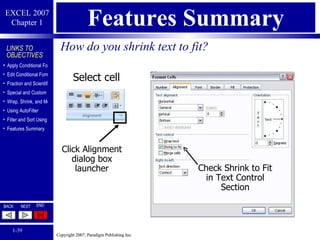
Wrap and Shrink Text …/3 Shrink text to fit cell Click  Format Cells Alignment dialog box launcher Select cell Check Shrink to Fit Click OK
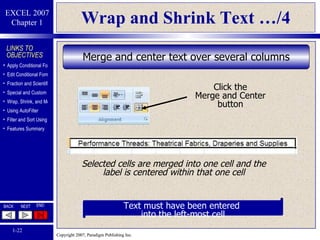
Wrap and Shrink Text …/4 Click the Merge and Center button Selected cells are merged into one cell and the label is centered within that one cell Merge and center text over several columns Text must have been entered  into the left-most cell
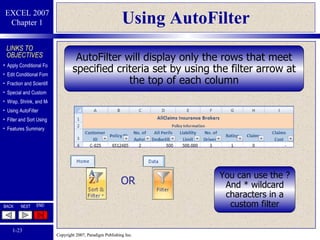
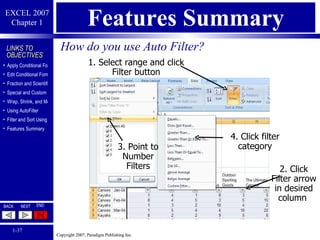
Using AutoFilter AutoFilter will display only the rows that meet specified criteria set by using the filter arrow at the top of each column You can use the ? And * wildcard characters in a custom filter OR
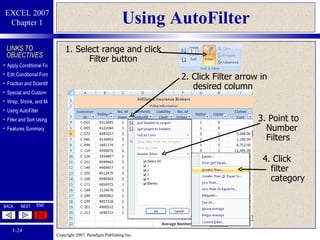
Using AutoFilter 1. Select range and click Filter button 2. Click Filter arrow in desired column  4. Click filter category 3. Point to Number Filters
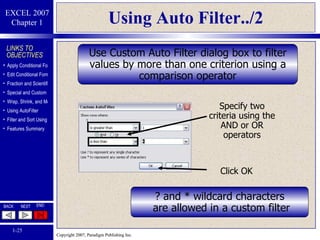
Using Auto Filter../2 Use Custom Auto Filter dialog box to filter values by more than one criterion using a comparison operator Specify two criteria using the AND or OR operators ? and * wildcard characters  are allowed in a custom filter Click OK
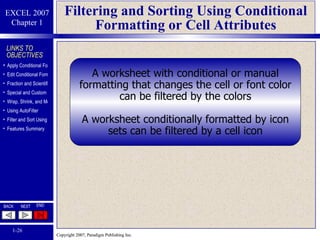
Filtering and Sorting Using Conditional Formatting or Cell Attributes A worksheet with conditional or manual formatting that changes the cell or font color can be filtered by the colors A worksheet conditionally formatted by icon sets can be filtered by a cell icon
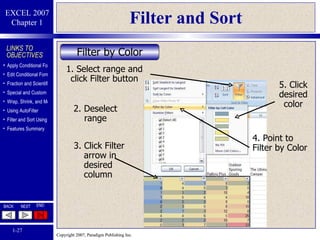
Filter and Sort 1. Select range and click Filter button 3. Click Filter arrow in desired column 2. Deselect range 4. Point to  Filter by Color 5. Click desired color Filter by Color
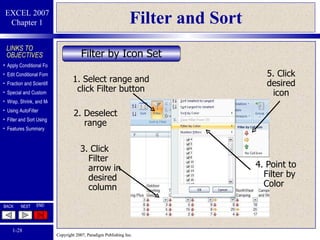
Filter and Sort 1. Select range and click Filter button 3. Click Filter arrow in desired column 2. Deselect range 4. Point to Filter by Color 5. Click desired icon Filter by Icon Set
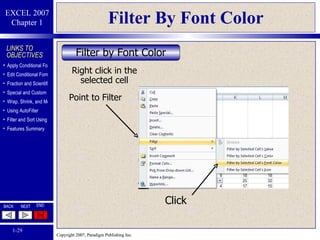
Filter By Font Color Right click in the selected cell Point to Filter  Filter by Font Color Click
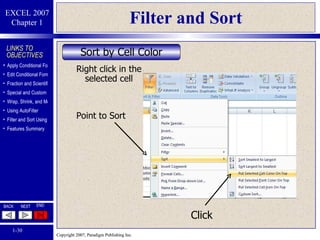
Filter and Sort Right click in the selected cell Point to Sort  Sort by Cell Color Click
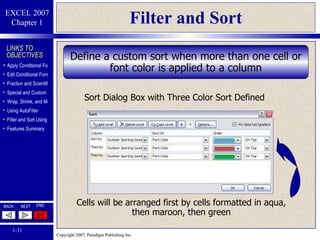
Filter and Sort Define a custom sort when more than one cell or font color is applied to a column Cells will be arranged first by cells formatted in aqua, then maroon, then green Sort Dialog Box with Three Color Sort Defined
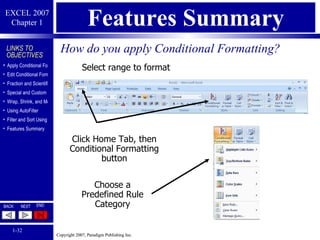
Features Summary How do you apply Conditional Formatting?   Click Home Tab, then Conditional Formatting button Choose a Predefined Rule Category Select range to format
Features Summary How do you delete Conditional Formatting?  Click  Conditional Formatting button Click Manage Rules Change  “Show formatting Rules for” to “This Worksheet” Click OK  Select rule, then click Delete Rule
Features Summary How do you create a custom format? Delete “General” and type desired custom format codes Click OK
Features Summary How do you apply a number format? Select desired format from list Click Home tab,  Format Cells  Number group dialog box launcher
Features Summary How do you delete a custom number format? To delete a custom format, select the format to be deleted and press the Delete button
Features Summary How do you use Auto Filter? 1. Select range and click Filter button 2. Click Filter arrow in desired column  4. Click filter category 3. Point to Number Filters
Features Summary How do you wrap text? Click Wrap Text button Select cell
Features Summary How do you shrink text to fit? Select cell Check Shrink to Fit in Text Control Section Click Alignment dialog box launcher
Coming Next ADVANCED FUNCTIONS AND FORMULAS Chapter 2

Advanced DB - Chapter 1 Slides

  • 1.
    Microsoft Excel 2007– Level 2 ADVANCED FORMATTING TECHNIQUES Chapter 1
  • 2.
    Performance Objectives Applyconditional formatting by entering parameters for a rule Apply conditional formatting using a predefined rule Create and apply a new rule for conditional formatting Edit and delete a conditional formatting rule Apply conditional formatting using an icon set, data bars, and color scale Apply fraction and scientific formatting Apply a special format for a number Create a custom number format Apply wrap text and shrink to fit text control options Filter a worksheet using a custom Auto Filter Filter and sort a worksheet using conditional formatting Filter and sort a worksheet using cell attributes
  • 3.
    Conditional Formatting Conditionalformatting applies format changes for cells that meet a condition Click Home tab, then Conditional Formatting button in the Styles group Choose a Predefined Rule Category First, select the range to format
  • 4.
    Conditional Formatting../2 ConditionalFormatting drop down list Select a comparison operator Enter parameter value Select type of formatting
  • 5.
    Create a NewFormatting Rule A rule defines the formatting for cells when the cell contents meet a condition Click Conditional Formatting, Manage Rules Click New Rule button Choose condition Select formatting Click OK
  • 6.
    Create a NewFormatting Rule …/2 Click Apply, then OK Create a rule to format cells based on values, text, dates, blank or error values
  • 7.
    Edit Conditional FormattingRules Select range to format Click Conditional Formatting, Manage Rules Click desired rule, then Edit Rule Make changes to parameters Click OK
  • 8.
    Delete a FormattingRule Click Conditional Formatting, Manage Rules Change “Show formatting rules for:” to “This Worksheet” Select rule, then click Delete Rule Click OK
  • 9.
    Delete a FormattingRule../2 Remove Conditional Formatting from a range Select range to be formatted Click Conditional Formatting button Click Clear Rules, then click ‘Clear Rules from Selected Cells’ or Entire Sheet
  • 10.
    Conditional Formatting UsingIcon Sets Icon sets classify data into 3 to 5 categories based on threshold values for the selected range Select range to format Click Conditional Formatting, Icon Sets Click the Icon set that best represents the categories in the range Icon Sets Gallery
  • 11.
    Conditional Formatting Using Icon Sets../2 Icon set example - 3 Arrows (Colored) Green arrow = Higher Values Red arrow = Lower Values Yellow sideways arrow = Middle values
  • 12.
    Conditional Formatting UsingColor Scales and Data Bars Color Scales and Data Bars can visually identify distributions or variations in a range Click the Conditional Formatting button Then click Color Scales or Data Bars
  • 13.
    Excel Number Formats12 categories by which numbers can be formatted Click the Home tab, Format Cells Number dialog box launcher You can also open the Format Cells dialog box by right-clicking the selected cell(s), clicking Format Cells, and clicking the Number tab Select desired format from list
  • 14.
    Fraction Formatting Choosethe desired display for a Fraction Formatted as up to two digit fractions
  • 15.
    Scientific Formatting Usedfor very large or very small numbers Before applying Scientific format After applying Scientific format 2.47E+13 means 2.47X10 13
  • 16.
    Special Number FormatsSpecial number formats are specific to a country and language Special number format types available for active locale Save keystrokes and ensure consistency of data by applying a special format
  • 17.
    Creating Custom FormatsDelete ‘General’ and type desired custom format codes Click OK A custom format can be applied elsewhere in a workbook, using the Format Cells dialog box Open Format Cells dialog box, Number tab, Click Custom
  • 18.
    Deleting Custom FormatsTo delete a custom format … select the custom format to be deleted and click the Delete button
  • 19.
    Wrap and ShrinkText Options when text doesn’t fit in a cell … Wraps text so it takes up two or more lines Reduces font size Merge two or more adjacent cells into one cell Select cell(s) first
  • 20.
    Wrap and ShrinkText …/2 Wrap text in cells Text wrapped within the cell automatically increases row height Click Wrap Text button Select cell
  • 21.
    Wrap and ShrinkText …/3 Shrink text to fit cell Click Format Cells Alignment dialog box launcher Select cell Check Shrink to Fit Click OK
  • 22.
    Wrap and ShrinkText …/4 Click the Merge and Center button Selected cells are merged into one cell and the label is centered within that one cell Merge and center text over several columns Text must have been entered into the left-most cell
  • 23.
    Using AutoFilter AutoFilterwill display only the rows that meet specified criteria set by using the filter arrow at the top of each column You can use the ? And * wildcard characters in a custom filter OR
  • 24.
    Using AutoFilter 1.Select range and click Filter button 2. Click Filter arrow in desired column 4. Click filter category 3. Point to Number Filters
  • 25.
    Using Auto Filter../2Use Custom Auto Filter dialog box to filter values by more than one criterion using a comparison operator Specify two criteria using the AND or OR operators ? and * wildcard characters are allowed in a custom filter Click OK
  • 26.
    Filtering and SortingUsing Conditional Formatting or Cell Attributes A worksheet with conditional or manual formatting that changes the cell or font color can be filtered by the colors A worksheet conditionally formatted by icon sets can be filtered by a cell icon
  • 27.
    Filter and Sort1. Select range and click Filter button 3. Click Filter arrow in desired column 2. Deselect range 4. Point to Filter by Color 5. Click desired color Filter by Color
  • 28.
    Filter and Sort1. Select range and click Filter button 3. Click Filter arrow in desired column 2. Deselect range 4. Point to Filter by Color 5. Click desired icon Filter by Icon Set
  • 29.
    Filter By FontColor Right click in the selected cell Point to Filter Filter by Font Color Click
  • 30.
    Filter and SortRight click in the selected cell Point to Sort Sort by Cell Color Click
  • 31.
    Filter and SortDefine a custom sort when more than one cell or font color is applied to a column Cells will be arranged first by cells formatted in aqua, then maroon, then green Sort Dialog Box with Three Color Sort Defined
  • 32.
    Features Summary Howdo you apply Conditional Formatting? Click Home Tab, then Conditional Formatting button Choose a Predefined Rule Category Select range to format
  • 33.
    Features Summary Howdo you delete Conditional Formatting? Click Conditional Formatting button Click Manage Rules Change “Show formatting Rules for” to “This Worksheet” Click OK Select rule, then click Delete Rule
  • 34.
    Features Summary Howdo you create a custom format? Delete “General” and type desired custom format codes Click OK
  • 35.
    Features Summary Howdo you apply a number format? Select desired format from list Click Home tab, Format Cells Number group dialog box launcher
  • 36.
    Features Summary Howdo you delete a custom number format? To delete a custom format, select the format to be deleted and press the Delete button
  • 37.
    Features Summary Howdo you use Auto Filter? 1. Select range and click Filter button 2. Click Filter arrow in desired column 4. Click filter category 3. Point to Number Filters
  • 38.
    Features Summary Howdo you wrap text? Click Wrap Text button Select cell
  • 39.
    Features Summary Howdo you shrink text to fit? Select cell Check Shrink to Fit in Text Control Section Click Alignment dialog box launcher
  • 40.
    Coming Next ADVANCEDFUNCTIONS AND FORMULAS Chapter 2