Microsoft
Excel 2007
Objective 2: Formatting
Data and Content
In this Objective you will learn
to:
 Format  Worksheets
 Insert and Modify Rows and Columns
 Format Cells and Cell Content, and
 Format Data as a Table
Format Worksheets
Workbook Themes, Gridlines, Headings, Tab Colors,
Worksheet Backgrounds, and Watermarks
Use a Workbook Theme
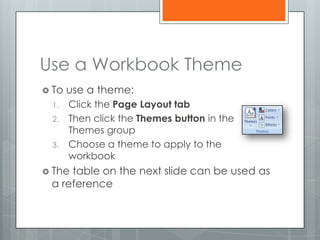
 To   use a theme:
 1.    Click the Page Layout tab
 2.    Then click the Themes button in the
       Themes group
 3.    Choose a theme to apply to the
       workbook
 Thetable on the next slide can be used as
 a reference
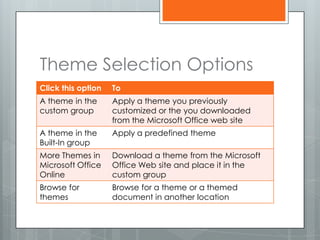
Theme Selection Options
Click this option   To
A theme in the      Apply a theme you previously
custom group        customized or the you downloaded
                    from the Microsoft Office web site
A theme in the      Apply a predefined theme
Built-In group
More Themes in      Download a theme from the Microsoft
Microsoft Office    Office Web site and place it in the
Online              custom group
Browse for          Browse for a theme or a themed
themes              document in another location
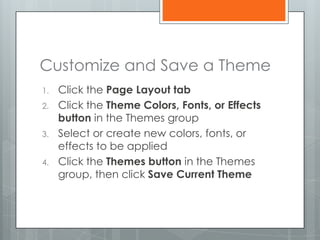
Customize and Save a Theme
1.   Click the Page Layout tab
2.   Click the Theme Colors, Fonts, or Effects
     button in the Themes group
3.   Select or create new colors, fonts, or
     effects to be applied
4.   Click the Themes button in the Themes
     group, then click Save Current Theme
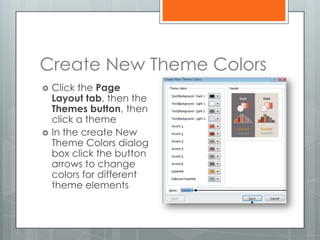
Create New Theme Colors
   Click the Page
    Layout tab, then the
    Themes button, then
    click a theme
   In the create New
    Theme Colors dialog
    box click the button
    arrows to change
    colors for different
    theme elements
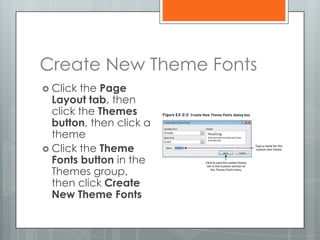
Create New Theme Fonts
 Click the Page
  Layout tab, then
  click the Themes
  button, then click a
  theme
 Click the Theme
  Fonts button in the
  Themes group,
  then click Create
  New Theme Fonts
Display & Hide Gridlines,
Column, & Row Headings
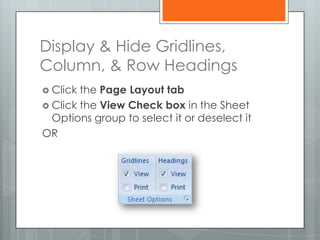
 Click the Page Layout tab
 Click the View Check box in the Sheet
  Options group to select it or deselect it
OR
Display & Hide Gridlines,
Column, & Row Headings
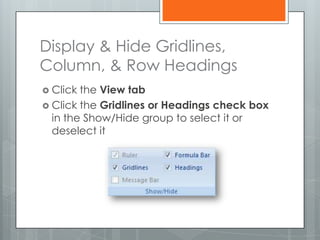
 Click the View tab
 Click the Gridlines or Headings check box
  in the Show/Hide group to select it or
  deselect it
Change Sheet Tab Color
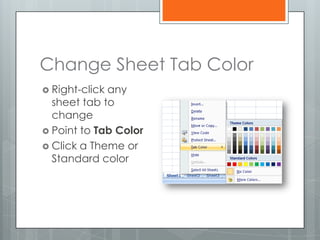
 Right-clickany
  sheet tab to
  change
 Point to Tab Color
 Click a Theme or
  Standard color
Format Worksheet
Backgrounds
1. Click the Page Layout tab
2. Click the Background button in he Page
   Setup group
3. In the Sheet Background dialog box
   double-click a picture to set it as the
   background
 Note: This will display on the screen but will
  NOT print
Create a Sheet Watermark
1.    Click the Insert tab
2.    Click the Header & Footer button in the Text
      group
3.    Click in the left, center or right header
      section, then click the Picture button in the
      Header & Footer Elements group
4.    In the Insert Picture dialog box double-click
      a picture to set it as the background
    Note: This will display on the screen but will
     NOT print
Lesson Review Activity
1.   Open Excel
2.   Display the Gridlines
3.   Hide the Headings
4.   Choose a Theme to apply to the
     workbook
5.   Modify the Theme Colors and Fonts
6.   Insert a picture in the background
7.   Save the workbook as Format
     Worksheets Practice

Formatting Worksheets

  • 1.
    Microsoft Excel 2007 Objective 2:Formatting Data and Content
  • 2.
    In this Objectiveyou will learn to:  Format Worksheets  Insert and Modify Rows and Columns  Format Cells and Cell Content, and  Format Data as a Table
  • 3.
    Format Worksheets Workbook Themes,Gridlines, Headings, Tab Colors, Worksheet Backgrounds, and Watermarks
  • 4.
    Use a WorkbookTheme  To use a theme: 1. Click the Page Layout tab 2. Then click the Themes button in the Themes group 3. Choose a theme to apply to the workbook  Thetable on the next slide can be used as a reference
  • 5.
    Theme Selection Options Clickthis option To A theme in the Apply a theme you previously custom group customized or the you downloaded from the Microsoft Office web site A theme in the Apply a predefined theme Built-In group More Themes in Download a theme from the Microsoft Microsoft Office Office Web site and place it in the Online custom group Browse for Browse for a theme or a themed themes document in another location
  • 6.
    Customize and Savea Theme 1. Click the Page Layout tab 2. Click the Theme Colors, Fonts, or Effects button in the Themes group 3. Select or create new colors, fonts, or effects to be applied 4. Click the Themes button in the Themes group, then click Save Current Theme
  • 7.
    Create New ThemeColors  Click the Page Layout tab, then the Themes button, then click a theme  In the create New Theme Colors dialog box click the button arrows to change colors for different theme elements
  • 8.
    Create New ThemeFonts  Click the Page Layout tab, then click the Themes button, then click a theme  Click the Theme Fonts button in the Themes group, then click Create New Theme Fonts
  • 9.
    Display & HideGridlines, Column, & Row Headings  Click the Page Layout tab  Click the View Check box in the Sheet Options group to select it or deselect it OR
  • 10.
    Display & HideGridlines, Column, & Row Headings  Click the View tab  Click the Gridlines or Headings check box in the Show/Hide group to select it or deselect it
  • 11.
    Change Sheet TabColor  Right-clickany sheet tab to change  Point to Tab Color  Click a Theme or Standard color
  • 12.
    Format Worksheet Backgrounds 1. Clickthe Page Layout tab 2. Click the Background button in he Page Setup group 3. In the Sheet Background dialog box double-click a picture to set it as the background  Note: This will display on the screen but will NOT print
  • 13.
    Create a SheetWatermark 1. Click the Insert tab 2. Click the Header & Footer button in the Text group 3. Click in the left, center or right header section, then click the Picture button in the Header & Footer Elements group 4. In the Insert Picture dialog box double-click a picture to set it as the background  Note: This will display on the screen but will NOT print
  • 14.
    Lesson Review Activity 1. Open Excel 2. Display the Gridlines 3. Hide the Headings 4. Choose a Theme to apply to the workbook 5. Modify the Theme Colors and Fonts 6. Insert a picture in the background 7. Save the workbook as Format Worksheets Practice