Microsoft Office 2007- Illustrated Formatting a Worksheet
Format values Change font and font size Change attributes and alignment Adjust column width Insert and delete rows and columns Objectives Microsoft Office 2007-Illustrated
Objectives Apply colors, patterns, and borders Apply conditional formatting Name and move a sheet Check spelling Microsoft Office 2007-Illustrated
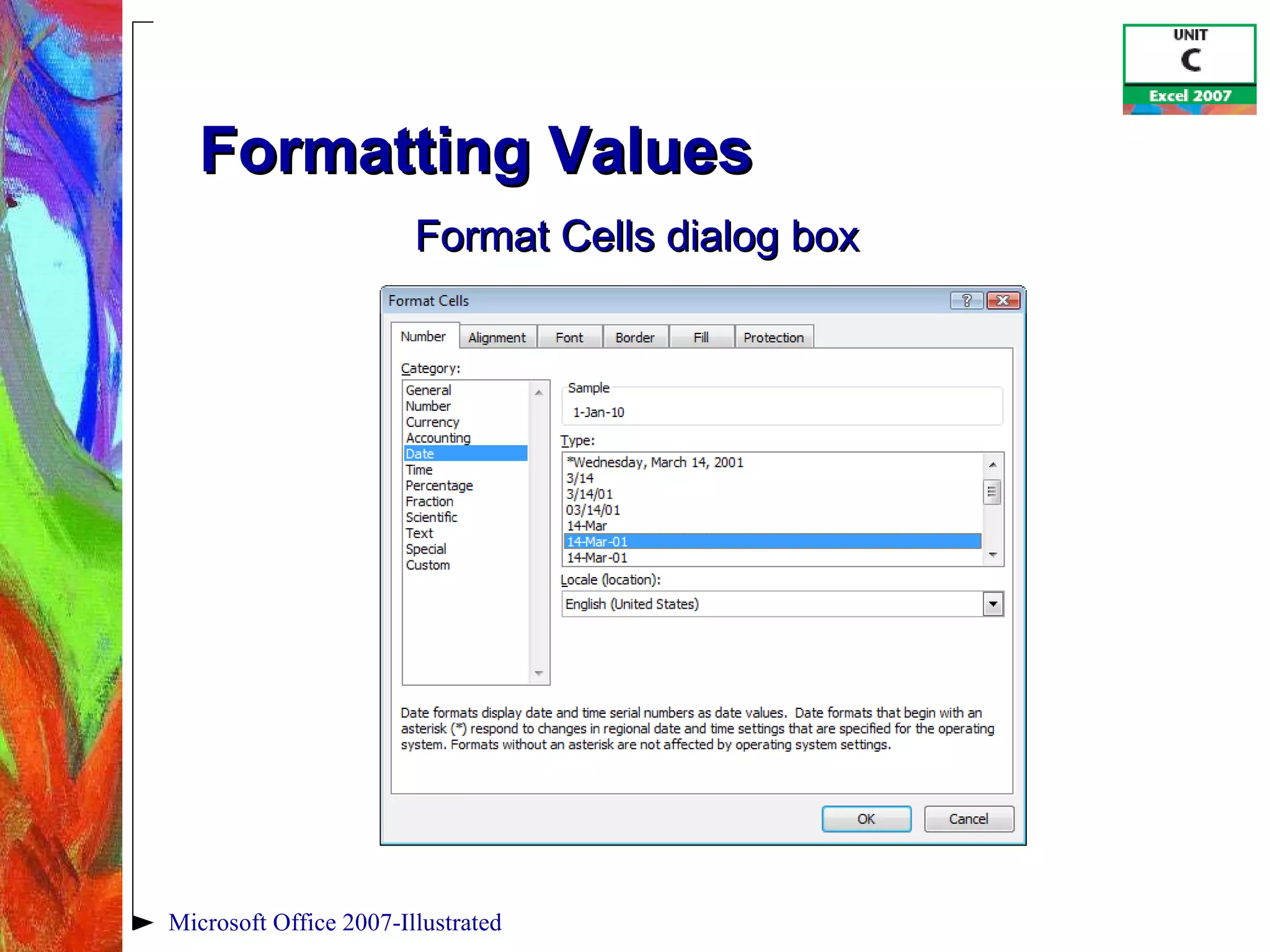
Formatting Values The  format  of a cell determines how the labels and values look Bold, italic, dollar signs, commas, etc. Formatting does not change the data only its appearance Select a cell or a range, then apply formatting Microsoft Office 2007-Illustrated
Formatting Values Microsoft Office 2007-Illustrated Format Cells dialog box
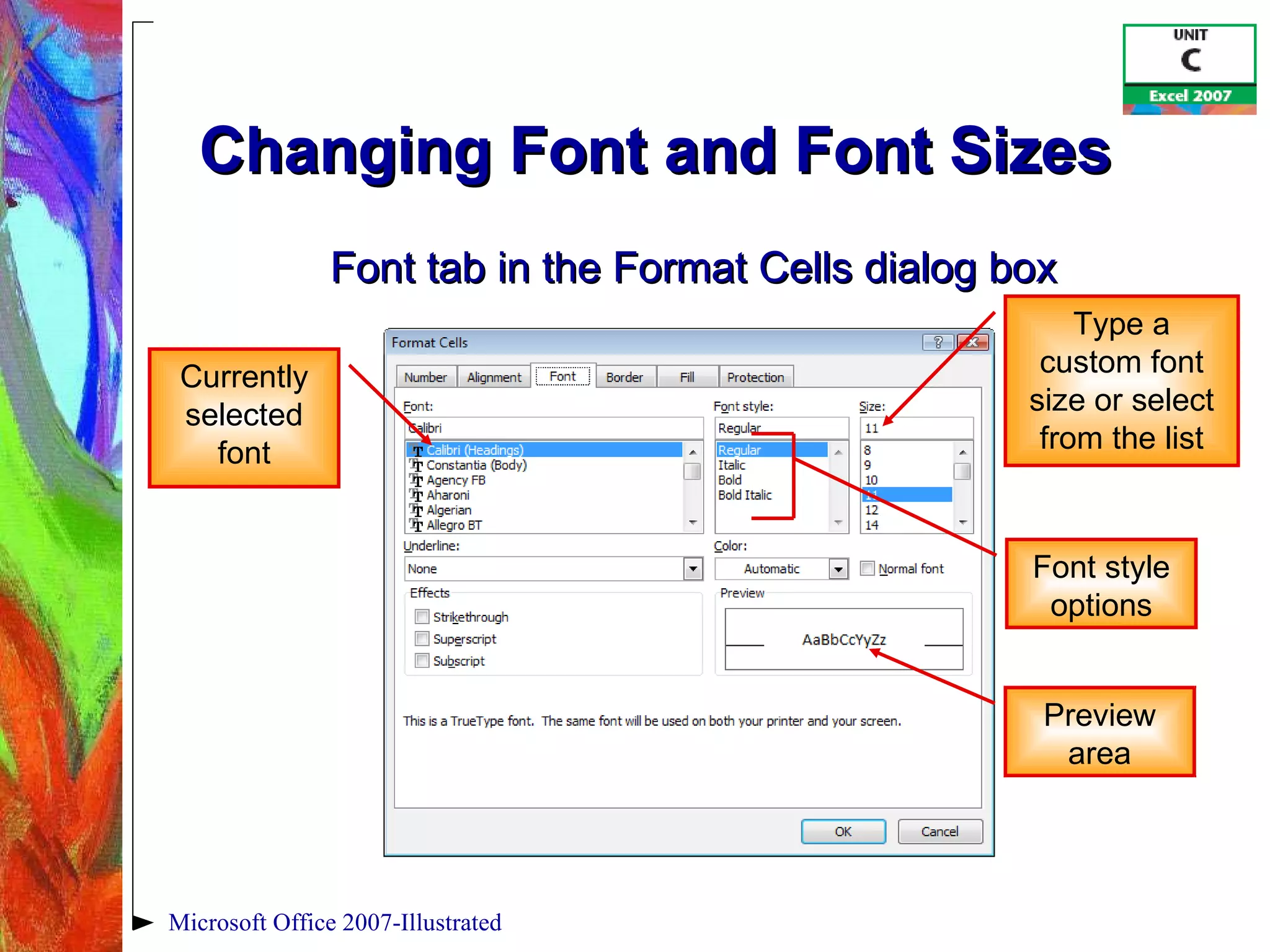
Changing Font and Font Sizes A  font  is the name for a collection of characters with a similar, specific design Font size is the physical size of text Measured in points  1 point = 1/72 of an inch The default font in Excel is 11-point Calibri Microsoft Office 2007-Illustrated
Changing Font and Font Sizes  Microsoft Office 2007-Illustrated Font tab in the Format Cells dialog box Font style options Preview area Type a custom font size or select from the list Currently selected font
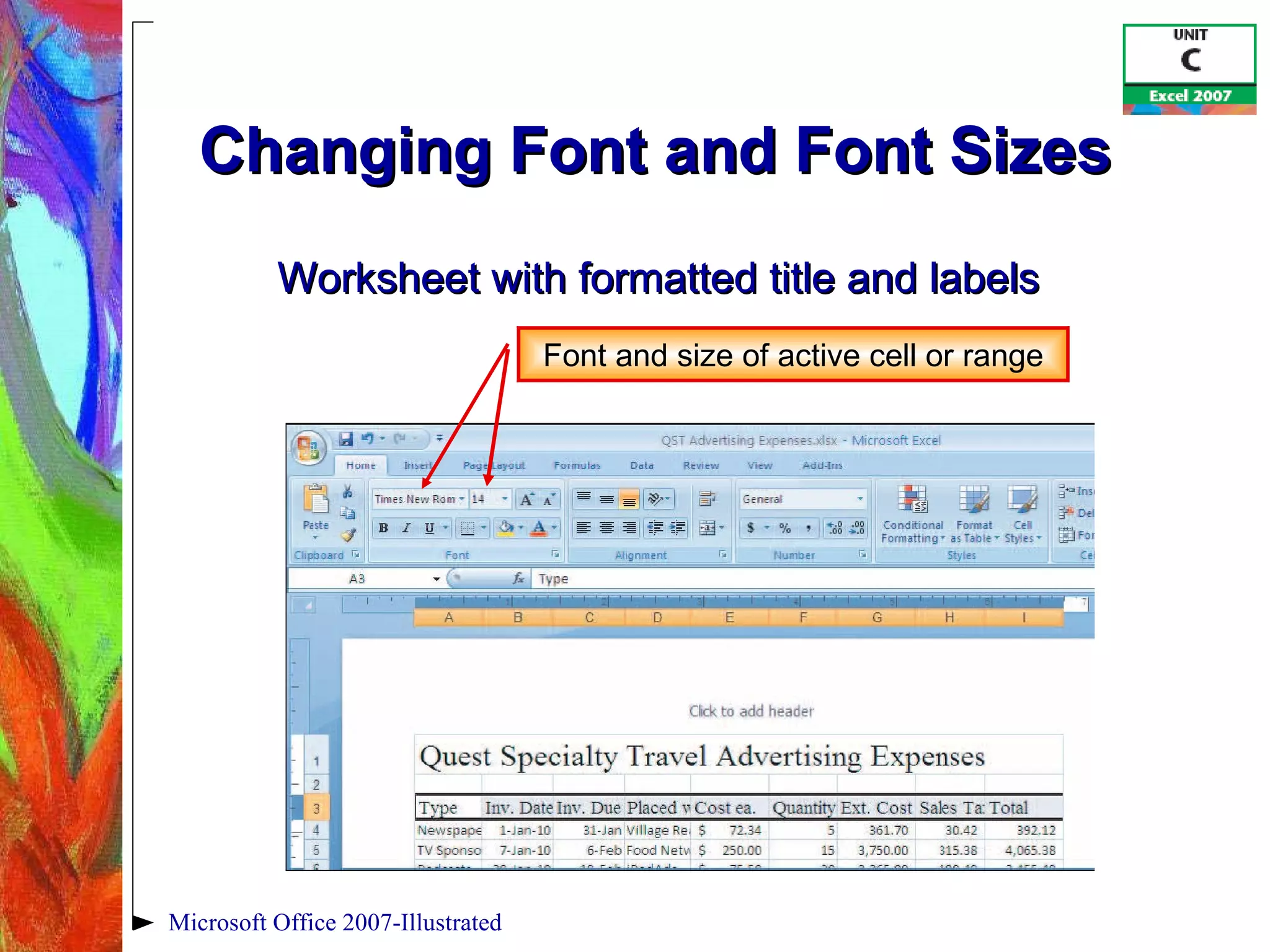
Changing Font and Font Sizes  Microsoft Office 2007-Illustrated Font and size of active cell or range Worksheet with formatted title and labels
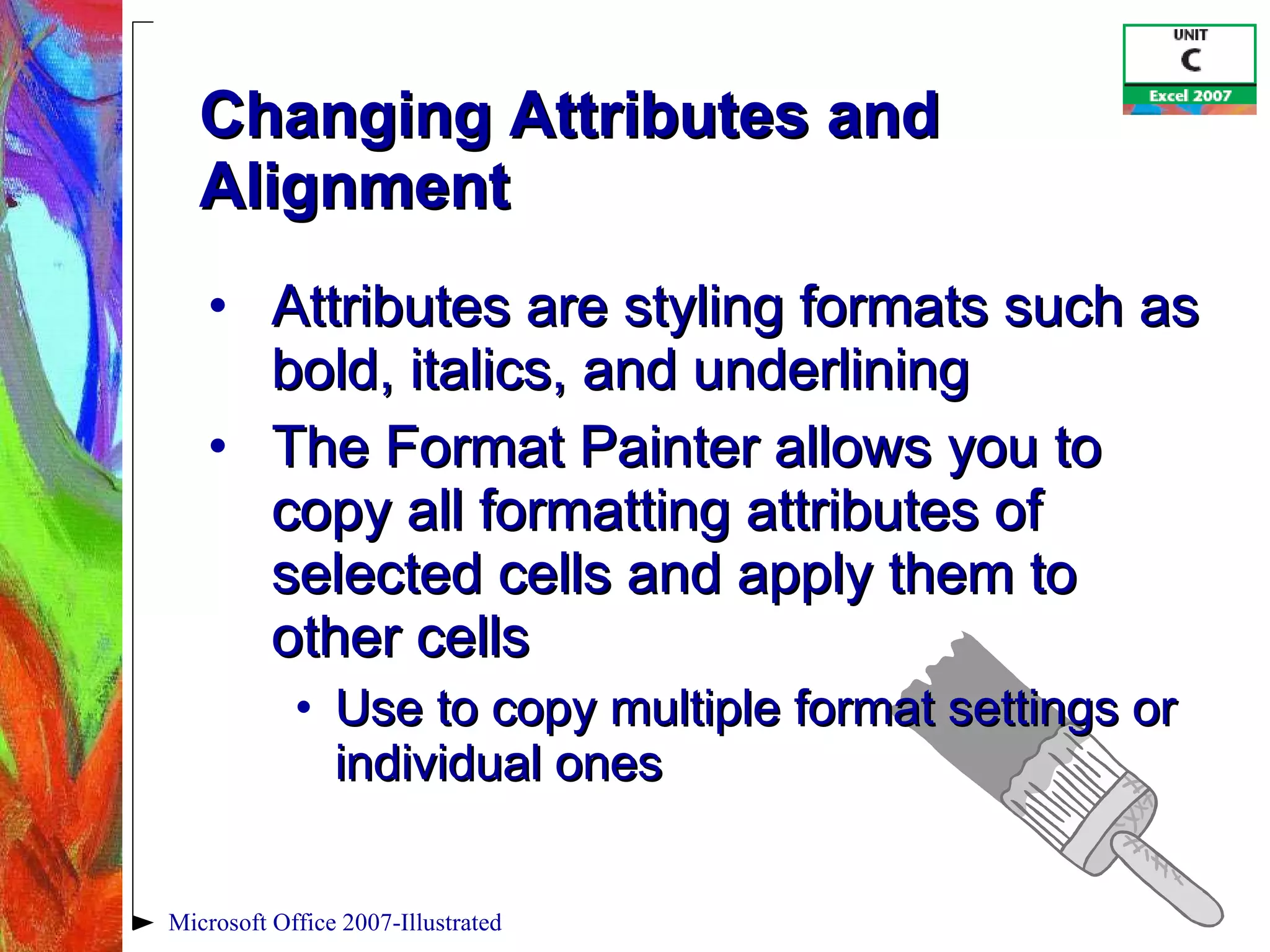
Changing Attributes and Alignment Attributes are styling formats such as bold, italics, and underlining The Format Painter allows you to copy all formatting attributes of selected cells and apply them to other cells Use to copy multiple format settings or individual ones Microsoft Office 2007-Illustrated
Changing Attributes and Alignment Alignment  determines the position of data in a cell Left, right, or center Apply attributes and alignment options using: Home tab, or Format Cells dialog box, or  Mini toolbar Microsoft Office 2007-Illustrated
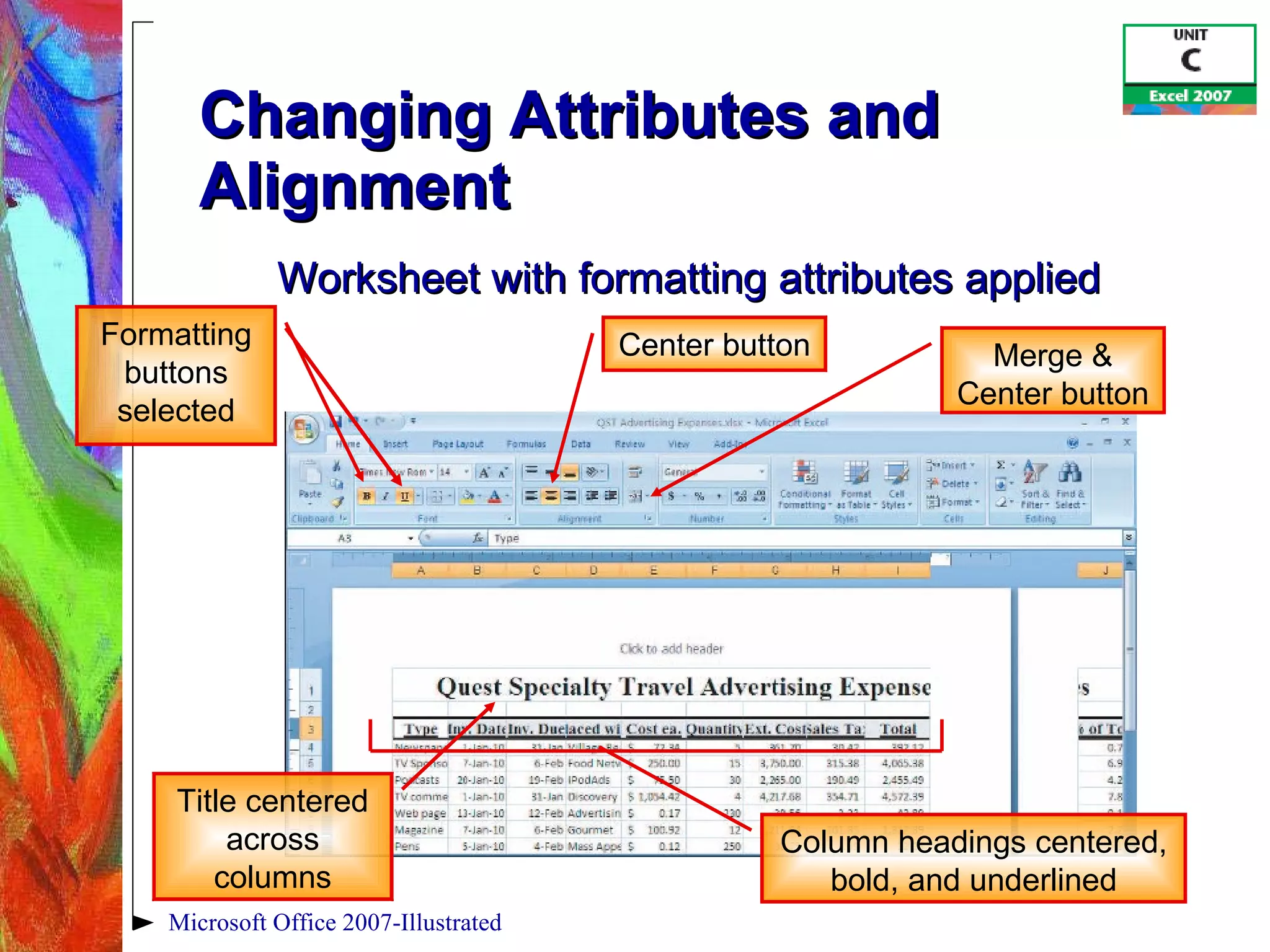
Changing Attributes and Alignment Microsoft Office 2007-Illustrated Column headings centered, bold, and underlined Title centered across columns Formatting buttons selected Merge & Center button Worksheet with formatting attributes applied Center button
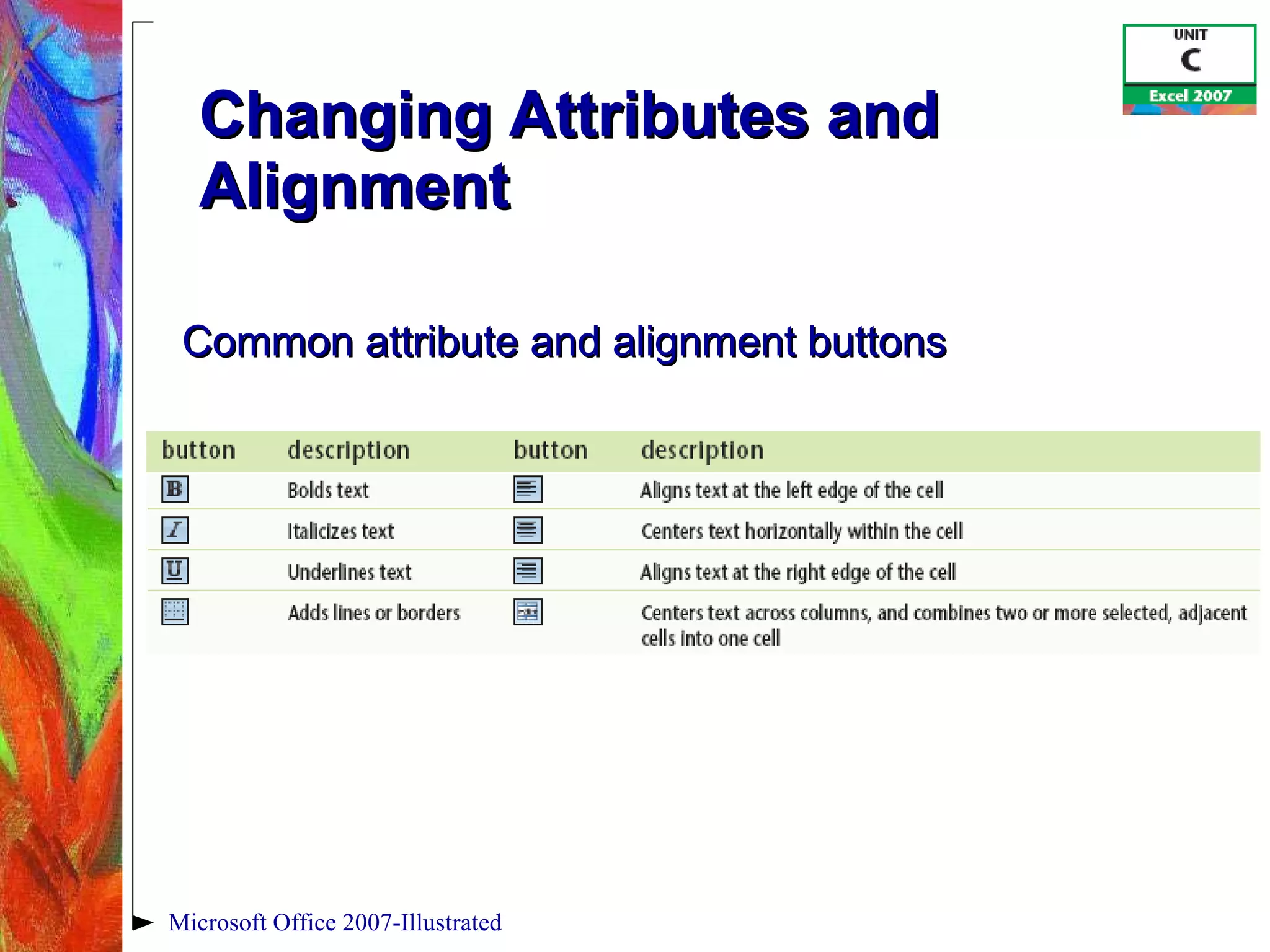
Changing Attributes and Alignment Microsoft Office 2007-Illustrated Common attribute and alignment buttons
Adjusting Column Width Adjust column widths to accommodate data Default column width is 8.43 characters wide (a little less than one inch) One or more columns can be adjusted using the mouse, the Ribbon, or the shortcut menu Microsoft Office 2007-Illustrated
Adjusting Column Width Column heading  is the box at the top of each column containing a letter Changing a column width with the mouse Position the mouse pointer between the column headings of the column and the column to its right Click and drag the resize pointer to the right Microsoft Office 2007-Illustrated
Adjusting Column Width Using the  AutoFit  feature Position the mouse pointer between the column headings of the column and the column to its right Double-click to activate the AutoFit feature Microsoft Office 2007-Illustrated
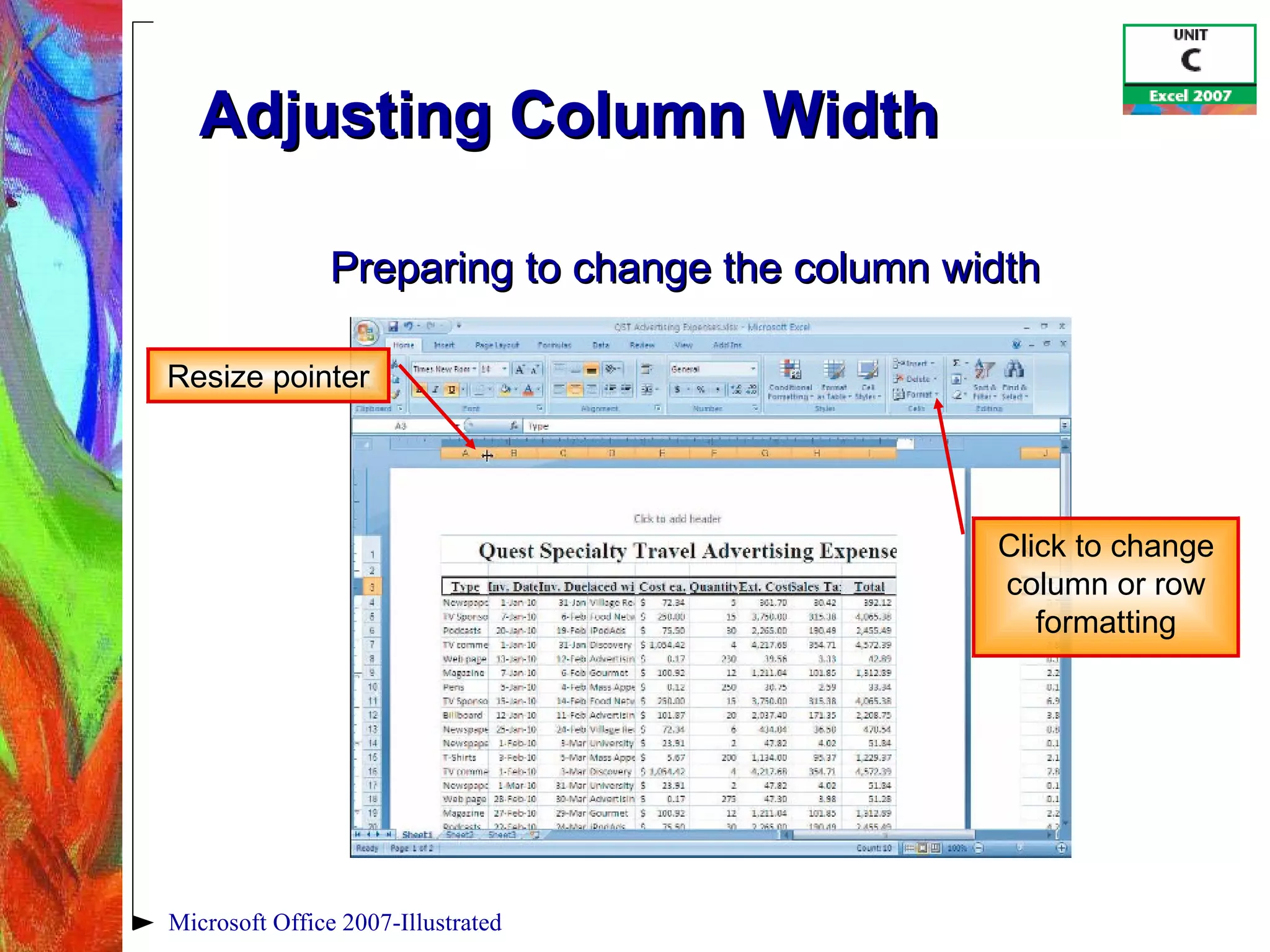
Adjusting Column Width  Microsoft Office 2007-Illustrated Resize pointer Click to change column or row formatting Preparing to change the column width
Inserting and Deleting Rows  and Columns When you insert a new row, the contents of the worksheet shift down from the newly inserted row When you insert a new column, the contents of the worksheet shift to the right of the new column Excel inserts rows above the cell pointer and columns to the left Microsoft Office 2007-Illustrated
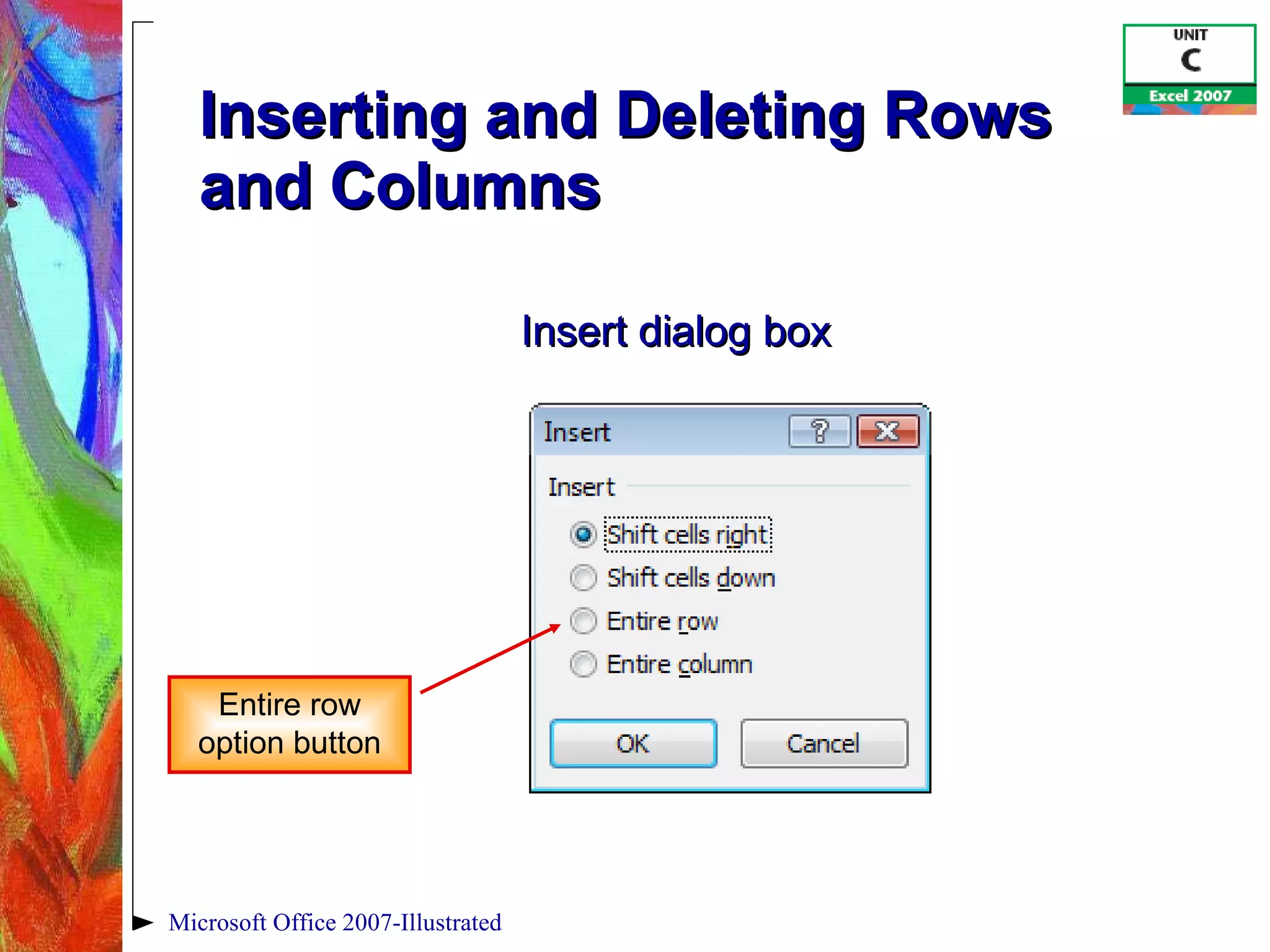
Inserting and Deleting Rows  and Columns Microsoft Office 2007-Illustrated Entire row option button Insert dialog box
Inserting and Deleting Rows  and Columns Deleting rows and columns Select the row or column heading Click the Delete button in the Cells group or use the Delete command on the shortcut menu Microsoft Office 2007-Illustrated
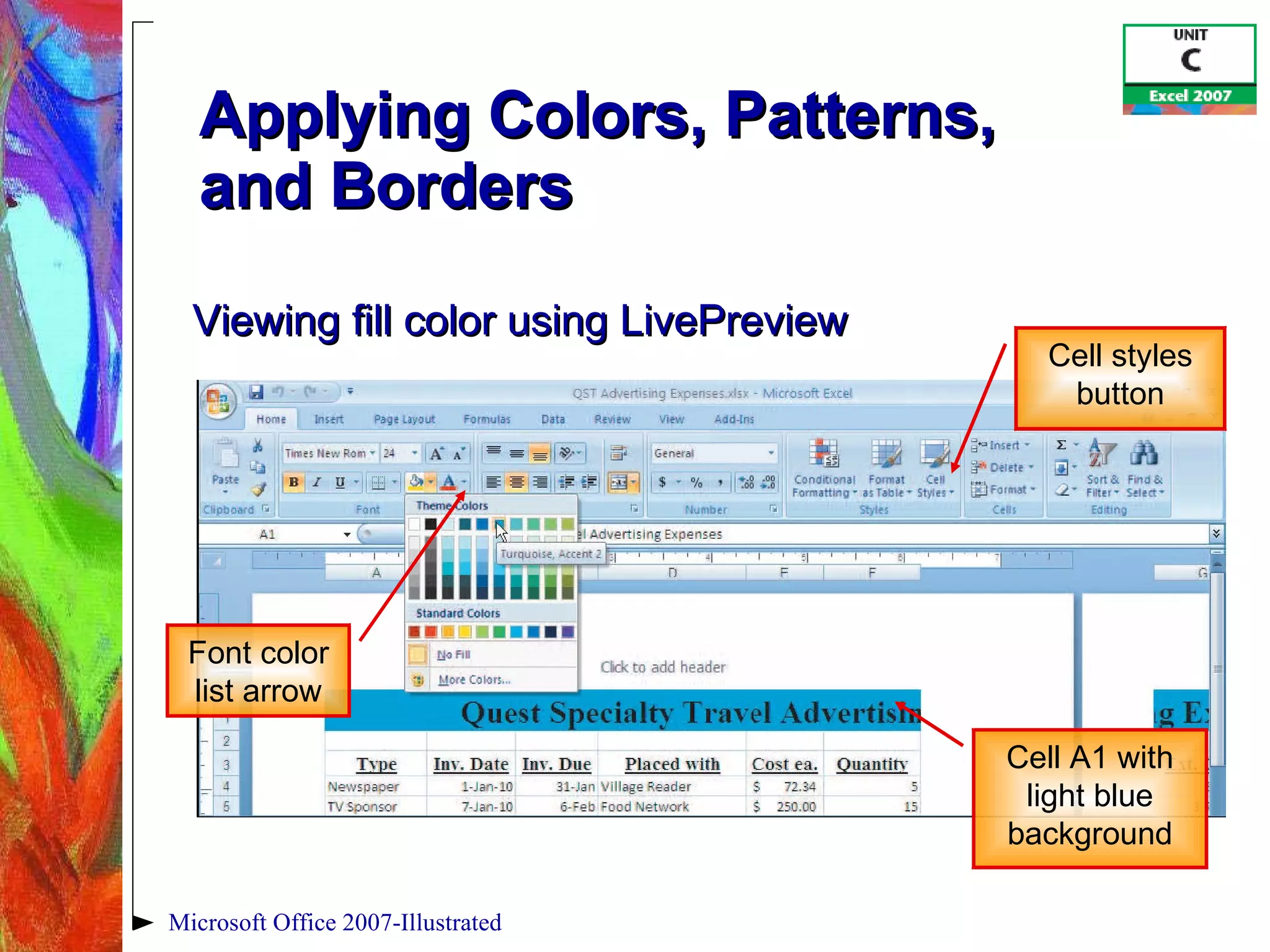
Applying Colors, Patterns,  and Borders You can add enhancements such as colors, patterns, and borders by using: Border and Fill Color buttons in the Font group on the Home tab of the Ribbon and on the Mini toolbar, or Fill tab and Border tab in the Format Cells dialog box Microsoft Office 2007-Illustrated
Applying Colors, Patterns,  and Borders Cell styles  are pre-designed combinations of formatting attributes Use the Cell Styles button in the Styles group on the Home tab Microsoft Office 2007-Illustrated
Applying Colors, Patterns,  and Borders Microsoft Office 2007-Illustrated Font color list arrow Cell styles button Cell A1 with light blue background Viewing fill color using LivePreview
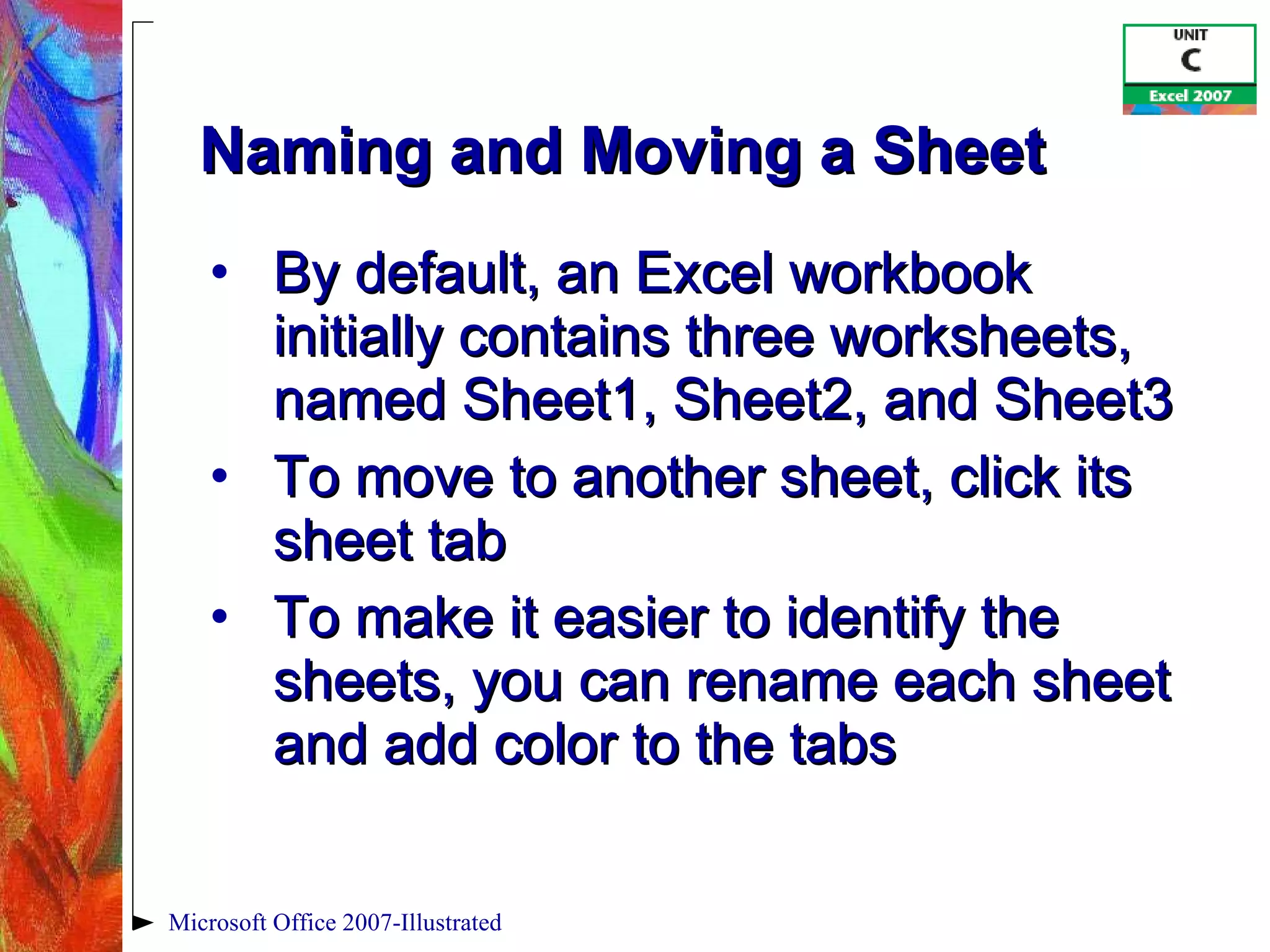
Applying Conditional Formatting Excel can format cells based on specific results Automatic application of formatting attributes on cell values is called  conditional formatting For example: values above a certain number can be one color and values below a certain number can be another color Microsoft Office 2007-Illustrated
Applying Conditional Formatting To apply conditional formatting: Click Conditional Formatting button in the Styles group on the Home tab Point to Highlight Cells Rules, and then choose from “Between”, “Greater Than”, “Less Than”, etc. Define conditions and formatting in the dialog box that opens Microsoft Office 2007-Illustrated
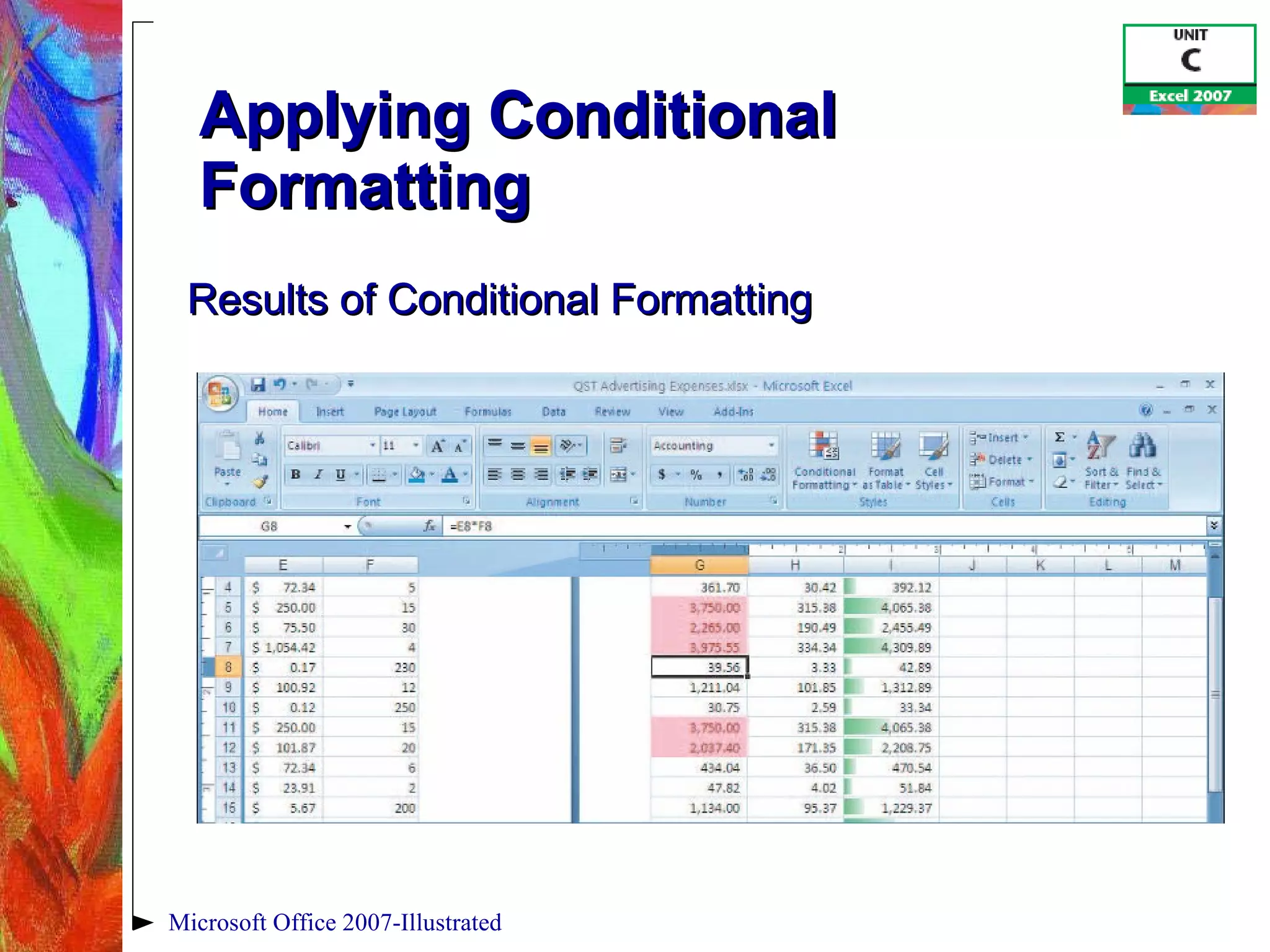
Applying Conditional Formatting Data bars are a type of conditional formatting that visually illustrate differences among values Click the Conditional Formatting button in the Styles group, point to Data Bars, and then choose from a formatting Microsoft Office 2007-Illustrated
Applying Conditional Formatting Microsoft Office 2007-Illustrated Previewing a Data Bar Data bars
Applying Conditional Formatting Microsoft Office 2007-Illustrated Results of Conditional Formatting
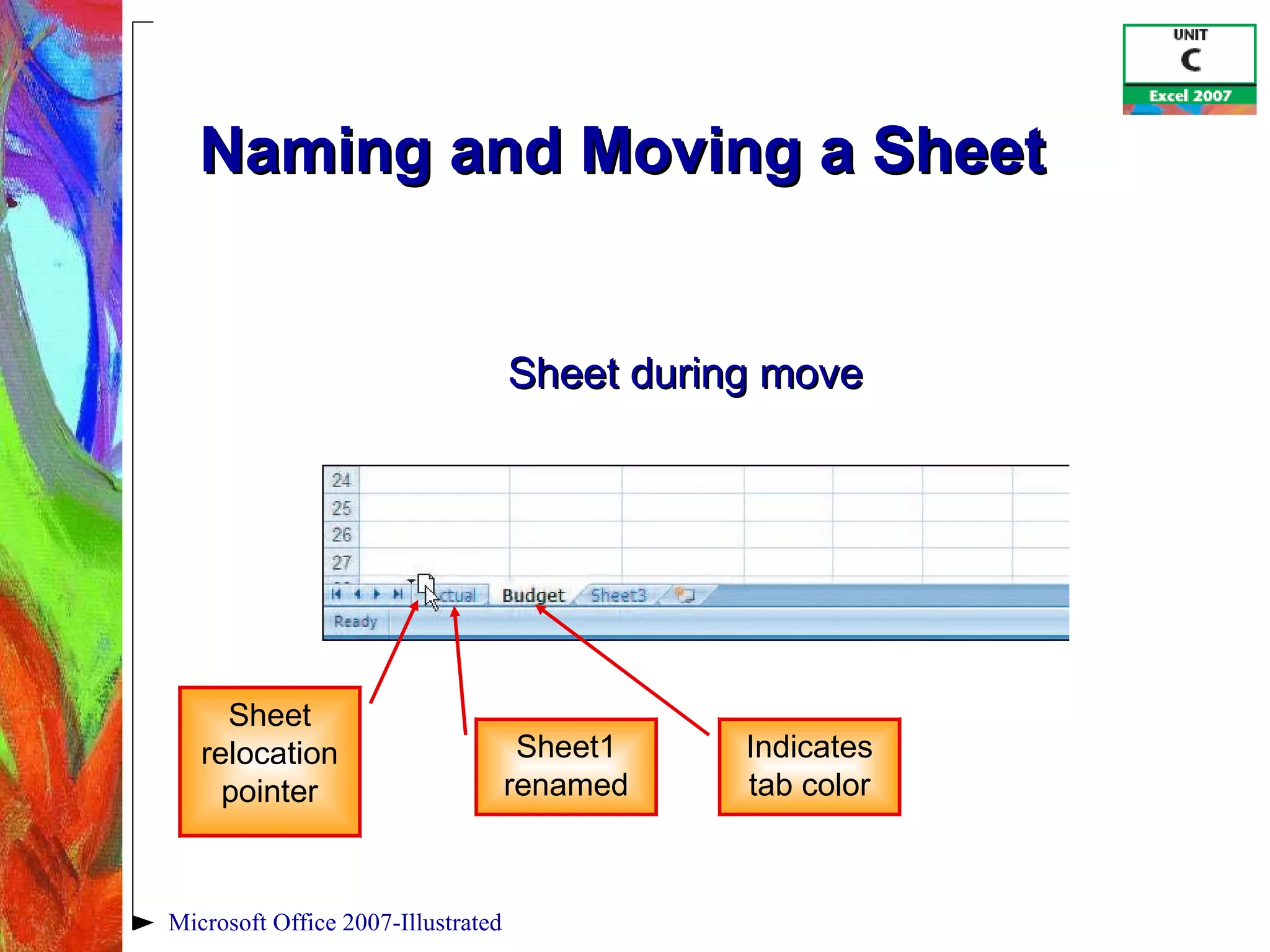
Naming and Moving a Sheet By default, an Excel workbook initially contains three worksheets, named Sheet1, Sheet2, and Sheet3 To move to another sheet, click its sheet tab To make it easier to identify the sheets, you can rename each sheet and add color to the tabs Microsoft Office 2007-Illustrated
Naming and Moving a Sheet To rename a sheet, double-click its sheet tab, type the new name, and then press [Enter] To add color to a sheet tab, right-click the sheet tab, point to Tab Color, and then choose a color You can change the order of sheets by dragging the sheet tabs Microsoft Office 2007-Illustrated
Naming and Moving a Sheet Microsoft Office 2007-Illustrated Sheet during move Sheet relocation pointer Sheet1 renamed Indicates tab color
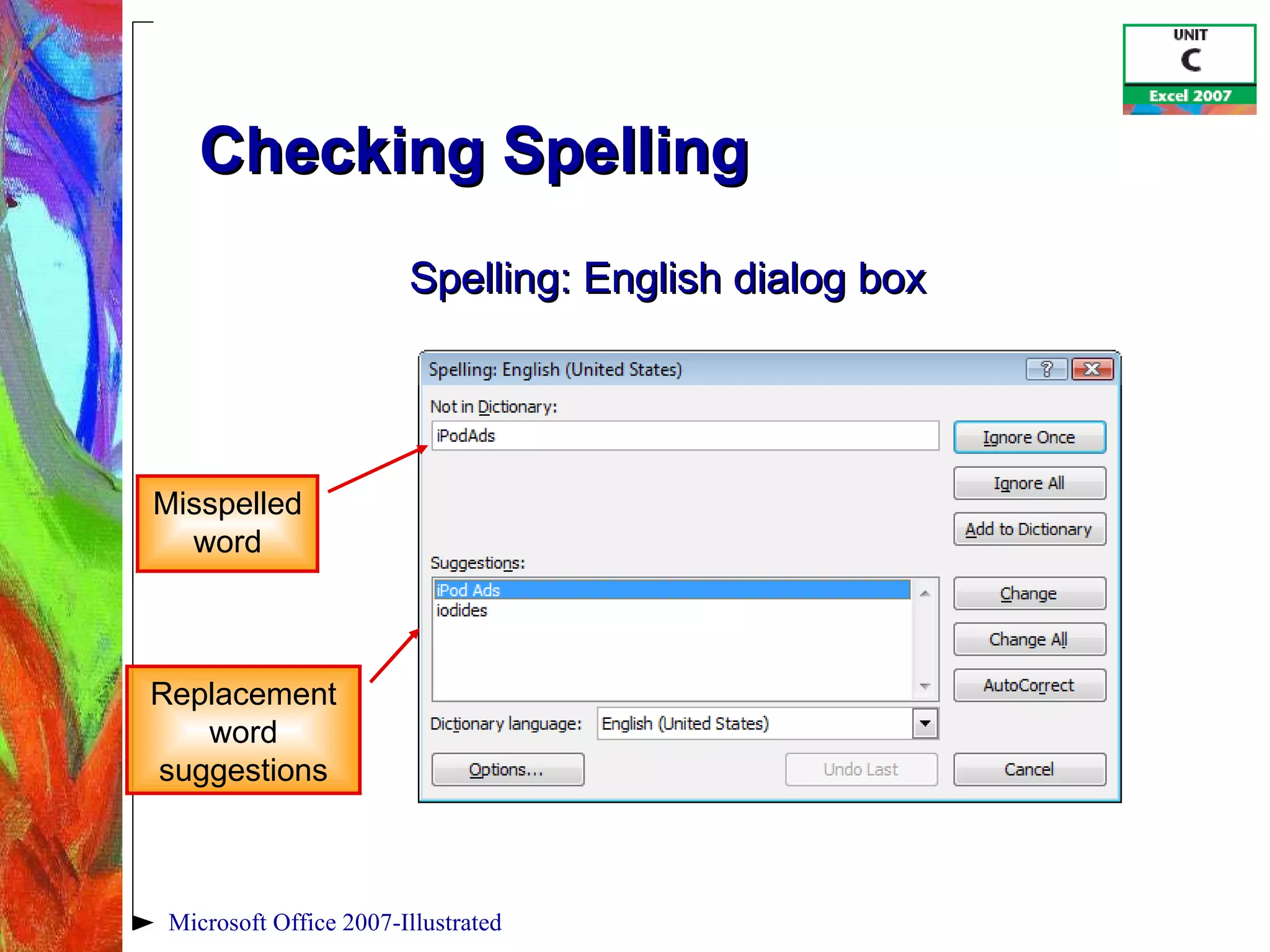
Checking Spelling Spelling checker scans the worksheet and flags possible mistakes and suggests corrections To check other worksheets in a workbook, display the worksheet and run the spelling checker again Add words that are spelled correctly but are not recognized by the spelling checker Microsoft Office 2007-Illustrated
Checking Spelling Microsoft Office 2007-Illustrated Misspelled word Replacement word suggestions Spelling: English dialog box
Summary Format values Change font and font size Change attributes and alignment Adjust column width Insert and delete rows and columns Microsoft Office 2007-Illustrated
Summary Apply colors, patterns, and borders Apply conditional formatting Name and move a sheet Check spelling Microsoft Office 2007-Illustrated

Excel 2007 Unit C

  • 1.
    Microsoft Office 2007-Illustrated Formatting a Worksheet
  • 2.
    Format values Changefont and font size Change attributes and alignment Adjust column width Insert and delete rows and columns Objectives Microsoft Office 2007-Illustrated
  • 3.
    Objectives Apply colors,patterns, and borders Apply conditional formatting Name and move a sheet Check spelling Microsoft Office 2007-Illustrated
  • 4.
    Formatting Values The format of a cell determines how the labels and values look Bold, italic, dollar signs, commas, etc. Formatting does not change the data only its appearance Select a cell or a range, then apply formatting Microsoft Office 2007-Illustrated
  • 5.
    Formatting Values MicrosoftOffice 2007-Illustrated Format Cells dialog box
  • 6.
    Changing Font andFont Sizes A font is the name for a collection of characters with a similar, specific design Font size is the physical size of text Measured in points 1 point = 1/72 of an inch The default font in Excel is 11-point Calibri Microsoft Office 2007-Illustrated
  • 7.
    Changing Font andFont Sizes Microsoft Office 2007-Illustrated Font tab in the Format Cells dialog box Font style options Preview area Type a custom font size or select from the list Currently selected font
  • 8.
    Changing Font andFont Sizes Microsoft Office 2007-Illustrated Font and size of active cell or range Worksheet with formatted title and labels
  • 9.
    Changing Attributes andAlignment Attributes are styling formats such as bold, italics, and underlining The Format Painter allows you to copy all formatting attributes of selected cells and apply them to other cells Use to copy multiple format settings or individual ones Microsoft Office 2007-Illustrated
  • 10.
    Changing Attributes andAlignment Alignment determines the position of data in a cell Left, right, or center Apply attributes and alignment options using: Home tab, or Format Cells dialog box, or Mini toolbar Microsoft Office 2007-Illustrated
  • 11.
    Changing Attributes andAlignment Microsoft Office 2007-Illustrated Column headings centered, bold, and underlined Title centered across columns Formatting buttons selected Merge & Center button Worksheet with formatting attributes applied Center button
  • 12.
    Changing Attributes andAlignment Microsoft Office 2007-Illustrated Common attribute and alignment buttons
  • 13.
    Adjusting Column WidthAdjust column widths to accommodate data Default column width is 8.43 characters wide (a little less than one inch) One or more columns can be adjusted using the mouse, the Ribbon, or the shortcut menu Microsoft Office 2007-Illustrated
  • 14.
    Adjusting Column WidthColumn heading is the box at the top of each column containing a letter Changing a column width with the mouse Position the mouse pointer between the column headings of the column and the column to its right Click and drag the resize pointer to the right Microsoft Office 2007-Illustrated
  • 15.
    Adjusting Column WidthUsing the AutoFit feature Position the mouse pointer between the column headings of the column and the column to its right Double-click to activate the AutoFit feature Microsoft Office 2007-Illustrated
  • 16.
    Adjusting Column Width Microsoft Office 2007-Illustrated Resize pointer Click to change column or row formatting Preparing to change the column width
  • 17.
    Inserting and DeletingRows and Columns When you insert a new row, the contents of the worksheet shift down from the newly inserted row When you insert a new column, the contents of the worksheet shift to the right of the new column Excel inserts rows above the cell pointer and columns to the left Microsoft Office 2007-Illustrated
  • 18.
    Inserting and DeletingRows and Columns Microsoft Office 2007-Illustrated Entire row option button Insert dialog box
  • 19.
    Inserting and DeletingRows and Columns Deleting rows and columns Select the row or column heading Click the Delete button in the Cells group or use the Delete command on the shortcut menu Microsoft Office 2007-Illustrated
  • 20.
    Applying Colors, Patterns, and Borders You can add enhancements such as colors, patterns, and borders by using: Border and Fill Color buttons in the Font group on the Home tab of the Ribbon and on the Mini toolbar, or Fill tab and Border tab in the Format Cells dialog box Microsoft Office 2007-Illustrated
  • 21.
    Applying Colors, Patterns, and Borders Cell styles are pre-designed combinations of formatting attributes Use the Cell Styles button in the Styles group on the Home tab Microsoft Office 2007-Illustrated
  • 22.
    Applying Colors, Patterns, and Borders Microsoft Office 2007-Illustrated Font color list arrow Cell styles button Cell A1 with light blue background Viewing fill color using LivePreview
  • 23.
    Applying Conditional FormattingExcel can format cells based on specific results Automatic application of formatting attributes on cell values is called conditional formatting For example: values above a certain number can be one color and values below a certain number can be another color Microsoft Office 2007-Illustrated
  • 24.
    Applying Conditional FormattingTo apply conditional formatting: Click Conditional Formatting button in the Styles group on the Home tab Point to Highlight Cells Rules, and then choose from “Between”, “Greater Than”, “Less Than”, etc. Define conditions and formatting in the dialog box that opens Microsoft Office 2007-Illustrated
  • 25.
    Applying Conditional FormattingData bars are a type of conditional formatting that visually illustrate differences among values Click the Conditional Formatting button in the Styles group, point to Data Bars, and then choose from a formatting Microsoft Office 2007-Illustrated
  • 26.
    Applying Conditional FormattingMicrosoft Office 2007-Illustrated Previewing a Data Bar Data bars
  • 27.
    Applying Conditional FormattingMicrosoft Office 2007-Illustrated Results of Conditional Formatting
  • 28.
    Naming and Movinga Sheet By default, an Excel workbook initially contains three worksheets, named Sheet1, Sheet2, and Sheet3 To move to another sheet, click its sheet tab To make it easier to identify the sheets, you can rename each sheet and add color to the tabs Microsoft Office 2007-Illustrated
  • 29.
    Naming and Movinga Sheet To rename a sheet, double-click its sheet tab, type the new name, and then press [Enter] To add color to a sheet tab, right-click the sheet tab, point to Tab Color, and then choose a color You can change the order of sheets by dragging the sheet tabs Microsoft Office 2007-Illustrated
  • 30.
    Naming and Movinga Sheet Microsoft Office 2007-Illustrated Sheet during move Sheet relocation pointer Sheet1 renamed Indicates tab color
  • 31.
    Checking Spelling Spellingchecker scans the worksheet and flags possible mistakes and suggests corrections To check other worksheets in a workbook, display the worksheet and run the spelling checker again Add words that are spelled correctly but are not recognized by the spelling checker Microsoft Office 2007-Illustrated
  • 32.
    Checking Spelling MicrosoftOffice 2007-Illustrated Misspelled word Replacement word suggestions Spelling: English dialog box
  • 33.
    Summary Format valuesChange font and font size Change attributes and alignment Adjust column width Insert and delete rows and columns Microsoft Office 2007-Illustrated
  • 34.
    Summary Apply colors,patterns, and borders Apply conditional formatting Name and move a sheet Check spelling Microsoft Office 2007-Illustrated