Submitted By:
Name: Farzan Khan
Roll No. 133
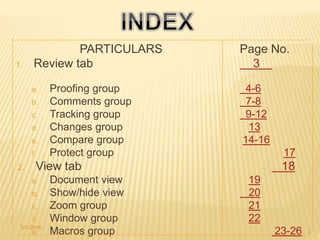
PARTICULARS Page No.
1. Review tab 3
a. Proofing group 4-6
b. Comments group 7-8
c. Tracking group 9-12
d. Changes group 13
e. Compare group 14-16
f. Protect group 17
2. View tab 18
a. Document view 19
b. Show/hide view 20
c. Zoom group 21
d. Window group 22
e. Macros group 23-263/1/2016
2
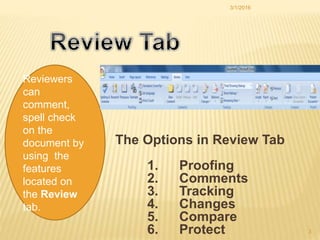
The Options in Review Tab
are:
1. Proofing
2. Comments
3. Tracking
4. Changes
5. Compare
6. Protect
3/1/2016
3
Reviewers
can
comment,
spell check
on the
document by
using the
features
located on
the Review
tab.
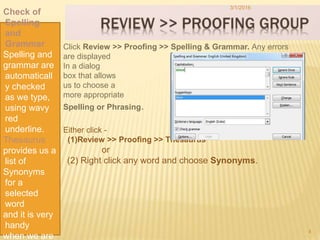
Click Review >> Proofing >> Spelling & Grammar. Any errors
are displayed
In a dialog
box that allows
us to choose a
more appropriate
Spelling or Phrasing.
Either click -
(1)Review >> Proofing >> Thesaurus
or
(2) Right click any word and choose Synonyms.
3/1/2016
4
Check of
Spelling
and
Grammar
Spelling and
grammar are
automaticall
y checked
as we type,
using wavy
red
underline.
Thesaurus
provides us a
list of
Synonyms
for a
selected
word
and it is very
handy
when we are
REVIEW >> PROOFING GROUP
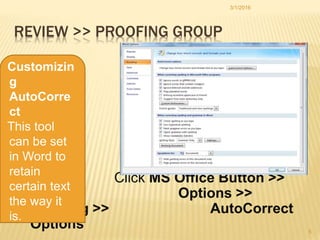
Click MS Office Button >>
Word Options >>
Proofing >> AutoCorrect
Options
3/1/2016
5
Customizin
g
AutoCorre
ct
This tool
can be set
in Word to
retain
certain text
the way it
is.
REVIEW >> PROOFING GROUP
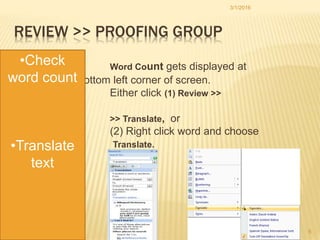
Word Count gets displayed at
bottom left corner of screen.
Either click (1) Review >>
Proofing
>> Translate, or
(2) Right click word and choose
Translate.
3/1/2016
6
•Check
word count
•Translate
text
REVIEW >> COMMENTS GROUP
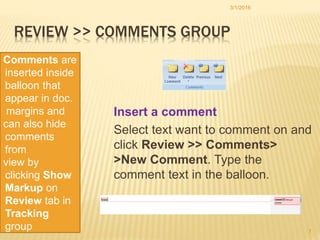
Insert a comment
Select text want to comment on and
click Review >> Comments>
>New Comment. Type the
comment text in the balloon.
3/1/2016
7
Comments are
inserted inside
balloon that
appear in doc.
margins and
can also hide
comments
from
view by
clicking Show
Markup on
Review tab in
Tracking
group
REVIEW >> COMMENTS GROUP
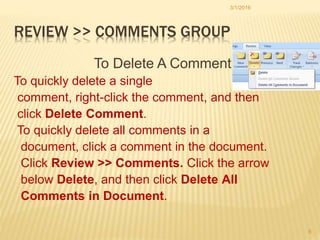
To Delete A Comment
To quickly delete a single
comment, right-click the comment, and then
click Delete Comment.
To quickly delete all comments in a
document, click a comment in the document.
Click Review >> Comments. Click the arrow
below Delete, and then click Delete All
Comments in Document.
3/1/2016
8
REVIEW >> TRACKING GROUP
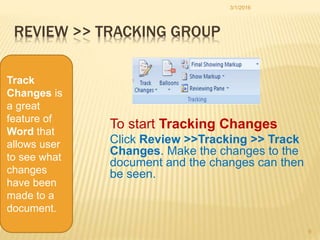
To start Tracking Changes
Click Review >>Tracking >> Track
Changes. Make the changes to the
document and the changes can then
be seen.
3/1/2016
9
Track
Changes is
a great
feature of
Word that
allows user
to see what
changes
have been
made to a
document.
REVIEW >> TACKING GROUP
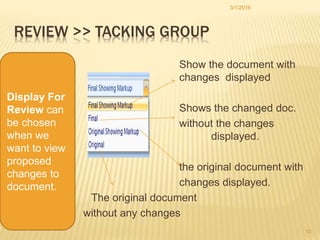
Show the document with
changes displayed
Shows the changed doc.
without the changes
displayed.
the original document with
changes displayed.
The original document
without any changes
3/1/2016
10
Display For
Review can
be chosen
when we
want to view
proposed
changes to
document.
REVIEW >> TRACKING GROUP
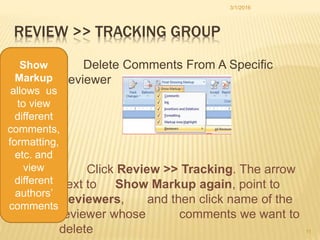
Delete Comments From A Specific
Reviewer
Click Review >> Tracking. The arrow
next to Show Markup again, point to
Reviewers, and then click name of the
reviewer whose comments we want to
delete
3/1/2016
11
Show
Markup
allows us
to view
different
comments,
formatting,
etc. and
view
different
authors’
comments
REVIEW >> TRACKING GROUP
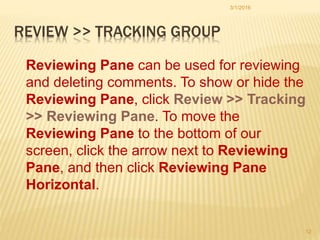
Reviewing Pane can be used for reviewing
and deleting comments. To show or hide the
Reviewing Pane, click Review >> Tracking
>> Reviewing Pane. To move the
Reviewing Pane to the bottom of our
screen, click the arrow next to Reviewing
Pane, and then click Reviewing Pane
Horizontal.
3/1/2016
12
REVIEW >> CHANGES GROUP
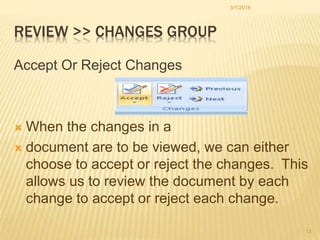
Accept Or Reject Changes
 When the changes in a
 document are to be viewed, we can either
choose to accept or reject the changes. This
allows us to review the document by each
change to accept or reject each change.
3/1/2016
13
REVIEW >> COMPARE GROUP
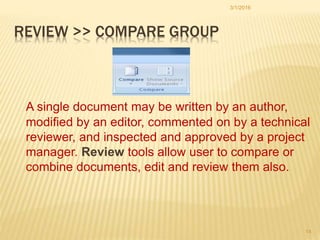
A single document may be written by an author,
modified by an editor, commented on by a technical
reviewer, and inspected and approved by a project
manager. Review tools allow user to compare or
combine documents, edit and review them also.
3/1/2016
14
REVIEW >> COMPARE GROUP
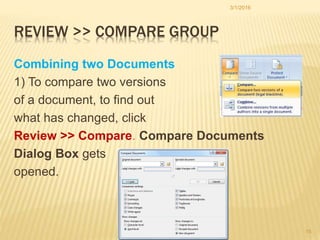
Combining two Documents
1) To compare two versions
of a document, to find out
what has changed, click
Review >> Compare. Compare Documents
Dialog Box gets
opened.
3/1/2016
15
REVIEW >> COMPARE GROUP
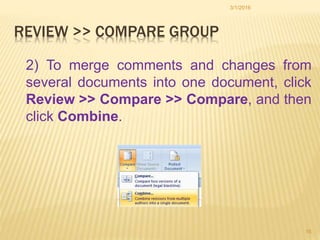
2) To merge comments and changes from
several documents into one document, click
Review >> Compare >> Compare, and then
click Combine.
3/1/2016
16
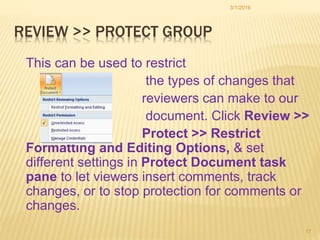
REVIEW >> PROTECT GROUP
This can be used to restrict
the types of changes that
reviewers can make to our
document. Click Review >>
Protect >> Restrict
Formatting and Editing Options, & set
different settings in Protect Document task
pane to let viewers insert comments, track
changes, or to stop protection for comments or
changes.
3/1/2016
17
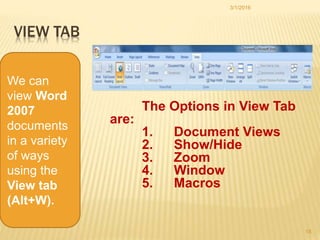
VIEW TAB
The Options in View Tab
are:
1. Document Views
2. Show/Hide
3. Zoom
4. Window
5. Macros
3/1/2016
18
We can
view Word
2007
documents
in a variety
of ways
using the
View tab
(Alt+W).
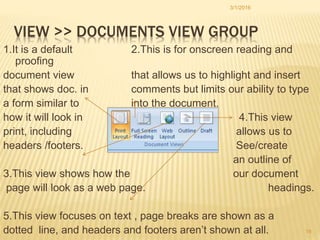
VIEW >> DOCUMENTS VIEW GROUP
1.It is a default 2.This is for onscreen reading and
proofing
document view that allows us to highlight and insert
that shows doc. in comments but limits our ability to type
a form similar to into the document.
how it will look in 4.This view
print, including allows us to
headers /footers. See/create
an outline of
3.This view shows how the our document
page will look as a web page. headings.
5.This view focuses on text , page breaks are shown as a
dotted line, and headers and footers aren’t shown at all.
3/1/2016
19
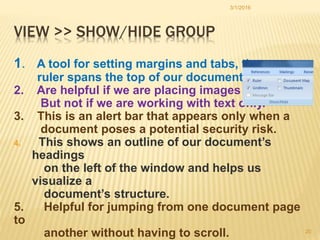
VIEW >> SHOW/HIDE GROUP
1. A tool for setting margins and tabs, the
ruler spans the top of our document.
2. Are helpful if we are placing images
But not if we are working with text only.
3. This is an alert bar that appears only when a
document poses a potential security risk.
4. This shows an outline of our document’s
headings
on the left of the window and helps us
visualize a
document’s structure.
5. Helpful for jumping from one document page
to
another without having to scroll.
3/1/2016
20
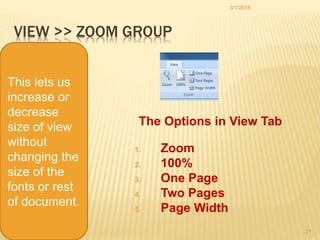
VIEW >> ZOOM GROUP
The Options in View Tab
are:
1. Zoom
2. 100%
3. One Page
4. Two Pages
5. Page Width
3/1/2016
21
This lets us
increase or
decrease
size of view
without
changing the
size of the
fonts or rest
of document.
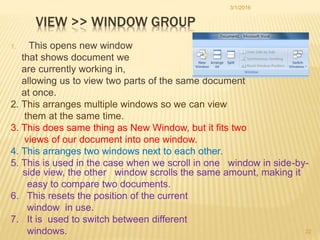
VIEW >> WINDOW GROUP
1. This opens new window
that shows document we
are currently working in,
allowing us to view two parts of the same document
at once.
2. This arranges multiple windows so we can view
them at the same time.
3. This does same thing as New Window, but it fits two
views of our document into one window.
4. This arranges two windows next to each other.
5. This is used in the case when we scroll in one window in side-by-
side view, the other window scrolls the same amount, making it
easy to compare two documents.
6. This resets the position of the current
window in use.
7. It is used to switch between different
windows.
3/1/2016
22
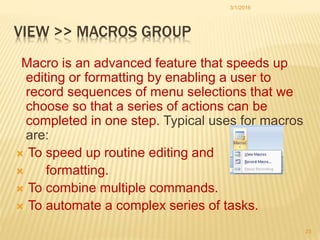
VIEW >> MACROS GROUP
Macro is an advanced feature that speeds up
editing or formatting by enabling a user to
record sequences of menu selections that we
choose so that a series of actions can be
completed in one step. Typical uses for macros
are:
 To speed up routine editing and
 formatting.
 To combine multiple commands.
 To automate a complex series of tasks.
3/1/2016
23
VIEW >> MACROS GROUP
Naming a Macro
A macro is a shortcut for performing a series of actions and is useful for
automating complex or repetitive tasks. While creating, Macros must
be assigned a name. Macro names must:
 begin with a letter
 contain no spaces
 contain no unusual characters (e.g., @, %, &, ^)
 have the appropriate name from the following list
 to run automatically.
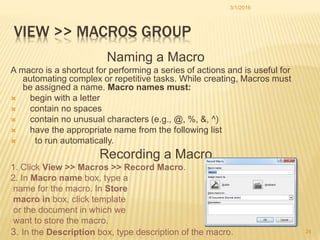
Recording a Macro
1. Click View >> Macros >> Record Macro.
2. In Macro name box, type a
name for the macro. In Store
macro in box, click template
or the document in which we
want to store the macro.
3. In the Description box, type description of the macro.
3/1/2016
24
RECORDING A MACRO
4. Do any one of the following:
a) Begin recording - To begin recording the macro
without assigning it to a button/shortcut key, click OK.
b) Create a button - To assign macro to a button on
Quick Access Toolbar, click Button and select the
document for which we want to add macro.
c) Create a shortcut key - To assign macro to a
keyboard shortcut, click Keyboard, and do settings.
Saving a Macro
A macro is saved as part of a template. If we want the macro
available whenever we use Word, the macro should be saved
as part of the normal.dotx template. However, if the use of the
macro is limited to specific types of documents and we have a
template for that type of document, it should be stored in that
3/1/2016
25
RUNNING A MACRO
Running a macro depends on whether it’s been added to the Quick Access
Toolbar or if it’s been given as a keyboard shortcut.
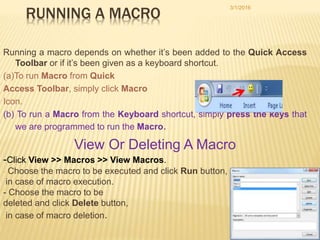
(a)To run Macro from Quick
Access Toolbar, simply click Macro
Icon.
(b) To run a Macro from the Keyboard shortcut, simply press the keys that
we are programmed to run the Macro.
View Or Deleting A Macro
-Click View >> Macros >> View Macros.
- Choose the macro to be executed and click Run button,
in case of macro execution.
- Choose the macro to be
deleted and click Delete button,
in case of macro deletion.
3/1/2016
26
VOTE OF THANKS
I would like to thank Pradeep Sir and
Gunjan Ma’am for giving me guidance and
solving queries related to the project.
3/1/2016
27

MS Word Review & View Tab

  • 1.
    Submitted By: Name: FarzanKhan Roll No. 133
  • 2.
    PARTICULARS Page No. 1.Review tab 3 a. Proofing group 4-6 b. Comments group 7-8 c. Tracking group 9-12 d. Changes group 13 e. Compare group 14-16 f. Protect group 17 2. View tab 18 a. Document view 19 b. Show/hide view 20 c. Zoom group 21 d. Window group 22 e. Macros group 23-263/1/2016 2
  • 3.
    The Options inReview Tab are: 1. Proofing 2. Comments 3. Tracking 4. Changes 5. Compare 6. Protect 3/1/2016 3 Reviewers can comment, spell check on the document by using the features located on the Review tab.
  • 4.
    Click Review >>Proofing >> Spelling & Grammar. Any errors are displayed In a dialog box that allows us to choose a more appropriate Spelling or Phrasing. Either click - (1)Review >> Proofing >> Thesaurus or (2) Right click any word and choose Synonyms. 3/1/2016 4 Check of Spelling and Grammar Spelling and grammar are automaticall y checked as we type, using wavy red underline. Thesaurus provides us a list of Synonyms for a selected word and it is very handy when we are
  • 5.
    REVIEW >> PROOFINGGROUP Click MS Office Button >> Word Options >> Proofing >> AutoCorrect Options 3/1/2016 5 Customizin g AutoCorre ct This tool can be set in Word to retain certain text the way it is.
  • 6.
    REVIEW >> PROOFINGGROUP Word Count gets displayed at bottom left corner of screen. Either click (1) Review >> Proofing >> Translate, or (2) Right click word and choose Translate. 3/1/2016 6 •Check word count •Translate text
  • 7.
    REVIEW >> COMMENTSGROUP Insert a comment Select text want to comment on and click Review >> Comments> >New Comment. Type the comment text in the balloon. 3/1/2016 7 Comments are inserted inside balloon that appear in doc. margins and can also hide comments from view by clicking Show Markup on Review tab in Tracking group
  • 8.
    REVIEW >> COMMENTSGROUP To Delete A Comment To quickly delete a single comment, right-click the comment, and then click Delete Comment. To quickly delete all comments in a document, click a comment in the document. Click Review >> Comments. Click the arrow below Delete, and then click Delete All Comments in Document. 3/1/2016 8
  • 9.
    REVIEW >> TRACKINGGROUP To start Tracking Changes Click Review >>Tracking >> Track Changes. Make the changes to the document and the changes can then be seen. 3/1/2016 9 Track Changes is a great feature of Word that allows user to see what changes have been made to a document.
  • 10.
    REVIEW >> TACKINGGROUP Show the document with changes displayed Shows the changed doc. without the changes displayed. the original document with changes displayed. The original document without any changes 3/1/2016 10 Display For Review can be chosen when we want to view proposed changes to document.
  • 11.
    REVIEW >> TRACKINGGROUP Delete Comments From A Specific Reviewer Click Review >> Tracking. The arrow next to Show Markup again, point to Reviewers, and then click name of the reviewer whose comments we want to delete 3/1/2016 11 Show Markup allows us to view different comments, formatting, etc. and view different authors’ comments
  • 12.
    REVIEW >> TRACKINGGROUP Reviewing Pane can be used for reviewing and deleting comments. To show or hide the Reviewing Pane, click Review >> Tracking >> Reviewing Pane. To move the Reviewing Pane to the bottom of our screen, click the arrow next to Reviewing Pane, and then click Reviewing Pane Horizontal. 3/1/2016 12
  • 13.
    REVIEW >> CHANGESGROUP Accept Or Reject Changes  When the changes in a  document are to be viewed, we can either choose to accept or reject the changes. This allows us to review the document by each change to accept or reject each change. 3/1/2016 13
  • 14.
    REVIEW >> COMPAREGROUP A single document may be written by an author, modified by an editor, commented on by a technical reviewer, and inspected and approved by a project manager. Review tools allow user to compare or combine documents, edit and review them also. 3/1/2016 14
  • 15.
    REVIEW >> COMPAREGROUP Combining two Documents 1) To compare two versions of a document, to find out what has changed, click Review >> Compare. Compare Documents Dialog Box gets opened. 3/1/2016 15
  • 16.
    REVIEW >> COMPAREGROUP 2) To merge comments and changes from several documents into one document, click Review >> Compare >> Compare, and then click Combine. 3/1/2016 16
  • 17.
    REVIEW >> PROTECTGROUP This can be used to restrict the types of changes that reviewers can make to our document. Click Review >> Protect >> Restrict Formatting and Editing Options, & set different settings in Protect Document task pane to let viewers insert comments, track changes, or to stop protection for comments or changes. 3/1/2016 17
  • 18.
    VIEW TAB The Optionsin View Tab are: 1. Document Views 2. Show/Hide 3. Zoom 4. Window 5. Macros 3/1/2016 18 We can view Word 2007 documents in a variety of ways using the View tab (Alt+W).
  • 19.
    VIEW >> DOCUMENTSVIEW GROUP 1.It is a default 2.This is for onscreen reading and proofing document view that allows us to highlight and insert that shows doc. in comments but limits our ability to type a form similar to into the document. how it will look in 4.This view print, including allows us to headers /footers. See/create an outline of 3.This view shows how the our document page will look as a web page. headings. 5.This view focuses on text , page breaks are shown as a dotted line, and headers and footers aren’t shown at all. 3/1/2016 19
  • 20.
    VIEW >> SHOW/HIDEGROUP 1. A tool for setting margins and tabs, the ruler spans the top of our document. 2. Are helpful if we are placing images But not if we are working with text only. 3. This is an alert bar that appears only when a document poses a potential security risk. 4. This shows an outline of our document’s headings on the left of the window and helps us visualize a document’s structure. 5. Helpful for jumping from one document page to another without having to scroll. 3/1/2016 20
  • 21.
    VIEW >> ZOOMGROUP The Options in View Tab are: 1. Zoom 2. 100% 3. One Page 4. Two Pages 5. Page Width 3/1/2016 21 This lets us increase or decrease size of view without changing the size of the fonts or rest of document.
  • 22.
    VIEW >> WINDOWGROUP 1. This opens new window that shows document we are currently working in, allowing us to view two parts of the same document at once. 2. This arranges multiple windows so we can view them at the same time. 3. This does same thing as New Window, but it fits two views of our document into one window. 4. This arranges two windows next to each other. 5. This is used in the case when we scroll in one window in side-by- side view, the other window scrolls the same amount, making it easy to compare two documents. 6. This resets the position of the current window in use. 7. It is used to switch between different windows. 3/1/2016 22
  • 23.
    VIEW >> MACROSGROUP Macro is an advanced feature that speeds up editing or formatting by enabling a user to record sequences of menu selections that we choose so that a series of actions can be completed in one step. Typical uses for macros are:  To speed up routine editing and  formatting.  To combine multiple commands.  To automate a complex series of tasks. 3/1/2016 23
  • 24.
    VIEW >> MACROSGROUP Naming a Macro A macro is a shortcut for performing a series of actions and is useful for automating complex or repetitive tasks. While creating, Macros must be assigned a name. Macro names must:  begin with a letter  contain no spaces  contain no unusual characters (e.g., @, %, &, ^)  have the appropriate name from the following list  to run automatically. Recording a Macro 1. Click View >> Macros >> Record Macro. 2. In Macro name box, type a name for the macro. In Store macro in box, click template or the document in which we want to store the macro. 3. In the Description box, type description of the macro. 3/1/2016 24
  • 25.
    RECORDING A MACRO 4.Do any one of the following: a) Begin recording - To begin recording the macro without assigning it to a button/shortcut key, click OK. b) Create a button - To assign macro to a button on Quick Access Toolbar, click Button and select the document for which we want to add macro. c) Create a shortcut key - To assign macro to a keyboard shortcut, click Keyboard, and do settings. Saving a Macro A macro is saved as part of a template. If we want the macro available whenever we use Word, the macro should be saved as part of the normal.dotx template. However, if the use of the macro is limited to specific types of documents and we have a template for that type of document, it should be stored in that 3/1/2016 25
  • 26.
    RUNNING A MACRO Runninga macro depends on whether it’s been added to the Quick Access Toolbar or if it’s been given as a keyboard shortcut. (a)To run Macro from Quick Access Toolbar, simply click Macro Icon. (b) To run a Macro from the Keyboard shortcut, simply press the keys that we are programmed to run the Macro. View Or Deleting A Macro -Click View >> Macros >> View Macros. - Choose the macro to be executed and click Run button, in case of macro execution. - Choose the macro to be deleted and click Delete button, in case of macro deletion. 3/1/2016 26
  • 27.
    VOTE OF THANKS Iwould like to thank Pradeep Sir and Gunjan Ma’am for giving me guidance and solving queries related to the project. 3/1/2016 27