Microsoft
Excel 2007
Objective 2: Formatting
Data and Content
In this Objective you will learn
to:
 Format  Worksheets
 Insert and Modify Rows and Columns
 Format Cells and Cell Content, and
 Format Data as a Table
Formatting Cells & Cell
Content
•   Using Number Formats   •   Format Text
•   Creating Custom Cell   •   Convert text to columns,
    Formats                •   Split and Merge
•   Apply Quick Styles     •   Cell Borders and Fill Colors
•   Create and Apply a     •   Hyperlinks
    Custom Style
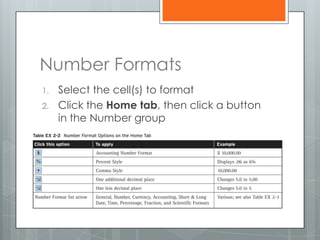
Number Formats
1.   Select the cell(s) to format
2.   Click the Home tab, then click a button
     in the Number group
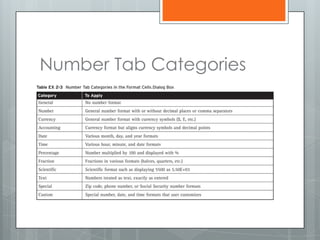
Number Tab Categories
Create Custom Cell Formats
1.   Select the cell(s) to format
2.   Click the Home tab, then click the
     launcher in the Number group
3.   On the Number tab, click the Custom
     category
4.   Choose a format close to the format you
     want to create
5.   In the Type text box, edit the format as
     necessary, then click OK
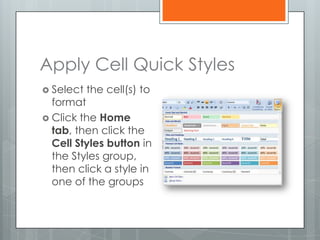
Apply Cell Quick Styles
 Select   the cell(s) to
  format
 Click the Home
  tab, then click the
  Cell Styles button in
  the Styles group,
  then click a style in
  one of the groups
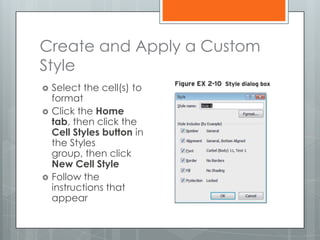
Create and Apply a Custom
Style
   Select the cell(s) to
    format
   Click the Home
    tab, then click the
    Cell Styles button in
    the Styles
    group, then click
    New Cell Style
   Follow the
    instructions that
    appear
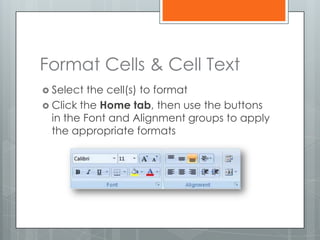
Format Cells & Cell Text
 Select  the cell(s) to format
 Click the Home tab, then use the buttons
  in the Font and Alignment groups to apply
  the appropriate formats
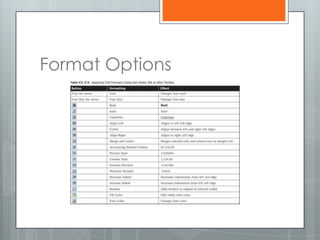
Format Options
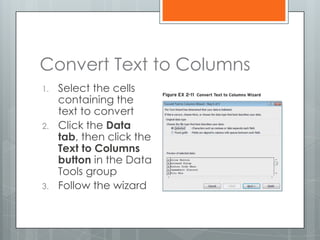
Convert Text to Columns
1.   Select the cells
     containing the
     text to convert
2.   Click the Data
     tab, then click the
     Text to Columns
     button in the Data
     Tools group
3.   Follow the wizard
Split and Merge Cells
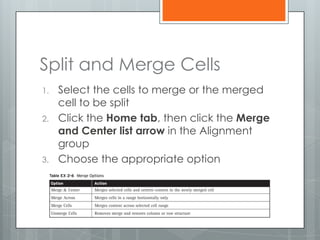
1.   Select the cells to merge or the merged
     cell to be split
2.   Click the Home tab, then click the Merge
     and Center list arrow in the Alignment
     group
3.   Choose the appropriate option
Format Cell Borders and Fill
Colors
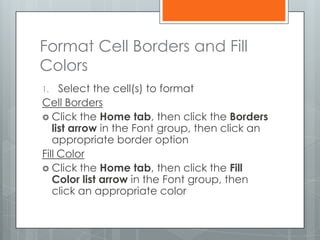
1.   Select the cell(s) to format
Cell Borders
 Click the Home tab, then click the Borders
   list arrow in the Font group, then click an
   appropriate border option
Fill Color
 Click the Home tab, then click the Fill
   Color list arrow in the Font group, then
   click an appropriate color
Hyperlinks
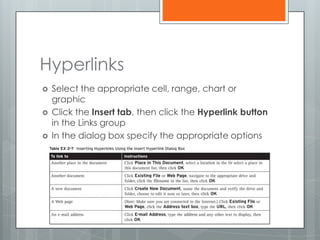
   Select the appropriate cell, range, chart or
    graphic
   Click the Insert tab, then click the Hyperlink button
    in the Links group
   In the dialog box specify the appropriate options
Lesson Review Activity
1.   Open a new workbook
2.   Type 100 in cell A1, B1, and C1
3.   Practice using the different number formats
     by setting A1 to currency, B1 to
     Percentage, and C1 to Accounting
4.   Select the Accent 1 cell style for A1, the
     Accent 4 style for B1 and the Accent 5 style
     for C1
5.   Create your own Cell style and apply it to
     cell C1
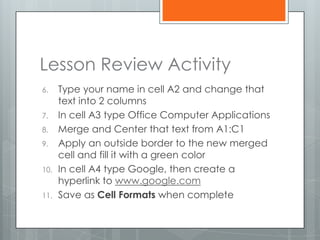
Lesson Review Activity
6.    Type your name in cell A2 and change that
      text into 2 columns
7.    In cell A3 type Office Computer Applications
8.    Merge and Center that text from A1:C1
9.    Apply an outside border to the new merged
      cell and fill it with a green color
10.   In cell A4 type Google, then create a
      hyperlink to www.google.com
11.   Save as Cell Formats when complete

Formatting Cells

  • 1.
    Microsoft Excel 2007 Objective 2:Formatting Data and Content
  • 2.
    In this Objectiveyou will learn to:  Format Worksheets  Insert and Modify Rows and Columns  Format Cells and Cell Content, and  Format Data as a Table
  • 3.
    Formatting Cells &Cell Content • Using Number Formats • Format Text • Creating Custom Cell • Convert text to columns, Formats • Split and Merge • Apply Quick Styles • Cell Borders and Fill Colors • Create and Apply a • Hyperlinks Custom Style
  • 4.
    Number Formats 1. Select the cell(s) to format 2. Click the Home tab, then click a button in the Number group
  • 5.
  • 6.
    Create Custom CellFormats 1. Select the cell(s) to format 2. Click the Home tab, then click the launcher in the Number group 3. On the Number tab, click the Custom category 4. Choose a format close to the format you want to create 5. In the Type text box, edit the format as necessary, then click OK
  • 7.
    Apply Cell QuickStyles  Select the cell(s) to format  Click the Home tab, then click the Cell Styles button in the Styles group, then click a style in one of the groups
  • 8.
    Create and Applya Custom Style  Select the cell(s) to format  Click the Home tab, then click the Cell Styles button in the Styles group, then click New Cell Style  Follow the instructions that appear
  • 9.
    Format Cells &Cell Text  Select the cell(s) to format  Click the Home tab, then use the buttons in the Font and Alignment groups to apply the appropriate formats
  • 10.
  • 11.
    Convert Text toColumns 1. Select the cells containing the text to convert 2. Click the Data tab, then click the Text to Columns button in the Data Tools group 3. Follow the wizard
  • 12.
    Split and MergeCells 1. Select the cells to merge or the merged cell to be split 2. Click the Home tab, then click the Merge and Center list arrow in the Alignment group 3. Choose the appropriate option
  • 13.
    Format Cell Bordersand Fill Colors 1. Select the cell(s) to format Cell Borders  Click the Home tab, then click the Borders list arrow in the Font group, then click an appropriate border option Fill Color  Click the Home tab, then click the Fill Color list arrow in the Font group, then click an appropriate color
  • 14.
    Hyperlinks  Select the appropriate cell, range, chart or graphic  Click the Insert tab, then click the Hyperlink button in the Links group  In the dialog box specify the appropriate options
  • 15.
    Lesson Review Activity 1. Open a new workbook 2. Type 100 in cell A1, B1, and C1 3. Practice using the different number formats by setting A1 to currency, B1 to Percentage, and C1 to Accounting 4. Select the Accent 1 cell style for A1, the Accent 4 style for B1 and the Accent 5 style for C1 5. Create your own Cell style and apply it to cell C1
  • 16.
    Lesson Review Activity 6. Type your name in cell A2 and change that text into 2 columns 7. In cell A3 type Office Computer Applications 8. Merge and Center that text from A1:C1 9. Apply an outside border to the new merged cell and fill it with a green color 10. In cell A4 type Google, then create a hyperlink to www.google.com 11. Save as Cell Formats when complete