Microsoft Office 2007- Illustrated Finishing a Presentation
Objectives Understand masters Customize background style Use slide show commands Set slide show transitions and timings Microsoft Office 2007-Illustrated
Objectives Set slide animation effects Inspect a presentation Evaluate a presentation Create a design template Microsoft Office 2007-Illustrated
Understand Masters Each presentation has a set of  masters   Masters store information position & size of text position & size of content placeholders  text styles  background colors effects, animations and theme colors Microsoft Office 2007-Illustrated
Understand Masters There are three Master views:  Slide Master view Handout Master view Notes Master view Changes made to masters appear on slides, notes and handouts respectively Microsoft Office 2007-Illustrated
Understand Masters Design elements that you place on the Slide Master appear on every slide in the presentation Each master has its own associated layouts Changes made to layouts appear on slides that have those layouts Microsoft Office 2007-Illustrated
Understand Masters To view a slide master click the View tab, then click the Slide Master button in the Presentation Views group The left pane displays thumbnails of each layout of the slide master Microsoft Office 2007-Illustrated
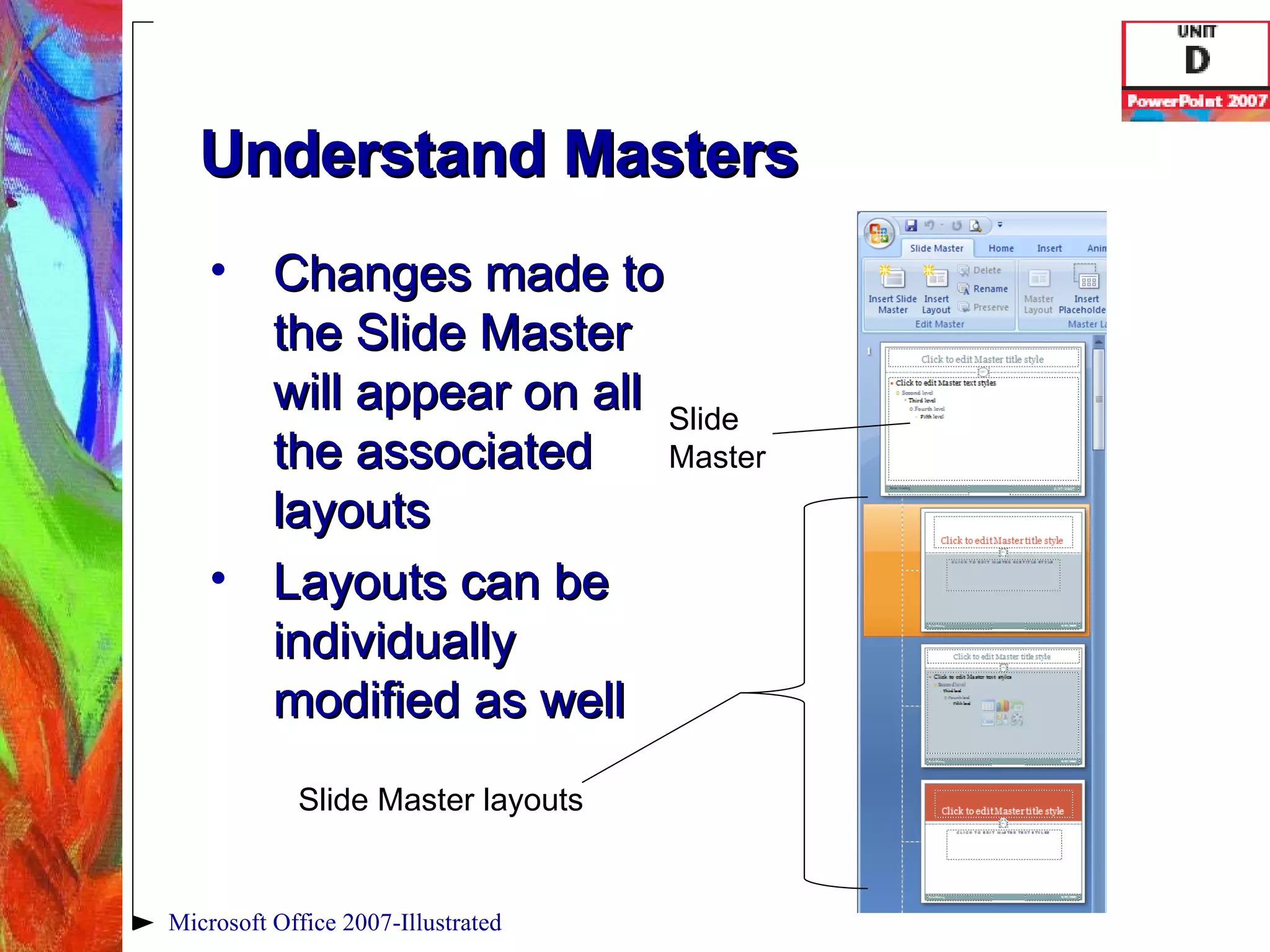
Understand Masters Changes made to the Slide Master will appear on all the associated layouts Layouts can be individually modified as well Microsoft Office 2007-Illustrated Slide Master layouts Slide  Master
Customize the Background Style The  background , which is on every slide, is the area behind the text and graphics A  background graphic   is an object placed on the slide master You can modify the background with images and color to enhance slides Microsoft Office 2007-Illustrated
Customize the Background Style You can also apply a background style which is a set of color variations derived from the theme colors Theme colors  are a set of twelve coordinated colors that determine the colors for all slide elements in your presentation Microsoft Office 2007-Illustrated
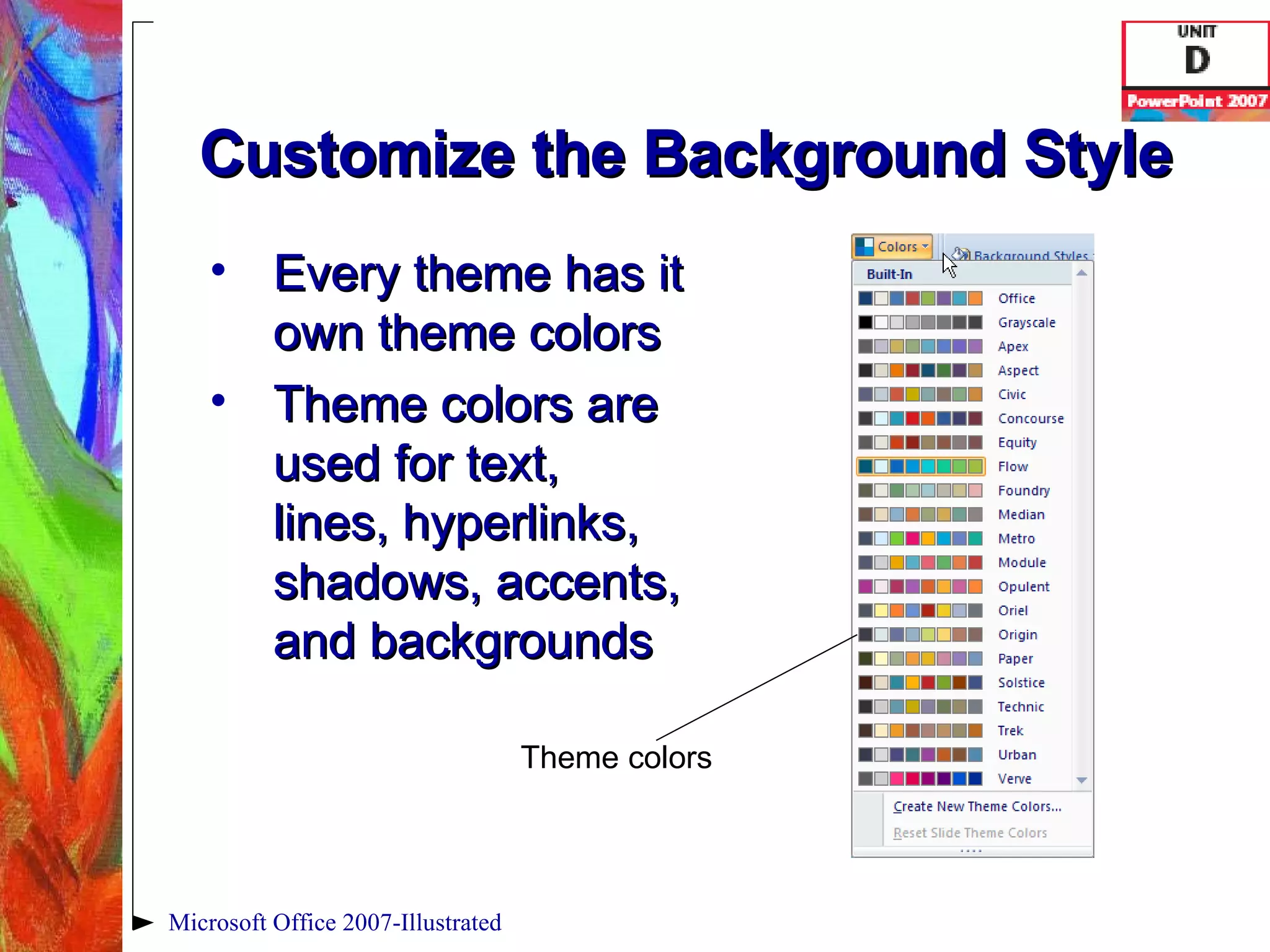
Customize the Background Style Every theme has it own theme colors Theme colors are used for text, lines, hyperlinks, shadows, accents, and backgrounds Microsoft Office 2007-Illustrated Theme colors
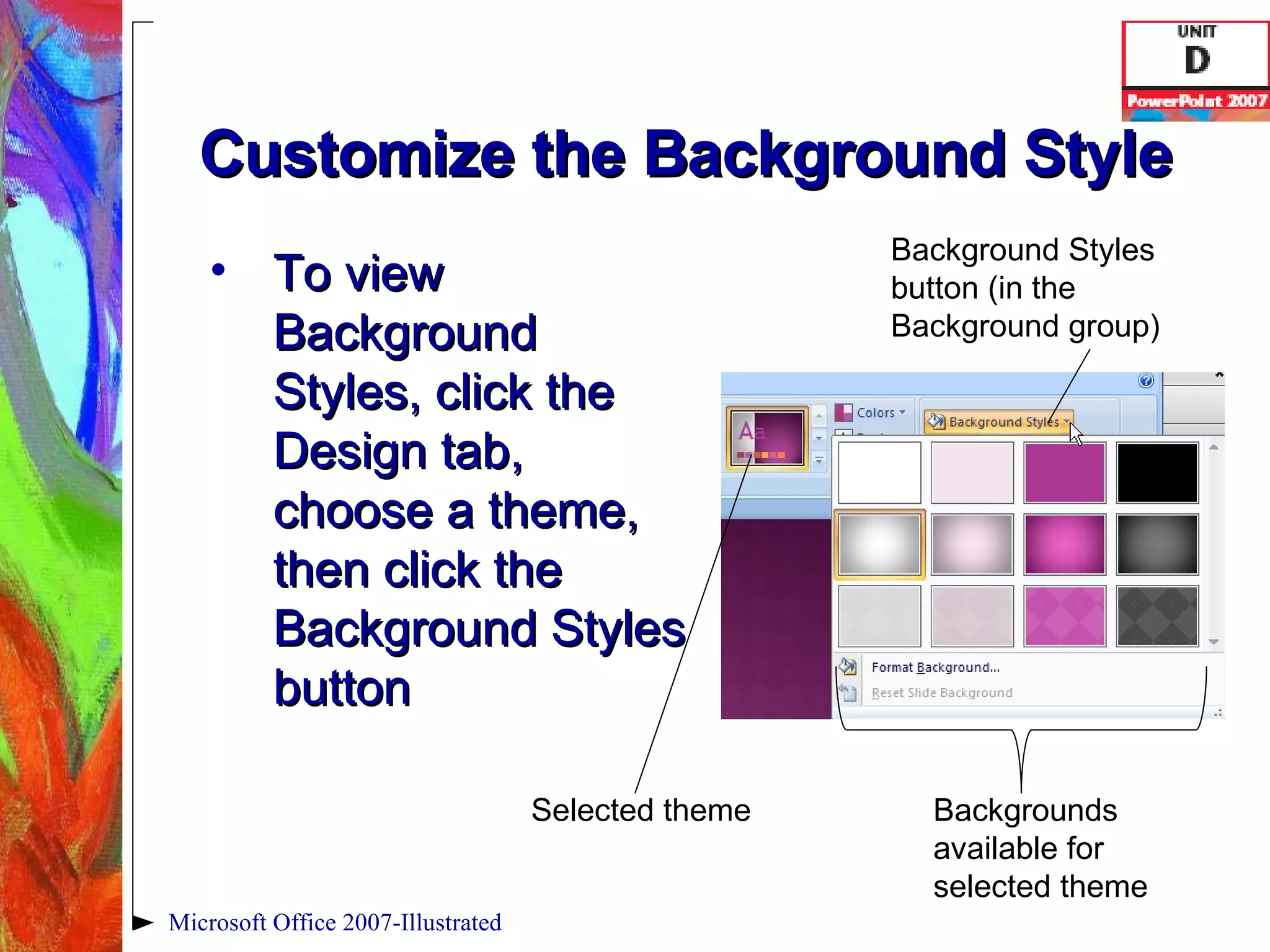
Customize the Background Style To view Background Styles, click the Design tab, choose a theme, then click the Background Styles button Microsoft Office 2007-Illustrated Background Styles button (in the Background group) Selected theme Backgrounds available for selected theme
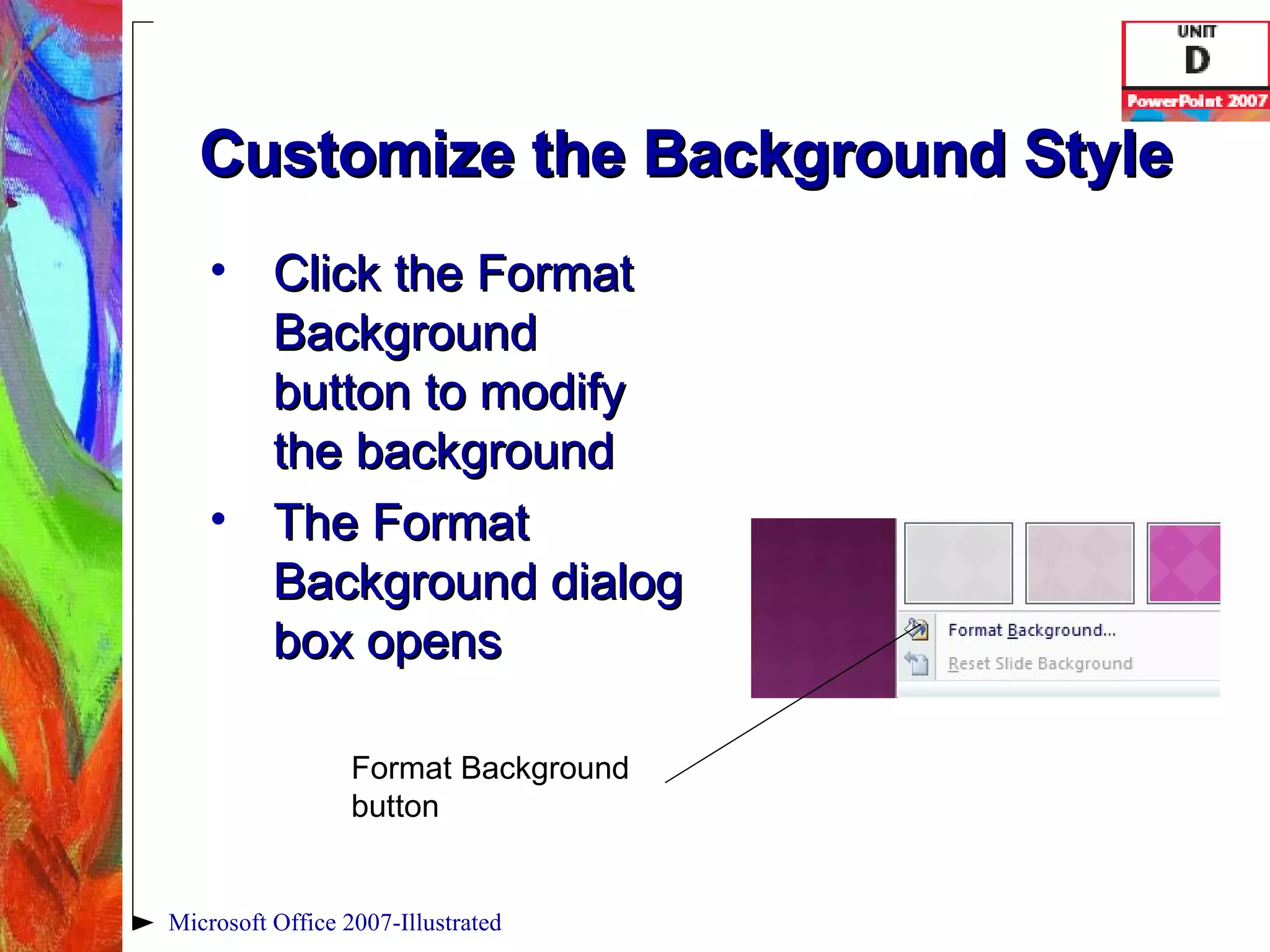
Customize the Background Style Click the Format Background button to modify the background The Format Background dialog box opens Microsoft Office 2007-Illustrated Format Background button
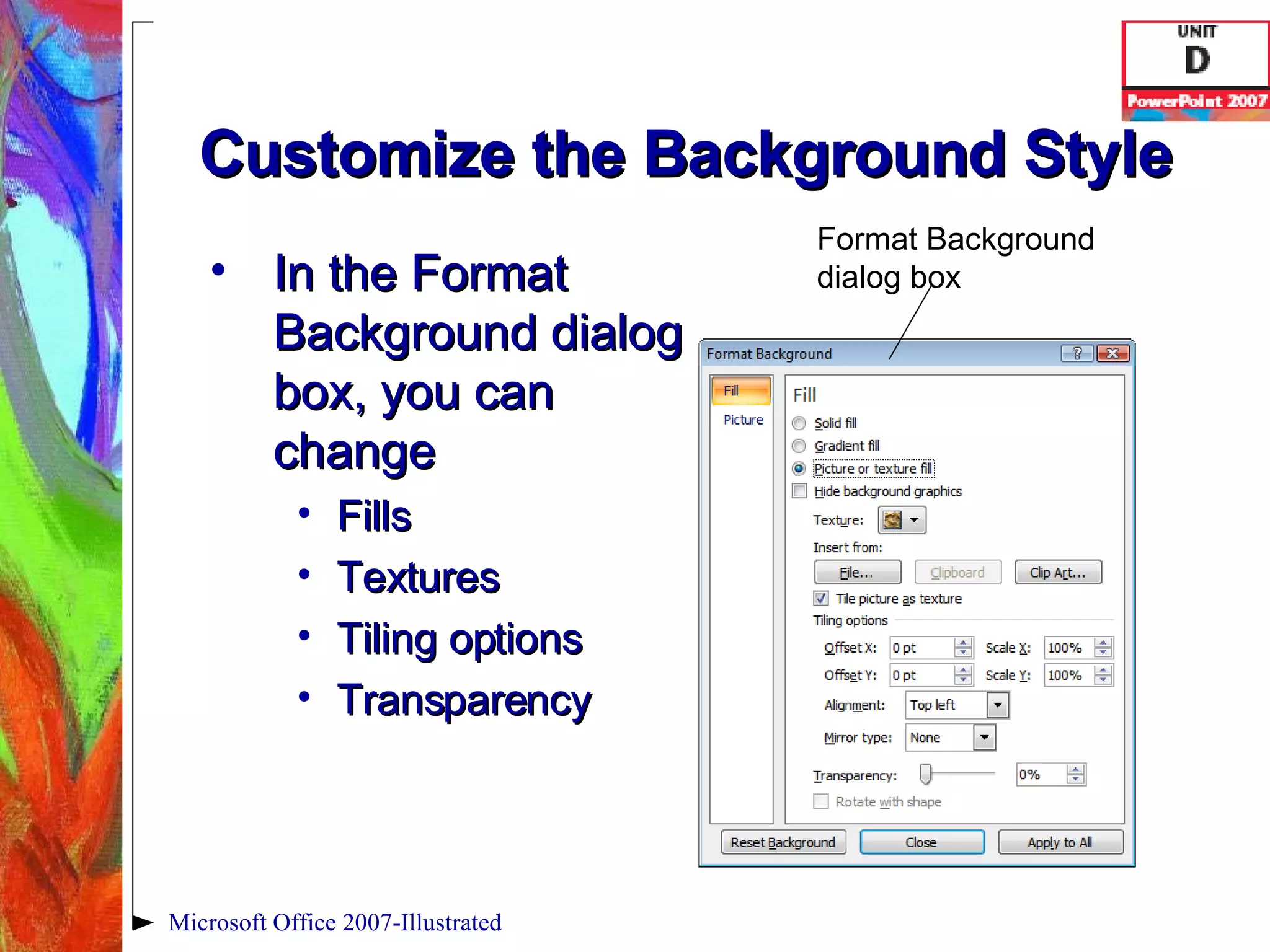
Customize the Background Style In the Format Background dialog box, you can change Fills Textures Tiling options Transparency Microsoft Office 2007-Illustrated Format Background dialog box
Use Slide Show Commands With PowerPoint, you can show a presentation on any compatible computer using Slide Show view Slide Show view fills the entire screen In Slide Show view, you can  annotate  slides (draw on them) or jump to specific slides Microsoft Office 2007-Illustrated
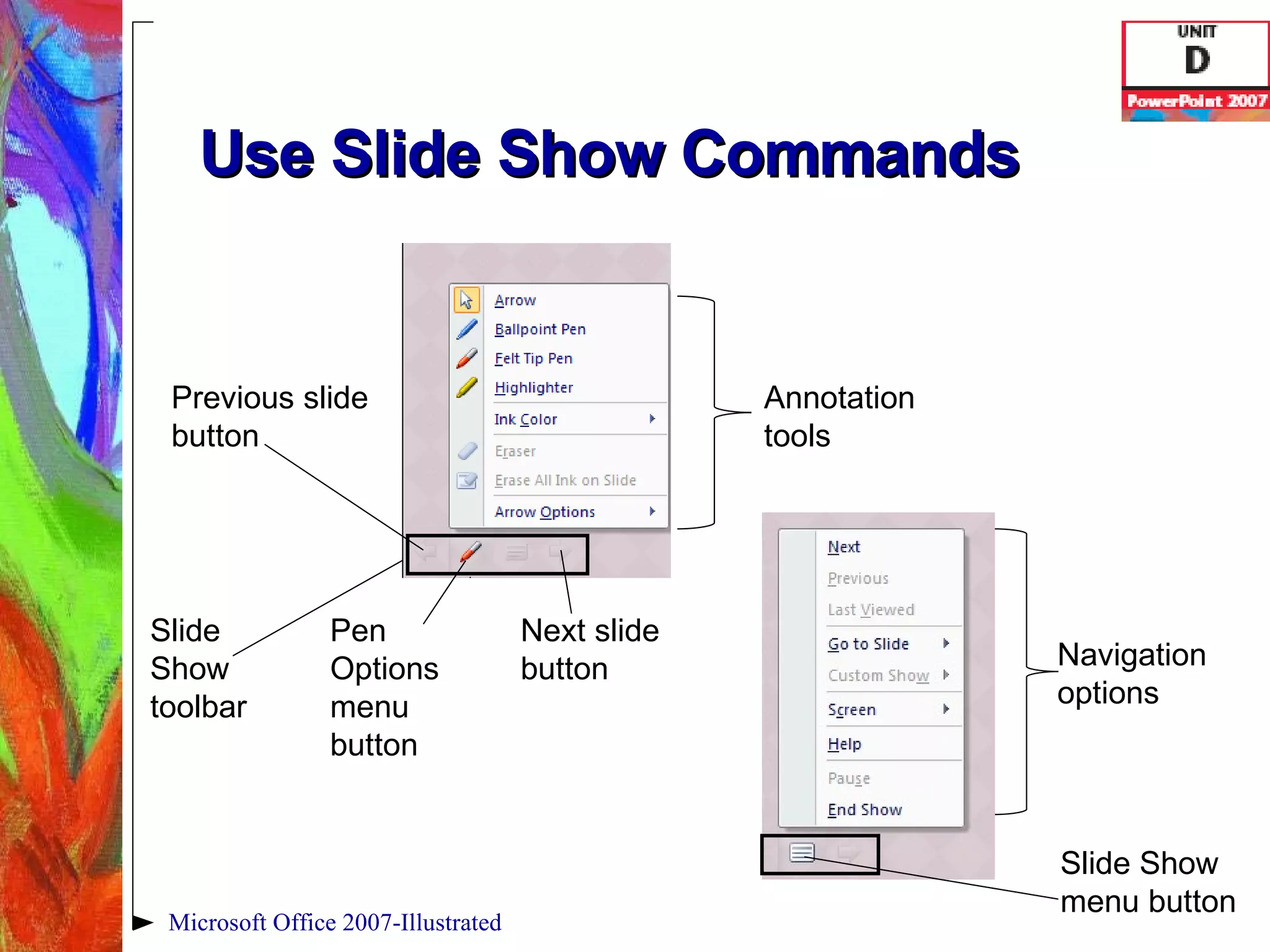
Use Slide Show Commands To get started click the View tab, then click the Slide Show button in the Presentation Views group The Slide Show toolbar buttons are semitransparent and blend in with the background color on the slide Microsoft Office 2007-Illustrated
Use Slide Show Commands Microsoft Office 2007-Illustrated Slide Show  toolbar Navigation options Annotation tools Previous slide button Next slide button Pen Options menu button Slide Show menu button
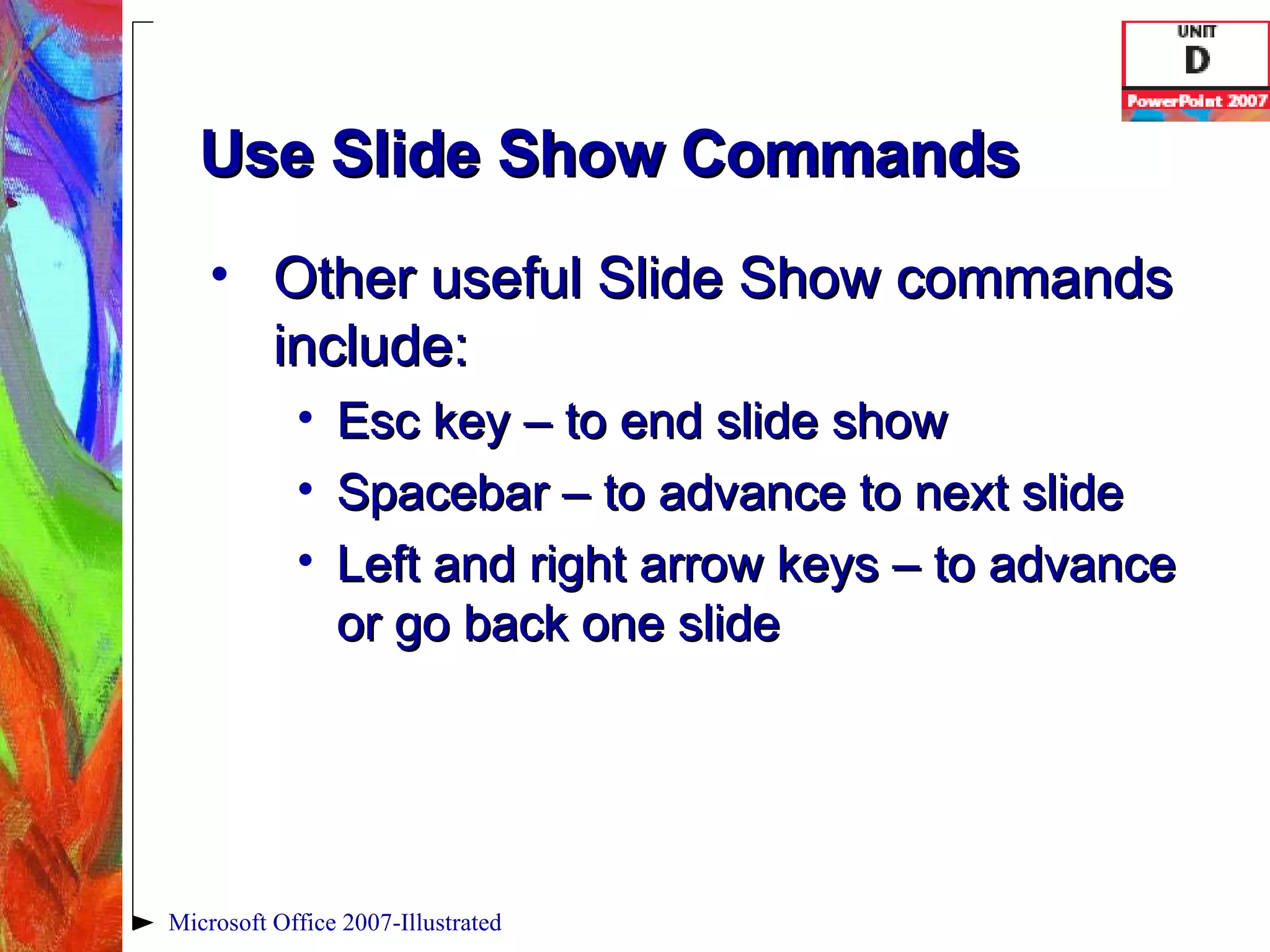
Use Slide Show Commands Other useful Slide Show commands include: Esc key – to end slide show Spacebar – to advance to next slide Left and right arrow keys – to advance or go back one slide Microsoft Office 2007-Illustrated
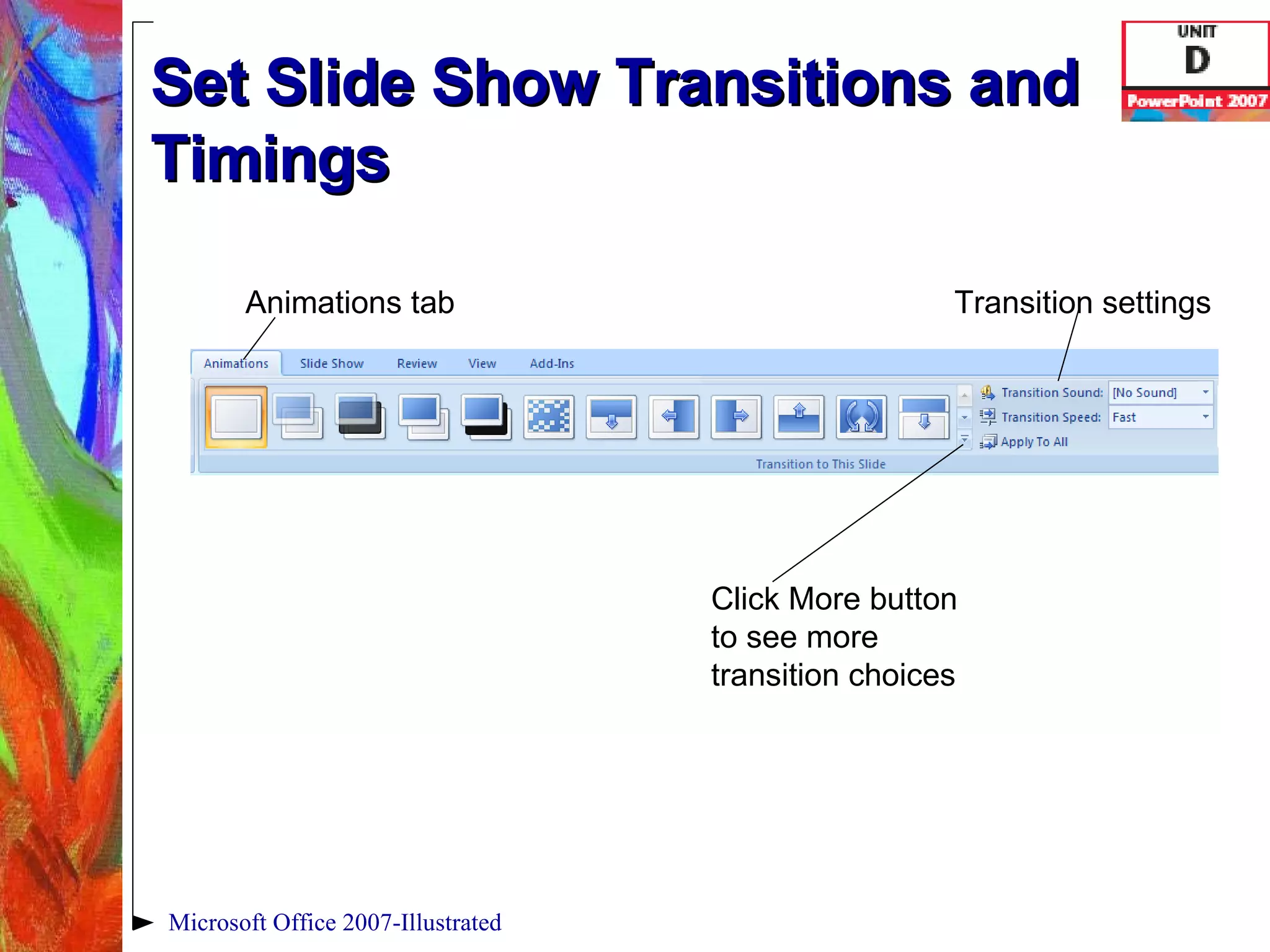
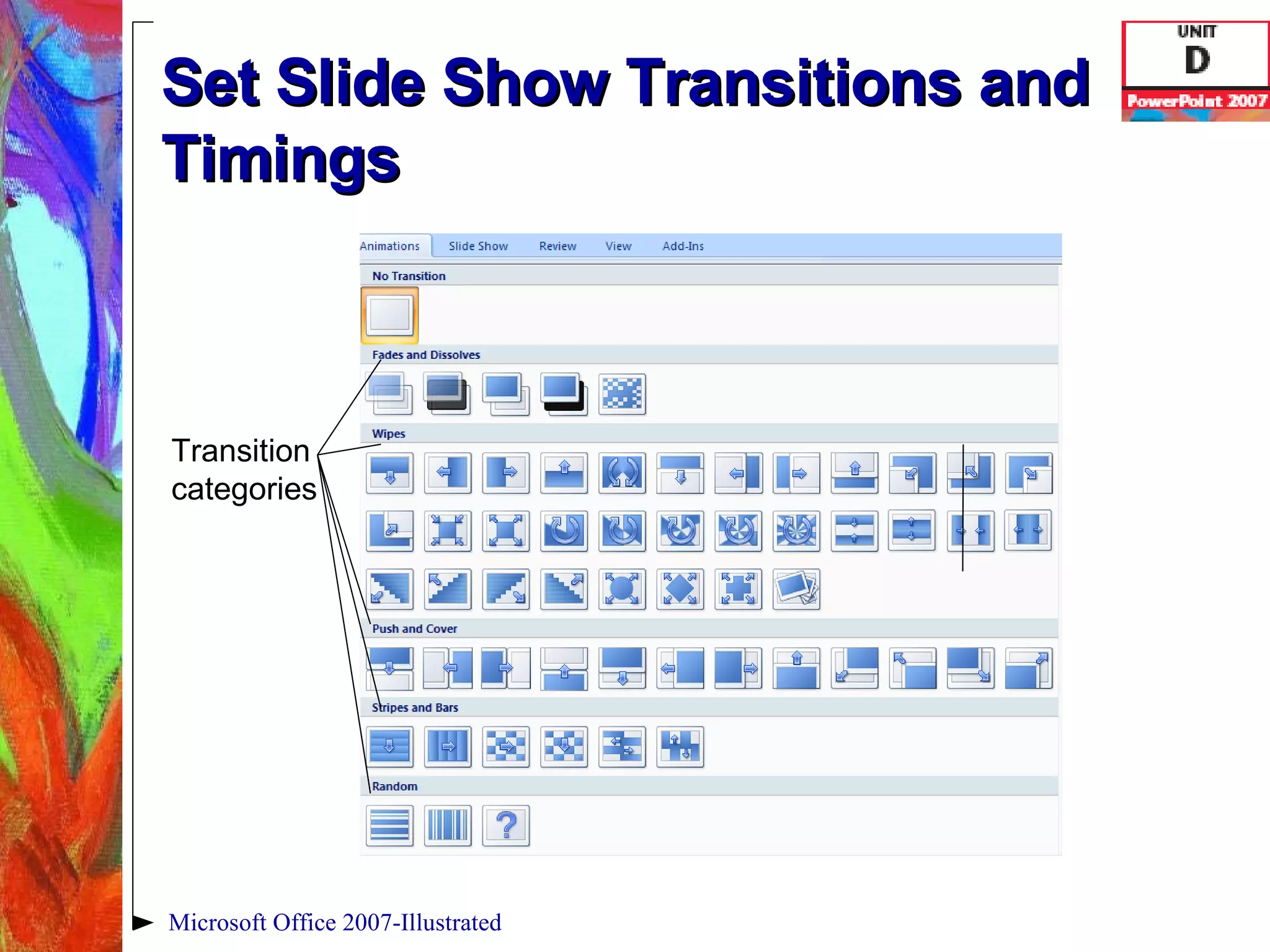
Set Slide Show Transitions and Timings Slide transitions   determine how a slide moves in and out of view during the slide show Transitions are organized by type into five groups Click the Animations tab on the Ribbon, then choose a transition Microsoft Office 2007-Illustrated
Set Slide Show Transitions and Timings Microsoft Office 2007-Illustrated Animations tab Click More button to see more transition choices Transition settings
Set Slide Show Transitions and Timings Microsoft Office 2007-Illustrated Transition categories
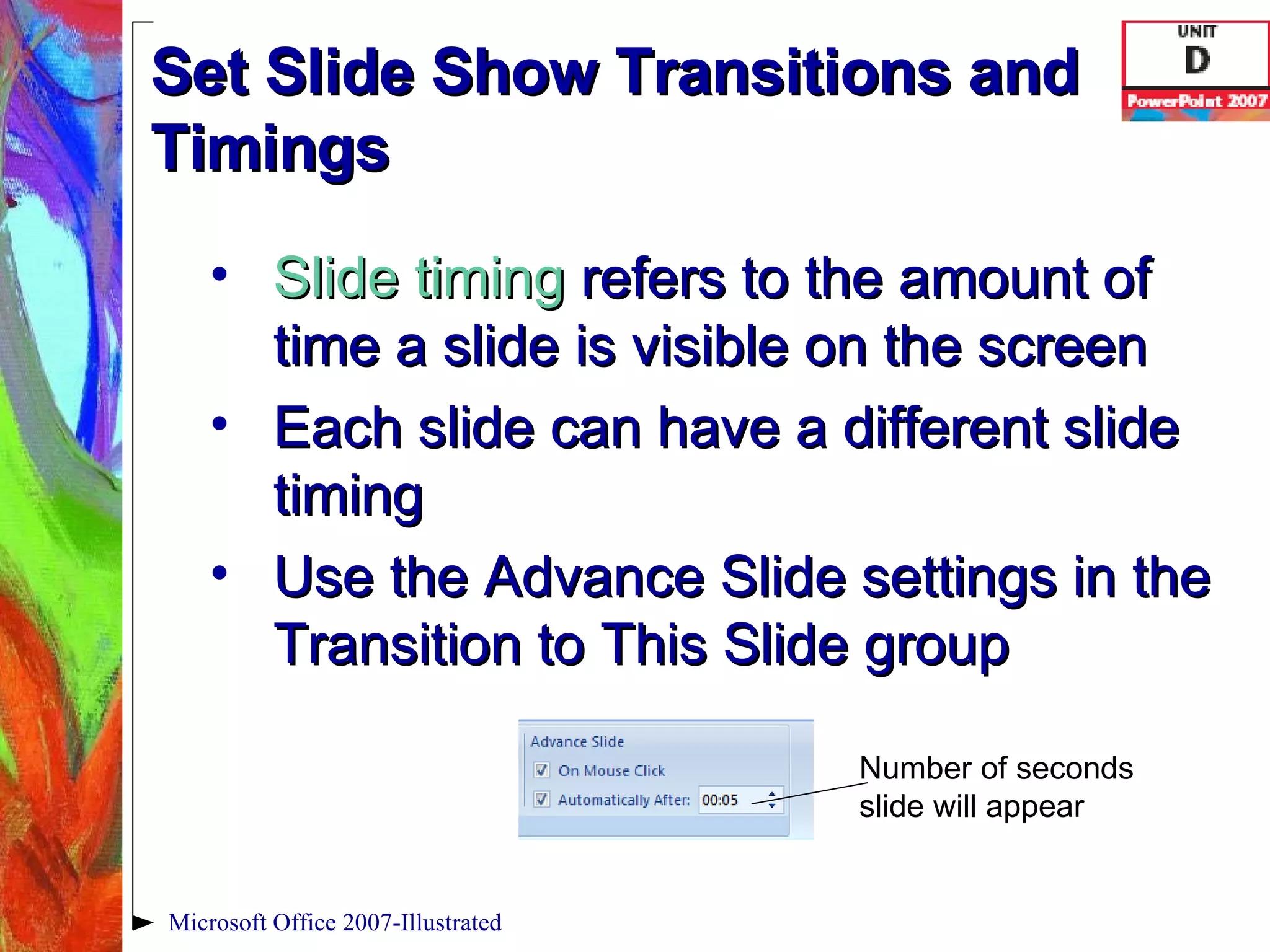
Set Slide Show Transitions and Timings Slide timing   refers to the amount of time a slide is visible on the screen Each slide can have a different slide timing Use the Advance Slide settings in the Transition to This Slide group Microsoft Office 2007-Illustrated Number of seconds slide will appear
Set Slide Animation Effects Animation effects   define how the objects in your presentation appear on the screen during a slide show For example, you can have each bullet in a list appear one at a time You can animate text, graphics, sounds, hyperlinks, SmartArt diagrams, charts and chart elements Microsoft Office 2007-Illustrated
Set Slide Animation Effects Standard animation effects: Fade Wipe Fly In Custom animation effects: Entrance Emphasis Exit Motion Paths Microsoft Office 2007-Illustrated
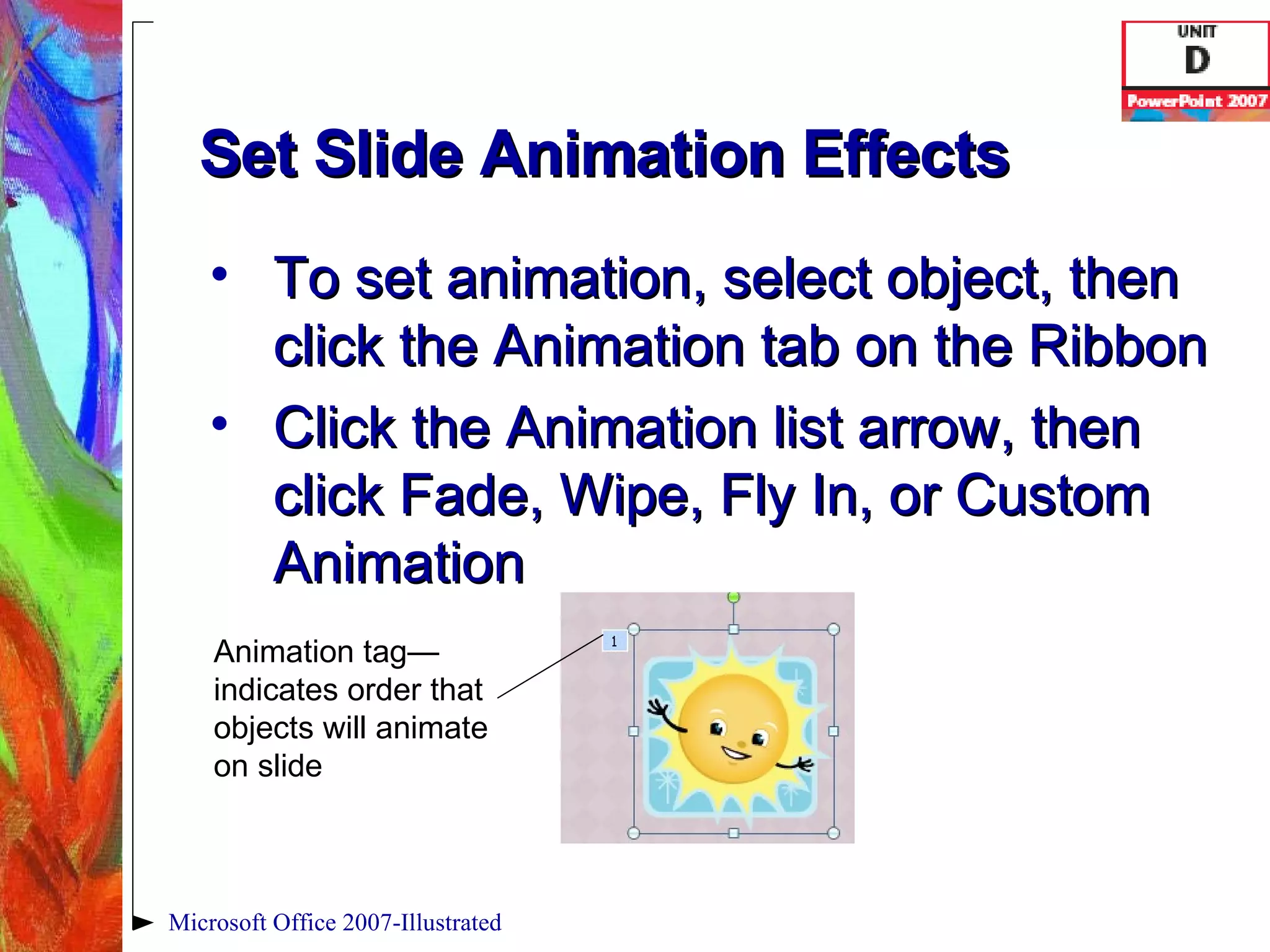
Set Slide Animation Effects To set animation, select object, then click the Animation tab on the Ribbon Click the Animation list arrow, then click Fade, Wipe, Fly In, or Custom Animation Microsoft Office 2007-Illustrated Animation tag—indicates order that objects will animate on slide
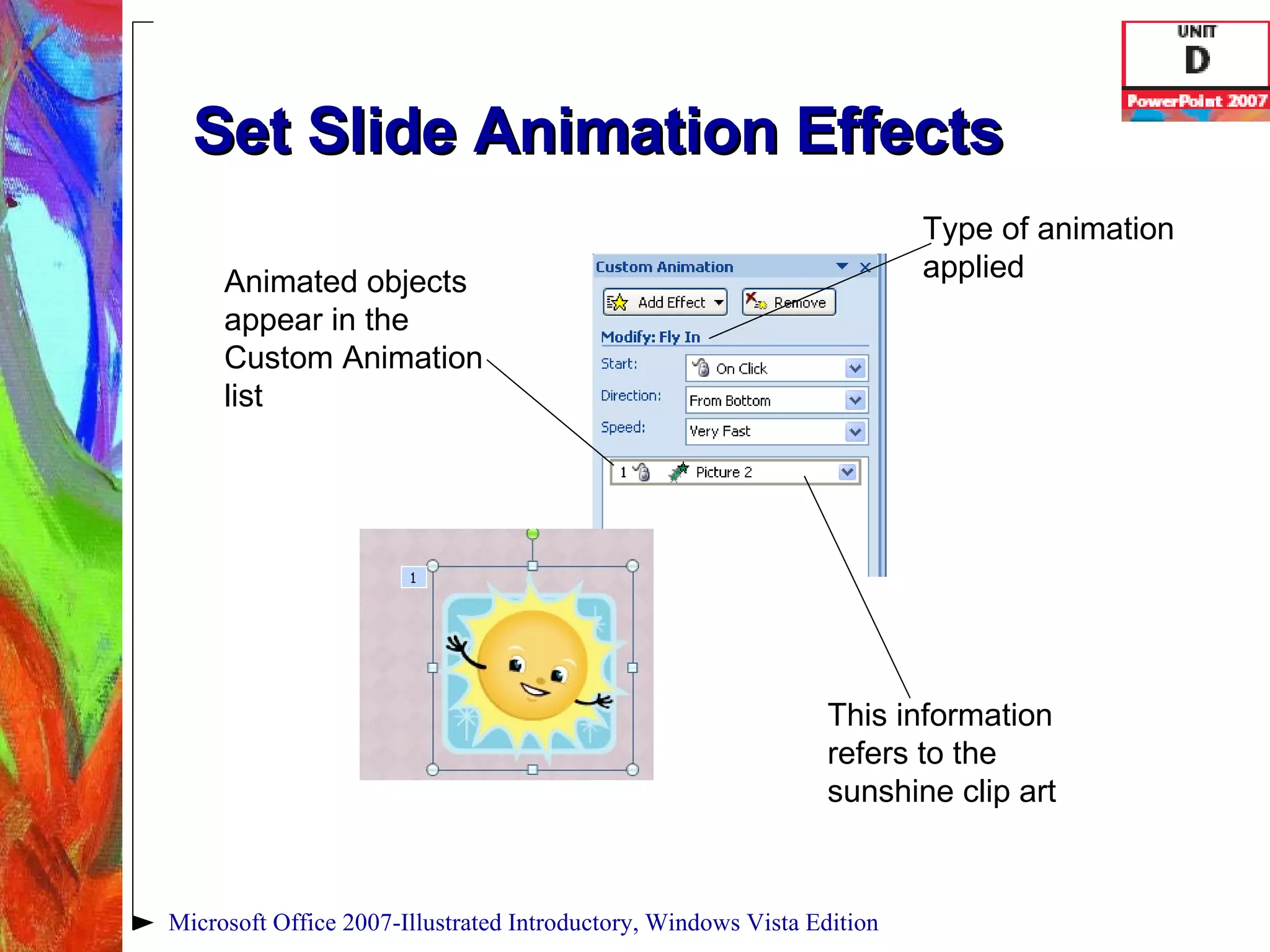
Set Slide Animation Effects Microsoft Office 2007-Illustrated Introductory, Windows Vista Edition Animated objects appear in the Custom Animation list This information refers to the sunshine clip art Type of animation applied
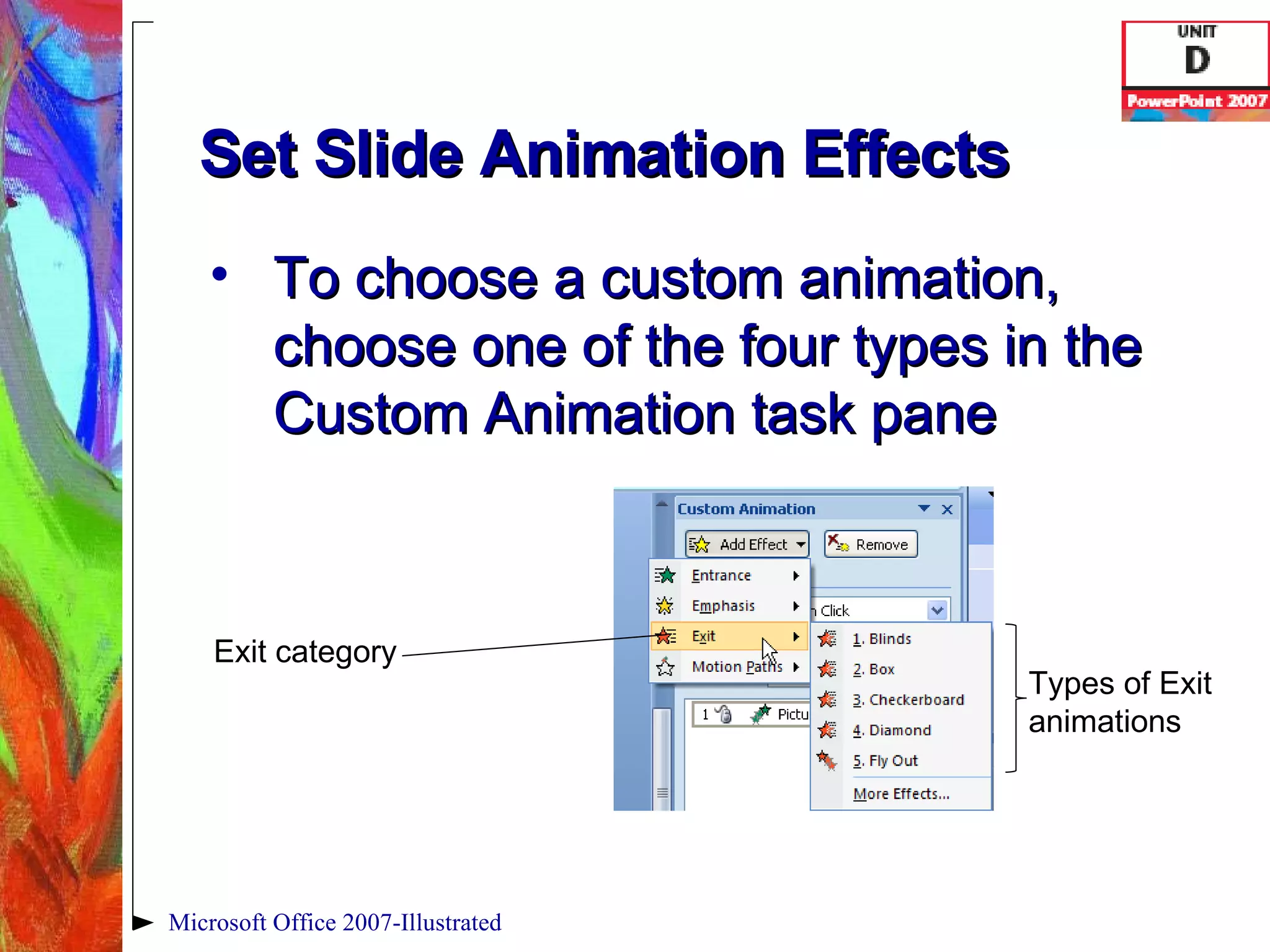
Set Slide Animation Effects To choose a custom animation, choose one of the four types in the Custom Animation task pane Microsoft Office 2007-Illustrated Exit category Types of Exit animations
Set Slide Animation Effects Custom Animation Entrance—causes an object to enter the slide with an effect Emphasis—already visible object has an effect Exit—causes an object to exit slide with an effect Motion Paths—causes object to move on specified path on slide Microsoft Office 2007-Illustrated
Inspect a Presentation Before you post a presentation, you should inspect it using the Document Inspector The  Document Inspector   looks for hidden data and personal information stored in the file itself or in the document properties Microsoft Office 2007-Illustrated
Inspect a Presentation Document properties  are also known as  metadata  and includes specific data about the presentation Document properties include: Author’s name Subject matter Title When file was created Microsoft Office 2007-Illustrated
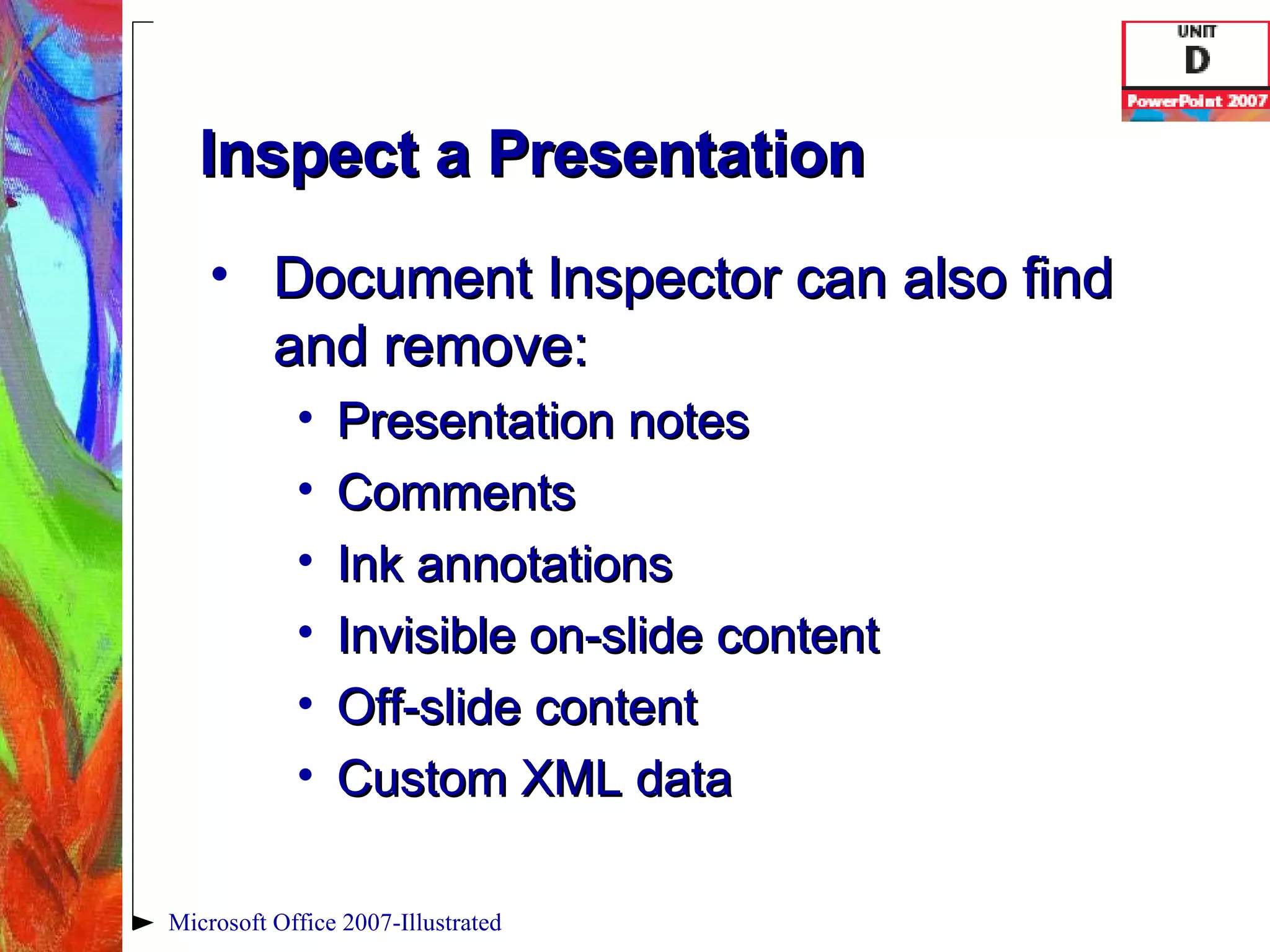
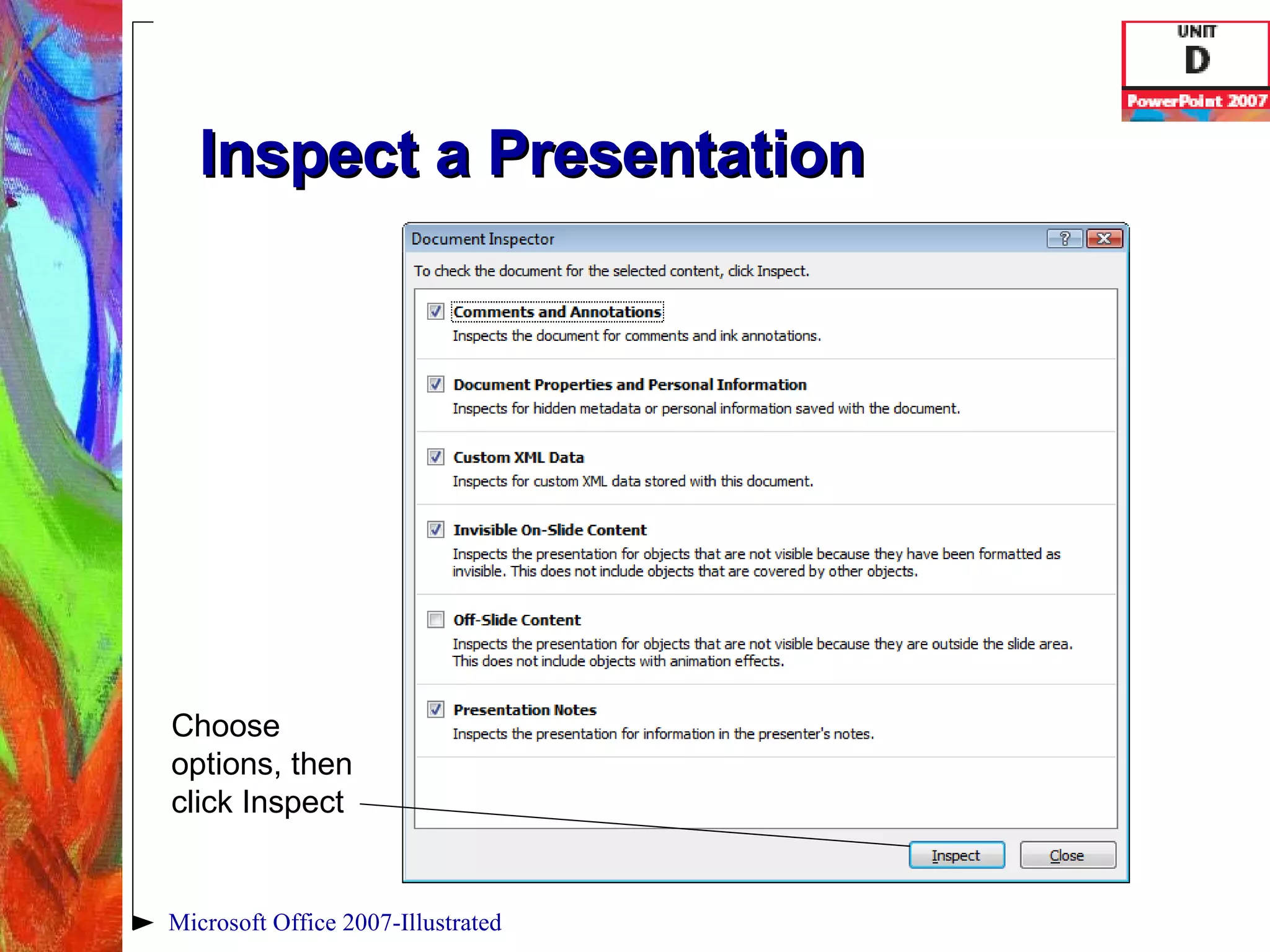
Inspect a Presentation Document Inspector can also find and remove: Presentation notes Comments Ink annotations Invisible on-slide content Off-slide content Custom XML data Microsoft Office 2007-Illustrated
Inspect a Presentation To use the Document Inspector, click the Office Button, point to Prepare, then click Inspect Document The Document Inspector dialog box opens Results will appear in a new window Microsoft Office 2007-Illustrated
Inspect a Presentation Microsoft Office 2007-Illustrated Choose options, then click Inspect
Inspect a Presentation To create a read-only file, click the Office Button, point to Prepare, then click Mark as Final A  read-only  file cannot be edited or modified Microsoft Office 2007-Illustrated
Evaluate a Presentation To evaluate a presentation means to look at its design as well as its content Evaluate your presentation to determine how well your audience will receive it Microsoft Office 2007-Illustrated
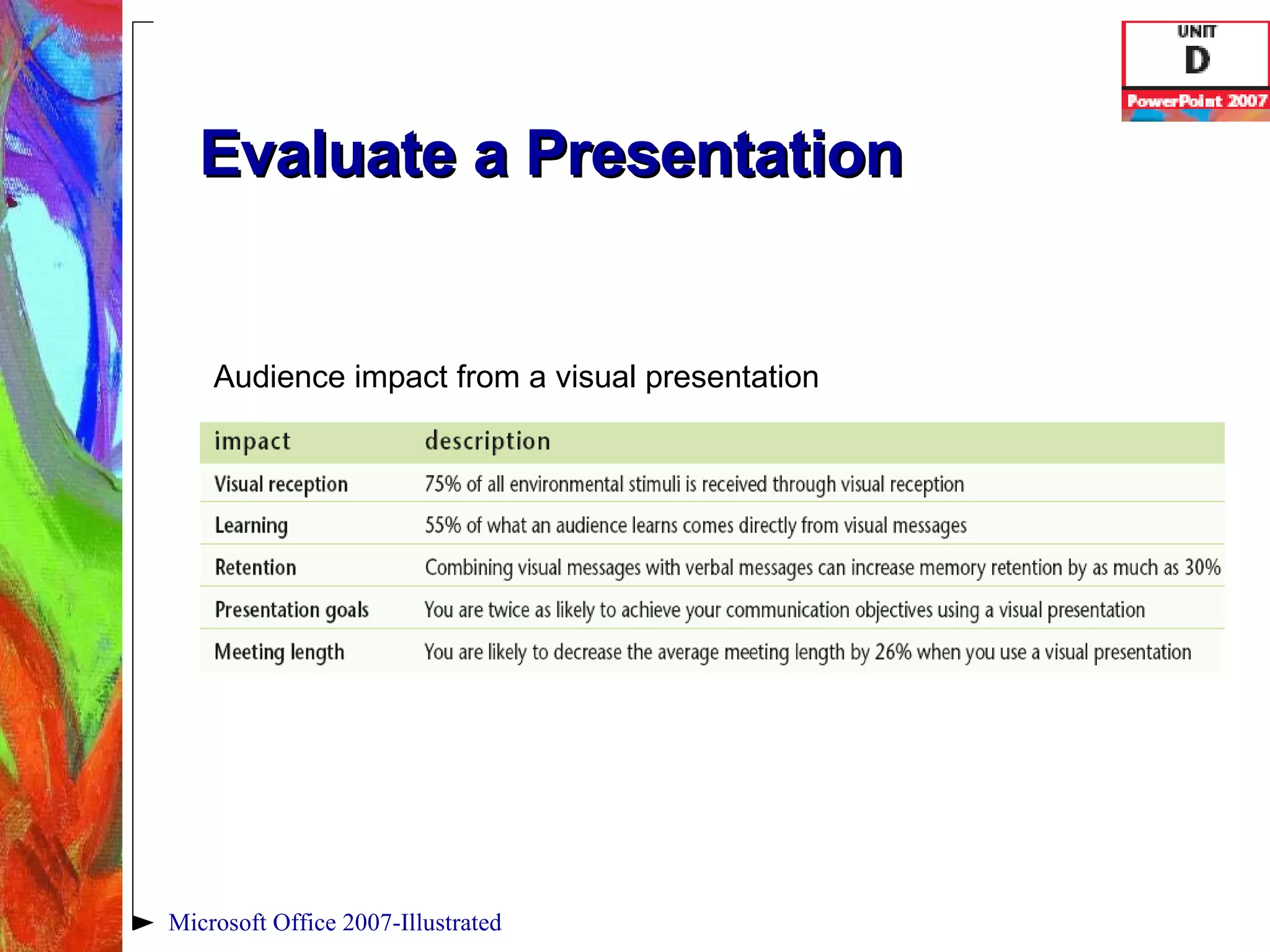
Evaluate a Presentation Microsoft Office 2007-Illustrated Audience impact from a visual presentation
Evaluate a Presentation Important points about evaluating your presentation Keep your message focused Keep your text concise Keep the design simple Choose attractive colors Microsoft Office 2007-Illustrated
Evaluate a Presentation Important points about evaluating your presentation Choose fonts and styles that are easy to read Emphasize important text Use visuals to help communicate your message Microsoft Office 2007-Illustrated
Create a Design Template You are not limited to using just the standard themes PowerPoint provides You can use a template, a type of presentation file that contains custom design information Microsoft Office 2007-Illustrated
Create a Design Template You can create a template from a new blank presentation or modify an existing presentation, then save it as a template Templates have the .potx extension added to the filename Microsoft Office 2007-Illustrated
Create a Design Template When you open a template, you save it with a new name as a new presentation Templates are automatically saved in the Templates folder Microsoft Office 2007-Illustrated
Summary Understanding Slide Masters is an important part of understanding PowerPoint The Slide Master stores information for each slide, including the placement of text and content placeholders The Slide Master has a set of related layouts Microsoft Office 2007-Illustrated
Summary Changes made to the Slide Master appear on all of the related layouts You can modify the slide background to enhance the slides in a presentation The Slide Show toolbar allows you to annotate slides and navigate forwards, backwards and to specific slides during a slide show Microsoft Office 2007-Illustrated
Summary You can add transitions to each slide and adjust slide timing You can animate objects on slide to define how they will appear during the slide show Use the Custom Animation task pane to define how objects will animate Use the Document Inspector to inspect a presentation Microsoft Office 2007-Illustrated
Summary Evaluate your presentation to meet the audience needs Finally, you can create your own custom templates for future use by saving a presentation as a template Templates have the .potx filename extension Microsoft Office 2007-Illustrated

Unit D - CSCI 64

  • 1.
    Microsoft Office 2007-Illustrated Finishing a Presentation
  • 2.
    Objectives Understand mastersCustomize background style Use slide show commands Set slide show transitions and timings Microsoft Office 2007-Illustrated
  • 3.
    Objectives Set slideanimation effects Inspect a presentation Evaluate a presentation Create a design template Microsoft Office 2007-Illustrated
  • 4.
    Understand Masters Eachpresentation has a set of masters Masters store information position & size of text position & size of content placeholders text styles background colors effects, animations and theme colors Microsoft Office 2007-Illustrated
  • 5.
    Understand Masters Thereare three Master views: Slide Master view Handout Master view Notes Master view Changes made to masters appear on slides, notes and handouts respectively Microsoft Office 2007-Illustrated
  • 6.
    Understand Masters Designelements that you place on the Slide Master appear on every slide in the presentation Each master has its own associated layouts Changes made to layouts appear on slides that have those layouts Microsoft Office 2007-Illustrated
  • 7.
    Understand Masters Toview a slide master click the View tab, then click the Slide Master button in the Presentation Views group The left pane displays thumbnails of each layout of the slide master Microsoft Office 2007-Illustrated
  • 8.
    Understand Masters Changesmade to the Slide Master will appear on all the associated layouts Layouts can be individually modified as well Microsoft Office 2007-Illustrated Slide Master layouts Slide Master
  • 9.
    Customize the BackgroundStyle The background , which is on every slide, is the area behind the text and graphics A background graphic is an object placed on the slide master You can modify the background with images and color to enhance slides Microsoft Office 2007-Illustrated
  • 10.
    Customize the BackgroundStyle You can also apply a background style which is a set of color variations derived from the theme colors Theme colors are a set of twelve coordinated colors that determine the colors for all slide elements in your presentation Microsoft Office 2007-Illustrated
  • 11.
    Customize the BackgroundStyle Every theme has it own theme colors Theme colors are used for text, lines, hyperlinks, shadows, accents, and backgrounds Microsoft Office 2007-Illustrated Theme colors
  • 12.
    Customize the BackgroundStyle To view Background Styles, click the Design tab, choose a theme, then click the Background Styles button Microsoft Office 2007-Illustrated Background Styles button (in the Background group) Selected theme Backgrounds available for selected theme
  • 13.
    Customize the BackgroundStyle Click the Format Background button to modify the background The Format Background dialog box opens Microsoft Office 2007-Illustrated Format Background button
  • 14.
    Customize the BackgroundStyle In the Format Background dialog box, you can change Fills Textures Tiling options Transparency Microsoft Office 2007-Illustrated Format Background dialog box
  • 15.
    Use Slide ShowCommands With PowerPoint, you can show a presentation on any compatible computer using Slide Show view Slide Show view fills the entire screen In Slide Show view, you can annotate slides (draw on them) or jump to specific slides Microsoft Office 2007-Illustrated
  • 16.
    Use Slide ShowCommands To get started click the View tab, then click the Slide Show button in the Presentation Views group The Slide Show toolbar buttons are semitransparent and blend in with the background color on the slide Microsoft Office 2007-Illustrated
  • 17.
    Use Slide ShowCommands Microsoft Office 2007-Illustrated Slide Show toolbar Navigation options Annotation tools Previous slide button Next slide button Pen Options menu button Slide Show menu button
  • 18.
    Use Slide ShowCommands Other useful Slide Show commands include: Esc key – to end slide show Spacebar – to advance to next slide Left and right arrow keys – to advance or go back one slide Microsoft Office 2007-Illustrated
  • 19.
    Set Slide ShowTransitions and Timings Slide transitions determine how a slide moves in and out of view during the slide show Transitions are organized by type into five groups Click the Animations tab on the Ribbon, then choose a transition Microsoft Office 2007-Illustrated
  • 20.
    Set Slide ShowTransitions and Timings Microsoft Office 2007-Illustrated Animations tab Click More button to see more transition choices Transition settings
  • 21.
    Set Slide ShowTransitions and Timings Microsoft Office 2007-Illustrated Transition categories
  • 22.
    Set Slide ShowTransitions and Timings Slide timing refers to the amount of time a slide is visible on the screen Each slide can have a different slide timing Use the Advance Slide settings in the Transition to This Slide group Microsoft Office 2007-Illustrated Number of seconds slide will appear
  • 23.
    Set Slide AnimationEffects Animation effects define how the objects in your presentation appear on the screen during a slide show For example, you can have each bullet in a list appear one at a time You can animate text, graphics, sounds, hyperlinks, SmartArt diagrams, charts and chart elements Microsoft Office 2007-Illustrated
  • 24.
    Set Slide AnimationEffects Standard animation effects: Fade Wipe Fly In Custom animation effects: Entrance Emphasis Exit Motion Paths Microsoft Office 2007-Illustrated
  • 25.
    Set Slide AnimationEffects To set animation, select object, then click the Animation tab on the Ribbon Click the Animation list arrow, then click Fade, Wipe, Fly In, or Custom Animation Microsoft Office 2007-Illustrated Animation tag—indicates order that objects will animate on slide
  • 26.
    Set Slide AnimationEffects Microsoft Office 2007-Illustrated Introductory, Windows Vista Edition Animated objects appear in the Custom Animation list This information refers to the sunshine clip art Type of animation applied
  • 27.
    Set Slide AnimationEffects To choose a custom animation, choose one of the four types in the Custom Animation task pane Microsoft Office 2007-Illustrated Exit category Types of Exit animations
  • 28.
    Set Slide AnimationEffects Custom Animation Entrance—causes an object to enter the slide with an effect Emphasis—already visible object has an effect Exit—causes an object to exit slide with an effect Motion Paths—causes object to move on specified path on slide Microsoft Office 2007-Illustrated
  • 29.
    Inspect a PresentationBefore you post a presentation, you should inspect it using the Document Inspector The Document Inspector looks for hidden data and personal information stored in the file itself or in the document properties Microsoft Office 2007-Illustrated
  • 30.
    Inspect a PresentationDocument properties are also known as metadata and includes specific data about the presentation Document properties include: Author’s name Subject matter Title When file was created Microsoft Office 2007-Illustrated
  • 31.
    Inspect a PresentationDocument Inspector can also find and remove: Presentation notes Comments Ink annotations Invisible on-slide content Off-slide content Custom XML data Microsoft Office 2007-Illustrated
  • 32.
    Inspect a PresentationTo use the Document Inspector, click the Office Button, point to Prepare, then click Inspect Document The Document Inspector dialog box opens Results will appear in a new window Microsoft Office 2007-Illustrated
  • 33.
    Inspect a PresentationMicrosoft Office 2007-Illustrated Choose options, then click Inspect
  • 34.
    Inspect a PresentationTo create a read-only file, click the Office Button, point to Prepare, then click Mark as Final A read-only file cannot be edited or modified Microsoft Office 2007-Illustrated
  • 35.
    Evaluate a PresentationTo evaluate a presentation means to look at its design as well as its content Evaluate your presentation to determine how well your audience will receive it Microsoft Office 2007-Illustrated
  • 36.
    Evaluate a PresentationMicrosoft Office 2007-Illustrated Audience impact from a visual presentation
  • 37.
    Evaluate a PresentationImportant points about evaluating your presentation Keep your message focused Keep your text concise Keep the design simple Choose attractive colors Microsoft Office 2007-Illustrated
  • 38.
    Evaluate a PresentationImportant points about evaluating your presentation Choose fonts and styles that are easy to read Emphasize important text Use visuals to help communicate your message Microsoft Office 2007-Illustrated
  • 39.
    Create a DesignTemplate You are not limited to using just the standard themes PowerPoint provides You can use a template, a type of presentation file that contains custom design information Microsoft Office 2007-Illustrated
  • 40.
    Create a DesignTemplate You can create a template from a new blank presentation or modify an existing presentation, then save it as a template Templates have the .potx extension added to the filename Microsoft Office 2007-Illustrated
  • 41.
    Create a DesignTemplate When you open a template, you save it with a new name as a new presentation Templates are automatically saved in the Templates folder Microsoft Office 2007-Illustrated
  • 42.
    Summary Understanding SlideMasters is an important part of understanding PowerPoint The Slide Master stores information for each slide, including the placement of text and content placeholders The Slide Master has a set of related layouts Microsoft Office 2007-Illustrated
  • 43.
    Summary Changes madeto the Slide Master appear on all of the related layouts You can modify the slide background to enhance the slides in a presentation The Slide Show toolbar allows you to annotate slides and navigate forwards, backwards and to specific slides during a slide show Microsoft Office 2007-Illustrated
  • 44.
    Summary You canadd transitions to each slide and adjust slide timing You can animate objects on slide to define how they will appear during the slide show Use the Custom Animation task pane to define how objects will animate Use the Document Inspector to inspect a presentation Microsoft Office 2007-Illustrated
  • 45.
    Summary Evaluate yourpresentation to meet the audience needs Finally, you can create your own custom templates for future use by saving a presentation as a template Templates have the .potx filename extension Microsoft Office 2007-Illustrated