Microsoft Office 2007- Illustrated Introductory, Windows Vista Edition Creating A Presentation  in PowerPoint 2007
Define presentation software Plan an effective presentation Examine the PowerPoint window Enter slide text Add a new slide Objectives
Apply a design theme Compare presentation views Print a PowerPoint presentation Objectives Microsoft Office 2007 - Illustrated Introductory, Windows XP Edition
Defining Presentation  Software Presentation software  is a computer program used to organize and present information Presentation software allows you to communicate your ideas effectively Microsoft Office 2007 - Illustrated Introductory, Windows XP Edition
Defining Presentation  Software Use PowerPoint to present information in a variety of ways On-screen presentations Notes Audience handouts Online meetings Outline pages Overheads Microsoft Office 2007 - Illustrated Introductory, Windows XP Edition
Defining Presentation  Software With PowerPoint you create slides that contain Text Illustrations Photographs Clip art Charts SmartArt Even sounds and movies Microsoft Office 2007 - Illustrated Introductory, Windows XP Edition
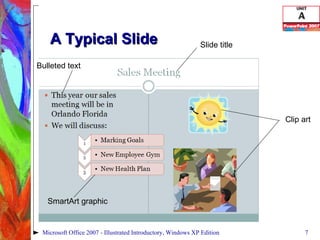
A Typical Slide Clip art SmartArt graphic Bulleted text Slide title Microsoft Office 2007 - Illustrated Introductory, Windows XP Edition
Defining Presentation  Software With PowerPoint you can  Enter and edit text easily Change the appearance of graphics Collaborate online with colleagues E-mail a presentation as an attachment Incorporate information from other sources Excel Word Microsoft Office 2007 - Illustrated Introductory, Windows XP Edition
Planning an Effective Presentation Using PowerPoint themes, you can use a design and enter your text immediately You can go back and tailor your presentation based on the needs of the audience Planning is a critical part of creating a presentation Microsoft Office 2007 - Illustrated Introductory, Windows XP Edition
Planning an Effective Presentation Planning includes: Determining and outline the message you want to communicate Verifying the audience and the delivery location Determining the type of output Determining the design Deciding on additional materials needed Microsoft Office 2007 - Illustrated Introductory, Windows XP Edition
Planning an Effective Presentation Additional materials needed may include Speaker notes Audience handouts Handouts can include 1, 2, 3, 4, 6, or 9 slides per page Microsoft Office 2007 - Illustrated Introductory, Windows XP Edition
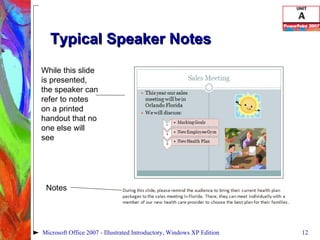
Typical Speaker Notes While this slide is presented, the speaker can refer to notes on a printed handout that no one else will see Notes Microsoft Office 2007 - Illustrated Introductory, Windows XP Edition
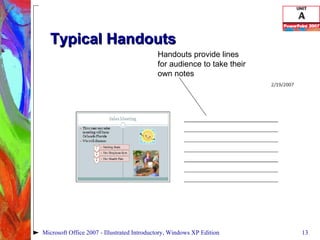
Typical Handouts Handouts provide lines for audience to take their own notes Microsoft Office 2007 - Illustrated Introductory, Windows XP Edition
Planning an Effective Presentation When planning a presentation, keep in mind copyright laws Intellectual property  is any idea or creation of the human mind Copyright law  is a type of intellectual property law that protects works of authorship Microsoft Office 2007 - Illustrated Introductory, Windows XP Edition
Planning an Effective Presentation Fair use  permits the public to use copyrighted material for certain purposes without obtaining prior consent from the owner Unauthorized use of protected work is known as  copyright infringement , and can lead to legal action Microsoft Office 2007 - Illustrated Introductory, Windows XP Edition
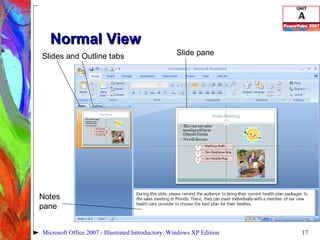
Examining the PowerPoint Window PowerPoint opens in  Normal view  (the default view) Normal view is the primary view for writing, editing and designing your presentation Normal view is divided into three panes Microsoft Office 2007 - Illustrated Introductory, Windows XP Edition
Normal View Microsoft Office 2007 - Illustrated Introductory, Windows XP Edition Slides and Outline tabs Slide pane Notes  pane
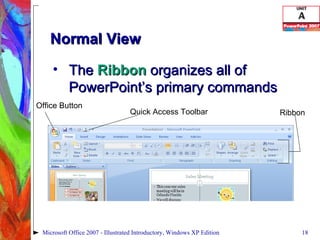
Normal View The  Ribbon  organizes all of PowerPoint’s primary commands Microsoft Office 2007 - Illustrated Introductory, Windows XP Edition Office Button Quick Access Toolbar Ribbon
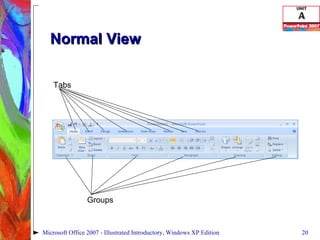
Normal View Each set of primary commands is identified by a  tab Commands are further arranged into  groups  based on their function Microsoft Office 2007 - Illustrated Introductory, Windows XP Edition
Normal View Microsoft Office 2007 - Illustrated Introductory, Windows XP Edition Groups Tabs
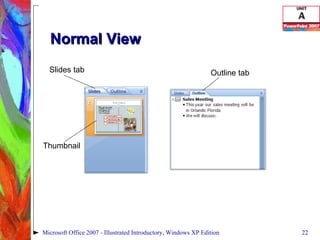
Normal View The  Outline tab  displays the text of your presentation in the form of an outline The  Slides tab  displays the slides of your presentation as small images, called  thumbnails Creating a Presentation in PowerPoint 2007
Normal View Microsoft Office 2007 - Illustrated Introductory, Windows XP Edition Slides tab Outline tab Thumbnail
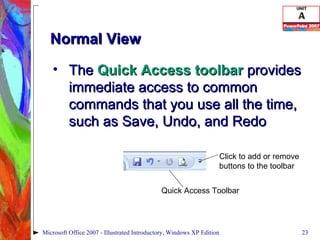
Normal View The  Quick Access toolbar  provides immediate access to common commands that you use all the time, such as Save, Undo, and Redo Microsoft Office 2007 - Illustrated Introductory, Windows XP Edition Quick Access Toolbar Click to add or remove buttons to the toolbar
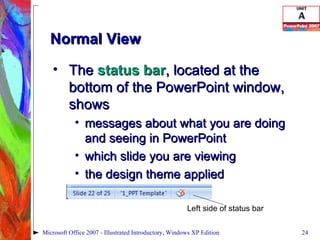
Normal View The  status   bar , located at the bottom of the PowerPoint window, shows messages about what you are doing and seeing in PowerPoint which slide you are viewing the design theme applied Microsoft Office 2007 - Illustrated Introductory, Windows XP Edition Left side of status bar
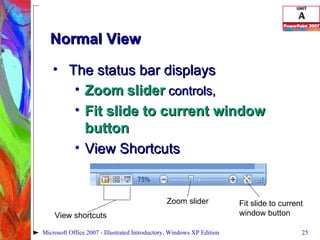
Normal View The status bar displays  Zoom   slider  controls,  Fit slide to current window button View Shortcuts Microsoft Office 2007 - Illustrated Introductory, Windows XP Edition Fit slide to current window button Zoom slider View shortcuts
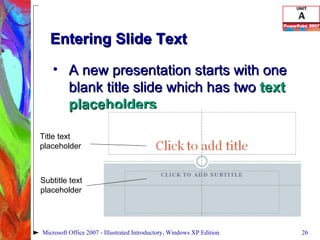
Entering Slide Text A new presentation starts with one blank title slide which has two  text placeholders Microsoft Office 2007 - Illustrated Introductory, Windows XP Edition Title text placeholder Subtitle text placeholder
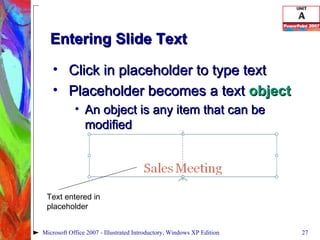
Entering Slide Text Click in placeholder to type text Placeholder becomes a text  object An object is any item that can be modified Microsoft Office 2007 - Illustrated Introductory, Windows XP Edition Text entered in placeholder
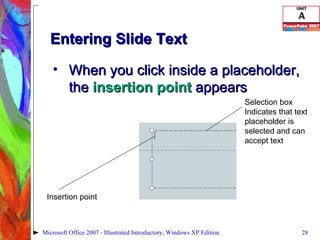
Entering Slide Text When you click inside a placeholder, the  insertion point  appears Microsoft Office 2007 - Illustrated Introductory, Windows XP Edition Insertion point Selection box Indicates that text placeholder is selected and can accept text
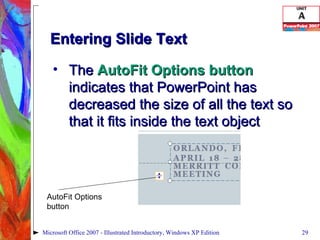
Entering Slide Text The  AutoFit Options button  indicates that PowerPoint has decreased the size of all the text so that it fits inside the text object Microsoft Office 2007 - Illustrated Introductory, Windows XP Edition AutoFit Options button
Adding a New Slide It is easy to add a new slide to your presentation You can choose among nine slide layouts A  slide layout  contains text and object placeholders that are arranged in a specific way on the slide Microsoft Office 2007 - Illustrated Introductory, Windows XP Edition
Adding a New Slide You can modify an existing slide layout or create a brand new, custom slide layout When you click the New Slide button on the Ribbon, a Title and Content placeholder slide appears Microsoft Office 2007 - Illustrated Introductory, Windows XP Edition
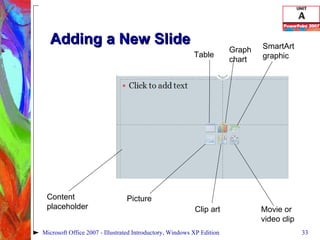
Adding a New Slide A  content placeholder  can be used to insert text or objects such as clip art, tables, or charts To change a slide layout, click the Layout button in the Slides group Microsoft Office 2007 - Illustrated Introductory, Windows XP Edition
Adding a New Slide Microsoft Office 2007 - Illustrated Introductory, Windows XP Edition Content placeholder Picture Clip art Movie or video clip Table Graph chart SmartArt graphic
Adding a New Slide To enter text in the form of a bulleted list, type the first word or phrase, then press [Enter] Press [Tab] to create a second-level bullet Microsoft Office 2007 - Illustrated Introductory, Windows XP Edition 1 st  level bullet 2 nd  level bullet
Apply a Design Theme A  design theme  incorporates sets of colors for fill, line, and shadow, called  theme colors ; fonts for titles and other text, called  theme fonts ; and effects for lines and fills, called  theme effects Microsoft Office 2007 - Illustrated Introductory, Windows XP Edition
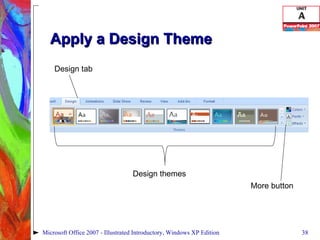
Apply a Design Theme Design themes give your presentation a cohesive look Design themes are found on the Design tab on the Ribbon Microsoft Office 2007 - Illustrated Introductory, Windows XP Edition
Apply a Design Theme Point to a design theme on the Ribbon and you will see a  live preview allows you to see how your changes affect the slides before actually making the change Microsoft Office 2007 - Illustrated Introductory, Windows XP Edition
Apply a Design Theme Microsoft Office 2007 - Illustrated Introductory, Windows XP Edition Design tab Design themes More button
Apply a Design Theme You can also modify a theme to create your own custom theme After making modifications, click the Themes group More button, then clicking Save Current Theme Microsoft Office 2007 - Illustrated Introductory, Windows XP Edition
Comparing Presentation Views PowerPoint has four basic views Normal view Slide Sorter view Notes Page view Slide Show view Microsoft Office 2007 - Illustrated Introductory, Windows XP Edition
Comparing Presentation Views Normal view is the primary editing view Slide Sorter view is used for rearranging slides and adding slide effects Notes Page view is for typing notes to yourself Slide show view is used to give your presentation Microsoft Office 2007 - Illustrated Introductory, Windows XP Edition
Comparing Presentation Views You can change views using the View Shortcuts on the status bar You can also use the View tab on the Ribbon Microsoft Office 2007 - Illustrated Introductory, Windows XP Edition
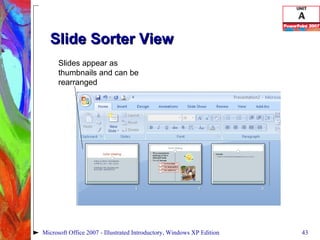
Slide Sorter View Microsoft Office 2007 - Illustrated Introductory, Windows XP Edition Slides appear as thumbnails and can be rearranged
Printing a PowerPoint Presentation Before you print your presentation, you should review it and preview it To preview your presentation, click the Office Button, point to Print, then click Print Preview Microsoft Office 2007 - Illustrated Introductory, Windows XP Edition
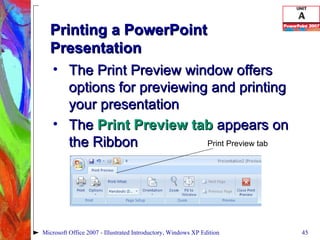
Printing a PowerPoint Presentation The Print Preview window offers options for previewing and printing your presentation The  Print Preview tab  appears on the Ribbon Microsoft Office 2007 - Illustrated Introductory, Windows XP Edition Print Preview tab
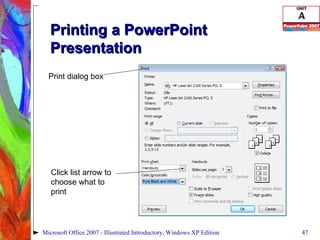
Printing a PowerPoint Presentation Using the Print dialog box, you can choose to print slides, handouts, notes or the Outline view Handouts can be printed as 1,2, 3, 4, 6, or 9 per page You can print in Color, Grayscale or Pure Black and White, depending on your printer Microsoft Office 2007 - Illustrated Introductory, Windows XP Edition
Printing a PowerPoint Presentation Microsoft Office 2007 - Illustrated Introductory, Windows XP Edition Print dialog box Click list arrow to choose what to print
Summary PowerPoint is a presentation software program that allows you to communicate your ideas effectively You can use text, graphics, charts, and movies and modify them to your liking You can choose many output formats, such as on-screen presentations or handouts Microsoft Office 2007 - Illustrated Introductory, Windows XP Edition
Summary Planning is a very important part of creating a presentation You should consider the message you want to deliver, your equipment needs, audience needs, and additional materials Speaker notes Audience handouts Microsoft Office 2007 - Illustrated Introductory, Windows XP Edition
Summary PowerPoint opens in the Normal view which contains the Outline and Slides tabs, the Slide pane and the Notes pane The first slide has a Title Slide layout Layouts contain text and content placeholders which you click to type or add an object Microsoft Office 2007 - Illustrated Introductory, Windows XP Edition
Summary PowerPoint offers several design themes which dictate the overall look of your presentation Design themes include theme colors, theme fonts, and theme effects Design themes are found on the Design tab of the Ribbon Microsoft Office 2007 - Illustrated Introductory, Windows XP Edition
Summary The four views in PowerPoint are Normal, Slide Sorter, Notes, and Slide Show View Shortcuts are on the status bar and on the View tab on the Ribbon Before printing your presentation you should review it and preview it using the Print Preview command Microsoft Office 2007 - Illustrated Introductory, Windows XP Edition
Summary Using the Print dialog box, you can choose to print slides, handouts, notes or the Outline view You can print handouts as 1,2, 3, 4, 6, or 9 per page You can print in Color, Grayscale or Pure Black and White, depending on your printer Microsoft Office 2007 - Illustrated Introductory, Windows XP Edition

Power Point Unit A

  • 1.
    Microsoft Office 2007-Illustrated Introductory, Windows Vista Edition Creating A Presentation in PowerPoint 2007
  • 2.
    Define presentation softwarePlan an effective presentation Examine the PowerPoint window Enter slide text Add a new slide Objectives
  • 3.
    Apply a designtheme Compare presentation views Print a PowerPoint presentation Objectives Microsoft Office 2007 - Illustrated Introductory, Windows XP Edition
  • 4.
    Defining Presentation Software Presentation software is a computer program used to organize and present information Presentation software allows you to communicate your ideas effectively Microsoft Office 2007 - Illustrated Introductory, Windows XP Edition
  • 5.
    Defining Presentation Software Use PowerPoint to present information in a variety of ways On-screen presentations Notes Audience handouts Online meetings Outline pages Overheads Microsoft Office 2007 - Illustrated Introductory, Windows XP Edition
  • 6.
    Defining Presentation Software With PowerPoint you create slides that contain Text Illustrations Photographs Clip art Charts SmartArt Even sounds and movies Microsoft Office 2007 - Illustrated Introductory, Windows XP Edition
  • 7.
    A Typical SlideClip art SmartArt graphic Bulleted text Slide title Microsoft Office 2007 - Illustrated Introductory, Windows XP Edition
  • 8.
    Defining Presentation Software With PowerPoint you can Enter and edit text easily Change the appearance of graphics Collaborate online with colleagues E-mail a presentation as an attachment Incorporate information from other sources Excel Word Microsoft Office 2007 - Illustrated Introductory, Windows XP Edition
  • 9.
    Planning an EffectivePresentation Using PowerPoint themes, you can use a design and enter your text immediately You can go back and tailor your presentation based on the needs of the audience Planning is a critical part of creating a presentation Microsoft Office 2007 - Illustrated Introductory, Windows XP Edition
  • 10.
    Planning an EffectivePresentation Planning includes: Determining and outline the message you want to communicate Verifying the audience and the delivery location Determining the type of output Determining the design Deciding on additional materials needed Microsoft Office 2007 - Illustrated Introductory, Windows XP Edition
  • 11.
    Planning an EffectivePresentation Additional materials needed may include Speaker notes Audience handouts Handouts can include 1, 2, 3, 4, 6, or 9 slides per page Microsoft Office 2007 - Illustrated Introductory, Windows XP Edition
  • 12.
    Typical Speaker NotesWhile this slide is presented, the speaker can refer to notes on a printed handout that no one else will see Notes Microsoft Office 2007 - Illustrated Introductory, Windows XP Edition
  • 13.
    Typical Handouts Handoutsprovide lines for audience to take their own notes Microsoft Office 2007 - Illustrated Introductory, Windows XP Edition
  • 14.
    Planning an EffectivePresentation When planning a presentation, keep in mind copyright laws Intellectual property is any idea or creation of the human mind Copyright law is a type of intellectual property law that protects works of authorship Microsoft Office 2007 - Illustrated Introductory, Windows XP Edition
  • 15.
    Planning an EffectivePresentation Fair use permits the public to use copyrighted material for certain purposes without obtaining prior consent from the owner Unauthorized use of protected work is known as copyright infringement , and can lead to legal action Microsoft Office 2007 - Illustrated Introductory, Windows XP Edition
  • 16.
    Examining the PowerPointWindow PowerPoint opens in Normal view (the default view) Normal view is the primary view for writing, editing and designing your presentation Normal view is divided into three panes Microsoft Office 2007 - Illustrated Introductory, Windows XP Edition
  • 17.
    Normal View MicrosoftOffice 2007 - Illustrated Introductory, Windows XP Edition Slides and Outline tabs Slide pane Notes pane
  • 18.
    Normal View The Ribbon organizes all of PowerPoint’s primary commands Microsoft Office 2007 - Illustrated Introductory, Windows XP Edition Office Button Quick Access Toolbar Ribbon
  • 19.
    Normal View Eachset of primary commands is identified by a tab Commands are further arranged into groups based on their function Microsoft Office 2007 - Illustrated Introductory, Windows XP Edition
  • 20.
    Normal View MicrosoftOffice 2007 - Illustrated Introductory, Windows XP Edition Groups Tabs
  • 21.
    Normal View The Outline tab displays the text of your presentation in the form of an outline The Slides tab displays the slides of your presentation as small images, called thumbnails Creating a Presentation in PowerPoint 2007
  • 22.
    Normal View MicrosoftOffice 2007 - Illustrated Introductory, Windows XP Edition Slides tab Outline tab Thumbnail
  • 23.
    Normal View The Quick Access toolbar provides immediate access to common commands that you use all the time, such as Save, Undo, and Redo Microsoft Office 2007 - Illustrated Introductory, Windows XP Edition Quick Access Toolbar Click to add or remove buttons to the toolbar
  • 24.
    Normal View The status bar , located at the bottom of the PowerPoint window, shows messages about what you are doing and seeing in PowerPoint which slide you are viewing the design theme applied Microsoft Office 2007 - Illustrated Introductory, Windows XP Edition Left side of status bar
  • 25.
    Normal View Thestatus bar displays Zoom slider controls, Fit slide to current window button View Shortcuts Microsoft Office 2007 - Illustrated Introductory, Windows XP Edition Fit slide to current window button Zoom slider View shortcuts
  • 26.
    Entering Slide TextA new presentation starts with one blank title slide which has two text placeholders Microsoft Office 2007 - Illustrated Introductory, Windows XP Edition Title text placeholder Subtitle text placeholder
  • 27.
    Entering Slide TextClick in placeholder to type text Placeholder becomes a text object An object is any item that can be modified Microsoft Office 2007 - Illustrated Introductory, Windows XP Edition Text entered in placeholder
  • 28.
    Entering Slide TextWhen you click inside a placeholder, the insertion point appears Microsoft Office 2007 - Illustrated Introductory, Windows XP Edition Insertion point Selection box Indicates that text placeholder is selected and can accept text
  • 29.
    Entering Slide TextThe AutoFit Options button indicates that PowerPoint has decreased the size of all the text so that it fits inside the text object Microsoft Office 2007 - Illustrated Introductory, Windows XP Edition AutoFit Options button
  • 30.
    Adding a NewSlide It is easy to add a new slide to your presentation You can choose among nine slide layouts A slide layout contains text and object placeholders that are arranged in a specific way on the slide Microsoft Office 2007 - Illustrated Introductory, Windows XP Edition
  • 31.
    Adding a NewSlide You can modify an existing slide layout or create a brand new, custom slide layout When you click the New Slide button on the Ribbon, a Title and Content placeholder slide appears Microsoft Office 2007 - Illustrated Introductory, Windows XP Edition
  • 32.
    Adding a NewSlide A content placeholder can be used to insert text or objects such as clip art, tables, or charts To change a slide layout, click the Layout button in the Slides group Microsoft Office 2007 - Illustrated Introductory, Windows XP Edition
  • 33.
    Adding a NewSlide Microsoft Office 2007 - Illustrated Introductory, Windows XP Edition Content placeholder Picture Clip art Movie or video clip Table Graph chart SmartArt graphic
  • 34.
    Adding a NewSlide To enter text in the form of a bulleted list, type the first word or phrase, then press [Enter] Press [Tab] to create a second-level bullet Microsoft Office 2007 - Illustrated Introductory, Windows XP Edition 1 st level bullet 2 nd level bullet
  • 35.
    Apply a DesignTheme A design theme incorporates sets of colors for fill, line, and shadow, called theme colors ; fonts for titles and other text, called theme fonts ; and effects for lines and fills, called theme effects Microsoft Office 2007 - Illustrated Introductory, Windows XP Edition
  • 36.
    Apply a DesignTheme Design themes give your presentation a cohesive look Design themes are found on the Design tab on the Ribbon Microsoft Office 2007 - Illustrated Introductory, Windows XP Edition
  • 37.
    Apply a DesignTheme Point to a design theme on the Ribbon and you will see a live preview allows you to see how your changes affect the slides before actually making the change Microsoft Office 2007 - Illustrated Introductory, Windows XP Edition
  • 38.
    Apply a DesignTheme Microsoft Office 2007 - Illustrated Introductory, Windows XP Edition Design tab Design themes More button
  • 39.
    Apply a DesignTheme You can also modify a theme to create your own custom theme After making modifications, click the Themes group More button, then clicking Save Current Theme Microsoft Office 2007 - Illustrated Introductory, Windows XP Edition
  • 40.
    Comparing Presentation ViewsPowerPoint has four basic views Normal view Slide Sorter view Notes Page view Slide Show view Microsoft Office 2007 - Illustrated Introductory, Windows XP Edition
  • 41.
    Comparing Presentation ViewsNormal view is the primary editing view Slide Sorter view is used for rearranging slides and adding slide effects Notes Page view is for typing notes to yourself Slide show view is used to give your presentation Microsoft Office 2007 - Illustrated Introductory, Windows XP Edition
  • 42.
    Comparing Presentation ViewsYou can change views using the View Shortcuts on the status bar You can also use the View tab on the Ribbon Microsoft Office 2007 - Illustrated Introductory, Windows XP Edition
  • 43.
    Slide Sorter ViewMicrosoft Office 2007 - Illustrated Introductory, Windows XP Edition Slides appear as thumbnails and can be rearranged
  • 44.
    Printing a PowerPointPresentation Before you print your presentation, you should review it and preview it To preview your presentation, click the Office Button, point to Print, then click Print Preview Microsoft Office 2007 - Illustrated Introductory, Windows XP Edition
  • 45.
    Printing a PowerPointPresentation The Print Preview window offers options for previewing and printing your presentation The Print Preview tab appears on the Ribbon Microsoft Office 2007 - Illustrated Introductory, Windows XP Edition Print Preview tab
  • 46.
    Printing a PowerPointPresentation Using the Print dialog box, you can choose to print slides, handouts, notes or the Outline view Handouts can be printed as 1,2, 3, 4, 6, or 9 per page You can print in Color, Grayscale or Pure Black and White, depending on your printer Microsoft Office 2007 - Illustrated Introductory, Windows XP Edition
  • 47.
    Printing a PowerPointPresentation Microsoft Office 2007 - Illustrated Introductory, Windows XP Edition Print dialog box Click list arrow to choose what to print
  • 48.
    Summary PowerPoint isa presentation software program that allows you to communicate your ideas effectively You can use text, graphics, charts, and movies and modify them to your liking You can choose many output formats, such as on-screen presentations or handouts Microsoft Office 2007 - Illustrated Introductory, Windows XP Edition
  • 49.
    Summary Planning isa very important part of creating a presentation You should consider the message you want to deliver, your equipment needs, audience needs, and additional materials Speaker notes Audience handouts Microsoft Office 2007 - Illustrated Introductory, Windows XP Edition
  • 50.
    Summary PowerPoint opensin the Normal view which contains the Outline and Slides tabs, the Slide pane and the Notes pane The first slide has a Title Slide layout Layouts contain text and content placeholders which you click to type or add an object Microsoft Office 2007 - Illustrated Introductory, Windows XP Edition
  • 51.
    Summary PowerPoint offersseveral design themes which dictate the overall look of your presentation Design themes include theme colors, theme fonts, and theme effects Design themes are found on the Design tab of the Ribbon Microsoft Office 2007 - Illustrated Introductory, Windows XP Edition
  • 52.
    Summary The fourviews in PowerPoint are Normal, Slide Sorter, Notes, and Slide Show View Shortcuts are on the status bar and on the View tab on the Ribbon Before printing your presentation you should review it and preview it using the Print Preview command Microsoft Office 2007 - Illustrated Introductory, Windows XP Edition
  • 53.
    Summary Using thePrint dialog box, you can choose to print slides, handouts, notes or the Outline view You can print handouts as 1,2, 3, 4, 6, or 9 per page You can print in Color, Grayscale or Pure Black and White, depending on your printer Microsoft Office 2007 - Illustrated Introductory, Windows XP Edition