MICROSOFT POWERPOINT TUTORIAL
        (WINDOWS 2007)
GETTING STARTED
 Microsoft PowerPoint is one of the most popular presentation programs supported by
 both Mac and PC platforms. Microsoft PowerPoint can be used to create interactive
              presentations for classroom, business, or personal use.

             CREATING A NEW PRESENTATION
 Many of the steps you are about to read are for both PC and Mac computers. Some of
the steps have very similar descriptions. For your benefit, this tutorial has combined the
    information but will offer different screen shots for each system when necessary.

           OPENING MICROSOFT POWERPOINT ON A PC
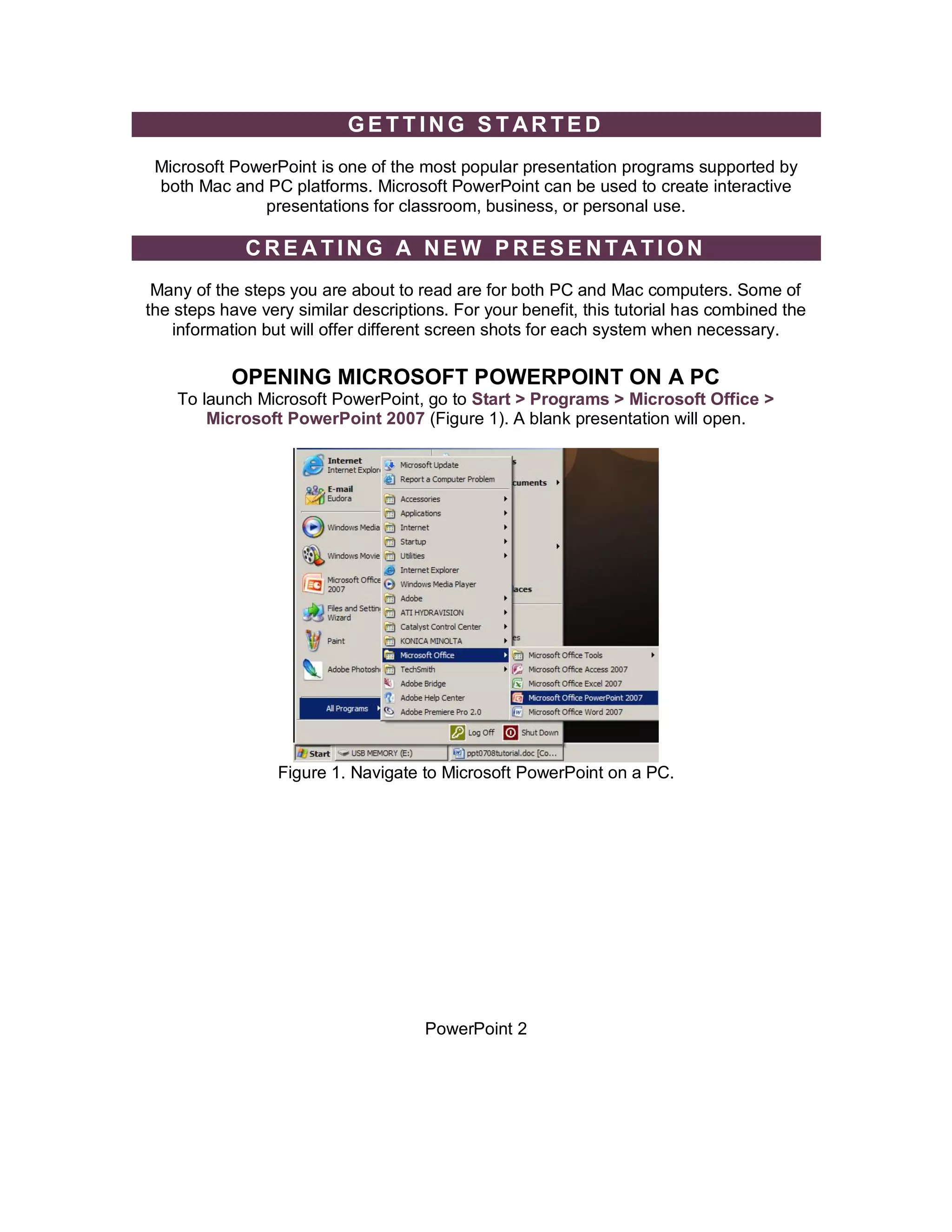
    To launch Microsoft PowerPoint, go to Start > Programs > Microsoft Office >
        Microsoft PowerPoint 2007 (Figure 1). A blank presentation will open.


                  Figure 1. Navigate to Microsoft PowerPoint on a PC.


                                      PowerPoint 2
SAVING YOUR DOCUMENT
    Computers crash and documents are lost all the time, so it is best to save often.

                                  SAVING INITIALLY
There are several options for saving your document on a PC. First, you can click on the
Office Button and select Save from the drop-down menu. Second, you can click on the
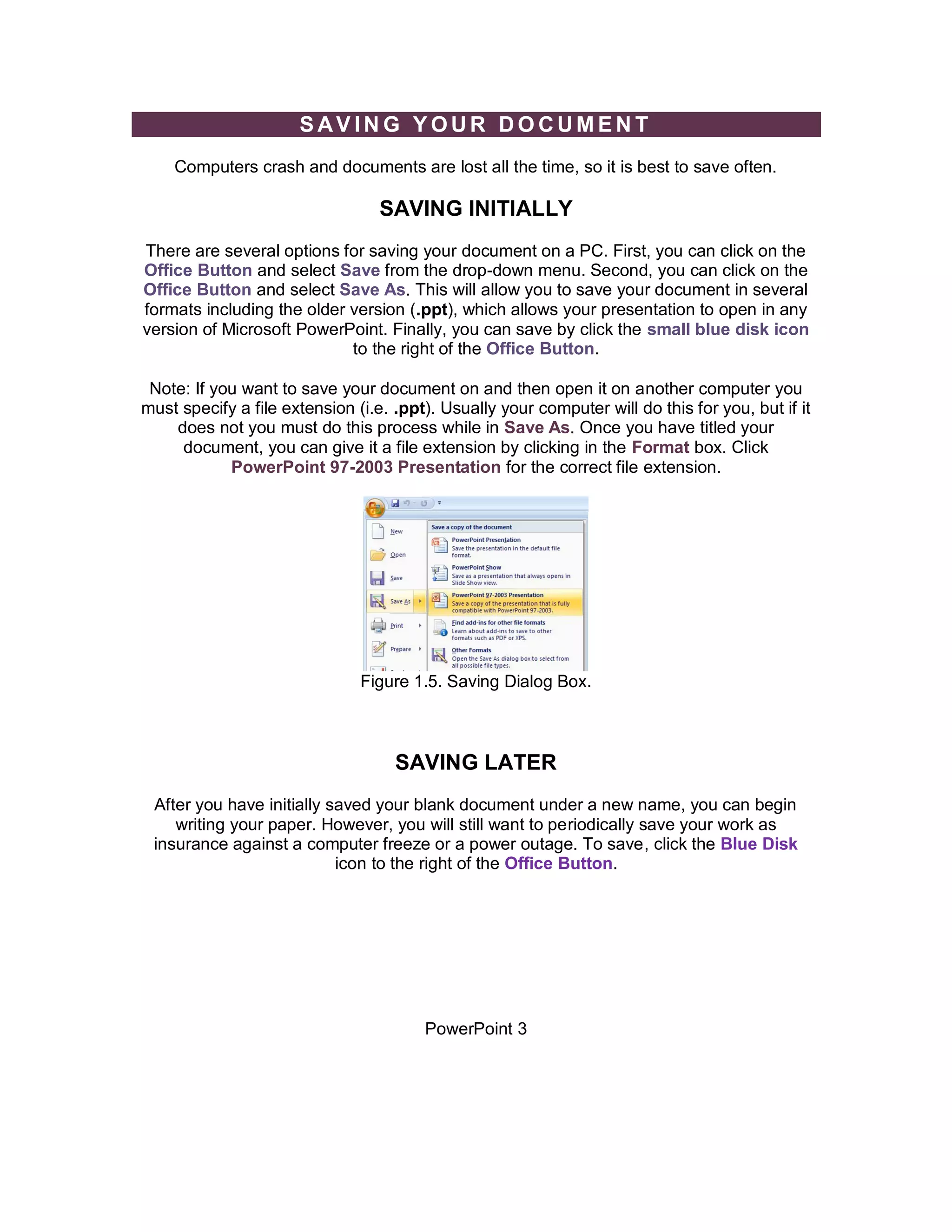
Office Button and select Save As. This will allow you to save your document in several
formats including the older version (.ppt), which allows your presentation to open in any
version of Microsoft PowerPoint. Finally, you can save by click the small blue disk icon
                            to the right of the Office Button.

 Note: If you want to save your document on and then open it on another computer you
must specify a file extension (i.e. .ppt). Usually your computer will do this for you, but if it
    does not you must do this process while in Save As. Once you have titled your
     document, you can give it a file extension by clicking in the Format box. Click
            PowerPoint 97-2003 Presentation for the correct file extension.


                               Figure 1.5. Saving Dialog Box.


                                    SAVING LATER
 After you have initially saved your blank document under a new name, you can begin
    writing your paper. However, you will still want to periodically save your work as
 insurance against a computer freeze or a power outage. To save, click the Blue Disk
                           icon to the right of the Office Button.


                                        PowerPoint 3
TOOLBARS
Microsoft PowerPoint uses several toolbars to allow you to modify your document. When
       you first open PowerPoint, usually the toolbars discussed below will open.


                 COMMONLY USED TOOLBARS ON PC
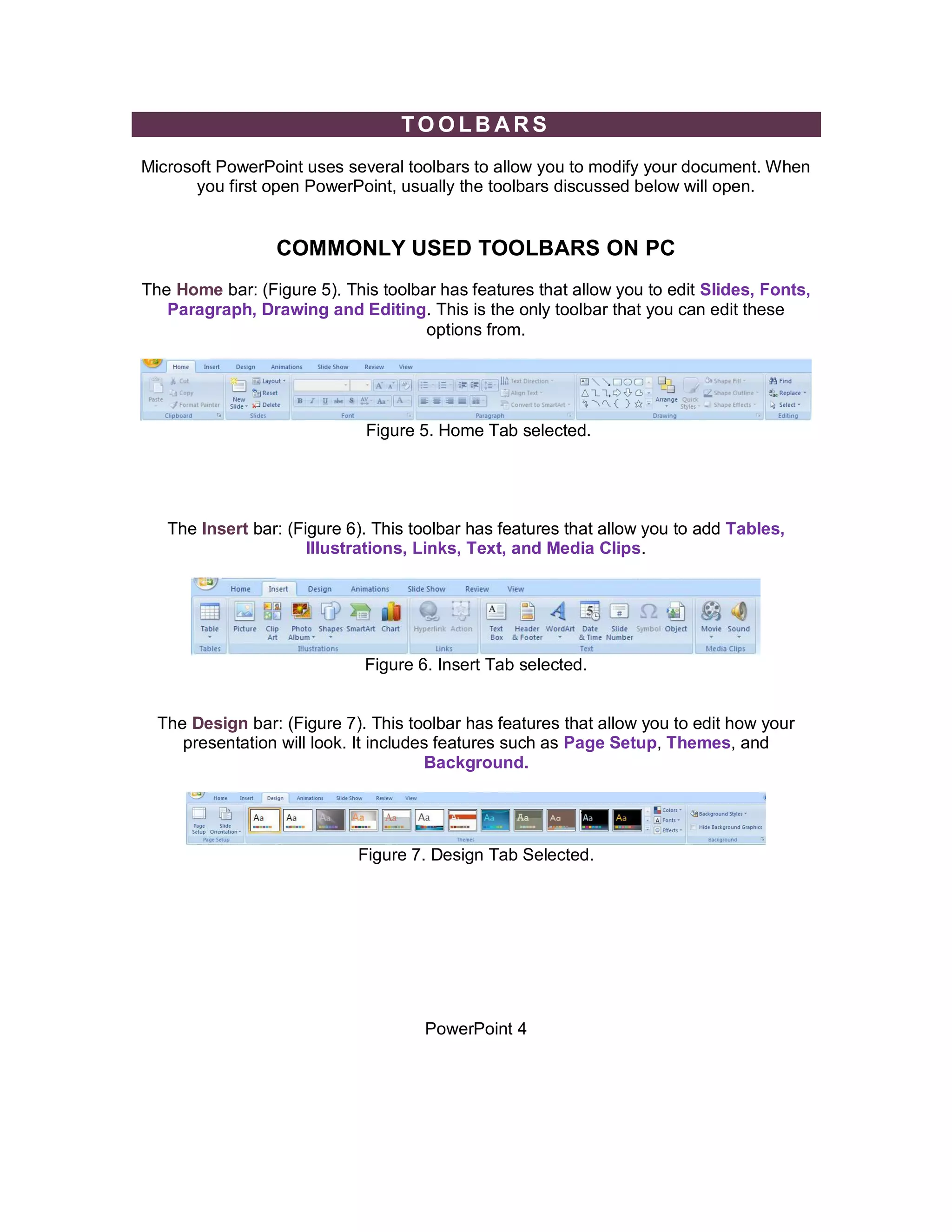
The Home bar: (Figure 5). This toolbar has features that allow you to edit Slides, Fonts,
   Paragraph, Drawing and Editing. This is the only toolbar that you can edit these
                                     options from.


                             Figure 5. Home Tab selected.


   The Insert bar: (Figure 6). This toolbar has features that allow you to add Tables,
                      Illustrations, Links, Text, and Media Clips.


                             Figure 6. Insert Tab selected.


  The Design bar: (Figure 7). This toolbar has features that allow you to edit how your
     presentation will look. It includes features such as Page Setup, Themes, and
                                       Background.


                            Figure 7. Design Tab Selected.


                                     PowerPoint 4
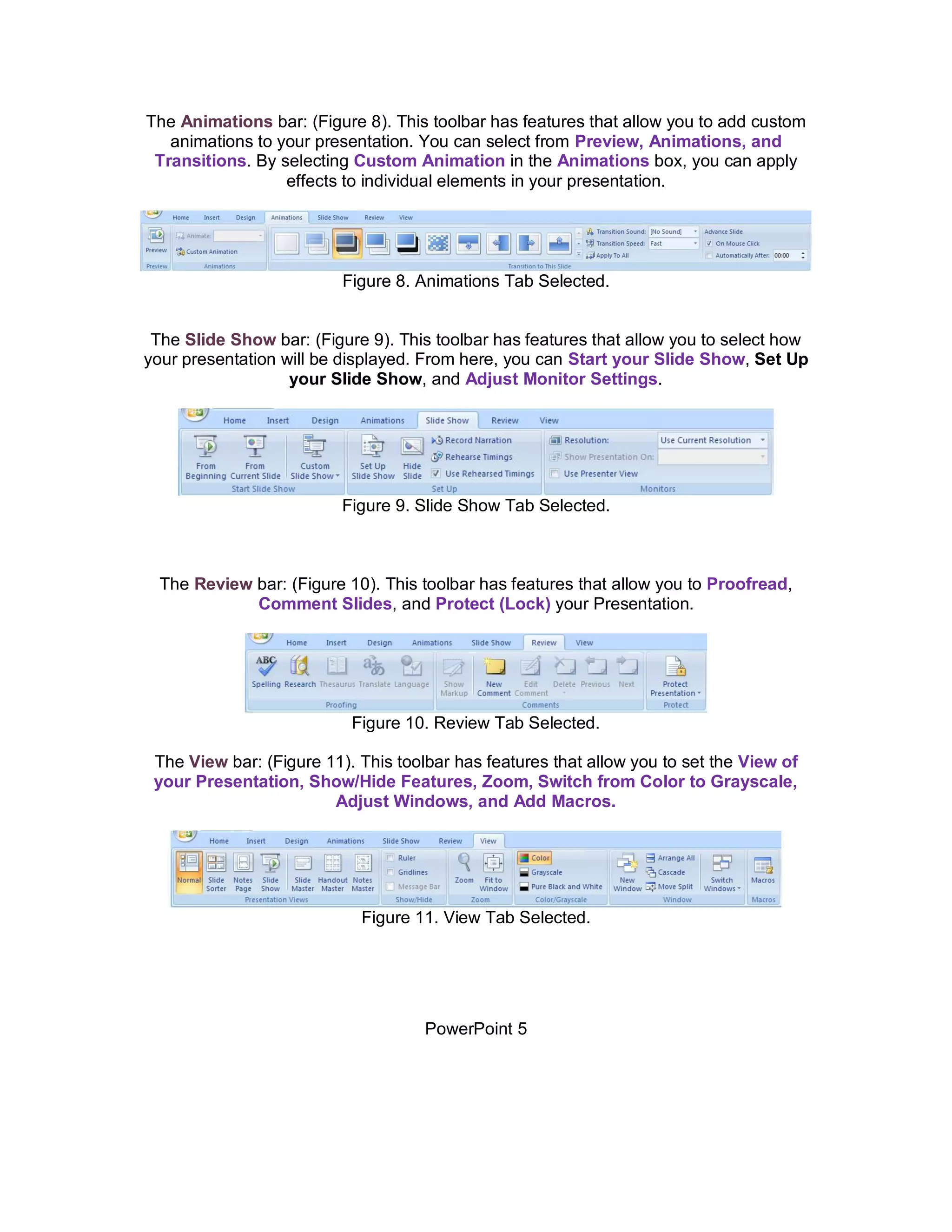
The Animations bar: (Figure 8). This toolbar has features that allow you to add custom
   animations to your presentation. You can select from Preview, Animations, and
 Transitions. By selecting Custom Animation in the Animations box, you can apply
                  effects to individual elements in your presentation.


                          Figure 8. Animations Tab Selected.


 The Slide Show bar: (Figure 9). This toolbar has features that allow you to select how
your presentation will be displayed. From here, you can Start your Slide Show, Set Up
                   your Slide Show, and Adjust Monitor Settings.


                          Figure 9. Slide Show Tab Selected.


  The Review bar: (Figure 10). This toolbar has features that allow you to Proofread,
             Comment Slides, and Protect (Lock) your Presentation.


                           Figure 10. Review Tab Selected.

 The View bar: (Figure 11). This toolbar has features that allow you to set the View of
 your Presentation, Show/Hide Features, Zoom, Switch from Color to Grayscale,
                        Adjust Windows, and Add Macros.


                            Figure 11. View Tab Selected.


                                     PowerPoint 5
FORM ATTING

                  FORMATTING YOUR PRESENTATION

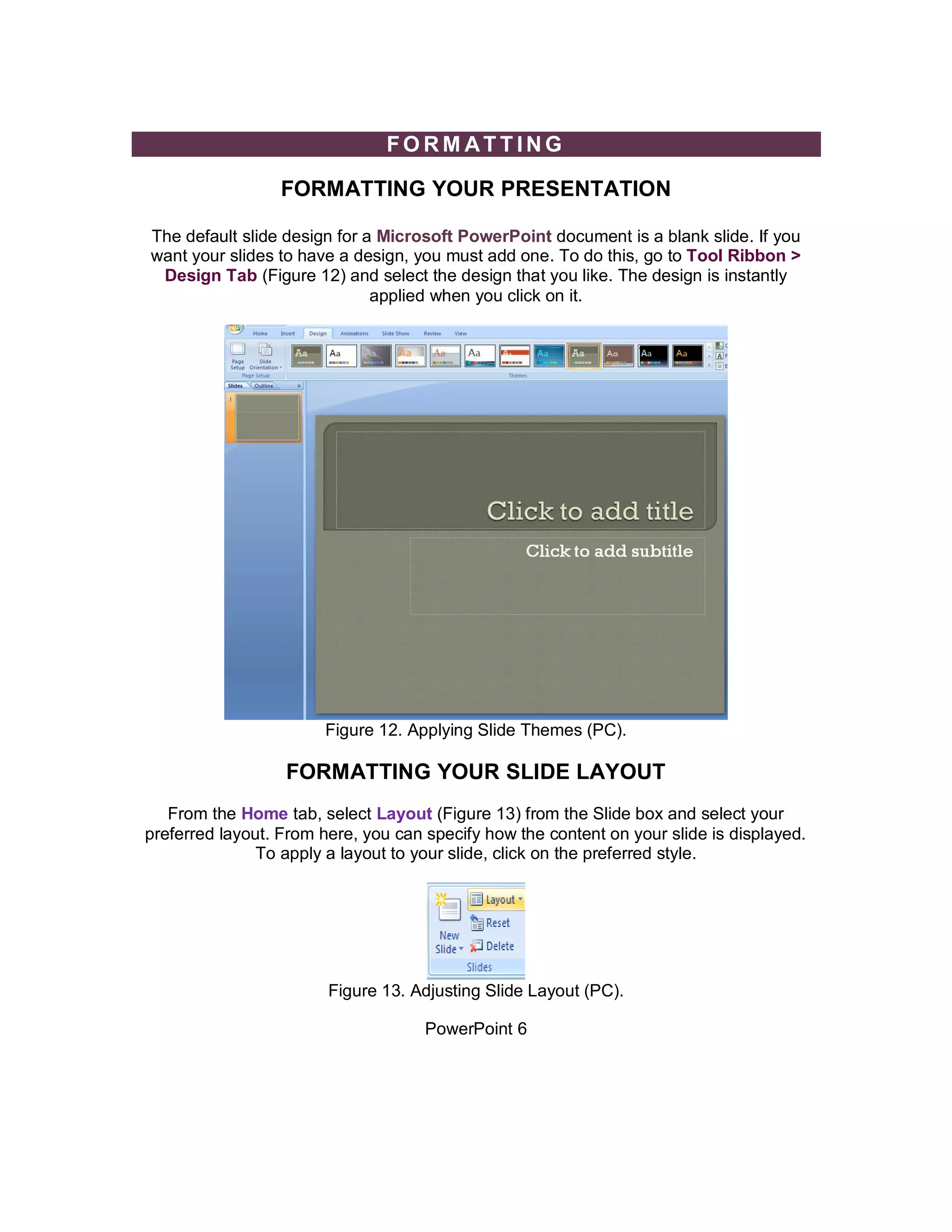
The default slide design for a Microsoft PowerPoint document is a blank slide. If you
want your slides to have a design, you must add one. To do this, go to Tool Ribbon >
 Design Tab (Figure 12) and select the design that you like. The design is instantly
                              applied when you click on it.


                        Figure 12. Applying Slide Themes (PC).

                  FORMATTING YOUR SLIDE LAYOUT
   From the Home tab, select Layout (Figure 13) from the Slide box and select your
preferred layout. From here, you can specify how the content on your slide is displayed.
               To apply a layout to your slide, click on the preferred style.


                        Figure 13. Adjusting Slide Layout (PC).

                                     PowerPoint 6
INSERTING AND ADDING OBJECTS

                                       CLIP ART
When trying to enhance your word document you may want to include Clip Art and/or
Word Art. Microsoft PowerPoint comes with a Clip Gallery that contains a large variety
 of images including pictures, borders, and backgrounds. To find a desired image, you
can either click on topics or type in the search box to find exactly what you are looking
                                            for.

                                    To insert Clip Art:
Go to the Insert Tab and select Clip Art. and then select the desired picture in the Clip
Gallery and click insert. The picture will be inserted at the location of your cursor within
  your document. If you need to modify your Clip Art, click on it once to select it, and
  small boxes will appear around the corners. Once your Clip Art is selected, you can
resize your picture by clicking and dragging on the boxes. Holding SHIFT while clicking
                  and dragging will resize the Clip Art proportionately.


                                      WORDART
              WordArt is inserted similar to Clip Art. To insert WordArt:

                             Go to the Insert Tab > WordArt
        Select the desired style and click OK. Type the desired text and click OK.
     To select your WordArt, click on it, and small boxes will appear in the corners
(Figure 14). Moving the yellow box on a selected WordArt allows the user to change the
    slant of the WordArt. WordArt can be resized and deleted similarly to Clip Art.


                              Figure 14. Selected WordArt.


                                      PICTURES

                                      PowerPoint 7
To insert a picture select the Insert Tab > Picture. Locate the image that you want to
                         put into your document and click Insert.


                              Figure 15. Inserting Pictures.

    INSERTING SLIDES FROM A PREVIOUSLY CREATED FILE
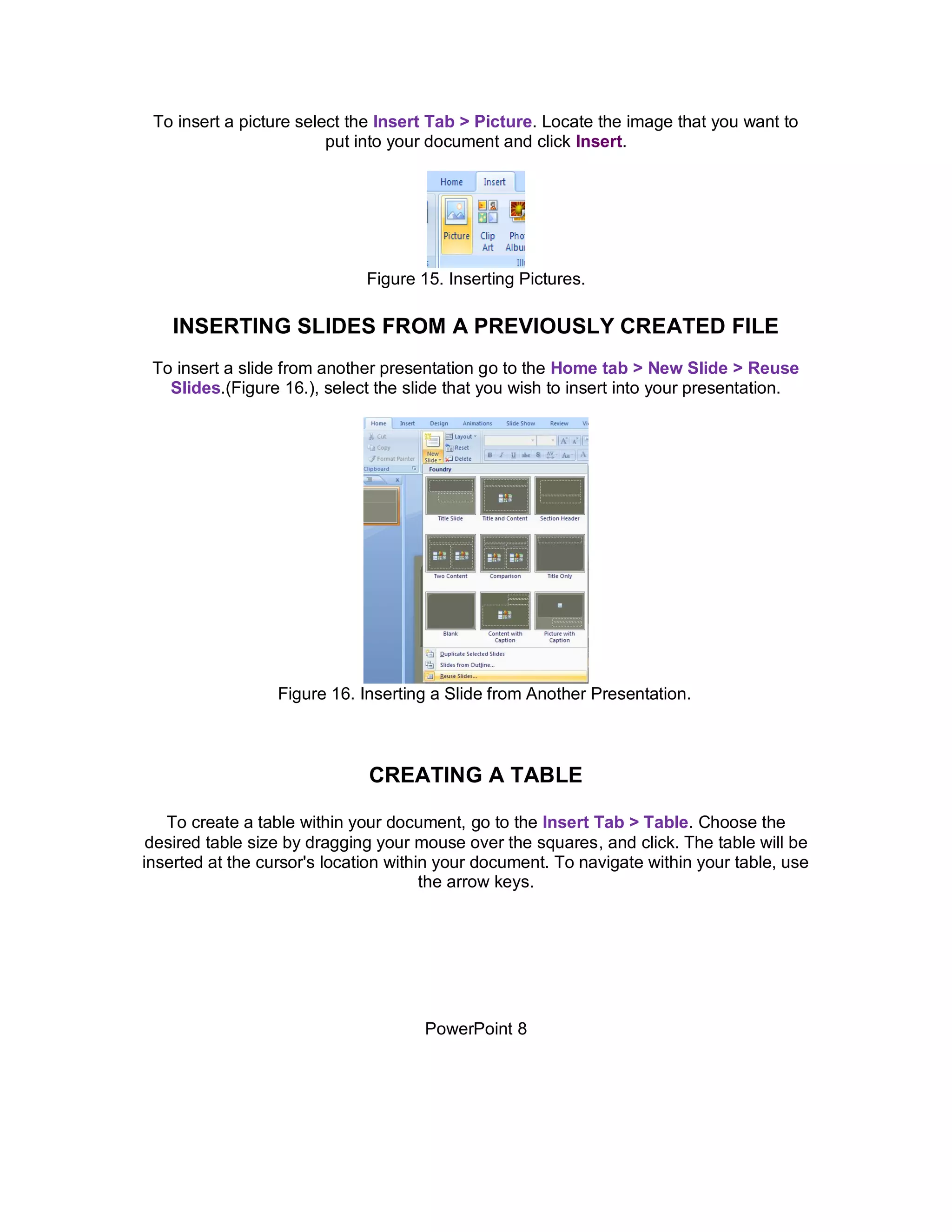
 To insert a slide from another presentation go to the Home tab > New Slide > Reuse
   Slides.(Figure 16.), select the slide that you wish to insert into your presentation.


                  Figure 16. Inserting a Slide from Another Presentation.


                              CREATING A TABLE

   To create a table within your document, go to the Insert Tab > Table. Choose the
 desired table size by dragging your mouse over the squares, and click. The table will be
inserted at the cursor's location within your document. To navigate within your table, use
                                       the arrow keys.


                                      PowerPoint 8
FLOWCHARTS
          Flowcharts are used to create diagrams in Microsoft PowerPoint.
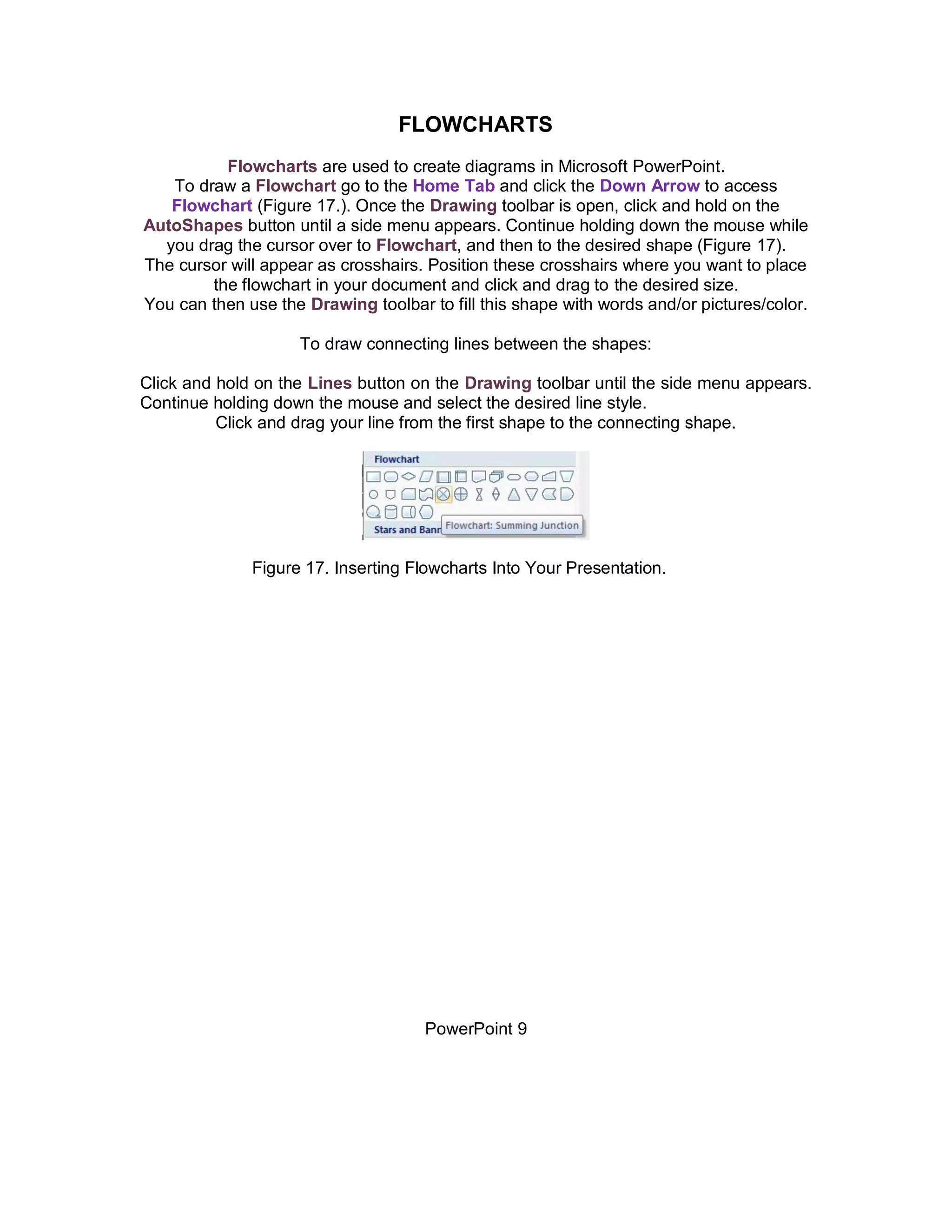
   To draw a Flowchart go to the Home Tab and click the Down Arrow to access
   Flowchart (Figure 17.). Once the Drawing toolbar is open, click and hold on the
AutoShapes button until a side menu appears. Continue holding down the mouse while
  you drag the cursor over to Flowchart, and then to the desired shape (Figure 17).
The cursor will appear as crosshairs. Position these crosshairs where you want to place
        the flowchart in your document and click and drag to the desired size.
You can then use the Drawing toolbar to fill this shape with words and/or pictures/color.

                    To draw connecting lines between the shapes:

Click and hold on the Lines button on the Drawing toolbar until the side menu appears.
Continue holding down the mouse and select the desired line style.
          Click and drag your line from the first shape to the connecting shape.


              Figure 17. Inserting Flowcharts Into Your Presentation.


                                     PowerPoint 9
PRINTING
           It is important to always save your document before you print!!!

                                   PRINTING
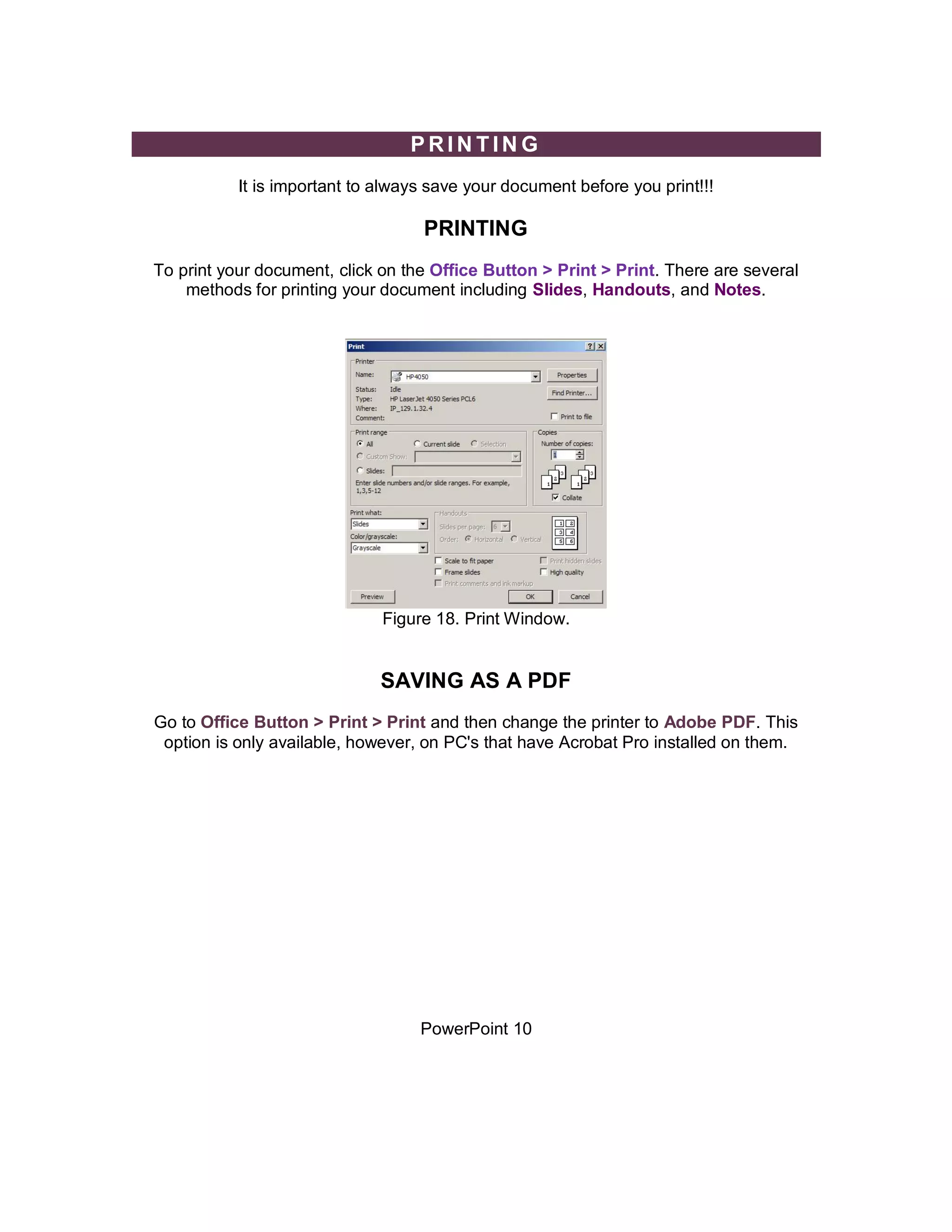
To print your document, click on the Office Button > Print > Print. There are several
    methods for printing your document including Slides, Handouts, and Notes.


                              Figure 18. Print Window.


                              SAVING AS A PDF
Go to Office Button > Print > Print and then change the printer to Adobe PDF. This
 option is only available, however, on PC's that have Acrobat Pro installed on them.


                                   PowerPoint 10
OTHER HELPFUL FUNCTIONS

                                 UNDO AND REDO
  In order to undo an action, go to the top of the window on the left and click on the
   Arrow Pointing to the Left (Undo). To redo an action, go to click on the arrow
Pointing to the Right. It is important to note that not all actions are undoable, thus it is
 important to save before you make any major changes in your document so you can
                          revert back to your saved document.

                                      QUITTING
  Before you quit, it's a good idea to save your document one final time. Then, go to
  Office Button > Quit Powerpoint. This is better than just closing the window, as it
                          insures your document quits correctly.


       SHORCUT KEYS FOR MICROSOFT OFFICE

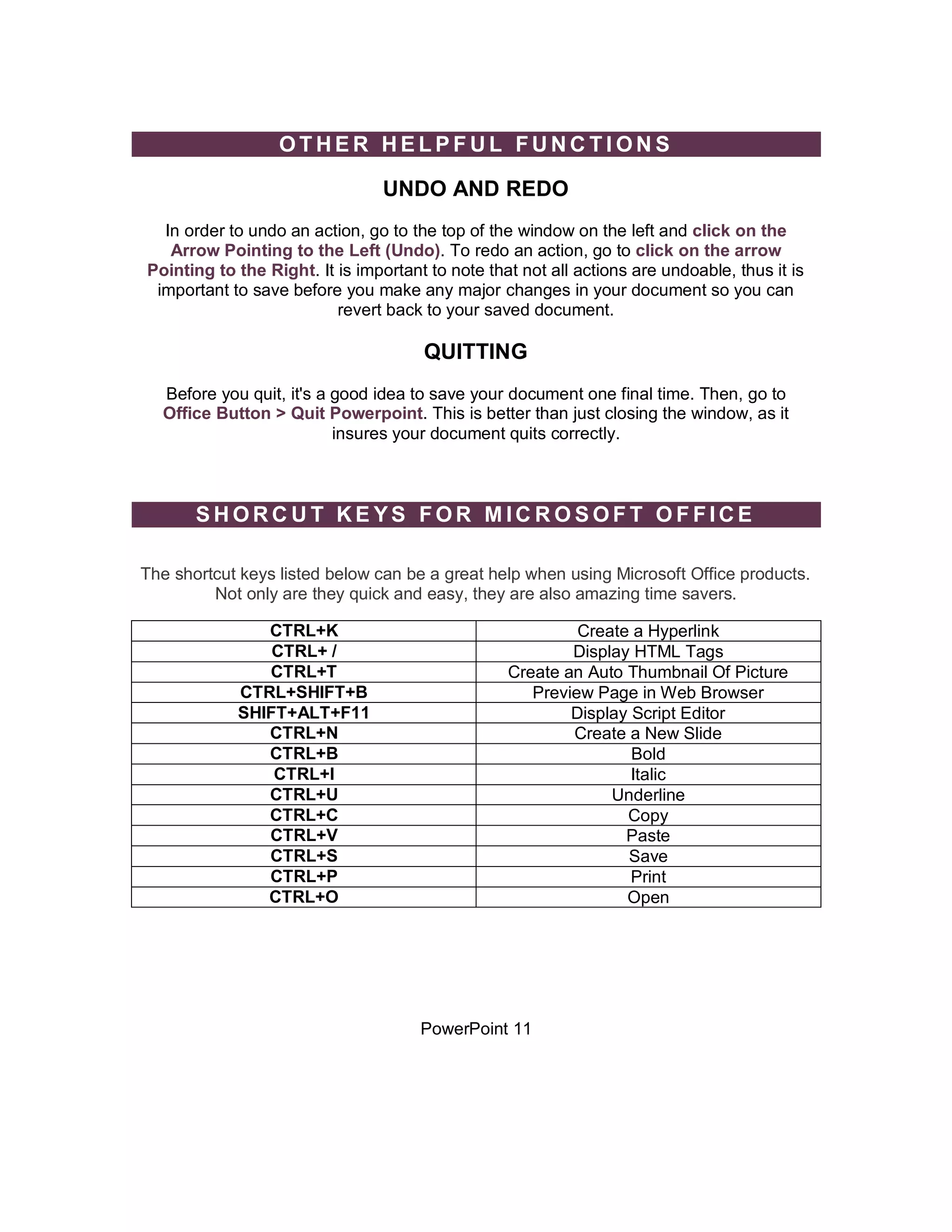
The shortcut keys listed below can be a great help when using Microsoft Office products.
         Not only are they quick and easy, they are also amazing time savers.

               CTRL+K                                      Create a Hyperlink
                CTRL+ /                                   Display HTML Tags
               CTRL+T                             Create an Auto Thumbnail Of Picture
            CTRL+SHIFT+B                             Preview Page in Web Browser
            SHIFT+ALT+F11                                 Display Script Editor
               CTRL+N                                     Create a New Slide
               CTRL+B                                             Bold
                CTRL+I                                            Italic
               CTRL+U                                          Underline
               CTRL+C                                            Copy
               CTRL+V                                            Paste
               CTRL+S                                            Save
               CTRL+P                                             Print
               CTRL+O                                            Open


                                      PowerPoint 11

Microsoft office power_point_2007_tutorial

  • 1.
  • 2.
    GETTING STARTED MicrosoftPowerPoint is one of the most popular presentation programs supported by both Mac and PC platforms. Microsoft PowerPoint can be used to create interactive presentations for classroom, business, or personal use. CREATING A NEW PRESENTATION Many of the steps you are about to read are for both PC and Mac computers. Some of the steps have very similar descriptions. For your benefit, this tutorial has combined the information but will offer different screen shots for each system when necessary. OPENING MICROSOFT POWERPOINT ON A PC To launch Microsoft PowerPoint, go to Start > Programs > Microsoft Office > Microsoft PowerPoint 2007 (Figure 1). A blank presentation will open. Figure 1. Navigate to Microsoft PowerPoint on a PC. PowerPoint 2
  • 3.
    SAVING YOUR DOCUMENT Computers crash and documents are lost all the time, so it is best to save often. SAVING INITIALLY There are several options for saving your document on a PC. First, you can click on the Office Button and select Save from the drop-down menu. Second, you can click on the Office Button and select Save As. This will allow you to save your document in several formats including the older version (.ppt), which allows your presentation to open in any version of Microsoft PowerPoint. Finally, you can save by click the small blue disk icon to the right of the Office Button. Note: If you want to save your document on and then open it on another computer you must specify a file extension (i.e. .ppt). Usually your computer will do this for you, but if it does not you must do this process while in Save As. Once you have titled your document, you can give it a file extension by clicking in the Format box. Click PowerPoint 97-2003 Presentation for the correct file extension. Figure 1.5. Saving Dialog Box. SAVING LATER After you have initially saved your blank document under a new name, you can begin writing your paper. However, you will still want to periodically save your work as insurance against a computer freeze or a power outage. To save, click the Blue Disk icon to the right of the Office Button. PowerPoint 3
  • 4.
    TOOLBARS Microsoft PowerPoint usesseveral toolbars to allow you to modify your document. When you first open PowerPoint, usually the toolbars discussed below will open. COMMONLY USED TOOLBARS ON PC The Home bar: (Figure 5). This toolbar has features that allow you to edit Slides, Fonts, Paragraph, Drawing and Editing. This is the only toolbar that you can edit these options from. Figure 5. Home Tab selected. The Insert bar: (Figure 6). This toolbar has features that allow you to add Tables, Illustrations, Links, Text, and Media Clips. Figure 6. Insert Tab selected. The Design bar: (Figure 7). This toolbar has features that allow you to edit how your presentation will look. It includes features such as Page Setup, Themes, and Background. Figure 7. Design Tab Selected. PowerPoint 4
  • 5.
    The Animations bar:(Figure 8). This toolbar has features that allow you to add custom animations to your presentation. You can select from Preview, Animations, and Transitions. By selecting Custom Animation in the Animations box, you can apply effects to individual elements in your presentation. Figure 8. Animations Tab Selected. The Slide Show bar: (Figure 9). This toolbar has features that allow you to select how your presentation will be displayed. From here, you can Start your Slide Show, Set Up your Slide Show, and Adjust Monitor Settings. Figure 9. Slide Show Tab Selected. The Review bar: (Figure 10). This toolbar has features that allow you to Proofread, Comment Slides, and Protect (Lock) your Presentation. Figure 10. Review Tab Selected. The View bar: (Figure 11). This toolbar has features that allow you to set the View of your Presentation, Show/Hide Features, Zoom, Switch from Color to Grayscale, Adjust Windows, and Add Macros. Figure 11. View Tab Selected. PowerPoint 5
  • 6.
    FORM ATTING FORMATTING YOUR PRESENTATION The default slide design for a Microsoft PowerPoint document is a blank slide. If you want your slides to have a design, you must add one. To do this, go to Tool Ribbon > Design Tab (Figure 12) and select the design that you like. The design is instantly applied when you click on it. Figure 12. Applying Slide Themes (PC). FORMATTING YOUR SLIDE LAYOUT From the Home tab, select Layout (Figure 13) from the Slide box and select your preferred layout. From here, you can specify how the content on your slide is displayed. To apply a layout to your slide, click on the preferred style. Figure 13. Adjusting Slide Layout (PC). PowerPoint 6
  • 7.
    INSERTING AND ADDINGOBJECTS CLIP ART When trying to enhance your word document you may want to include Clip Art and/or Word Art. Microsoft PowerPoint comes with a Clip Gallery that contains a large variety of images including pictures, borders, and backgrounds. To find a desired image, you can either click on topics or type in the search box to find exactly what you are looking for. To insert Clip Art: Go to the Insert Tab and select Clip Art. and then select the desired picture in the Clip Gallery and click insert. The picture will be inserted at the location of your cursor within your document. If you need to modify your Clip Art, click on it once to select it, and small boxes will appear around the corners. Once your Clip Art is selected, you can resize your picture by clicking and dragging on the boxes. Holding SHIFT while clicking and dragging will resize the Clip Art proportionately. WORDART WordArt is inserted similar to Clip Art. To insert WordArt: Go to the Insert Tab > WordArt Select the desired style and click OK. Type the desired text and click OK. To select your WordArt, click on it, and small boxes will appear in the corners (Figure 14). Moving the yellow box on a selected WordArt allows the user to change the slant of the WordArt. WordArt can be resized and deleted similarly to Clip Art. Figure 14. Selected WordArt. PICTURES PowerPoint 7
  • 8.
    To insert apicture select the Insert Tab > Picture. Locate the image that you want to put into your document and click Insert. Figure 15. Inserting Pictures. INSERTING SLIDES FROM A PREVIOUSLY CREATED FILE To insert a slide from another presentation go to the Home tab > New Slide > Reuse Slides.(Figure 16.), select the slide that you wish to insert into your presentation. Figure 16. Inserting a Slide from Another Presentation. CREATING A TABLE To create a table within your document, go to the Insert Tab > Table. Choose the desired table size by dragging your mouse over the squares, and click. The table will be inserted at the cursor's location within your document. To navigate within your table, use the arrow keys. PowerPoint 8
  • 9.
    FLOWCHARTS Flowcharts are used to create diagrams in Microsoft PowerPoint. To draw a Flowchart go to the Home Tab and click the Down Arrow to access Flowchart (Figure 17.). Once the Drawing toolbar is open, click and hold on the AutoShapes button until a side menu appears. Continue holding down the mouse while you drag the cursor over to Flowchart, and then to the desired shape (Figure 17). The cursor will appear as crosshairs. Position these crosshairs where you want to place the flowchart in your document and click and drag to the desired size. You can then use the Drawing toolbar to fill this shape with words and/or pictures/color. To draw connecting lines between the shapes: Click and hold on the Lines button on the Drawing toolbar until the side menu appears. Continue holding down the mouse and select the desired line style. Click and drag your line from the first shape to the connecting shape. Figure 17. Inserting Flowcharts Into Your Presentation. PowerPoint 9
  • 10.
    PRINTING It is important to always save your document before you print!!! PRINTING To print your document, click on the Office Button > Print > Print. There are several methods for printing your document including Slides, Handouts, and Notes. Figure 18. Print Window. SAVING AS A PDF Go to Office Button > Print > Print and then change the printer to Adobe PDF. This option is only available, however, on PC's that have Acrobat Pro installed on them. PowerPoint 10
  • 11.
    OTHER HELPFUL FUNCTIONS UNDO AND REDO In order to undo an action, go to the top of the window on the left and click on the Arrow Pointing to the Left (Undo). To redo an action, go to click on the arrow Pointing to the Right. It is important to note that not all actions are undoable, thus it is important to save before you make any major changes in your document so you can revert back to your saved document. QUITTING Before you quit, it's a good idea to save your document one final time. Then, go to Office Button > Quit Powerpoint. This is better than just closing the window, as it insures your document quits correctly. SHORCUT KEYS FOR MICROSOFT OFFICE The shortcut keys listed below can be a great help when using Microsoft Office products. Not only are they quick and easy, they are also amazing time savers. CTRL+K Create a Hyperlink CTRL+ / Display HTML Tags CTRL+T Create an Auto Thumbnail Of Picture CTRL+SHIFT+B Preview Page in Web Browser SHIFT+ALT+F11 Display Script Editor CTRL+N Create a New Slide CTRL+B Bold CTRL+I Italic CTRL+U Underline CTRL+C Copy CTRL+V Paste CTRL+S Save CTRL+P Print CTRL+O Open PowerPoint 11