

The Microsoft
Excel Program
Features of MS Excel
•Workbook – refers to the
book of cells which are
called worksheets.
Starting MS Excel
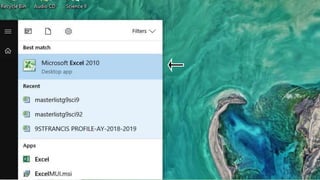
• Click on the start menu button.
Search/look for MS Excel and
click the icon.
• Find MS Excel on desktop/taskbar
and click the icon.
Quitting MS Excel
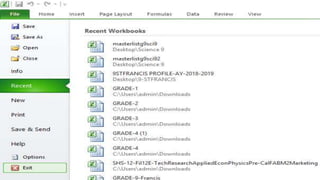
• On the File menu, click exit.
• Click on the Close button on the
title bar.
• Do the keyboard shortcut by
pressing Alt + F4.
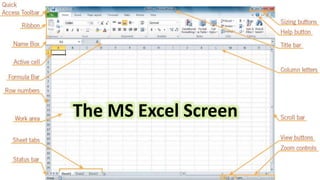
The MS Excel Screen
The Worksheet
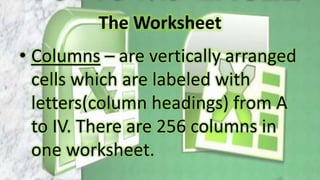
• Columns – are vertically arranged
cells which are labeled with
letters(column headings) from A
to IV. There are 256 columns in
one worksheet.
The Worksheet
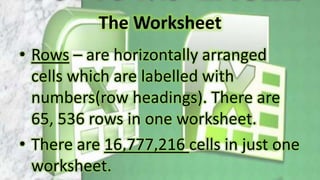
• Rows – are horizontally arranged
cells which are labelled with
numbers(row headings). There are
65, 536 rows in one worksheet.
• There are 16,777,216 cells in just one
worksheet.
The Cell Reference and Cell Address
• Cell reference- name of cells in a
worksheet.
• Made up of letter and number.
• The column letter always comes first.
• Examples: S30, M8 and D2005
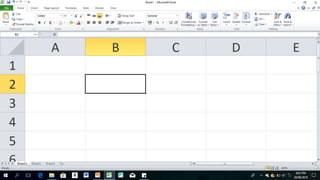
Cell Pointer and Active Cell
• Cell pointer- dark-bordered box that
identifies the current cell reference.
• Active cell- is the cell that is ready to
accept data.
• Autofill handle- small black square at
the lower right.
The Range
• Selected group of cells which can be
defined by the upper-left cell and
lower-right cell. A range is always
separated by a colon(:) which means
upto.
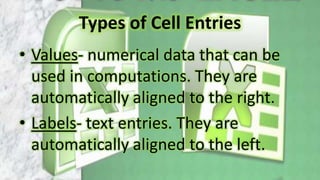
Types of Cell Entries
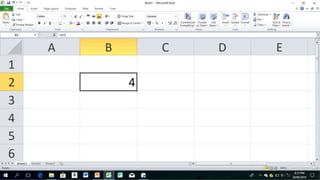
• Values- numerical data that can be
used in computations. They are
automatically aligned to the right.
• Labels- text entries. They are
automatically aligned to the left.
Types of Cell Entries
• Formulas- entries that have an
equation that calculates the values in
the worksheet.
• Formulas always start with an
equal(=) sign.
Types of Cell Entries
Symbol Operation
+ For addition
- For Subtraction
* For Multiplication
/ For division
^ For exponentation
Types of Cell Entries
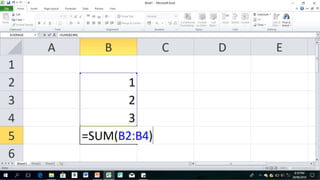
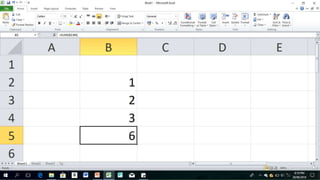
• Functions- are built-in or pre-defined
formulas in Excel. Just like a formula,
functions start with an equal sign.
• Ex: Add all entries: =SUM
• Get the average of the entries:
=AVERAGE
The Microsoft Excel Program

The Microsoft Excel Program

  • 1.
  • 2.
    Features of MSExcel •Workbook – refers to the book of cells which are called worksheets.
  • 3.
    Starting MS Excel •Click on the start menu button. Search/look for MS Excel and click the icon. • Find MS Excel on desktop/taskbar and click the icon.
  • 8.
    Quitting MS Excel •On the File menu, click exit. • Click on the Close button on the title bar. • Do the keyboard shortcut by pressing Alt + F4.
  • 10.
  • 11.
    The Worksheet • Columns– are vertically arranged cells which are labeled with letters(column headings) from A to IV. There are 256 columns in one worksheet.
  • 12.
    The Worksheet • Rows– are horizontally arranged cells which are labelled with numbers(row headings). There are 65, 536 rows in one worksheet. • There are 16,777,216 cells in just one worksheet.
  • 13.
    The Cell Referenceand Cell Address • Cell reference- name of cells in a worksheet. • Made up of letter and number. • The column letter always comes first. • Examples: S30, M8 and D2005
  • 14.
    Cell Pointer andActive Cell • Cell pointer- dark-bordered box that identifies the current cell reference. • Active cell- is the cell that is ready to accept data. • Autofill handle- small black square at the lower right.
  • 16.
    The Range • Selectedgroup of cells which can be defined by the upper-left cell and lower-right cell. A range is always separated by a colon(:) which means upto.
  • 17.
    Types of CellEntries • Values- numerical data that can be used in computations. They are automatically aligned to the right. • Labels- text entries. They are automatically aligned to the left.
  • 19.
    Types of CellEntries • Formulas- entries that have an equation that calculates the values in the worksheet. • Formulas always start with an equal(=) sign.
  • 22.
    Types of CellEntries Symbol Operation + For addition - For Subtraction * For Multiplication / For division ^ For exponentation
  • 23.
    Types of CellEntries • Functions- are built-in or pre-defined formulas in Excel. Just like a formula, functions start with an equal sign. • Ex: Add all entries: =SUM • Get the average of the entries: =AVERAGE