


BATRA COMPUTER CENTRE
ISO CERTIFIED
MICROSOFT EXCEL 2010
PHNO: 9729666670, 4000670
● Excel is a computer program used to create
electronic spreadsheets.
● Within Excel, users can organize data, create
charts, and perform calculations.
● Excel is a convenient program because it
allows the user to create large spreadsheets,
reference information from other
spreadsheets, and it allows for better storage
and modification of information.
● Excel operates like other Microsoft (MS) Office
programs and has many of the same functions
and shortcuts of other MS programs
Introduction to Excel
Overview of the Excel Screen
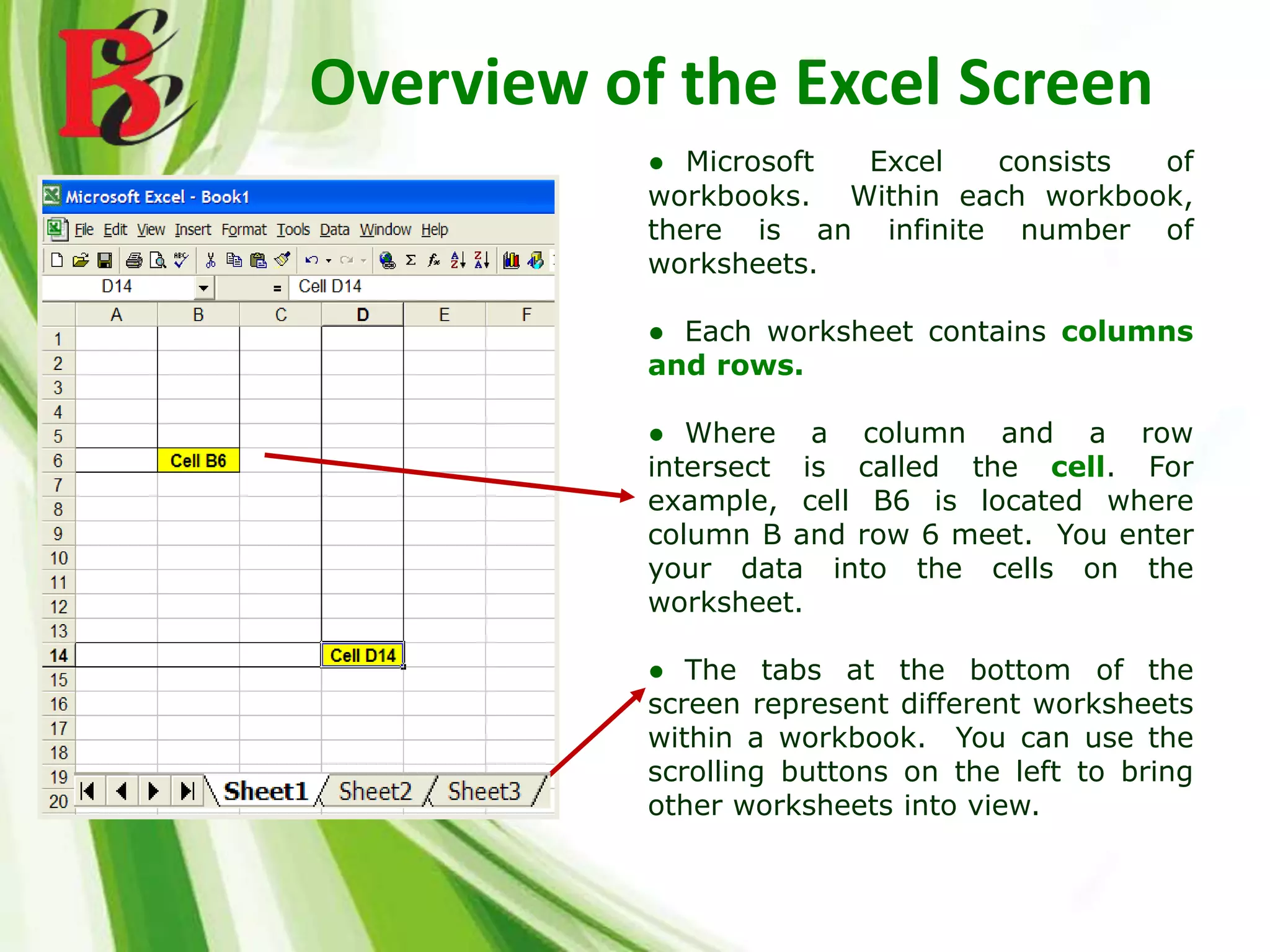
● Microsoft Excel consists of
workbooks. Within each workbook,
there is an infinite number of
worksheets.
● Each worksheet contains columns
and rows.
● Where a column and a row
intersect is called the cell. For
example, cell B6 is located where
column B and row 6 meet. You enter
your data into the cells on the
worksheet.
● The tabs at the bottom of the
screen represent different worksheets
within a workbook. You can use the
scrolling buttons on the left to bring
other worksheets into view.
Overview of the Excel Screen
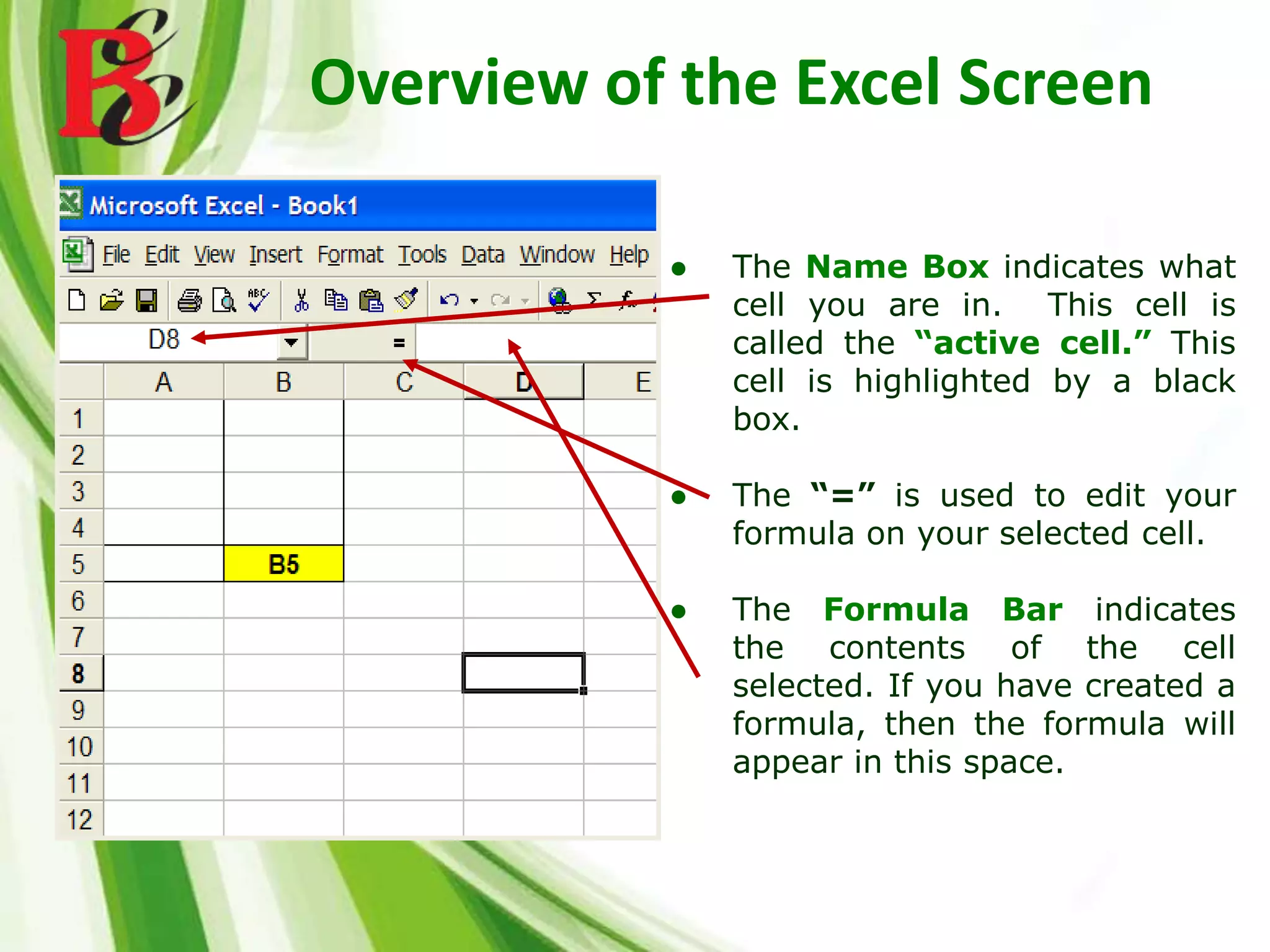
● The Name Box indicates what
cell you are in. This cell is
called the “active cell.” This
cell is highlighted by a black
box.
● The “=” is used to edit your
formula on your selected cell.
● The Formula Bar indicates
the contents of the cell
selected. If you have created a
formula, then the formula will
appear in this space.
Format Menu
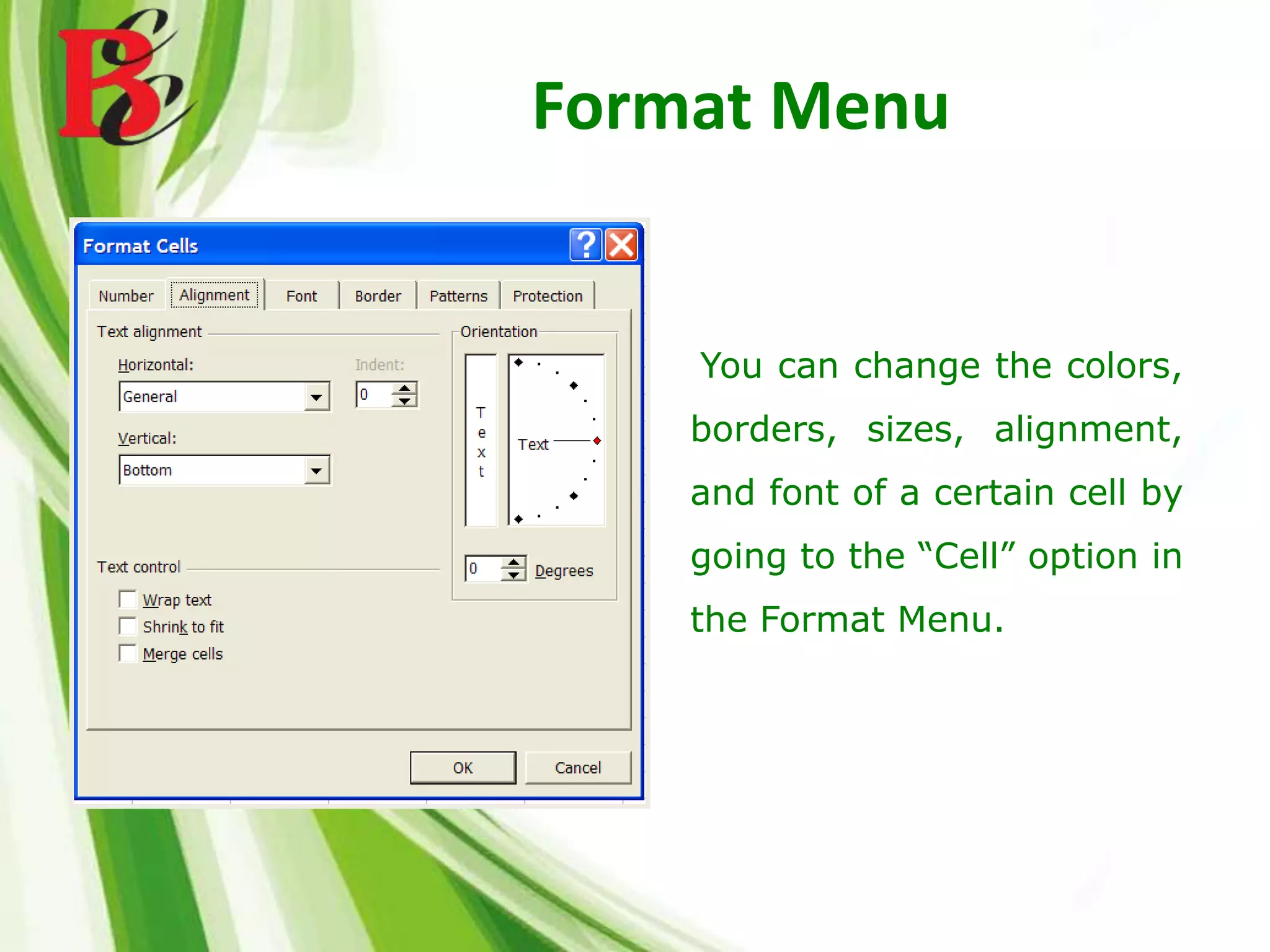
● You can change the colors,
borders, sizes, alignment,
and font of a certain cell by
going to the “Cell” option in
the Format Menu.
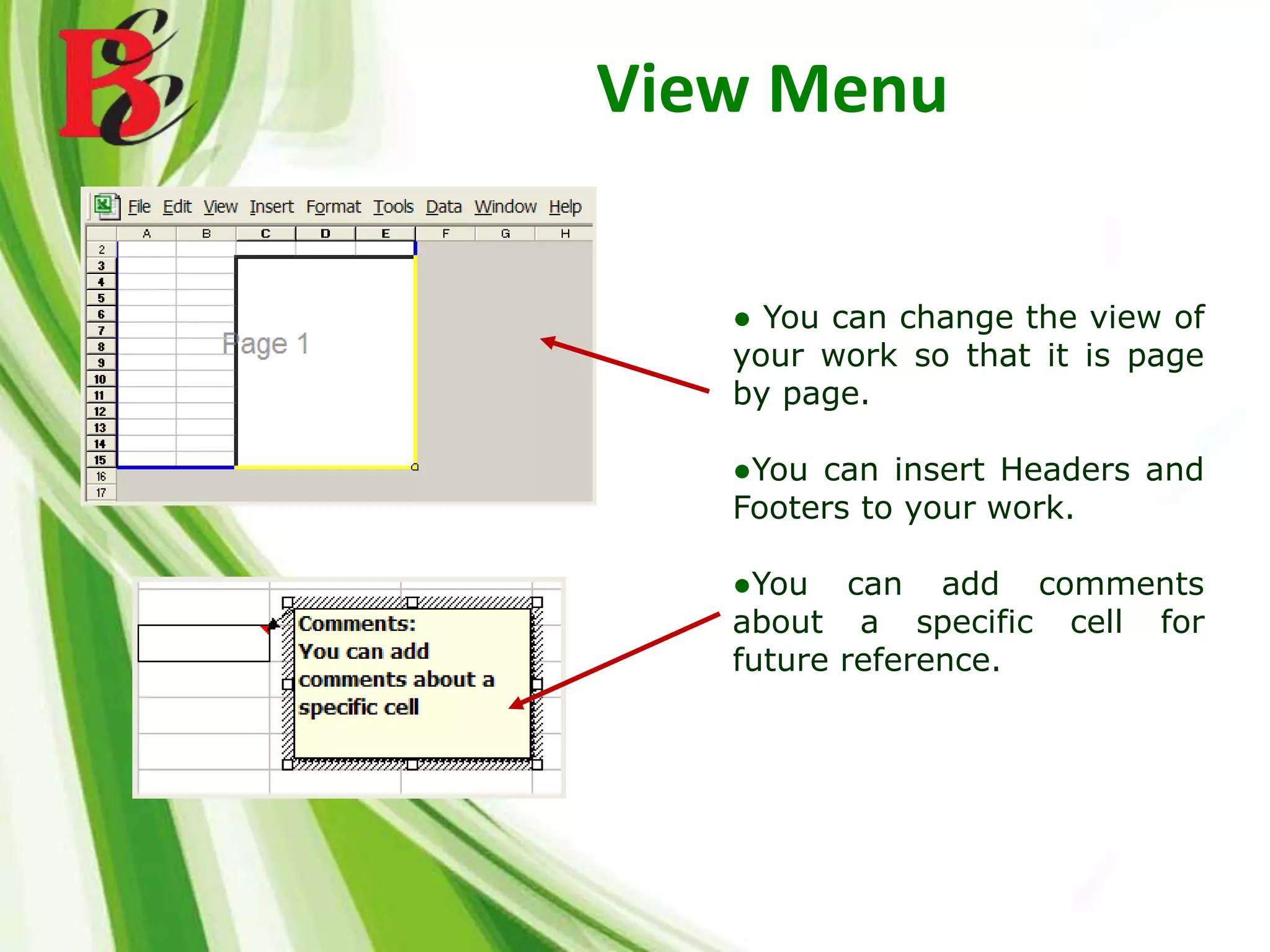
View Menu
● You can change the view of
your work so that it is page
by page.
●You can insert Headers and
Footers to your work.
●You can add comments
about a specific cell for
future reference.
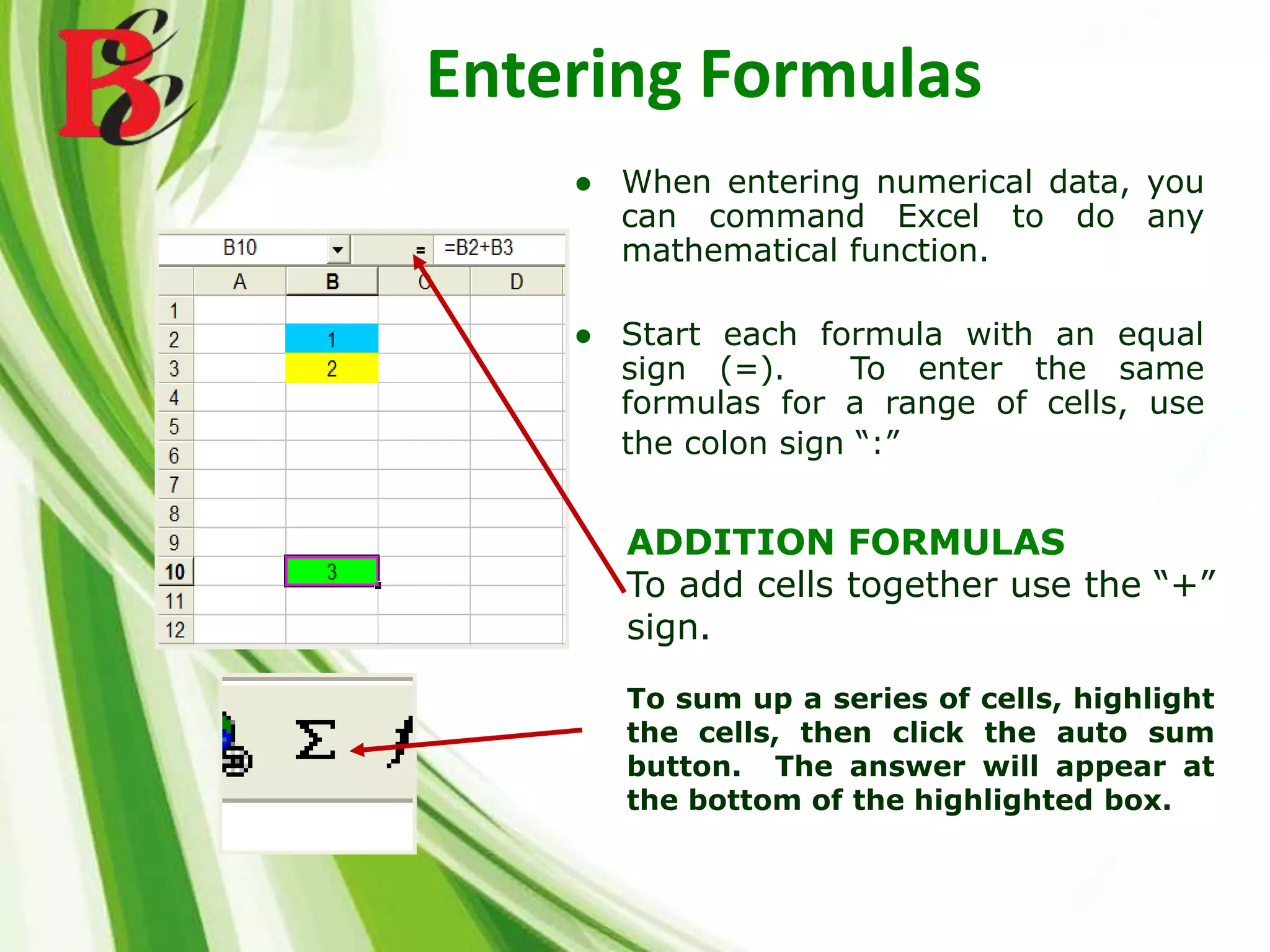
Entering Formulas
ADDITION FORMULAS
To add cells together use the “+”
sign.
To sum up a series of cells, highlight
the cells, then click the auto sum
button. The answer will appear at
the bottom of the highlighted box.
● When entering numerical data, you
can command Excel to do any
mathematical function.
● Start each formula with an equal
sign (=). To enter the same
formulas for a range of cells, use
the colon sign “:”
Entering Formulas
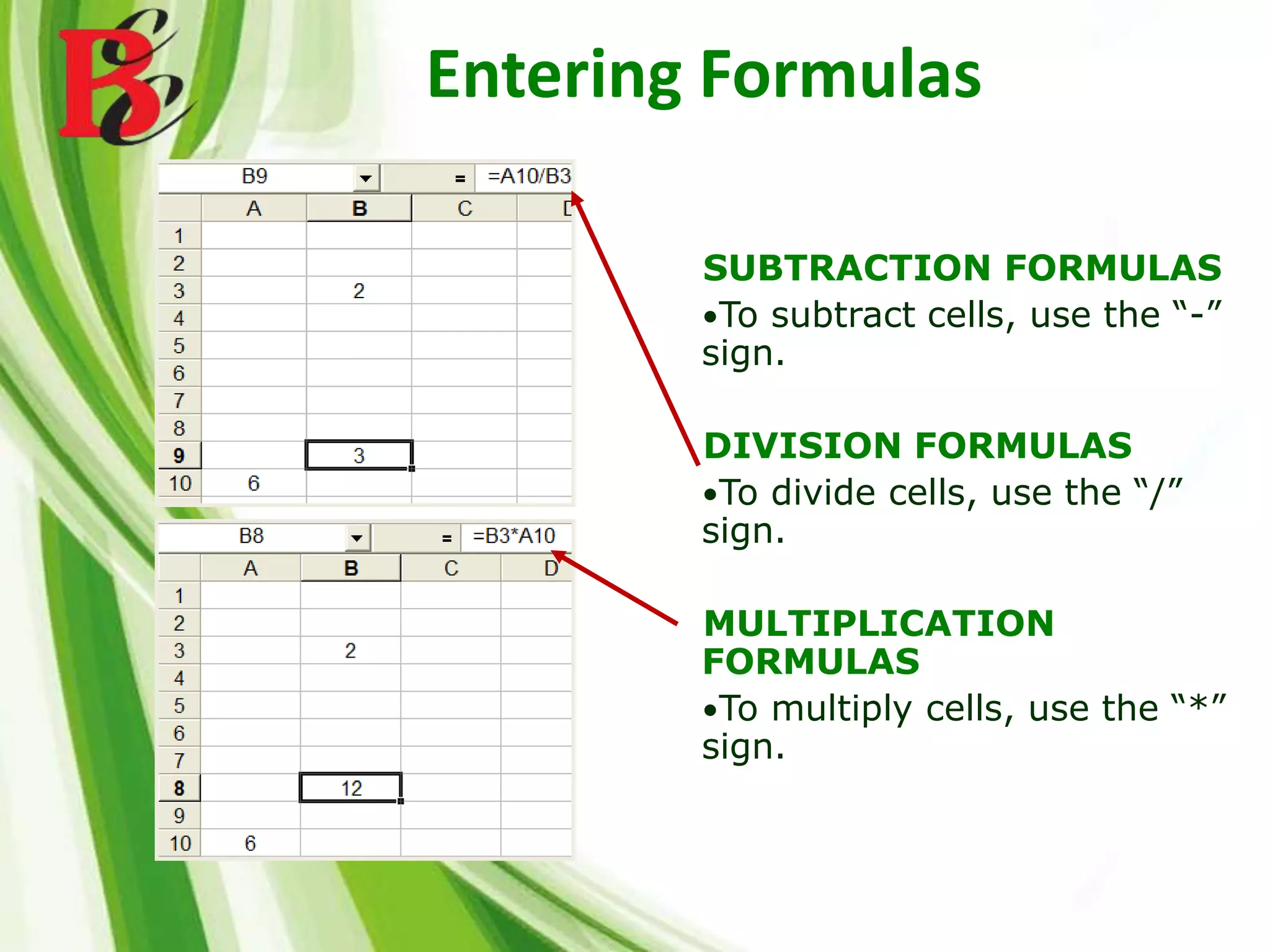
SUBTRACTION FORMULAS
•To subtract cells, use the “-”
sign.
DIVISION FORMULAS
•To divide cells, use the “/”
sign.
MULTIPLICATION
FORMULAS
•To multiply cells, use the “*”
sign.
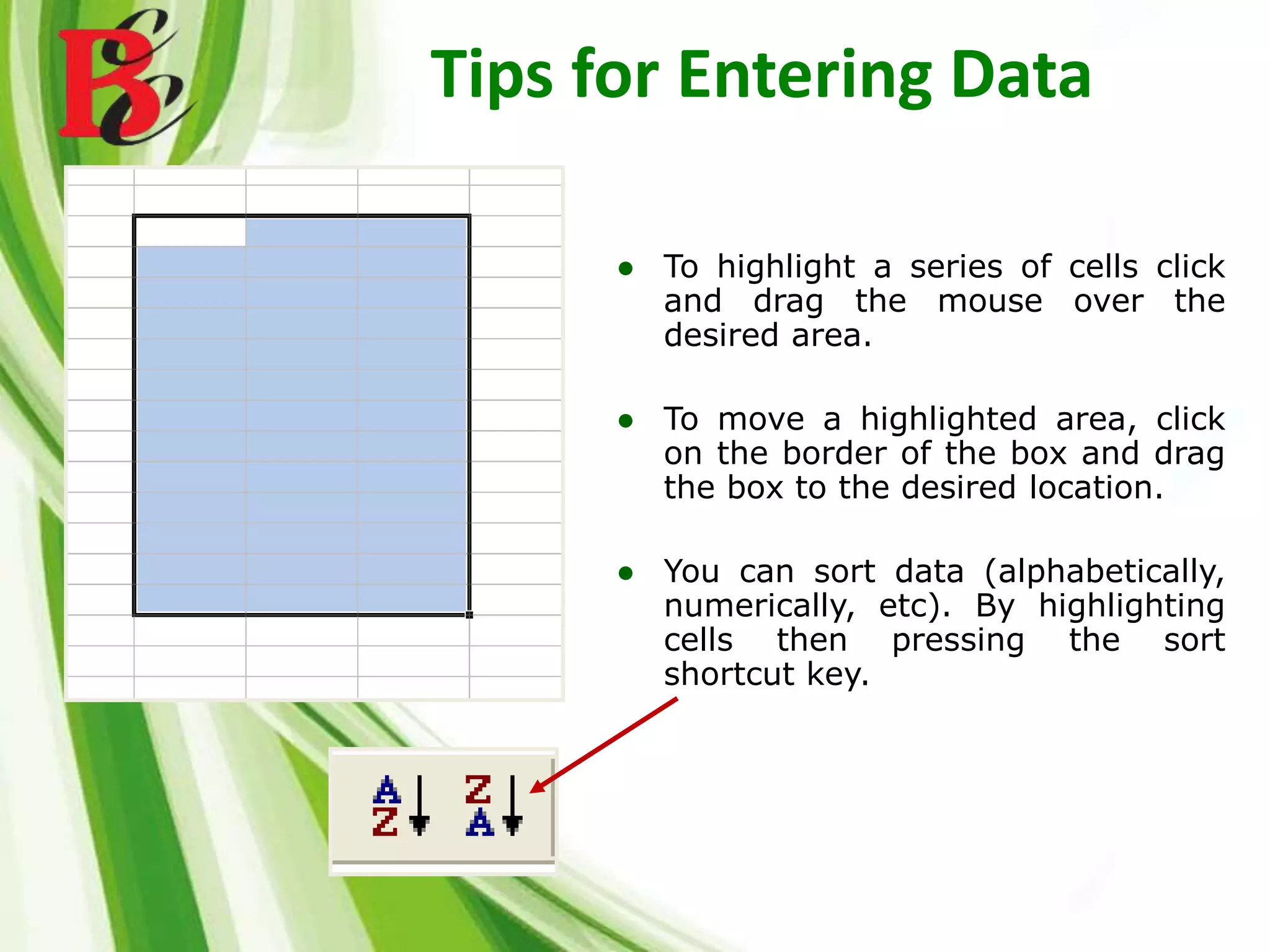
Tips for Entering Data
● To highlight a series of cells click
and drag the mouse over the
desired area.
● To move a highlighted area, click
on the border of the box and drag
the box to the desired location.
● You can sort data (alphabetically,
numerically, etc). By highlighting
cells then pressing the sort
shortcut key.
Tips for Entering Data
● You can cut and paste to move data
around.
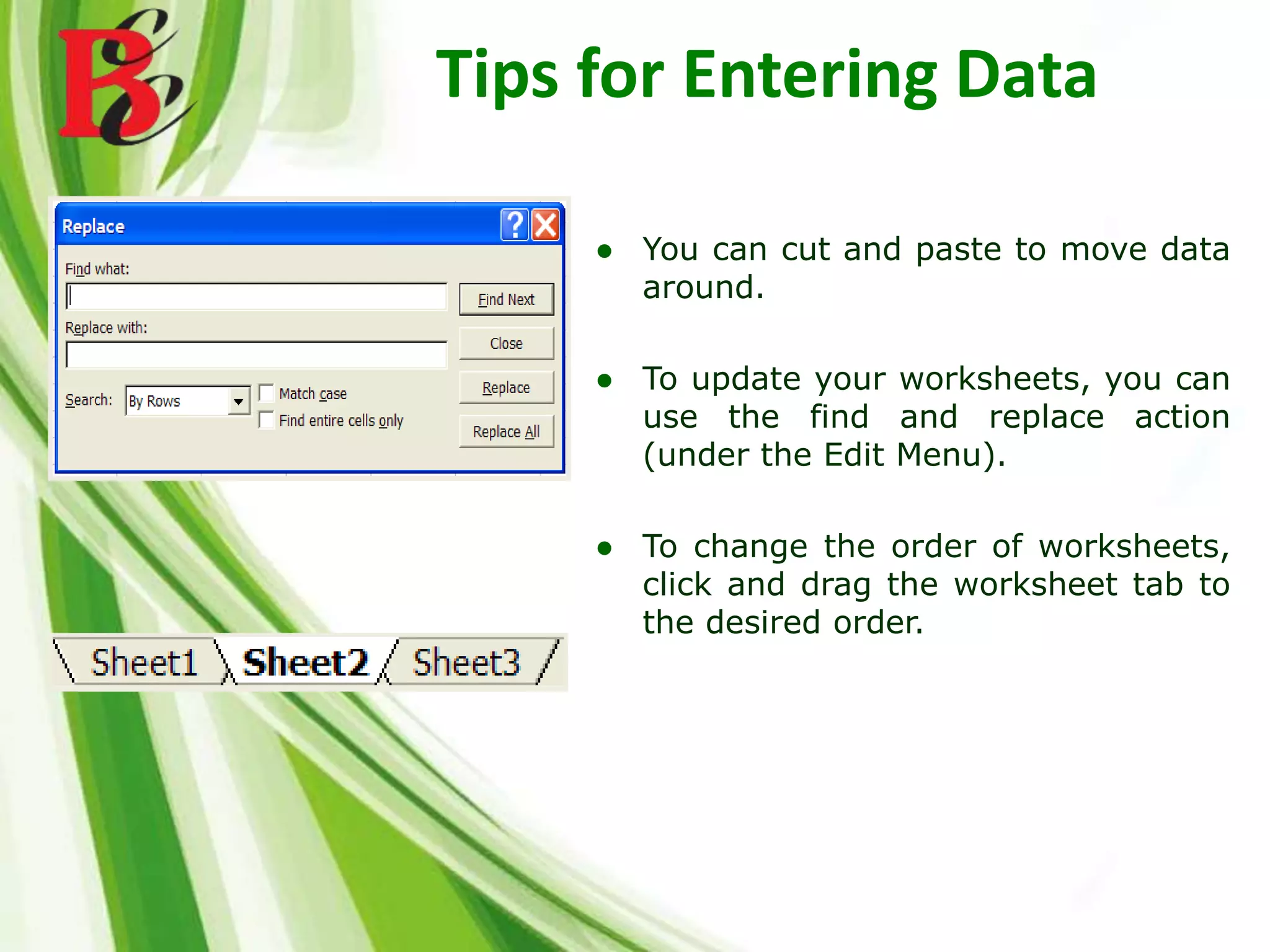
● To update your worksheets, you can
use the find and replace action
(under the Edit Menu).
● To change the order of worksheets,
click and drag the worksheet tab to
the desired order.
SCO 15, Dayal Bagh,
Ambala Cantt, Haryana
PIN CODE-133001
9729666670, 4000670PHNO:
EMAIL ID: info. jatinbatra@gmail.com
www.batracomputercentre.comWEBSITE:
ADDRESS:
BATRA COMPUTER CENTRE
ISO CERTIFIED
PHNO: 9729666670, 4000670

Ms excel 2010 Training in Ambala ! Batra Computer Centre

  • 1.
    BATRA COMPUTER CENTRE ISOCERTIFIED MICROSOFT EXCEL 2010 PHNO: 9729666670, 4000670
  • 2.
    ● Excel isa computer program used to create electronic spreadsheets. ● Within Excel, users can organize data, create charts, and perform calculations. ● Excel is a convenient program because it allows the user to create large spreadsheets, reference information from other spreadsheets, and it allows for better storage and modification of information. ● Excel operates like other Microsoft (MS) Office programs and has many of the same functions and shortcuts of other MS programs Introduction to Excel
  • 3.
    Overview of theExcel Screen ● Microsoft Excel consists of workbooks. Within each workbook, there is an infinite number of worksheets. ● Each worksheet contains columns and rows. ● Where a column and a row intersect is called the cell. For example, cell B6 is located where column B and row 6 meet. You enter your data into the cells on the worksheet. ● The tabs at the bottom of the screen represent different worksheets within a workbook. You can use the scrolling buttons on the left to bring other worksheets into view.
  • 4.
    Overview of theExcel Screen ● The Name Box indicates what cell you are in. This cell is called the “active cell.” This cell is highlighted by a black box. ● The “=” is used to edit your formula on your selected cell. ● The Formula Bar indicates the contents of the cell selected. If you have created a formula, then the formula will appear in this space.
  • 5.
    Format Menu ● Youcan change the colors, borders, sizes, alignment, and font of a certain cell by going to the “Cell” option in the Format Menu.
  • 6.
    View Menu ● Youcan change the view of your work so that it is page by page. ●You can insert Headers and Footers to your work. ●You can add comments about a specific cell for future reference.
  • 7.
    Entering Formulas ADDITION FORMULAS Toadd cells together use the “+” sign. To sum up a series of cells, highlight the cells, then click the auto sum button. The answer will appear at the bottom of the highlighted box. ● When entering numerical data, you can command Excel to do any mathematical function. ● Start each formula with an equal sign (=). To enter the same formulas for a range of cells, use the colon sign “:”
  • 8.
    Entering Formulas SUBTRACTION FORMULAS •Tosubtract cells, use the “-” sign. DIVISION FORMULAS •To divide cells, use the “/” sign. MULTIPLICATION FORMULAS •To multiply cells, use the “*” sign.
  • 9.
    Tips for EnteringData ● To highlight a series of cells click and drag the mouse over the desired area. ● To move a highlighted area, click on the border of the box and drag the box to the desired location. ● You can sort data (alphabetically, numerically, etc). By highlighting cells then pressing the sort shortcut key.
  • 10.
    Tips for EnteringData ● You can cut and paste to move data around. ● To update your worksheets, you can use the find and replace action (under the Edit Menu). ● To change the order of worksheets, click and drag the worksheet tab to the desired order.
  • 12.
    SCO 15, DayalBagh, Ambala Cantt, Haryana PIN CODE-133001 9729666670, 4000670PHNO: EMAIL ID: info. jatinbatra@gmail.com www.batracomputercentre.comWEBSITE: ADDRESS:
  • 13.
    BATRA COMPUTER CENTRE ISOCERTIFIED PHNO: 9729666670, 4000670