DIT (1st) Semester 
Business Application 
TANVEER AHMED
MICROSOFT WORD 
2007
HOME TAB
Clipboard 
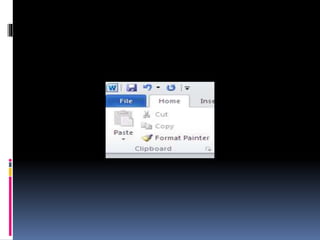
 MS Word provide different method to Copy, 
past, cut, and Format painter in its clipboard 
group. 
 It is located in clipboard in HOME tab ribbon. 
 If you want to move text from one place to 
another you use cut and paste option or copy 
past text. 
 You can also format your text style same as you 
did before using Format Painter option.
Clipboard 
Shortcut Keys 
 (Ctrl+C) Copy the selected text. 
 (Ctrl+X) Cut the selected text. 
 (Ctrl+V) Paste the selected text. 
 (Ctrl+Alt+V) Paste Special. 
 (Clrl+Shift+C) Format Painter.
Font 
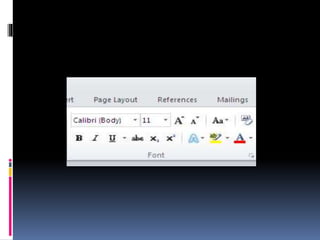
 We have also Font group in ribbon of home tab. 
Which has a lot important role in writing text. 
 In this group we can choose any writing font 
style, in any size. 
 We can make our text bold, underline(in different 
styles), Italic style and in any case also by 
changing case option. 
 We can change our text colors and we can 
highlight any important phrase in our text in any 
color we want.
Font 
 We also have dialog box option in right lower corner of 
font by click on dialog box symbol a dialog box appears. 
 In it there are two options 
 Font 
 Character Spacing 
 In Font we can change Font style, Font size, Color, 
Underline styles and different effects along with Preview. 
 In Character Spacing option we can control spacing 
between characters, and change its position (lowered, 
raised) along with preview.
Font 
ShortcutKeys 
 (Ctrl+B) Bold the selected text. 
 (Ctrl+I) Italicize the selected text. 
 (Ctrl+U) Underline the selected text. 
 (Ctrl+=) Create the small letters below text 
 (Ctrl+Shift++) Create the small letters above text 
 (Ctrl+[ ) Decrease the font size. 
 (Ctrl+] ) Increase the font size. 
 (Ctrl+Shift+F) Change the font face. 
 (Ctrl+Shift+P) Change the font size.
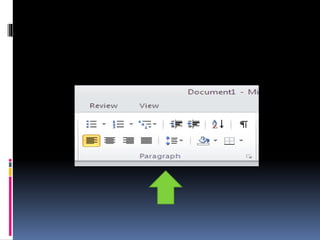
Paragraph 
 3rd group of Home Tab Ribbon is use Align the text to the 
right or left or to the center. 
 Also use to give your document bullets and numbering. 
 Following are the options in it 
 Bullets & Numbering 
 Text Alignment ( Right( CTRL+R), Left(CTRL+L), Justify(CTRL+J) and Center 
Text(CTRL+E ) 
 Indents 
 Sort 
 Show/Hide(CTRL+*) 
 Line Spacing 
 Shading 
 Bottom Borders
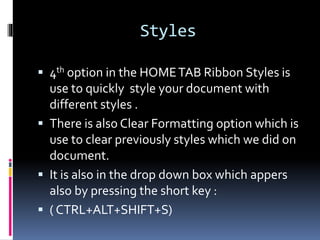
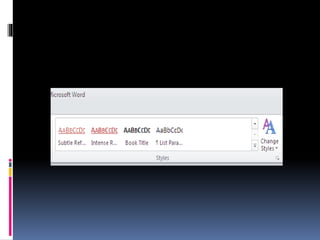
Styles 
 4th option in the HOME TAB Ribbon Styles is 
use to quickly style your document with 
different styles . 
 There is also Clear Formatting option which is 
use to clear previously styles which we did on 
document. 
 It is also in the drop down box which appers 
also by pressing the short key : 
 ( CTRL+ALT+SHIFT+S)
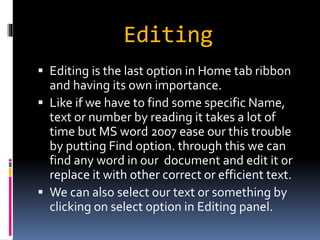
Editing 
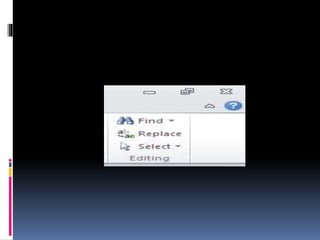
 Editing is the last option in Home tab ribbon 
and having its own importance. 
 Like if we have to find some specific Name, 
text or number by reading it takes a lot of 
time but MS word 2007 ease our this trouble 
by putting Find option. through this we can 
find any word in our document and edit it or 
replace it with other correct or efficient text. 
 We can also select our text or something by 
clicking on select option in Editing panel.
Editing 
ShortcutKeys 
 (Ctrl+F) Find the text. 
 (Ctrl+H) Replace the text.
FILE TAB
File Tab 
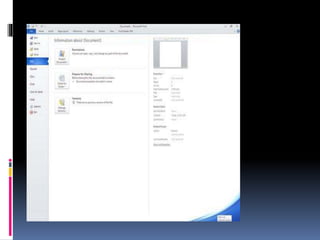
 In FILE TAB first we have SAVE (CTRL+S) 
option which is use to save existing 
Document. 
 Then we have SAVE AS option which is use to 
save the file for first time or to change its type 
on the desire place which can be selected on 
save as window. 
 3rd option is of OPEN which is use to open the 
saved file. (CTRL+O)
File Tab 
 Close option is use to close the document. 
1. Save 
2. Save As 
3. Open 
4. Recent 
5. New 
6. Print 
7. Save & Send 
8. Help 
9. Option 
10. Exit
End

Microsoft Word Home tab Presentation

  • 1.
    DIT (1st) Semester Business Application TANVEER AHMED
  • 2.
  • 3.
  • 5.
    Clipboard  MSWord provide different method to Copy, past, cut, and Format painter in its clipboard group.  It is located in clipboard in HOME tab ribbon.  If you want to move text from one place to another you use cut and paste option or copy past text.  You can also format your text style same as you did before using Format Painter option.
  • 7.
    Clipboard Shortcut Keys  (Ctrl+C) Copy the selected text.  (Ctrl+X) Cut the selected text.  (Ctrl+V) Paste the selected text.  (Ctrl+Alt+V) Paste Special.  (Clrl+Shift+C) Format Painter.
  • 9.
    Font  Wehave also Font group in ribbon of home tab. Which has a lot important role in writing text.  In this group we can choose any writing font style, in any size.  We can make our text bold, underline(in different styles), Italic style and in any case also by changing case option.  We can change our text colors and we can highlight any important phrase in our text in any color we want.
  • 11.
    Font  Wealso have dialog box option in right lower corner of font by click on dialog box symbol a dialog box appears.  In it there are two options  Font  Character Spacing  In Font we can change Font style, Font size, Color, Underline styles and different effects along with Preview.  In Character Spacing option we can control spacing between characters, and change its position (lowered, raised) along with preview.
  • 12.
    Font ShortcutKeys (Ctrl+B) Bold the selected text.  (Ctrl+I) Italicize the selected text.  (Ctrl+U) Underline the selected text.  (Ctrl+=) Create the small letters below text  (Ctrl+Shift++) Create the small letters above text  (Ctrl+[ ) Decrease the font size.  (Ctrl+] ) Increase the font size.  (Ctrl+Shift+F) Change the font face.  (Ctrl+Shift+P) Change the font size.
  • 14.
    Paragraph  3rdgroup of Home Tab Ribbon is use Align the text to the right or left or to the center.  Also use to give your document bullets and numbering.  Following are the options in it  Bullets & Numbering  Text Alignment ( Right( CTRL+R), Left(CTRL+L), Justify(CTRL+J) and Center Text(CTRL+E )  Indents  Sort  Show/Hide(CTRL+*)  Line Spacing  Shading  Bottom Borders
  • 17.
    Styles  4thoption in the HOME TAB Ribbon Styles is use to quickly style your document with different styles .  There is also Clear Formatting option which is use to clear previously styles which we did on document.  It is also in the drop down box which appers also by pressing the short key :  ( CTRL+ALT+SHIFT+S)
  • 20.
    Editing  Editingis the last option in Home tab ribbon and having its own importance.  Like if we have to find some specific Name, text or number by reading it takes a lot of time but MS word 2007 ease our this trouble by putting Find option. through this we can find any word in our document and edit it or replace it with other correct or efficient text.  We can also select our text or something by clicking on select option in Editing panel.
  • 22.
    Editing ShortcutKeys (Ctrl+F) Find the text.  (Ctrl+H) Replace the text.
  • 23.
  • 25.
    File Tab In FILE TAB first we have SAVE (CTRL+S) option which is use to save existing Document.  Then we have SAVE AS option which is use to save the file for first time or to change its type on the desire place which can be selected on save as window.  3rd option is of OPEN which is use to open the saved file. (CTRL+O)
  • 26.
    File Tab Close option is use to close the document. 1. Save 2. Save As 3. Open 4. Recent 5. New 6. Print 7. Save & Send 8. Help 9. Option 10. Exit
  • 27.