Microsoft
Excel 2007
Objective 3: Creating and
Modifying Formulas
In the Lesson you will learn
how to:
1.   Reference data in formulas
2.   Summarize data using formulas
3.   Summarize data using subtotals
4.   Conditionally summarize data using a
     formula
5.   Lookup data using a formula
6.   Use conditional logic in a formula
7.   Format or modify text using formulas, and
8.   Display and print formulas
Summarize Data Using a
Formula
•   Create a Basic Formula
•   Create a Function Formula
•   Commonly Used Excel Functions
Create a Formula
1.   Click the cell where you want to formula to
     appear
2.   Type =
3.   Click a cell containing the first value you
     want to include
        You may also enter a value manually
4.   Type an operand such as +, -, /, or *
5.   Click a cell containing the next value you
     want to include
6.   Enter operands and other cells or values as
     necessary and press [Enter]
Create a Function Formula
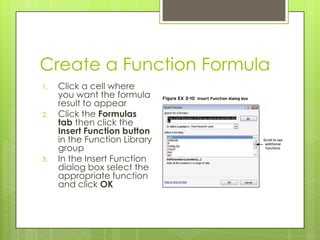
1.   Click a cell where
     you want the formula
     result to appear
2.   Click the Formulas
     tab then click the
     Insert Function button
     in the Function Library
     group
3.   In the Insert Function
     dialog box select the
     appropriate function
     and click OK
Create a Function Formula
4.   In the Function
     Arguments dialog
     box specify the
     appropriate
     settings or
     cells, then click
     OK
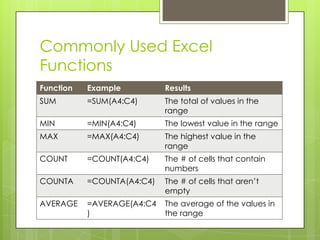
Commonly Used Excel
Functions
Function   Example          Results
SUM        =SUM(A4:C4)      The total of values in the
                            range
MIN        =MIN(A4:C4)      The lowest value in the range
MAX        =MAX(A4:C4)      The highest value in the
                            range
COUNT      =COUNT(A4:C4)    The # of cells that contain
                            numbers
COUNTA     =COUNTA(A4:C4)   The # of cells that aren’t
                            empty
AVERAGE    =AVERAGE(A4:C4   The average of the values in
           )                the range
Summarize Data Using
Subtotals
Create, Filter, Sort, and Subtotal a list
Remove a Filter and Subtotals
Create a List
 Type related data in rows and
  columns, with column headers describing
  each columns data
 Type additional rows and columns as
  needed making sure there are no empty
  rows or columns between data
Filter a List
1.   Click inside the list range
2.   Click the Data tab then the Filter button
3.   Click the list arrow at the top of the
     column you want to filter
4.   Click Select All to remove all check
     marks
5.   Click the check boxes for the items you
     wish to display and click OK
Remove a Filter
1.   Click inside the list
     range
2.   Click the Data tab
     then the Filter
     button to deselect
     the button and
     remove the Filter
     arrows
Sort a List
1.   Click inside the list
     range
2.   Click the Data tab
     then the Sort button
3.   In the Sort dialog
     box choose what to
     sort by and the
     order
4.   Add additional
     levels if necessary
5.   Click OK
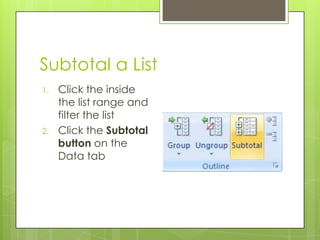
Subtotal a List
1.   Click the inside
     the list range and
     filter the list
2.   Click the Subtotal
     button on the
     Data tab
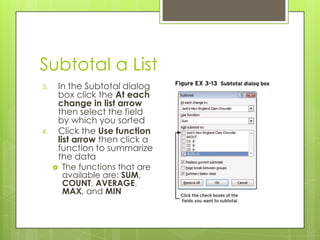
Subtotal a List
3.   In the Subtotal dialog
     box click the At each
     change in list arrow
     then select the field
     by which you sorted
4.   Click the Use function
     list arrow then click a
     function to summarize
     the data
        The functions that are
         available are: SUM,
         COUNT, AVERAGE,
         MAX, and MIN
Remove Subtotals
 Click in the list range containing subtotals
 Click the Data tab then the Subtotal
  button
 In the Subtotal dialog box click Remove
  All
Lesson Review
 Open  the Excel worksheet above named
 Basic Formulas and complete to the best
 of your ability

Summarize Data Using a Formula

  • 1.
    Microsoft Excel 2007 Objective 3:Creating and Modifying Formulas
  • 2.
    In the Lessonyou will learn how to: 1. Reference data in formulas 2. Summarize data using formulas 3. Summarize data using subtotals 4. Conditionally summarize data using a formula 5. Lookup data using a formula 6. Use conditional logic in a formula 7. Format or modify text using formulas, and 8. Display and print formulas
  • 3.
    Summarize Data Usinga Formula • Create a Basic Formula • Create a Function Formula • Commonly Used Excel Functions
  • 4.
    Create a Formula 1. Click the cell where you want to formula to appear 2. Type = 3. Click a cell containing the first value you want to include  You may also enter a value manually 4. Type an operand such as +, -, /, or * 5. Click a cell containing the next value you want to include 6. Enter operands and other cells or values as necessary and press [Enter]
  • 5.
    Create a FunctionFormula 1. Click a cell where you want the formula result to appear 2. Click the Formulas tab then click the Insert Function button in the Function Library group 3. In the Insert Function dialog box select the appropriate function and click OK
  • 6.
    Create a FunctionFormula 4. In the Function Arguments dialog box specify the appropriate settings or cells, then click OK
  • 7.
    Commonly Used Excel Functions Function Example Results SUM =SUM(A4:C4) The total of values in the range MIN =MIN(A4:C4) The lowest value in the range MAX =MAX(A4:C4) The highest value in the range COUNT =COUNT(A4:C4) The # of cells that contain numbers COUNTA =COUNTA(A4:C4) The # of cells that aren’t empty AVERAGE =AVERAGE(A4:C4 The average of the values in ) the range
  • 8.
    Summarize Data Using Subtotals Create,Filter, Sort, and Subtotal a list Remove a Filter and Subtotals
  • 9.
    Create a List Type related data in rows and columns, with column headers describing each columns data  Type additional rows and columns as needed making sure there are no empty rows or columns between data
  • 10.
    Filter a List 1. Click inside the list range 2. Click the Data tab then the Filter button 3. Click the list arrow at the top of the column you want to filter 4. Click Select All to remove all check marks 5. Click the check boxes for the items you wish to display and click OK
  • 11.
    Remove a Filter 1. Click inside the list range 2. Click the Data tab then the Filter button to deselect the button and remove the Filter arrows
  • 12.
    Sort a List 1. Click inside the list range 2. Click the Data tab then the Sort button 3. In the Sort dialog box choose what to sort by and the order 4. Add additional levels if necessary 5. Click OK
  • 13.
    Subtotal a List 1. Click the inside the list range and filter the list 2. Click the Subtotal button on the Data tab
  • 14.
    Subtotal a List 3. In the Subtotal dialog box click the At each change in list arrow then select the field by which you sorted 4. Click the Use function list arrow then click a function to summarize the data  The functions that are available are: SUM, COUNT, AVERAGE, MAX, and MIN
  • 15.
    Remove Subtotals  Clickin the list range containing subtotals  Click the Data tab then the Subtotal button  In the Subtotal dialog box click Remove All
  • 16.
    Lesson Review  Open the Excel worksheet above named Basic Formulas and complete to the best of your ability