Sanofi
INTRODUCTION TO MICROSOFT
EXCEL
CONTENT
 Excel Introduction
 Feature overview and terminology
 Workbook & Cell reference
 Worksheet Insert, Delete, Find & Replace
 Entering formulas, autosum and functions
 VLookup and Reference Function
 Excel Sort and Filter
 Advanced formatting – Conditional Formatting
 Common Statistical Function – Useful Graphs & Charts
 Pivot Table – Creation, Updating, Modifying Calculated Field
 Macros – Recording. Running using menu command, assignment
Basic and Advanced MS Excel
The main goal of the course is to enable professionals to enhance their MS
excel skills through exercise and gaining hands-on experience on various
techniques. The course covers step b step lessons ranging from basic
fundamentals to more advanced features and program applications. It is
highly practical course that will lead to learning powerful features and
options of excel to manage their worksheet related tasks more efficiently The
course will help delegates gain Excel Proficiency – calculations, functions,
formulas and Excel Best Practices.
COURSE MOTIVATION
MS Excel Introduction
• Microsoft Excel is a spreadsheet application developed by Microsoft for Microsoft
windows operating system .
• It is a program used to enter, analyze, present quantitative data and allows you to
create professional spreadsheets and charts.
• It features graphing tools, calculation, important pivot tables and macro programming
language and widely applied spreadsheet.
• It is widely used to:
• Manage name list of Data records and Analytical tools.
• To perform mathematical calculation easily in daily business
• Inventory management and Corporate budgeting
Feature Overview
• Graphical User Interface
Excel is a GUI based Software most of the task performed by excel can be carried out
just by pressing a button in a toolbar.
• Calculation
Excel is one of the fastest spreadsheet programs when you add or delete or modify a
particular figure in between then Excel recalculates and changes the result automatically.
• Function
The excel program offers several mathematical , statistical and financial along with
several date, time and logical functions.
• Graphs
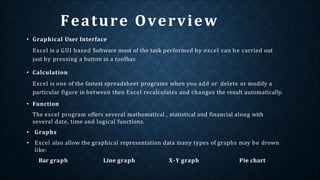
• Excel also allow the graphical representation data many types of graphs may be drown
like:
Bar graph Line graph X-Y graph Pie chart
Excel Terminology
located at
• Toolbars contain icons that perform common commands
• Formula bar displays the contents of the active cell
• located near the top of the worksheet
• Status bar keeps you informed of what is happening as you
work the bottom of the worksheet
• Title bar Contains the name of the document you are working on at a given
time. When we create a new workbook it is assigned provisionally the name
Book 1, until we save it and give it the name we desire.
Excel Toolbars
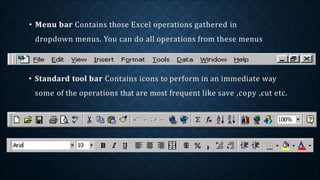
• Menu bar Contains those Excel operations gathered in
dropdown menus. You can do all operations from these menus
• Standard tool bar Contains icons to perform in an immediate way
some of the operations that are most frequent like save ,copy ,cut etc.
Workbook Overview
• A workbook is the MS Excel file in which you enter and store related data. A Workbook is a
collection of many worksheets.
• Worksheet is made of many rows and columns and also called spreadsheets.
• There are 16384 columns and 1048576 rows in a worksheet.
• On the worksheet intersection of rows and column is called Cell.
•Each row is numbered, from 1 to 1048576, and is the horizontal selection
of cells in a sheet.
•A column is formed by cells vertically arranged. Each column is identified
by letters, for example A, B, C,... AA, AB,... IV.
CELL REFERENCE
• Each cell has a specific
address which is a
combination of numbers and
letters.
for example : A1,B10
• On a worksheet thick rectangular
box represents currently
selected or active cell.
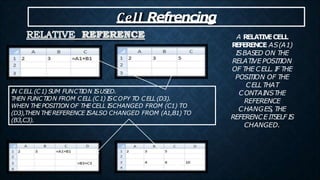
A RELATIV
ECELL
REFERENCE AS(A1)
ISBASED ON THE
RELATIVE POSITION
OF THE CELL. IF THE
POSITION OF THE
CELL THAT
CONTAINSTHE
REFERENCE
CHANGES, THE
REFERENCE ITSELF IS
CHANGED.
IN CELL (C1) SUM FUNCTION ISUSED.
THEN FUNCTION FROM CELL (C1) ISCOPY TO CELL (D3).
WHEN THEPOSITION OF THECELL ISCHANGED FROM (C1) TO
(D3),THEN THEREFERENCE ISALSO CHANGED FROM (A1,B1) TO
(B3,C3).
Cell Refrencing
AN ABSOL
UT
ECEL
L
REFERENCE AS($A$1)
ALWAYSREFERSTO A
CELL IN A SPECIFIC
LOCATION. IF THE
POSITION OF THE
CELL THATCONTAINS
THE FORMULA
CHANGES, THE
ABSOLUTE
REFERENCE REMAINS
THE SAME.
IN CELL (C1) SUM FUNCTION ISUSED.
THEN FUNCTION FROM CELL (C1) ISCOPY TO CELL (D3).
WHEN THE POSITION OF THE CELL ISCHANGED FROM (C1) TO (D3),THEN
THEABSOLUTE REFERENCE REMAINS THESAME(A1,B1).$ I
SUSEDFOR
CONST
ANTR
OWORCOLUMN.
Cell Refrencing
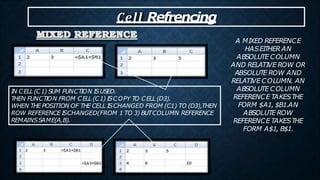
IN CELL (C1) SUM FUNCTION ISUSED.
THEN FUNCTION FROM CELL (C1) ISCOPY TO CELL (D3).
WHEN THE POSITION OF THE CELL ISCHANGED FROM (C1) TO (D3),THEN
ROW REFERENCE ISCHANGED(FROM 1 TO 3) BUTCOLUMN REFERENCE
REMAINSSAME(A,B).
A MIXED REFERENCE
HASEITHER AN
ABSOLUTE COLUMN
AND RELATIVE ROW OR
ABSOLUTE ROW AND
RELATIVE COLUMN. AN
ABSOLUTE COLUMN
REFERENCE TAKESTHE
FORM $A1, $B1.AN
ABSOLUTE ROW
REFERENCE TAKESTHE
FORM A$1, B$1.
Cell Refrencing
INSERTING AND DELETING A
WORKSHEET
• To insert a new worksheet into the workbook, right-click a sheet tab, click Insert on the shortcut
menu, select a sheet type, and then click the OK button
• You can delete a worksheet from a workbook in two ways
• You can right-click the sheet tab of the worksheet you want to delete, and then click
Delete on the shortcut menu
• You can also click the Delete button arrow in the Cells group on the Home tab, and then
click Delete Sheet
• Insert command can be used to add individual rows, columns, or cells
• Delete command can be used to delete
individual rows, columns, or cells
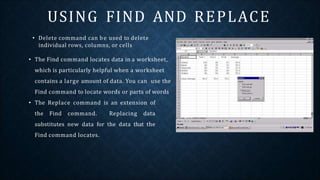
• The Find command locates data in a worksheet,
which is particularly helpful when a worksheet
contains a large amount of data. You can use the
Find command to locate words or parts of words
• The Replace command is an extension of
the Find command. Replacing data
substitutes new data for the data that the
Find command locates.
USING FIND AND REPLACE
ENTERING A FORMULA
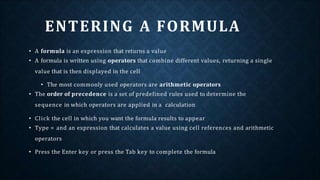
• A formula is an expression that returns a value
• A formula is written using operators that combine different values, returning a single
value that is then displayed in the cell
• The most commonly used operators are arithmetic operators
• The order of precedence is a set of predefined rules used to determine the
sequence in which operators are applied in a calculation
• Click the cell in which you want the formula results to appear
• Type = and an expression that calculates a value using cell references and arithmetic
operators
• Press the Enter key or press the Tab key to complete the formula
HOW FORMULA IS ENTERED
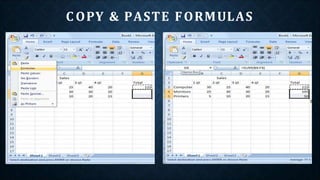
C OPY & PASTE FORMULAS
INTRODUCING FUNCTIONS
• A function in excel is a built-in formula that performs a mathematical
operation or returns information specified by the formula
• Function syntax :- = function name(Argument)
• For example:- = SUM(A1,C3)
You can easily calculate the sum of a large number of cells by using a function
• A basic formula example to add up a small number of cells is =A1+A2+A3+A4,but that
method would be cumbersome if there were 100 cells to add up.
• Use Excel's SUM function to total the values in a range of cells like this:
• SUM (A1:A100)
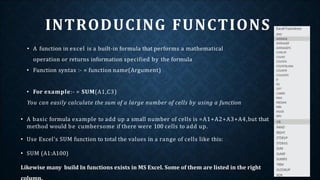
Likewise many build In functions exists in MS Excel. Some of them are listed in the right
FUNCTIONS USAGE WITH AUTOSUM
• The AutoSum button quickly inserts Excel functions that summarizes
all the values in a column or row using a single statistic:
• Sum of the values in the column or row
• Average value in the column or row
• Total count of numeric values in the column or row
• Minimum value in the column or row
• Maximum value in the column or row
VLOOKUP Function
The VLOOKUP function is a premade function in Excel, which
allows searches across columns.
It is typed =VLOOKUP and has the following parts:
=VLOOKUP(lookup_value, table_array, col_index_n
um, [range_lookup])
Lookup_value: Select the cell where search values will be
entered.
Table_array: The table range, including all cells in the table.
Col_index_num: The data which is being looked up. The input
is the number of the column, counted from the left:
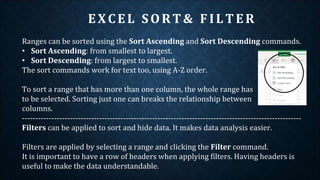
EXCEL SO RT& F ILTER
Ranges can be sorted using the Sort Ascending and Sort Descending commands.
• Sort Ascending: from smallest to largest.
• Sort Descending: from largest to smallest.
The sort commands work for text too, using A-Z order.
To sort a range that has more than one column, the whole range has
to be selected. Sorting just one can breaks the relationship between
columns.
---------------------------------------------------------------------------------------------------------
Filters can be applied to sort and hide data. It makes data analysis easier.
Filters are applied by selecting a range and clicking the Filter command.
It is important to have a row of headers when applying filters. Having headers is
useful to make the data understandable.
Advanced Conditional Formatting
Conditional formatting is used to change the appearance of cells in a range
based on your specified conditions.
The conditions are rules based on specified numerical values or matching text.
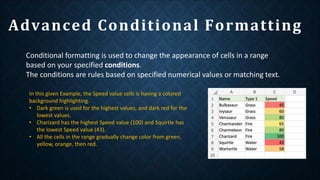
In this given Example, the Speed value cells is having a colored
background highlighting.
• Dark green is used for the highest values, and dark red for the
lowest values.
• Charizard has the highest Speed value (100) and Squirtle has
the lowest Speed value (43).
• All the cells in the range gradually change color from green,
yellow, orange, then red.
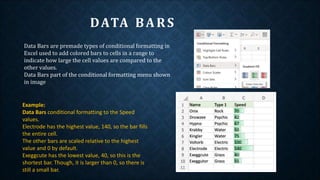
Data Bars are premade types of conditional formatting in
Excel used to add colored bars to cells in a range to
indicate how large the cell values are compared to the
other values.
Data Bars part of the conditional formatting menu shown
in image
DATA BARS
Example:
Data Bars conditional formatting to the Speed
values.
Electrode has the highest value, 140, so the bar fills
the entire cell.
The other bars are scaled relative to the highest
value and 0 by default.
Exeggcute has the lowest value, 40, so this is the
shortest bar. Though, it is larger than 0, so there is
still a small bar.
Charts are visual representations of data used to make it more understandable.
Commonly used charts are:
• Pie chart
• Column chart
• Line chart
Different charts are used for different types of data.
Note: Charts are also called graphs and visualizations.
EXCEL CHARTS
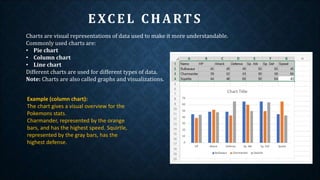
Example (column chart):
The chart gives a visual overview for the
Pokemons stats.
Charmander, represented by the orange
bars, and has the highest speed. Squirtle,
represented by the gray bars, has the
highest defense.
• PivotTable is a functionality in Excel which helps you organize and analyze data.
• It lets you add and remove values, perform calculations, and to filter and sort data sets.
• PivotTable helps you structure and organize data to understand large data sets.
• The data that you use needs to be in tabular format.
• The tabular form is data in a table format (rows and columns).
PivotTables have four main components:
PIVOT TABLE
1. Columns
Columns are vertical tabular data.
The column includes the unique header, which is on the
top.
The header defines which data you are seeing listed
downwards.
2. Rows
Rows are horizontal tabular data.
Data in the same row are related.
3. Filters
Filters are used to select what data you see.
In this example, there are two filters
enabled: Generation and Type 1.
The filters are set to Generation (1) and Type (Psychic).
4. Values
Values define how you present the data.
You can define how you Summarize and Show values.
The TablePivot is displayed how by your settings.
The PivotTable Fields panel is used to change how you see the data.
The settings can be separated in two: Fields and Layout.
Fields
The checkboxes can be
selected or unselected to
display or change the
property of the data.
In this example, the checkbox
for Speed is selected.
Layout
Drag and drop fields to the
boxes to the right to display
data in the table.
You can drag them to the four
different boxes that we
mentioned earlier (four main
components):
Filters
Rows
Columns
Values
• An Excel macro is an action or a set of actions that you can record, give a
name, save and run as many times as you want and whenever you want.
• Macros help you to save time on repetitive tasks involved in data
manipulation and data reports that are required to be done frequently.
• When you record a macro, Excel stores it as a VBA code. You can view this
code in the VBA editor. You can understand the code and modify it if you
have substantial knowledge of Excel VBA
EXCEL MACRO S
• It is the most popular spreadsheet program in the world
• It is easy to learn and to get started.
• The skill ceiling is high, which means that you can do more advanced
things as you become better
• It can be used with both work and in everyday life, such as to create a
family budget
• It has a huge community support
• It is continuously supported by Microsoft
• Templates and frameworks can be reused by yourself and others, lowering
creation costs
ADVANTAG E
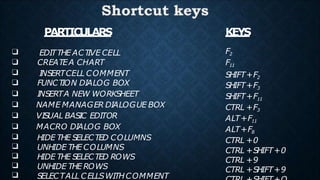
PARTICULARS
❑ EDITTHE ACT
IVE CELL
❑ CREATEA CHART
❑ INSERTCELL COMMENT
❑ FUNCT
ION DIALOG BOX
❑ INSERTA NEW WORKSHEET
❑ NAME MANAGER DIALOGUE BOX
❑ VISUAL BASIC EDITOR
❑ MACRO DIALOG BOX
❑ HIDE THE SELECTED COLUMNS
❑ UNHIDE THE COLUMNS
❑ HIDE THE SELECTED ROWS
❑ UNHIDE THE ROWS
❑ SELECTALL CELLSWITHCOMMENT
KEYS
F2
F11
SHIFT+F2
SHIFT+F3
SHIFT+F11
CTRL +F3
ALT+F11
ALT+F8
CTRL +0
CTRL +SHIFT+0
CTRL +9
CTRL +SHIFT+9
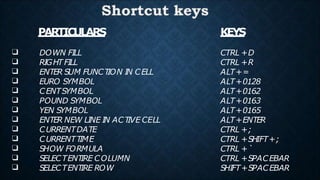
PARTICULARS
❑
❑
❑
❑
❑
❑
❑
❑
❑
❑
❑
❑
❑
DOWN FILL
RIGHT FILL
ENTER SUM FUNCT
ION IN CELL
EURO SYMBOL
CENTSYMBOL
POUND SYMBOL
YEN SYMBOL
ENTER NEW LINE IN ACT
IVE CELL
CURRENTDATE
CURRENTT
IME
SHOW FORMULA
SELECTENT
IRE COLUMN
SELECTENT
IRE ROW
KEYS
CTRL +D
CTRL +R
ALT+=
ALT+0128
ALT+0162
ALT+0163
ALT+0165
ALT+ENTER
CTRL +;
CTRL +SHIFT+;
CTRL +`
CTRL +SPACEBAR
SHIFT+SPACEBAR
PARTICULARS
❑
❑
❑
❑
❑
❑
❑
❑
❑
APPLIESNUMBER FORMAT
APPLIESCURRENCY FORMAT
APPLIESPERCENTAGE FORMAT
APPLIESEXPONENT
IAL FORMAT
APPLIESGENERAL NO. FORMAT
APPLIEST
IME FORMAT
APPLIESDATEFORMAT
APPLIESOUTLINE BORDER
REMOVE OUTLINE BORDER
KEYS
CTRL + SHIFT + !
CTRL +SHIFT +$
CTRL + SHIFT +
% CTRL + SHIFT
+ ^ CTRL +
SHIFT+~ CTRL +
SHIFT + @ CTRL
+ SHIFT + #
CTRL +SHIFT+&
CTRL +SHIFT+_

Excel_Breif_Overview.pptx

  • 1.
  • 2.
    CONTENT  Excel Introduction Feature overview and terminology  Workbook & Cell reference  Worksheet Insert, Delete, Find & Replace  Entering formulas, autosum and functions  VLookup and Reference Function  Excel Sort and Filter  Advanced formatting – Conditional Formatting  Common Statistical Function – Useful Graphs & Charts  Pivot Table – Creation, Updating, Modifying Calculated Field  Macros – Recording. Running using menu command, assignment
  • 3.
    Basic and AdvancedMS Excel The main goal of the course is to enable professionals to enhance their MS excel skills through exercise and gaining hands-on experience on various techniques. The course covers step b step lessons ranging from basic fundamentals to more advanced features and program applications. It is highly practical course that will lead to learning powerful features and options of excel to manage their worksheet related tasks more efficiently The course will help delegates gain Excel Proficiency – calculations, functions, formulas and Excel Best Practices. COURSE MOTIVATION
  • 4.
    MS Excel Introduction •Microsoft Excel is a spreadsheet application developed by Microsoft for Microsoft windows operating system . • It is a program used to enter, analyze, present quantitative data and allows you to create professional spreadsheets and charts. • It features graphing tools, calculation, important pivot tables and macro programming language and widely applied spreadsheet. • It is widely used to: • Manage name list of Data records and Analytical tools. • To perform mathematical calculation easily in daily business • Inventory management and Corporate budgeting
  • 5.
    Feature Overview • GraphicalUser Interface Excel is a GUI based Software most of the task performed by excel can be carried out just by pressing a button in a toolbar. • Calculation Excel is one of the fastest spreadsheet programs when you add or delete or modify a particular figure in between then Excel recalculates and changes the result automatically. • Function The excel program offers several mathematical , statistical and financial along with several date, time and logical functions. • Graphs • Excel also allow the graphical representation data many types of graphs may be drown like: Bar graph Line graph X-Y graph Pie chart
  • 6.
  • 7.
    located at • Toolbarscontain icons that perform common commands • Formula bar displays the contents of the active cell • located near the top of the worksheet • Status bar keeps you informed of what is happening as you work the bottom of the worksheet • Title bar Contains the name of the document you are working on at a given time. When we create a new workbook it is assigned provisionally the name Book 1, until we save it and give it the name we desire. Excel Toolbars
  • 8.
    • Menu barContains those Excel operations gathered in dropdown menus. You can do all operations from these menus • Standard tool bar Contains icons to perform in an immediate way some of the operations that are most frequent like save ,copy ,cut etc.
  • 9.
    Workbook Overview • Aworkbook is the MS Excel file in which you enter and store related data. A Workbook is a collection of many worksheets. • Worksheet is made of many rows and columns and also called spreadsheets. • There are 16384 columns and 1048576 rows in a worksheet. • On the worksheet intersection of rows and column is called Cell. •Each row is numbered, from 1 to 1048576, and is the horizontal selection of cells in a sheet. •A column is formed by cells vertically arranged. Each column is identified by letters, for example A, B, C,... AA, AB,... IV.
  • 10.
    CELL REFERENCE • Eachcell has a specific address which is a combination of numbers and letters. for example : A1,B10 • On a worksheet thick rectangular box represents currently selected or active cell.
  • 11.
    A RELATIV ECELL REFERENCE AS(A1) ISBASEDON THE RELATIVE POSITION OF THE CELL. IF THE POSITION OF THE CELL THAT CONTAINSTHE REFERENCE CHANGES, THE REFERENCE ITSELF IS CHANGED. IN CELL (C1) SUM FUNCTION ISUSED. THEN FUNCTION FROM CELL (C1) ISCOPY TO CELL (D3). WHEN THEPOSITION OF THECELL ISCHANGED FROM (C1) TO (D3),THEN THEREFERENCE ISALSO CHANGED FROM (A1,B1) TO (B3,C3). Cell Refrencing
  • 12.
    AN ABSOL UT ECEL L REFERENCE AS($A$1) ALWAYSREFERSTOA CELL IN A SPECIFIC LOCATION. IF THE POSITION OF THE CELL THATCONTAINS THE FORMULA CHANGES, THE ABSOLUTE REFERENCE REMAINS THE SAME. IN CELL (C1) SUM FUNCTION ISUSED. THEN FUNCTION FROM CELL (C1) ISCOPY TO CELL (D3). WHEN THE POSITION OF THE CELL ISCHANGED FROM (C1) TO (D3),THEN THEABSOLUTE REFERENCE REMAINS THESAME(A1,B1).$ I SUSEDFOR CONST ANTR OWORCOLUMN. Cell Refrencing
  • 13.
    IN CELL (C1)SUM FUNCTION ISUSED. THEN FUNCTION FROM CELL (C1) ISCOPY TO CELL (D3). WHEN THE POSITION OF THE CELL ISCHANGED FROM (C1) TO (D3),THEN ROW REFERENCE ISCHANGED(FROM 1 TO 3) BUTCOLUMN REFERENCE REMAINSSAME(A,B). A MIXED REFERENCE HASEITHER AN ABSOLUTE COLUMN AND RELATIVE ROW OR ABSOLUTE ROW AND RELATIVE COLUMN. AN ABSOLUTE COLUMN REFERENCE TAKESTHE FORM $A1, $B1.AN ABSOLUTE ROW REFERENCE TAKESTHE FORM A$1, B$1. Cell Refrencing
  • 14.
    INSERTING AND DELETINGA WORKSHEET • To insert a new worksheet into the workbook, right-click a sheet tab, click Insert on the shortcut menu, select a sheet type, and then click the OK button • You can delete a worksheet from a workbook in two ways • You can right-click the sheet tab of the worksheet you want to delete, and then click Delete on the shortcut menu • You can also click the Delete button arrow in the Cells group on the Home tab, and then click Delete Sheet • Insert command can be used to add individual rows, columns, or cells
  • 15.
    • Delete commandcan be used to delete individual rows, columns, or cells • The Find command locates data in a worksheet, which is particularly helpful when a worksheet contains a large amount of data. You can use the Find command to locate words or parts of words • The Replace command is an extension of the Find command. Replacing data substitutes new data for the data that the Find command locates. USING FIND AND REPLACE
  • 17.
    ENTERING A FORMULA •A formula is an expression that returns a value • A formula is written using operators that combine different values, returning a single value that is then displayed in the cell • The most commonly used operators are arithmetic operators • The order of precedence is a set of predefined rules used to determine the sequence in which operators are applied in a calculation • Click the cell in which you want the formula results to appear • Type = and an expression that calculates a value using cell references and arithmetic operators • Press the Enter key or press the Tab key to complete the formula
  • 18.
  • 19.
    C OPY &PASTE FORMULAS
  • 20.
    INTRODUCING FUNCTIONS • Afunction in excel is a built-in formula that performs a mathematical operation or returns information specified by the formula • Function syntax :- = function name(Argument) • For example:- = SUM(A1,C3) You can easily calculate the sum of a large number of cells by using a function • A basic formula example to add up a small number of cells is =A1+A2+A3+A4,but that method would be cumbersome if there were 100 cells to add up. • Use Excel's SUM function to total the values in a range of cells like this: • SUM (A1:A100) Likewise many build In functions exists in MS Excel. Some of them are listed in the right
  • 21.
    FUNCTIONS USAGE WITHAUTOSUM • The AutoSum button quickly inserts Excel functions that summarizes all the values in a column or row using a single statistic: • Sum of the values in the column or row • Average value in the column or row • Total count of numeric values in the column or row • Minimum value in the column or row • Maximum value in the column or row
  • 22.
    VLOOKUP Function The VLOOKUPfunction is a premade function in Excel, which allows searches across columns. It is typed =VLOOKUP and has the following parts: =VLOOKUP(lookup_value, table_array, col_index_n um, [range_lookup]) Lookup_value: Select the cell where search values will be entered. Table_array: The table range, including all cells in the table. Col_index_num: The data which is being looked up. The input is the number of the column, counted from the left:
  • 23.
    EXCEL SO RT&F ILTER Ranges can be sorted using the Sort Ascending and Sort Descending commands. • Sort Ascending: from smallest to largest. • Sort Descending: from largest to smallest. The sort commands work for text too, using A-Z order. To sort a range that has more than one column, the whole range has to be selected. Sorting just one can breaks the relationship between columns. --------------------------------------------------------------------------------------------------------- Filters can be applied to sort and hide data. It makes data analysis easier. Filters are applied by selecting a range and clicking the Filter command. It is important to have a row of headers when applying filters. Having headers is useful to make the data understandable.
  • 24.
    Advanced Conditional Formatting Conditionalformatting is used to change the appearance of cells in a range based on your specified conditions. The conditions are rules based on specified numerical values or matching text. In this given Example, the Speed value cells is having a colored background highlighting. • Dark green is used for the highest values, and dark red for the lowest values. • Charizard has the highest Speed value (100) and Squirtle has the lowest Speed value (43). • All the cells in the range gradually change color from green, yellow, orange, then red.
  • 25.
    Data Bars arepremade types of conditional formatting in Excel used to add colored bars to cells in a range to indicate how large the cell values are compared to the other values. Data Bars part of the conditional formatting menu shown in image DATA BARS Example: Data Bars conditional formatting to the Speed values. Electrode has the highest value, 140, so the bar fills the entire cell. The other bars are scaled relative to the highest value and 0 by default. Exeggcute has the lowest value, 40, so this is the shortest bar. Though, it is larger than 0, so there is still a small bar.
  • 26.
    Charts are visualrepresentations of data used to make it more understandable. Commonly used charts are: • Pie chart • Column chart • Line chart Different charts are used for different types of data. Note: Charts are also called graphs and visualizations. EXCEL CHARTS Example (column chart): The chart gives a visual overview for the Pokemons stats. Charmander, represented by the orange bars, and has the highest speed. Squirtle, represented by the gray bars, has the highest defense.
  • 27.
    • PivotTable isa functionality in Excel which helps you organize and analyze data. • It lets you add and remove values, perform calculations, and to filter and sort data sets. • PivotTable helps you structure and organize data to understand large data sets. • The data that you use needs to be in tabular format. • The tabular form is data in a table format (rows and columns). PivotTables have four main components: PIVOT TABLE 1. Columns Columns are vertical tabular data. The column includes the unique header, which is on the top. The header defines which data you are seeing listed downwards. 2. Rows Rows are horizontal tabular data. Data in the same row are related. 3. Filters Filters are used to select what data you see. In this example, there are two filters enabled: Generation and Type 1. The filters are set to Generation (1) and Type (Psychic). 4. Values Values define how you present the data. You can define how you Summarize and Show values.
  • 28.
    The TablePivot isdisplayed how by your settings. The PivotTable Fields panel is used to change how you see the data. The settings can be separated in two: Fields and Layout. Fields The checkboxes can be selected or unselected to display or change the property of the data. In this example, the checkbox for Speed is selected. Layout Drag and drop fields to the boxes to the right to display data in the table. You can drag them to the four different boxes that we mentioned earlier (four main components): Filters Rows Columns Values
  • 29.
    • An Excelmacro is an action or a set of actions that you can record, give a name, save and run as many times as you want and whenever you want. • Macros help you to save time on repetitive tasks involved in data manipulation and data reports that are required to be done frequently. • When you record a macro, Excel stores it as a VBA code. You can view this code in the VBA editor. You can understand the code and modify it if you have substantial knowledge of Excel VBA EXCEL MACRO S
  • 30.
    • It isthe most popular spreadsheet program in the world • It is easy to learn and to get started. • The skill ceiling is high, which means that you can do more advanced things as you become better • It can be used with both work and in everyday life, such as to create a family budget • It has a huge community support • It is continuously supported by Microsoft • Templates and frameworks can be reused by yourself and others, lowering creation costs ADVANTAG E
  • 32.
    PARTICULARS ❑ EDITTHE ACT IVECELL ❑ CREATEA CHART ❑ INSERTCELL COMMENT ❑ FUNCT ION DIALOG BOX ❑ INSERTA NEW WORKSHEET ❑ NAME MANAGER DIALOGUE BOX ❑ VISUAL BASIC EDITOR ❑ MACRO DIALOG BOX ❑ HIDE THE SELECTED COLUMNS ❑ UNHIDE THE COLUMNS ❑ HIDE THE SELECTED ROWS ❑ UNHIDE THE ROWS ❑ SELECTALL CELLSWITHCOMMENT KEYS F2 F11 SHIFT+F2 SHIFT+F3 SHIFT+F11 CTRL +F3 ALT+F11 ALT+F8 CTRL +0 CTRL +SHIFT+0 CTRL +9 CTRL +SHIFT+9
  • 33.
    PARTICULARS ❑ ❑ ❑ ❑ ❑ ❑ ❑ ❑ ❑ ❑ ❑ ❑ ❑ DOWN FILL RIGHT FILL ENTERSUM FUNCT ION IN CELL EURO SYMBOL CENTSYMBOL POUND SYMBOL YEN SYMBOL ENTER NEW LINE IN ACT IVE CELL CURRENTDATE CURRENTT IME SHOW FORMULA SELECTENT IRE COLUMN SELECTENT IRE ROW KEYS CTRL +D CTRL +R ALT+= ALT+0128 ALT+0162 ALT+0163 ALT+0165 ALT+ENTER CTRL +; CTRL +SHIFT+; CTRL +` CTRL +SPACEBAR SHIFT+SPACEBAR
  • 34.
    PARTICULARS ❑ ❑ ❑ ❑ ❑ ❑ ❑ ❑ ❑ APPLIESNUMBER FORMAT APPLIESCURRENCY FORMAT APPLIESPERCENTAGEFORMAT APPLIESEXPONENT IAL FORMAT APPLIESGENERAL NO. FORMAT APPLIEST IME FORMAT APPLIESDATEFORMAT APPLIESOUTLINE BORDER REMOVE OUTLINE BORDER KEYS CTRL + SHIFT + ! CTRL +SHIFT +$ CTRL + SHIFT + % CTRL + SHIFT + ^ CTRL + SHIFT+~ CTRL + SHIFT + @ CTRL + SHIFT + # CTRL +SHIFT+& CTRL +SHIFT+_