Microsoft
Excel 2007
Objective 3: Creating and
Modifying Formulas
In the Objective you will learn
how to:
1.   Reference data in formulas
2.   Summarize data using formulas
3.   Summarize data using subtotals
4.   Conditionally summarize data using a
     formula
5.   Lookup data using a formula
6.   Use conditional logic in a formula
7.   Format or modify text using formulas, and
8.   Display and print formulas
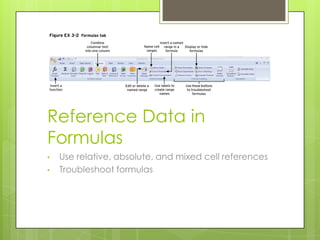
Reference Data in
Formulas
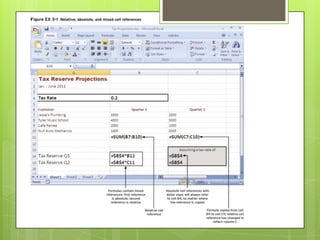
•   Use relative, absolute, and mixed cell references
•   Troubleshoot formulas
Relative References
 Relative references will change if they are
  copied and pasted or filled to a different
  location to reflect that location
How-To
1. Type an equal sign, “=“, in the formula bar or
    directly in the cell
2. Insert your cell reference by typing the cell
    address into the cell or by selecting the cell
3. Finish the formula using operators and
    additional cell references, then click Enter.
Absolute References
 Absolute references will not change based on
  where the “$” is located in the reference.
How-To
1. After entering the cell references, select the
   cell reference, one at a time, that you want
   to make an absolute reference and press F4
        The reference should now read $A$1
2.   Press Enter or Tab
Troubleshoot Formulas by
Tracing Precedents
 Precedents   are cells or ranges that affect
  the active cell’s value.
1. Click a cell that contains a formula
2. Click the Formulas tab, then click the
   Trace Precedents button in the Formula
   Auditing group
3. Double-click one of the blue arrows to
   navigate between the cell containing
   the formula and the precedent cell(s)
Troubleshoot Formulas by
Tracing Dependents
 Dependents    are cells or ranges affected
  by the active cell.
1. Click a cell that is referenced in a
   formula
2. Click the Formulas tab, then click the
   Trace Dependents button in the Formula
   Auditing group
3. Double-click one of the blue arrows to
   navigate between the cells
Troubleshoot by
Tracing, Locating and
Resolving Errors
1.   Click the cell that shows the error
        Common errors are shown on the next slide
2.   Click the Formulas tab, click the Error
     Checking list arrow in the Formula
     Auditing group, then click Trace Error
3.   Make edits to the formula in the formula
     bar
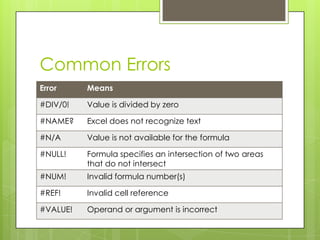
Common Errors
Error     Means

#DIV/0!   Value is divided by zero

#NAME?    Excel does not recognize text

#N/A      Value is not available for the formula

#NULL!    Formula specifies an intersection of two areas
          that do not intersect
#NUM!     Invalid formula number(s)

#REF!     Invalid cell reference

#VALUE!   Operand or argument is incorrect
Troubleshoot Using Error
Checking
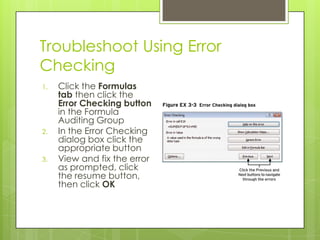
1.   Click the Formulas
     tab then click the
     Error Checking button
     in the Formula
     Auditing Group
2.   In the Error Checking
     dialog box click the
     appropriate button
3.   View and fix the error
     as prompted, click
     the resume button,
     then click OK
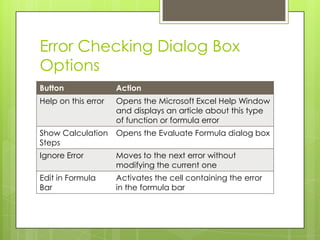
Error Checking Dialog Box
Options
Button               Action
Help on this error   Opens the Microsoft Excel Help Window
                     and displays an article about this type
                     of function or formula error
Show Calculation     Opens the Evaluate Formula dialog box
Steps
Ignore Error         Moves to the next error without
                     modifying the current one
Edit in Formula      Activates the cell containing the error
Bar                  in the formula bar
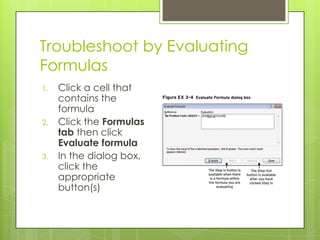
Troubleshoot by Evaluating
Formulas
1.   Click a cell that
     contains the
     formula
2.   Click the Formulas
     tab then click
     Evaluate formula
3.   In the dialog box,
     click the
     appropriate
     button(s)
Using References to Data in
Other Worksheets
   If necessary, open the workbook containing
    the data
   In the current workbook:
    1.   Click the cell that will contain the formula and
         type =
    2.   Click the workbook, or worksheet, containing
         the value you want to include and click the
         cell
    3.   Type an operand (such as + or -) to continue
         the formula and select other cells as necessary
    4.   Press [Enter]
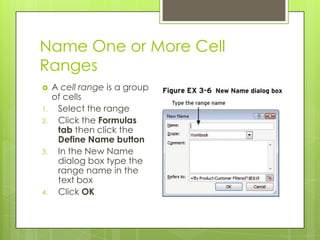
Name One or More Cell
Ranges
    A cell range is a group
     of cells
1.    Select the range
2.    Click the Formulas
      tab then click the
      Define Name button
3.    In the New Name
      dialog box type the
      range name in the
      text box
4.    Click OK
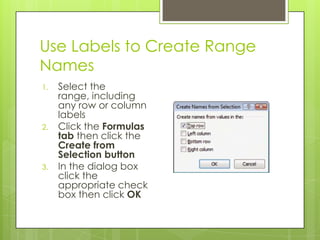
Use Labels to Create Range
Names
1.   Select the
     range, including
     any row or column
     labels
2.   Click the Formulas
     tab then click the
     Create from
     Selection button
3.   In the dialog box
     click the
     appropriate check
     box then click OK
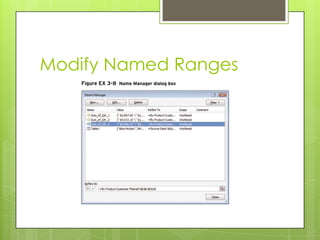
Modify Named Ranges
Insert a Named Range in a
Formula
1.   Click in the cell where the formula will
     appear and begin typing the formula
2.   When you need to insert the named
     range, click the Formulas tab, the Use in
     Formula button, then the range name in
     the drop-down menu
3.   Complete the formula as appropriate
Lesson Review
 Complete  the Get to know Excel 2007 –
 Enter formulas activity above this
 presentation.

Reference Data in Formulas

  • 1.
    Microsoft Excel 2007 Objective 3:Creating and Modifying Formulas
  • 2.
    In the Objectiveyou will learn how to: 1. Reference data in formulas 2. Summarize data using formulas 3. Summarize data using subtotals 4. Conditionally summarize data using a formula 5. Lookup data using a formula 6. Use conditional logic in a formula 7. Format or modify text using formulas, and 8. Display and print formulas
  • 3.
    Reference Data in Formulas • Use relative, absolute, and mixed cell references • Troubleshoot formulas
  • 4.
    Relative References  Relativereferences will change if they are copied and pasted or filled to a different location to reflect that location How-To 1. Type an equal sign, “=“, in the formula bar or directly in the cell 2. Insert your cell reference by typing the cell address into the cell or by selecting the cell 3. Finish the formula using operators and additional cell references, then click Enter.
  • 5.
    Absolute References  Absolutereferences will not change based on where the “$” is located in the reference. How-To 1. After entering the cell references, select the cell reference, one at a time, that you want to make an absolute reference and press F4  The reference should now read $A$1 2. Press Enter or Tab
  • 7.
    Troubleshoot Formulas by TracingPrecedents  Precedents are cells or ranges that affect the active cell’s value. 1. Click a cell that contains a formula 2. Click the Formulas tab, then click the Trace Precedents button in the Formula Auditing group 3. Double-click one of the blue arrows to navigate between the cell containing the formula and the precedent cell(s)
  • 8.
    Troubleshoot Formulas by TracingDependents  Dependents are cells or ranges affected by the active cell. 1. Click a cell that is referenced in a formula 2. Click the Formulas tab, then click the Trace Dependents button in the Formula Auditing group 3. Double-click one of the blue arrows to navigate between the cells
  • 9.
    Troubleshoot by Tracing, Locatingand Resolving Errors 1. Click the cell that shows the error  Common errors are shown on the next slide 2. Click the Formulas tab, click the Error Checking list arrow in the Formula Auditing group, then click Trace Error 3. Make edits to the formula in the formula bar
  • 10.
    Common Errors Error Means #DIV/0! Value is divided by zero #NAME? Excel does not recognize text #N/A Value is not available for the formula #NULL! Formula specifies an intersection of two areas that do not intersect #NUM! Invalid formula number(s) #REF! Invalid cell reference #VALUE! Operand or argument is incorrect
  • 11.
    Troubleshoot Using Error Checking 1. Click the Formulas tab then click the Error Checking button in the Formula Auditing Group 2. In the Error Checking dialog box click the appropriate button 3. View and fix the error as prompted, click the resume button, then click OK
  • 12.
    Error Checking DialogBox Options Button Action Help on this error Opens the Microsoft Excel Help Window and displays an article about this type of function or formula error Show Calculation Opens the Evaluate Formula dialog box Steps Ignore Error Moves to the next error without modifying the current one Edit in Formula Activates the cell containing the error Bar in the formula bar
  • 13.
    Troubleshoot by Evaluating Formulas 1. Click a cell that contains the formula 2. Click the Formulas tab then click Evaluate formula 3. In the dialog box, click the appropriate button(s)
  • 14.
    Using References toData in Other Worksheets  If necessary, open the workbook containing the data  In the current workbook: 1. Click the cell that will contain the formula and type = 2. Click the workbook, or worksheet, containing the value you want to include and click the cell 3. Type an operand (such as + or -) to continue the formula and select other cells as necessary 4. Press [Enter]
  • 15.
    Name One orMore Cell Ranges  A cell range is a group of cells 1. Select the range 2. Click the Formulas tab then click the Define Name button 3. In the New Name dialog box type the range name in the text box 4. Click OK
  • 16.
    Use Labels toCreate Range Names 1. Select the range, including any row or column labels 2. Click the Formulas tab then click the Create from Selection button 3. In the dialog box click the appropriate check box then click OK
  • 17.
  • 18.
    Insert a NamedRange in a Formula 1. Click in the cell where the formula will appear and begin typing the formula 2. When you need to insert the named range, click the Formulas tab, the Use in Formula button, then the range name in the drop-down menu 3. Complete the formula as appropriate
  • 19.
    Lesson Review  Complete the Get to know Excel 2007 – Enter formulas activity above this presentation.