Excel 2007
Objective 4: Presenting
Data Visually
Lesson Skills
 By
   the end of the lesson you should be
 familiar with:
    How-to create a chart from data
    How to choose a chart layout
    How-to choose and apply a chart style
Create and Format
Charts
Create a chart, chart types, formatting a chart
using styles
Charts
 To   create a chart
 1.    Select the data range you want to use to
       create a chart
 2.    Click the Insert tab, lick a chart type
       button in the Charts group
 3.    Choose a chart type appropriate to the
       data you have selected
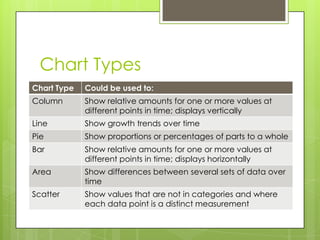
Chart Types
Chart Type   Could be used to:
Column       Show relative amounts for one or more values at
             different points in time; displays vertically
Line         Show growth trends over time
Pie          Show proportions or percentages of parts to a whole
Bar          Show relative amounts for one or more values at
             different points in time; displays horizontally
Area         Show differences between several sets of data over
             time
Scatter      Show values that are not in categories and where
             each data point is a distinct measurement
Chart Practice
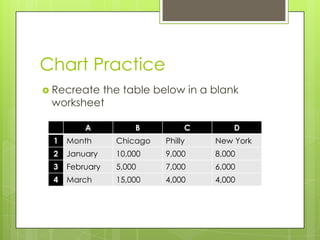
 Recreatethe table below in a blank
 worksheet

         A          B          C       D
 1   Month      Chicago   Philly   New York
 2   January    10,000    9,000    8,000
 3   February   5,000     7,000    6,000
 4   March      15,000    4,000    4,000
Chart Practice
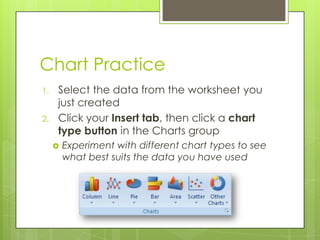
1.   Select the data from the worksheet you
     just created
2.   Click your Insert tab, then click a chart
     type button in the Charts group
        Experiment with different chart types to see
         what best suits the data you have used
Using Quick Layouts to Format
Charts
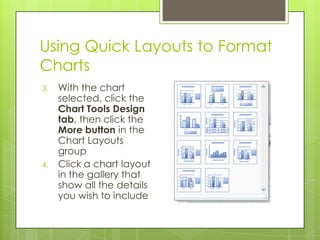
3.   With the chart
     selected, click the
     Chart Tools Design
     tab, then click the
     More button in the
     Chart Layouts
     group
4.   Click a chart layout
     in the gallery that
     show all the details
     you wish to include
Using Quick Styles to Format
Charts
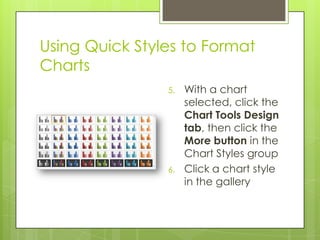
                5.   With a chart
                     selected, click the
                     Chart Tools Design
                     tab, then click the
                     More button in the
                     Chart Styles group
                6.   Click a chart style
                     in the gallery

Creating and Modifying Charts

  • 1.
    Excel 2007 Objective 4:Presenting Data Visually
  • 2.
    Lesson Skills  By the end of the lesson you should be familiar with:  How-to create a chart from data  How to choose a chart layout  How-to choose and apply a chart style
  • 3.
    Create and Format Charts Createa chart, chart types, formatting a chart using styles
  • 4.
    Charts  To create a chart 1. Select the data range you want to use to create a chart 2. Click the Insert tab, lick a chart type button in the Charts group 3. Choose a chart type appropriate to the data you have selected
  • 5.
    Chart Types Chart Type Could be used to: Column Show relative amounts for one or more values at different points in time; displays vertically Line Show growth trends over time Pie Show proportions or percentages of parts to a whole Bar Show relative amounts for one or more values at different points in time; displays horizontally Area Show differences between several sets of data over time Scatter Show values that are not in categories and where each data point is a distinct measurement
  • 6.
    Chart Practice  Recreatethetable below in a blank worksheet A B C D 1 Month Chicago Philly New York 2 January 10,000 9,000 8,000 3 February 5,000 7,000 6,000 4 March 15,000 4,000 4,000
  • 7.
    Chart Practice 1. Select the data from the worksheet you just created 2. Click your Insert tab, then click a chart type button in the Charts group  Experiment with different chart types to see what best suits the data you have used
  • 8.
    Using Quick Layoutsto Format Charts 3. With the chart selected, click the Chart Tools Design tab, then click the More button in the Chart Layouts group 4. Click a chart layout in the gallery that show all the details you wish to include
  • 9.
    Using Quick Stylesto Format Charts 5. With a chart selected, click the Chart Tools Design tab, then click the More button in the Chart Styles group 6. Click a chart style in the gallery