SETTING UP A
NETWORK
Computer Hardware Servicing
Grade 10; Module 4
MA. RACHEL B. ESPINO
Buhatan National HS
Sorsogon City
• Although setting up a home network is not necessarily an
expensive or difficult project, you just need to have few
basic pieces of hardware to connect your computers,
printers, gaming consoles, and assorted gadgets to each
other — and to the Internet.
Networking Hardware Requirements
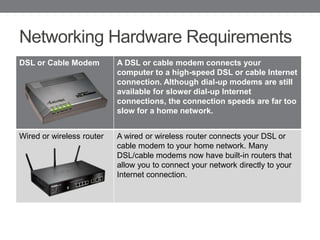
DSL or Cable Modem A DSL or cable modem connects your
computer to a high-speed DSL or cable Internet
connection. Although dial-up modems are still
available for slower dial-up Internet
connections, the connection speeds are far too
slow for a home network.
Wired or wireless router A wired or wireless router connects your DSL or
cable modem to your home network. Many
DSL/cable modems now have built-in routers that
allow you to connect your network directly to your
Internet connection.
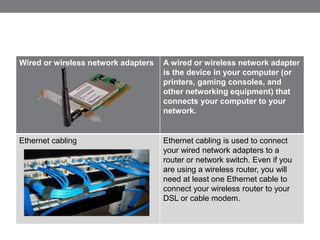
Wired or wireless network adapters A wired or wireless network adapter
is the device in your computer (or
printers, gaming consoles, and
other networking equipment) that
connects your computer to your
network.
Ethernet cabling Ethernet cabling is used to connect
your wired network adapters to a
router or network switch. Even if you
are using a wireless router, you will
need at least one Ethernet cable to
connect your wireless router to your
DSL or cable modem.
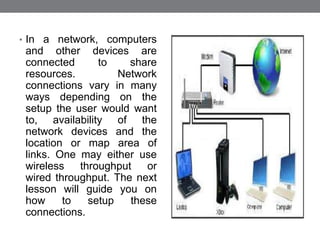
• In a network, computers
and other devices are
connected to share
resources. Network
connections vary in many
ways depending on the
setup the user would want
to, availability of the
network devices and the
location or map area of
links. One may either use
wireless throughput or
wired throughput. The next
lesson will guide you on
how to setup these
connections.
ROUTER BASICS
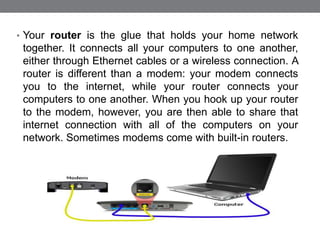
• Your router is the glue that holds your home network
together. It connects all your computers to one another,
either through Ethernet cables or a wireless connection. A
router is different than a modem: your modem connects
you to the internet, while your router connects your
computers to one another. When you hook up your router
to the modem, however, you are then able to share that
internet connection with all of the computers on your
network. Sometimes modems come with built-in routers.
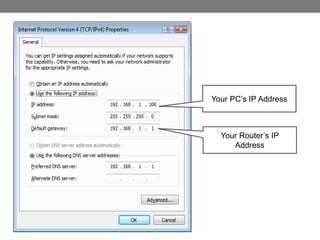
• Devices that connect to your router—that is, the
computers, tablets, smartphones, DVRs, game systems,
and so on—are called clients. Each client on the network
is given an IP address, which helps your router direct
traffic. Clients within the network get a local IP address,
while your modem gets a global IP address. Global IP
addresses are like street addresses, while local IP
addresses are like apartment numbers: one lets you find
the building in relation to the rest of the world, while the
other lets you find the specific location within the complex.
These addresses make sure the right information from the
outside world gets to the right computer on your network.
Your PC’s IP Address
Your Router’s IP
Address
Wireless Throughput
• Throughput is the speed at which a router can transfer
data. The transfer speed of your wireless connection is
dependent on the wireless standard it uses. The most
common standards today are 802.11g and 802.11n (also
known as "wireless G" and "wireless N", respectively).
Wireless N is faster than wireless G, though routers that
support wireless N are also more expensive. Most new
devices—like smartphones and laptops—support the
faster wireless N.
Wired Throughput
• The wired half of your router will come in one of two
speeds: 10/100 Mbps and 10/100/1000 Mbps (also known
as "gigabit"). 10/100 routers are cheaper, but will not
transfer data between computers as quickly as gigabit
routers will. If you are only using your router to connect to
the internet, 10/100 is fine, since your internet connection
is probably slower than 100Mbps, meaning you will not be
able to actually take advantage of the router's full speed.
If you are transferring data between computers, however,
you may want to go with a gigabit router, since it will
transfer that data much faster than a 10/100 model.
Range
• Wireless routers can only reach a limited area of distance. If
you have a big house and have the router on one side, you
might not be able to access the network from the other side of
the house. Your range, like your speed, is determined by the
wireless standard you use. Wireless N has a longer range than
wireless G, so if range is important you will want to use
wireless N.
• That said, there are many other ways to connect to your
network from afar. Wireless extenders (also called wireless
repeaters) are products you can buy that do exactly what the
manuals say to extend your network further. Alternatively, you
can buy a powerline adapter, which lets you use your home's
electrical wiring to hook a distant device up to your router with
an Ethernet cable (and thus get a faster connection than
wireless would allow for).
Number of Ports
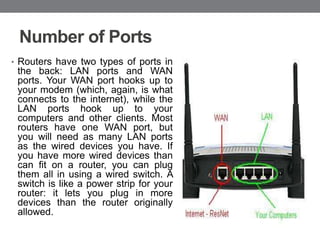
• Routers have two types of ports in
the back: LAN ports and WAN
ports. Your WAN port hooks up to
your modem (which, again, is what
connects to the internet), while the
LAN ports hook up to your
computers and other clients. Most
routers have one WAN port, but
you will need as many LAN ports
as the wired devices you have. If
you have more wired devices than
can fit on a router, you can plug
them all in using a wired switch. A
switch is like a power strip for your
router: it lets you plug in more
devices than the router originally
allowed.
Wireless Security
• Unless you do not mind strangers eating your bandwidth
and potentially accessing your networked files, you should
always protect your wireless network with a password.
WPA2 is currently the most secure type of wireless
encryption, so make sure you use WPA2 if you can. Some
old wireless devices do not support WPA, in which case
you will have to use the less secure WEP instead.
Basically, every devices made in the last four years
supports WPA2 encryption.
NETWORK LAYOUT
FLOOR PLAN
• "Network layout floor plan" contain 34 symbol icons for
drawing computer network floor plans and communication
equipment and cabling layouts.
• Networking hardware may also be known as network
equipment or computer networking devices. Units which
are the last receiver or generate data are called hosts or
data terminal equipment. All these terms refer to devices
facilitating the use of a computer network. Specifically,
they mediate data in a computer network.
• Typically, networking hardware includes gateways,
routers, network bridges, switches, hubs, and repeaters.
But it also includes hybrid network devices such as
multilayer switches, protocol converters, bridge routers,
proxy servers, firewalls, network address translators,
multiplexers, network interface controllers, wireless
network interface controllers, modems, ISDN terminal
adapters, line drivers, wireless access points, networking
cables and other related hardware.
• The most common kind of networking hardware today is a
copper-based Ethernet adapter because of its standard
inclusion on most modern computer systems. Wireless
networking has, however, become increasingly popular,
especially for portable and handheld devices. Other
hardware prevalent in computer networking includes data
center equipment (such as file servers, database servers
and storage areas), network services (such as DNS,
DHCP, email, etc.) as well as devices which assure
content delivery.
Setting up a network

Setting up a network

  • 1.
    SETTING UP A NETWORK ComputerHardware Servicing Grade 10; Module 4 MA. RACHEL B. ESPINO Buhatan National HS Sorsogon City
  • 2.
    • Although settingup a home network is not necessarily an expensive or difficult project, you just need to have few basic pieces of hardware to connect your computers, printers, gaming consoles, and assorted gadgets to each other — and to the Internet.
  • 3.
    Networking Hardware Requirements DSLor Cable Modem A DSL or cable modem connects your computer to a high-speed DSL or cable Internet connection. Although dial-up modems are still available for slower dial-up Internet connections, the connection speeds are far too slow for a home network. Wired or wireless router A wired or wireless router connects your DSL or cable modem to your home network. Many DSL/cable modems now have built-in routers that allow you to connect your network directly to your Internet connection.
  • 4.
    Wired or wirelessnetwork adapters A wired or wireless network adapter is the device in your computer (or printers, gaming consoles, and other networking equipment) that connects your computer to your network. Ethernet cabling Ethernet cabling is used to connect your wired network adapters to a router or network switch. Even if you are using a wireless router, you will need at least one Ethernet cable to connect your wireless router to your DSL or cable modem.
  • 5.
    • In anetwork, computers and other devices are connected to share resources. Network connections vary in many ways depending on the setup the user would want to, availability of the network devices and the location or map area of links. One may either use wireless throughput or wired throughput. The next lesson will guide you on how to setup these connections.
  • 6.
  • 7.
    • Your routeris the glue that holds your home network together. It connects all your computers to one another, either through Ethernet cables or a wireless connection. A router is different than a modem: your modem connects you to the internet, while your router connects your computers to one another. When you hook up your router to the modem, however, you are then able to share that internet connection with all of the computers on your network. Sometimes modems come with built-in routers.
  • 8.
    • Devices thatconnect to your router—that is, the computers, tablets, smartphones, DVRs, game systems, and so on—are called clients. Each client on the network is given an IP address, which helps your router direct traffic. Clients within the network get a local IP address, while your modem gets a global IP address. Global IP addresses are like street addresses, while local IP addresses are like apartment numbers: one lets you find the building in relation to the rest of the world, while the other lets you find the specific location within the complex. These addresses make sure the right information from the outside world gets to the right computer on your network.
  • 9.
    Your PC’s IPAddress Your Router’s IP Address
  • 10.
    Wireless Throughput • Throughputis the speed at which a router can transfer data. The transfer speed of your wireless connection is dependent on the wireless standard it uses. The most common standards today are 802.11g and 802.11n (also known as "wireless G" and "wireless N", respectively). Wireless N is faster than wireless G, though routers that support wireless N are also more expensive. Most new devices—like smartphones and laptops—support the faster wireless N.
  • 11.
    Wired Throughput • Thewired half of your router will come in one of two speeds: 10/100 Mbps and 10/100/1000 Mbps (also known as "gigabit"). 10/100 routers are cheaper, but will not transfer data between computers as quickly as gigabit routers will. If you are only using your router to connect to the internet, 10/100 is fine, since your internet connection is probably slower than 100Mbps, meaning you will not be able to actually take advantage of the router's full speed. If you are transferring data between computers, however, you may want to go with a gigabit router, since it will transfer that data much faster than a 10/100 model.
  • 12.
    Range • Wireless routerscan only reach a limited area of distance. If you have a big house and have the router on one side, you might not be able to access the network from the other side of the house. Your range, like your speed, is determined by the wireless standard you use. Wireless N has a longer range than wireless G, so if range is important you will want to use wireless N. • That said, there are many other ways to connect to your network from afar. Wireless extenders (also called wireless repeaters) are products you can buy that do exactly what the manuals say to extend your network further. Alternatively, you can buy a powerline adapter, which lets you use your home's electrical wiring to hook a distant device up to your router with an Ethernet cable (and thus get a faster connection than wireless would allow for).
  • 13.
    Number of Ports •Routers have two types of ports in the back: LAN ports and WAN ports. Your WAN port hooks up to your modem (which, again, is what connects to the internet), while the LAN ports hook up to your computers and other clients. Most routers have one WAN port, but you will need as many LAN ports as the wired devices you have. If you have more wired devices than can fit on a router, you can plug them all in using a wired switch. A switch is like a power strip for your router: it lets you plug in more devices than the router originally allowed.
  • 14.
    Wireless Security • Unlessyou do not mind strangers eating your bandwidth and potentially accessing your networked files, you should always protect your wireless network with a password. WPA2 is currently the most secure type of wireless encryption, so make sure you use WPA2 if you can. Some old wireless devices do not support WPA, in which case you will have to use the less secure WEP instead. Basically, every devices made in the last four years supports WPA2 encryption.
  • 16.
  • 17.
    • "Network layoutfloor plan" contain 34 symbol icons for drawing computer network floor plans and communication equipment and cabling layouts. • Networking hardware may also be known as network equipment or computer networking devices. Units which are the last receiver or generate data are called hosts or data terminal equipment. All these terms refer to devices facilitating the use of a computer network. Specifically, they mediate data in a computer network.
  • 18.
    • Typically, networkinghardware includes gateways, routers, network bridges, switches, hubs, and repeaters. But it also includes hybrid network devices such as multilayer switches, protocol converters, bridge routers, proxy servers, firewalls, network address translators, multiplexers, network interface controllers, wireless network interface controllers, modems, ISDN terminal adapters, line drivers, wireless access points, networking cables and other related hardware.
  • 19.
    • The mostcommon kind of networking hardware today is a copper-based Ethernet adapter because of its standard inclusion on most modern computer systems. Wireless networking has, however, become increasingly popular, especially for portable and handheld devices. Other hardware prevalent in computer networking includes data center equipment (such as file servers, database servers and storage areas), network services (such as DNS, DHCP, email, etc.) as well as devices which assure content delivery.