QUERYING THE DATA & SELECTING FEATURES
About SQL
Structured Query Language (SQL) queries allow you to select features by using
feature attributes. When you choose the feature attributes you want to use in
the query, you can then specify a range of values to use to define a selection set
for a tool
SQL queries can be used to define which features should be used to create map
sheets as well as with some of the dynamic text elements. In defining which
features to use as areas of interest for map sheets in a map series, you could
decide that you only want to include certain polygon features from a feature
class
Steps
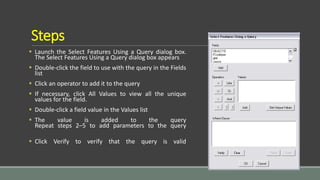
 Launch the Select Features Using a Query dialog box.
The Select Features Using a Query dialog box appears
 Double-click the field to use with the query in the Fields
list
 Click an operator to add it to the query
 If necessary, click All Values to view all the unique
values for the field.
 Double-click a field value in the Values list
 The value is added to the query
Repeat steps 2–5 to add parameters to the query
 Click Verify to verify that the query is valid
Using Select by Attributes
 Click Selection on the Main menu and click Select By Attributes
 Click the Layer drop-down arrow and click the layer containing the features you want to
select
 Click the Method drop-down arrow and click a selection method
 Double-click a field to add the field name to the expression box
 If you want to sort the list of fields or see the fields by their aliases, click the small
button on the top right of the fields list. Click an operator to add it to the expression
 Click Get Unique Values to see the values for the selected field
 Double-click a value to add it to the expression. Click the Verify button to see if you are
using proper syntax or if the criteria you've entered will select any features
Using Select by Attributes (Contd..)
 Click Apply
 The status bar at the bottom of the ArcMap window tells
you how many features are selected.
Use the Clear button to empty the expression box
 Use the Save and Load buttons respectively to save your
current query as a file or load an existing one
 The files used to save the queries have a .exp extension
but can be edited with any text editor. Only the content of
the expression box is saved in the file, not the complete
expression. Click Close when you are finished selecting
features
Using Select by Location
 Click Selection and click Select By Location
 Click the drop-down arrow and click a selection method
 Check the layers whose features you would like to select
 Click the drop-down arrow and click a selection method
 Click the drop-down arrow and click the layer you want to use to search for the features
 Optionally, check to use only the selected features
 Optionally, check Apply a buffer to the features in <layer> and set the distance within which to
search for features
 Click Apply or click OK if you want to execute the query and close the dialog box in one click
 ArcMap selects the features. Click Close when you've finished selecting features
Using Select by Graphic
 The Select By Graphics command allows you to select features (from all selectable layers) that
intersect a selected graphic element. This can be used with most graphic elements except those
containing text or curves
 To use this function, select one or more graphic elements with the Select Elements tool The Select
By Graphics command on the Selection menu will then be enabled
 Use an existing graphic element or create a new one
 To create a new graphic, click the New Graphic tool drop-down arrow on the Draw toolbar, click a
tool, such as the New Rectangle tool , and draw a new graphic in the view
 Optionally, click the Fill Color drop-down arrow and click No Color.
When the features are selected, you can see the selected features under
the graphic
 Select the graphic. Click Selection on the Main menu and click Select
By Graphics
 The features contained by or intersecting the graphic will be highlighted to
show they are selected

Querying the data and selecting features in ARC GIS

  • 1.
    QUERYING THE DATA& SELECTING FEATURES
  • 2.
    About SQL Structured QueryLanguage (SQL) queries allow you to select features by using feature attributes. When you choose the feature attributes you want to use in the query, you can then specify a range of values to use to define a selection set for a tool SQL queries can be used to define which features should be used to create map sheets as well as with some of the dynamic text elements. In defining which features to use as areas of interest for map sheets in a map series, you could decide that you only want to include certain polygon features from a feature class
  • 3.
    Steps  Launch theSelect Features Using a Query dialog box. The Select Features Using a Query dialog box appears  Double-click the field to use with the query in the Fields list  Click an operator to add it to the query  If necessary, click All Values to view all the unique values for the field.  Double-click a field value in the Values list  The value is added to the query Repeat steps 2–5 to add parameters to the query  Click Verify to verify that the query is valid
  • 4.
    Using Select byAttributes  Click Selection on the Main menu and click Select By Attributes  Click the Layer drop-down arrow and click the layer containing the features you want to select  Click the Method drop-down arrow and click a selection method  Double-click a field to add the field name to the expression box  If you want to sort the list of fields or see the fields by their aliases, click the small button on the top right of the fields list. Click an operator to add it to the expression  Click Get Unique Values to see the values for the selected field  Double-click a value to add it to the expression. Click the Verify button to see if you are using proper syntax or if the criteria you've entered will select any features
  • 5.
    Using Select byAttributes (Contd..)  Click Apply  The status bar at the bottom of the ArcMap window tells you how many features are selected. Use the Clear button to empty the expression box  Use the Save and Load buttons respectively to save your current query as a file or load an existing one  The files used to save the queries have a .exp extension but can be edited with any text editor. Only the content of the expression box is saved in the file, not the complete expression. Click Close when you are finished selecting features
  • 6.
    Using Select byLocation  Click Selection and click Select By Location  Click the drop-down arrow and click a selection method  Check the layers whose features you would like to select  Click the drop-down arrow and click a selection method  Click the drop-down arrow and click the layer you want to use to search for the features  Optionally, check to use only the selected features  Optionally, check Apply a buffer to the features in <layer> and set the distance within which to search for features  Click Apply or click OK if you want to execute the query and close the dialog box in one click  ArcMap selects the features. Click Close when you've finished selecting features
  • 7.
    Using Select byGraphic  The Select By Graphics command allows you to select features (from all selectable layers) that intersect a selected graphic element. This can be used with most graphic elements except those containing text or curves  To use this function, select one or more graphic elements with the Select Elements tool The Select By Graphics command on the Selection menu will then be enabled  Use an existing graphic element or create a new one  To create a new graphic, click the New Graphic tool drop-down arrow on the Draw toolbar, click a tool, such as the New Rectangle tool , and draw a new graphic in the view  Optionally, click the Fill Color drop-down arrow and click No Color. When the features are selected, you can see the selected features under the graphic  Select the graphic. Click Selection on the Main menu and click Select By Graphics  The features contained by or intersecting the graphic will be highlighted to show they are selected