Excel 2007
Working with Cells
Introduction
Working with Cells
Watch the video! (6:10min) - Tips for watching our videos.
Download the example to work along with the video.
To Copy and Paste Cell Contents:
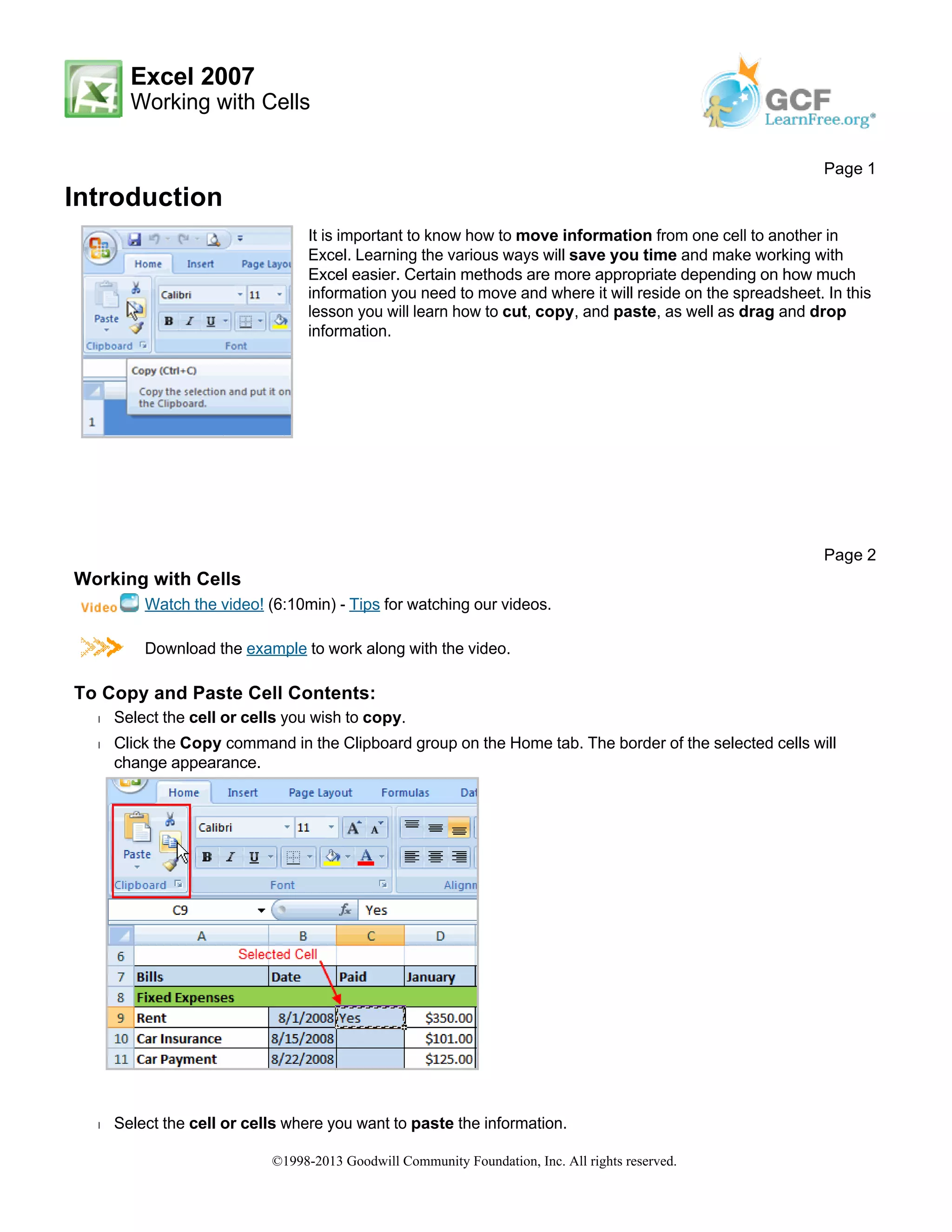
Š Select the cell or cells you wish to copy.
Š Click the Copy command in the Clipboard group on the Home tab. The border of the selected cells will
change appearance.
Š Select the cell or cells where you want to paste the information.
Page 1
It is important to know how to move information from one cell to another in
Excel. Learning the various ways will save you time and make working with
Excel easier. Certain methods are more appropriate depending on how much
information you need to move and where it will reside on the spreadsheet. In this
lesson you will learn how to cut, copy, and paste, as well as drag and drop
information.
Page 2
©1998-2013 Goodwill Community Foundation, Inc. All rights reserved.
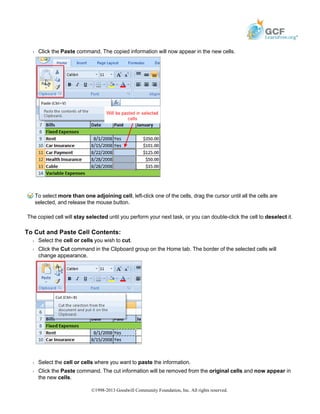
Š Click the Paste command. The copied information will now appear in the new cells.
To select more than one adjoining cell, left-click one of the cells, drag the cursor until all the cells are
selected, and release the mouse button.
The copied cell will stay selected until you perform your next task, or you can double-click the cell to deselect it.
To Cut and Paste Cell Contents:
Š Select the cell or cells you wish to cut.
Š Click the Cut command in the Clipboard group on the Home tab. The border of the selected cells will
change appearance.
Š Select the cell or cells where you want to paste the information.
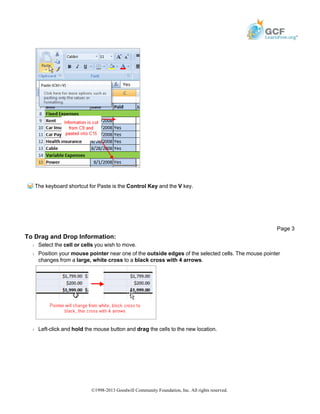
Š Click the Paste command. The cut information will be removed from the original cells and now appear in
the new cells.
©1998-2013 Goodwill Community Foundation, Inc. All rights reserved.
The keyboard shortcut for Paste is the Control Key and the V key.
To Drag and Drop Information:
Š Select the cell or cells you wish to move.
Š Position your mouse pointer near one of the outside edges of the selected cells. The mouse pointer
changes from a large, white cross to a black cross with 4 arrows.
Š Left-click and hold the mouse button and drag the cells to the new location.
Page 3
©1998-2013 Goodwill Community Foundation, Inc. All rights reserved.
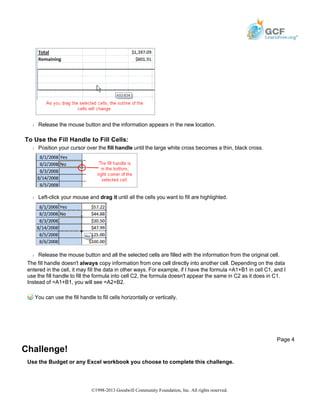
Š Release the mouse button and the information appears in the new location.
To Use the Fill Handle to Fill Cells:
Š Position your cursor over the fill handle until the large white cross becomes a thin, black cross.
Š Left-click your mouse and drag it until all the cells you want to fill are highlighted.
Š Release the mouse button and all the selected cells are filled with the information from the original cell.
The fill handle doesn't always copy information from one cell directly into another cell. Depending on the data
entered in the cell, it may fill the data in other ways. For example, if I have the formula =A1+B1 in cell C1, and I
use the fill handle to fill the formula into cell C2, the formula doesn't appear the same in C2 as it does in C1.
Instead of =A1+B1, you will see =A2+B2.
You can use the fill handle to fill cells horizontally or vertically.
Challenge!
Use the Budget or any Excel workbook you choose to complete this challenge.
Page 4
©1998-2013 Goodwill Community Foundation, Inc. All rights reserved.
Š Copy and paste information from one cell to another cell.
Š Use the Cut command to remove information from one cell and then paste it into
another cell.
Š Use the fill handle to fill 2 or more cells.
Š Drag and drop information from one place in the spreadsheet to another
location.
©1998-2013 Goodwill Community Foundation, Inc. All rights reserved.

Print6.pdf

  • 1.
    Excel 2007 Working withCells Introduction Working with Cells Watch the video! (6:10min) - Tips for watching our videos. Download the example to work along with the video. To Copy and Paste Cell Contents: Š Select the cell or cells you wish to copy. Š Click the Copy command in the Clipboard group on the Home tab. The border of the selected cells will change appearance. Š Select the cell or cells where you want to paste the information. Page 1 It is important to know how to move information from one cell to another in Excel. Learning the various ways will save you time and make working with Excel easier. Certain methods are more appropriate depending on how much information you need to move and where it will reside on the spreadsheet. In this lesson you will learn how to cut, copy, and paste, as well as drag and drop information. Page 2 ©1998-2013 Goodwill Community Foundation, Inc. All rights reserved.
  • 2.
    Š Click thePaste command. The copied information will now appear in the new cells. To select more than one adjoining cell, left-click one of the cells, drag the cursor until all the cells are selected, and release the mouse button. The copied cell will stay selected until you perform your next task, or you can double-click the cell to deselect it. To Cut and Paste Cell Contents: Š Select the cell or cells you wish to cut. Š Click the Cut command in the Clipboard group on the Home tab. The border of the selected cells will change appearance. Š Select the cell or cells where you want to paste the information. Š Click the Paste command. The cut information will be removed from the original cells and now appear in the new cells. ©1998-2013 Goodwill Community Foundation, Inc. All rights reserved.
  • 3.
    The keyboard shortcutfor Paste is the Control Key and the V key. To Drag and Drop Information: Š Select the cell or cells you wish to move. Š Position your mouse pointer near one of the outside edges of the selected cells. The mouse pointer changes from a large, white cross to a black cross with 4 arrows. Š Left-click and hold the mouse button and drag the cells to the new location. Page 3 ©1998-2013 Goodwill Community Foundation, Inc. All rights reserved.
  • 4.
    Š Release themouse button and the information appears in the new location. To Use the Fill Handle to Fill Cells: Š Position your cursor over the fill handle until the large white cross becomes a thin, black cross. Š Left-click your mouse and drag it until all the cells you want to fill are highlighted. Š Release the mouse button and all the selected cells are filled with the information from the original cell. The fill handle doesn't always copy information from one cell directly into another cell. Depending on the data entered in the cell, it may fill the data in other ways. For example, if I have the formula =A1+B1 in cell C1, and I use the fill handle to fill the formula into cell C2, the formula doesn't appear the same in C2 as it does in C1. Instead of =A1+B1, you will see =A2+B2. You can use the fill handle to fill cells horizontally or vertically. Challenge! Use the Budget or any Excel workbook you choose to complete this challenge. Page 4 ©1998-2013 Goodwill Community Foundation, Inc. All rights reserved.
  • 5.
    Š Copy andpaste information from one cell to another cell. Š Use the Cut command to remove information from one cell and then paste it into another cell. Š Use the fill handle to fill 2 or more cells. Š Drag and drop information from one place in the spreadsheet to another location. ©1998-2013 Goodwill Community Foundation, Inc. All rights reserved.