Excel: How to… Mr. Lowery Consumer Education NTLC
Write a Formula  The basic rule for writing a formula in a cell is to first choose the cell and type in “=(“ The = sign tells the cell you are going to input a formula. The ( sign tells the parameters of the formula. EXAMPLE =(12*5) tells the cell to multiply 12 times 5 Press enter to finish formula
Oh No! Excel will tell you if there is a problem.  Either a prompt will come up or specific symbols will result in the cell. #####  means there is information in the cell that is too long to fit into the cell Remedy-stretch the column to fit the largest number in the column XDIV/0!  Means that you have set up to divide something by zero, which is mathematically impossible. Remedy-double check formula and cells and make sure there is a number in each cell (an empty cell is assumed to be 0.
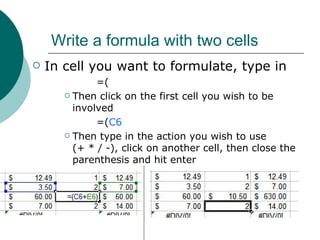
Write a formula with two cells In cell you want to formulate, type in =( Then click on the first cell you wish to be involved =( C6 Then type in the action you wish to use  (+ * / -), click on another cell, then close the parenthesis and hit enter
Notes Once you type in = any cell you then click will be put into the formula, hit ESC if there is an accident and try again. Be careful of the order of the items especially when you are dividing.
Add a hyperlink Excel lets you add a hyperlink in two ways.  The ugly old fashion  http://chicago.cubs.mlb.com/schedule/index.jsp?c_id=chc or a clean formatted  Go Cubs! This is a good attractive way to add hyperlinks in any Microsoft program.
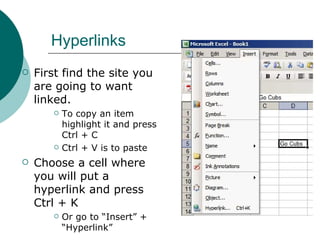
Hyperlinks First find the site you are going to want linked.  To copy an item highlight it and press Ctrl + C Ctrl + V is to paste Choose a cell where you will put a hyperlink and press Ctrl + K Or go to “Insert” + “Hyperlink”
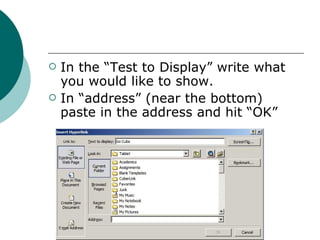
In the “Test to Display” write what you would like to show. In “address” (near the bottom) paste in the address and hit “OK”
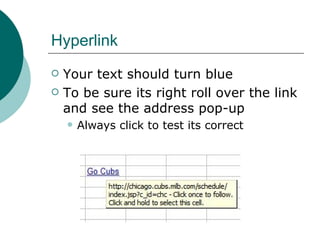
Hyperlink Your text should turn blue  To be sure its right roll over the link and see the address pop-up Always click to test its correct
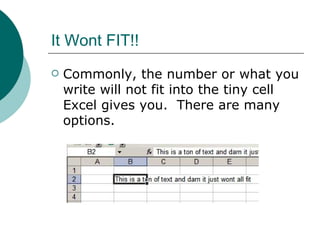
It Wont FIT!! Commonly, the number or what you write will not fit into the tiny cell Excel gives you.  There are many options.
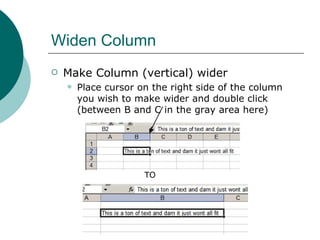
Widen Column Make Column (vertical) wider Place cursor on the right side of the column you wish to make wider and double click (between B and C in the gray area here) TO
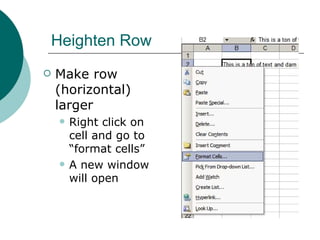
Heighten Row Make row (horizontal) larger Right click on cell and go to “format cells”  A new window will open
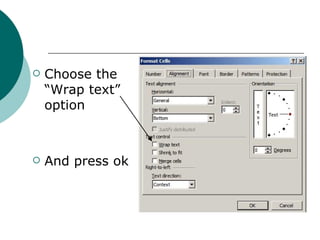
Choose the “Wrap text” option And press ok
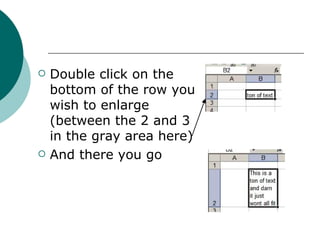
Double click on the bottom of the row you wish to enlarge (between the 2 and 3 in the gray area here) And there you go

Excel

  • 1.
    Excel: How to…Mr. Lowery Consumer Education NTLC
  • 2.
    Write a Formula The basic rule for writing a formula in a cell is to first choose the cell and type in “=(“ The = sign tells the cell you are going to input a formula. The ( sign tells the parameters of the formula. EXAMPLE =(12*5) tells the cell to multiply 12 times 5 Press enter to finish formula
  • 3.
    Oh No! Excelwill tell you if there is a problem. Either a prompt will come up or specific symbols will result in the cell. ##### means there is information in the cell that is too long to fit into the cell Remedy-stretch the column to fit the largest number in the column XDIV/0! Means that you have set up to divide something by zero, which is mathematically impossible. Remedy-double check formula and cells and make sure there is a number in each cell (an empty cell is assumed to be 0.
  • 4.
    Write a formulawith two cells In cell you want to formulate, type in =( Then click on the first cell you wish to be involved =( C6 Then type in the action you wish to use (+ * / -), click on another cell, then close the parenthesis and hit enter
  • 5.
    Notes Once youtype in = any cell you then click will be put into the formula, hit ESC if there is an accident and try again. Be careful of the order of the items especially when you are dividing.
  • 6.
    Add a hyperlinkExcel lets you add a hyperlink in two ways. The ugly old fashion http://chicago.cubs.mlb.com/schedule/index.jsp?c_id=chc or a clean formatted Go Cubs! This is a good attractive way to add hyperlinks in any Microsoft program.
  • 7.
    Hyperlinks First findthe site you are going to want linked. To copy an item highlight it and press Ctrl + C Ctrl + V is to paste Choose a cell where you will put a hyperlink and press Ctrl + K Or go to “Insert” + “Hyperlink”
  • 8.
    In the “Testto Display” write what you would like to show. In “address” (near the bottom) paste in the address and hit “OK”
  • 9.
    Hyperlink Your textshould turn blue To be sure its right roll over the link and see the address pop-up Always click to test its correct
  • 10.
    It Wont FIT!!Commonly, the number or what you write will not fit into the tiny cell Excel gives you. There are many options.
  • 11.
    Widen Column MakeColumn (vertical) wider Place cursor on the right side of the column you wish to make wider and double click (between B and C in the gray area here) TO
  • 12.
    Heighten Row Makerow (horizontal) larger Right click on cell and go to “format cells” A new window will open
  • 13.
    Choose the “Wraptext” option And press ok
  • 14.
    Double click onthe bottom of the row you wish to enlarge (between the 2 and 3 in the gray area here) And there you go