Excel 2007
Creating Complex Formulas
Introduction
Complex Formulas
Watch the video! (12:26min) - Tips for watching our videos.
Download the example to work along with the video.
Complex Formulas Defined
Simple formulas have one mathematical operation. Complex formulas involve more than one mathematical
operation.
Simple Formula: =2+2
Complex Formula: =2+2*8
To calculate complex formulas correctly, you must perform certain operations before others. This is defined in the
order of operations.
The Order of Operations
The order of mathematical operations is very important. If you enter a formula that contains several operations,
Excel knows to work those operations in a specific order. The order of operations is:
1. Operations enclosed in parenthesis
2. Exponential calculations (to the power of)
3. Multiplication and division, whichever comes first
4. Addition and subtraction, whichever comes first
Page 1
Excel is a spreadsheet application and is intended to be used to calculate and
analyze numerical information such as household budgets, company finances,
inventory, and more. To do this, you need to understand formulas.
In this lesson, we’ll discuss complex formulas that use multiple mathematical
operators, and that use absolute and relative references.
Page 2
©1998-2013 Goodwill Community Foundation, Inc. All rights reserved.
A mnemonic that can help you remember this is Please Excuse My Dear Aunt Sally (P.E.M.D.A.S).
Example 1
Using this order, let us see how the formula 20/(8-4)*8-2 is calculated in the following breakdown:
Example 2
3+3*2=?
Is the answer 12 or 9? Well, if you calculated in the order in which the numbers appear, 3+3*2, you'd get the
wrong answer, 12. You must follow the order of operations to get the correct answer.
To Calculate the Correct Answer:
1. Calculate 3*2 first because multiplication comes before addition in the order of operations. The answer
is 6.
2. Add the answer obtained in step #1, which is 6, to the number 3 that opened the equation. In other words,
add 3 + 6.
3. The answer is 9.
©1998-2013 Goodwill Community Foundation, Inc. All rights reserved.
Complex Formulas (continued)
Before moving on, let's explore some more formulas to make sure you understand the order of operations by
which Excel calculates the answer.
Creating Complex Formulas
Excel automatically follows a standard order of operations in a complex formula. If you want a certain portion
of the formula to be calculated first, put it in parentheses.
Example of How to Write a Complex Formula:
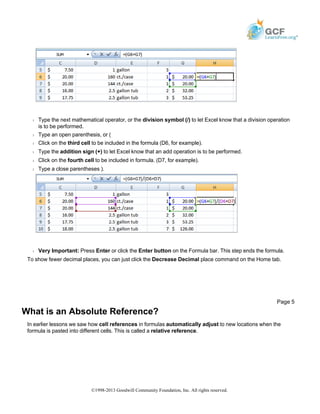
Š Click the cell where you want the formula result to appear. In this example, H6.
Š Type the equal sign (=) to let Excel know a formula is being defined.
Š Type an open parenthesis, or (
Š Click on the first cell to be included in the formula (G6, for example).
Š Type the addition sign (+) to let Excel know that an add operation is to be performed.
Š Click on the second cell in the formula (G7, for example)
Š Type a close parentheses ).
Page 3
4*2/4 Multiply 4*2 before performing the
division operation because the
multiplication sign comes before the
division sign. The answer is 2.
4/2*4 Divide 4 by 2 before performing
the multiplication operation
because the division sign comes
before the multiplication sign. The
answer is 8.
4/(2*4) Perform the operation in
parentheses (2*4) first and divide
4 by this result. The answer is 0.5.
4-2*4 Multiply 2*4 before performing the
subtraction operation because the
multiplication sign is of a higher
order than the subtraction sign. The
answer is -4.
Page 4
©1998-2013 Goodwill Community Foundation, Inc. All rights reserved.
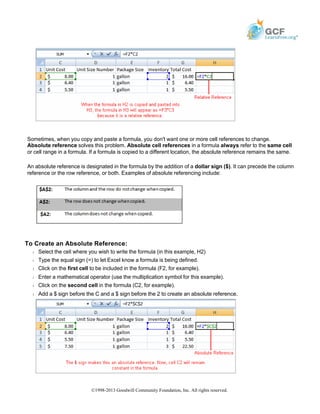
Š Type the next mathematical operator, or the division symbol (/) to let Excel know that a division operation
is to be performed.
Š Type an open parenthesis, or (
Š Click on the third cell to be included in the formula (D6, for example).
Š Type the addition sign (+) to let Excel know that an add operation is to be performed.
Š Click on the fourth cell to be included in formula. (D7, for example).
Š Type a close parentheses ).
Š Very Important: Press Enter or click the Enter button on the Formula bar. This step ends the formula.
To show fewer decimal places, you can just click the Decrease Decimal place command on the Home tab.
What is an Absolute Reference?
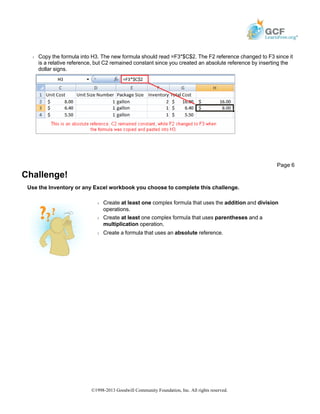
In earlier lessons we saw how cell references in formulas automatically adjust to new locations when the
formula is pasted into different cells. This is called a relative reference.
Page 5
©1998-2013 Goodwill Community Foundation, Inc. All rights reserved.
Sometimes, when you copy and paste a formula, you don't want one or more cell references to change.
Absolute reference solves this problem. Absolute cell references in a formula always refer to the same cell
or cell range in a formula. If a formula is copied to a different location, the absolute reference remains the same.
An absolute reference is designated in the formula by the addition of a dollar sign ($). It can precede the column
reference or the row reference, or both. Examples of absolute referencing include:
To Create an Absolute Reference:
Š Select the cell where you wish to write the formula (in this example, H2)
Š Type the equal sign (=) to let Excel know a formula is being defined.
Š Click on the first cell to be included in the formula (F2, for example).
Š Enter a mathematical operator (use the multiplication symbol for this example).
Š Click on the second cell in the formula (C2, for example).
Š Add a $ sign before the C and a $ sign before the 2 to create an absolute reference.
©1998-2013 Goodwill Community Foundation, Inc. All rights reserved.
Š Copy the formula into H3. The new formula should read =F3*$C$2. The F2 reference changed to F3 since it
is a relative reference, but C2 remained constant since you created an absolute reference by inserting the
dollar signs.
Challenge!
Use the Inventory or any Excel workbook you choose to complete this challenge.
Page 6
Š Create at least one complex formula that uses the addition and division
operations.
Š Create at least one complex formula that uses parentheses and a
multiplication operation.
Š Create a formula that uses an absolute reference.
©1998-2013 Goodwill Community Foundation, Inc. All rights reserved.

Print8

  • 1.
    Excel 2007 Creating ComplexFormulas Introduction Complex Formulas Watch the video! (12:26min) - Tips for watching our videos. Download the example to work along with the video. Complex Formulas Defined Simple formulas have one mathematical operation. Complex formulas involve more than one mathematical operation. Simple Formula: =2+2 Complex Formula: =2+2*8 To calculate complex formulas correctly, you must perform certain operations before others. This is defined in the order of operations. The Order of Operations The order of mathematical operations is very important. If you enter a formula that contains several operations, Excel knows to work those operations in a specific order. The order of operations is: 1. Operations enclosed in parenthesis 2. Exponential calculations (to the power of) 3. Multiplication and division, whichever comes first 4. Addition and subtraction, whichever comes first Page 1 Excel is a spreadsheet application and is intended to be used to calculate and analyze numerical information such as household budgets, company finances, inventory, and more. To do this, you need to understand formulas. In this lesson, we’ll discuss complex formulas that use multiple mathematical operators, and that use absolute and relative references. Page 2 ©1998-2013 Goodwill Community Foundation, Inc. All rights reserved.
  • 2.
    A mnemonic thatcan help you remember this is Please Excuse My Dear Aunt Sally (P.E.M.D.A.S). Example 1 Using this order, let us see how the formula 20/(8-4)*8-2 is calculated in the following breakdown: Example 2 3+3*2=? Is the answer 12 or 9? Well, if you calculated in the order in which the numbers appear, 3+3*2, you'd get the wrong answer, 12. You must follow the order of operations to get the correct answer. To Calculate the Correct Answer: 1. Calculate 3*2 first because multiplication comes before addition in the order of operations. The answer is 6. 2. Add the answer obtained in step #1, which is 6, to the number 3 that opened the equation. In other words, add 3 + 6. 3. The answer is 9. ©1998-2013 Goodwill Community Foundation, Inc. All rights reserved.
  • 3.
    Complex Formulas (continued) Beforemoving on, let's explore some more formulas to make sure you understand the order of operations by which Excel calculates the answer. Creating Complex Formulas Excel automatically follows a standard order of operations in a complex formula. If you want a certain portion of the formula to be calculated first, put it in parentheses. Example of How to Write a Complex Formula: Š Click the cell where you want the formula result to appear. In this example, H6. Š Type the equal sign (=) to let Excel know a formula is being defined. Š Type an open parenthesis, or ( Š Click on the first cell to be included in the formula (G6, for example). Š Type the addition sign (+) to let Excel know that an add operation is to be performed. Š Click on the second cell in the formula (G7, for example) Š Type a close parentheses ). Page 3 4*2/4 Multiply 4*2 before performing the division operation because the multiplication sign comes before the division sign. The answer is 2. 4/2*4 Divide 4 by 2 before performing the multiplication operation because the division sign comes before the multiplication sign. The answer is 8. 4/(2*4) Perform the operation in parentheses (2*4) first and divide 4 by this result. The answer is 0.5. 4-2*4 Multiply 2*4 before performing the subtraction operation because the multiplication sign is of a higher order than the subtraction sign. The answer is -4. Page 4 ©1998-2013 Goodwill Community Foundation, Inc. All rights reserved.
  • 4.
    Š Type thenext mathematical operator, or the division symbol (/) to let Excel know that a division operation is to be performed. Š Type an open parenthesis, or ( Š Click on the third cell to be included in the formula (D6, for example). Š Type the addition sign (+) to let Excel know that an add operation is to be performed. Š Click on the fourth cell to be included in formula. (D7, for example). Š Type a close parentheses ). Š Very Important: Press Enter or click the Enter button on the Formula bar. This step ends the formula. To show fewer decimal places, you can just click the Decrease Decimal place command on the Home tab. What is an Absolute Reference? In earlier lessons we saw how cell references in formulas automatically adjust to new locations when the formula is pasted into different cells. This is called a relative reference. Page 5 ©1998-2013 Goodwill Community Foundation, Inc. All rights reserved.
  • 5.
    Sometimes, when youcopy and paste a formula, you don't want one or more cell references to change. Absolute reference solves this problem. Absolute cell references in a formula always refer to the same cell or cell range in a formula. If a formula is copied to a different location, the absolute reference remains the same. An absolute reference is designated in the formula by the addition of a dollar sign ($). It can precede the column reference or the row reference, or both. Examples of absolute referencing include: To Create an Absolute Reference: Š Select the cell where you wish to write the formula (in this example, H2) Š Type the equal sign (=) to let Excel know a formula is being defined. Š Click on the first cell to be included in the formula (F2, for example). Š Enter a mathematical operator (use the multiplication symbol for this example). Š Click on the second cell in the formula (C2, for example). Š Add a $ sign before the C and a $ sign before the 2 to create an absolute reference. ©1998-2013 Goodwill Community Foundation, Inc. All rights reserved.
  • 6.
    Š Copy theformula into H3. The new formula should read =F3*$C$2. The F2 reference changed to F3 since it is a relative reference, but C2 remained constant since you created an absolute reference by inserting the dollar signs. Challenge! Use the Inventory or any Excel workbook you choose to complete this challenge. Page 6 Š Create at least one complex formula that uses the addition and division operations. Š Create at least one complex formula that uses parentheses and a multiplication operation. Š Create a formula that uses an absolute reference. ©1998-2013 Goodwill Community Foundation, Inc. All rights reserved.