Destiny Tutorial
Reports and Utilities
Backing Up/Rebuilding the
System

O The Douglas County School District performs backups

centrally for all of the media centers in the school
system. Each media center utilizes Destiny 10.5, and
the backups occur automatically. This is performed
reliably at a district level for all of the media centers.
It is not the duty of the media specialist in the
Douglas County School System. However, if a need
arises, the system can be backed up by the
instructions on the next slide.
O Follett’s document titled Backing up your Destiny for
Schools Application database, provides the following
steps found at
http://www.fsc.follett.com/_file/file/Backing-upDestiny-for-Schools-Database.pdf to configure the
backup program.
Running Circulation Reports

2

3

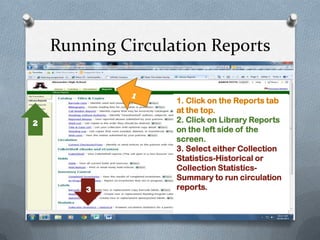
1. Click on the Reports tab
at the top.
2. Click on Library Reports
on the left side of the
screen.
3. Select either Collection
Statistics-Historical or
Collection StatisticsSummary to run circulation
reports.
Circulation Reports Continued

Collection StatisticsHistorical Report Set
Up Screen
Sample Statistics Summary
Inventory
1

2

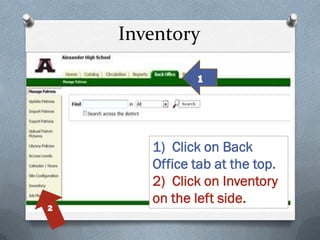
1) Click on Back
Office tab at the top.
2) Click on Inventory
on the left side.
Once you select “Start New” you can scan
every item in the collection and upload it
here. Once finished, you can run reports
based on items missing or out of order, etc.
You can mark things lost or delete materials
as needed. When complete, you select
“finalize.”
Inventory Report
2

3

1. Click on Reports tab at
the top.
2. Click on Library Reports
on the left side.
3. Select Inventory Control
options – Completed
Inventories or In Progress
Inventories
Collection Age Report
2

1. Run a Collection Statistics Historical Report (Slides 3-4)
2. Click on the tab at the top right that says “Age.”
3. This will give you the age of your collection as shown below.
Printing Bar Codes/Spine
Labels
1
1. Click on Reports tab at the
top.
2. Click on Library Reports on
the left side.
3. Select from the Labels
Section.
• You can run a report of the
Barcode Labels and create
new or replacement
barcodes.
• You can create Reading
Program Labels or you can
create Spine/Pocket Labels.

2

3
Running an Unused Bar
Code Report
1

1. Select Barcode Lists under
Catalog
2. Run a report showing used
and unused barcode
numbers

2
Running Custom Indexes
O A custom index is when you can generate a list of all books with a

certain characteristic using a search field OTHER than
author, title, subject. You might do a custom index by Dewey number or
reading level.
1

3
2

1) Click on the Reports tab at
the top.
2) Click on the Library
Reports on the left side.
3) Select Create Bibliography
and then choose the ways you
want to create your list.
Self-Assess
O When running a barcode report, I begin at

the _______________ tab.
O I should run a _________________ to
determine the age of my collection.
O Where does the “Backing up/Rebuilding of
the catalog normally occur?
O Inventory is found under the ___________
tab.
Answers
O When running a barcode report, I begin at

the Reports tab.
O I should run a Collection Statistics-Historical
or Collection Statistics-Summary to
determine the age of my collection.
O Where does the “Backing up/Rebuilding of
the catalog normally occur? District’s County
Office
O Inventory is found under the Back Office tab.

7478 reportstutorial rrm

  • 1.
  • 2.
    Backing Up/Rebuilding the System OThe Douglas County School District performs backups centrally for all of the media centers in the school system. Each media center utilizes Destiny 10.5, and the backups occur automatically. This is performed reliably at a district level for all of the media centers. It is not the duty of the media specialist in the Douglas County School System. However, if a need arises, the system can be backed up by the instructions on the next slide. O Follett’s document titled Backing up your Destiny for Schools Application database, provides the following steps found at http://www.fsc.follett.com/_file/file/Backing-upDestiny-for-Schools-Database.pdf to configure the backup program.
  • 3.
    Running Circulation Reports 2 3 1.Click on the Reports tab at the top. 2. Click on Library Reports on the left side of the screen. 3. Select either Collection Statistics-Historical or Collection StatisticsSummary to run circulation reports.
  • 4.
    Circulation Reports Continued CollectionStatisticsHistorical Report Set Up Screen
  • 5.
  • 6.
    Inventory 1 2 1) Click onBack Office tab at the top. 2) Click on Inventory on the left side.
  • 7.
    Once you select“Start New” you can scan every item in the collection and upload it here. Once finished, you can run reports based on items missing or out of order, etc. You can mark things lost or delete materials as needed. When complete, you select “finalize.”
  • 8.
    Inventory Report 2 3 1. Clickon Reports tab at the top. 2. Click on Library Reports on the left side. 3. Select Inventory Control options – Completed Inventories or In Progress Inventories
  • 9.
    Collection Age Report 2 1.Run a Collection Statistics Historical Report (Slides 3-4) 2. Click on the tab at the top right that says “Age.” 3. This will give you the age of your collection as shown below.
  • 10.
    Printing Bar Codes/Spine Labels 1 1.Click on Reports tab at the top. 2. Click on Library Reports on the left side. 3. Select from the Labels Section. • You can run a report of the Barcode Labels and create new or replacement barcodes. • You can create Reading Program Labels or you can create Spine/Pocket Labels. 2 3
  • 11.
    Running an UnusedBar Code Report 1 1. Select Barcode Lists under Catalog 2. Run a report showing used and unused barcode numbers 2
  • 12.
    Running Custom Indexes OA custom index is when you can generate a list of all books with a certain characteristic using a search field OTHER than author, title, subject. You might do a custom index by Dewey number or reading level. 1 3 2 1) Click on the Reports tab at the top. 2) Click on the Library Reports on the left side. 3) Select Create Bibliography and then choose the ways you want to create your list.
  • 13.
    Self-Assess O When runninga barcode report, I begin at the _______________ tab. O I should run a _________________ to determine the age of my collection. O Where does the “Backing up/Rebuilding of the catalog normally occur? O Inventory is found under the ___________ tab.
  • 14.
    Answers O When runninga barcode report, I begin at the Reports tab. O I should run a Collection Statistics-Historical or Collection Statistics-Summary to determine the age of my collection. O Where does the “Backing up/Rebuilding of the catalog normally occur? District’s County Office O Inventory is found under the Back Office tab.