Microsoft Office 2007-Illustrated Introductory, Windows Vista Edition Formatting Text and Paragraphs
Format with fonts Copy formats using the Format Painter Change line and paragraph spacing Align paragraphs Work with tabs Objectives Microsoft Office 2007-Illustrated Introductory, Windows Vista Edition
Work with indents Add bullets and numbering Add borders and shading Add footnotes and endnotes Objectives Microsoft Office 2007-Illustrated Introductory, Windows Vista Edition
Formatting with Fonts Formatting text with fonts is a powerful way to alter the appearance of a document A  font  is a complete set of characters with the same typeface or design Arial, Times New Roman, Tahoma, and Calibri are examples of fonts Each font has a specific design and feel Microsoft Office 2007-Illustrated Introductory, Windows Vista Edition
Formatting with Fonts Microsoft Office 2007-Illustrated Introductory, Windows Vista Edition Serif fonts  have a small stroke, called a  serif , on the ends of characters, and are often used for body text: Times New Roman Garamond Book Antiqua Californian FB Sans serif fonts  do not have a serif, and are often used for headings:   Arial Rounded MT Bold Comic Sans MS Franklin Gothic Demi Papyrus
Formatting with Fonts Changing the size of text, or the  font size , is another way to determine the impact of text Font size is measured in points A  point  is 1/72 of an inch 11-point Calibri is the default font size and font for a new Word document You can also change the  font color Microsoft Office 2007-Illustrated Introductory, Windows Vista Edition
Formatting with Fonts  Change fonts using the Font list arrow Change font size using the Font Size list arrow Change font color using the Font Color list arrow Microsoft Office 2007-Illustrated Introductory, Windows Vista Edition Font list arrow Font Size  list arrow Font names are formatted  in the font
Formatting with Fonts Tips for formatting with fonts Choose fonts that augment the document purpose Conservative fonts for business documents Playful fonts for flyers, invitations, etc. Too many fonts can clutter a document Use no more than two or three different fonts in a document Format body text and headings in a different font Microsoft Office 2007-Illustrated Introductory, Windows Vista Edition
Formatting with Fonts Adding a drop cap A  drop cap  is a large initial capital letter, often used to set off the first paragraph of an article To insert a drop cap, use click the Drop Cap button in the Text group on the Insert tab Microsoft Office 2007-Illustrated Introductory, Windows Vista Edition
Changing Font Styles and Effects Font styles Make text darker and thicker   by applying  bold Click the Bold button to apply bold Slant text by applying  italic  Click the Italic button to apply italic Underline   text for emphasis Click the Underline list arrow, then select an underline style Microsoft Office 2007-Illustrated Introductory, Windows Vista Edition
The  Format Painter  allows you to copy the format setting applied to selected text to other text Use to copy multiple format settings or individual ones Click the Format Painter button once to apply the format settings to one item Double-click the Format Painter button to activate the Format Painter and apply settings to multiple items Changing Line and  Paragraph Spacing Microsoft Office 2007-Illustrated Introductory, Windows Vista Edition
Changing Font Styles and Effects  Font effects Apply using the  Font dialog box Superscript Subscript Shadow Outline Emboss Engrave Small caps Microsoft Office 2007-Illustrated Introductory, Windows Vista Edition Choose font effects
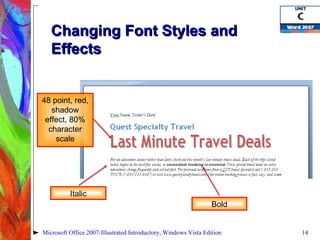
Changing Font Styles and Effects Character-spacing effects Apply character-spacing effects using the Character Spacing tab in the Font dialog box Change the width, or  scale , of characters Change the spacing between characters Raise or lower characters relative to the line of text Microsoft Office 2007-Illustrated Introductory, Windows Vista Edition
Changing Font Styles and Effects Microsoft Office 2007-Illustrated Introductory, Windows Vista Edition 48 point, red, shadow effect, 80% character scale Italic Bold
Changing Font Styles and Effects Changing the case of letters Change letters from uppercase to lowercase and vice versa Sentence case  capitalizes the first letter of a sentence Title case  capitalizes the first letter of each word Toggle case  switches all letters to the opposite case Use the Change Case button in the Font group on the Home tab Microsoft Office 2007-Illustrated Introductory, Windows Vista Edition
Changing Line and Paragraph Spacing Adding white space to a document can make it easier to read Increase space between  lines  using the Line   Spacing   list   arrow  Increase space between  paragraphs  using the Before and After text boxes in the Paragraph group on the Page Layout tab Microsoft Office 2007-Illustrated Introductory, Windows Vista Edition
Changing Line and Paragraph Spacing  Microsoft Office 2007-Illustrated Introductory, Windows Vista Edition 12 points of space added before title paragraph Line spacing is 1.5 Spacing section shows paragraph spacing for paragraph where insertion point is located Line spacing is 1.15 6 points of space added after heading paragraph
Changing Line and  Paragraph Spacing Formatting with  Quick Styles Apply multiple format settings in one step with a style A  style  is a set of format settings that are named and stored together Styles can include character and paragraph format settings Apply Quick Styles by selecting a style from the Quick Style gallery Microsoft Office 2007-Illustrated Introductory, Windows Vista Edition
Changing Line and  Paragraph Spacing Each Quick Style set includes styles for a title, several heading levels, body text, quotes, and lists Each Quick Style Set has a different design Microsoft Office 2007-Illustrated Introductory, Windows Vista Edition
Aligning Paragraphs Paragraphs are aligned relative to the left and right margins Left-aligned  text is flush with the left margin and has a ragged right edge Right-aligned  text is flush with the right margin Centered  text is positioned evenly between the margins Justified  text is flush with both the left and right margins  Microsoft Office 2007-Illustrated Introductory, Windows Vista Edition
Aligning Paragraphs Change paragraph alignment using the alignment buttons in the Paragraph group on the Home tab Microsoft Office 2007-Illustrated Introductory, Windows Vista Edition Centered Justified Right-aligned Left-aligned
Aligning Paragraphs Indents and Spacing tab in the Paragraph dialog box Microsoft Office 2007-Illustrated Introductory, Windows Vista Edition Shows the format settings for the active text and paragraph Use to check, change, and compare format settings
Aligning Paragraphs Format a document using themes A  theme  is a complete set of theme colors, fonts, and effects Preview a theme before applying it Click the Themes button in the Themes group on the Page Layout tab to select and apply a theme Microsoft Office 2007-Illustrated Introductory, Windows Vista Edition
Working with Tabs Tabs  help you to align text vertically at a specific location on a page A  tab stop  is a point on the horizontal ruler that identifies a text alignment location By default, tab stops are located every ½ inch from the left margin You can create custom tab stops  Text can be aligned to the left, right, or center of a tab stop, or aligned with a bar character or decimal point Microsoft Office 2007-Illustrated Introductory, Windows Vista Edition
Working with Tabs Set tabs using the ruler   Click the  tab indicator  at the left end of the horizontal ruler to select the type of tab Set the tab by clicking the ruler at the location you want the tab stop to be Tab stop applies to: The active paragraph, or  The selected paragraphs Drag a tab stop on the ruler to change its location Microsoft Office 2007-Illustrated Introductory, Windows Vista Edition
Working with Tabs Microsoft Office 2007-Illustrated Introductory, Windows Vista Edition Tabbed text left-aligned Left tab stop Right tab stop Tabbed text right-aligned Tab  leader Tab indicator
Working with Tabs Set tabs using the Tabs dialog box Microsoft Office 2007-Illustrated Introductory, Windows Vista Edition Create new tab stops Change the position or alignment of existing tab stops Clear tab stops Apply a  tab leader , a line that appears in front of tabbed text
Working with Indents Indenting  a paragraph moves the edge of the paragraph in from the left or right margin Indent the entire left or right edge of a paragraph Indent just the first line Indent all lines except the first line Indent markers  on the horizontal ruler identify the indent settings for the paragraph in which the insertion point is located Microsoft Office 2007-Illustrated Introductory, Windows Vista Edition
Working with Indents To indent a paragraph: Drag an indent marker to a new location on the ruler Click the Increase Indent button or the Decrease Indent button in the Paragraph group on the Home tab Change the indent settings on the Indents and Spacing tab in the Paragraph dialog box Microsoft Office 2007-Illustrated Introductory, Windows Vista Edition
Working with Indents Microsoft Office 2007-Illustrated Introductory, Windows Vista Edition First Line Indent marker Hanging Indent marker Left Indent marker Indented paragraph Right Indent marker Indent buttons
Working with Indents Clearing text formatting Use the  Clear Formatting command  to return text to its default settings: 11-point Calibri text Left-aligned, 1.15 paragraph spacing, 10 points below,  and with no indents To clear formatting, select the text, click the Clear All Formatting button in the Font group on the Home tab Microsoft Office 2007-Illustrated Introductory, Windows Vista Edition
Adding Bullets and Numbering Formatting paragraphs with bullets and numbering can help to organize ideas in a document A  bullet  is a character, often a small circle, that appears before the items in a list to add emphasis Numbering  the items in a list helps to illustrate sequence and priority Microsoft Office 2007-Illustrated Introductory, Windows Vista Edition
Adding Bullets and Numbering  Use the  Bullets button  or  Numbering button  in the Paragraph group on the Home tab to apply bullets or numbering to paragraphs Microsoft Office 2007-Illustrated Introductory, Windows Vista Edition Numbered list Bulleted list Bullets and Numbering buttons
Adding Bullets and Numbering  Use the  Bullets  or  Numbering list arrows  to apply, change, or customize bullet and numbering styles Microsoft Office 2007-Illustrated Introductory, Windows Vista Edition
Adding Bullets and Numbering Creating outlines To create a hierarchical structure in a list, apply an  outline numbering style Click the  Multilevel List list arrow  to select and apply a multilevel list style Format an existing list Demote items using the  Increase Indent button Promote items using the  Decrease Indent button Microsoft Office 2007-Illustrated Introductory, Windows Vista Edition
Adding Borders and Shading Adding borders and shading to text can help to enhance the information in a document A  border  is a line added above, below, to the side of, or around words or paragraphs Shading  is a color or pattern that is added behind words or paragraphs Use the  Border button  or the  Shading button  in the Paragraph group on the Home tab Microsoft Office 2007-Illustrated Introductory, Windows Vista Edition
Adding Borders and Shading Border options Box Shadow 3-D Custom Line style Line color Line width Microsoft Office 2007-Illustrated Introductory, Windows Vista Edition
Adding Borders and Shading  Shading options Fill color Theme color Standard color Custom color Pattern style Tint (e.g. 75%) Pattern (e.g. diagonal lines) Microsoft Office 2007-Illustrated Introductory, Windows Vista Edition
Adding Borders and Shading Microsoft Office 2007-Illustrated Introductory, Windows Vista Edition Border Shading
Adding Borders and Shading  Highlighting text in a document Highlighting  is transparent color that is applied to text using the Highlight pointer Highlighting is most effective when a document is viewed on screen Highlighting does print To highlight text, click the Text Highlight Color list arrow in the Font group on the Home tab, select a color, then select the text Microsoft Office 2007-Illustrated Introductory, Windows Vista Edition
Adding Footnotes and Endnotes Footnotes and endnotes provide additional information They consist of two parts Note reference mark Corresponding footnote or endnote To convert footnotes to endnotes, click the launcher in the Footnote group, click Convert, click OK, then click Close. Microsoft Office 2007-Illustrated Introductory, Windows Vista Edition
Adding Footnotes and Endnotes  Example of footnote in text Microsoft Office 2007-Illustrated Introductory, Windows Vista Edition Microsoft Office 2007-Illustrated Introductory, Windows Vista Edition Footnote text Separator line Note reference mark
Adding Footnotes and Endnotes  Creating a bibliography A  bibliography  is a list of reference sources you cited or consulted while creating a document Create a source for each reference source you used Insert citations in a document that are tied to a source The bibliography is generated using the source information provided for the document Microsoft Office 2007-Illustrated Introductory, Windows Vista Edition
Summary Enhance documents with formatting Format characters: Font, font size, font styles, font effects, and character-spacing Format paragraphs Alignment, line spacing, paragraph spacing, tabs, indents, bullets, numbering, borders, and shading Choose appropriate formatting for the  document’s purpose and audience Take care not to over format a document Microsoft Office 2007-Illustrated Introductory, Windows Vista Edition

Word 2007 Unit C

  • 1.
    Microsoft Office 2007-IllustratedIntroductory, Windows Vista Edition Formatting Text and Paragraphs
  • 2.
    Format with fontsCopy formats using the Format Painter Change line and paragraph spacing Align paragraphs Work with tabs Objectives Microsoft Office 2007-Illustrated Introductory, Windows Vista Edition
  • 3.
    Work with indentsAdd bullets and numbering Add borders and shading Add footnotes and endnotes Objectives Microsoft Office 2007-Illustrated Introductory, Windows Vista Edition
  • 4.
    Formatting with FontsFormatting text with fonts is a powerful way to alter the appearance of a document A font is a complete set of characters with the same typeface or design Arial, Times New Roman, Tahoma, and Calibri are examples of fonts Each font has a specific design and feel Microsoft Office 2007-Illustrated Introductory, Windows Vista Edition
  • 5.
    Formatting with FontsMicrosoft Office 2007-Illustrated Introductory, Windows Vista Edition Serif fonts have a small stroke, called a serif , on the ends of characters, and are often used for body text: Times New Roman Garamond Book Antiqua Californian FB Sans serif fonts do not have a serif, and are often used for headings: Arial Rounded MT Bold Comic Sans MS Franklin Gothic Demi Papyrus
  • 6.
    Formatting with FontsChanging the size of text, or the font size , is another way to determine the impact of text Font size is measured in points A point is 1/72 of an inch 11-point Calibri is the default font size and font for a new Word document You can also change the font color Microsoft Office 2007-Illustrated Introductory, Windows Vista Edition
  • 7.
    Formatting with Fonts Change fonts using the Font list arrow Change font size using the Font Size list arrow Change font color using the Font Color list arrow Microsoft Office 2007-Illustrated Introductory, Windows Vista Edition Font list arrow Font Size list arrow Font names are formatted in the font
  • 8.
    Formatting with FontsTips for formatting with fonts Choose fonts that augment the document purpose Conservative fonts for business documents Playful fonts for flyers, invitations, etc. Too many fonts can clutter a document Use no more than two or three different fonts in a document Format body text and headings in a different font Microsoft Office 2007-Illustrated Introductory, Windows Vista Edition
  • 9.
    Formatting with FontsAdding a drop cap A drop cap is a large initial capital letter, often used to set off the first paragraph of an article To insert a drop cap, use click the Drop Cap button in the Text group on the Insert tab Microsoft Office 2007-Illustrated Introductory, Windows Vista Edition
  • 10.
    Changing Font Stylesand Effects Font styles Make text darker and thicker by applying bold Click the Bold button to apply bold Slant text by applying italic Click the Italic button to apply italic Underline text for emphasis Click the Underline list arrow, then select an underline style Microsoft Office 2007-Illustrated Introductory, Windows Vista Edition
  • 11.
    The FormatPainter allows you to copy the format setting applied to selected text to other text Use to copy multiple format settings or individual ones Click the Format Painter button once to apply the format settings to one item Double-click the Format Painter button to activate the Format Painter and apply settings to multiple items Changing Line and Paragraph Spacing Microsoft Office 2007-Illustrated Introductory, Windows Vista Edition
  • 12.
    Changing Font Stylesand Effects Font effects Apply using the Font dialog box Superscript Subscript Shadow Outline Emboss Engrave Small caps Microsoft Office 2007-Illustrated Introductory, Windows Vista Edition Choose font effects
  • 13.
    Changing Font Stylesand Effects Character-spacing effects Apply character-spacing effects using the Character Spacing tab in the Font dialog box Change the width, or scale , of characters Change the spacing between characters Raise or lower characters relative to the line of text Microsoft Office 2007-Illustrated Introductory, Windows Vista Edition
  • 14.
    Changing Font Stylesand Effects Microsoft Office 2007-Illustrated Introductory, Windows Vista Edition 48 point, red, shadow effect, 80% character scale Italic Bold
  • 15.
    Changing Font Stylesand Effects Changing the case of letters Change letters from uppercase to lowercase and vice versa Sentence case capitalizes the first letter of a sentence Title case capitalizes the first letter of each word Toggle case switches all letters to the opposite case Use the Change Case button in the Font group on the Home tab Microsoft Office 2007-Illustrated Introductory, Windows Vista Edition
  • 16.
    Changing Line andParagraph Spacing Adding white space to a document can make it easier to read Increase space between lines using the Line Spacing list arrow Increase space between paragraphs using the Before and After text boxes in the Paragraph group on the Page Layout tab Microsoft Office 2007-Illustrated Introductory, Windows Vista Edition
  • 17.
    Changing Line andParagraph Spacing Microsoft Office 2007-Illustrated Introductory, Windows Vista Edition 12 points of space added before title paragraph Line spacing is 1.5 Spacing section shows paragraph spacing for paragraph where insertion point is located Line spacing is 1.15 6 points of space added after heading paragraph
  • 18.
    Changing Line and Paragraph Spacing Formatting with Quick Styles Apply multiple format settings in one step with a style A style is a set of format settings that are named and stored together Styles can include character and paragraph format settings Apply Quick Styles by selecting a style from the Quick Style gallery Microsoft Office 2007-Illustrated Introductory, Windows Vista Edition
  • 19.
    Changing Line and Paragraph Spacing Each Quick Style set includes styles for a title, several heading levels, body text, quotes, and lists Each Quick Style Set has a different design Microsoft Office 2007-Illustrated Introductory, Windows Vista Edition
  • 20.
    Aligning Paragraphs Paragraphsare aligned relative to the left and right margins Left-aligned text is flush with the left margin and has a ragged right edge Right-aligned text is flush with the right margin Centered text is positioned evenly between the margins Justified text is flush with both the left and right margins Microsoft Office 2007-Illustrated Introductory, Windows Vista Edition
  • 21.
    Aligning Paragraphs Changeparagraph alignment using the alignment buttons in the Paragraph group on the Home tab Microsoft Office 2007-Illustrated Introductory, Windows Vista Edition Centered Justified Right-aligned Left-aligned
  • 22.
    Aligning Paragraphs Indentsand Spacing tab in the Paragraph dialog box Microsoft Office 2007-Illustrated Introductory, Windows Vista Edition Shows the format settings for the active text and paragraph Use to check, change, and compare format settings
  • 23.
    Aligning Paragraphs Formata document using themes A theme is a complete set of theme colors, fonts, and effects Preview a theme before applying it Click the Themes button in the Themes group on the Page Layout tab to select and apply a theme Microsoft Office 2007-Illustrated Introductory, Windows Vista Edition
  • 24.
    Working with TabsTabs help you to align text vertically at a specific location on a page A tab stop is a point on the horizontal ruler that identifies a text alignment location By default, tab stops are located every ½ inch from the left margin You can create custom tab stops Text can be aligned to the left, right, or center of a tab stop, or aligned with a bar character or decimal point Microsoft Office 2007-Illustrated Introductory, Windows Vista Edition
  • 25.
    Working with TabsSet tabs using the ruler Click the tab indicator at the left end of the horizontal ruler to select the type of tab Set the tab by clicking the ruler at the location you want the tab stop to be Tab stop applies to: The active paragraph, or The selected paragraphs Drag a tab stop on the ruler to change its location Microsoft Office 2007-Illustrated Introductory, Windows Vista Edition
  • 26.
    Working with TabsMicrosoft Office 2007-Illustrated Introductory, Windows Vista Edition Tabbed text left-aligned Left tab stop Right tab stop Tabbed text right-aligned Tab leader Tab indicator
  • 27.
    Working with TabsSet tabs using the Tabs dialog box Microsoft Office 2007-Illustrated Introductory, Windows Vista Edition Create new tab stops Change the position or alignment of existing tab stops Clear tab stops Apply a tab leader , a line that appears in front of tabbed text
  • 28.
    Working with IndentsIndenting a paragraph moves the edge of the paragraph in from the left or right margin Indent the entire left or right edge of a paragraph Indent just the first line Indent all lines except the first line Indent markers on the horizontal ruler identify the indent settings for the paragraph in which the insertion point is located Microsoft Office 2007-Illustrated Introductory, Windows Vista Edition
  • 29.
    Working with IndentsTo indent a paragraph: Drag an indent marker to a new location on the ruler Click the Increase Indent button or the Decrease Indent button in the Paragraph group on the Home tab Change the indent settings on the Indents and Spacing tab in the Paragraph dialog box Microsoft Office 2007-Illustrated Introductory, Windows Vista Edition
  • 30.
    Working with IndentsMicrosoft Office 2007-Illustrated Introductory, Windows Vista Edition First Line Indent marker Hanging Indent marker Left Indent marker Indented paragraph Right Indent marker Indent buttons
  • 31.
    Working with IndentsClearing text formatting Use the Clear Formatting command to return text to its default settings: 11-point Calibri text Left-aligned, 1.15 paragraph spacing, 10 points below, and with no indents To clear formatting, select the text, click the Clear All Formatting button in the Font group on the Home tab Microsoft Office 2007-Illustrated Introductory, Windows Vista Edition
  • 32.
    Adding Bullets andNumbering Formatting paragraphs with bullets and numbering can help to organize ideas in a document A bullet is a character, often a small circle, that appears before the items in a list to add emphasis Numbering the items in a list helps to illustrate sequence and priority Microsoft Office 2007-Illustrated Introductory, Windows Vista Edition
  • 33.
    Adding Bullets andNumbering Use the Bullets button or Numbering button in the Paragraph group on the Home tab to apply bullets or numbering to paragraphs Microsoft Office 2007-Illustrated Introductory, Windows Vista Edition Numbered list Bulleted list Bullets and Numbering buttons
  • 34.
    Adding Bullets andNumbering Use the Bullets or Numbering list arrows to apply, change, or customize bullet and numbering styles Microsoft Office 2007-Illustrated Introductory, Windows Vista Edition
  • 35.
    Adding Bullets andNumbering Creating outlines To create a hierarchical structure in a list, apply an outline numbering style Click the Multilevel List list arrow to select and apply a multilevel list style Format an existing list Demote items using the Increase Indent button Promote items using the Decrease Indent button Microsoft Office 2007-Illustrated Introductory, Windows Vista Edition
  • 36.
    Adding Borders andShading Adding borders and shading to text can help to enhance the information in a document A border is a line added above, below, to the side of, or around words or paragraphs Shading is a color or pattern that is added behind words or paragraphs Use the Border button or the Shading button in the Paragraph group on the Home tab Microsoft Office 2007-Illustrated Introductory, Windows Vista Edition
  • 37.
    Adding Borders andShading Border options Box Shadow 3-D Custom Line style Line color Line width Microsoft Office 2007-Illustrated Introductory, Windows Vista Edition
  • 38.
    Adding Borders andShading Shading options Fill color Theme color Standard color Custom color Pattern style Tint (e.g. 75%) Pattern (e.g. diagonal lines) Microsoft Office 2007-Illustrated Introductory, Windows Vista Edition
  • 39.
    Adding Borders andShading Microsoft Office 2007-Illustrated Introductory, Windows Vista Edition Border Shading
  • 40.
    Adding Borders andShading Highlighting text in a document Highlighting is transparent color that is applied to text using the Highlight pointer Highlighting is most effective when a document is viewed on screen Highlighting does print To highlight text, click the Text Highlight Color list arrow in the Font group on the Home tab, select a color, then select the text Microsoft Office 2007-Illustrated Introductory, Windows Vista Edition
  • 41.
    Adding Footnotes andEndnotes Footnotes and endnotes provide additional information They consist of two parts Note reference mark Corresponding footnote or endnote To convert footnotes to endnotes, click the launcher in the Footnote group, click Convert, click OK, then click Close. Microsoft Office 2007-Illustrated Introductory, Windows Vista Edition
  • 42.
    Adding Footnotes andEndnotes Example of footnote in text Microsoft Office 2007-Illustrated Introductory, Windows Vista Edition Microsoft Office 2007-Illustrated Introductory, Windows Vista Edition Footnote text Separator line Note reference mark
  • 43.
    Adding Footnotes andEndnotes Creating a bibliography A bibliography is a list of reference sources you cited or consulted while creating a document Create a source for each reference source you used Insert citations in a document that are tied to a source The bibliography is generated using the source information provided for the document Microsoft Office 2007-Illustrated Introductory, Windows Vista Edition
  • 44.
    Summary Enhance documentswith formatting Format characters: Font, font size, font styles, font effects, and character-spacing Format paragraphs Alignment, line spacing, paragraph spacing, tabs, indents, bullets, numbering, borders, and shading Choose appropriate formatting for the document’s purpose and audience Take care not to over format a document Microsoft Office 2007-Illustrated Introductory, Windows Vista Edition