Microsoft Office 2007- Illustrated Introductory, Windows Vista Edition Getting Started with Excel 2007
Understand spreadsheet software Tour the Excel 2007 window Understand formulas Enter labels and values and use AutoSum Objectives Microsoft Office 2007-Illustrated Introductory, Windows Vista Edition
Objectives  Edit cell entries Enter and edit a simple formula Switch worksheet views Choose print options Microsoft Office 2007-Illustrated Introductory, Windows Vista Edition
Understanding Spreadsheet Software Microsoft Excel is an electronic spreadsheet program An  electronic spreadsheet  program allows you to perform numeric calculations The spreadsheet is called a  worksheet Individual worksheets are stored in a  workbook  which is the Excel file Microsoft Office 2007-Illustrated Introductory, Windows Vista Edition
Understanding Spreadsheet Software  Advantages of using Excel Enter data quickly and accurately Recalculate data easily Perform what-if analysis Change the appearance of information Create charts Share information Build on previous work Microsoft Office 2007-Illustrated Introductory, Windows Vista Edition
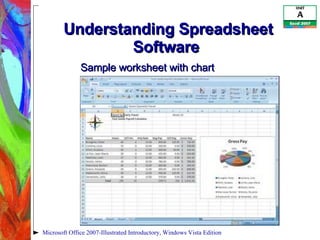
Understanding Spreadsheet Software  Microsoft Office 2007-Illustrated Introductory, Windows Vista Edition Sample worksheet with chart
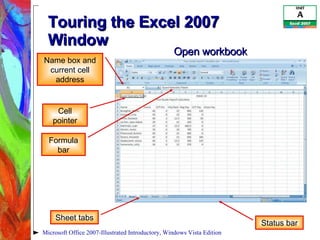
Touring the Excel 2007 Window The  Name box  displays the active cell address The  formula bar  allows you to enter or edit data in the worksheet The intersection of a row and a column is called a  cell Microsoft Office 2007-Illustrated Introductory, Windows Vista Edition
Touring the Excel 2007 Window  Each cell has its own unique location called a  cell address A cell address is identified by its coordinates (A1) The cell in which you are working is called the  active cell Sheet tabs  let you switch from sheet to sheet in a workbook Microsoft Office 2007-Illustrated Introductory, Windows Vista Edition
Touring the Excel 2007 Window  The  status bar  provides a brief description of the active command or task in progress The  mode indicator  provides additional information about certain tasks A selection of two or more cells such as B5:B14 is called a  range Microsoft Office 2007-Illustrated Introductory, Windows Vista Edition
Touring the Excel 2007 Window  Microsoft Office 2007-Illustrated Introductory, Windows Vista Edition Name box and current cell address Formula bar Sheet tabs Cell pointer Status bar Open workbook
Understanding Formulas Formulas  are equations in a worksheet Excel formulas allow users at every level of mathematical eVistaertise to make calculations with accuracy Microsoft Office 2007-Illustrated Introductory, Windows Vista Edition
Understanding Formulas When creating calculations in Excel, it is important to: Know where the formulas should be Know exactly what cells and arithmetic operations are needed Create formulas with care Use cell references rather than values Determine what calculations will be needed Microsoft Office 2007-Illustrated Introductory, Windows Vista Edition
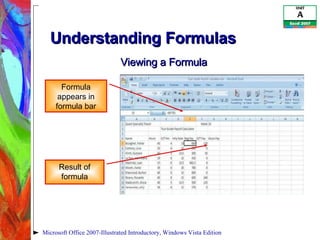
Understanding Formulas Microsoft Office 2007-Illustrated Introductory, Windows Vista Edition Formula appears in formula bar Result of formula Viewing a Formula
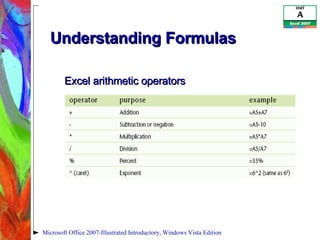
Understanding Formulas  Microsoft Office 2007-Illustrated Introductory, Windows Vista Edition Excel arithmetic operators
Entering Labels and Values and Using AutoSum Labels  contain text and numerical information not used in calculations Labels help you identify data in worksheet rows and columns You should enter all the labels first before entering other content Values  are numbers, formulas, and functions that can be used in calculations Microsoft Office 2007-Illustrated Introductory, Windows Vista Edition
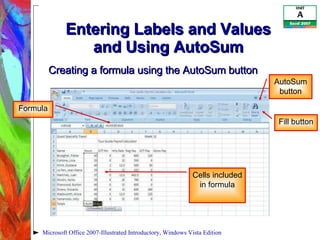
Entering Labels and Values and Using AutoSum A  function  is a built-in formula A function includes  arguments , the information necessary for the calculation Clicking the AutoSum button sums the adjacent range above or to the left, though you can adjust the range The Fill button fills cells based on the first number sequence in the range Microsoft Office 2007-Illustrated Introductory, Windows Vista Edition
Entering Labels and Values and Using AutoSum Microsoft Office 2007-Illustrated Introductory, Windows Vista Edition Cells included in formula Formula AutoSum button Creating a formula using the AutoSum button Fill button
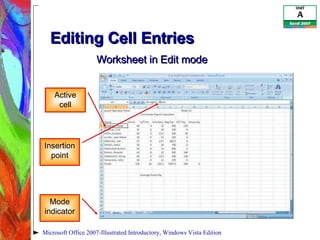
Editing Cell Entries You can change, or  edit , the contents of an active cell at any time To edit the contents of the active cell: Double-click the cell, or Click in the formula bar, or Just start typing Excel switches to Edit mode when you are making cell entries Microsoft Office 2007-Illustrated Introductory, Windows Vista Edition
Editing Cell Entries Microsoft Office 2007-Illustrated Introductory, Windows Vista Edition Active cell Insertion point Mode indicator Worksheet in Edit mode
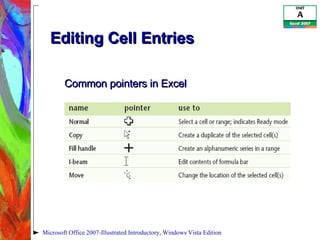
Editing Cell Entries Microsoft Office 2007-Illustrated Introductory, Windows Vista Edition Common pointers in Excel
Entering and Editing a Simple Formula Formulas start with the equal sign (=), also called the  formula prefix Calculation operators  in formulas indicate what type of calculation you want to perform Arithmetic operators  perform mathematical calculations such as adding and subtracting Microsoft Office 2007-Illustrated Introductory, Windows Vista Edition
Entering and Editing a Simple Formula Comparison operators  compare values for the purpose of true/false results Text concatenation operators  join strings of text in different cells Reference operators  enable you to use ranges in calculations Microsoft Office 2007-Illustrated Introductory, Windows Vista Edition
Switching Worksheet Views You can change your view of the worksheet window by using either: View tab on the Ribbon View buttons on the status bar Normal view  shows the worksheet without including headers and footers or tools like rulers and a page number indicator Microsoft Office 2007-Illustrated Introductory, Windows Vista Edition
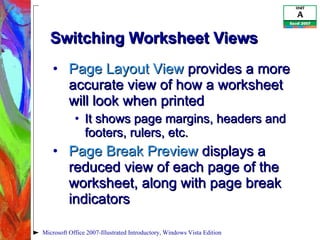
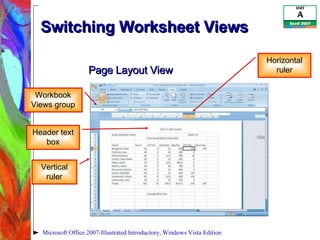
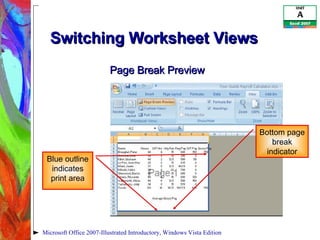
Switching Worksheet Views  Page Layout View  provides a more accurate view of how a worksheet will look when printed It shows page margins, headers and footers, rulers, etc. Page Break Preview  displays a reduced view of each page of the worksheet, along with page break indicators Microsoft Office 2007-Illustrated Introductory, Windows Vista Edition
Switching Worksheet Views  Microsoft Office 2007-Illustrated Introductory, Windows Vista Edition Page Layout View Workbook Views group Header text box Vertical ruler Horizontal ruler
Switching Worksheet Views  Microsoft Office 2007-Illustrated Introductory, Windows Vista Edition Page Break Preview Blue outline indicates print area Bottom page break indicator
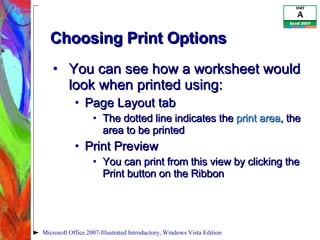
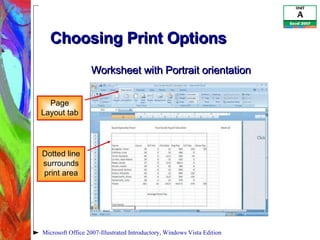
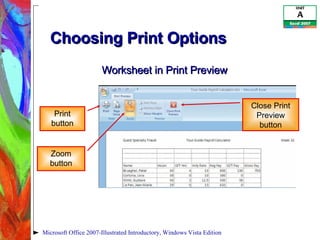
Choosing Print Options You can see how a worksheet would look when printed using: Page Layout tab The dotted line indicates the  print area , the area to be printed Print Preview You can print from this view by clicking the Print button on the Ribbon Microsoft Office 2007-Illustrated Introductory, Windows Vista Edition
Choosing Print Options  Page Layout tab Page Setup group Print orientation:  landscape  or  portrait Scale to Fit group Sheet Options group Print dialog box lets you choose the number of copies, the printer, etc. Microsoft Office 2007-Illustrated Introductory, Windows Vista Edition
Choosing Print Options  Microsoft Office 2007-Illustrated Introductory, Windows Vista Edition Worksheet with Portrait orientation Page Layout tab Dotted line surrounds print area
Choosing Print Options  Microsoft Office 2007-Illustrated Introductory, Windows Vista Edition Worksheet in Print Preview Print button Zoom button Close Print Preview button
Summary Understand spreadsheet software Tour the Excel 2007 window Understand formulas Enter labels and values and use AutoSum Microsoft Office 2007-Illustrated Introductory, Windows Vista Edition
Summary  Edit cell entries Enter and edit a simple formula Switch worksheet views Choose print options Microsoft Office 2007-Illustrated Introductory, Windows Vista Edition

Excel 2007 Unit A

  • 1.
    Microsoft Office 2007-Illustrated Introductory, Windows Vista Edition Getting Started with Excel 2007
  • 2.
    Understand spreadsheet softwareTour the Excel 2007 window Understand formulas Enter labels and values and use AutoSum Objectives Microsoft Office 2007-Illustrated Introductory, Windows Vista Edition
  • 3.
    Objectives Editcell entries Enter and edit a simple formula Switch worksheet views Choose print options Microsoft Office 2007-Illustrated Introductory, Windows Vista Edition
  • 4.
    Understanding Spreadsheet SoftwareMicrosoft Excel is an electronic spreadsheet program An electronic spreadsheet program allows you to perform numeric calculations The spreadsheet is called a worksheet Individual worksheets are stored in a workbook which is the Excel file Microsoft Office 2007-Illustrated Introductory, Windows Vista Edition
  • 5.
    Understanding Spreadsheet Software Advantages of using Excel Enter data quickly and accurately Recalculate data easily Perform what-if analysis Change the appearance of information Create charts Share information Build on previous work Microsoft Office 2007-Illustrated Introductory, Windows Vista Edition
  • 6.
    Understanding Spreadsheet Software Microsoft Office 2007-Illustrated Introductory, Windows Vista Edition Sample worksheet with chart
  • 7.
    Touring the Excel2007 Window The Name box displays the active cell address The formula bar allows you to enter or edit data in the worksheet The intersection of a row and a column is called a cell Microsoft Office 2007-Illustrated Introductory, Windows Vista Edition
  • 8.
    Touring the Excel2007 Window Each cell has its own unique location called a cell address A cell address is identified by its coordinates (A1) The cell in which you are working is called the active cell Sheet tabs let you switch from sheet to sheet in a workbook Microsoft Office 2007-Illustrated Introductory, Windows Vista Edition
  • 9.
    Touring the Excel2007 Window The status bar provides a brief description of the active command or task in progress The mode indicator provides additional information about certain tasks A selection of two or more cells such as B5:B14 is called a range Microsoft Office 2007-Illustrated Introductory, Windows Vista Edition
  • 10.
    Touring the Excel2007 Window Microsoft Office 2007-Illustrated Introductory, Windows Vista Edition Name box and current cell address Formula bar Sheet tabs Cell pointer Status bar Open workbook
  • 11.
    Understanding Formulas Formulas are equations in a worksheet Excel formulas allow users at every level of mathematical eVistaertise to make calculations with accuracy Microsoft Office 2007-Illustrated Introductory, Windows Vista Edition
  • 12.
    Understanding Formulas Whencreating calculations in Excel, it is important to: Know where the formulas should be Know exactly what cells and arithmetic operations are needed Create formulas with care Use cell references rather than values Determine what calculations will be needed Microsoft Office 2007-Illustrated Introductory, Windows Vista Edition
  • 13.
    Understanding Formulas MicrosoftOffice 2007-Illustrated Introductory, Windows Vista Edition Formula appears in formula bar Result of formula Viewing a Formula
  • 14.
    Understanding Formulas Microsoft Office 2007-Illustrated Introductory, Windows Vista Edition Excel arithmetic operators
  • 15.
    Entering Labels andValues and Using AutoSum Labels contain text and numerical information not used in calculations Labels help you identify data in worksheet rows and columns You should enter all the labels first before entering other content Values are numbers, formulas, and functions that can be used in calculations Microsoft Office 2007-Illustrated Introductory, Windows Vista Edition
  • 16.
    Entering Labels andValues and Using AutoSum A function is a built-in formula A function includes arguments , the information necessary for the calculation Clicking the AutoSum button sums the adjacent range above or to the left, though you can adjust the range The Fill button fills cells based on the first number sequence in the range Microsoft Office 2007-Illustrated Introductory, Windows Vista Edition
  • 17.
    Entering Labels andValues and Using AutoSum Microsoft Office 2007-Illustrated Introductory, Windows Vista Edition Cells included in formula Formula AutoSum button Creating a formula using the AutoSum button Fill button
  • 18.
    Editing Cell EntriesYou can change, or edit , the contents of an active cell at any time To edit the contents of the active cell: Double-click the cell, or Click in the formula bar, or Just start typing Excel switches to Edit mode when you are making cell entries Microsoft Office 2007-Illustrated Introductory, Windows Vista Edition
  • 19.
    Editing Cell EntriesMicrosoft Office 2007-Illustrated Introductory, Windows Vista Edition Active cell Insertion point Mode indicator Worksheet in Edit mode
  • 20.
    Editing Cell EntriesMicrosoft Office 2007-Illustrated Introductory, Windows Vista Edition Common pointers in Excel
  • 21.
    Entering and Editinga Simple Formula Formulas start with the equal sign (=), also called the formula prefix Calculation operators in formulas indicate what type of calculation you want to perform Arithmetic operators perform mathematical calculations such as adding and subtracting Microsoft Office 2007-Illustrated Introductory, Windows Vista Edition
  • 22.
    Entering and Editinga Simple Formula Comparison operators compare values for the purpose of true/false results Text concatenation operators join strings of text in different cells Reference operators enable you to use ranges in calculations Microsoft Office 2007-Illustrated Introductory, Windows Vista Edition
  • 23.
    Switching Worksheet ViewsYou can change your view of the worksheet window by using either: View tab on the Ribbon View buttons on the status bar Normal view shows the worksheet without including headers and footers or tools like rulers and a page number indicator Microsoft Office 2007-Illustrated Introductory, Windows Vista Edition
  • 24.
    Switching Worksheet Views Page Layout View provides a more accurate view of how a worksheet will look when printed It shows page margins, headers and footers, rulers, etc. Page Break Preview displays a reduced view of each page of the worksheet, along with page break indicators Microsoft Office 2007-Illustrated Introductory, Windows Vista Edition
  • 25.
    Switching Worksheet Views Microsoft Office 2007-Illustrated Introductory, Windows Vista Edition Page Layout View Workbook Views group Header text box Vertical ruler Horizontal ruler
  • 26.
    Switching Worksheet Views Microsoft Office 2007-Illustrated Introductory, Windows Vista Edition Page Break Preview Blue outline indicates print area Bottom page break indicator
  • 27.
    Choosing Print OptionsYou can see how a worksheet would look when printed using: Page Layout tab The dotted line indicates the print area , the area to be printed Print Preview You can print from this view by clicking the Print button on the Ribbon Microsoft Office 2007-Illustrated Introductory, Windows Vista Edition
  • 28.
    Choosing Print Options Page Layout tab Page Setup group Print orientation: landscape or portrait Scale to Fit group Sheet Options group Print dialog box lets you choose the number of copies, the printer, etc. Microsoft Office 2007-Illustrated Introductory, Windows Vista Edition
  • 29.
    Choosing Print Options Microsoft Office 2007-Illustrated Introductory, Windows Vista Edition Worksheet with Portrait orientation Page Layout tab Dotted line surrounds print area
  • 30.
    Choosing Print Options Microsoft Office 2007-Illustrated Introductory, Windows Vista Edition Worksheet in Print Preview Print button Zoom button Close Print Preview button
  • 31.
    Summary Understand spreadsheetsoftware Tour the Excel 2007 window Understand formulas Enter labels and values and use AutoSum Microsoft Office 2007-Illustrated Introductory, Windows Vista Edition
  • 32.
    Summary Editcell entries Enter and edit a simple formula Switch worksheet views Choose print options Microsoft Office 2007-Illustrated Introductory, Windows Vista Edition