PowerPoint Tips Melissa White REMC 13 Supervisor of Media and Technology [email_address]
When Teaching Use It For…
Introducing a New Concept or Idea
Have Students Create a Slide/Slides To Demonstrate Something
Advertise your product!
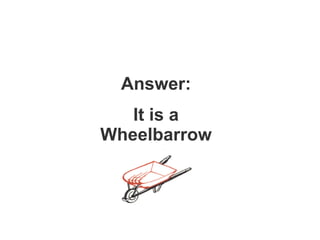
Use it like HyperStudio with links to another page I have two arms, but fingers none. I have two feet, but cannot run. I carry well, but I have found I carry best with my feet OFF the ground. What am I?
Answer: It is a Wheelbarrow
Teaching How To Use The Online Card Catalog
PowerPoint Can Be Used For…
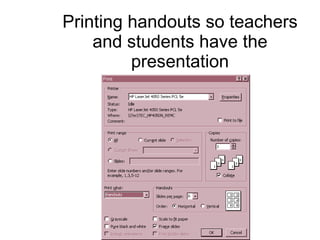
Printing handouts so teachers and students have the presentation
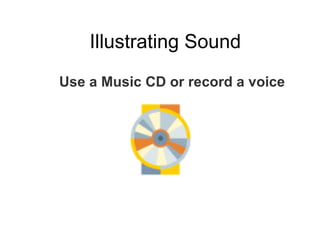
Illustrating Sound Use a Music CD or record a voice
Capturing Images Capture images off the Internet Capture images from your desktop Capture images from any document that you are working on On a PC hold down your Alt and Print Screen keys. Then in PowerPoint go to edit and paste. On a MAC hold down the Apple, shift and the number three. It will be saved on the desktop. Then do an Insert picture from the desktop.
Book Promotions
Book Fair Previews
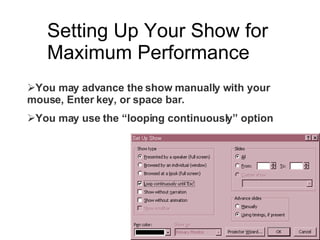
Setting Up Your Show for Maximum Performance You may advance the show manually with your mouse, Enter key, or space bar. You may use the “looping continuously” option
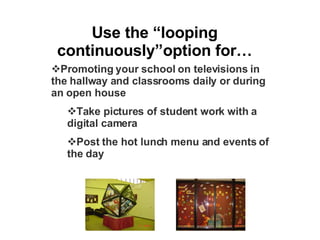
Use the “looping continuously”option for… Promoting your school on televisions in the hallway and classrooms daily or during an open house Take pictures of student work with a digital camera Post the hot lunch menu and events of the day
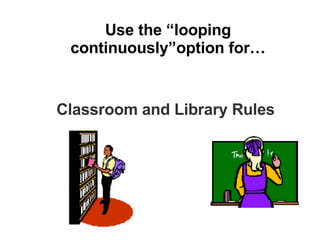
Use the “looping continuously”option for… Classroom and Library Rules
Use the “looping continuously”option for… Events of the Day
Use the “looping continuously”option for… An icebreaker activity that should be done when entering the classroom Class assignments
Things to Watch Out For…
PowerPoint  presentations can get quite large. Burn it on CD Minimize graphics and sound so it fits on a floppy Use a Zip Disk Helpful Hint: To check size of PowerPoint go to File on your Menu  then click on Properties and  then General.
Avoid bells and whistles if doing a board presentation
Limit Bullets that come across the page You may want to forgo sound that goes with them. This can be turned on and off by going to Slide Show on the menu bar and then going to Custom Animation.
Limit your text! Use a Data Projector if at all possible
Don’t read From Your PowerPoint!!!! Use it as a backdrop to what you are teaching or presenting Have it playing in the background with music and pictures to illustrate the points you are trying to make
Clipart Sites http://www.all-free-clipart.com/ offers thousand of graphics sorted by categories that include education, animals, business and entertainment. http://dgl.microsoft.com/  Over 120,000 items to choose from  http://www.barrysclipart.com/ Offers quality Internet graphics, clip art, and GIF images. http://webclipart.miningco.com/internet/webclipart Includes an A-Z topic listing, Best of the Net clipart winners, featured clip art sites and more. http://www.desktoppublishing.com/cliplist.html Original clip art and links to many other clip art sites
Animated GIF Sites http://animatedgif.net/ Still a great site for animation, but recently have added naughty and violent GIFS. http://www.animation-central.com/ Free clip art, animated images and web graphics http://www.gifart.com/  Over 10,000 GIF formatted web graphics, including 3D animation http://bellsnwhistles.com/ A great site to go for free backgrounds, non-animated graphics and GIF-animated graphics

Power Point Macul

  • 1.
    PowerPoint Tips MelissaWhite REMC 13 Supervisor of Media and Technology [email_address]
  • 2.
  • 3.
    Introducing a NewConcept or Idea
  • 4.
    Have Students Createa Slide/Slides To Demonstrate Something
  • 5.
  • 6.
    Use it likeHyperStudio with links to another page I have two arms, but fingers none. I have two feet, but cannot run. I carry well, but I have found I carry best with my feet OFF the ground. What am I?
  • 7.
    Answer: It isa Wheelbarrow
  • 8.
    Teaching How ToUse The Online Card Catalog
  • 9.
    PowerPoint Can BeUsed For…
  • 10.
    Printing handouts soteachers and students have the presentation
  • 11.
    Illustrating Sound Usea Music CD or record a voice
  • 12.
    Capturing Images Captureimages off the Internet Capture images from your desktop Capture images from any document that you are working on On a PC hold down your Alt and Print Screen keys. Then in PowerPoint go to edit and paste. On a MAC hold down the Apple, shift and the number three. It will be saved on the desktop. Then do an Insert picture from the desktop.
  • 13.
  • 14.
  • 15.
    Setting Up YourShow for Maximum Performance You may advance the show manually with your mouse, Enter key, or space bar. You may use the “looping continuously” option
  • 16.
    Use the “loopingcontinuously”option for… Promoting your school on televisions in the hallway and classrooms daily or during an open house Take pictures of student work with a digital camera Post the hot lunch menu and events of the day
  • 17.
    Use the “loopingcontinuously”option for… Classroom and Library Rules
  • 18.
    Use the “loopingcontinuously”option for… Events of the Day
  • 19.
    Use the “loopingcontinuously”option for… An icebreaker activity that should be done when entering the classroom Class assignments
  • 20.
    Things to WatchOut For…
  • 21.
    PowerPoint presentationscan get quite large. Burn it on CD Minimize graphics and sound so it fits on a floppy Use a Zip Disk Helpful Hint: To check size of PowerPoint go to File on your Menu then click on Properties and then General.
  • 22.
    Avoid bells andwhistles if doing a board presentation
  • 23.
    Limit Bullets thatcome across the page You may want to forgo sound that goes with them. This can be turned on and off by going to Slide Show on the menu bar and then going to Custom Animation.
  • 24.
    Limit your text!Use a Data Projector if at all possible
  • 25.
    Don’t read FromYour PowerPoint!!!! Use it as a backdrop to what you are teaching or presenting Have it playing in the background with music and pictures to illustrate the points you are trying to make
  • 26.
    Clipart Sites http://www.all-free-clipart.com/offers thousand of graphics sorted by categories that include education, animals, business and entertainment. http://dgl.microsoft.com/ Over 120,000 items to choose from http://www.barrysclipart.com/ Offers quality Internet graphics, clip art, and GIF images. http://webclipart.miningco.com/internet/webclipart Includes an A-Z topic listing, Best of the Net clipart winners, featured clip art sites and more. http://www.desktoppublishing.com/cliplist.html Original clip art and links to many other clip art sites
  • 27.
    Animated GIF Siteshttp://animatedgif.net/ Still a great site for animation, but recently have added naughty and violent GIFS. http://www.animation-central.com/ Free clip art, animated images and web graphics http://www.gifart.com/ Over 10,000 GIF formatted web graphics, including 3D animation http://bellsnwhistles.com/ A great site to go for free backgrounds, non-animated graphics and GIF-animated graphics