Microsoft Office 2007- Illustrated Introductory, Windows Vista Edition Creating Documents  with Word 2007
Understand word processing software Explore the Word program window Start a document Save a document Objectives Microsoft Office 2007-Illustrated Introductory, Windows Vista Edition
Select text Format text using the Mini toolbar Create a document using a template View and navigate a document Objectives Microsoft Office 2007-Illustrated Introductory, Windows Vista Edition
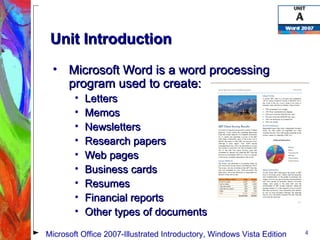
Microsoft Word is a word processing program used to create: Letters Memos Newsletters Research papers Web pages Business cards Resumes Financial reports Other types of documents Unit Introduction Microsoft Office 2007-Illustrated Introductory, Windows Vista Edition
Understanding Word  Processing Software A  word processing program  is software that allows you to enter, edit, and format text and graphics Copy and move text Format text with fonts and color Format and design page layout Insert tables, charts, diagrams, and graphics Use mail merge to create form letters The files you create using Word are called  documents Microsoft Office 2007-Illustrated Introductory, Windows Vista Edition
Understanding Word  Processing Software Formatted text Graphic Table Chart Column Header Microsoft Office 2007-Illustrated Introductory, Windows Vista Edition
Understanding Word  Processing Software Plan a document before you create it Identify: Message Audience Needed elements (charts, tables, etc.) Appropriate tone and look for the document (formal, playful, etc.) The purpose of and audience for a document determine its design Microsoft Office 2007-Illustrated Introductory, Windows Vista Edition
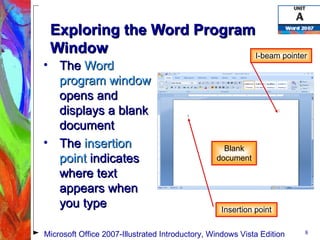
Exploring the Word Program Window The  Word program window  opens and displays a blank document The  insertion point  indicates where text appears when you type Blank document I-beam pointer Insertion point Microsoft Office 2007-Illustrated Introductory, Windows Vista Edition
Exploring the Word Program Window The  mouse pointer  changes shape depending on its location in the Word program window Each pointer is used for a different purpose Click and type pointers position the insertion point and apply paragraph formatting Microsoft Office 2007-Illustrated Introductory, Windows Vista Edition
Exploring the Word Program Window Document window Ribbon Title bar Scroll bar Ruler Status bar Quick Access toolbar View buttons Microsoft Office 2007-Illustrated Introductory, Windows Vista Edition
Exploring the Word Program Window The  Ribbon  contains tabs Tabs  include buttons for commands organized in groups Quick Access toolbar  contains frequently used commands and is customizable Microsoft Office 2007-Illustrated Introductory, Windows Vista Edition
Exploring the Word Program Window The Word program window Title   bar  displays the program and document names Office button  opens a menu of commands related to managing and sharing documents Microsoft Office Help button  provides access to the Word Help system Microsoft Office 2007-Illustrated Introductory, Windows Vista Edition
Exploring the Word Program Window The Word program window (cont.) Document   window  displays the current document Rulers  show margin, tab, and indent settings Scroll   bars  are used to display different parts of the document in the document window Microsoft Office 2007-Illustrated Introductory, Windows Vista Edition
Exploring the Word Program Window The Word program window (cont.) View   buttons  are used to switch between Word document views Zoom level button  and  Zoom slider  provide quick ways to enlarge and decrease a document onscreen view Status   bar  shows page information, the location of the insertion point, and the on/off status of several Word features Microsoft Office 2007-Illustrated Introductory, Windows Vista Edition
Starting a Document Begin a new document by typing in a blank document in the document window Word includes a  word-wrap  feature As you type, the insertion point moves automatically to the next line when you reach the right margin Press [Enter] only when you want to start a new paragraph  Wrapped text Microsoft Office 2007-Illustrated Introductory, Windows Vista Edition
Starting a Document Insert  text in a document by clicking to move the insertion point and then typing Delete  text Press  [Backspace]  to delete the text before the insertion point Press  [Delete]  to delete the text after the insertion point Microsoft Office 2007-Illustrated Introductory, Windows Vista Edition
Starting a Document Automatic features that might appear as you type AutoComplete AutoCorrect Spelling and Grammar Microsoft Office 2007-Illustrated Introductory, Windows Vista Edition
Saving a Document To store a document permanently, you must save it as a  file When you  save  a file you give it a name, called a  filename , and indicate the location to store the file A filename identifies the file  Files can be stored on an internal hard disk, on a CD or jump drive, or in another location Saving a file allows you to close the file and open it later for editing or printing Microsoft Office 2007-Illustrated Introductory, Windows Vista Edition
Saving a Document Save a file for the first time using the  Save button  on the Quick Access toolbar or the  Save command  on the Office menu Assign a filename and a file location to a document using the  Save As   dialog box Microsoft Office 2007-Illustrated Introductory, Windows Vista Edition Location of the file Filenames should be brief and descriptive .docx file extension indicates the file is a Word document
Saving a Document After you save a file for the first time, save frequently as you work  Saving updates the stored copy of the file with your changes Save changes using the  Save button ,   the  Save command , or [Ctrl][S] Microsoft Office 2007-Illustrated Introductory, Windows Vista Edition
Selecting Text You must  select  text before deleting, editing, or formatting it Click and drag the I-beam pointer across text to select it Selected text is highlighted Microsoft Office 2007-Illustrated Introductory, Windows Vista Edition
Selecting Text Selected text Microsoft Office 2007-Illustrated Introductory, Windows Vista Edition
Selecting Text Formatting marks  are special characters that appear on screen to help you edit and format text This formatting mark indicates a blank line or the  end of a paragraph Formatting marks do not print Use the Show/Hide ¶ button turn the display of formatting marks off and on Microsoft Office 2007-Illustrated Introductory, Windows Vista Edition
Selecting Text To select text quickly, learn to use the mouse to select words, lines, paragraphs, and other large blocks of text Methods for selecting text Microsoft Office 2007-Illustrated Introductory, Windows Vista Edition to select use the pointer to Any amount of text Drag over the text A word Double-click the word A line of text Click with the selection pointer to the left of the line A sentence Press and hold [Ctrl], then click the sentence A paragraph Triple-click the paragraph or double-click with the selection pointer to the left of the paragraph A large block of text Click at the beginning of the selection, press and hold [Shift], then click at the end of the selection Multiple nonconsecutive selections Select the first selection, then press and hold [Ctrl] as you select each additional selection An entire document Triple-click with the selection pointer to the left of any text, press [Ctrl][A], or click the Select button in the Editing group on the Home tab, and then click Select All
Formatting Text Using the Mini Toolbar  Includes the most commonly used text and paragraph formatting commands Appears faintly above selected text Becomes solid when your point to it Right-click selected text if the Mini toolbar disappears Microsoft Office 2007-Illustrated Introductory, Windows Vista Edition
Formatting Text Using the Mini Toolbar Printing a document - Before printing a document, examine it for errors in  Print Preview   Print Preview tab Microsoft Office 2007-Illustrated Introductory, Windows Vista Edition
Formatting Text Using the Mini Toolbar Print Preview  shows a document as it will look when printed Enlarge the view of the document to see details Reduce the view to see the overall layout  Edit the document text in Print Preview Print the document from Print Preview  Click the Office button, point to Print, then click  Print Preview  to open Print Preview  Microsoft Office 2007-Illustrated Introductory, Windows Vista Edition
Formatting Text Using the Mini Toolbar Print a document after proofing a document and correcting errors Use the  Print   command  on the Office menu to change the print settings before printing Number of copies Page range Default printer Microsoft Office 2007-Illustrated Introductory, Windows Vista Edition
Formatting Text Using the Mini Toolbar Print a document (con’t) Click the  Quick   Print   command  on the Office menu or the  Print   button  on the Print Preview toolbar to print using the default print settings Prints a single copy of the entire document The Quick Access toolbar can be customized to include the Quick Print button Microsoft Office 2007-Illustrated Introductory, Windows Vista Edition
Creating a Document Using a Template A template helps you create a formatted a document quickly A  template  is a formatted document that contains placeholder text You replace the placeholder text with your own text and save the file with a new filename Word includes templates for faxes, letters, reports, brochures, memos, and other types of documents Microsoft Office 2007-Illustrated Introductory, Windows Vista Edition
Creating a Document Using a Template New Document dialog box Microsoft Office 2007-Illustrated Introductory, Windows Vista Edition Installed Template Preview
Creating a Document Using a Template Replace placeholder text with your information Inserted text Placeholder text Microsoft Office 2007-Illustrated Introductory, Windows Vista Edition
Using the Undo, Redo, and Repeat commands Reverse the last action with the  Undo button Restore a change that you reversed with the  Redo button Repeat a change with the  Repeat command  on the Edit menu Creating a Document Using a Template Microsoft Office 2007-Illustrated Introductory, Windows Vista Edition
Zoom feature Enlarge document for a close-up view Reduce document for an overview of the layout Use tools in the Zoom group on the View tab Viewing and Navigating a Document  Microsoft Office 2007-Illustrated Introductory, Windows Vista Edition
Use the Zoom level button on the status bar Use the Zoom slider on the status bar Viewing and Navigating a Document Zoom level button Zoom slider Zoom In Zoom Out Microsoft Office 2007-Illustrated Introductory, Windows Vista Edition
Scroll to display different parts of a document Drag the scroll box up or down in the Vertical scroll bar Drag the scroll box right or left in the Horizontal scroll bar Click the Previous Page button Click the Next Page button Viewing and Navigating a Document Microsoft Office 2007-Illustrated Introductory, Windows Vista Edition
Viewing and Navigating a Document Word includes different  views , or ways of displaying a document Print   Layout   view  displays a document as it will look on a printed page Full Screen Reading view  displays document so it is easy to read onscreen Microsoft Office 2007-Illustrated Introductory, Windows Vista Edition
Viewing and Navigating a Document Word document views (cont.) Web   Layout   view  displays a document as it will look when viewed on a computer screen using a Web browser Outline   view  displays the headings in a document in outline form Draft view  shows a simplified layout of a document, without margins, headers and footers, or graphics Microsoft Office 2007-Illustrated Introductory, Windows Vista Edition
When you start Word, a blank document opens in the document window To create a new document, begin typing in the blank document Save the new document with a descriptive filename As you edit the document, save your changes to it often Summary Microsoft Office 2007-Illustrated Introductory, Windows Vista Edition
Summary Select text as you work Format text using the Mini toolbar Use Print Preview before printing Save, print, and then close the document When you are finished editing and creating documents, close all open files, and then close Word Microsoft Office 2007-Illustrated Introductory, Windows Vista Edition

Word 2007 Unit A

  • 1.
    Microsoft Office 2007-Illustrated Introductory, Windows Vista Edition Creating Documents with Word 2007
  • 2.
    Understand word processingsoftware Explore the Word program window Start a document Save a document Objectives Microsoft Office 2007-Illustrated Introductory, Windows Vista Edition
  • 3.
    Select text Formattext using the Mini toolbar Create a document using a template View and navigate a document Objectives Microsoft Office 2007-Illustrated Introductory, Windows Vista Edition
  • 4.
    Microsoft Word isa word processing program used to create: Letters Memos Newsletters Research papers Web pages Business cards Resumes Financial reports Other types of documents Unit Introduction Microsoft Office 2007-Illustrated Introductory, Windows Vista Edition
  • 5.
    Understanding Word Processing Software A word processing program is software that allows you to enter, edit, and format text and graphics Copy and move text Format text with fonts and color Format and design page layout Insert tables, charts, diagrams, and graphics Use mail merge to create form letters The files you create using Word are called documents Microsoft Office 2007-Illustrated Introductory, Windows Vista Edition
  • 6.
    Understanding Word Processing Software Formatted text Graphic Table Chart Column Header Microsoft Office 2007-Illustrated Introductory, Windows Vista Edition
  • 7.
    Understanding Word Processing Software Plan a document before you create it Identify: Message Audience Needed elements (charts, tables, etc.) Appropriate tone and look for the document (formal, playful, etc.) The purpose of and audience for a document determine its design Microsoft Office 2007-Illustrated Introductory, Windows Vista Edition
  • 8.
    Exploring the WordProgram Window The Word program window opens and displays a blank document The insertion point indicates where text appears when you type Blank document I-beam pointer Insertion point Microsoft Office 2007-Illustrated Introductory, Windows Vista Edition
  • 9.
    Exploring the WordProgram Window The mouse pointer changes shape depending on its location in the Word program window Each pointer is used for a different purpose Click and type pointers position the insertion point and apply paragraph formatting Microsoft Office 2007-Illustrated Introductory, Windows Vista Edition
  • 10.
    Exploring the WordProgram Window Document window Ribbon Title bar Scroll bar Ruler Status bar Quick Access toolbar View buttons Microsoft Office 2007-Illustrated Introductory, Windows Vista Edition
  • 11.
    Exploring the WordProgram Window The Ribbon contains tabs Tabs include buttons for commands organized in groups Quick Access toolbar contains frequently used commands and is customizable Microsoft Office 2007-Illustrated Introductory, Windows Vista Edition
  • 12.
    Exploring the WordProgram Window The Word program window Title bar displays the program and document names Office button opens a menu of commands related to managing and sharing documents Microsoft Office Help button provides access to the Word Help system Microsoft Office 2007-Illustrated Introductory, Windows Vista Edition
  • 13.
    Exploring the WordProgram Window The Word program window (cont.) Document window displays the current document Rulers show margin, tab, and indent settings Scroll bars are used to display different parts of the document in the document window Microsoft Office 2007-Illustrated Introductory, Windows Vista Edition
  • 14.
    Exploring the WordProgram Window The Word program window (cont.) View buttons are used to switch between Word document views Zoom level button and Zoom slider provide quick ways to enlarge and decrease a document onscreen view Status bar shows page information, the location of the insertion point, and the on/off status of several Word features Microsoft Office 2007-Illustrated Introductory, Windows Vista Edition
  • 15.
    Starting a DocumentBegin a new document by typing in a blank document in the document window Word includes a word-wrap feature As you type, the insertion point moves automatically to the next line when you reach the right margin Press [Enter] only when you want to start a new paragraph Wrapped text Microsoft Office 2007-Illustrated Introductory, Windows Vista Edition
  • 16.
    Starting a DocumentInsert text in a document by clicking to move the insertion point and then typing Delete text Press [Backspace] to delete the text before the insertion point Press [Delete] to delete the text after the insertion point Microsoft Office 2007-Illustrated Introductory, Windows Vista Edition
  • 17.
    Starting a DocumentAutomatic features that might appear as you type AutoComplete AutoCorrect Spelling and Grammar Microsoft Office 2007-Illustrated Introductory, Windows Vista Edition
  • 18.
    Saving a DocumentTo store a document permanently, you must save it as a file When you save a file you give it a name, called a filename , and indicate the location to store the file A filename identifies the file Files can be stored on an internal hard disk, on a CD or jump drive, or in another location Saving a file allows you to close the file and open it later for editing or printing Microsoft Office 2007-Illustrated Introductory, Windows Vista Edition
  • 19.
    Saving a DocumentSave a file for the first time using the Save button on the Quick Access toolbar or the Save command on the Office menu Assign a filename and a file location to a document using the Save As dialog box Microsoft Office 2007-Illustrated Introductory, Windows Vista Edition Location of the file Filenames should be brief and descriptive .docx file extension indicates the file is a Word document
  • 20.
    Saving a DocumentAfter you save a file for the first time, save frequently as you work Saving updates the stored copy of the file with your changes Save changes using the Save button , the Save command , or [Ctrl][S] Microsoft Office 2007-Illustrated Introductory, Windows Vista Edition
  • 21.
    Selecting Text Youmust select text before deleting, editing, or formatting it Click and drag the I-beam pointer across text to select it Selected text is highlighted Microsoft Office 2007-Illustrated Introductory, Windows Vista Edition
  • 22.
    Selecting Text Selectedtext Microsoft Office 2007-Illustrated Introductory, Windows Vista Edition
  • 23.
    Selecting Text Formattingmarks are special characters that appear on screen to help you edit and format text This formatting mark indicates a blank line or the end of a paragraph Formatting marks do not print Use the Show/Hide ¶ button turn the display of formatting marks off and on Microsoft Office 2007-Illustrated Introductory, Windows Vista Edition
  • 24.
    Selecting Text Toselect text quickly, learn to use the mouse to select words, lines, paragraphs, and other large blocks of text Methods for selecting text Microsoft Office 2007-Illustrated Introductory, Windows Vista Edition to select use the pointer to Any amount of text Drag over the text A word Double-click the word A line of text Click with the selection pointer to the left of the line A sentence Press and hold [Ctrl], then click the sentence A paragraph Triple-click the paragraph or double-click with the selection pointer to the left of the paragraph A large block of text Click at the beginning of the selection, press and hold [Shift], then click at the end of the selection Multiple nonconsecutive selections Select the first selection, then press and hold [Ctrl] as you select each additional selection An entire document Triple-click with the selection pointer to the left of any text, press [Ctrl][A], or click the Select button in the Editing group on the Home tab, and then click Select All
  • 25.
    Formatting Text Usingthe Mini Toolbar Includes the most commonly used text and paragraph formatting commands Appears faintly above selected text Becomes solid when your point to it Right-click selected text if the Mini toolbar disappears Microsoft Office 2007-Illustrated Introductory, Windows Vista Edition
  • 26.
    Formatting Text Usingthe Mini Toolbar Printing a document - Before printing a document, examine it for errors in Print Preview Print Preview tab Microsoft Office 2007-Illustrated Introductory, Windows Vista Edition
  • 27.
    Formatting Text Usingthe Mini Toolbar Print Preview shows a document as it will look when printed Enlarge the view of the document to see details Reduce the view to see the overall layout Edit the document text in Print Preview Print the document from Print Preview Click the Office button, point to Print, then click Print Preview to open Print Preview Microsoft Office 2007-Illustrated Introductory, Windows Vista Edition
  • 28.
    Formatting Text Usingthe Mini Toolbar Print a document after proofing a document and correcting errors Use the Print command on the Office menu to change the print settings before printing Number of copies Page range Default printer Microsoft Office 2007-Illustrated Introductory, Windows Vista Edition
  • 29.
    Formatting Text Usingthe Mini Toolbar Print a document (con’t) Click the Quick Print command on the Office menu or the Print button on the Print Preview toolbar to print using the default print settings Prints a single copy of the entire document The Quick Access toolbar can be customized to include the Quick Print button Microsoft Office 2007-Illustrated Introductory, Windows Vista Edition
  • 30.
    Creating a DocumentUsing a Template A template helps you create a formatted a document quickly A template is a formatted document that contains placeholder text You replace the placeholder text with your own text and save the file with a new filename Word includes templates for faxes, letters, reports, brochures, memos, and other types of documents Microsoft Office 2007-Illustrated Introductory, Windows Vista Edition
  • 31.
    Creating a DocumentUsing a Template New Document dialog box Microsoft Office 2007-Illustrated Introductory, Windows Vista Edition Installed Template Preview
  • 32.
    Creating a DocumentUsing a Template Replace placeholder text with your information Inserted text Placeholder text Microsoft Office 2007-Illustrated Introductory, Windows Vista Edition
  • 33.
    Using the Undo,Redo, and Repeat commands Reverse the last action with the Undo button Restore a change that you reversed with the Redo button Repeat a change with the Repeat command on the Edit menu Creating a Document Using a Template Microsoft Office 2007-Illustrated Introductory, Windows Vista Edition
  • 34.
    Zoom feature Enlargedocument for a close-up view Reduce document for an overview of the layout Use tools in the Zoom group on the View tab Viewing and Navigating a Document Microsoft Office 2007-Illustrated Introductory, Windows Vista Edition
  • 35.
    Use the Zoomlevel button on the status bar Use the Zoom slider on the status bar Viewing and Navigating a Document Zoom level button Zoom slider Zoom In Zoom Out Microsoft Office 2007-Illustrated Introductory, Windows Vista Edition
  • 36.
    Scroll to displaydifferent parts of a document Drag the scroll box up or down in the Vertical scroll bar Drag the scroll box right or left in the Horizontal scroll bar Click the Previous Page button Click the Next Page button Viewing and Navigating a Document Microsoft Office 2007-Illustrated Introductory, Windows Vista Edition
  • 37.
    Viewing and Navigatinga Document Word includes different views , or ways of displaying a document Print Layout view displays a document as it will look on a printed page Full Screen Reading view displays document so it is easy to read onscreen Microsoft Office 2007-Illustrated Introductory, Windows Vista Edition
  • 38.
    Viewing and Navigatinga Document Word document views (cont.) Web Layout view displays a document as it will look when viewed on a computer screen using a Web browser Outline view displays the headings in a document in outline form Draft view shows a simplified layout of a document, without margins, headers and footers, or graphics Microsoft Office 2007-Illustrated Introductory, Windows Vista Edition
  • 39.
    When you startWord, a blank document opens in the document window To create a new document, begin typing in the blank document Save the new document with a descriptive filename As you edit the document, save your changes to it often Summary Microsoft Office 2007-Illustrated Introductory, Windows Vista Edition
  • 40.
    Summary Select textas you work Format text using the Mini toolbar Use Print Preview before printing Save, print, and then close the document When you are finished editing and creating documents, close all open files, and then close Word Microsoft Office 2007-Illustrated Introductory, Windows Vista Edition