How to use CANVA
CANVA is an online graphic
design platform
☆ www.chairmanarnold.com ☆
That lets you create
professional looking images
And gives you access to free
and $1 photographs, fonts and
graphics
Canva offers various content
types
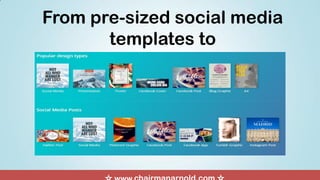
From pre-sized social media
templates to
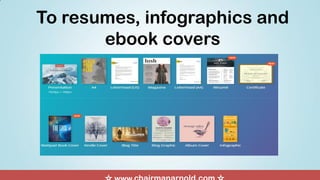
To resumes, infographics and
ebook covers
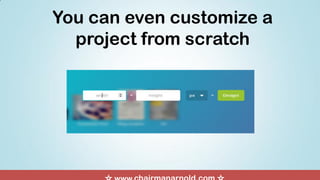
You can even customize a
project from scratch
Now that you know how
powerful CANVA is, let’s give it
a go!
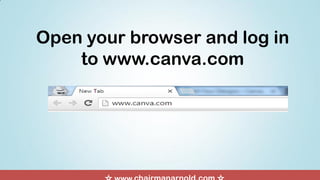
Open your browser and log in
to www.canva.com
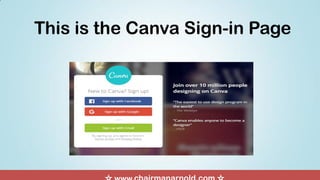
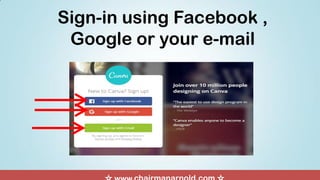
This is the Canva Sign-in Page
Sign-in using Facebook ,
Google or your e-mail
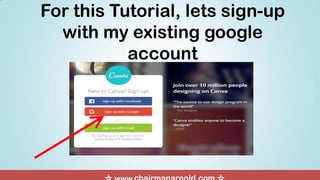
For this Tutorial, lets sign-up
with my existing google
account
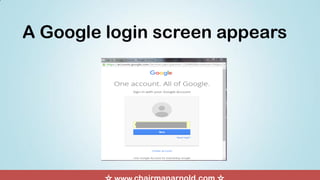
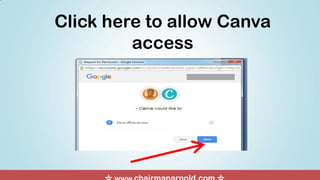
A Google login screen appears
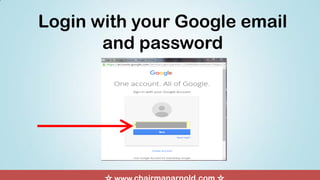
Login with your Google email
and password
Click here to allow Canva
access
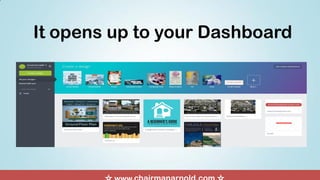
It opens up to your Dashboard
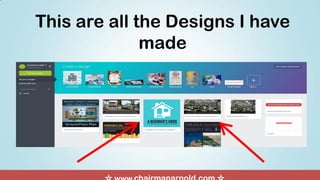
This are all the Designs I have
made
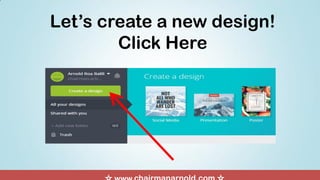
Let’s create a new design!
Click Here
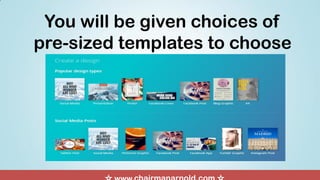
You will be given choices of
pre-sized templates to choose
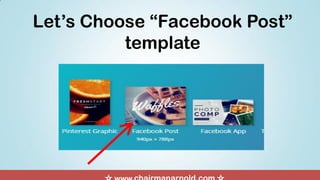
Let’s Choose “Facebook Post”
template
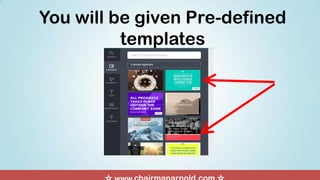
You will be given Pre-defined
templates
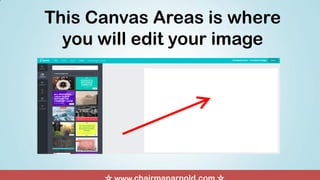
This Canvas Areas is where
you will edit your image
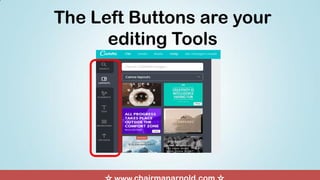
The Left Buttons are your
editing Tools
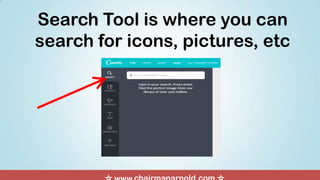
Search Tool is where you can
search for icons, pictures, etc
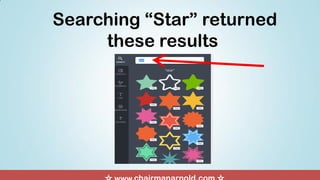
Searching “Star” returned
these results
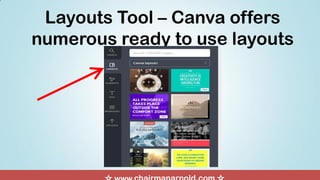
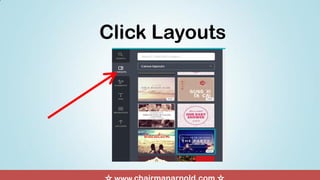
Layouts Tool – Canva offers
numerous ready to use layouts
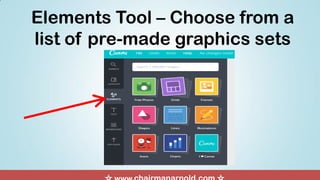
Elements Tool – Choose from a
list of pre-made graphics sets
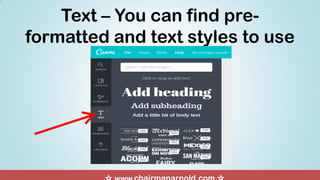
Text – You can find pre-
formatted and text styles to use
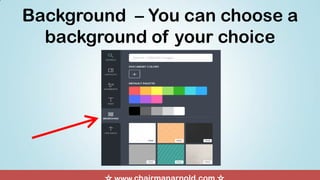
Background – You can choose a
background of your choice
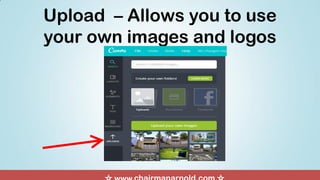
Upload – Allows you to use
your own images and logos
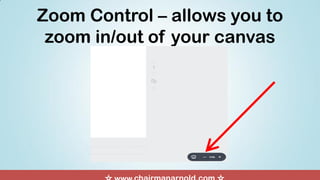
Zoom Control – allows you to
zoom in/out of your canvas
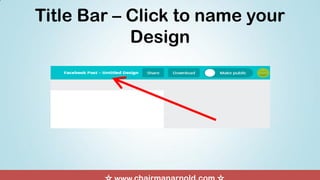
Title Bar – Click to name your
Design
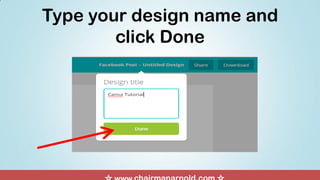
Type your design name and
click Done
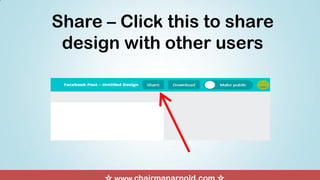
Share – Click this to share
design with other users
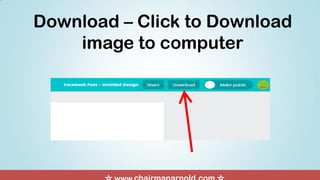
Download – Click to Download
image to computer
Now Let’s get started!
Click Layouts
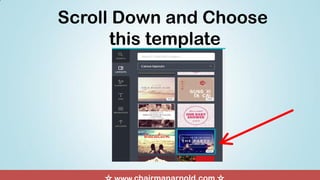
Scroll Down and Choose
this template
Let’s Change the captions
of this Poster
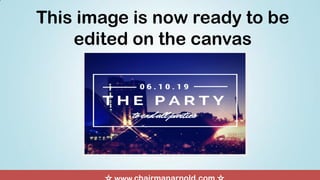
This image is now ready to be
edited on the canvas
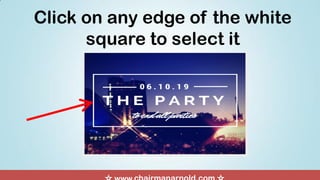
Click on any edge of the white
square to select it
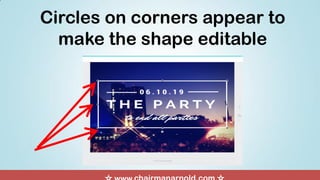
Circles on corners appear to
make the shape editable
Let’s Resize the white square
border
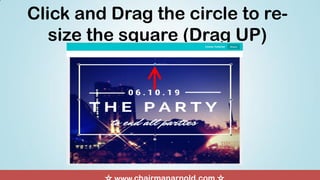
Click and Drag the circle to re-
size the square (Drag UP)
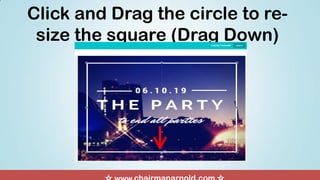
Click and Drag the circle to re-
size the square (Drag Down)
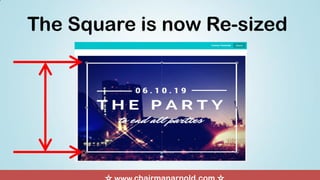
The Square is now Re-sized
Now that we have resized the
square let’s modify the captions
Click on the bottom text to
select it
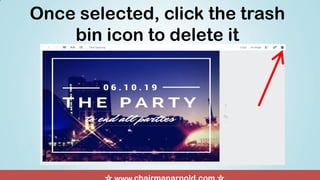
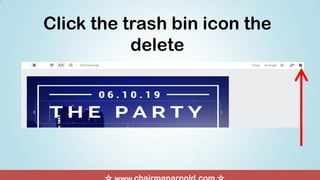
Once selected, click the trash
bin icon to delete it
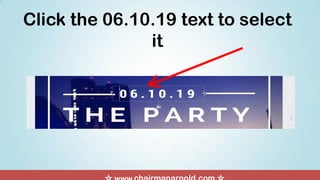
Click the 06.10.19 text to select
it
Hold the Selection and Move to
top area to reposition
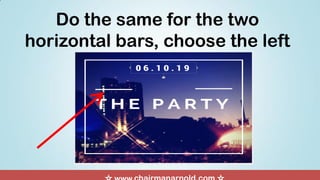
Do the same for the two
horizontal bars, choose the left
Click and Drag to align with the
words at the top
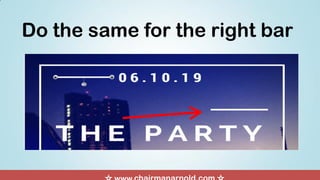
Do the same for the right bar
Click and Drag to align with the
words at the top
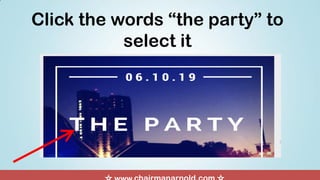
Click the words “the party” to
select it
Click and move selection
to the top
“The party” has been re-
positioned
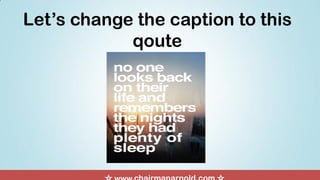
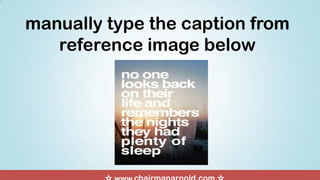
Let’s change the caption to this
qoute
Easy with CANVA!
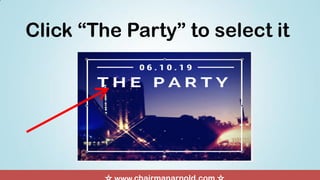
Click “The Party” to select it
Click the trash bin icon the
delete
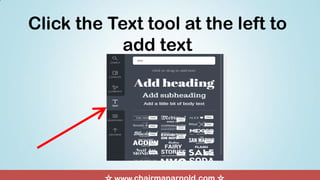
Click the Text tool at the left to
add text
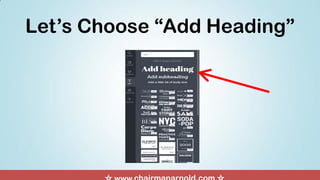
Let’s Choose “Add Heading”
An “Add Heading” selection
appears on the canvas
Click on the Selection
manually type the caption from
reference image below
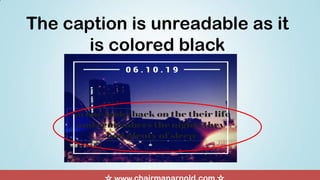
The caption is unreadable as it
is colored black
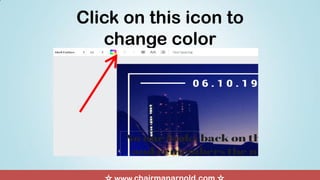
Click on this icon to
change color
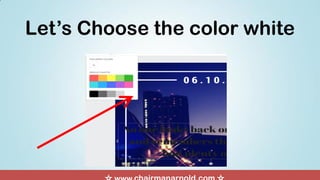
Let’s Choose the color white
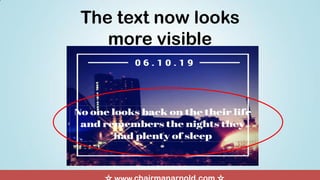
The text now looks
more visible
Let’s change the font to
make the poster more
presentable
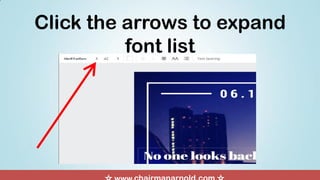
Click the arrows to expand
font list
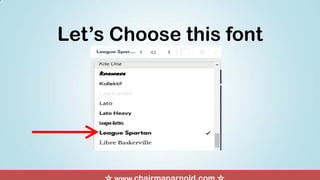
Let’s Choose this font
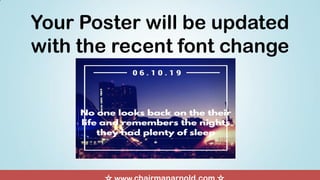
Your Poster will be updated
with the recent font change
Let’s resize the text box to
realign the words within the
poster
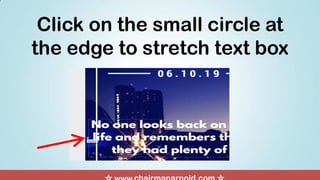
Click on the small circle at
the edge to stretch text box
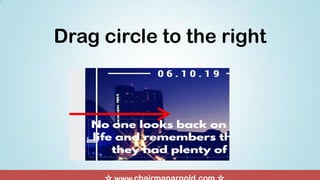
Drag circle to the right
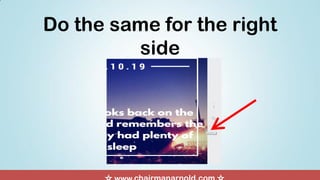
Do the same for the right
side
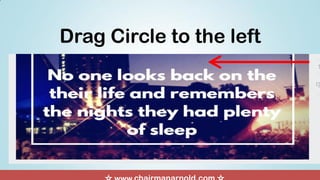
Drag Circle to the left
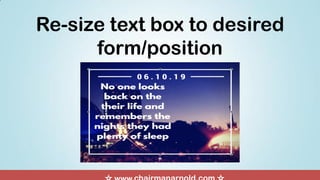
Re-size text box to desired
form/position
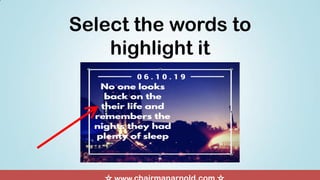
Select the words to
highlight it
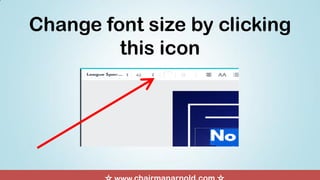
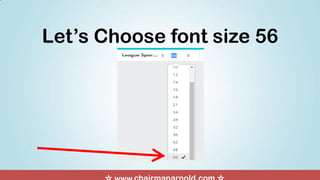
Change font size by clicking
this icon
Let’s Choose font size 56
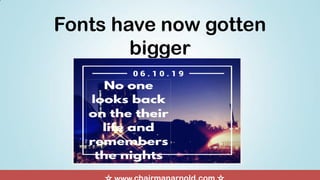
Fonts have now gotten
bigger
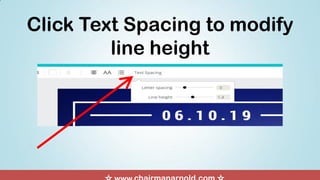
Click Text Spacing to modify
line height
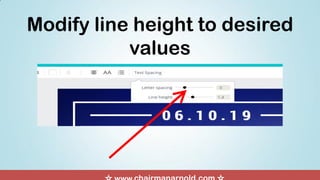
Modify line height to desired
values
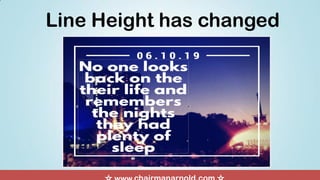
Line Height has changed
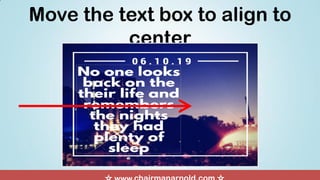
Move the text box to align to
center
Texts now moved to center
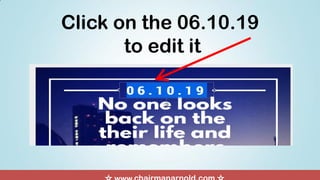
Click on the 06.10.19
to edit it
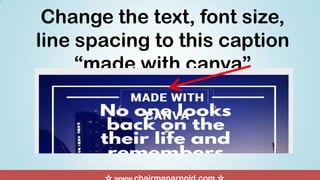
Change the text, font size,
line spacing to this caption
“made with canva”
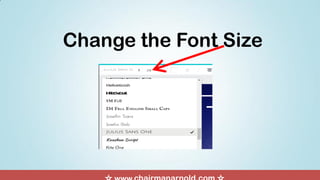
Change the Font Size
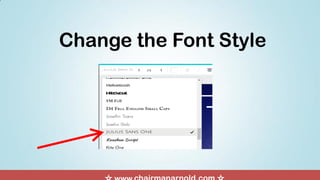
Change the Font Style
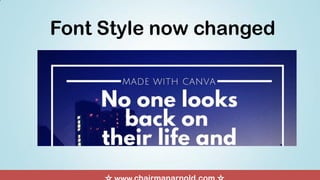
Font Style now changed
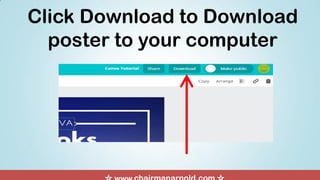
Click Download to Download
poster to your computer
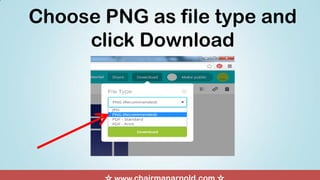
Choose PNG as file type and
click Download
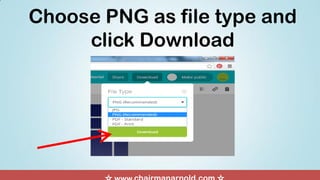
Choose PNG as file type and
click Download
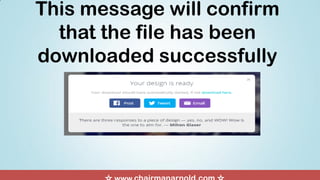
This message will confirm
that the file has been
downloaded successfully
Take a moment to enjoy the beauty
of your masterpiece
Now that you know how to
use CANVA, use it to create
Awesome Presentation
Materials for your Business!
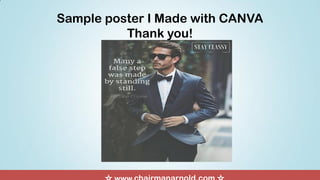
Sample poster I Made with CANVA
Thank you!

Canva Tutorial