Welcome To Microsoft Word
Comsats university Islamabad
Sahiwal campus
Department of Computer science
Assignment No : 2
Topic : MS word
Presented to : Mr. Jamshed
Presented by : Group 7
Roll No : 113,134,136,138,144
Date : 05-04-2022
Microsoft Word
Microsoft Word is a word processing application/program
that allows you to create a variety of documents like letters,
flyers, and reports
Microsoft Word allows
you to do more with your
word word processing project
Word Interface
The start screen allows you to create a new document
by choosing from the list of pre-made templates
When Word is opened the Word Start Screen will appear
Blank Page Overview
The Ribbon
The Ribbon contains multiple tabs, each with several groups of
tools. The tools provided in the ribbon will help you complete
common tasks in Word.
The Ribbon has nine tabs:
1. File
2. Home
3. Insert
4. Design
5. Layout
6. References
7. Mailings
8. Review
9. View
10. Help
The Quick Access Toolbar Cont.
Step 2 Step 3
Backstage View
Backstage view gives you various options for saving,
opening a file, printing, and sharing your document.
To access Backstage view:
1. Click the file tab on the
Ribbon. Backstage view will
appear.
Backstage View (Cont.)
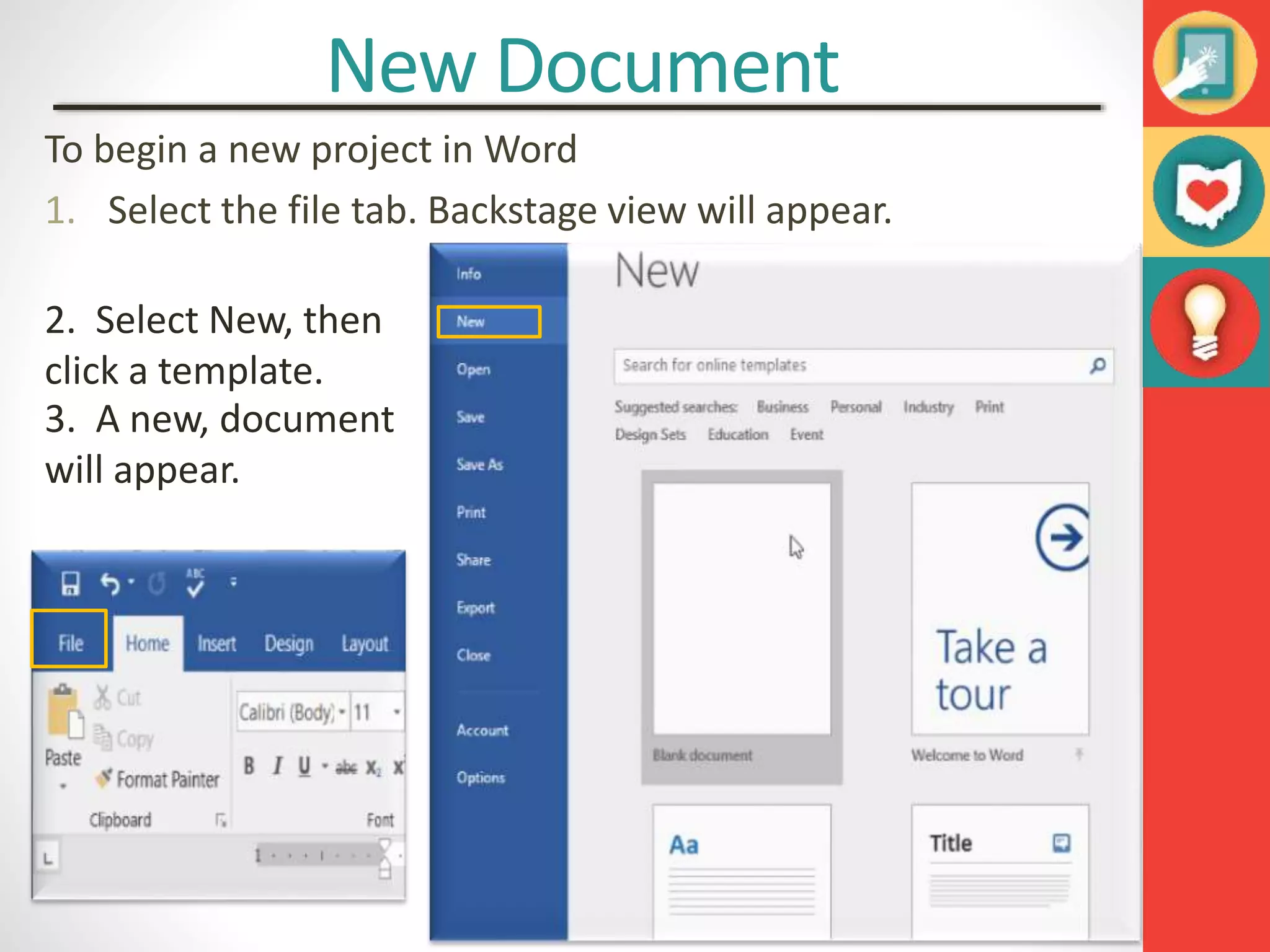
New Document
To begin a new project in Word
1. Select the file tab. Backstage view will appear.
2. Select New, then
click a template.
3. A new, document
will appear.
How to: Open an Existing
Document
1. Navigate to Backstage view, then click Open.
2. Choose “Browse”
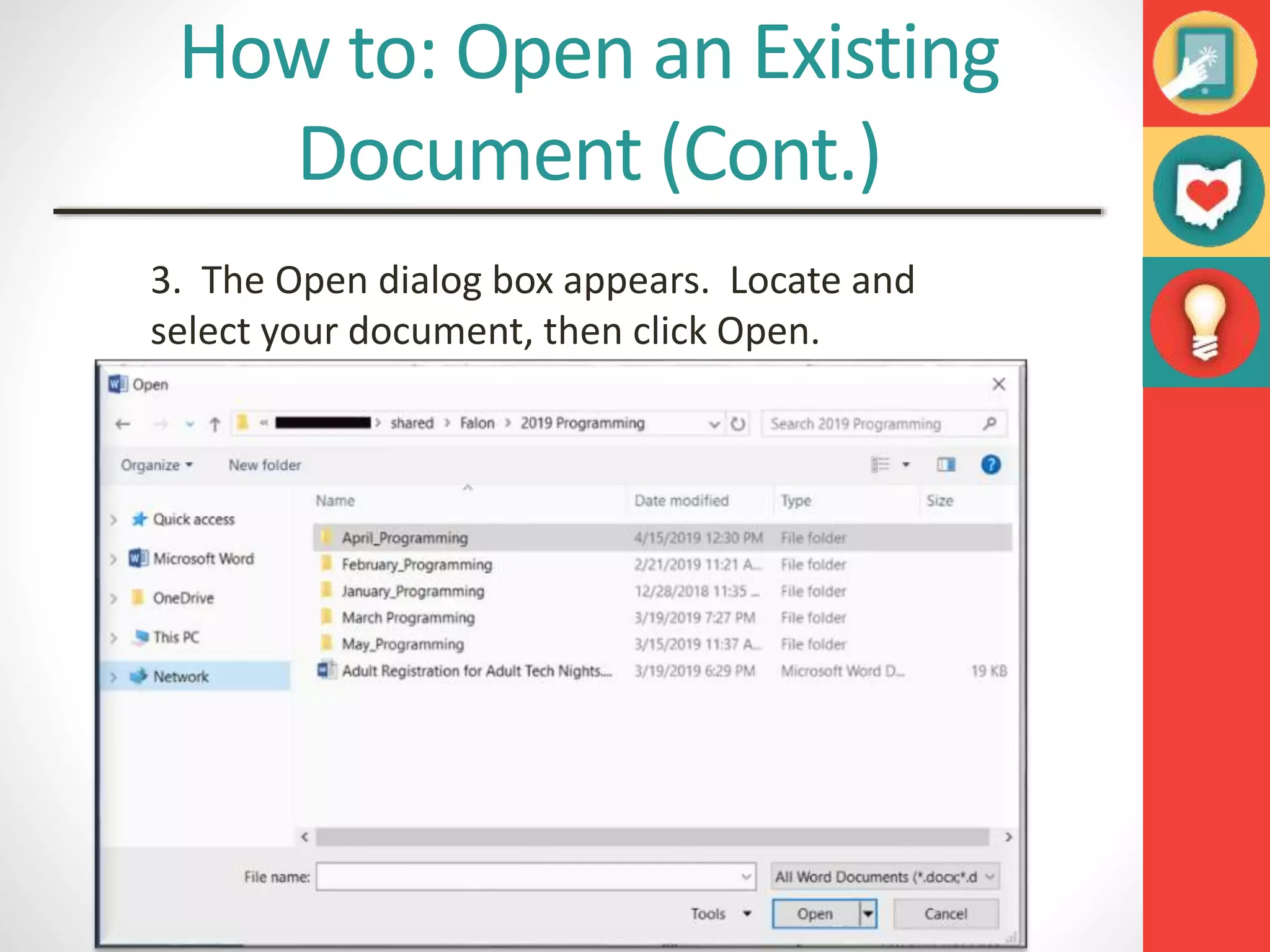
How to: Open an Existing
Document (Cont.)
3. The Open dialog box appears. Locate and
select your document, then click Open.
Save and Save As
In Word there are two says to save a file, SAVE and SAVE
AS.
SAVE is used when a document is open or edited to save
what you are working on.
SAVE AS is used to save the document to a location and
change the name of the document.
It is important to save your document whenever you start
a new project or make changes to an existing one. Saving
early and often can prevent you work from being lost.
You will also need to pay close attention to where you
save the document so it will be easy to find later.
To Save a Document
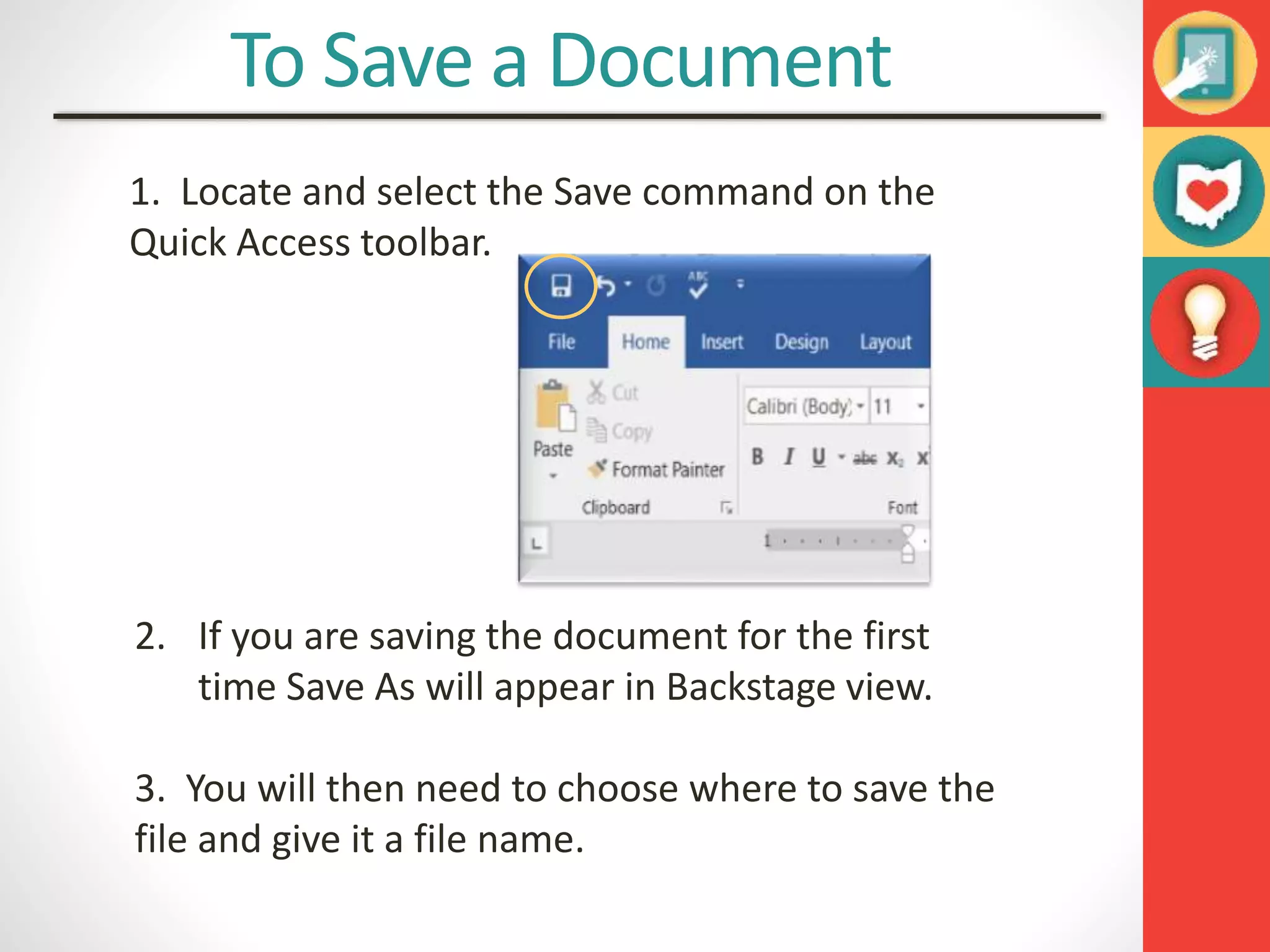
1. Locate and select the Save command on the
Quick Access toolbar.
2. If you are saving the document for the first
time Save As will appear in Backstage view.
3. You will then need to choose where to save the
file and give it a file name.
To Save a Document (Cont.)
4. The Save As dialog box will appear. Select the location
where you wish to save the document.
5. Enter a file name for the document, then click Save.
Print
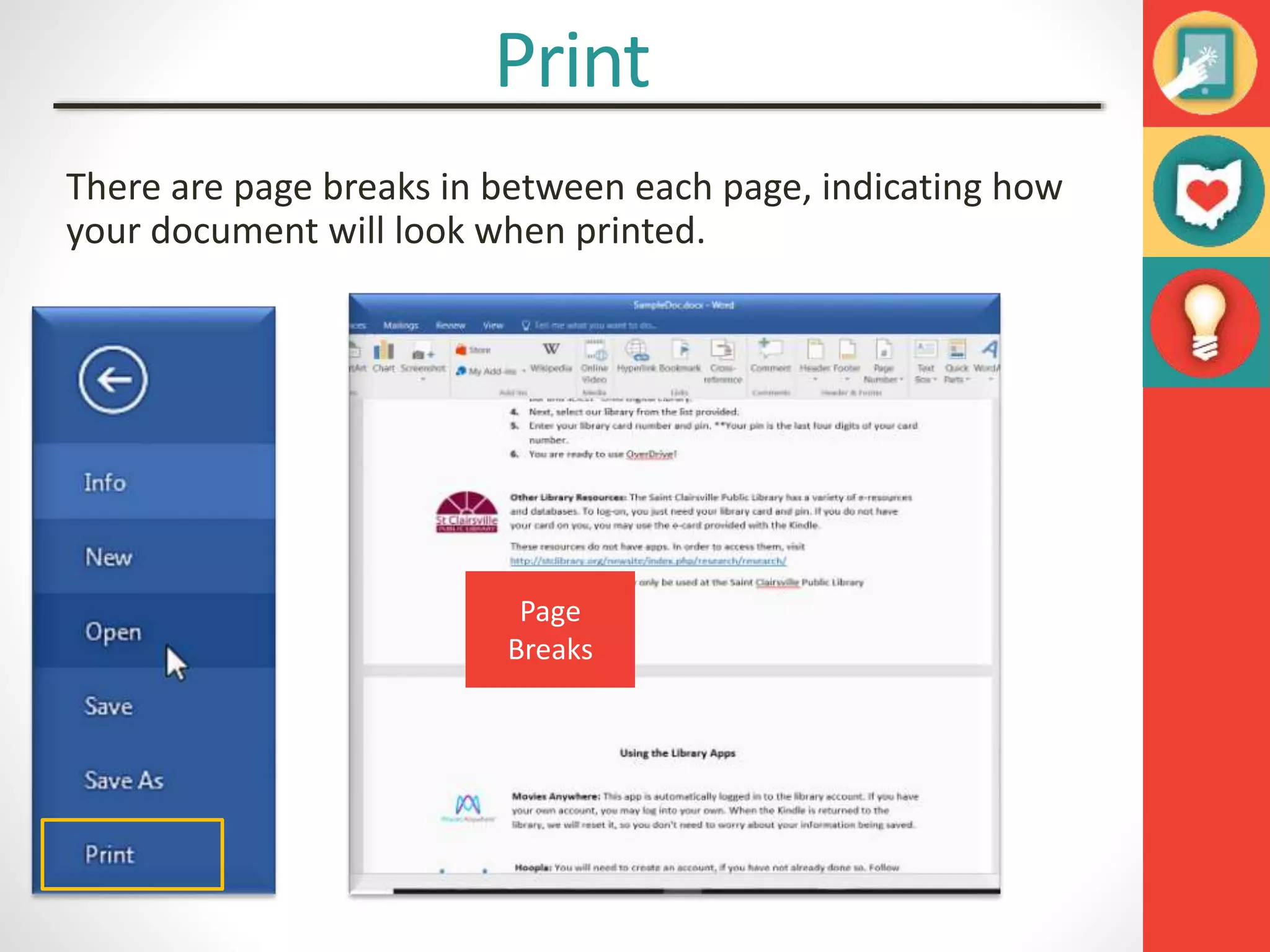
There are page breaks in between each page, indicating how
your document will look when printed.
Page
Breaks
Document Views
Word has a variety of viewing options that change how your
document is displayed. You can choose to view your
document in Read Mode, Print Layout, or Web Layout. These
views can be useful for various tasks.
To change document views, locate and select the desired
document view tool in the bottom-right corner of the Word
window.
Read
Mode
Print
Mode
Web
Mode
HOME
Copy and Paste Text
To copy and paste text:
Copying text creates a duplicate of
the text.
1. Select the text you wish to copy
2. Click the Copy command on the
Home tab or right click the selected
text and click Copy.
3. Place the insertion point where you
wish the text to appear.
4. Click the Paste command
on the Home tab or right
click and click paste.
5. Then the copied text will
appear.
Cut and Paste Text
1. Select the text you wish to cut.
2. Click the Cut command on
the Home tab or right
click the selected text and
select cut.
3.Place your insertion point you
wish the text to appear.
4. Click the Paste command on
the Home tab or right click and
select paste and the text will
appear.
How to Change Font
MS Word provides a variety of other fonts you
can use to customize text and titles.
1. Select the text you wish to change.
2. Then font will change in the document.
Changing Font Size
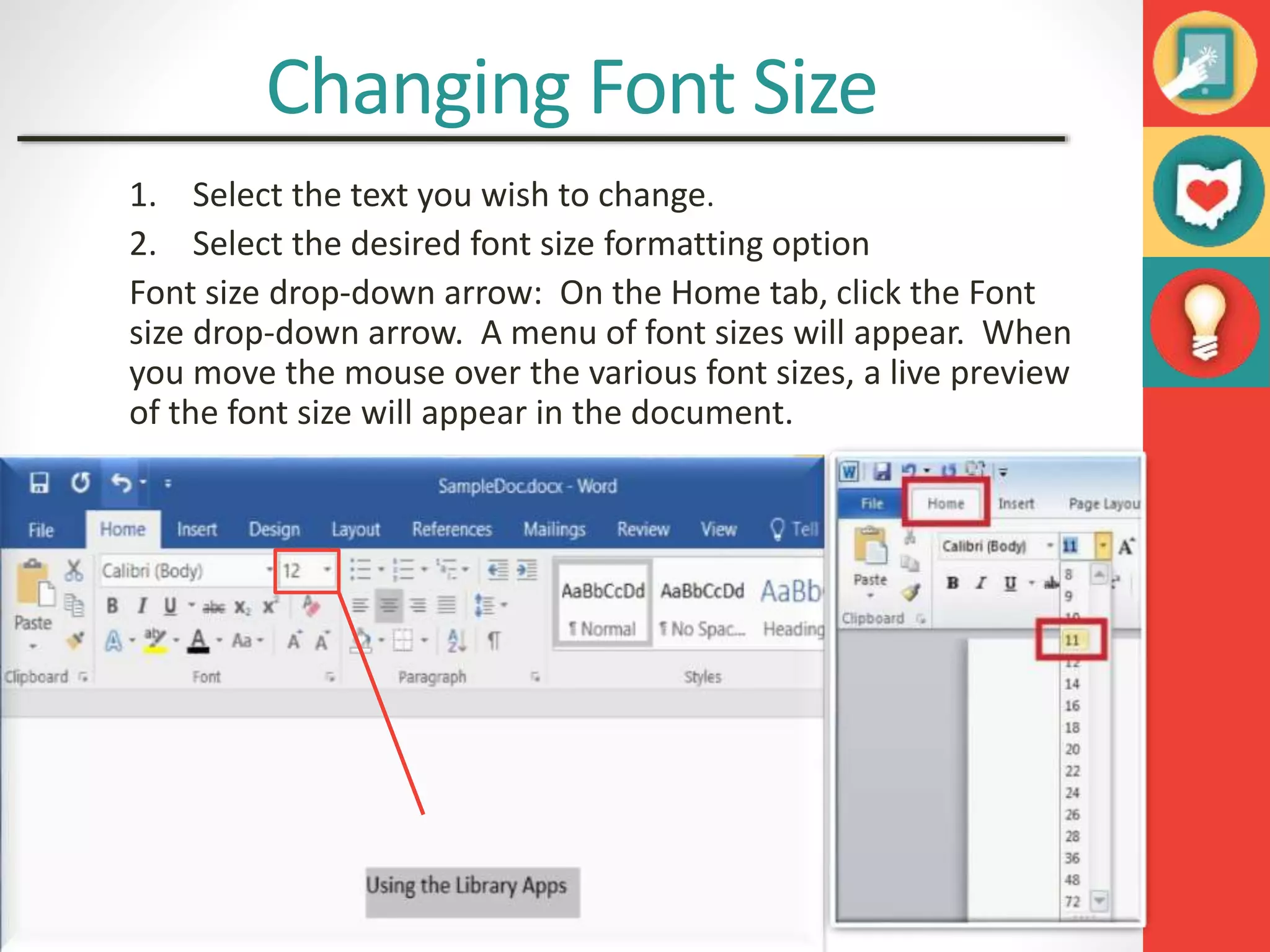
1. Select the text you wish to change.
2. Select the desired font size formatting option
Font size drop-down arrow: On the Home tab, click the Font
size drop-down arrow. A menu of font sizes will appear. When
you move the mouse over the various font sizes, a live preview
of the font size will appear in the document.
Bold, Italic, and Underline
1. Select the text you wish to change.
2. On the Home tab click the Bold (B), Italic (I), or
Underline (U) command in the Font group.
3. The selected text will be modified in the document.
Text Effect, Font Color, Highlight Text
paragraph section
1. Select the text you wish to modify.
2. On the Home tab, select one of the four alignment
options from the paragraph section
 Align Text left
 Center
 Align Text Right
 Justify
Pages
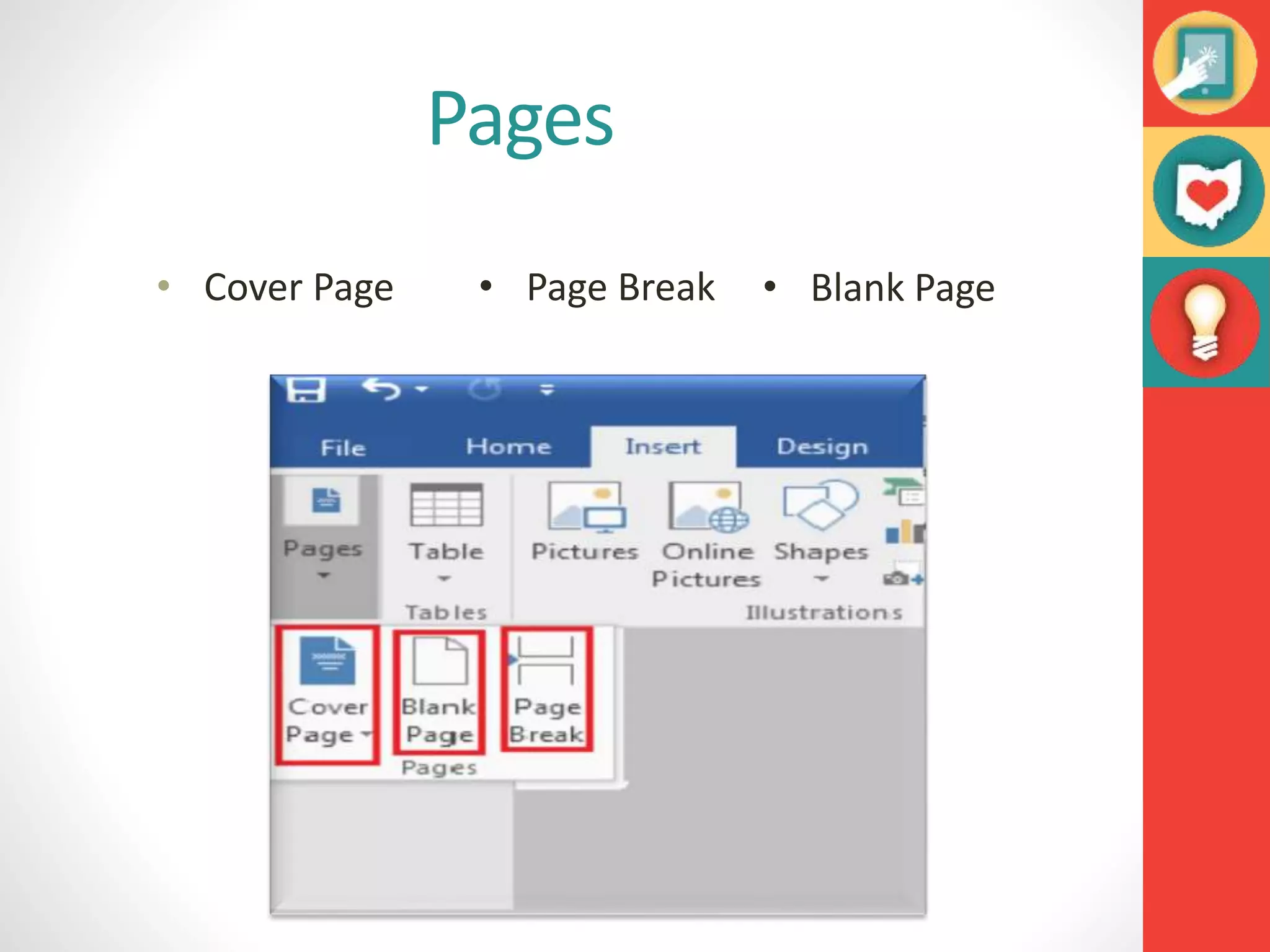
• Cover Page • Page Break • Blank Page
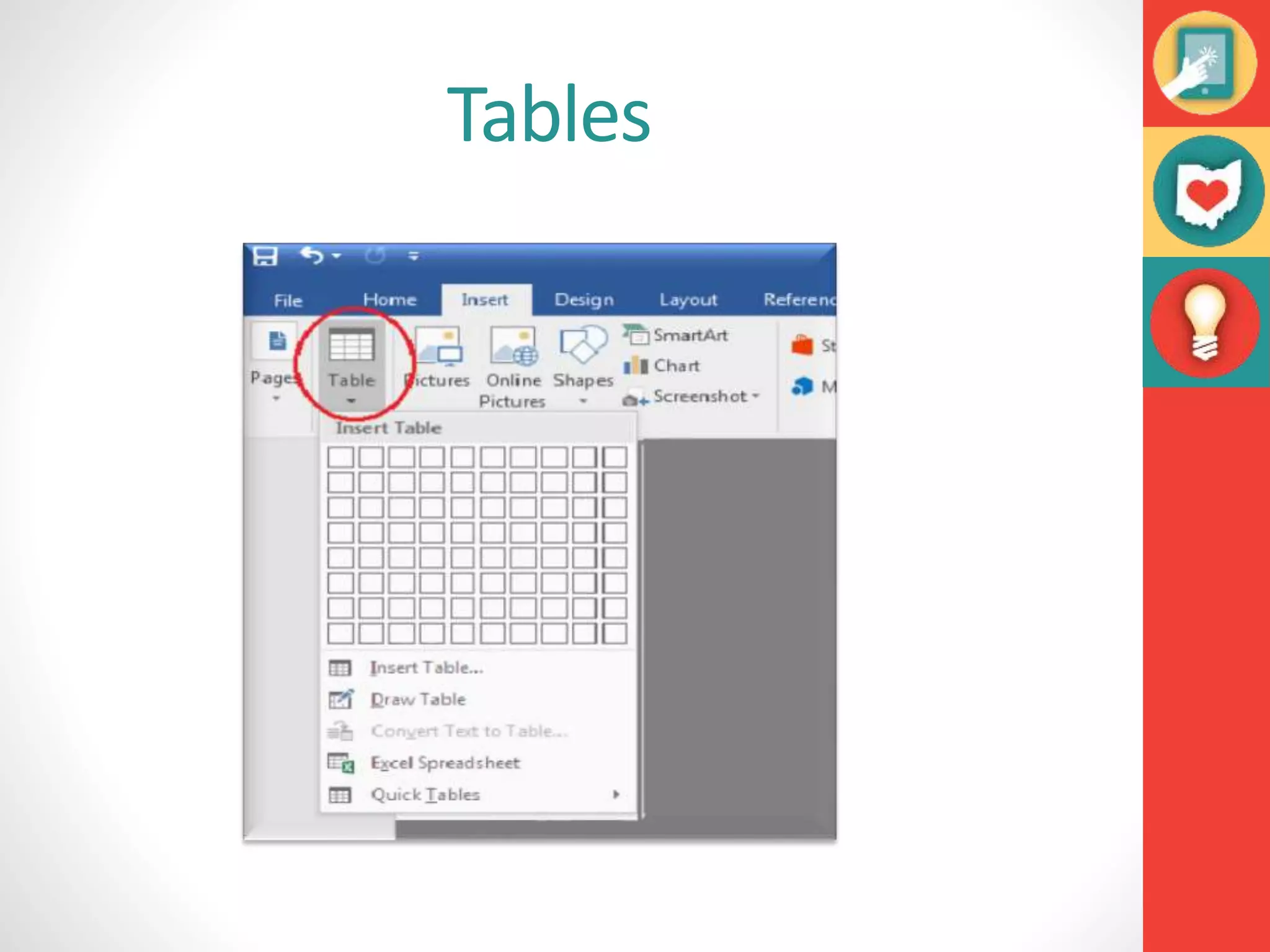
Tables
Pictures
• We can add pictures and screenshots simply by clicking on
the tab and then browse them from Pc or Internet.
Shapes
• We can add different shapes by simply
clicking on the shapes option
Smart Art & Charts
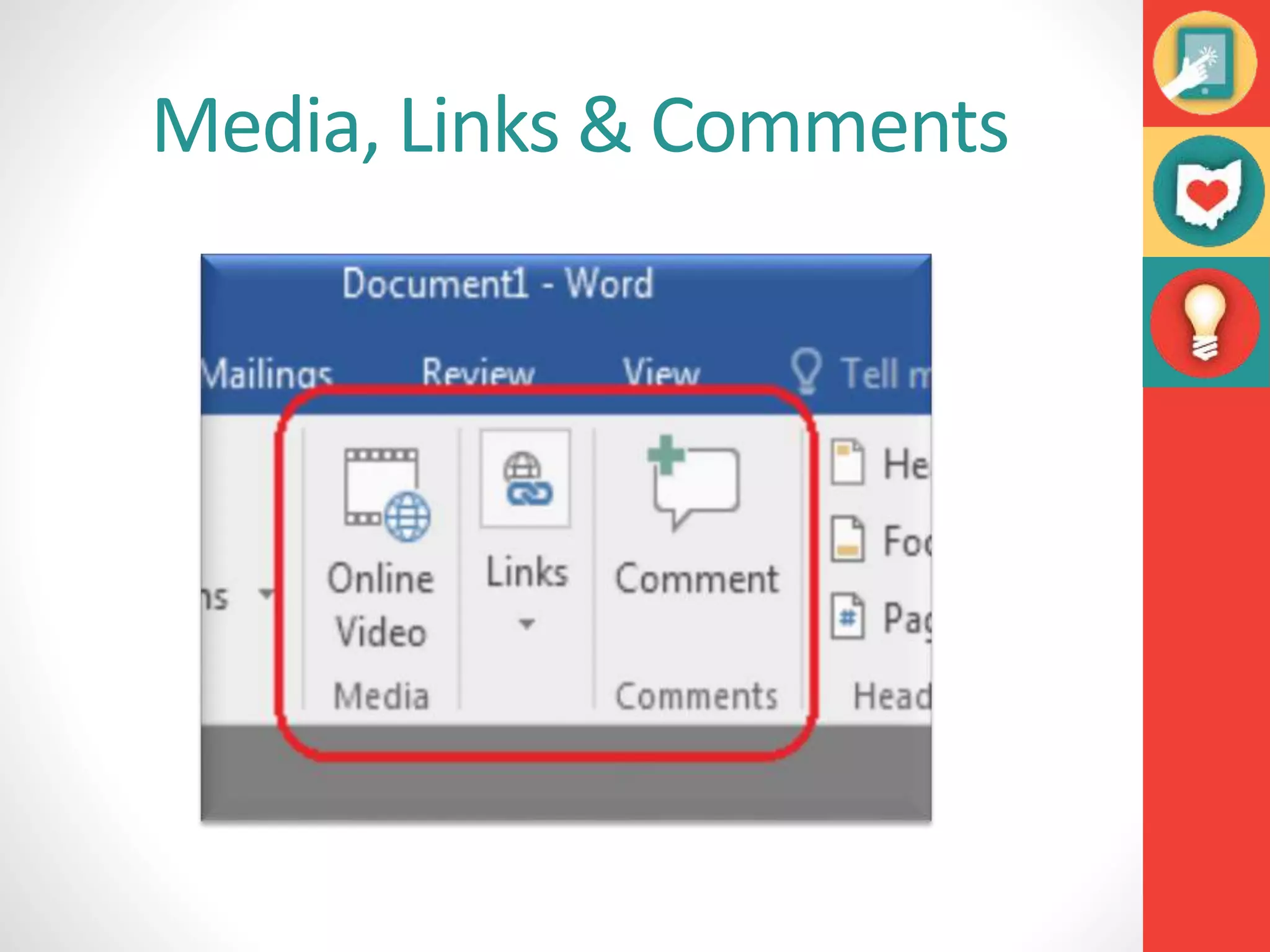
Media, Links & Comments
Header & Footer
• A header is text
that is placed at
the top of a
page.
• A footer is text
placed at the
bottom of the
page.
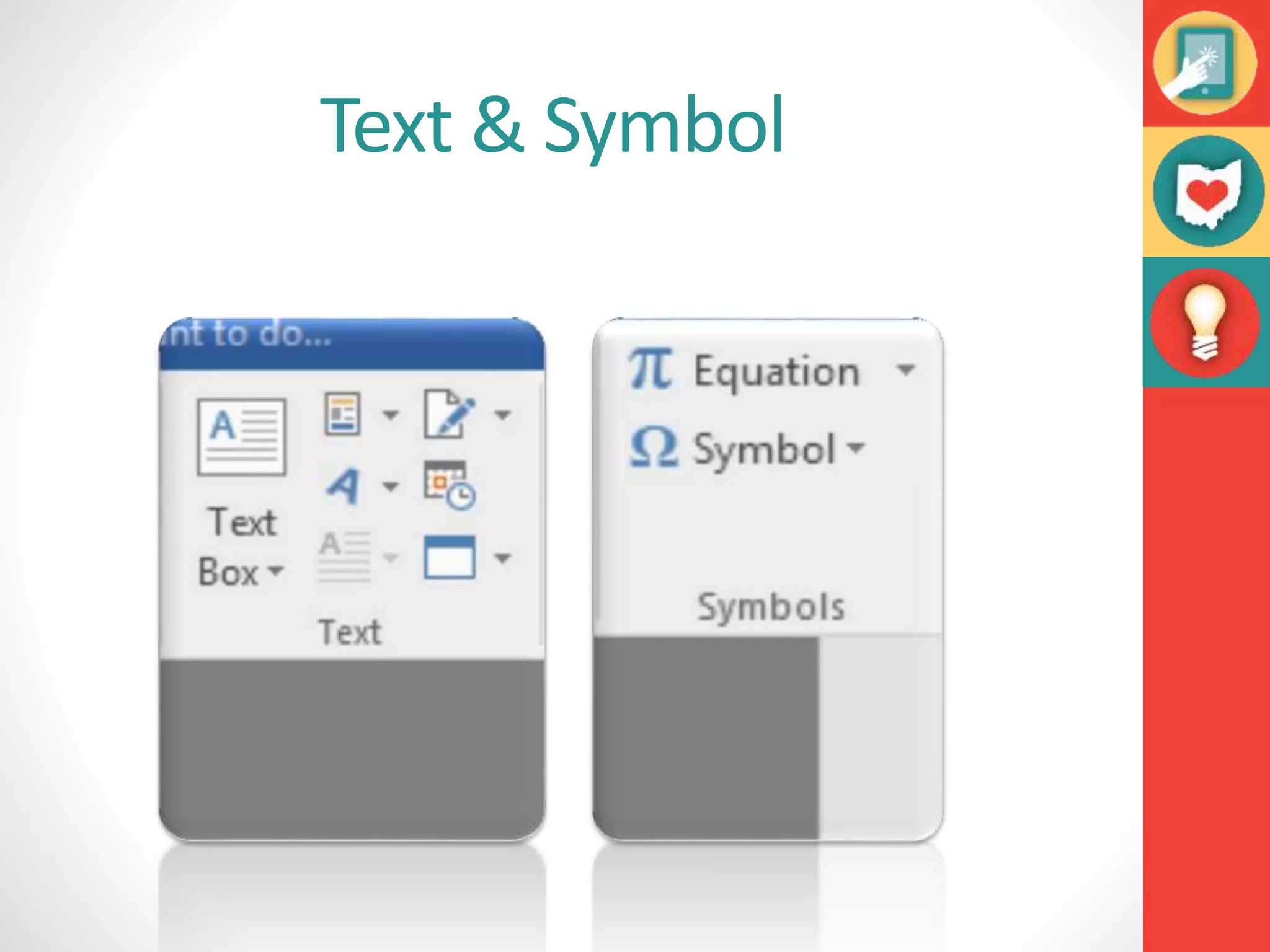
Text & Symbol
Design
Review
The review tab of Microsoft Office Word 2007 has got some
important commands that you can use to modify your
document. The review tab is useful in a number of ways. For
instance, you can use it for proofing your document, adding
or removing comments, and tracking changes among other
things.
Tools in review tab
 spelling and grammar
 Research
 Translate
 Language
 word count
Spelling & Grammar
In Microsoft Word documents, Word's spell check function is
set to automatically check your spelling while you type. Errors
in your document will have color-coded underlines reflecting
your choices, like red for spelling errors, green for grammar
errors, and blue for contextual spelling errors.
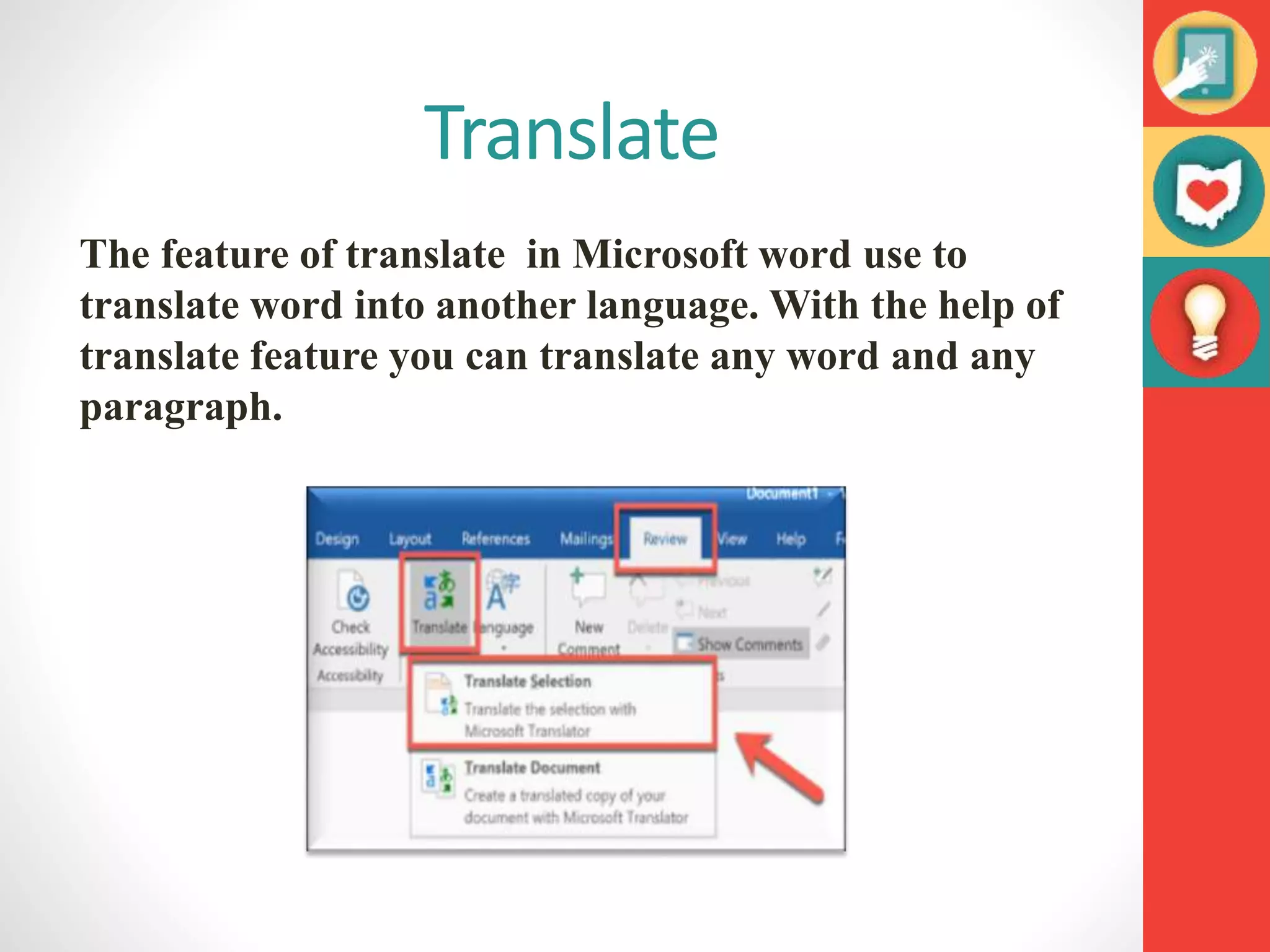
Translate
The feature of translate in Microsoft word use to
translate word into another language. With the help of
translate feature you can translate any word and any
paragraph.
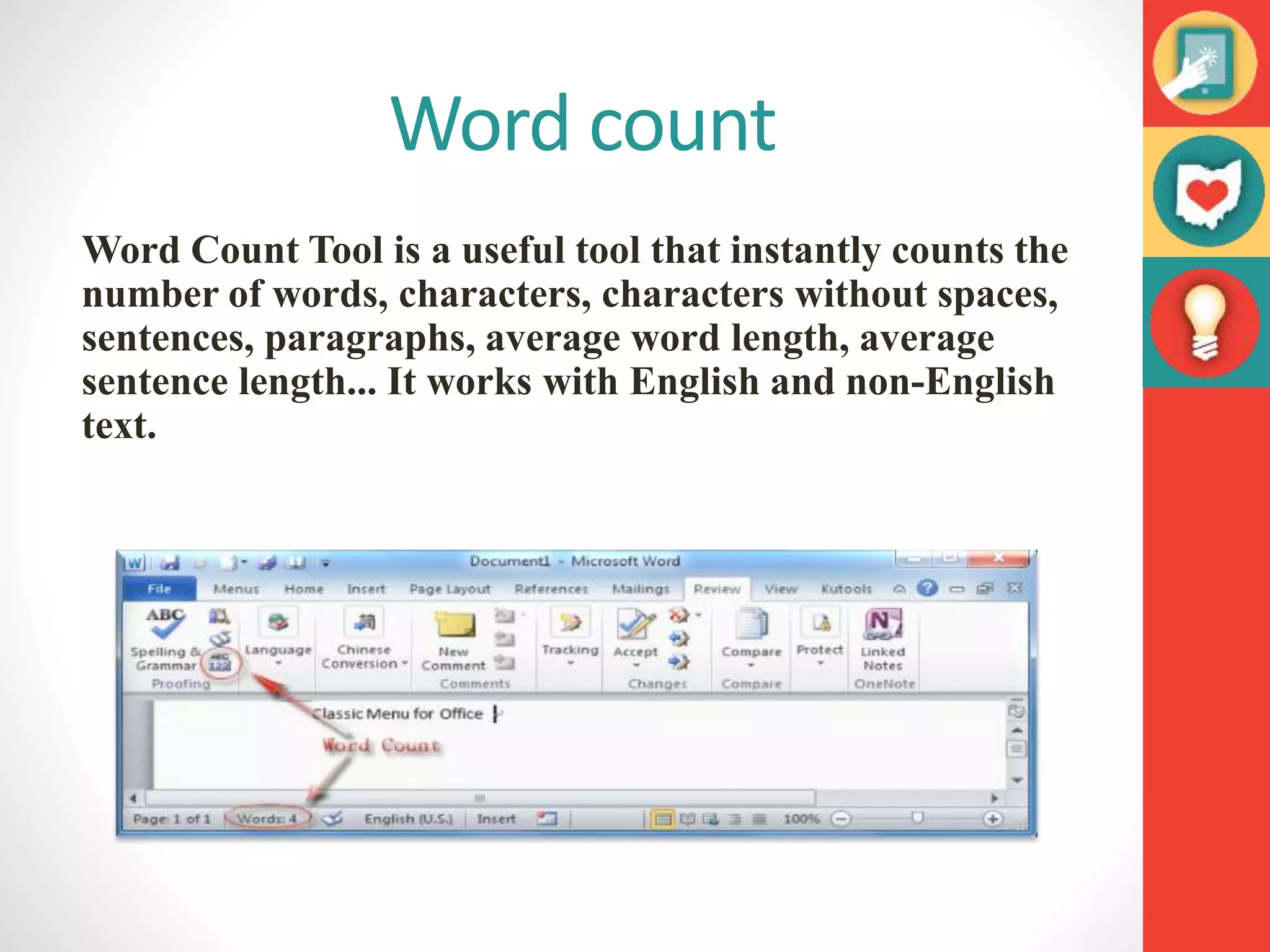
Word count
Word Count Tool is a useful tool that instantly counts the
number of words, characters, characters without spaces,
sentences, paragraphs, average word length, average
sentence length... It works with English and non-English
text.
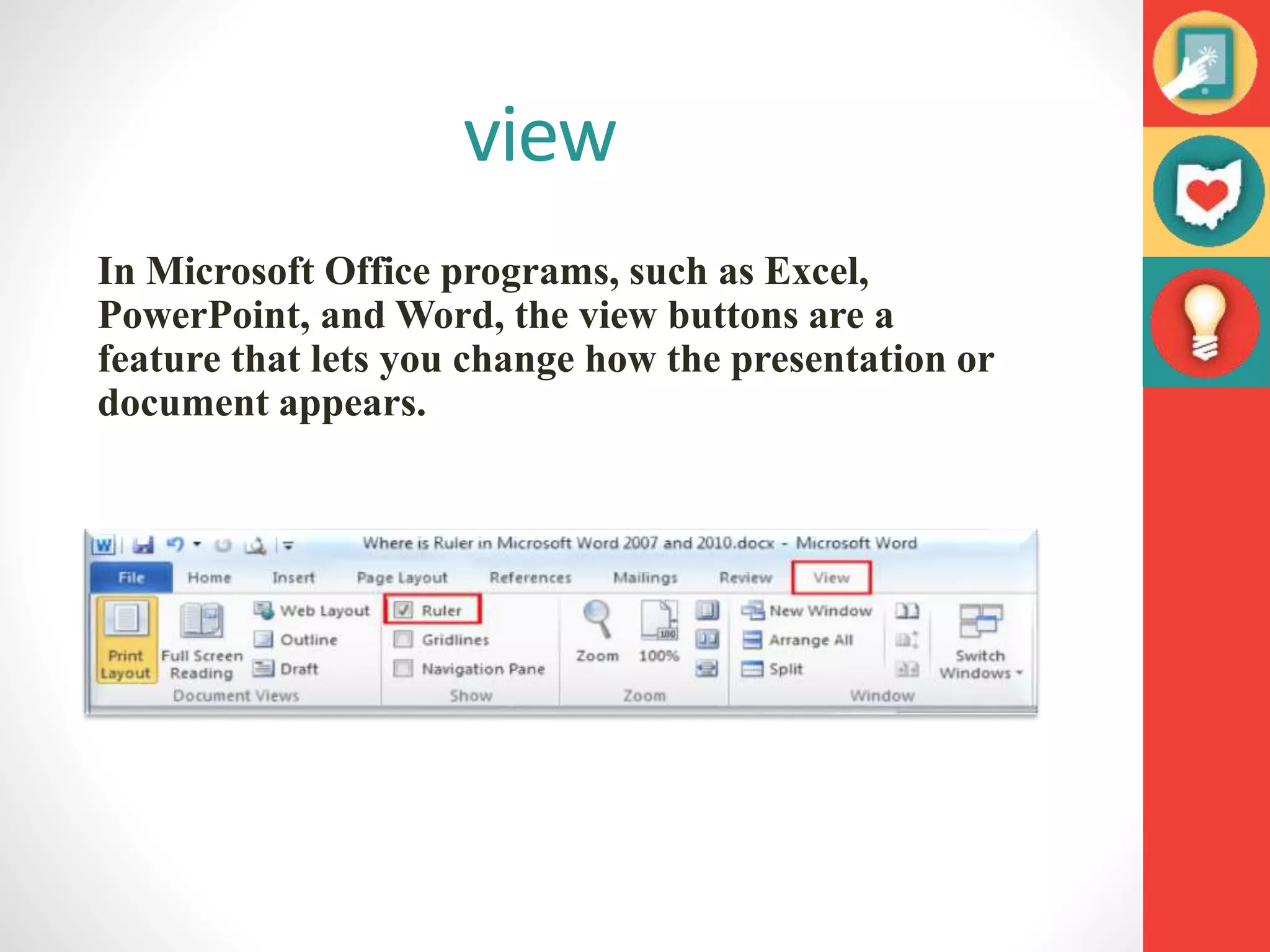
view
In Microsoft Office programs, such as Excel,
PowerPoint, and Word, the view buttons are a
feature that lets you change how the presentation or
document appears.
Tools in view tab
 Print layout
 Full screen reading
 Zoom
 New window
 Ruler
 Switch window
Print layout
Print Layout view can help you edit and create the
design of your pages, including page margins and
headers and footers. If you want to focus on writing
and not see your page
Full screen reading
 Adjust the size of screen
 Jump to the page
 Find or look up words and phrases
 Jump to a section of the document.
New window
MS Word allows you to have multiple
windows open looking at and editing the
same document.
The Ruler
The Ruler is located at the top and to the left of you
document. It makes it easier to adjust you document
with precision. If you want, you can hide the Ruler to
create more screen space.
Ruler
zoom
Microsoft office offers this feature to zoom your
document according to the desire percentage. You
can zoom a document from 0 to 100 %.
Thanks

Explore MS Word2016.pptx

  • 1.
  • 2.
    Comsats university Islamabad Sahiwalcampus Department of Computer science Assignment No : 2 Topic : MS word Presented to : Mr. Jamshed Presented by : Group 7 Roll No : 113,134,136,138,144 Date : 05-04-2022
  • 3.
    Microsoft Word Microsoft Wordis a word processing application/program that allows you to create a variety of documents like letters, flyers, and reports Microsoft Word allows you to do more with your word word processing project
  • 4.
    Word Interface The startscreen allows you to create a new document by choosing from the list of pre-made templates When Word is opened the Word Start Screen will appear
  • 5.
  • 6.
    The Ribbon The Ribboncontains multiple tabs, each with several groups of tools. The tools provided in the ribbon will help you complete common tasks in Word. The Ribbon has nine tabs: 1. File 2. Home 3. Insert 4. Design 5. Layout 6. References 7. Mailings 8. Review 9. View 10. Help
  • 7.
    The Quick AccessToolbar Cont. Step 2 Step 3
  • 8.
    Backstage View Backstage viewgives you various options for saving, opening a file, printing, and sharing your document. To access Backstage view: 1. Click the file tab on the Ribbon. Backstage view will appear.
  • 9.
  • 10.
    New Document To begina new project in Word 1. Select the file tab. Backstage view will appear. 2. Select New, then click a template. 3. A new, document will appear.
  • 11.
    How to: Openan Existing Document 1. Navigate to Backstage view, then click Open. 2. Choose “Browse”
  • 12.
    How to: Openan Existing Document (Cont.) 3. The Open dialog box appears. Locate and select your document, then click Open.
  • 13.
    Save and SaveAs In Word there are two says to save a file, SAVE and SAVE AS. SAVE is used when a document is open or edited to save what you are working on. SAVE AS is used to save the document to a location and change the name of the document. It is important to save your document whenever you start a new project or make changes to an existing one. Saving early and often can prevent you work from being lost. You will also need to pay close attention to where you save the document so it will be easy to find later.
  • 15.
    To Save aDocument 1. Locate and select the Save command on the Quick Access toolbar. 2. If you are saving the document for the first time Save As will appear in Backstage view. 3. You will then need to choose where to save the file and give it a file name.
  • 16.
    To Save aDocument (Cont.) 4. The Save As dialog box will appear. Select the location where you wish to save the document. 5. Enter a file name for the document, then click Save.
  • 17.
    Print There are pagebreaks in between each page, indicating how your document will look when printed. Page Breaks
  • 18.
    Document Views Word hasa variety of viewing options that change how your document is displayed. You can choose to view your document in Read Mode, Print Layout, or Web Layout. These views can be useful for various tasks. To change document views, locate and select the desired document view tool in the bottom-right corner of the Word window. Read Mode Print Mode Web Mode
  • 19.
  • 20.
    Copy and PasteText To copy and paste text: Copying text creates a duplicate of the text. 1. Select the text you wish to copy 2. Click the Copy command on the Home tab or right click the selected text and click Copy. 3. Place the insertion point where you wish the text to appear. 4. Click the Paste command on the Home tab or right click and click paste. 5. Then the copied text will appear.
  • 21.
    Cut and PasteText 1. Select the text you wish to cut. 2. Click the Cut command on the Home tab or right click the selected text and select cut. 3.Place your insertion point you wish the text to appear. 4. Click the Paste command on the Home tab or right click and select paste and the text will appear.
  • 22.
    How to ChangeFont MS Word provides a variety of other fonts you can use to customize text and titles. 1. Select the text you wish to change. 2. Then font will change in the document.
  • 23.
    Changing Font Size 1.Select the text you wish to change. 2. Select the desired font size formatting option Font size drop-down arrow: On the Home tab, click the Font size drop-down arrow. A menu of font sizes will appear. When you move the mouse over the various font sizes, a live preview of the font size will appear in the document.
  • 24.
    Bold, Italic, andUnderline 1. Select the text you wish to change. 2. On the Home tab click the Bold (B), Italic (I), or Underline (U) command in the Font group. 3. The selected text will be modified in the document.
  • 25.
    Text Effect, FontColor, Highlight Text
  • 26.
    paragraph section 1. Selectthe text you wish to modify. 2. On the Home tab, select one of the four alignment options from the paragraph section  Align Text left  Center  Align Text Right  Justify
  • 27.
    Pages • Cover Page• Page Break • Blank Page
  • 28.
  • 29.
    Pictures • We canadd pictures and screenshots simply by clicking on the tab and then browse them from Pc or Internet.
  • 30.
    Shapes • We canadd different shapes by simply clicking on the shapes option
  • 31.
  • 32.
  • 33.
    Header & Footer •A header is text that is placed at the top of a page. • A footer is text placed at the bottom of the page.
  • 34.
  • 35.
  • 36.
    Review The review tabof Microsoft Office Word 2007 has got some important commands that you can use to modify your document. The review tab is useful in a number of ways. For instance, you can use it for proofing your document, adding or removing comments, and tracking changes among other things.
  • 37.
    Tools in reviewtab  spelling and grammar  Research  Translate  Language  word count
  • 38.
    Spelling & Grammar InMicrosoft Word documents, Word's spell check function is set to automatically check your spelling while you type. Errors in your document will have color-coded underlines reflecting your choices, like red for spelling errors, green for grammar errors, and blue for contextual spelling errors.
  • 39.
    Translate The feature oftranslate in Microsoft word use to translate word into another language. With the help of translate feature you can translate any word and any paragraph.
  • 40.
    Word count Word CountTool is a useful tool that instantly counts the number of words, characters, characters without spaces, sentences, paragraphs, average word length, average sentence length... It works with English and non-English text.
  • 41.
    view In Microsoft Officeprograms, such as Excel, PowerPoint, and Word, the view buttons are a feature that lets you change how the presentation or document appears.
  • 42.
    Tools in viewtab  Print layout  Full screen reading  Zoom  New window  Ruler  Switch window
  • 43.
    Print layout Print Layoutview can help you edit and create the design of your pages, including page margins and headers and footers. If you want to focus on writing and not see your page
  • 44.
    Full screen reading Adjust the size of screen  Jump to the page  Find or look up words and phrases  Jump to a section of the document.
  • 45.
    New window MS Wordallows you to have multiple windows open looking at and editing the same document.
  • 46.
    The Ruler The Ruleris located at the top and to the left of you document. It makes it easier to adjust you document with precision. If you want, you can hide the Ruler to create more screen space. Ruler
  • 47.
    zoom Microsoft office offersthis feature to zoom your document according to the desire percentage. You can zoom a document from 0 to 100 %.
  • 48.