

Fordham IT Instructional Technology Academic Computing: Faculty Technology Center
Outline

Resources

Navigation

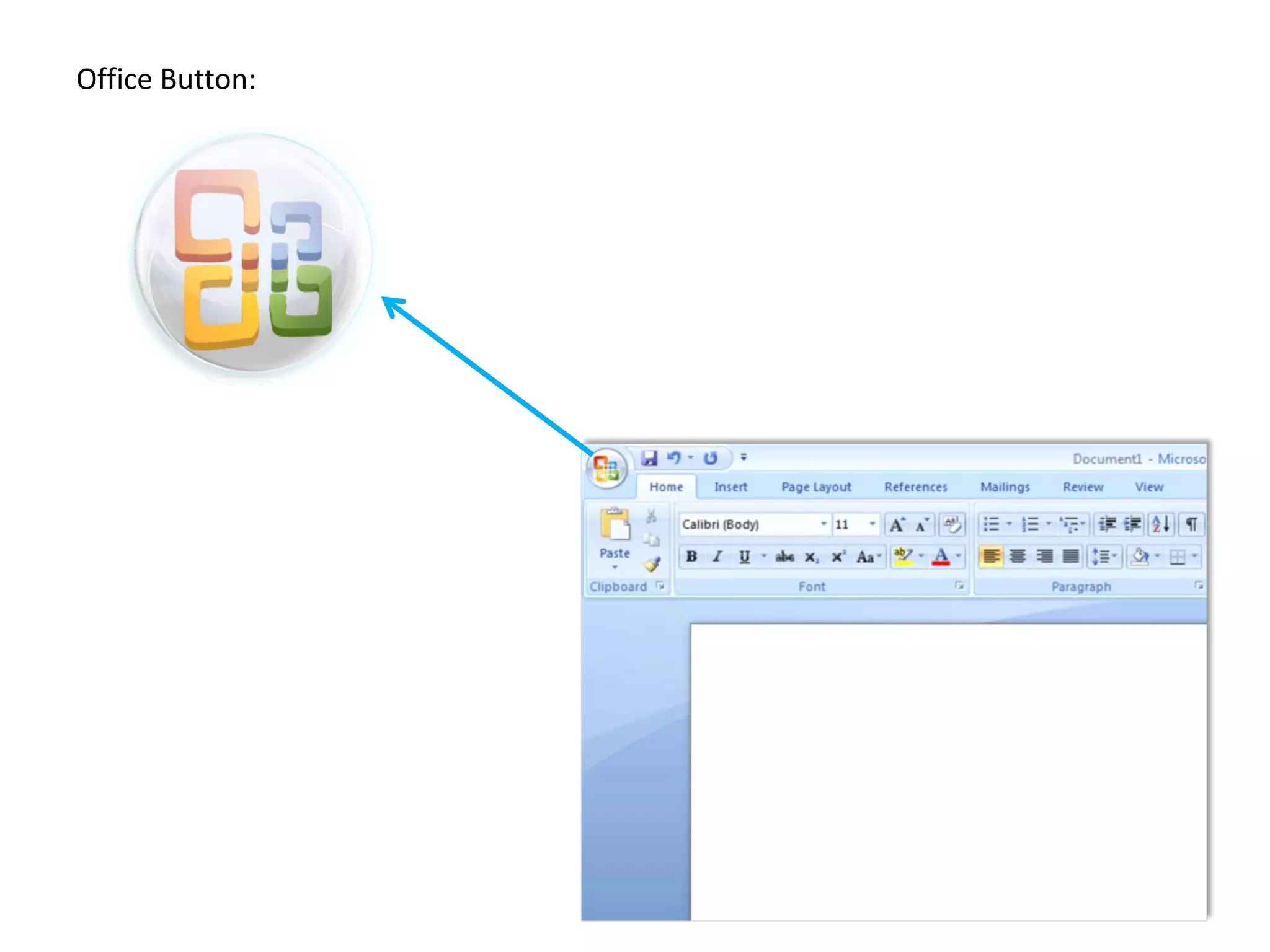
Office Button

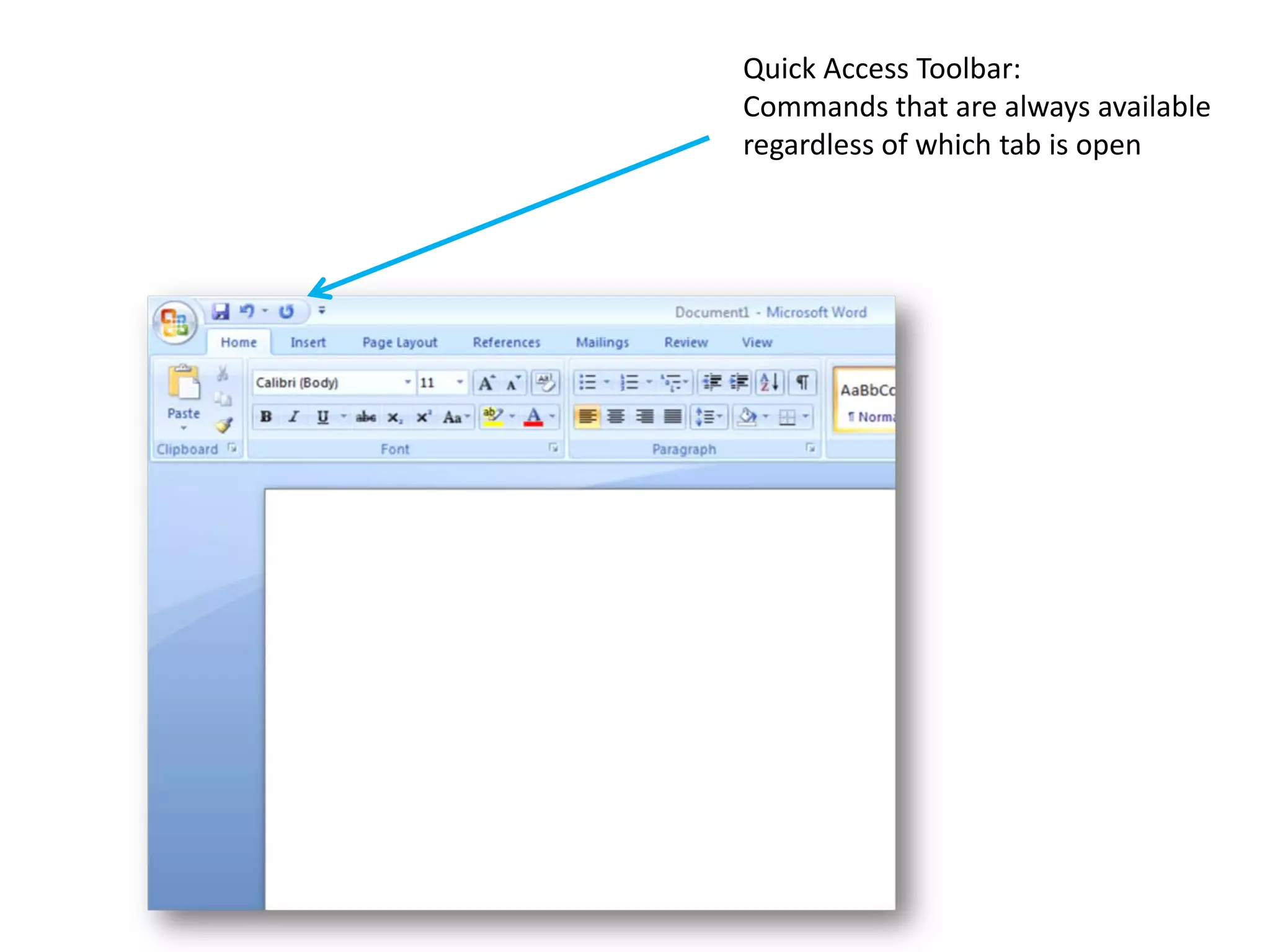
Quick Access Toolbar

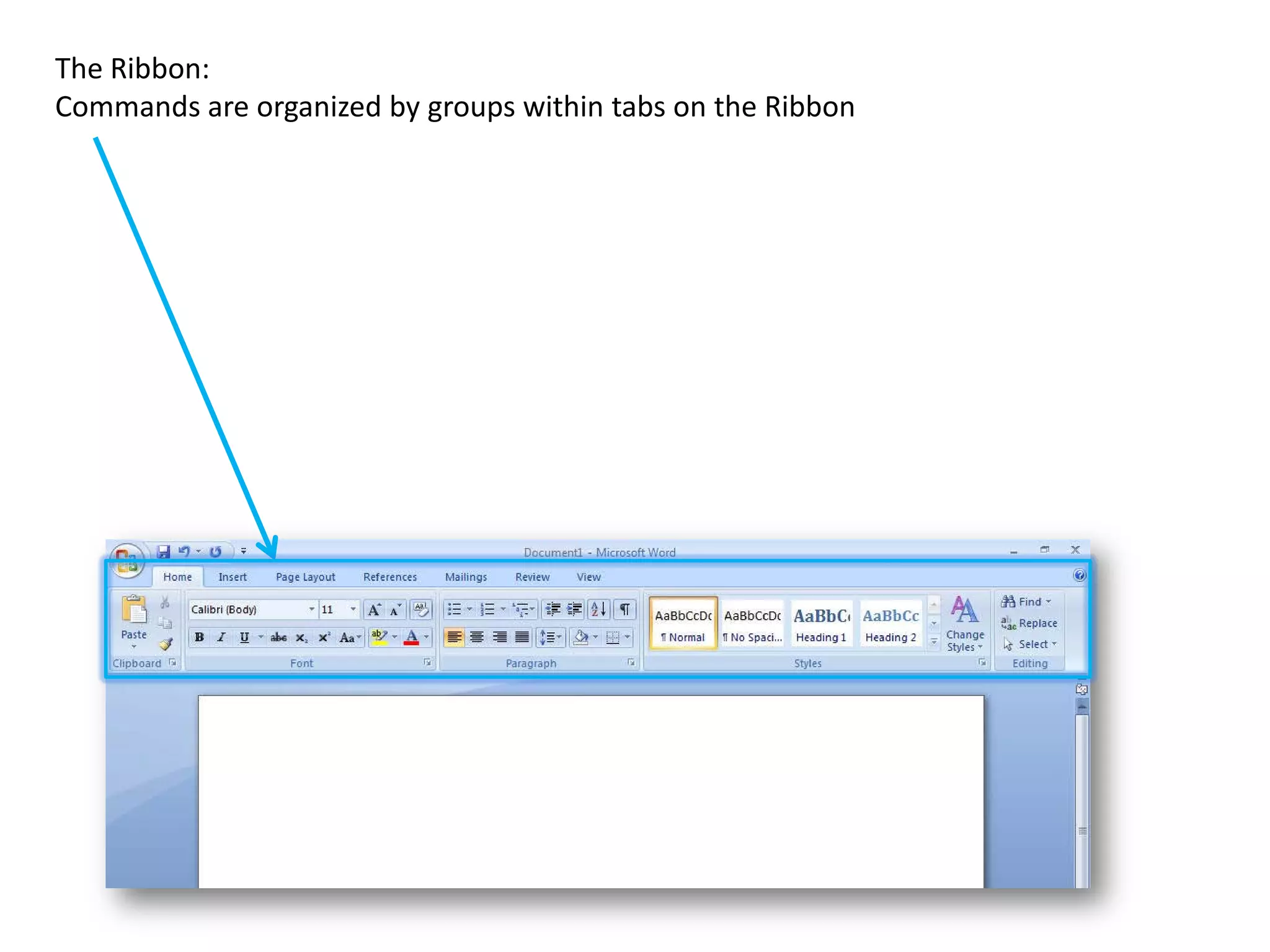
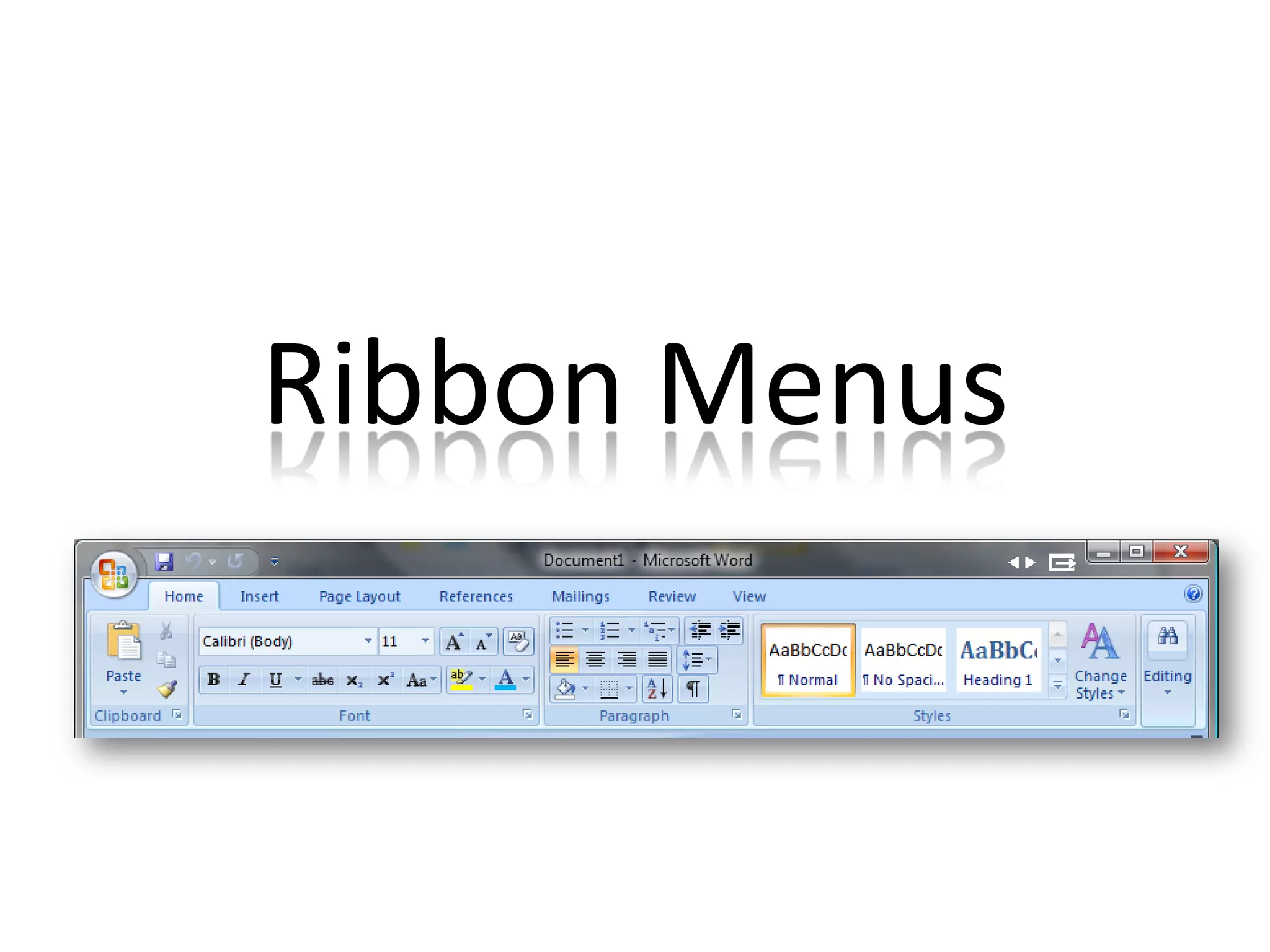
Ribbon:
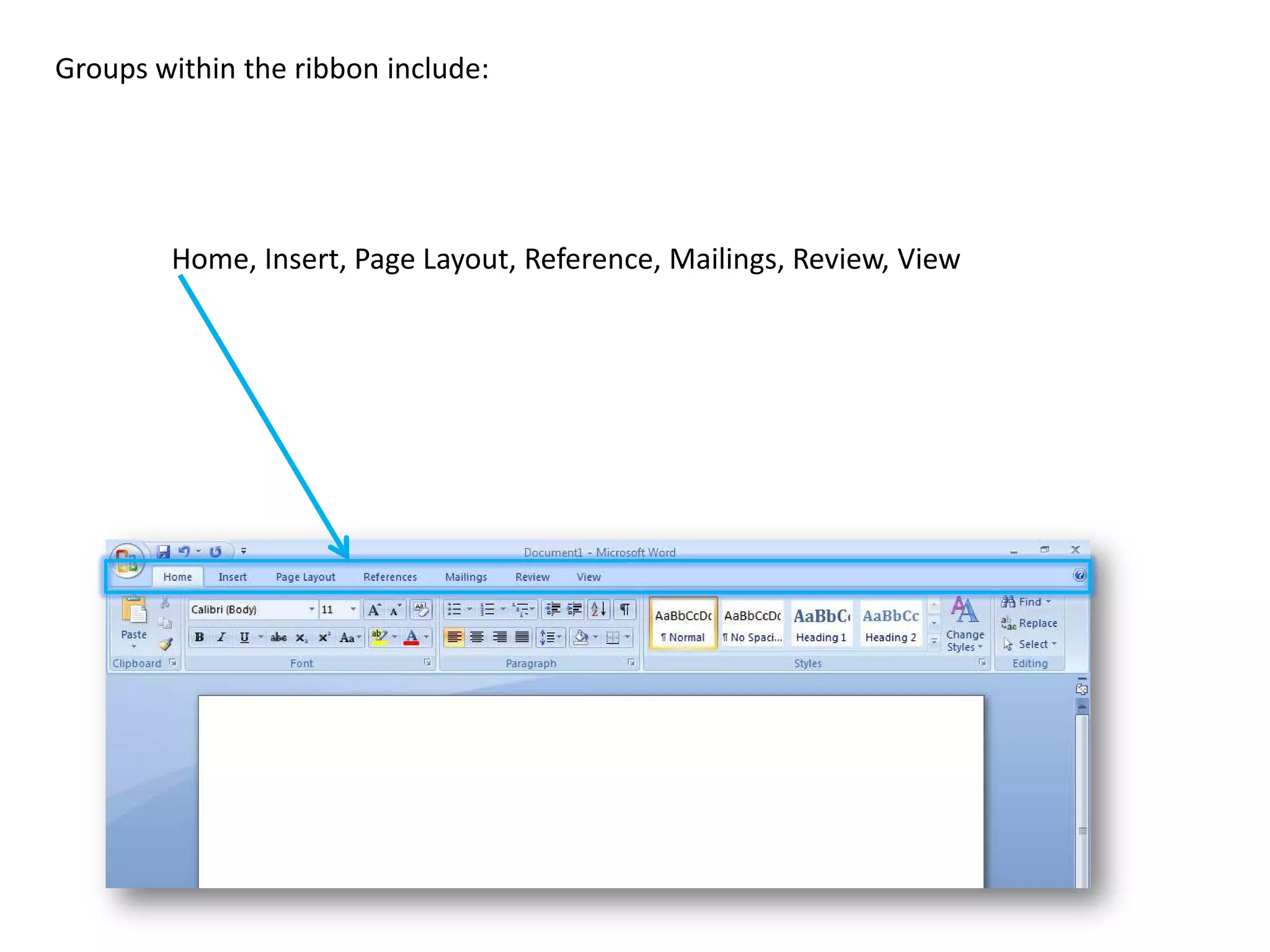
Home, Insert, Page Layout, References/Mailings/Review, View, Acrobat

Additional Tips
Resources
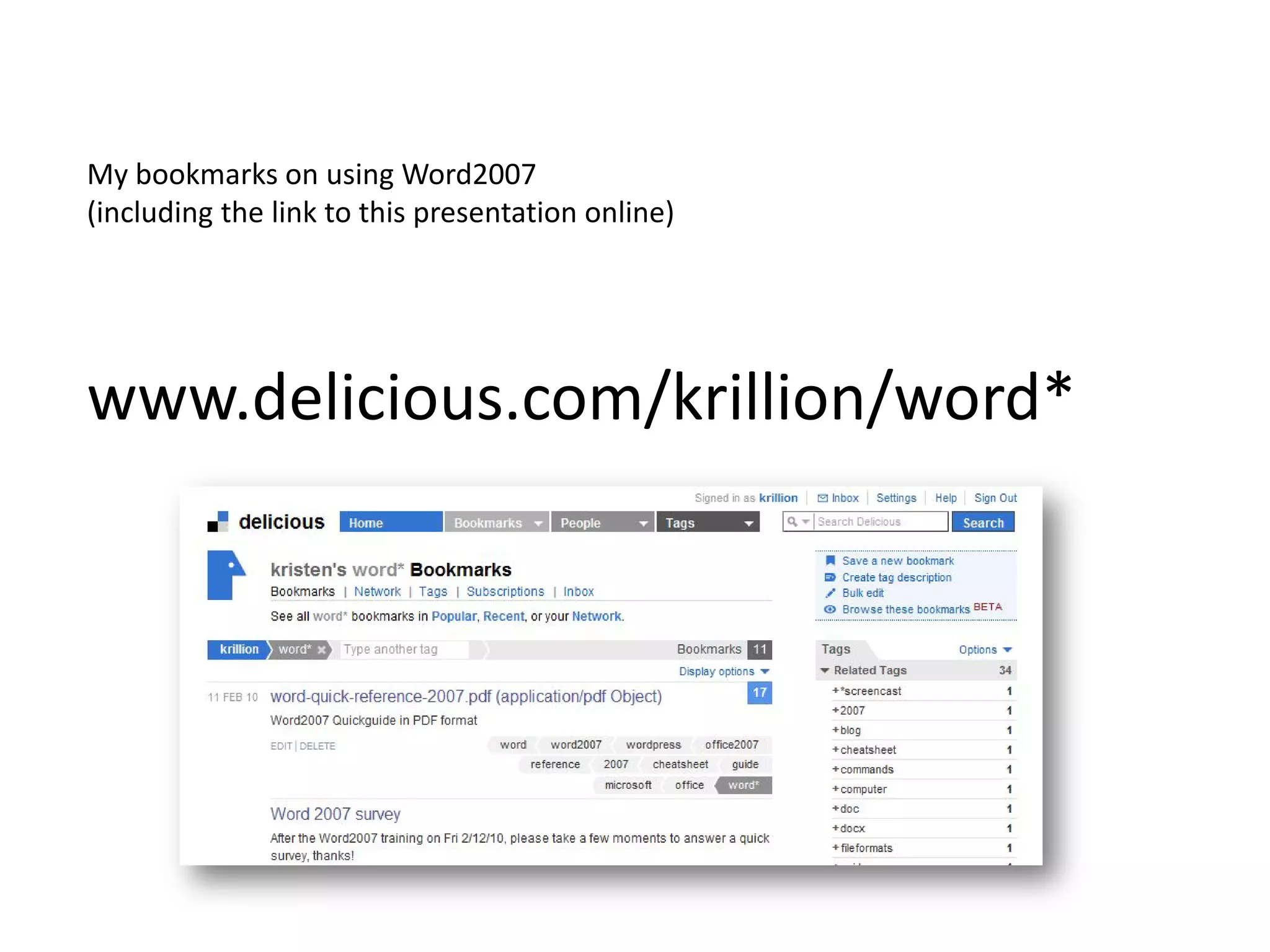
My bookmarks on using Word2007
(including the link to this presentation online)


www.delicious.com/krillion/word*
Navigation
Office Button:
The Ribbon:
Commands are organized by groups within tabs on the Ribbon
Groups within the ribbon include:


        Home, Insert, Page Layout, Reference, Mailings, Review, View
Quick Access Toolbar:
Commands that are always available
regardless of which tab is open
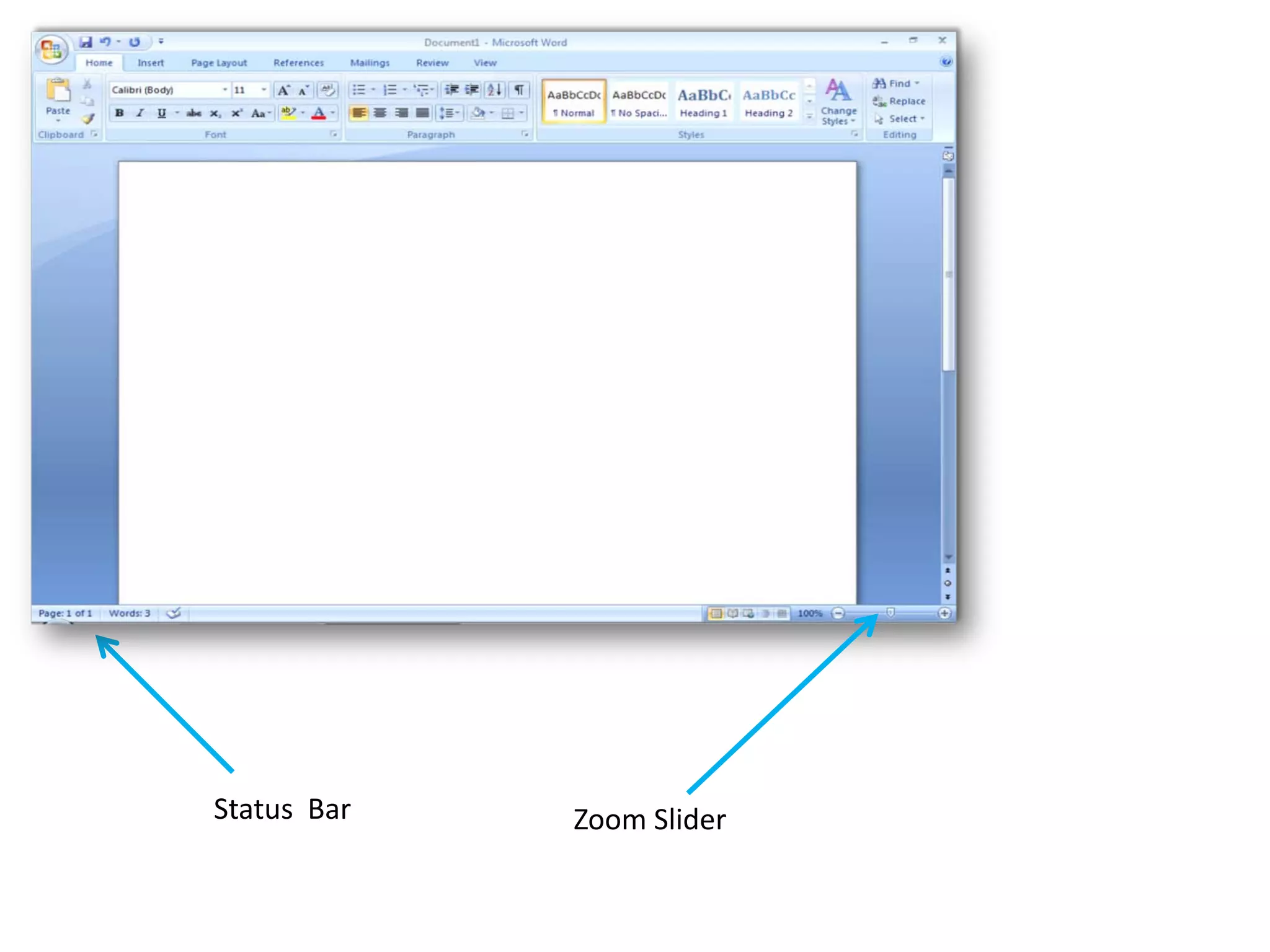
Status Bar   Zoom Slider
Office Button
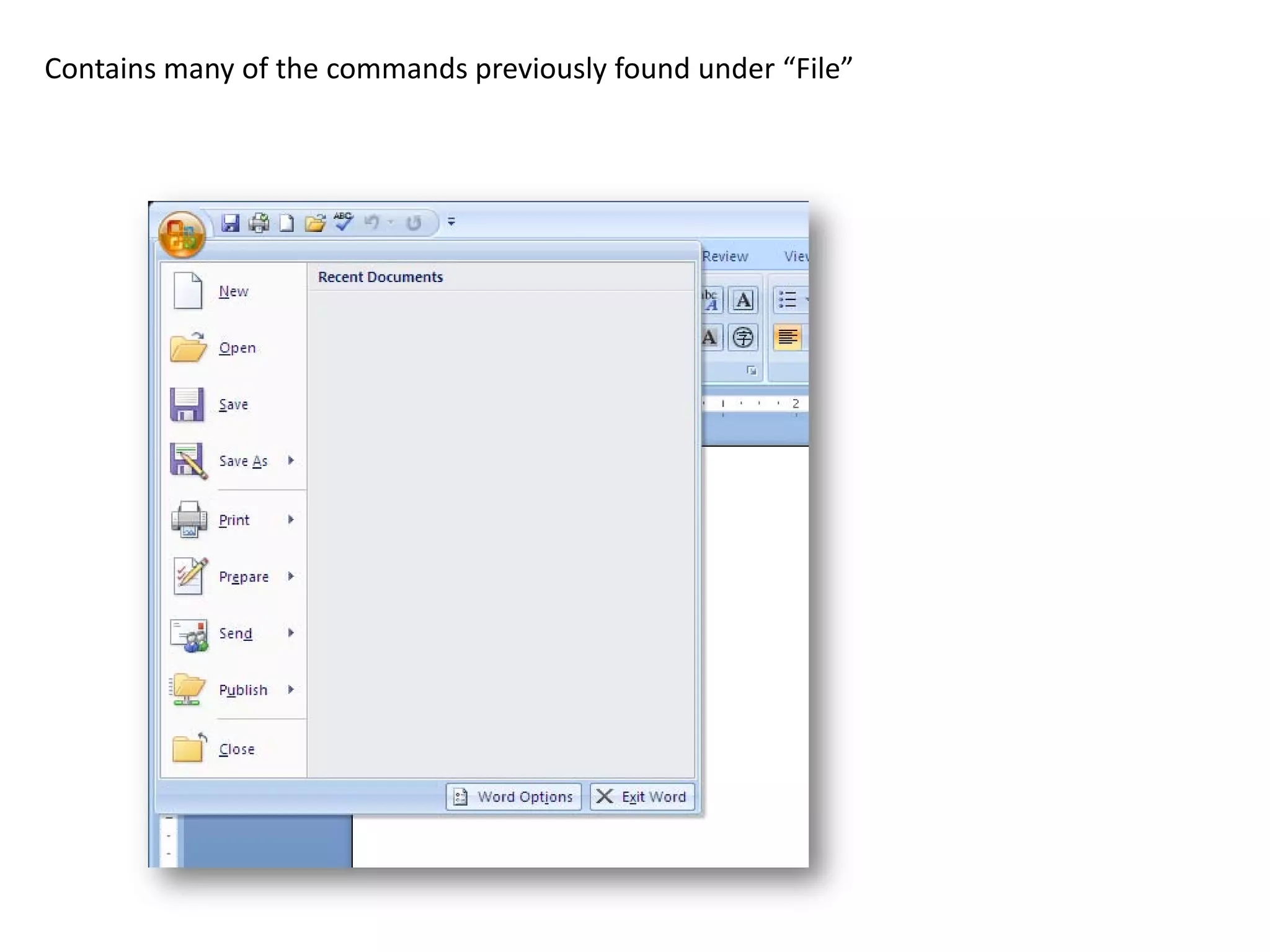
Contains many of the commands previously found under “File”
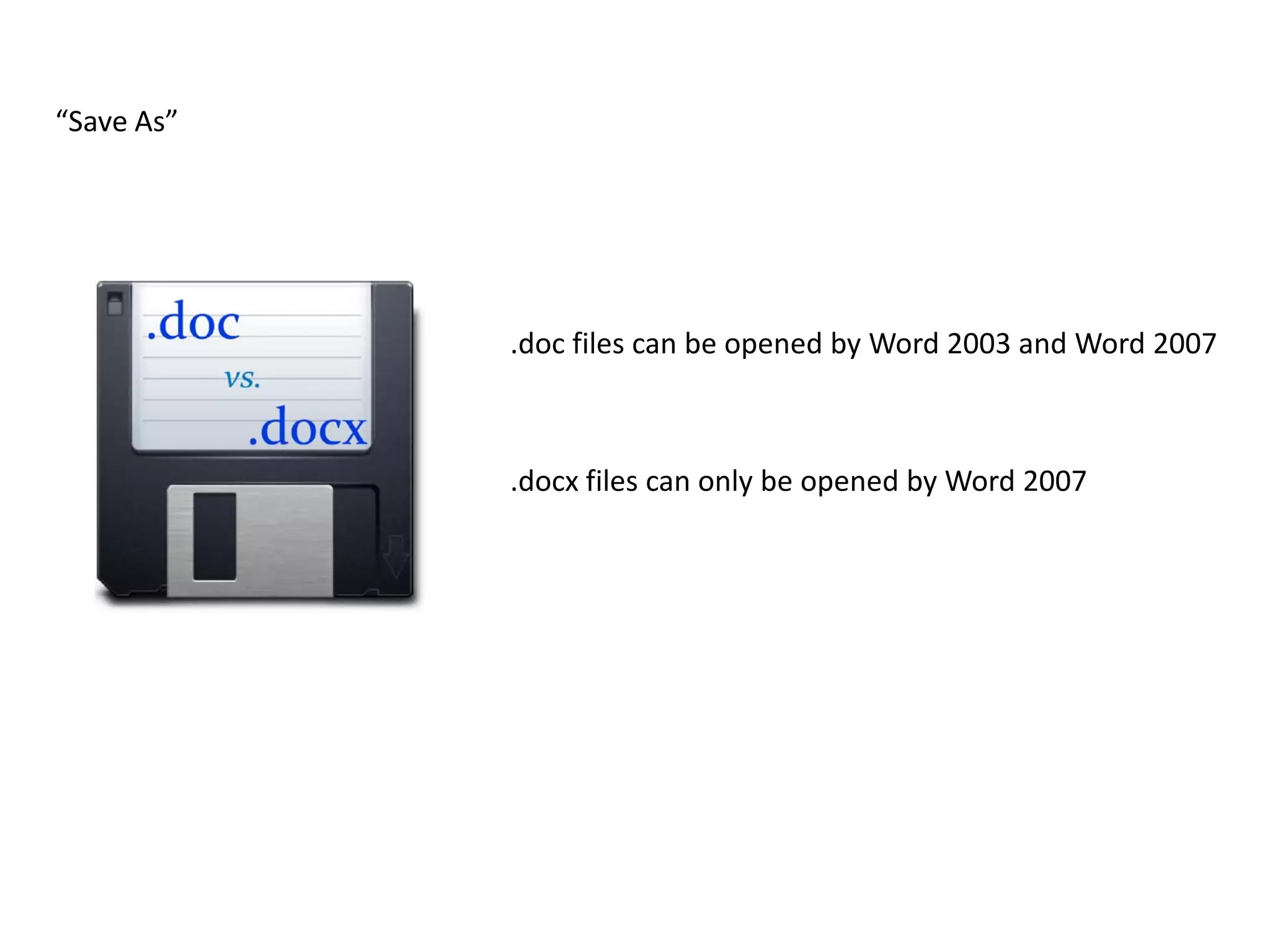
“Save As”


            .doc files can be opened by Word 2003 and Word 2007


            .docx files can only be opened by Word 2007
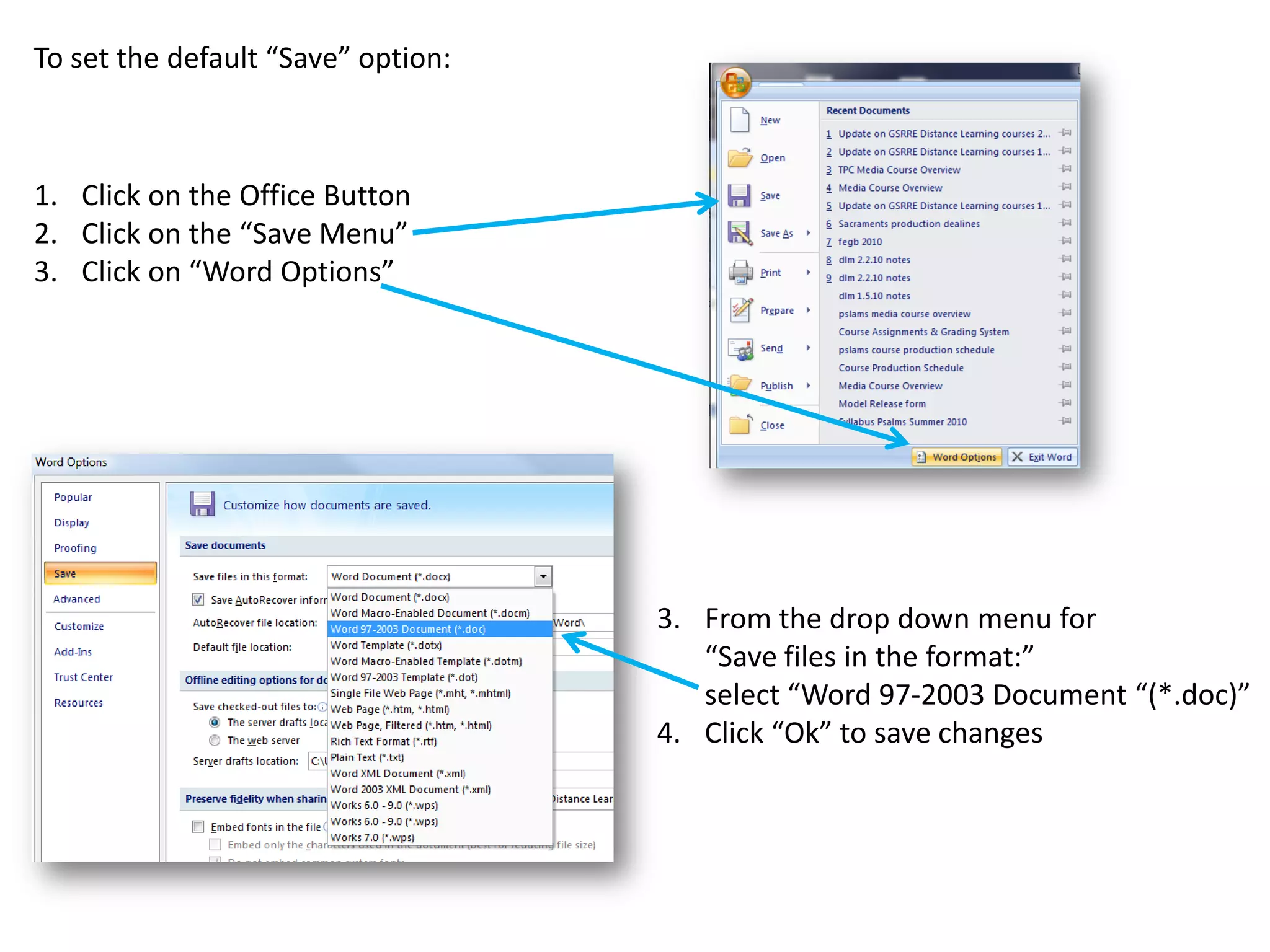
To set the default “Save” option:


1. Click on the Office Button
2. Click on the “Save Menu”
3. Click on “Word Options”


                                    3. From the drop down menu for
                                       “Save files in the format:”
                                       select “Word 97-2003 Document “(*.doc)”
                                    4. Click “Ok” to save changes
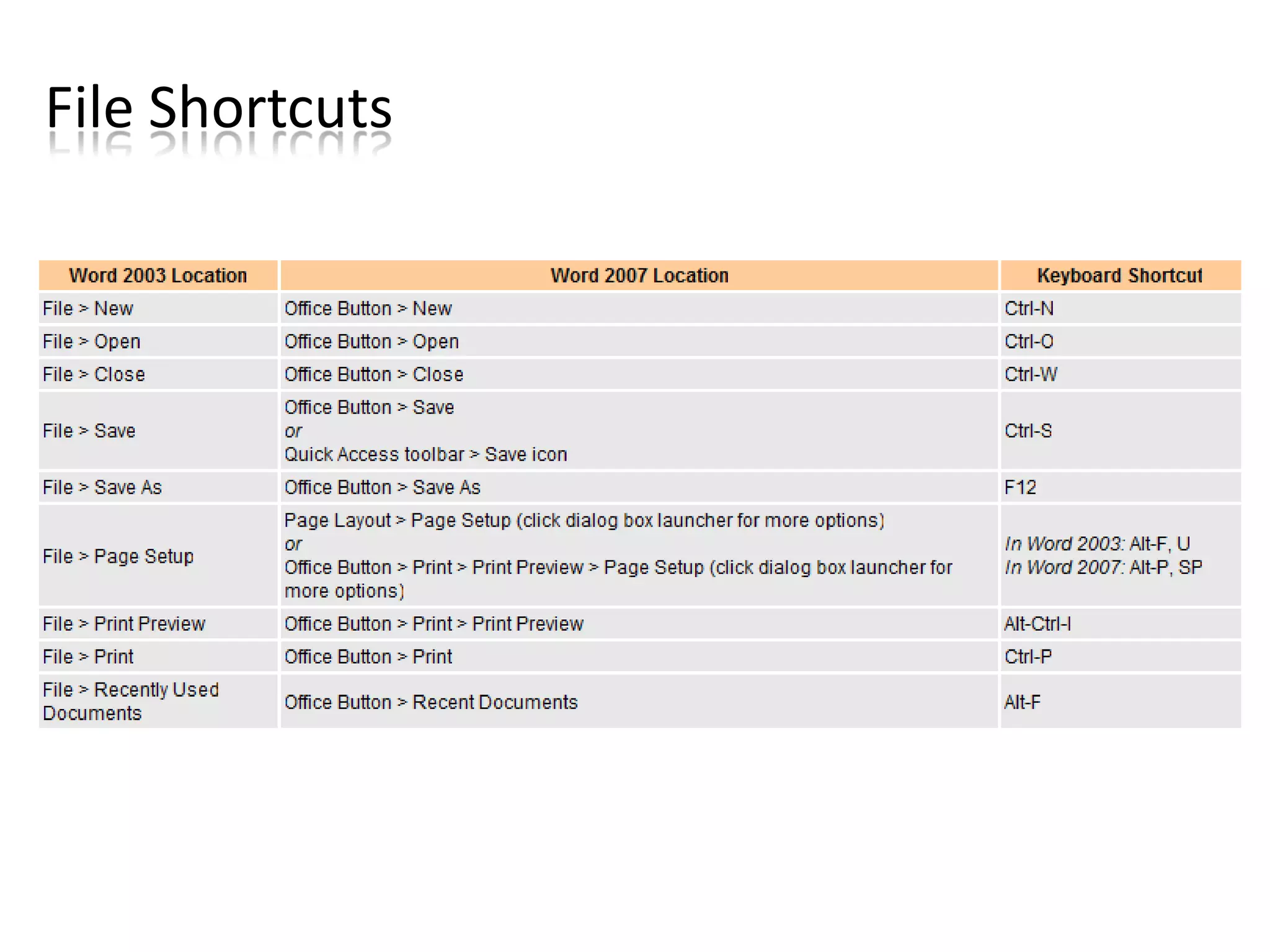
File Shortcuts
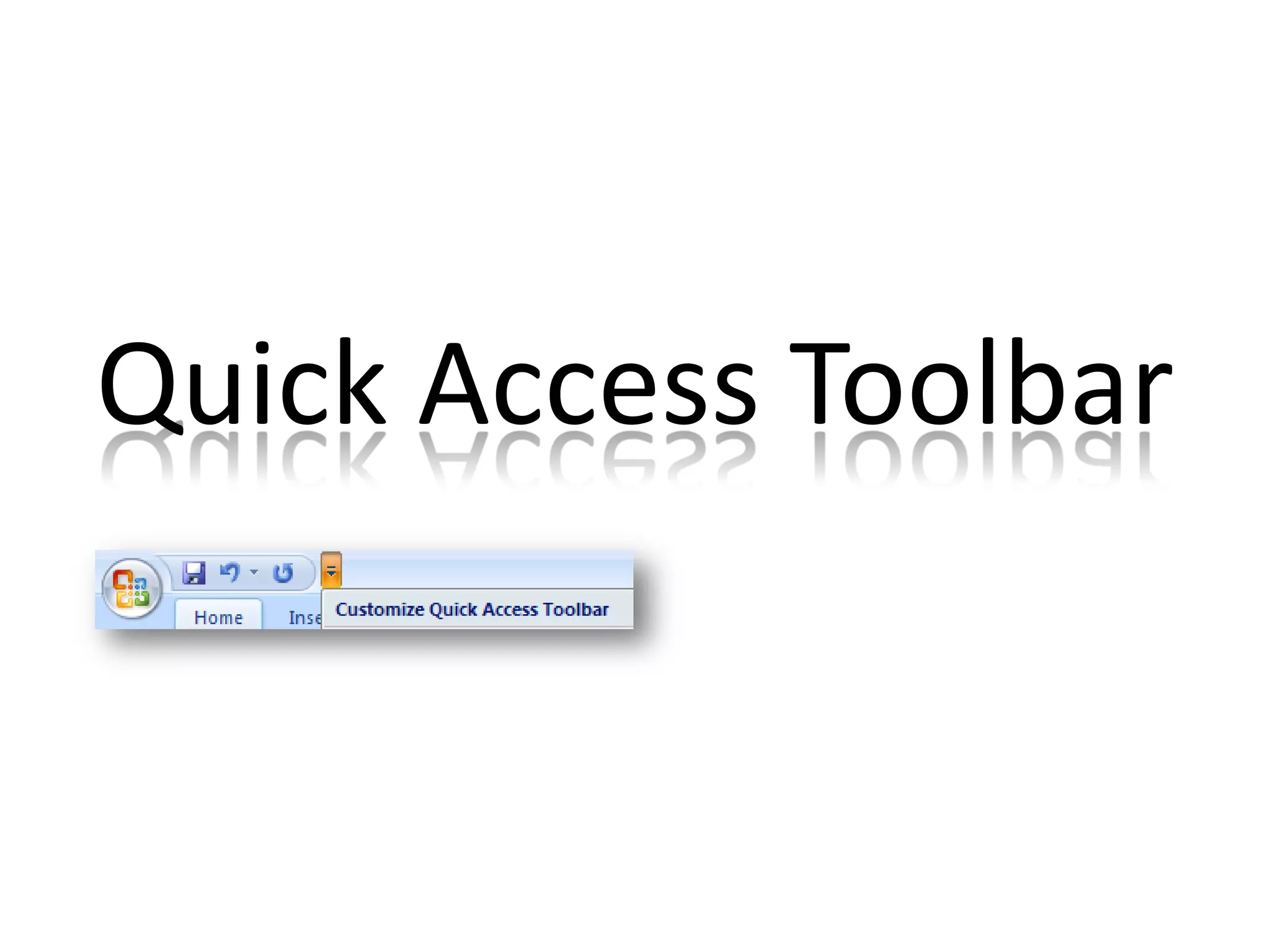
Quick Access Toolbar
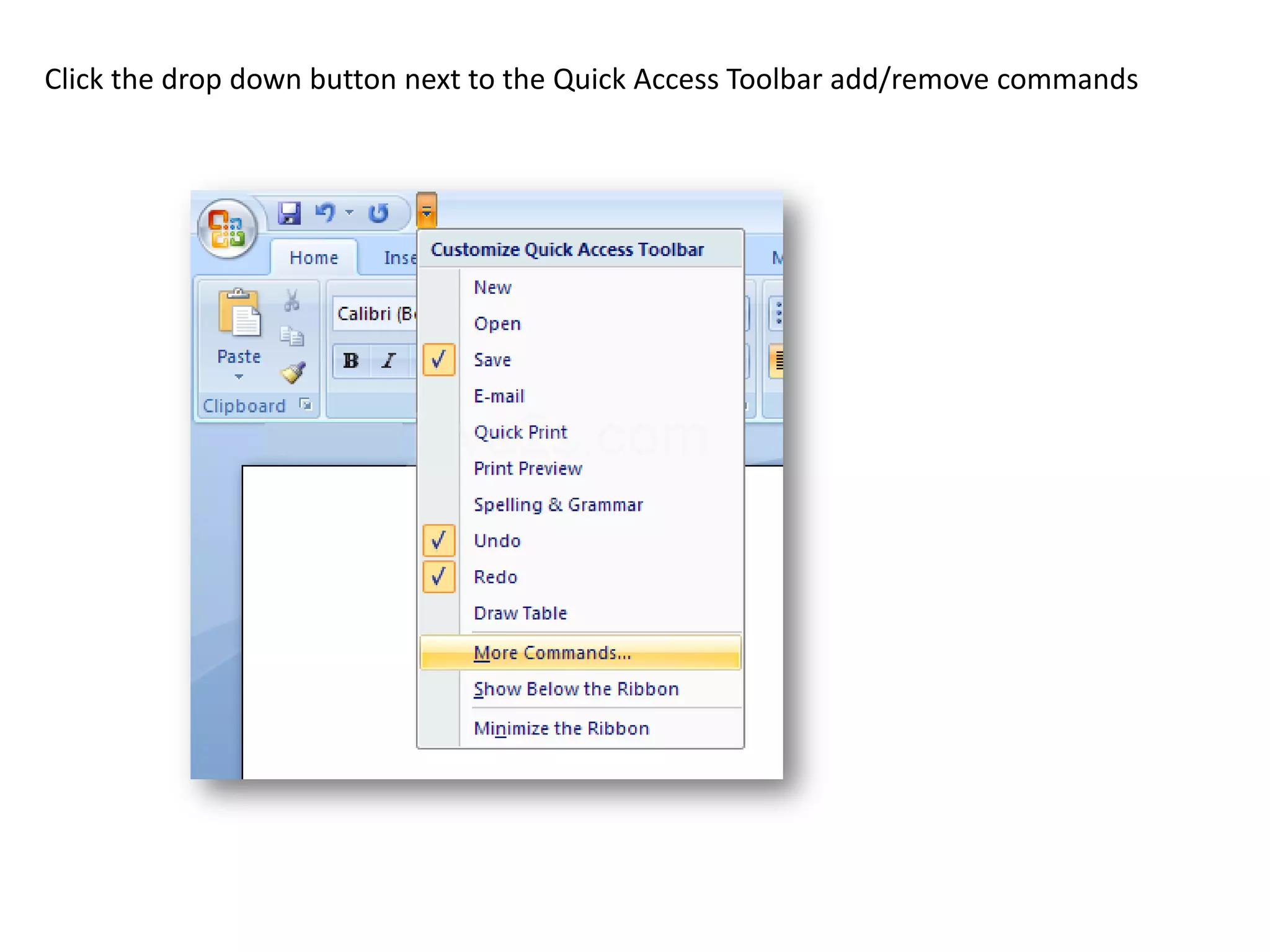
Click the drop down button next to the Quick Access Toolbar add/remove commands
Ribbon Menus
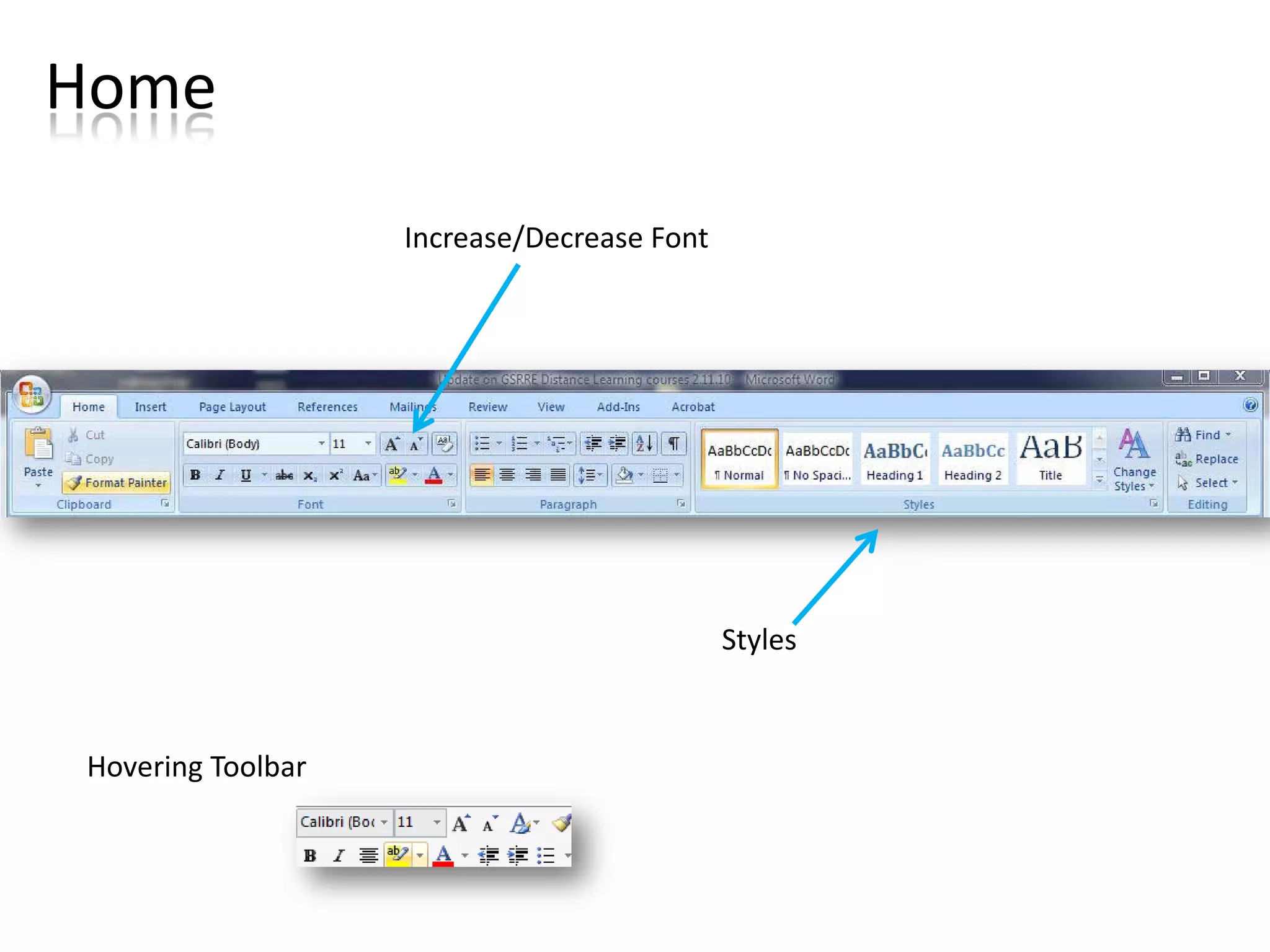
Home
                   Increase/Decrease Font


                                            Styles


Hovering Toolbar
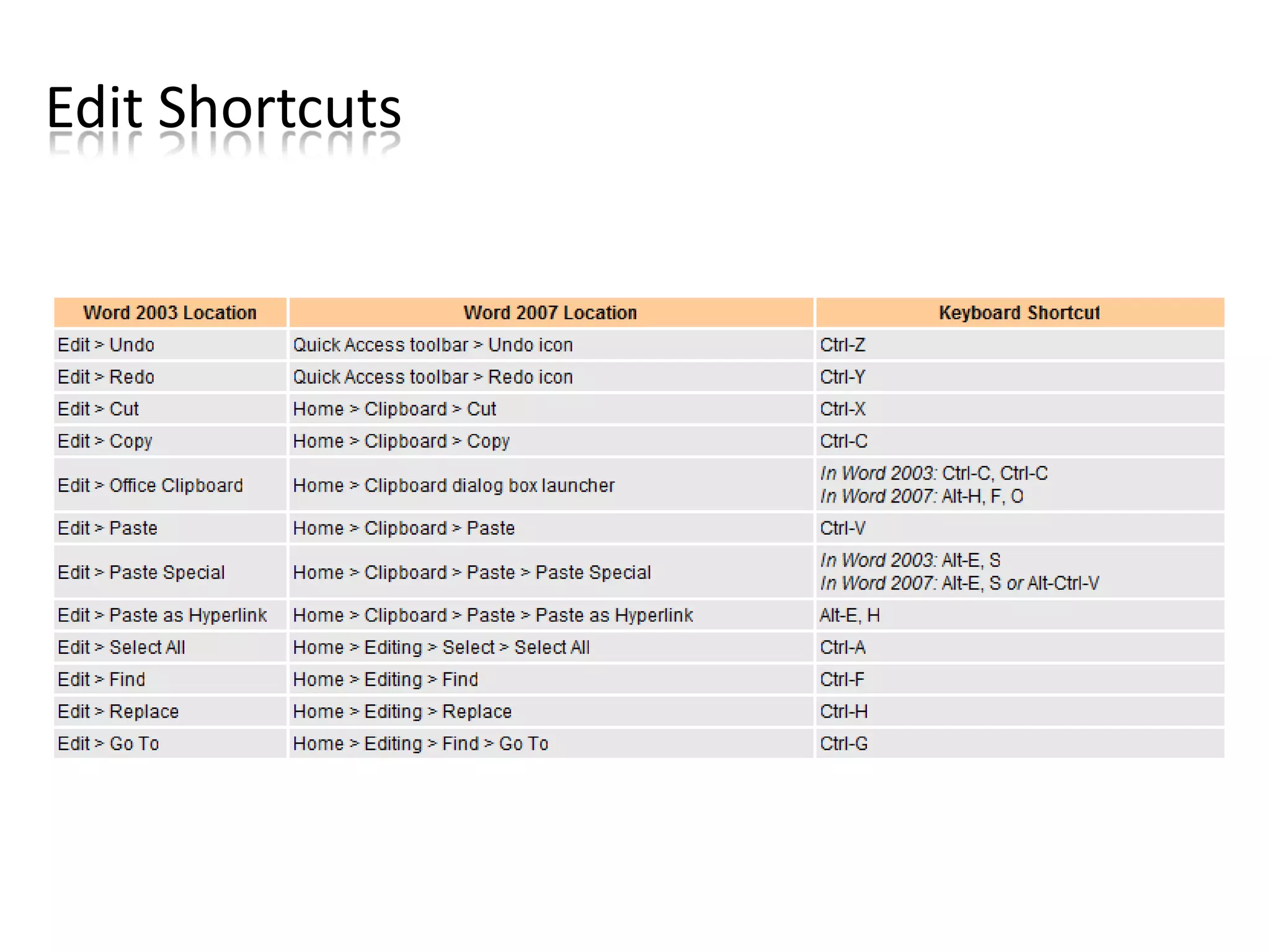
Edit Shortcuts
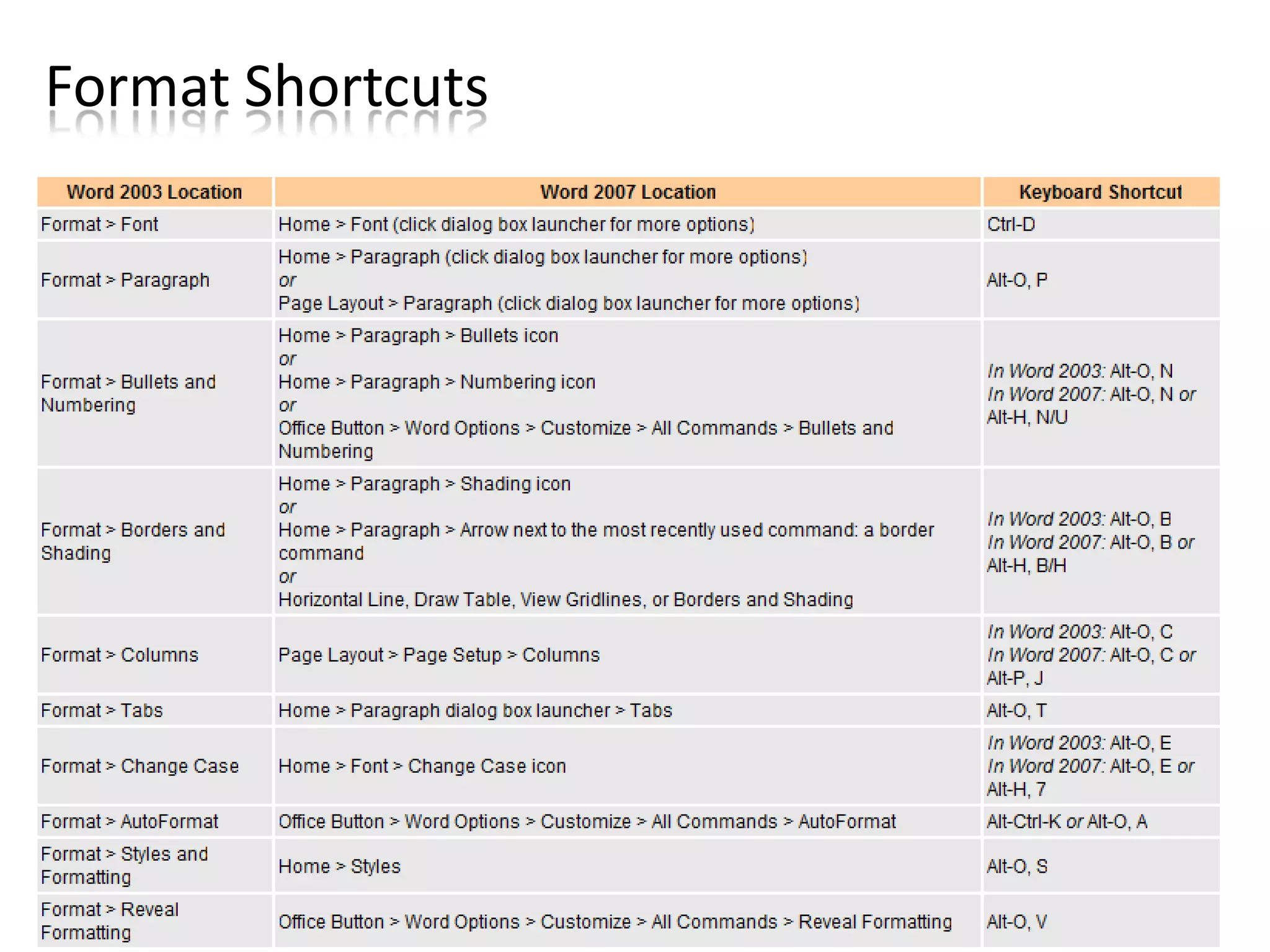
Format Shortcuts
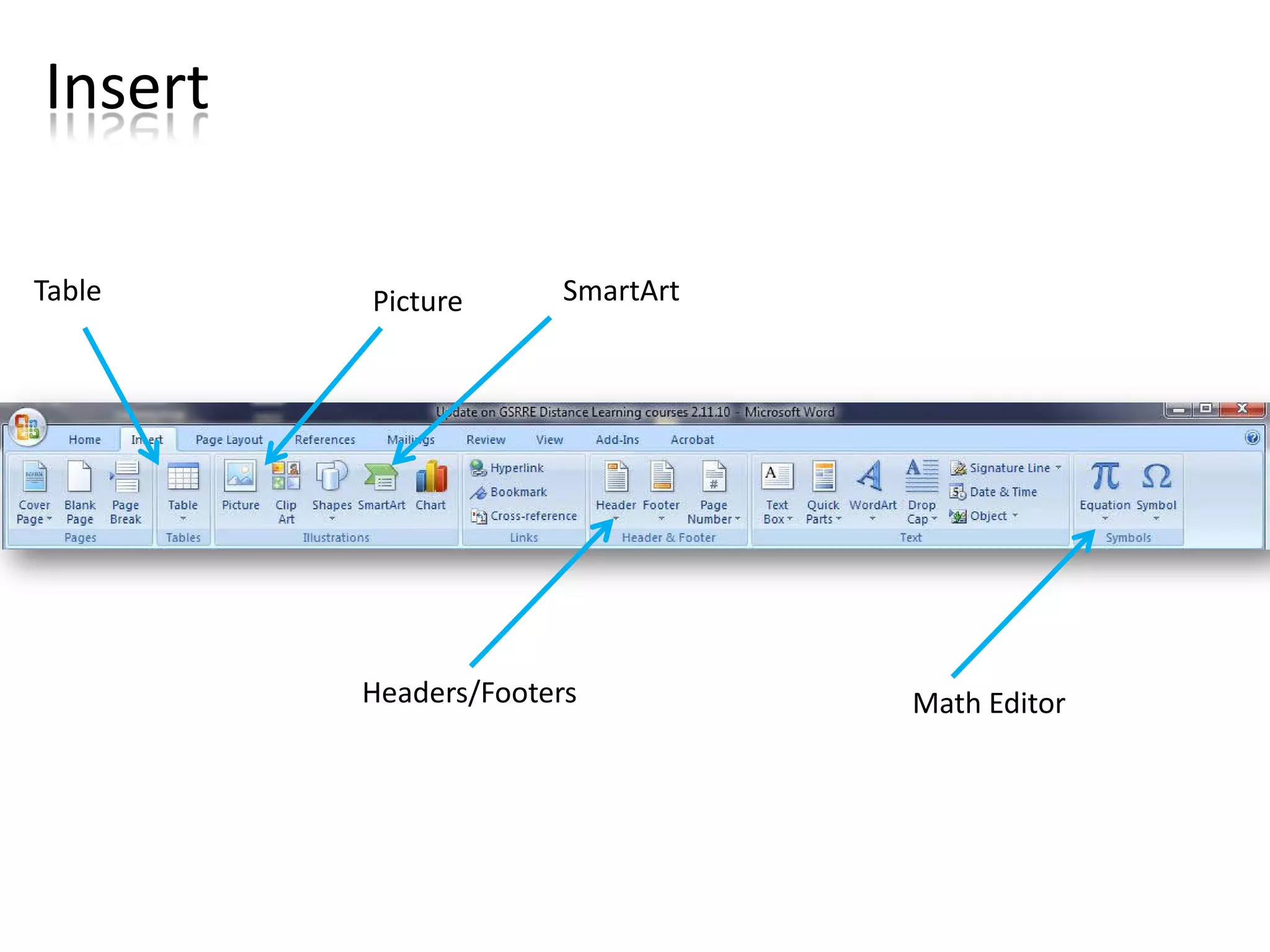
Insert

Table    Picture       SmartArt


         Headers/Footers          Math Editor
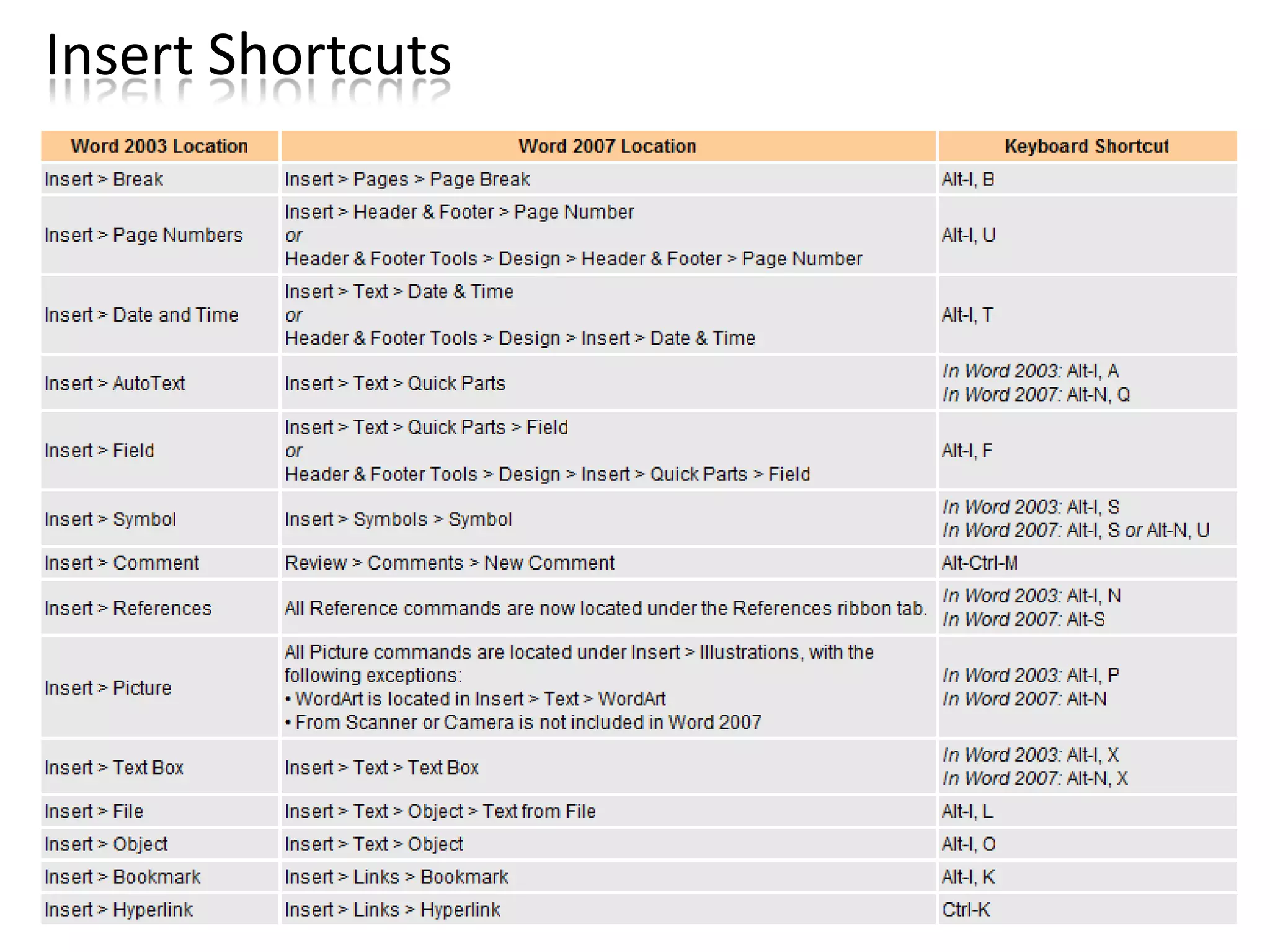
Insert Shortcuts
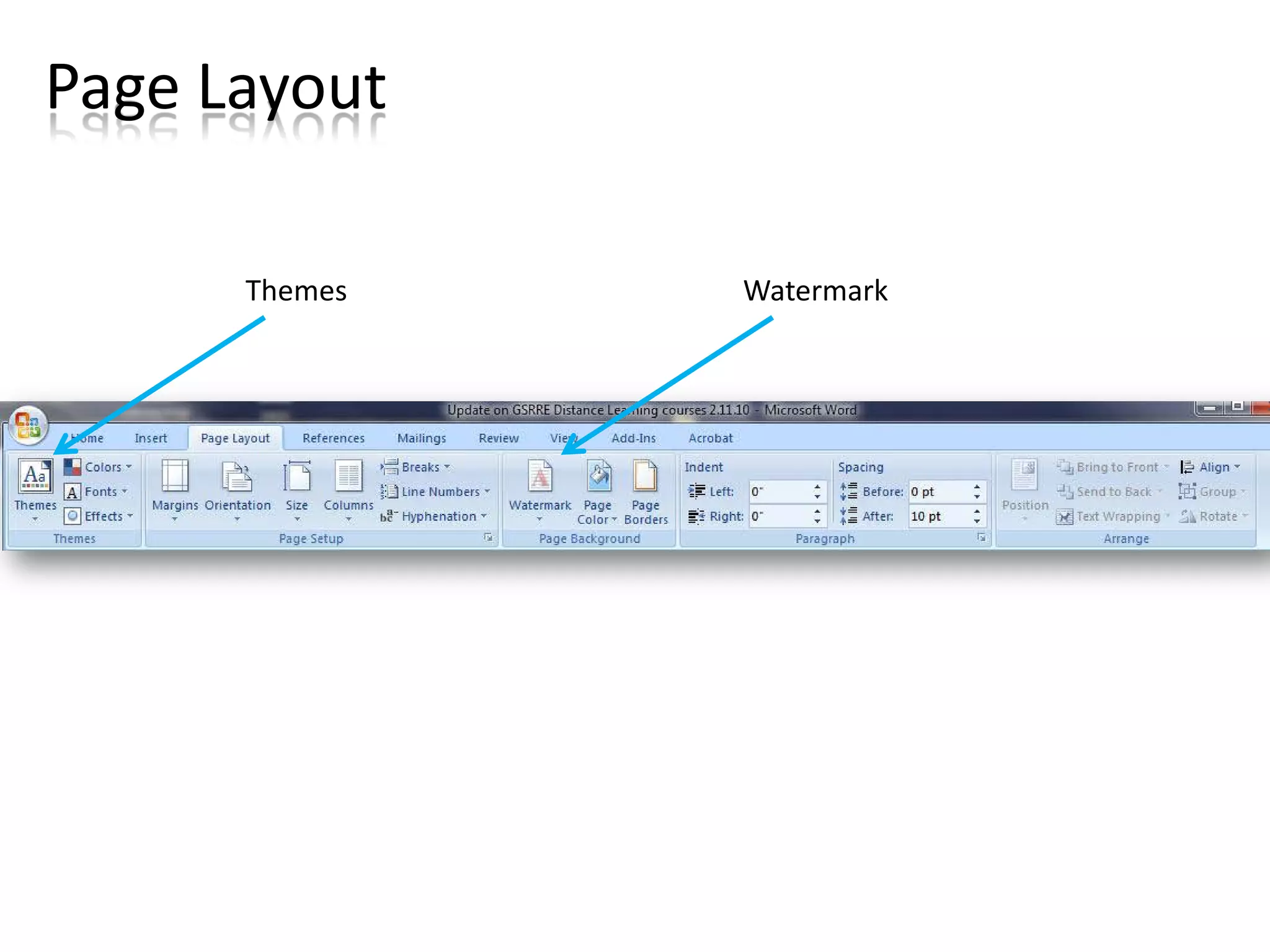
Page Layout

      Themes   Watermark
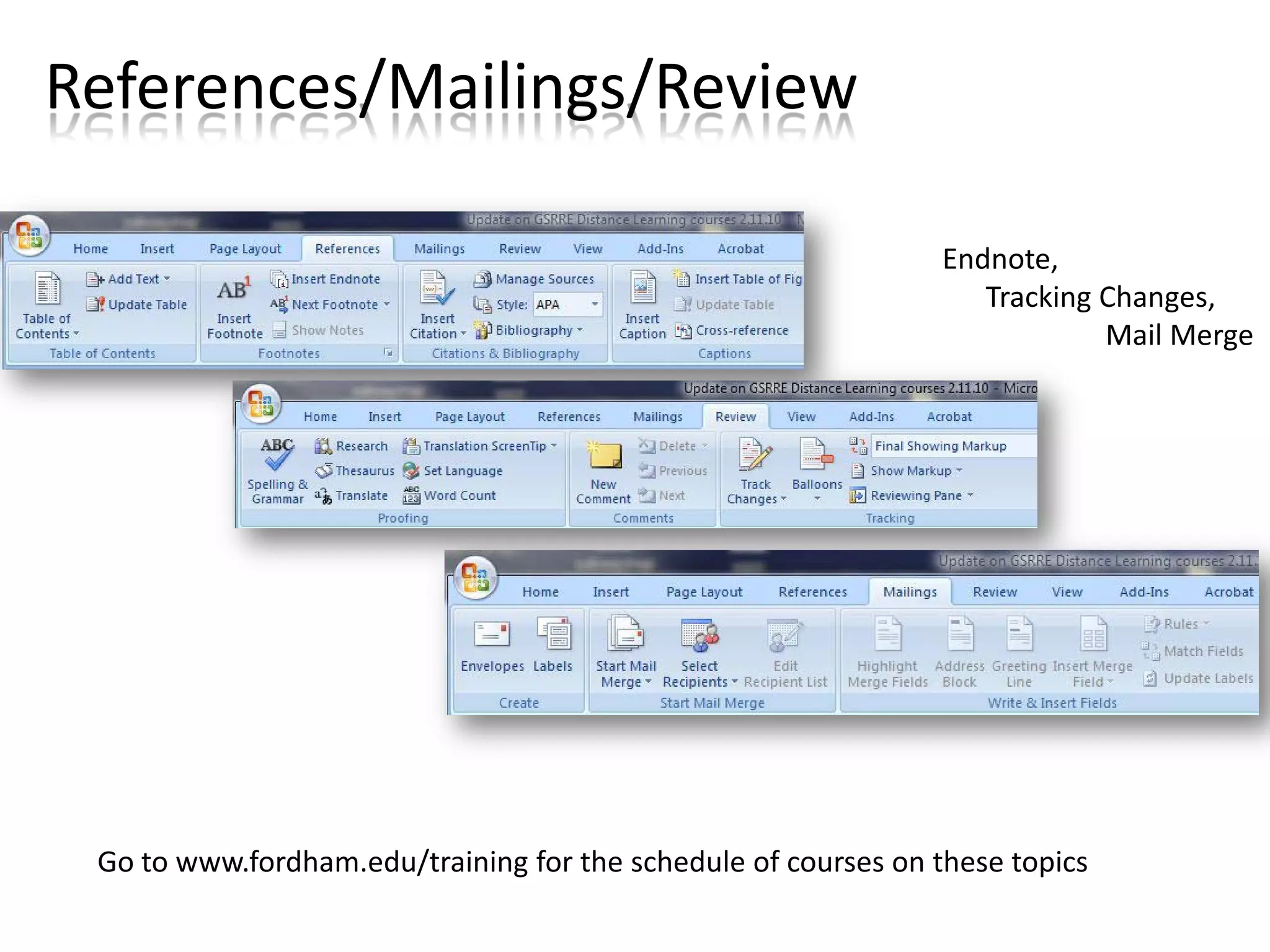
References/Mailings/Review

                                                                Endnote,
                                                                   Tracking Changes,
                                                                            Mail Merge


 Go to www.fordham.edu/training for the schedule of courses on these topics
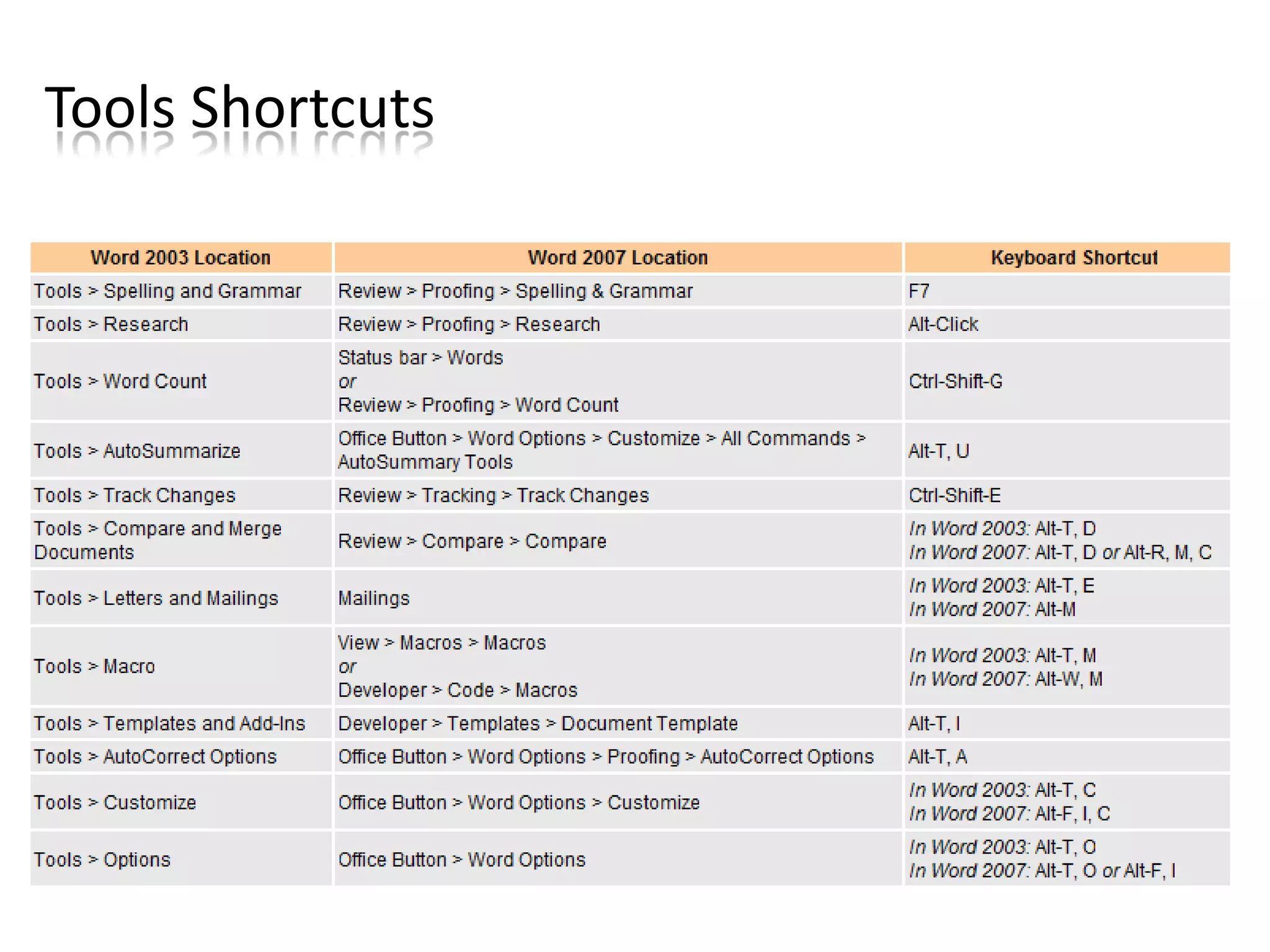
Tools Shortcuts
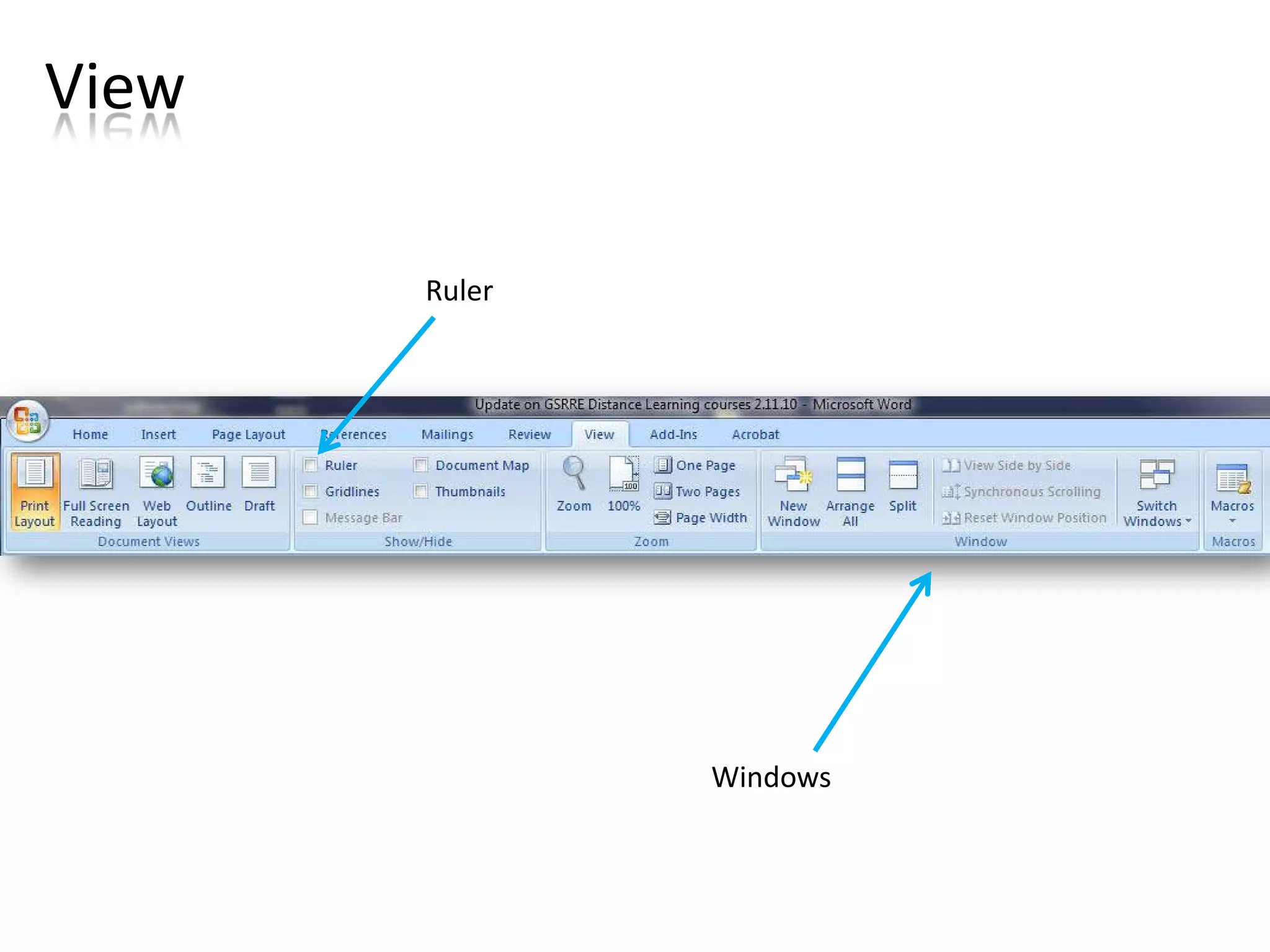
View

       Ruler


               Windows
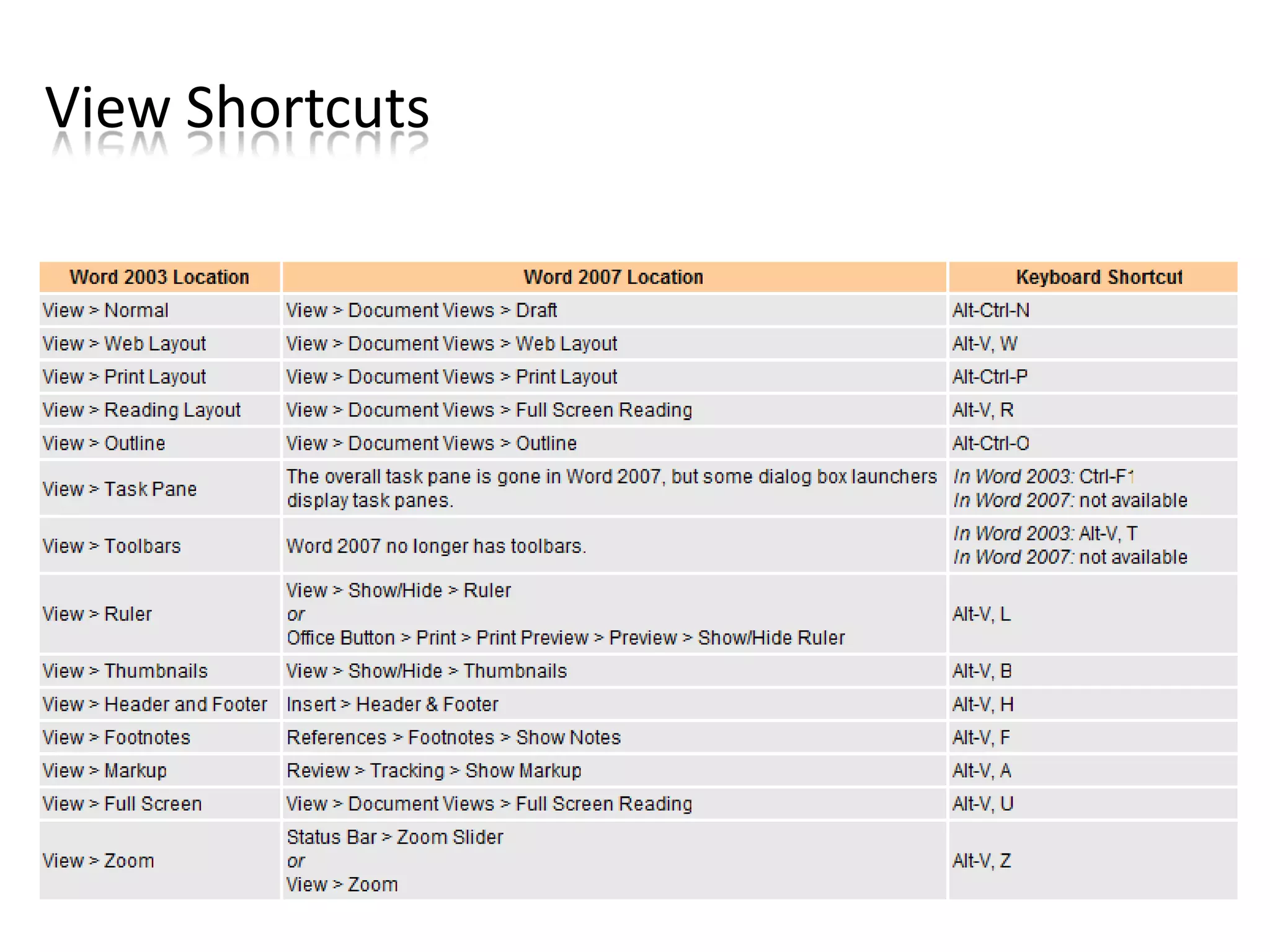
View Shortcuts
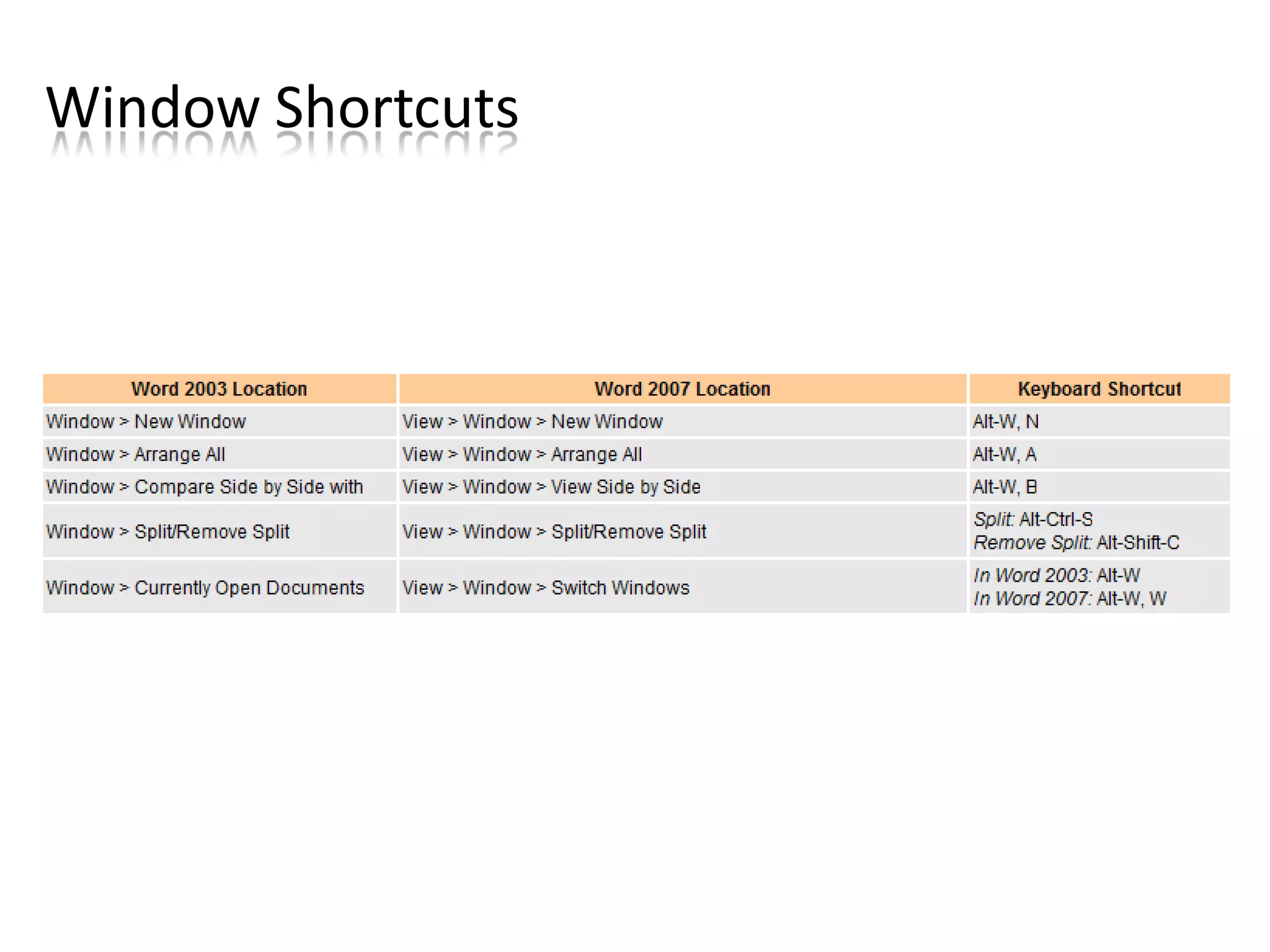
Window Shortcuts
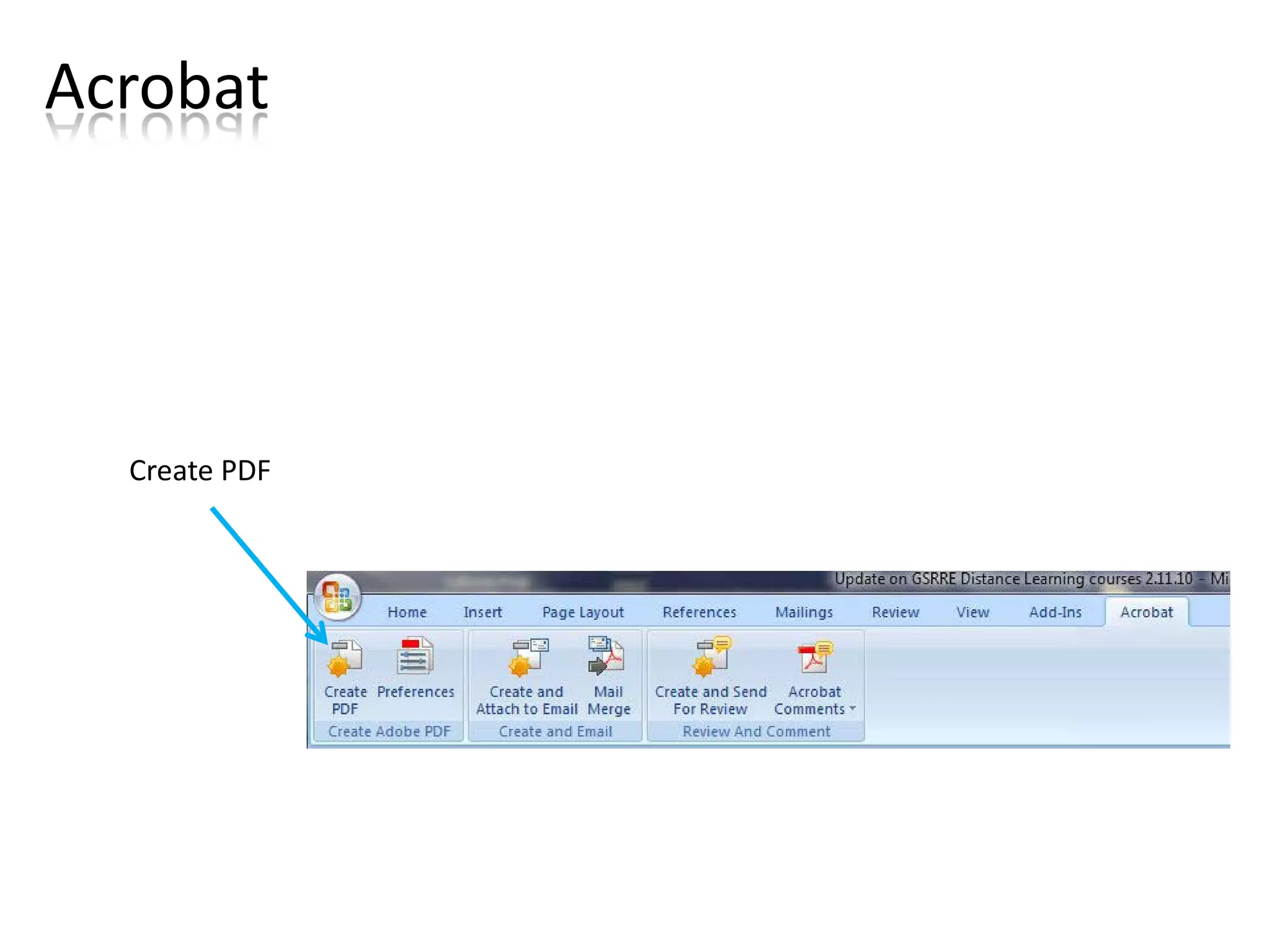
Acrobat


  Create PDF
Additional Tips
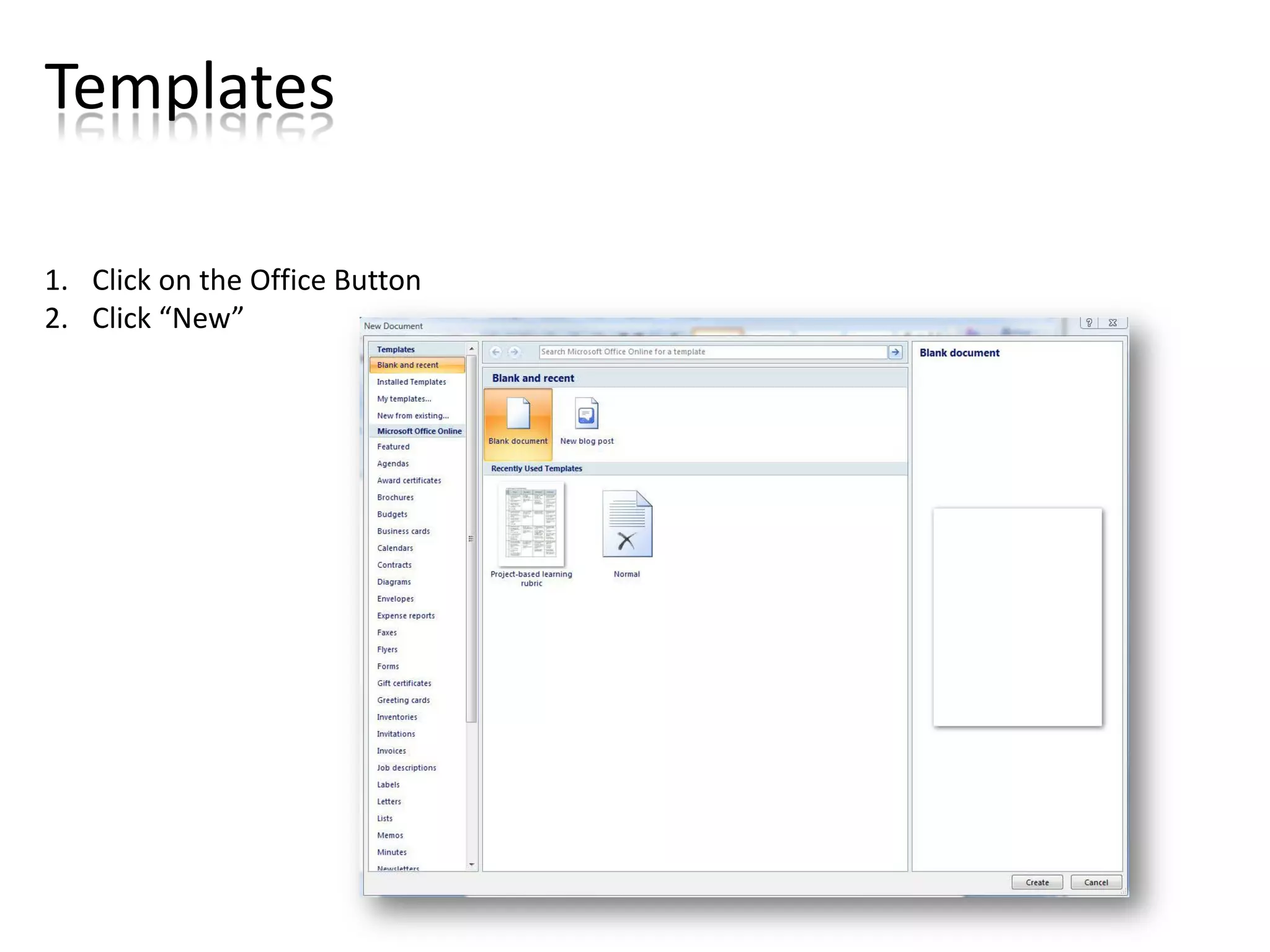
Templates

1. Click on the Office Button
2. Click “New”
More tips

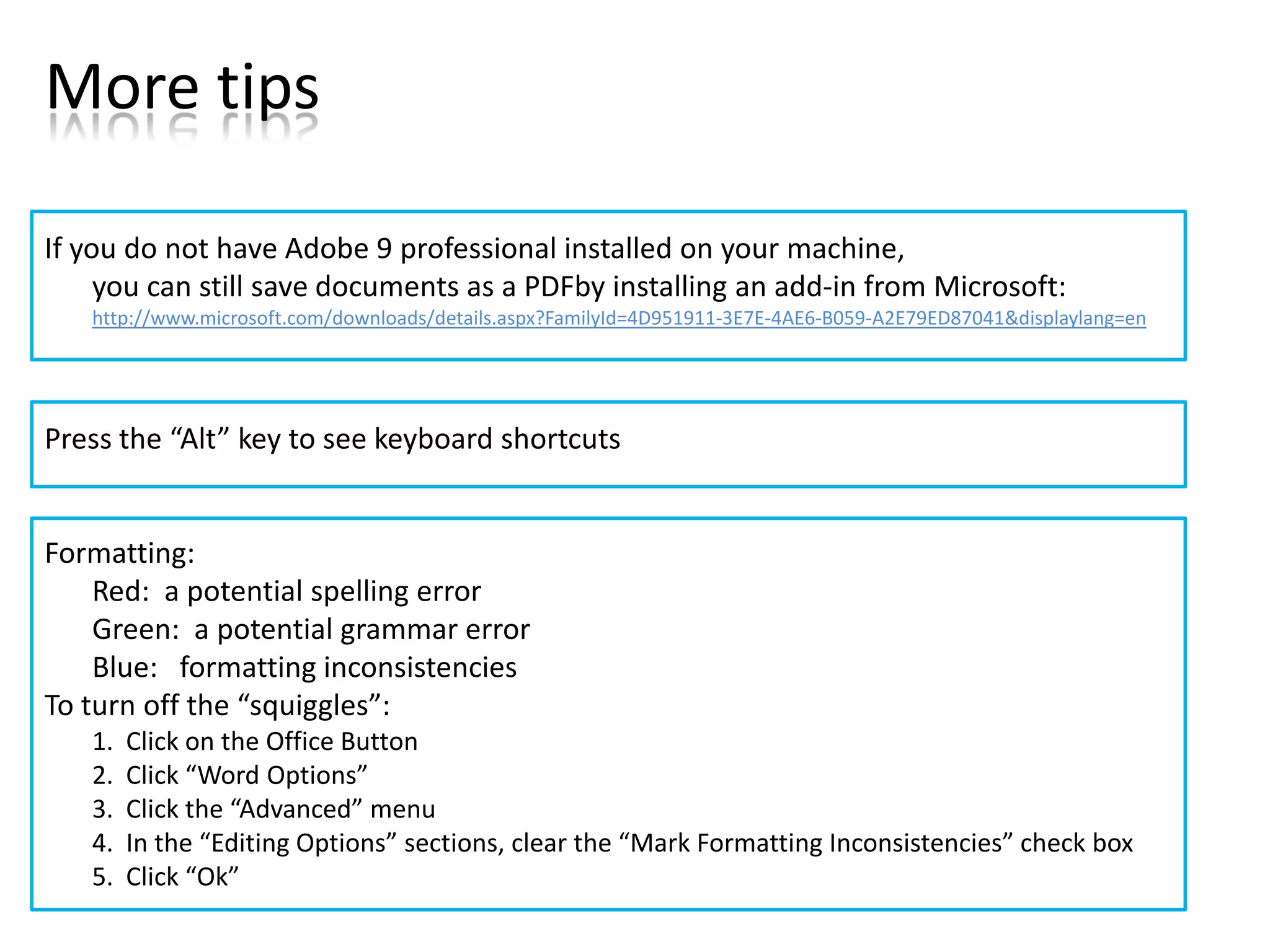
If you do not have Adobe 9 professional installed on your machine,
     you can still save documents as a PDFby installing an add-in from Microsoft:
   http://www.microsoft.com/downloads/details.aspx?FamilyId=4D951911-3E7E-4AE6-B059-A2E79ED87041&displaylang=en


Press the “Alt” key to see keyboard shortcuts


Formatting:
    Red: a potential spelling error
    Green: a potential grammar error
    Blue: formatting inconsistencies
To turn off the “squiggles”:
   1.   Click on the Office Button
   2.   Click “Word Options”
   3.   Click the “Advanced” menu
   4.   In the “Editing Options” sections, clear the “Mark Formatting Inconsistencies” check box
   5.   Click “Ok”
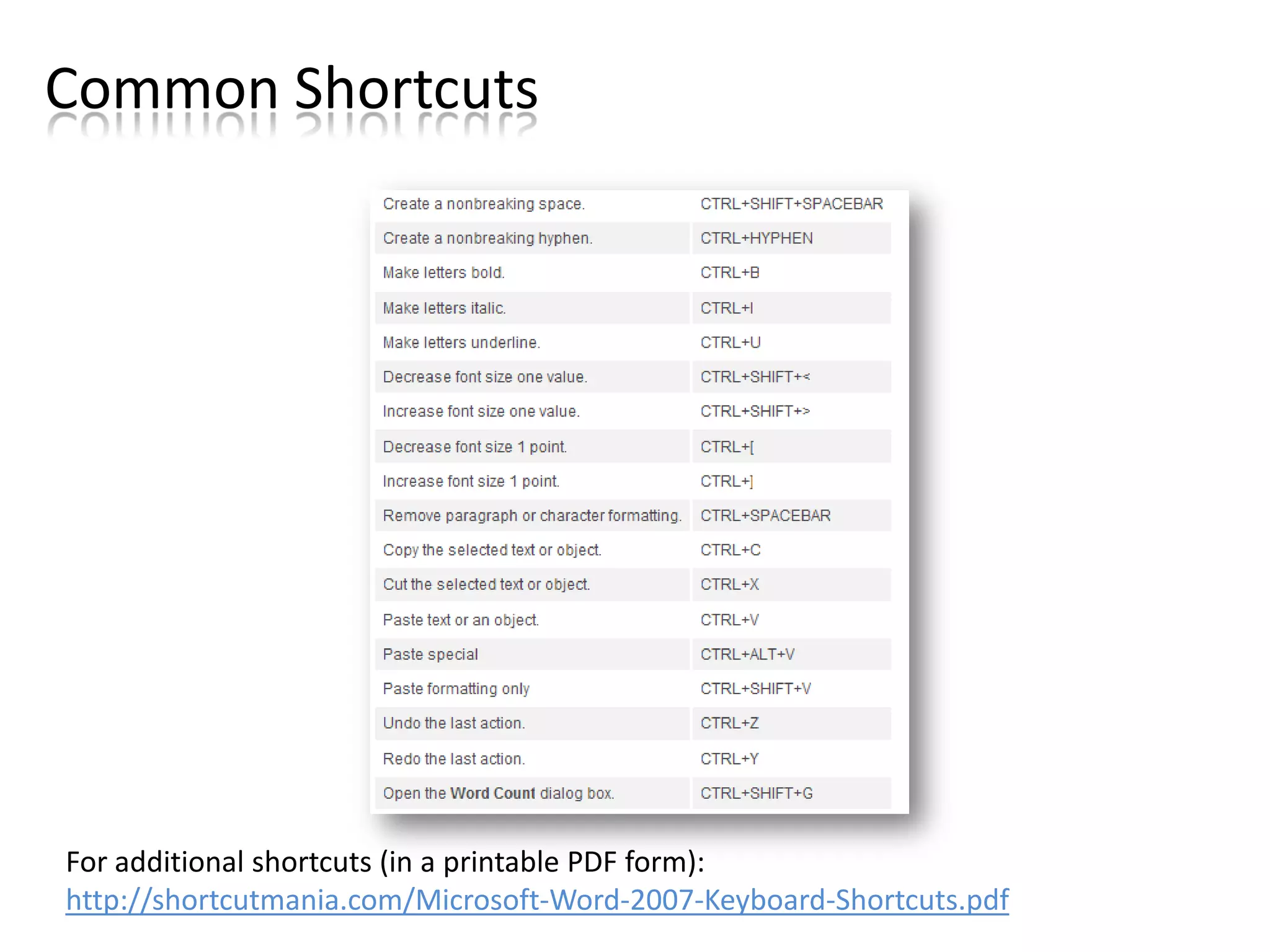
Common Shortcuts


For additional shortcuts (in a printable PDF form):
http://shortcutmania.com/Microsoft-Word-2007-Keyboard-Shortcuts.pdf
Keyboard Shortcuts via:
         http://www.computerworld.com/s/article/9011145/Word_2007_Cheat_Sheet_Quick_Reference_Charts


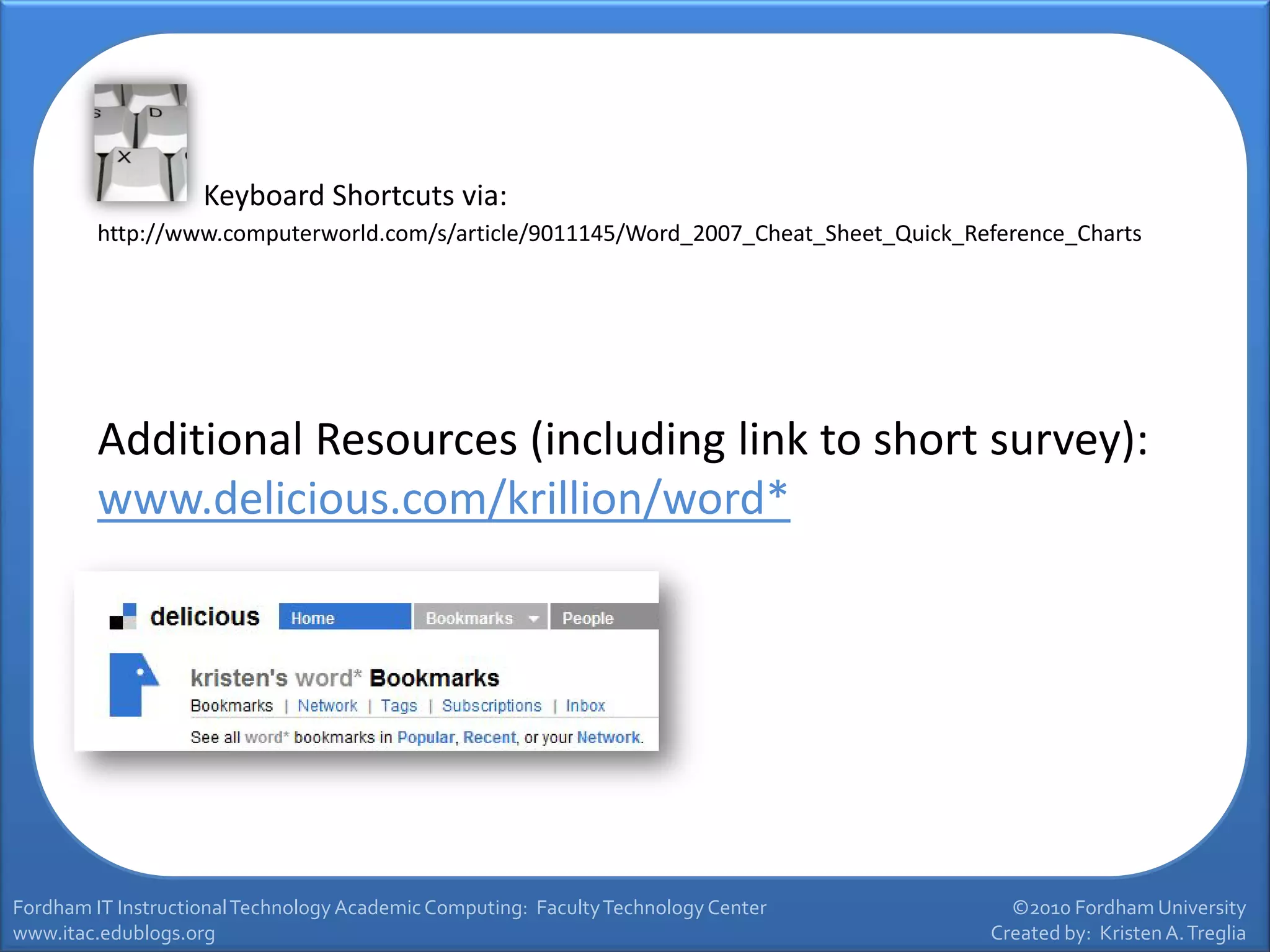
         Additional Resources (including link to short survey):
         www.delicious.com/krillion/word*


Fordham IT Instructional Technology Academic Computing: Faculty Technology Center       ©2010 Fordham University
www.itac.edublogs.org                                                                 Created by: Kristen A. Treglia

Word 2007 Presentation