COMPUTER LITERACY
       IT 1
General Advice
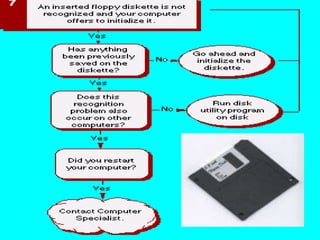
Computer Troubleshooting
Guide
        Exercises
Reboot
            Virus check

   See if you are "on" the network

Determine the scope of the problem
If something is not working, or crashed, first
restart your computer. This solves most problems.
We cannot always explain why it crashes or
freezes, occasionally, just accept it as part of the
computer world
Virus check
Check to see if your virus scanning software
is up-to-date. Minimally, each month you
should update your Antivirus software with
the latest virus definitions, in order for it to be
effective against the latest viruses. You can
typically download new virus definitions from
the manufacturer site of your Antivirus
software. After updating your virus definitions,
run a complete scan of your hard drive.
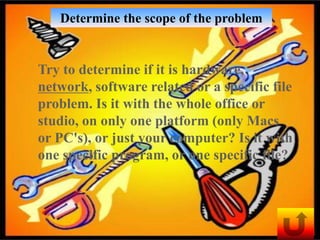
Determine the scope of the problem


Try to determine if it is hardware,
network, software related or a specific file
problem. Is it with the whole office or
studio, on only one platform (only Macs
or PC's), or just your computer? Is it with
one specific program, or one specific file?
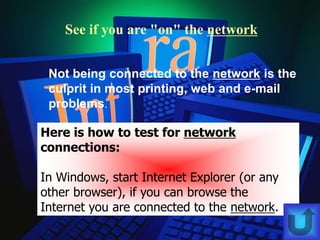
See if you are "on" the network


 Not being connected to the network is the
 culprit in most printing, web and e-mail
 problems.

Here is how to test for network
connections:

In Windows, start Internet Explorer (or any
other browser), if you can browse the
Internet you are connected to the network.
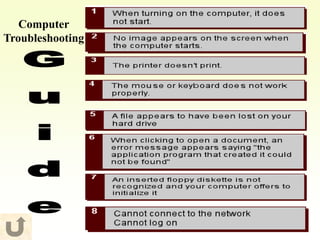
Computer
Troubleshooting
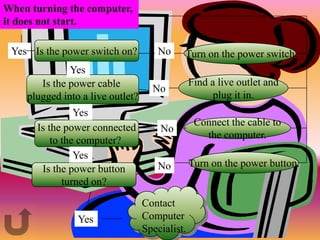
When turning the computer,
it does not start.

 Yes Is the power switch on?         No     Turn on the power switch
              Yes
       Is the power cable                       Find a live outlet and
                                    No
    plugged into a live outlet?                       plug it in.
                Yes
      Is the power connected                     Connect the cable to
                                      No
          to the computer?                         the computer.
                Yes
                                     No         Turn on the power button.
       Is the power button
             turned on?

                                  Contact
                Yes               Computer
                                  Specialist.
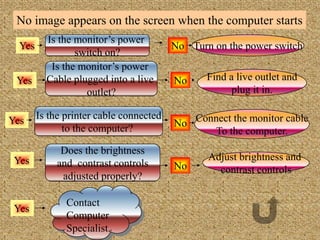
No image appears on the screen when the computer starts
          Is the monitor’s power
  Yes                                    No Turn on the power switch
                 switch on?
           Is the monitor’s power
 Yes      Cable plugged into a live      No     Find a live outlet and
                   outlet?                            plug it in.

        Is the printer cable connected
Yes
               to the computer?          No Connect the monitor cable
                                                To the computer.
              Does the brightness
 Yes                                            Adjust brightness and
             and contrast controls       No       contrast controls
              adjusted properly?

               Contact
 Yes
               Computer
               Specialist.
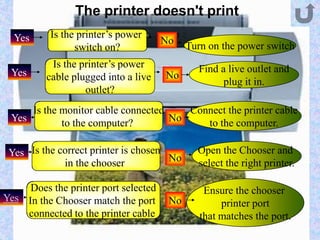
The printer doesn't print
  Yes     Is the printer’s power
                                      No
                switch on?                  Turn on the power switch
          Is the printer’s power              Find a live outlet and
 Yes     cable plugged into a live    No
                                                    plug it in.
                  outlet?
     Is the monitor cable connected    Connect the printer cable
 Yes        to the computer?        No    to the computer.

 Yes Is the correct printer is chosen No      Open the Chooser and
             in the chooser                   select the right printer.

     Does the printer port selected             Ensure the chooser
Yes In the Chooser match the port      No           printer port
    connected to the printer cable             that matches the port.
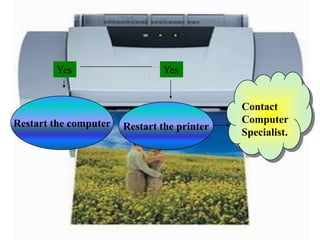
Yes                    Yes


                                             Contact
Restart the computer                         Computer
                       Restart the printer
                                             Specialist.
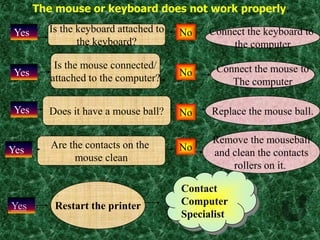
The mouse or keyboard does not work properly.

 Yes     Is the keyboard attached to   No   Connect the keyboard to
                the keyboard?                    the computer
           Is the mouse connected/            Connect the mouse to
 Yes                                   No
          attached to the computer?              The computer

 Yes     Does it have a mouse ball?    No    Replace the mouse ball.


          Are the contacts on the            Remove the mouseball
Yes                                    No
               mouse clean                   and clean the contacts
                                                 rollers on it.

                                       Contact
Yes        Restart the printer         Computer
                                       Specialist
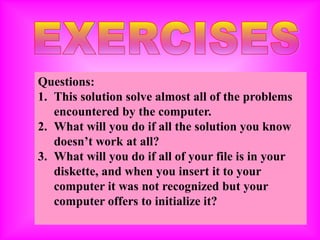
Questions:
1. This solution solve almost all of the problems
   encountered by the computer.
2. What will you do if all the solution you know
   doesn’t work at all?
3. What will you do if all of your file is in your
   diskette, and when you insert it to your
   computer it was not recognized but your
   computer offers to initialize it?
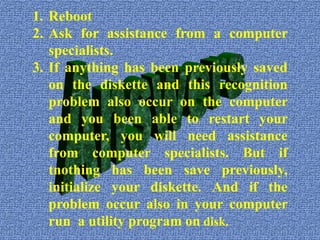
1. Reboot
2. Ask for assistance from a computer
   specialists.
3. If anything has been previously saved
   on the diskette and this recognition
   problem also occur on the computer
   and you been able to restart your
   computer, you will need assistance
   from computer specialists. But if
   tnothing has been save previously,
   initialize your diskette. And if the
   problem occur also in your computer
   run a utility program on disk.
REFERENCES:
www.yahoo.com
http://www.afd.calpoly.edu/ants/support/
basictroublesooting.htm
http://pcs.suite101.com/articla.cfm/basic_
troubleshooting
http://kb.wayne.edu/index.p[hp?article=4
21#General_Advice
Basic computer troubleshooting

Basic computer troubleshooting

  • 1.
  • 3.
  • 4.
    Reboot Virus check See if you are "on" the network Determine the scope of the problem
  • 5.
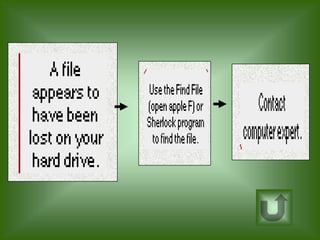
    If something isnot working, or crashed, first restart your computer. This solves most problems. We cannot always explain why it crashes or freezes, occasionally, just accept it as part of the computer world
  • 6.
    Virus check Check tosee if your virus scanning software is up-to-date. Minimally, each month you should update your Antivirus software with the latest virus definitions, in order for it to be effective against the latest viruses. You can typically download new virus definitions from the manufacturer site of your Antivirus software. After updating your virus definitions, run a complete scan of your hard drive.
  • 7.
    Determine the scopeof the problem Try to determine if it is hardware, network, software related or a specific file problem. Is it with the whole office or studio, on only one platform (only Macs or PC's), or just your computer? Is it with one specific program, or one specific file?
  • 8.
    See if youare "on" the network Not being connected to the network is the culprit in most printing, web and e-mail problems. Here is how to test for network connections: In Windows, start Internet Explorer (or any other browser), if you can browse the Internet you are connected to the network.
  • 9.
  • 10.
    When turning thecomputer, it does not start. Yes Is the power switch on? No Turn on the power switch Yes Is the power cable Find a live outlet and No plugged into a live outlet? plug it in. Yes Is the power connected Connect the cable to No to the computer? the computer. Yes No Turn on the power button. Is the power button turned on? Contact Yes Computer Specialist.
  • 11.
    No image appearson the screen when the computer starts Is the monitor’s power Yes No Turn on the power switch switch on? Is the monitor’s power Yes Cable plugged into a live No Find a live outlet and outlet? plug it in. Is the printer cable connected Yes to the computer? No Connect the monitor cable To the computer. Does the brightness Yes Adjust brightness and and contrast controls No contrast controls adjusted properly? Contact Yes Computer Specialist.
  • 12.
    The printer doesn'tprint Yes Is the printer’s power No switch on? Turn on the power switch Is the printer’s power Find a live outlet and Yes cable plugged into a live No plug it in. outlet? Is the monitor cable connected Connect the printer cable Yes to the computer? No to the computer. Yes Is the correct printer is chosen No Open the Chooser and in the chooser select the right printer. Does the printer port selected Ensure the chooser Yes In the Chooser match the port No printer port connected to the printer cable that matches the port.
  • 13.
    Yes Yes Contact Restart the computer Computer Restart the printer Specialist.
  • 14.
    The mouse orkeyboard does not work properly. Yes Is the keyboard attached to No Connect the keyboard to the keyboard? the computer Is the mouse connected/ Connect the mouse to Yes No attached to the computer? The computer Yes Does it have a mouse ball? No Replace the mouse ball. Are the contacts on the Remove the mouseball Yes No mouse clean and clean the contacts rollers on it. Contact Yes Restart the printer Computer Specialist
  • 19.
    Questions: 1. This solutionsolve almost all of the problems encountered by the computer. 2. What will you do if all the solution you know doesn’t work at all? 3. What will you do if all of your file is in your diskette, and when you insert it to your computer it was not recognized but your computer offers to initialize it?
  • 20.
    1. Reboot 2. Askfor assistance from a computer specialists. 3. If anything has been previously saved on the diskette and this recognition problem also occur on the computer and you been able to restart your computer, you will need assistance from computer specialists. But if tnothing has been save previously, initialize your diskette. And if the problem occur also in your computer run a utility program on disk.
  • 21.