Basic Computer Maintenance
CPU
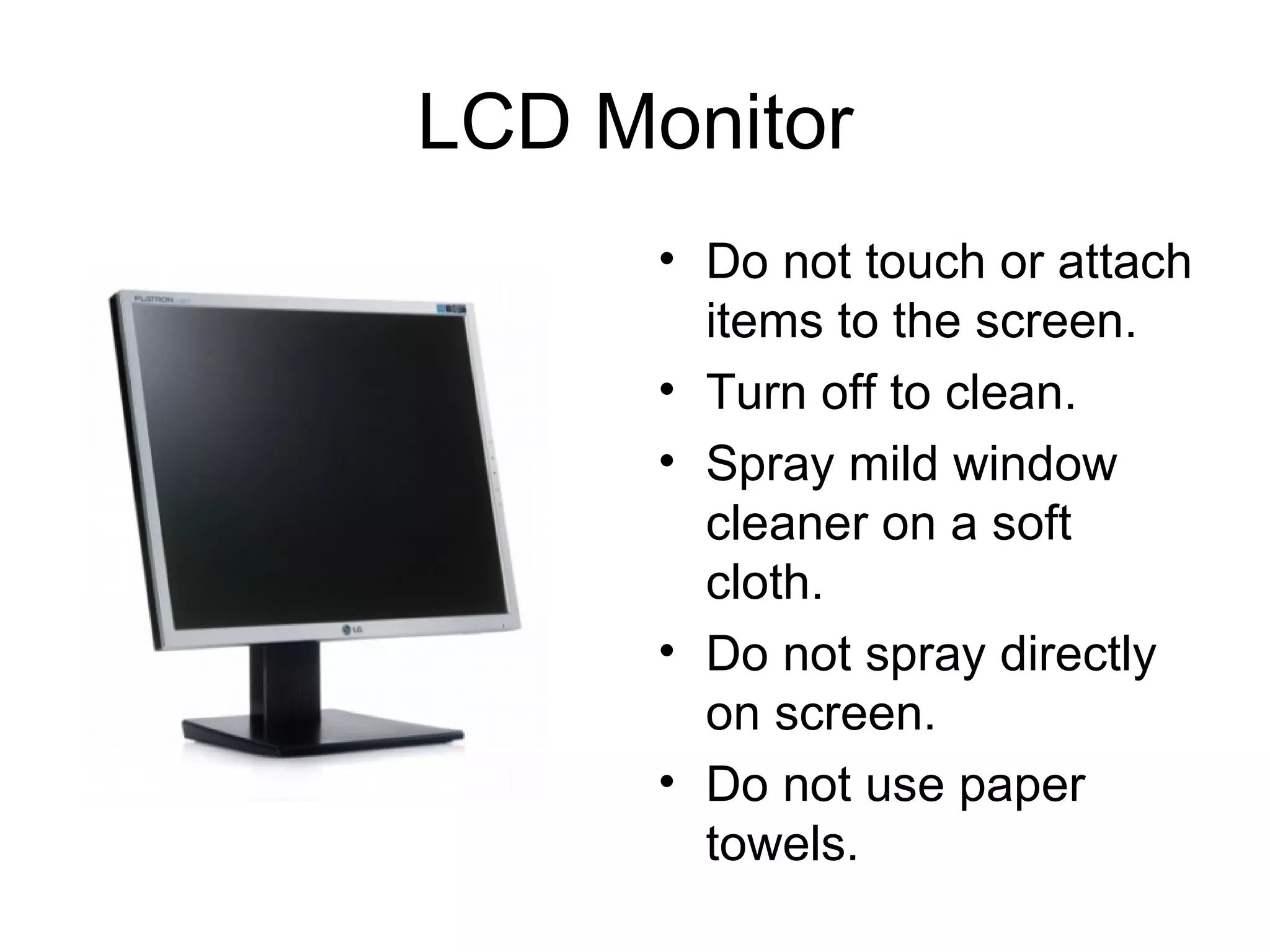
LCD Monitor Do not touch or attach items to the screen. Turn off to clean. Spray mild window cleaner on a soft cloth. Do not spray directly on screen. Do not use paper towels.
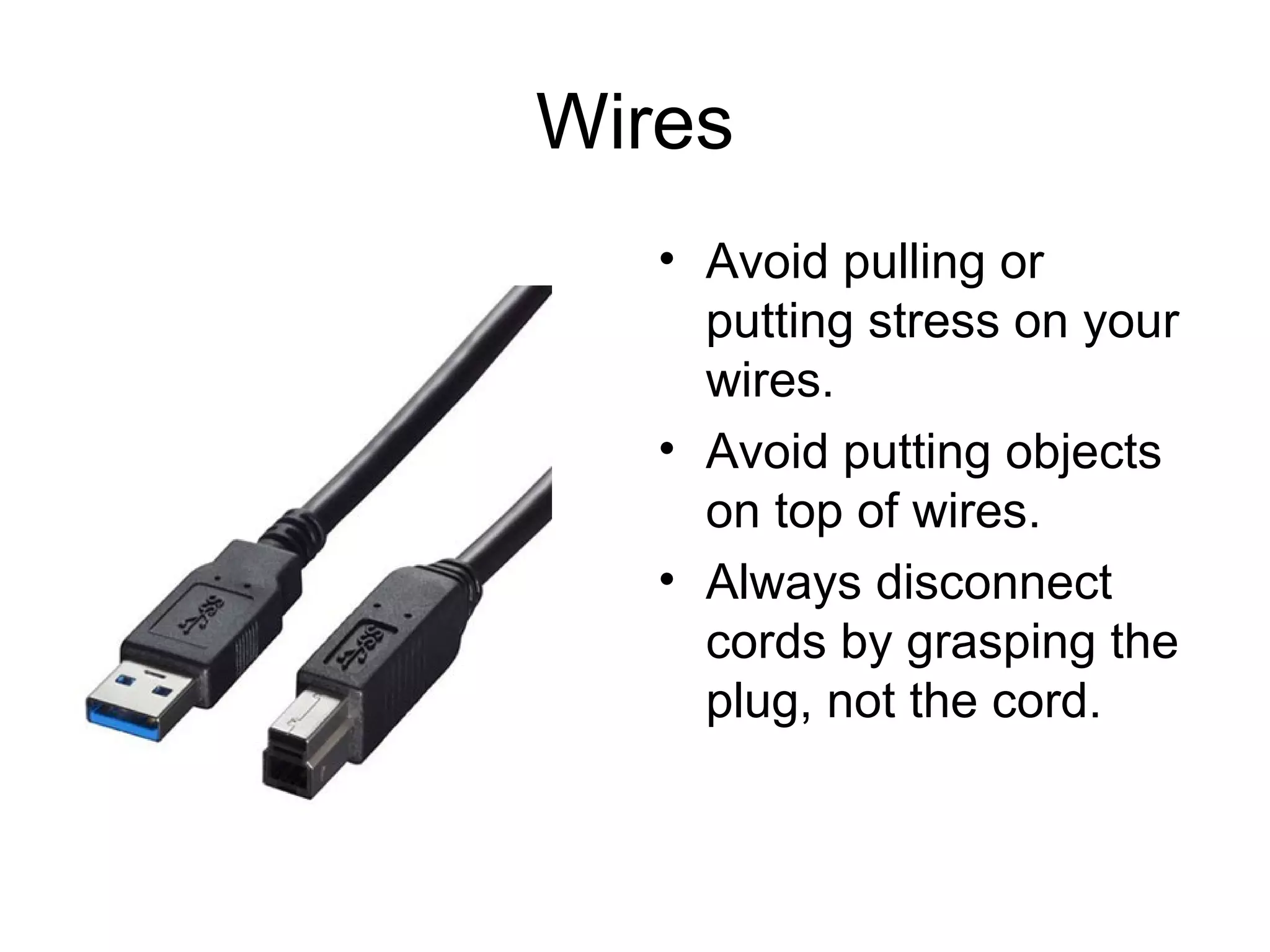
Wires Avoid pulling or putting stress on your wires. Avoid putting objects on top of wires. Always disconnect cords by grasping the plug, not the cord.
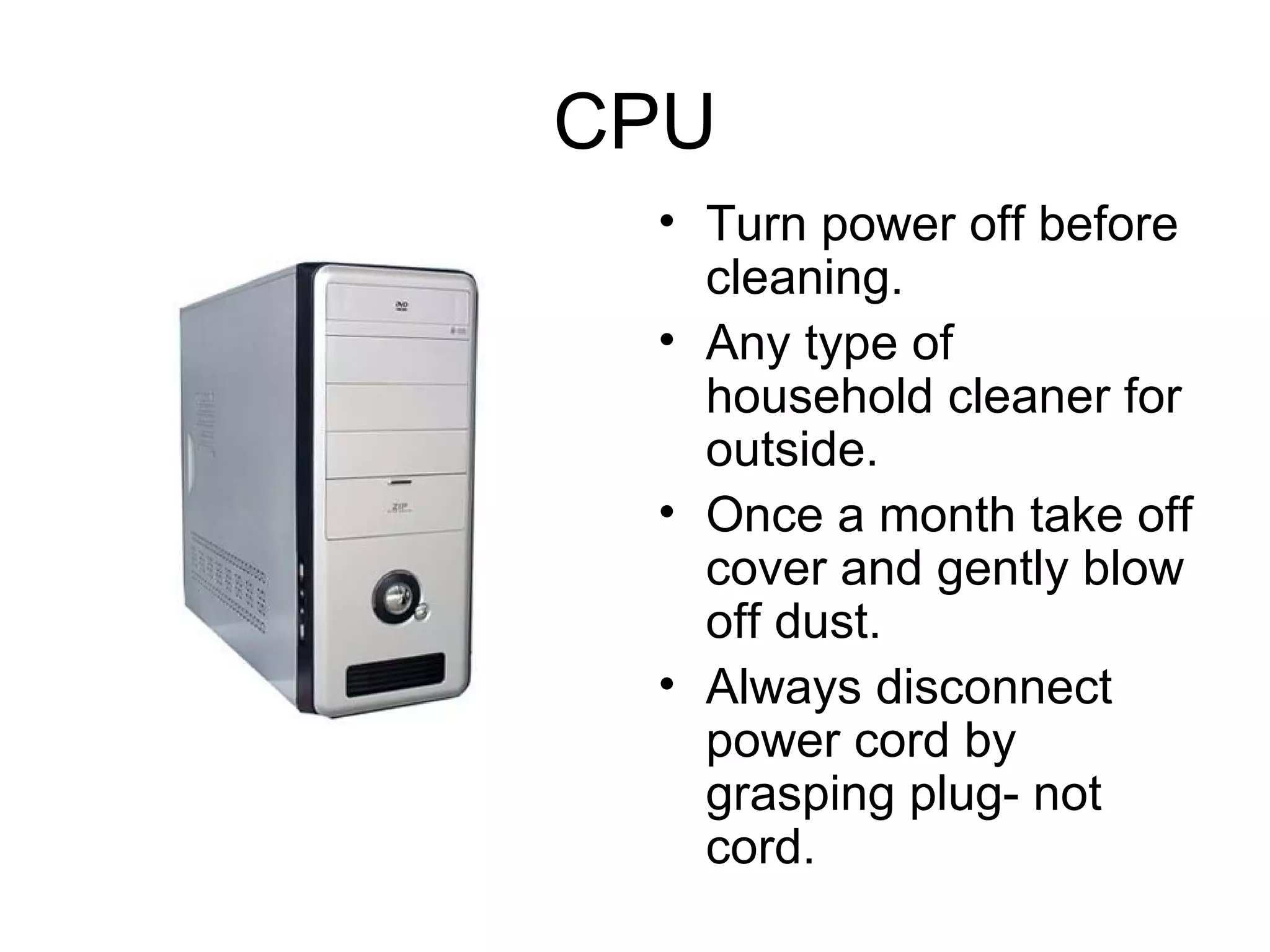
CPU Turn power off before cleaning. Any type of household cleaner for outside. Once a month take off cover and gently blow off dust. Always disconnect power cord by grasping plug- not cord.
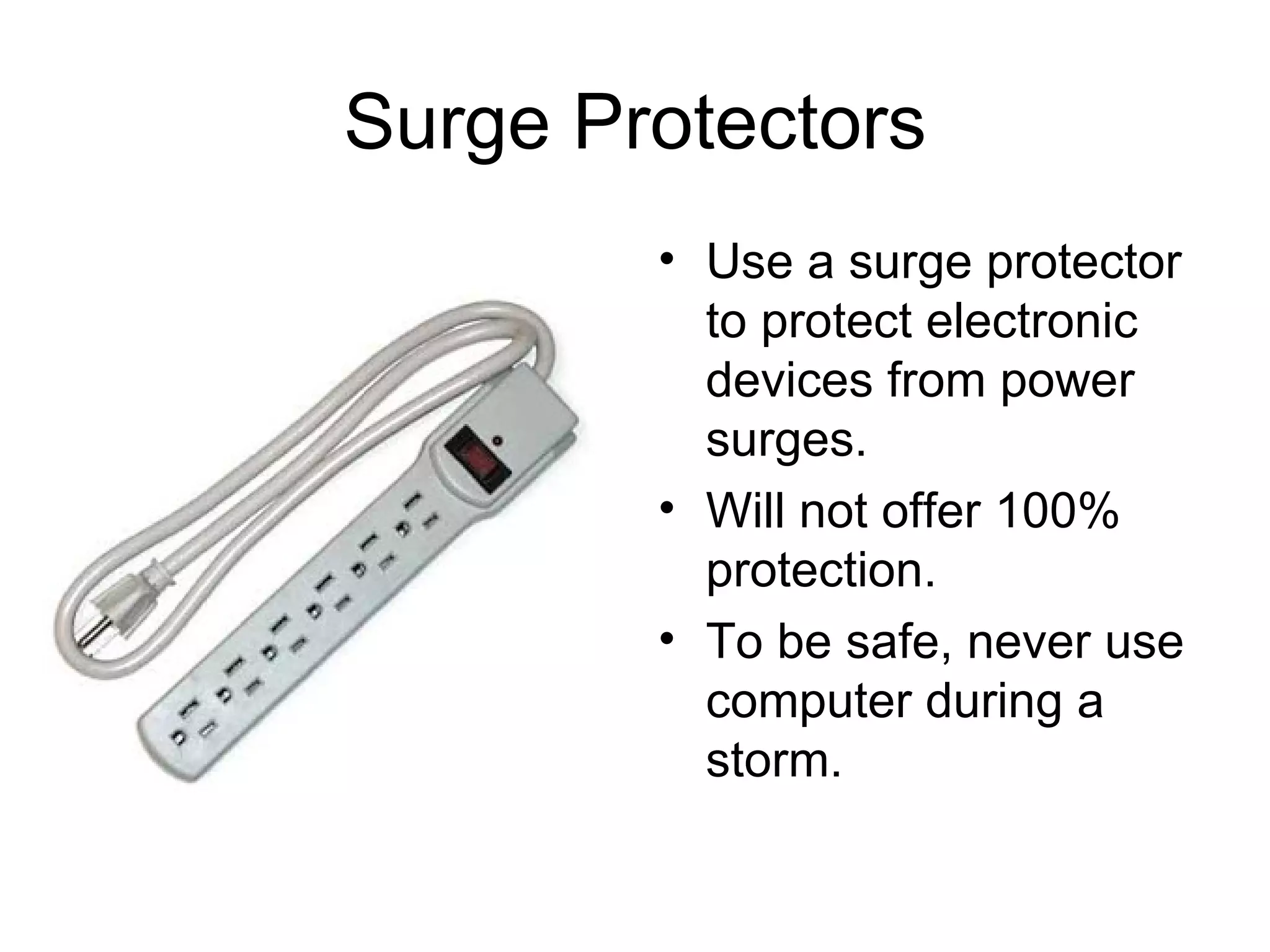
Surge Protectors Use a surge protector to protect electronic devices from power surges. Will not offer 100% protection. To be safe, never use computer during a storm.
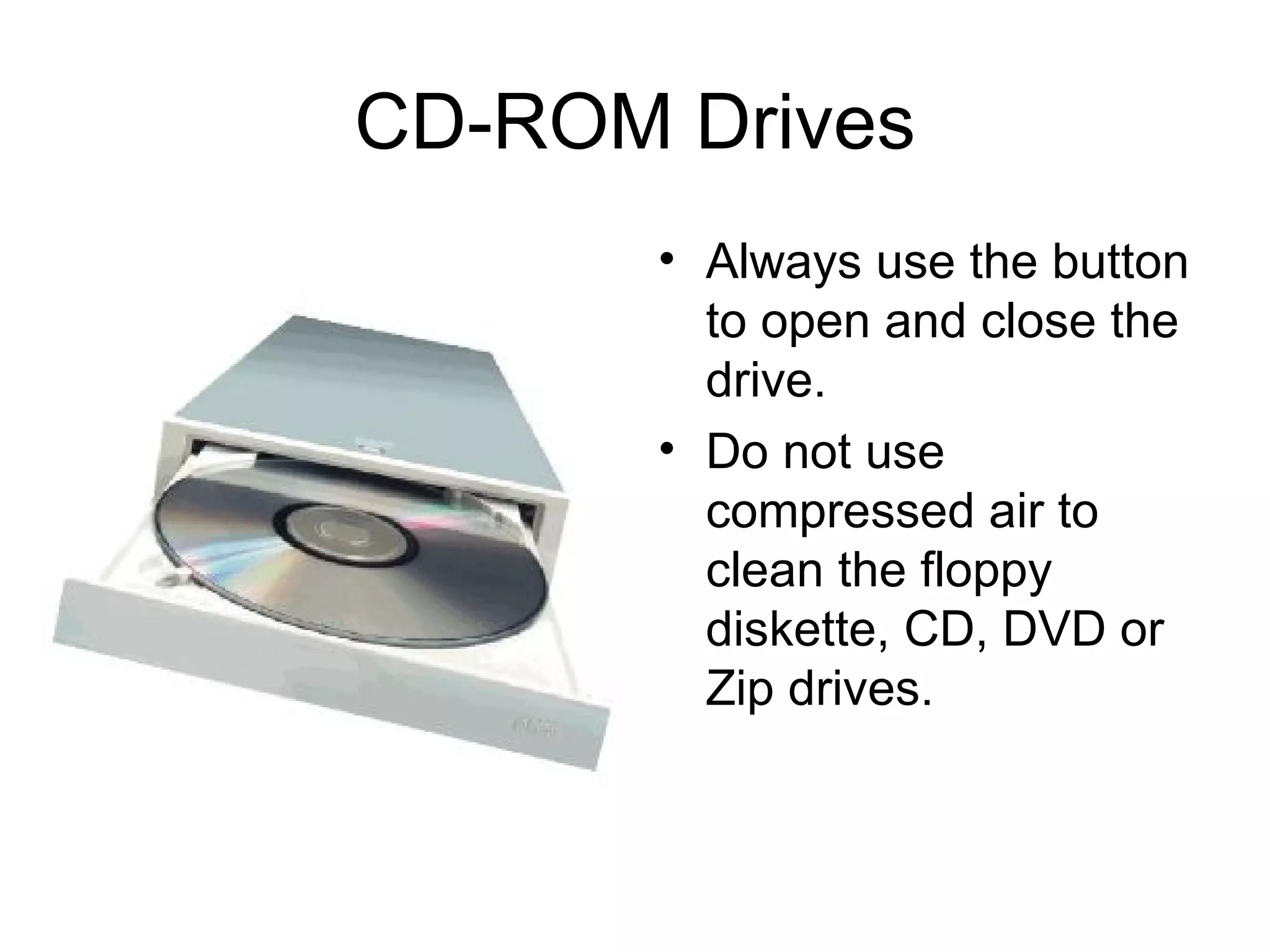
CD-ROM Drives Always use the button to open and close the drive. Do not use compressed air to clean the floppy diskette, CD, DVD or Zip drives.
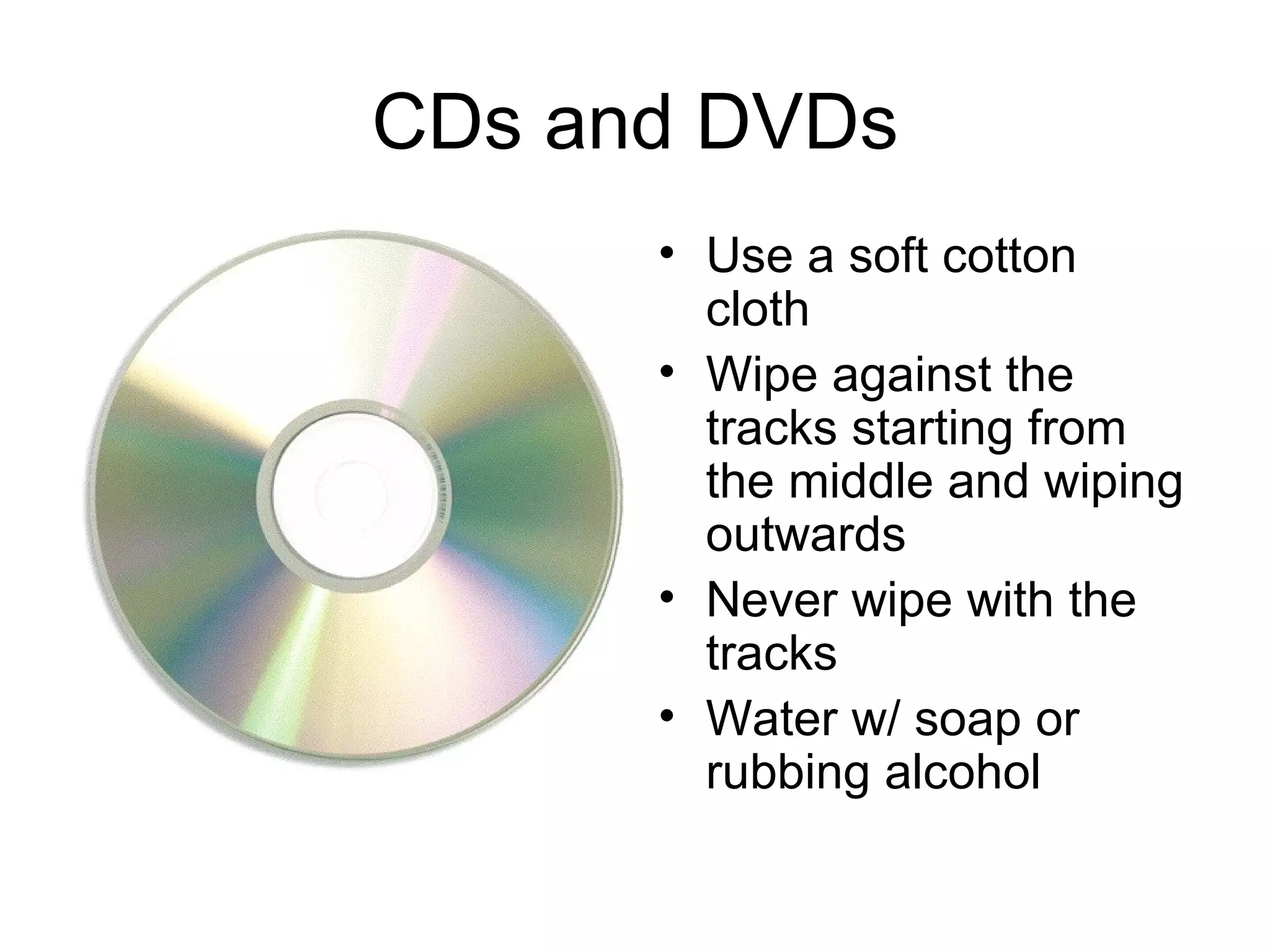
CDs and DVDs Use a soft cotton cloth Wipe against the tracks starting from the middle and wiping outwards Never wipe with the tracks Water w/ soap or rubbing alcohol
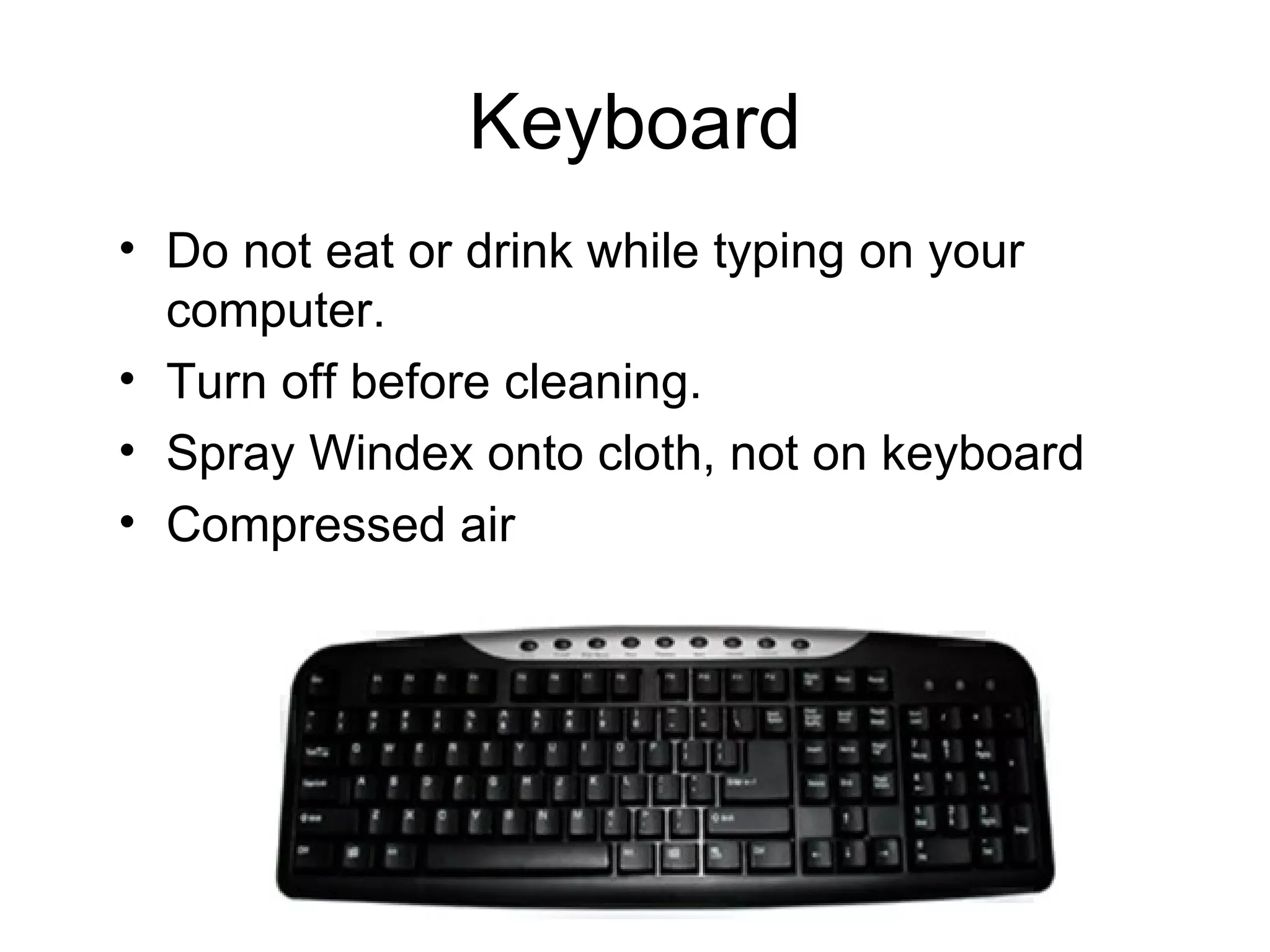
Keyboard Do not eat or drink while typing on your computer. Turn off before cleaning. Spray Windex onto cloth, not on keyboard Compressed air
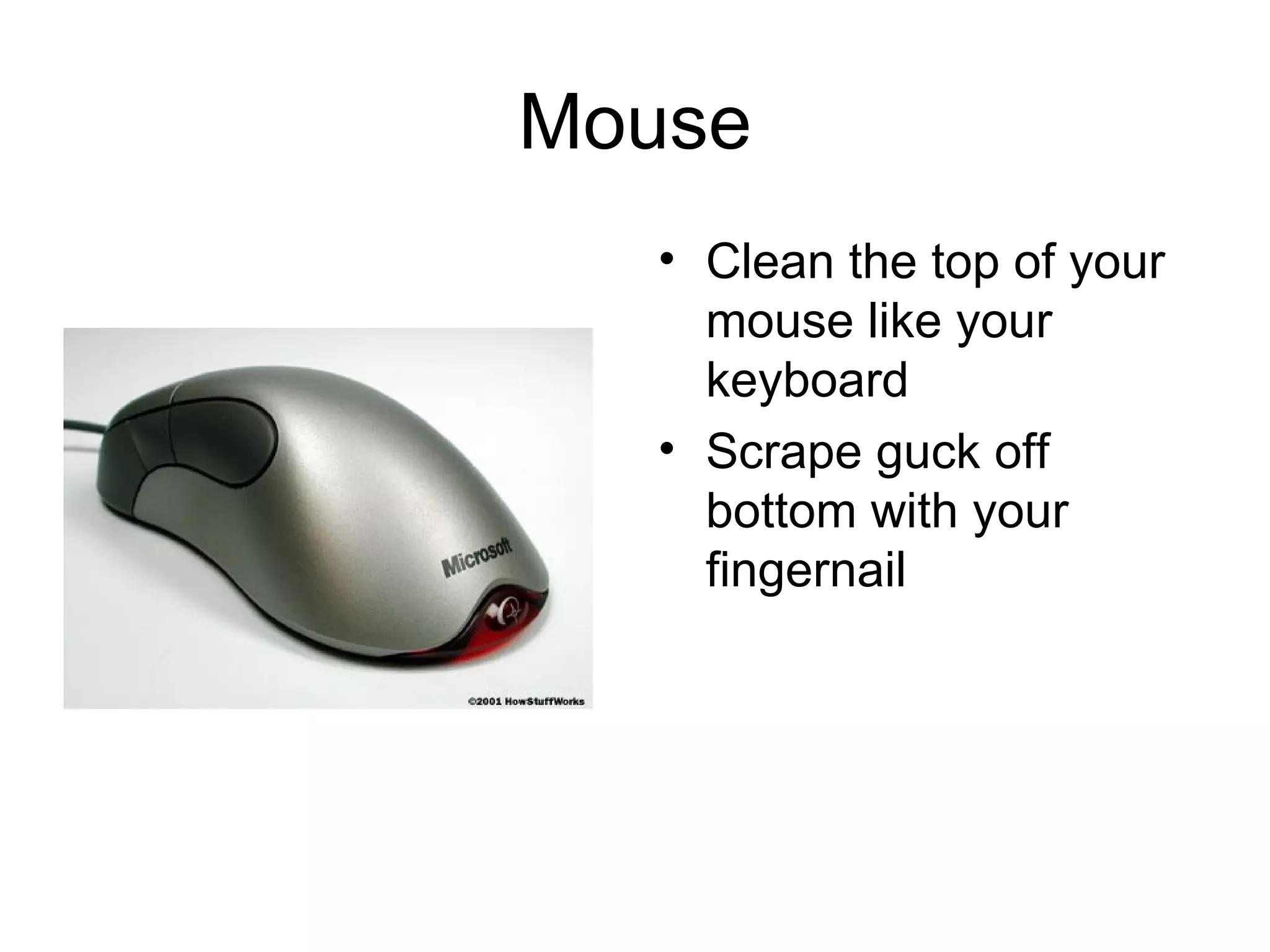
Mouse Clean the top of your mouse like your keyboard Scrape guck off bottom with your fingernail
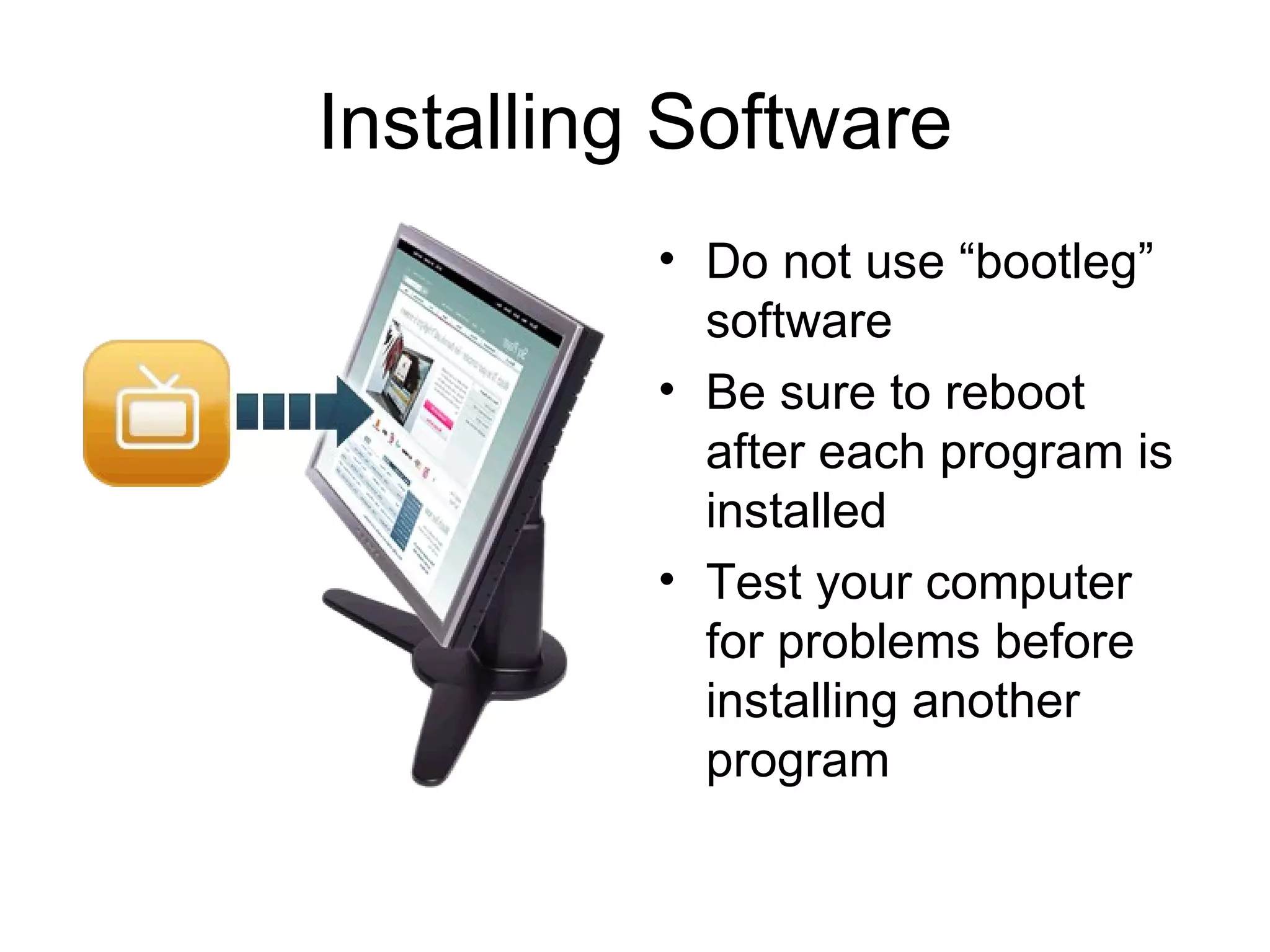
Installing Software Do not use “bootleg” software Be sure to reboot after each program is installed Test your computer for problems before installing another program
Protect Against Viruses Don’t open email attachments from people you don’t know. If your computer suddenly starts acting strange, you should run a virus scan.
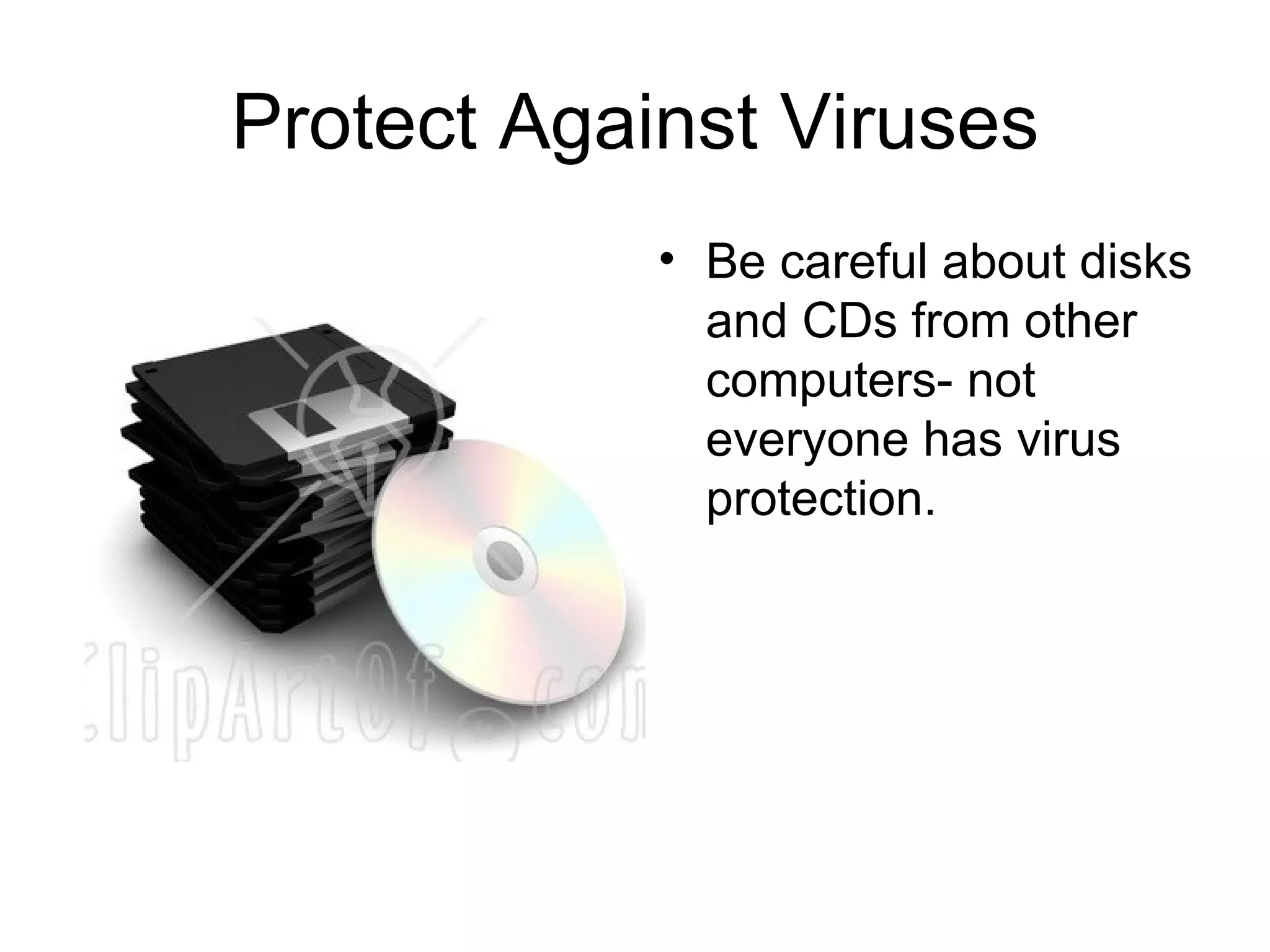
Protect Against Viruses Be careful about disks and CDs from other computers- not everyone has virus protection.
Protect Against Viruses Purchase anti-virus software. Update the software at least once a month.
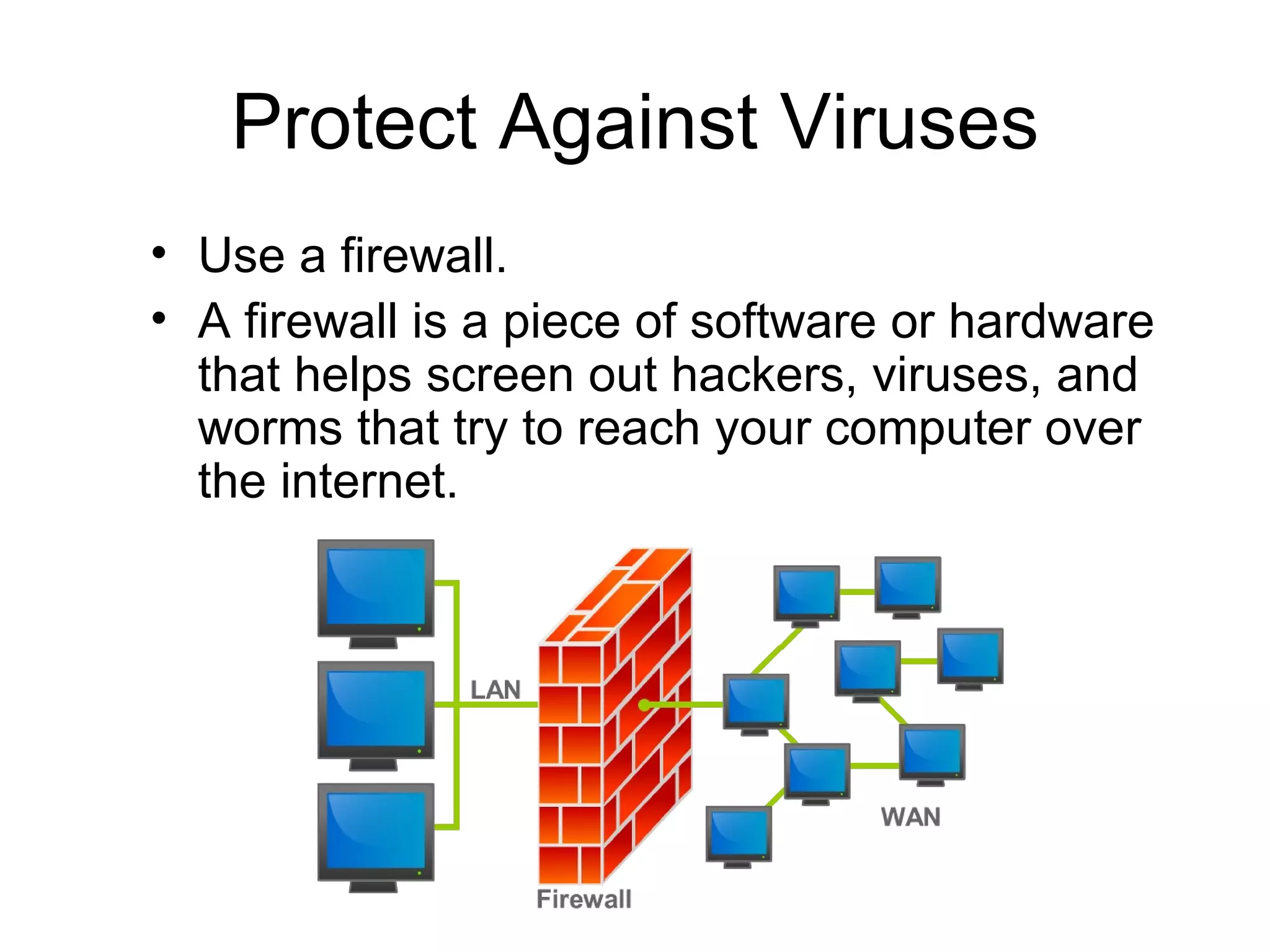
Protect Against Viruses Use a firewall. A firewall is a piece of software or hardware that helps screen out hackers, viruses, and worms that try to reach your computer over the internet.
Protect Against Viruses Be careful about what you download from the Internet!
Protect Against Viruses Be sure that everyone who uses your computer follows these rules!
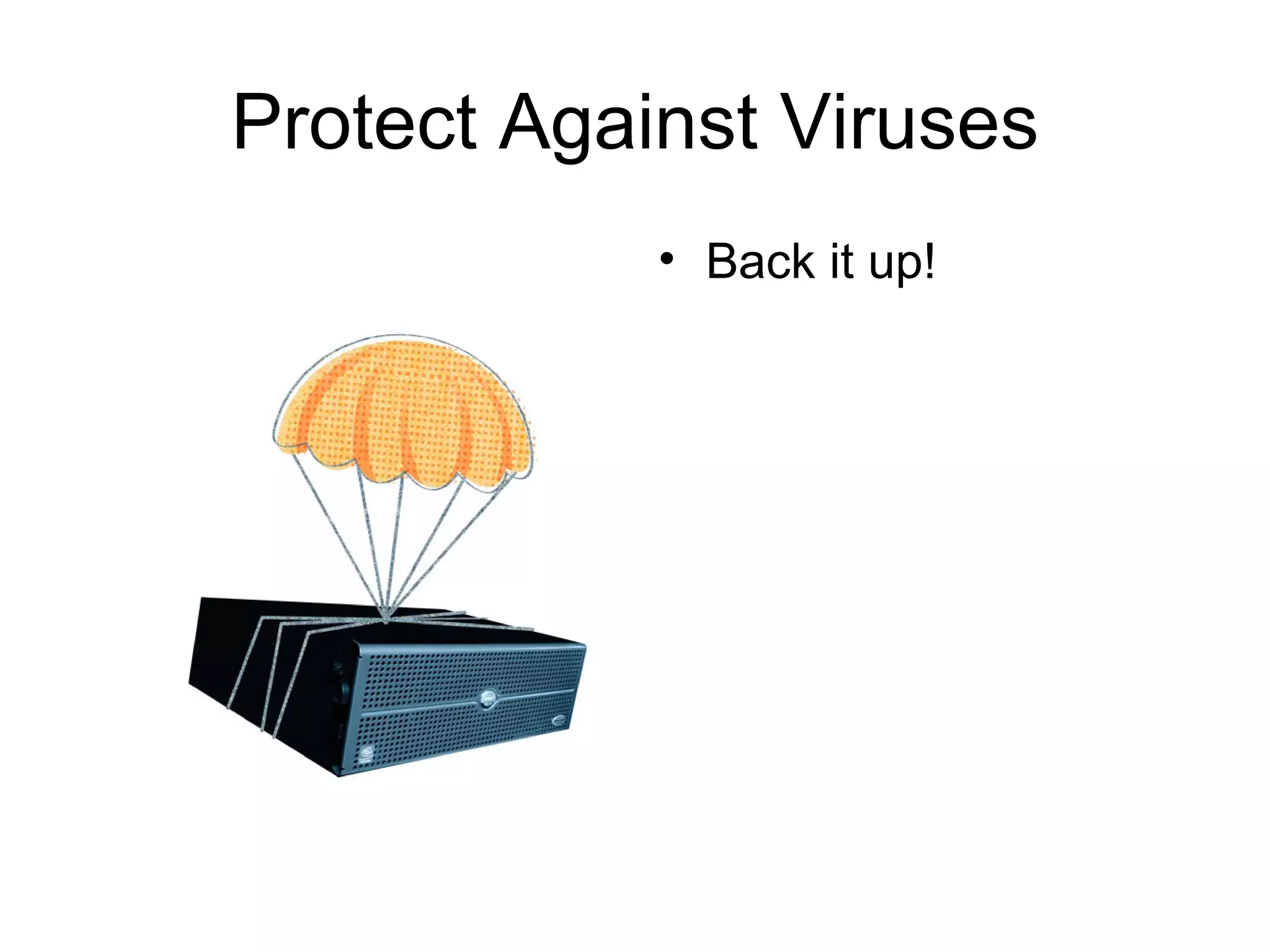
Protect Against Viruses Back it up!
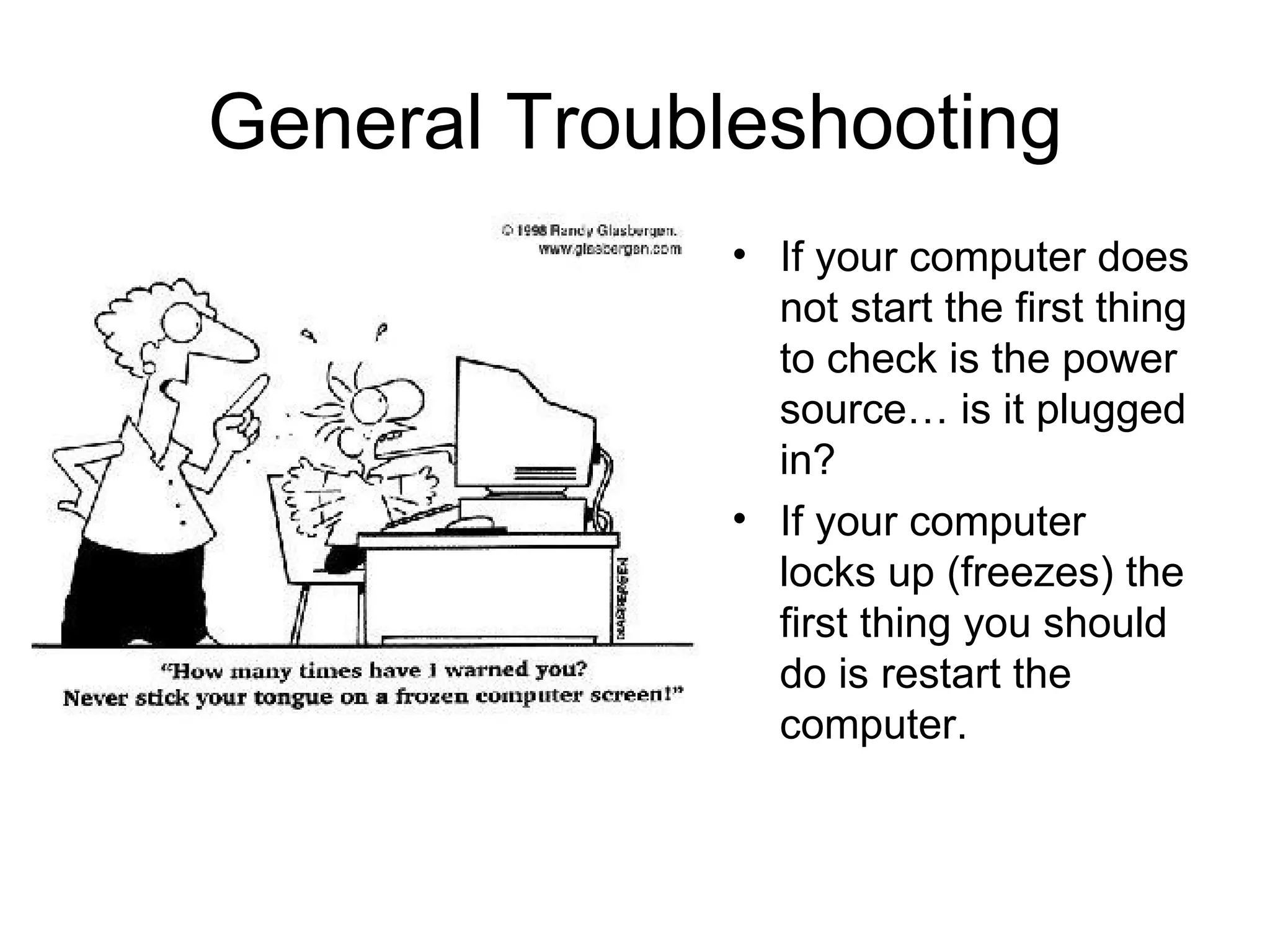
General Troubleshooting If your computer does not start the first thing to check is the power source… is it plugged in? If your computer locks up (freezes) the first thing you should do is restart the computer.
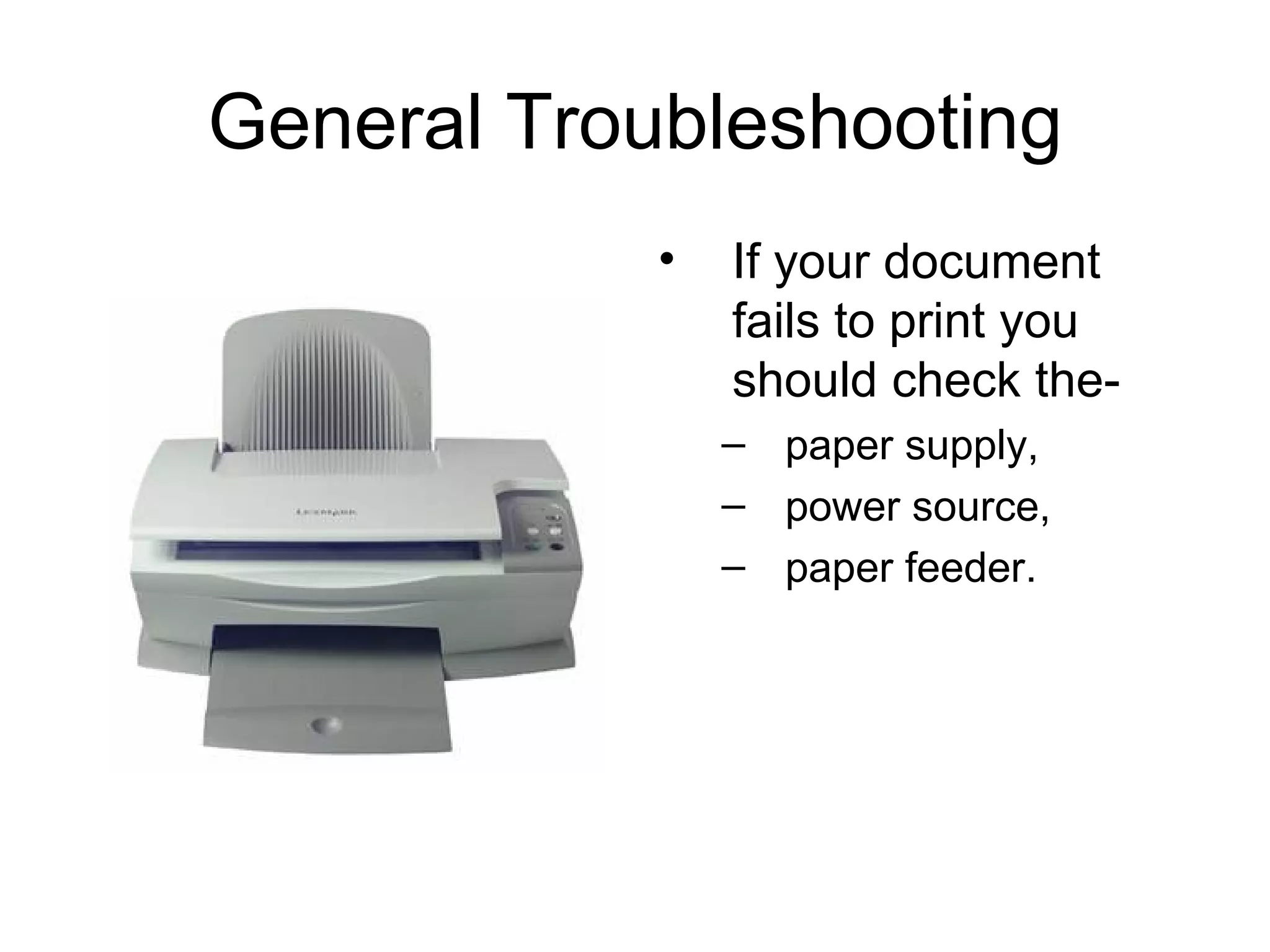
General Troubleshooting If your document fails to print you should check the- paper supply,  power source,  paper feeder.
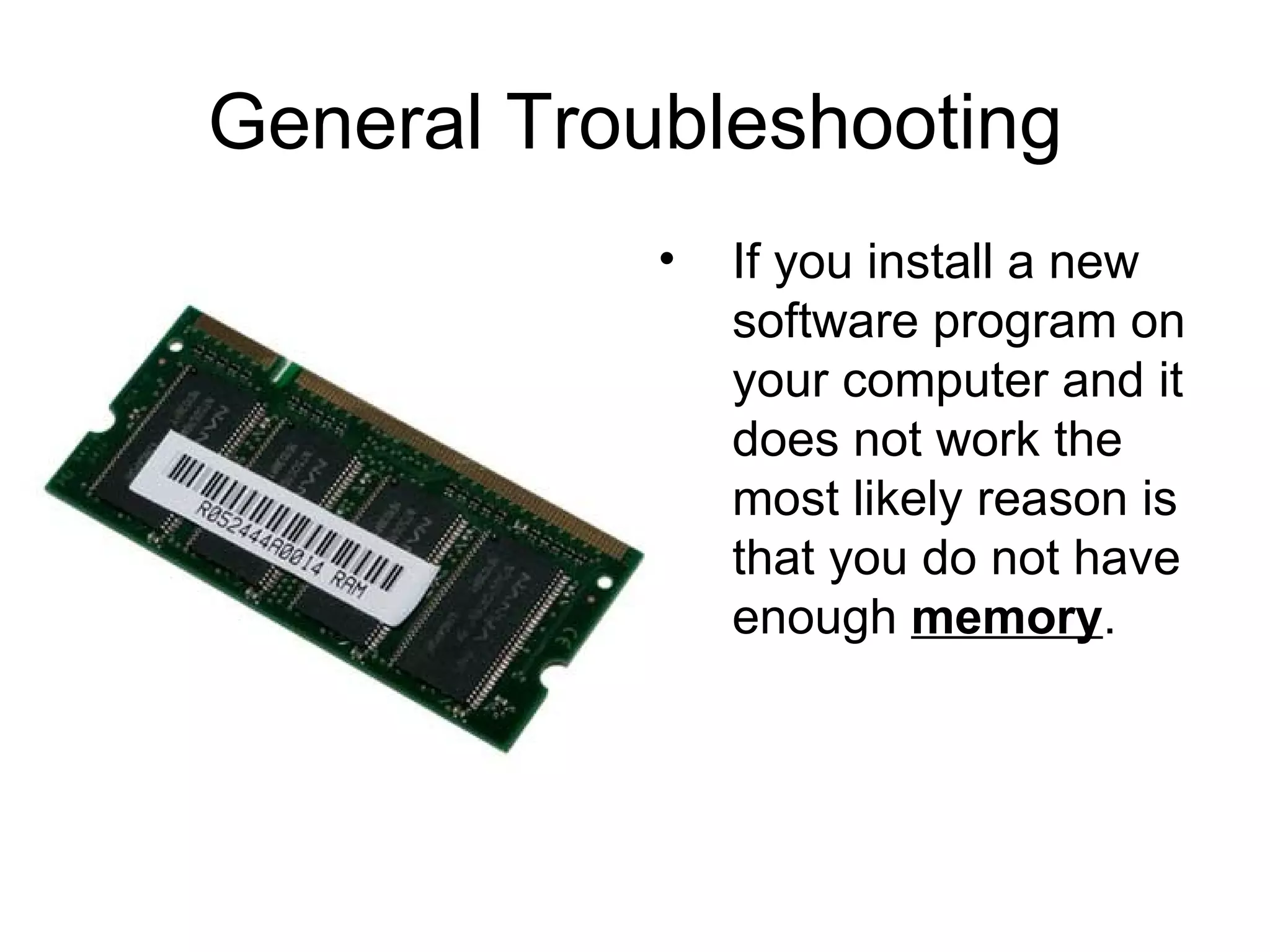
General Troubleshooting If you install a new software program on your computer and it does not work the most likely reason is that you do not have enough  memory .

Basic computer maintenance

  • 1.
  • 2.
  • 3.
    LCD Monitor Donot touch or attach items to the screen. Turn off to clean. Spray mild window cleaner on a soft cloth. Do not spray directly on screen. Do not use paper towels.
  • 4.
    Wires Avoid pullingor putting stress on your wires. Avoid putting objects on top of wires. Always disconnect cords by grasping the plug, not the cord.
  • 5.
    CPU Turn poweroff before cleaning. Any type of household cleaner for outside. Once a month take off cover and gently blow off dust. Always disconnect power cord by grasping plug- not cord.
  • 6.
    Surge Protectors Usea surge protector to protect electronic devices from power surges. Will not offer 100% protection. To be safe, never use computer during a storm.
  • 7.
    CD-ROM Drives Alwaysuse the button to open and close the drive. Do not use compressed air to clean the floppy diskette, CD, DVD or Zip drives.
  • 8.
    CDs and DVDsUse a soft cotton cloth Wipe against the tracks starting from the middle and wiping outwards Never wipe with the tracks Water w/ soap or rubbing alcohol
  • 9.
    Keyboard Do noteat or drink while typing on your computer. Turn off before cleaning. Spray Windex onto cloth, not on keyboard Compressed air
  • 10.
    Mouse Clean thetop of your mouse like your keyboard Scrape guck off bottom with your fingernail
  • 11.
    Installing Software Donot use “bootleg” software Be sure to reboot after each program is installed Test your computer for problems before installing another program
  • 12.
    Protect Against VirusesDon’t open email attachments from people you don’t know. If your computer suddenly starts acting strange, you should run a virus scan.
  • 13.
    Protect Against VirusesBe careful about disks and CDs from other computers- not everyone has virus protection.
  • 14.
    Protect Against VirusesPurchase anti-virus software. Update the software at least once a month.
  • 15.
    Protect Against VirusesUse a firewall. A firewall is a piece of software or hardware that helps screen out hackers, viruses, and worms that try to reach your computer over the internet.
  • 16.
    Protect Against VirusesBe careful about what you download from the Internet!
  • 17.
    Protect Against VirusesBe sure that everyone who uses your computer follows these rules!
  • 18.
  • 19.
    General Troubleshooting Ifyour computer does not start the first thing to check is the power source… is it plugged in? If your computer locks up (freezes) the first thing you should do is restart the computer.
  • 20.
    General Troubleshooting Ifyour document fails to print you should check the- paper supply, power source, paper feeder.
  • 21.
    General Troubleshooting Ifyou install a new software program on your computer and it does not work the most likely reason is that you do not have enough memory .