HOW 2 FORMAT A PC


   WINDOWS XP

    WINDOWS 7
                Anand Charvin
                S2C
WINDOWS XP
You are now ready to format your hard disk.

1. To start, turn on your computer and load the BIOS settings.
2. Insert the alternative operating system to the proper drive.
3. Change the boot sequence from the hard drive to the drive
where you have the alternative operating system. Once done,
your computer should now be looking for a different drive to
locate for the operating system instead of your hard disk when it
starts. Save the setting and restart the computer.

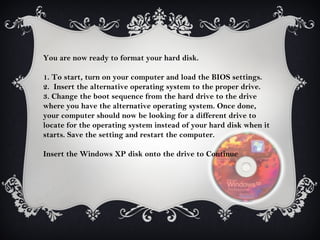
Insert the Windows XP disk onto the drive to Continue
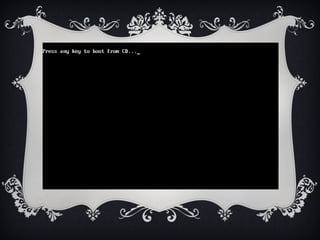
After successfully changing the boot
sequence and inserted the bootable
disk where the operating system is
located you will be prompted with
this screen in Figure once your
computer is back up.
PRESS ANY KEY!!
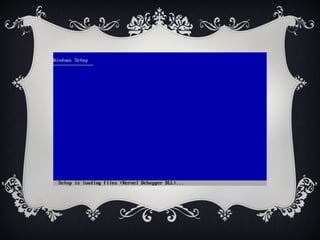
Press any key to let the computer
run through your CD and wait for
few minutes as it will be loading the
necessary files needed to format
your hard disk.
see the figure for details.
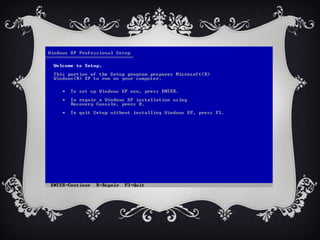
Once everything is loaded and you are
ready to continue, you will be
presented with another screen in
Next Figure .
Just hit enter to begin installing
Windows XP. 
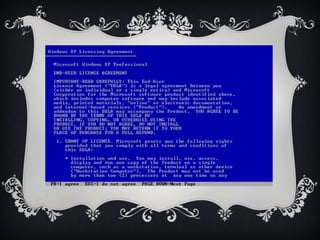
You will then be prompter
with the Microsoft License
Agreement .
Press F8 to accept the terms
and conditions under the
License Agreement.
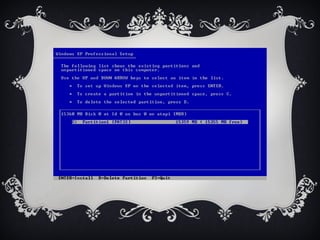
It will then continue and
locate for partitioned and
non-partitioned drives on
your computer. 
Delete the existing partition where your
current operating system is located on your
hard drive by pressing the
“D” button from your keyboard. This will
remove all data on that partition so you can
start from an empty drive.

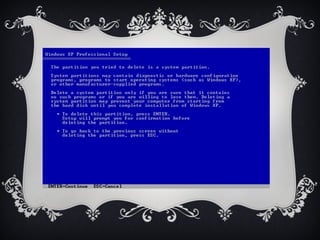
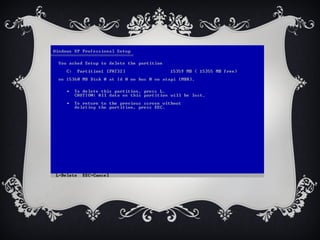
You will then be prompted with a screen as
in Figure asking if you really want to delete
the existing partition.
Press the enter key to
continue the deletion. The
next screen that will appear
will be the confirmation to
delete the partition selected.
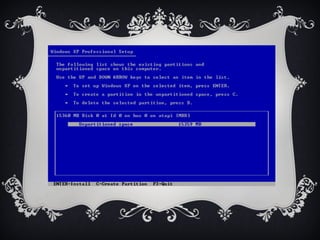
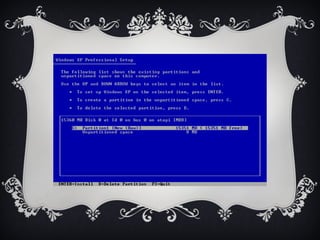
Press “L” and your
existing partition will
be deleted
leaving an empty and
non-partitioned disk
As in Figure ..
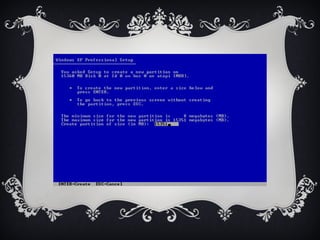
You are now ready to create a new
partition where the operating
system will be installed. Press the
“C”. The next screen as in pic
will be asking you for the size of
the new partition. Choose the
appropriate size of your choice.
You are now ready to create a new
partition where the operating
system will be installed. Press the
“C”. The next screen in Pic will be
asking you for the size of the new
partition. Choose the appropriate
size of your choice.
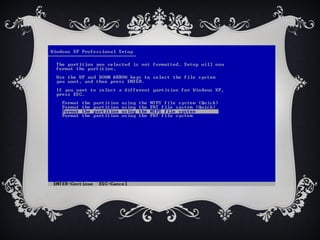
Press the enter key from the keyboard
to continue. The setup will now be
asking you to choose the formatting
type your new partition. Choose
NTFS because it’s an advance and
secure formatting type from
Windows.
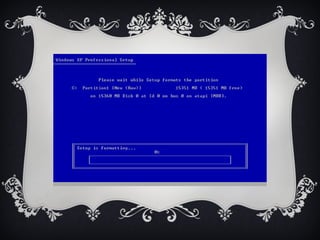
Setup will now be formatting
your hard drive
This may take several minutes
depending on the size of your
hard drive.
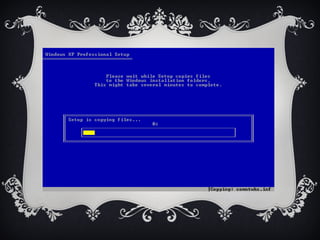
After formatting, the
setup will now copy the
necessary files needed to
 install Windows XP on
your selected partition.
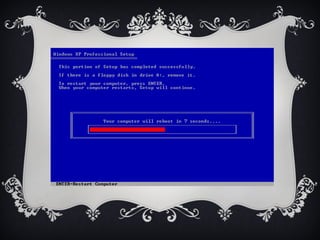
Once it reaches
    100%, your
computer will now
     restart
   to start the
 installation of
   Windows XP.
        
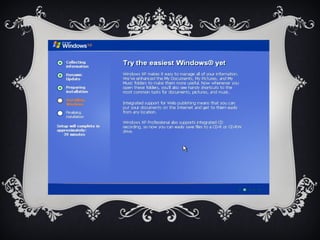
After restarting you will again be
prompted with the screen in
Figure 1. This time do not press
any key since you have done
partitioning your hard drive and
you are now preparing to install
Windows XP.
That Was For Windows XP
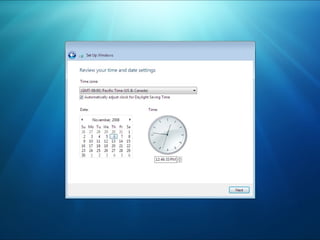
And as you continue you will be presented with
dialogue boxes asking to set date, time, user
accounts and stuff’s like that, as they are not much
complicated no need to say much about it.

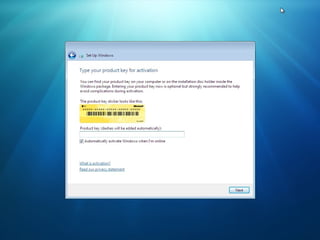
You will be asked for a Serial Key Of XP During
this.
And….As most of us have been labeled as “pirates!”
We Don’t Have to worry about it…..

I Know you got What I Mean!  :P
WINDOWS 7
Starting The installation of Windows7
and going with it is much easier than
hanging out with XP..

Windows 7 Don’t have Many DOS type
Installation Screens, Any one can Do It
Pretty easy with out much trouble
And Here is a Guided Tour on How to
Format and Configure you're System
with Windows 7
Just Like The Old Configuration…
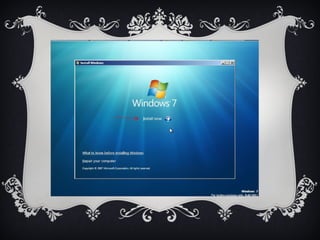
         Boot From the DVD..
Press any Key To Continue and You are
             On the Way
                  
Watch the Screen as Windows loads the
                Files..
After Loading Completes..
There is More “Loading” On the Way!

Switches to another cute Little dos
window.

We are now ready to Get in with the
installation.
Black Screens Are Over,
Now Lets Start the Real Stuff

Getting Into the Process.

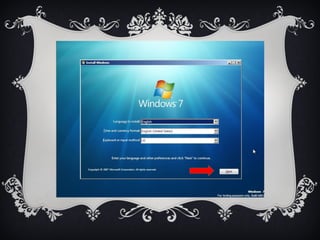
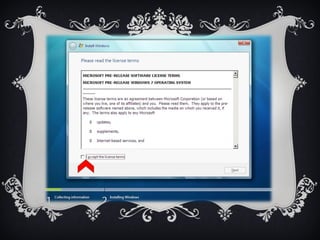
Set the Language, Time And
Keyboard Preference's
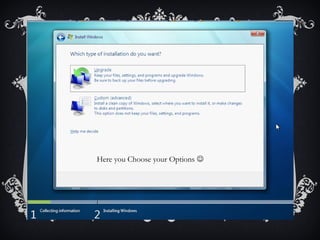
Here you Choose your Options 
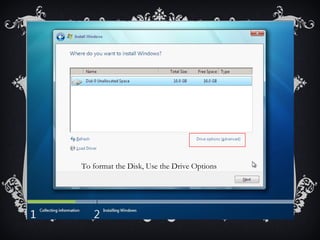
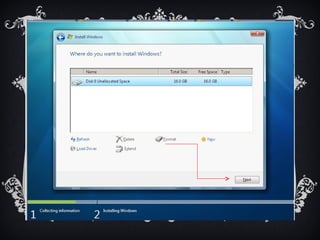
To format the Disk, Use the Drive Options
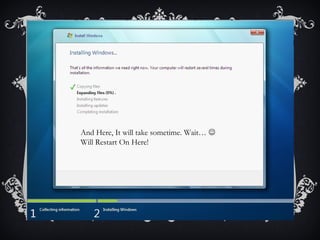
And Here, It will take sometime. Wait… 
Will Restart On Here!
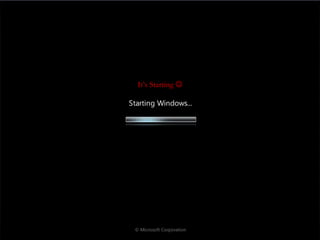
It’s Starting 
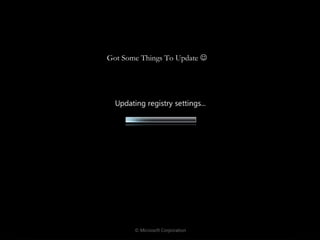
Got Some Things To Update 
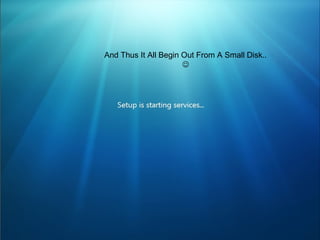
And Thus It All Begin Out From A Small Disk..
                      
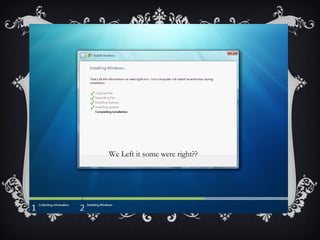
We Left it some were right??
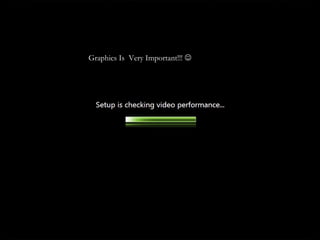
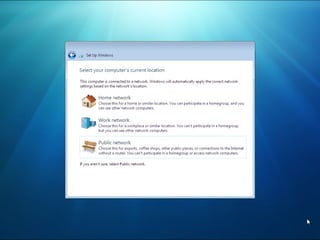
Graphics Is Very Important!!! 
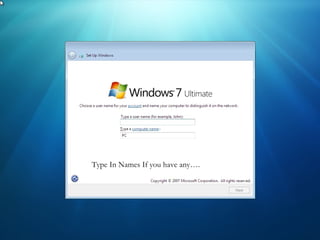
Type In Names If you have any….
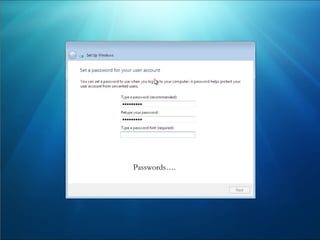
Passwords….
Thank you guys For Watching,,
I hope you got an idea about how to Format and install
   Windows XP and Windows 7 On your systems


           S2C
      THE PIRATEBAY

How 2 format a pc

  • 1.
    HOW 2 FORMATA PC WINDOWS XP WINDOWS 7 Anand Charvin S2C
  • 2.
  • 3.
    You are nowready to format your hard disk. 1. To start, turn on your computer and load the BIOS settings. 2. Insert the alternative operating system to the proper drive. 3. Change the boot sequence from the hard drive to the drive where you have the alternative operating system. Once done, your computer should now be looking for a different drive to locate for the operating system instead of your hard disk when it starts. Save the setting and restart the computer. Insert the Windows XP disk onto the drive to Continue
  • 4.
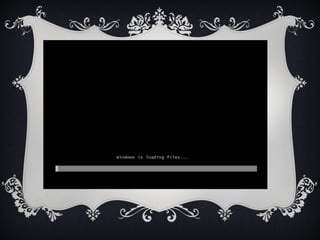
    After successfully changingthe boot sequence and inserted the bootable disk where the operating system is located you will be prompted with this screen in Figure once your computer is back up.
  • 5.
  • 6.
    Press any keyto let the computer run through your CD and wait for few minutes as it will be loading the necessary files needed to format your hard disk. see the figure for details.
  • 8.
    Once everything isloaded and you are ready to continue, you will be presented with another screen in Next Figure . Just hit enter to begin installing Windows XP. 
  • 10.
    You will thenbe prompter with the Microsoft License Agreement . Press F8 to accept the terms and conditions under the License Agreement.
  • 12.
    It will thencontinue and locate for partitioned and non-partitioned drives on your computer. 
  • 14.
    Delete the existingpartition where your current operating system is located on your hard drive by pressing the “D” button from your keyboard. This will remove all data on that partition so you can start from an empty drive. You will then be prompted with a screen as in Figure asking if you really want to delete the existing partition.
  • 16.
    Press the enterkey to continue the deletion. The next screen that will appear will be the confirmation to delete the partition selected.
  • 18.
    Press “L” andyour existing partition will be deleted leaving an empty and non-partitioned disk As in Figure ..
  • 20.
    You are nowready to create a new partition where the operating system will be installed. Press the “C”. The next screen as in pic will be asking you for the size of the new partition. Choose the appropriate size of your choice.
  • 22.
    You are nowready to create a new partition where the operating system will be installed. Press the “C”. The next screen in Pic will be asking you for the size of the new partition. Choose the appropriate size of your choice.
  • 24.
    Press the enterkey from the keyboard to continue. The setup will now be asking you to choose the formatting type your new partition. Choose NTFS because it’s an advance and secure formatting type from Windows.
  • 26.
    Setup will nowbe formatting your hard drive This may take several minutes depending on the size of your hard drive.
  • 28.
    After formatting, the setupwill now copy the necessary files needed to install Windows XP on your selected partition.
  • 30.
    Once it reaches 100%, your computer will now restart to start the installation of Windows XP. 
  • 32.
    After restarting youwill again be prompted with the screen in Figure 1. This time do not press any key since you have done partitioning your hard drive and you are now preparing to install Windows XP.
  • 34.
    That Was ForWindows XP And as you continue you will be presented with dialogue boxes asking to set date, time, user accounts and stuff’s like that, as they are not much complicated no need to say much about it. You will be asked for a Serial Key Of XP During this. And….As most of us have been labeled as “pirates!” We Don’t Have to worry about it….. I Know you got What I Mean!  :P
  • 35.
  • 36.
    Starting The installationof Windows7 and going with it is much easier than hanging out with XP.. Windows 7 Don’t have Many DOS type Installation Screens, Any one can Do It Pretty easy with out much trouble And Here is a Guided Tour on How to Format and Configure you're System with Windows 7
  • 37.
    Just Like TheOld Configuration… Boot From the DVD.. Press any Key To Continue and You are On the Way  Watch the Screen as Windows loads the Files..
  • 39.
    After Loading Completes.. Thereis More “Loading” On the Way! Switches to another cute Little dos window. We are now ready to Get in with the installation.
  • 41.
    Black Screens AreOver, Now Lets Start the Real Stuff Getting Into the Process. Set the Language, Time And Keyboard Preference's
  • 45.
    Here you Chooseyour Options 
  • 46.
    To format theDisk, Use the Drive Options
  • 48.
    And Here, Itwill take sometime. Wait…  Will Restart On Here!
  • 49.
  • 50.
    Got Some ThingsTo Update 
  • 51.
    And Thus ItAll Begin Out From A Small Disk.. 
  • 52.
    We Left itsome were right??
  • 53.
    Graphics Is VeryImportant!!! 
  • 54.
    Type In NamesIf you have any….
  • 55.
  • 61.
    Thank you guysFor Watching,, I hope you got an idea about how to Format and install Windows XP and Windows 7 On your systems S2C THE PIRATEBAY